
Description
Antwork Field Editor adds your custom field values to the admin lists of posts, pages, custom post types, media, taxonomy terms and users. It sorts, filters and searches these lists by field values, and lets you change the values without opening each post or term.
It works with Advanced Custom Fields (version 6) and with Secure Custom Fields. It is tested with the free Advanced Custom Fields and with Secure Custom Fields.
Features
- Columns: show a field as a column in the list. Values are readable: choice labels instead of stored values, the on / off texts of true / false fields, a colour swatch with its code (transparency included), dates in the field’s display format, thumbnails for images and galleries, titles linked to the chosen posts, term and user names, links. Passwords are masked and never sent to the browser.
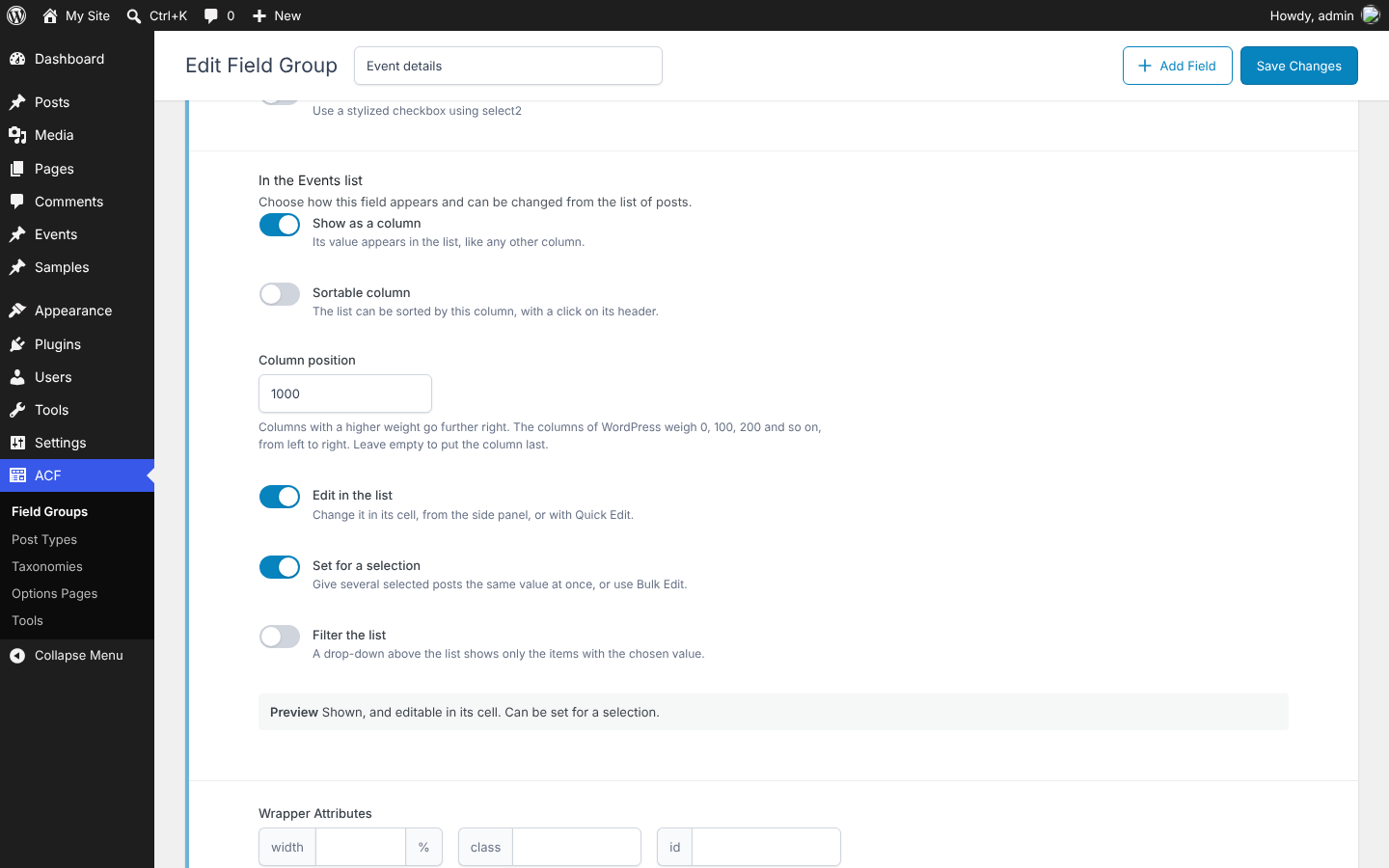
- Column position: a weight places each field column among the columns of WordPress (0, 100, 200… from left to right); leave it empty to put the column last.
- Sortable columns: click the header of a field column to sort the list by it. Numbers are compared as numbers, dates as dates; items without a value stay in the list.
- Filters: choice fields (select, checkbox, radio, button group, true / false, taxonomy) get a drop-down above the list to show only the items with a value, or without one.
- Search in fields: the search box of the list also finds the items whose field values contain the searched words (text, text area, number, range, email, URL and wysiwyg fields).
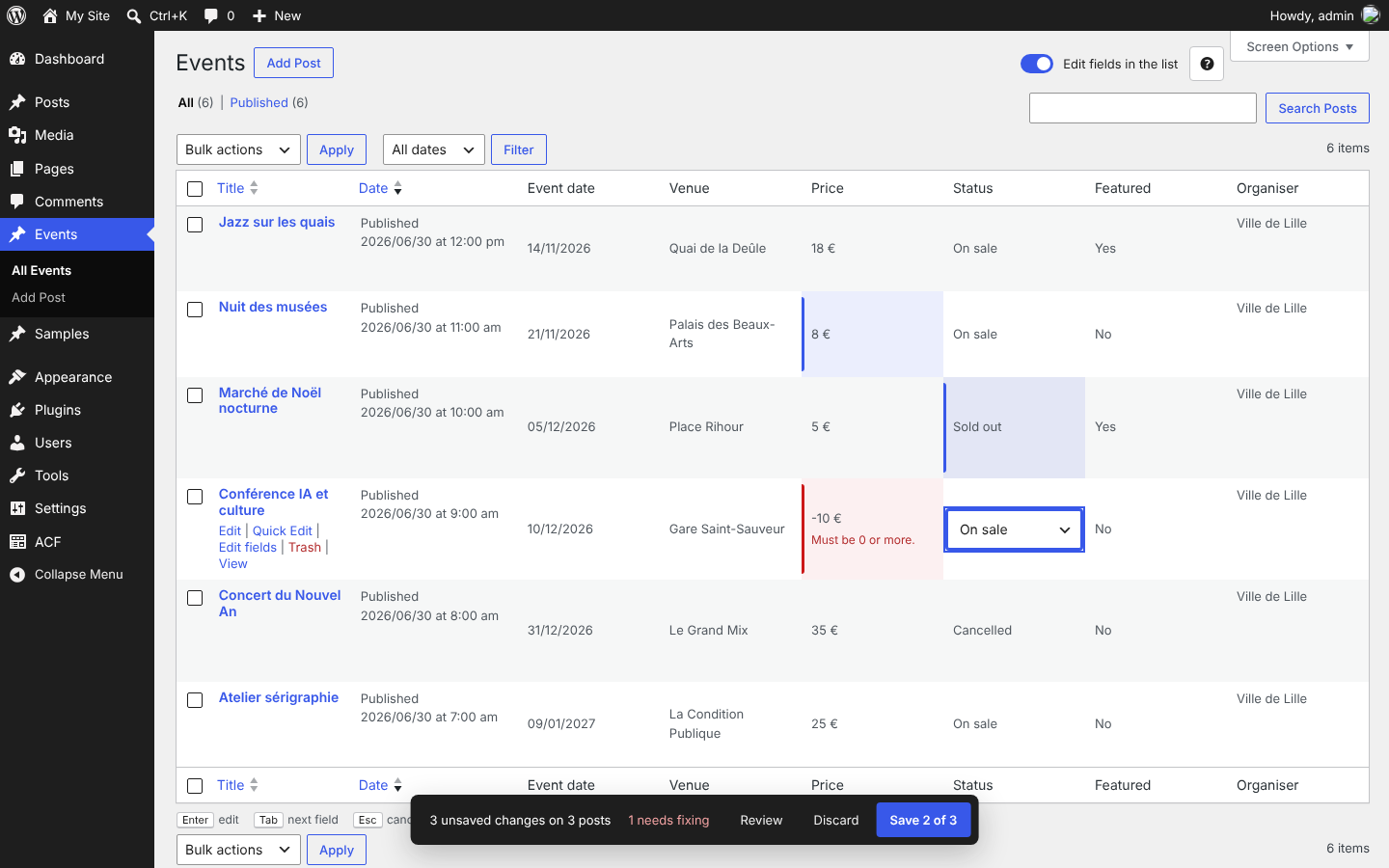
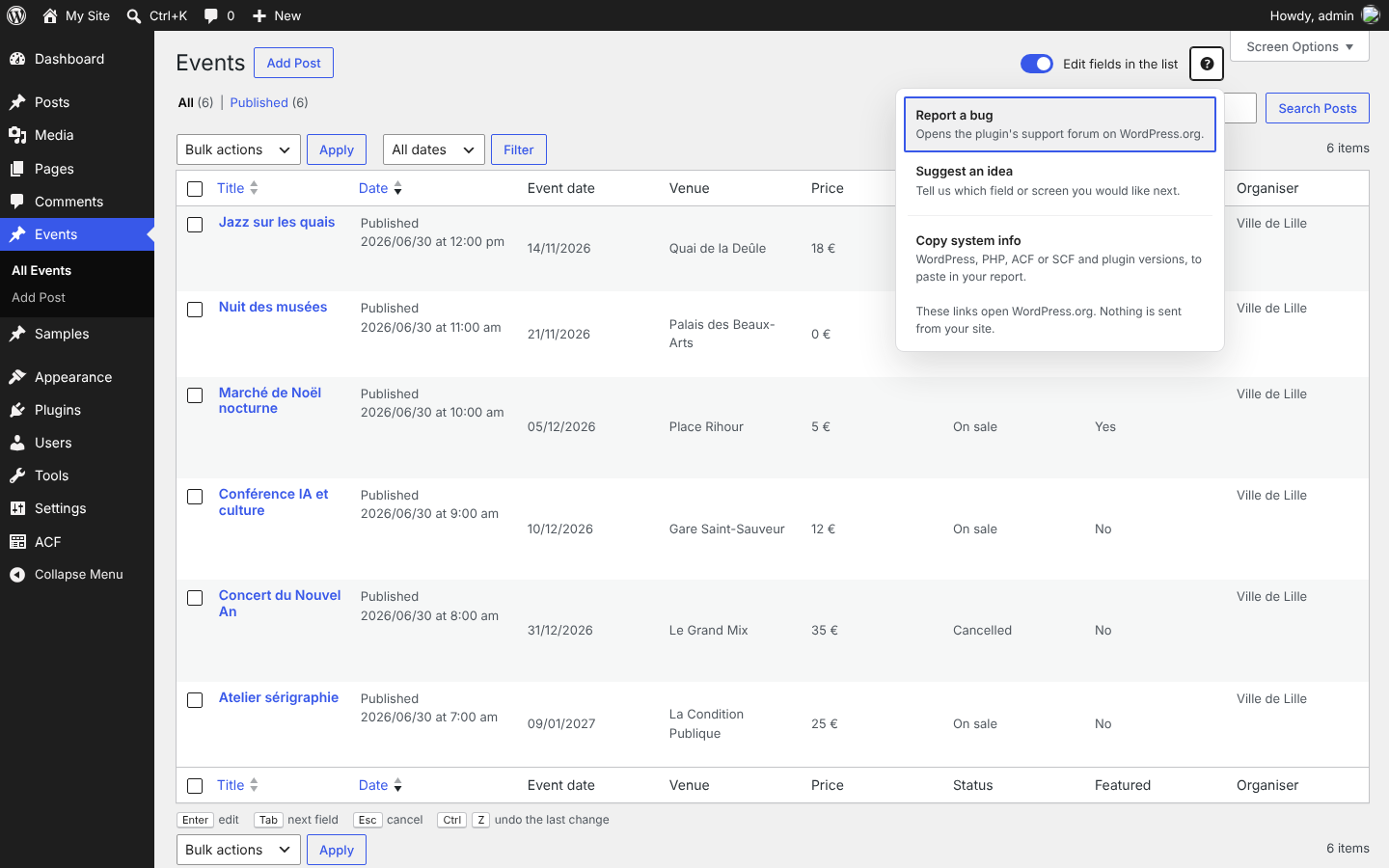
- Edit in the list: turn on “Edit fields in the list” above the table, then click a cell (or press Enter) to change its value. Tab goes to the next field, Escape cancels what you are typing, Ctrl+Z (Cmd+Z on a Mac) undoes the last pending change, and the arrow keys move between cells.
- Pending changes: nothing is saved while you edit. Changed cells are marked, and a bar at the bottom of the screen counts your changes, with Review, Discard and Save. Values the browser can already tell are wrong (a number out of range, an invalid e-mail address, an empty required field) are shown in their cell and are not sent. If you leave the page with pending changes, your browser asks first.
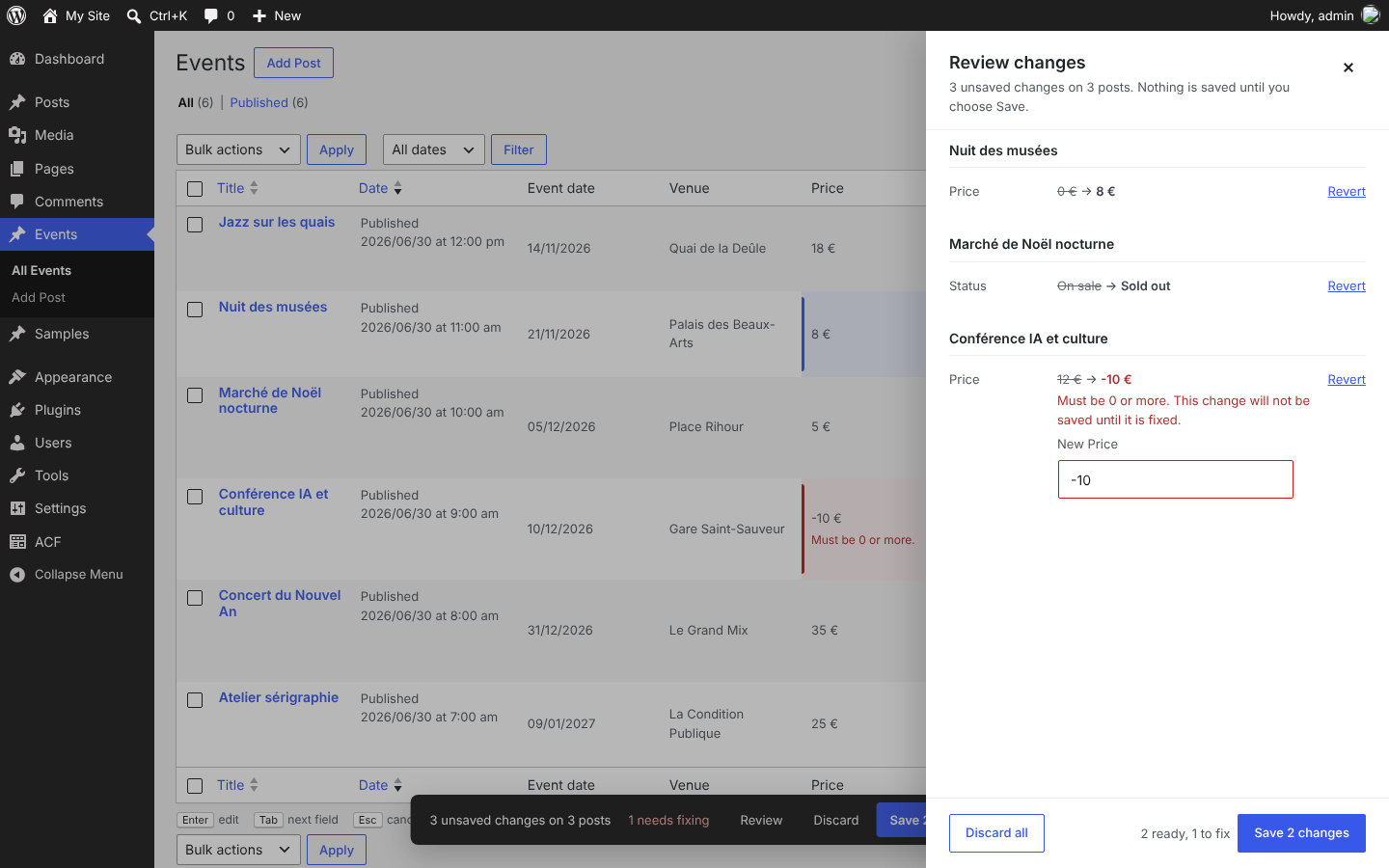
- Review: see each change with its old and new value, revert it, or fix the ones that need it. Save writes the changes that are ready; the others stay pending.
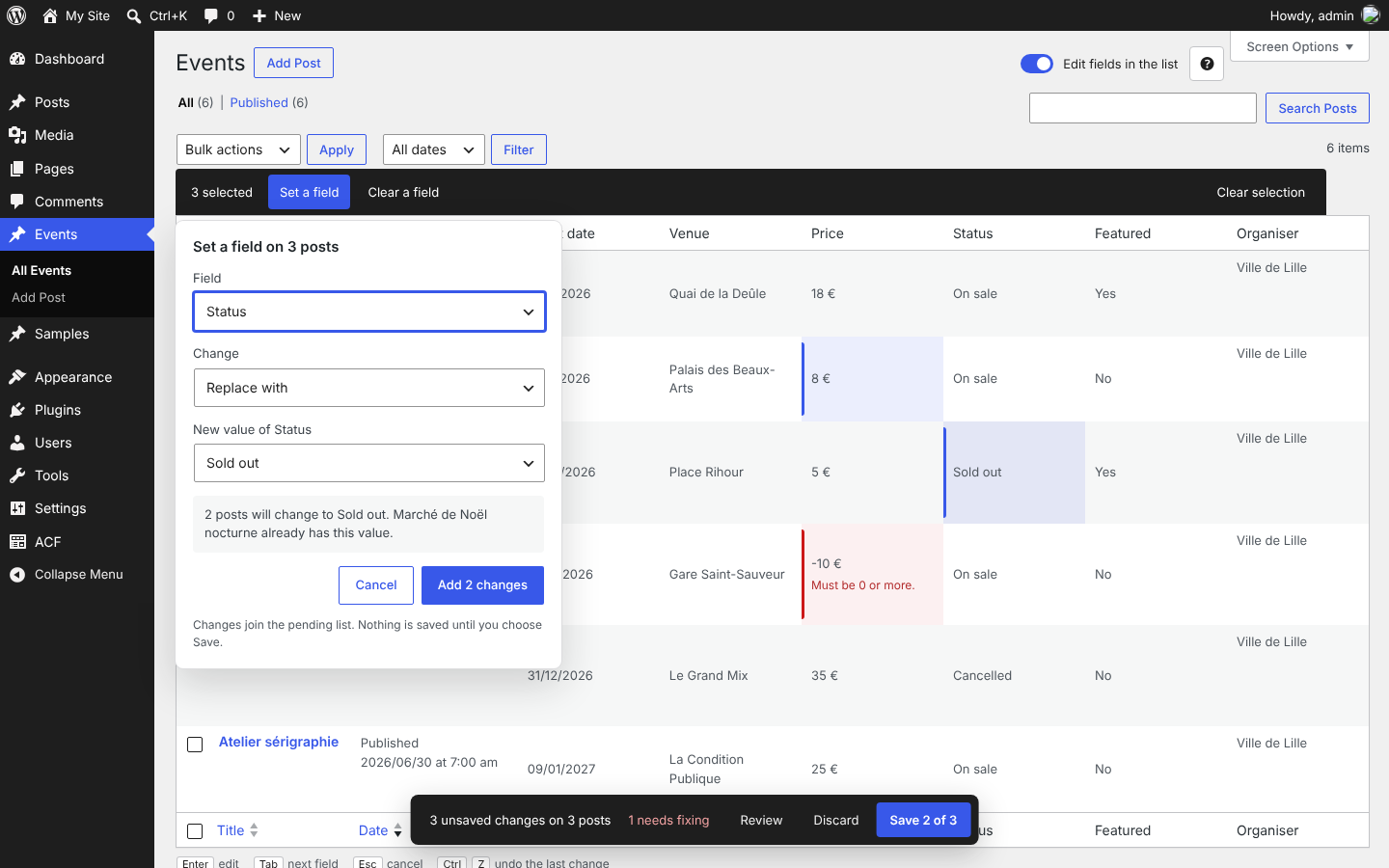
- Set a field for a selection: tick some rows, then “Set a field” or “Clear a field”. A preview says how many posts will change and which ones already have the value; the changes join the pending list. Instead of a value, you can apply an operation: prepend or append text, add, subtract, multiply or divide a number (kept within the field’s limits), change URLs (append, add or remove a query variable or a path segment, replace the host), or add, remove or keep only some values of a list.
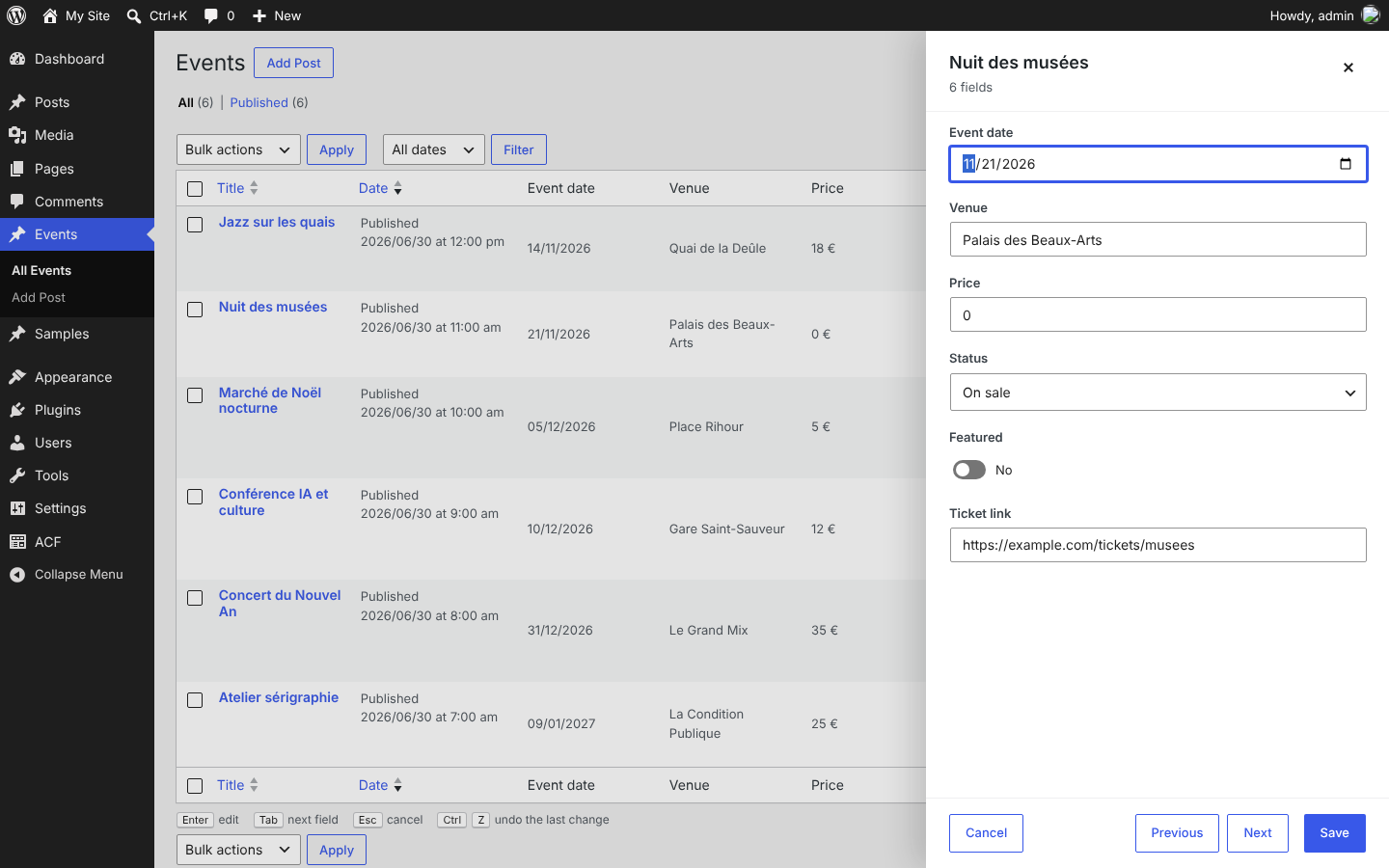
- Side panel: the “Edit fields” row action opens all the editable fields of a post in a panel, with Previous and Next to move to the neighbouring posts. Its Save writes that post at once. On narrow screens, the panel replaces editing in the cell.
- Undo after saving: once saved, cells show the stored value, and “Undo” sends the previous values back.
- Quick Edit and Bulk Edit: the fields are still available in the Quick Edit and Bulk Edit panels of WordPress, as before, with the same operations in Bulk Edit. Terms have Quick Edit too.
- Images, files, posts, terms and users: pick an image or a file from the media library, search for a post, a term or a user with the same search as Advanced Custom Fields, and set a link with its text and “open in a new tab”.
- Safe saving: every change is checked again on the server, one by one: your right to edit the post, the field being enabled for that list and for that kind of change, the post not being edited by someone else, and the value being valid for its field type (declared choices only, number limits, valid e-mail and URL, real dates, colours, images and files of the media library, posts of the allowed post types that you may read, terms of the field’s taxonomy, users of the allowed roles). If the value was changed elsewhere since the page was loaded, the change is refused instead of overwriting it.
- Help menu: links to the support forum on WordPress.org, and a button that copies your WordPress, PHP, ACF or SCF and plugin versions to the clipboard (shown to users who can see Site Health). Nothing is sent from your site.
- Drop-in replacement for ACF Quick Edit Fields: it reads the same field settings (columns, sortable columns, column weights, filters, backend search, Quick Edit, Bulk Edit, simplified location rules), so your lists keep working without any set-up.
- For developers: actions and filters let other plugins add field types, turn on editing in the user and media lists, log every saved value, narrow who may change a field, add actions to the bar and the side panel, and add filters and views to the lists.
Supported field types
The same field types as ACF Quick Edit Fields 3.3.8:
- Shown, edited in the list, with Quick Edit and Bulk Edit: Text, Text Area, Number, Range, Email, URL, Select (single and multiple), Checkbox, Radio Button, Button Group, True / False, Date Picker, Date Time Picker, Time Picker, Color Picker (transparency included), Image, File, Post Object, Taxonomy, User and Link.
- Shown and edited in the list and with Quick Edit (not for a selection): Password.
- Shown only: Gallery, Page Link, Relationship and oEmbed.
- Searched only: Wysiwyg Editor.
- Sub-fields of a Group field are handled like any other field, named after their group.
Other field types (Repeater, Flexible Content, Google Map…) are ignored.
Where it works
- Lists of posts, pages and custom post types, and lists of taxonomy terms: columns, sorting, filters, search, editing in the list, Quick Edit (and Bulk Edit for posts).
- Lists of users and of media (list view): columns, sorting, filters and search.
A field appears in a list when its field group is assigned to it: “Post Type is equal to…”, “Taxonomy is equal to…”, “User Form is equal to…” or “Attachment is equal to…”. Fields nested in repeaters or flexible content are not shown.
Ideas and bugs
Have an idea for the plugin? Suggest it in the support forum, where bugs are reported too.
Privacy
The plugin makes no external request, collects no data and adds no tracking. Everything it needs is included.
Antwork Field Editor is an independent plugin. It is not affiliated with or endorsed by Advanced Custom Fields or Secure Custom Fields.
Migrating from ACF Quick Edit Fields
Antwork Field Editor uses the same field settings as ACF Quick Edit Fields 3.3.8 (show_column, show_column_sortable, show_column_weight, allow_quickedit, allow_bulkedit, show_column_filter, allow_backendsearch, and qef_simple_location_rules for field groups), so your configuration is reused as it is. They appear as “Show as a column”, “Sortable column”, “Column position”, “Edit in the list”, “Set for a selection”, “Filter the list”, “Search in this field” and “Simplified location rules”.
- Install and activate Antwork Field Editor. While ACF Quick Edit Fields is active, it stays paused and shows a notice on the Plugins screen.
- Deactivate ACF Quick Edit Fields.
- Open your lists: your columns, sorting, filters, search, Quick Edit and Bulk Edit fields are back, with nothing to set up again.
Settings that a field type cannot use are kept as they are: saving a field group again does not erase them, including on field types this plugin does not handle.
Code that customised ACF Quick Edit Fields through its own PHP or JavaScript hooks (acf_quick_edit_*, acf_qef_*) needs to be moved to the hooks of this plugin, described in its developer documentation. Old bookmarked filter URLs (meta_query[...]) are not read: choose the filters again.
Credits
This plugin reuses the field setting names of ACF Quick Edit Fields by Jörn Lund (https://github.com/mcguffin/acf-quickedit-fields, declared as GPLv2 or later in its readme and as GPL-3.0 in its LICENSE file), so that its users can switch without reconfiguring their fields.
Code adapted from ACF Quick Edit Fields 3.3.8:
- the table of supported field types and of what each one offers (column, Quick Edit, Bulk Edit, filter, backend search, sort type), from
Fields/Field.phpand the field classes; - the bulk operations: prepend and append (
Traits/BulkOperationText.php), arithmetic kept within the field’s limits (Traits/BulkOperationNumeric.php), URL changes and the URL builder (Traits/BulkOperationURL.php), list merges (Traits/BulkOperationLists.php); - the column weights, with WordPress’s own columns weighing 0, 100, 200… (
Admin/Columns.php); - the “(No value)” filter option and the matching of serialized lists in filters (
Admin/Filters.php,Traits/Filter.php); - the search in field values added to WordPress’s search of posts, terms and users (
Admin/BackendSearch.php); - the simplified location rules (
Admin/CurrentView.php).
Screenshots
Installation
- Install and activate Advanced Custom Fields or Secure Custom Fields.
- Install Antwork Field Editor from the Plugins screen (Plugins > Add New, search for “Antwork Field Editor”) and activate it.
- Edit a field group. In the “Presentation” tab of each supported field, the “In the … list” section has the switches this field type offers: “Show as a column” (with “Sortable column” and “Column position”), “Edit in the list”, “Set for a selection”, “Filter the list” and “Search in this field”, with a preview of their effect. The “Admin lists” tab of the field group has “Simplified location rules”. Save the field group.
- Open the list: the columns are there. Turn on “Edit fields in the list” to edit them in place; the fields also appear in Quick Edit and Bulk Edit.
FAQ
-
Does it need Advanced Custom Fields?
-
It needs Advanced Custom Fields (version 6) or Secure Custom Fields. Without one of them, it only shows a notice on the Plugins screen and does nothing else.
-
Why don’t my fields appear in the list?
-
Check that the field type is supported, that the field is not inside a repeater or flexible content, that its field group is assigned to this list (“Post Type is equal to …”, “Taxonomy is equal to …”, “User Form is equal to …”, “Attachment is equal to …”), and that “Show as a column”, “Edit in the list” or “Set for a selection” is turned on for the field. Field groups with extra location rules (a category, a page template…) only apply when those rules match without a specific post, unless “Simplified location rules” is turned on in the “Admin lists” tab of the field group (rules about the current user, such as “Current User Role”, always apply).
-
How do I clear a value on many posts?
-
Turn on “Edit fields in the list”, tick the posts, then choose “Clear a field”. With Bulk Edit, switch the field to “Change to” and leave the value empty. Fields left on “No change” are never written. Custom values of a checkbox or select field that are not declared choices are kept (see below).
-
Who can edit the values?
-
Anyone who can edit the post (or the term). Users without the “unfiltered_html” capability have HTML filtered from text fields, exactly like in the post editor of Advanced Custom Fields. A post that another user is editing cannot be changed from the list until they are done. User fields are only shown and edited by users who may list users. Sorting, filtering and searching by field values only take into account the posts whose values you may read: other authors’ drafts, listed to Contributors and Authors with their values hidden, are left out of those results.
-
What happens if someone else changed a value meanwhile?
-
The change is not saved, and the review shows the new stored value. Choose “Keep my change” to save yours over it, or Revert.
-
What happens to custom values of a checkbox or select field?
-
The list, Quick Edit and Bulk Edit only offer the choices declared in the field. Values that were added as custom values in the post editor are kept when you edit the field; remove them in the post editor.
-
Can I sort or filter by a field?
-
Yes. Turn on “Sortable column” for a field shown as a column (text, number, range, email, URL, select, radio, button group, true / false, post object, user, date and time, colour), and “Filter the list” for a choice field (select, checkbox, radio, button group, true / false, taxonomy). “Search in this field” adds a field to the search of the list.
-
Is my password field safe?
-
The list shows “********” for a password that is set; the password itself is never sent to the browser. To change it, type the new one; leave the input as it is to keep it.
Reviews
There are no reviews for this plugin.
Contributors & Developers
“Antwork Field Editor for ACF & SCF” is open source software. The following people have contributed to this plugin.
Contributors
Translate “Antwork Field Editor for ACF & SCF” into your language.
Interested in development?
Browse the code, check out the SVN repository, or subscribe to the development log by RSS.
Changelog
1.1.1
- Licence: GPL-3.0-or-later
1.1.0
- Parity with ACF Quick Edit Fields 3.3.8: sortable columns, column weights, filters, search in fields, simplified location rules; Image, File, Gallery, Post Object, Page Link, Relationship, Taxonomy, User, Link, Password, oEmbed and Group sub-fields; colours with transparency; term lists with Quick Edit; columns, sorting, filters and search in the user and media lists; bulk operations (prepend, append, arithmetic, URL changes, list merges).
- Hooks for extensions: field types, editable lists, saved values, per-field permissions, change sources, bar and panel actions, list filters and views.
- The list becomes the editor: edit mode, pending changes with review, Save and Undo, “Set a field” and “Clear a field” for a selection, side panel with Previous and Next, help menu.
- Field settings grouped in an “In the … list” section with a preview.
- Saving from the list goes through a REST route that checks each change on the server (capability, post lock, field settings, conflicts, values).
1.0.0
- First release: field columns, Quick Edit and Bulk Edit in post, page and custom post type lists, for 15 field types, with ACF Quick Edit Fields settings reused as they are.