
Description
AMSites Payment Gateway is a modern WooCommerce payment solution designed for businesses in Pakistan. Accept payments through multiple local payment gateways — including JazzCash, Easypaisa, Direct Bank Transfer, and future payment providers such as Raast — from a single, easy-to-use interface.
The plugin is lightweight, secure, developer-friendly, and built following WordPress coding standards.
Payment methods included in this release
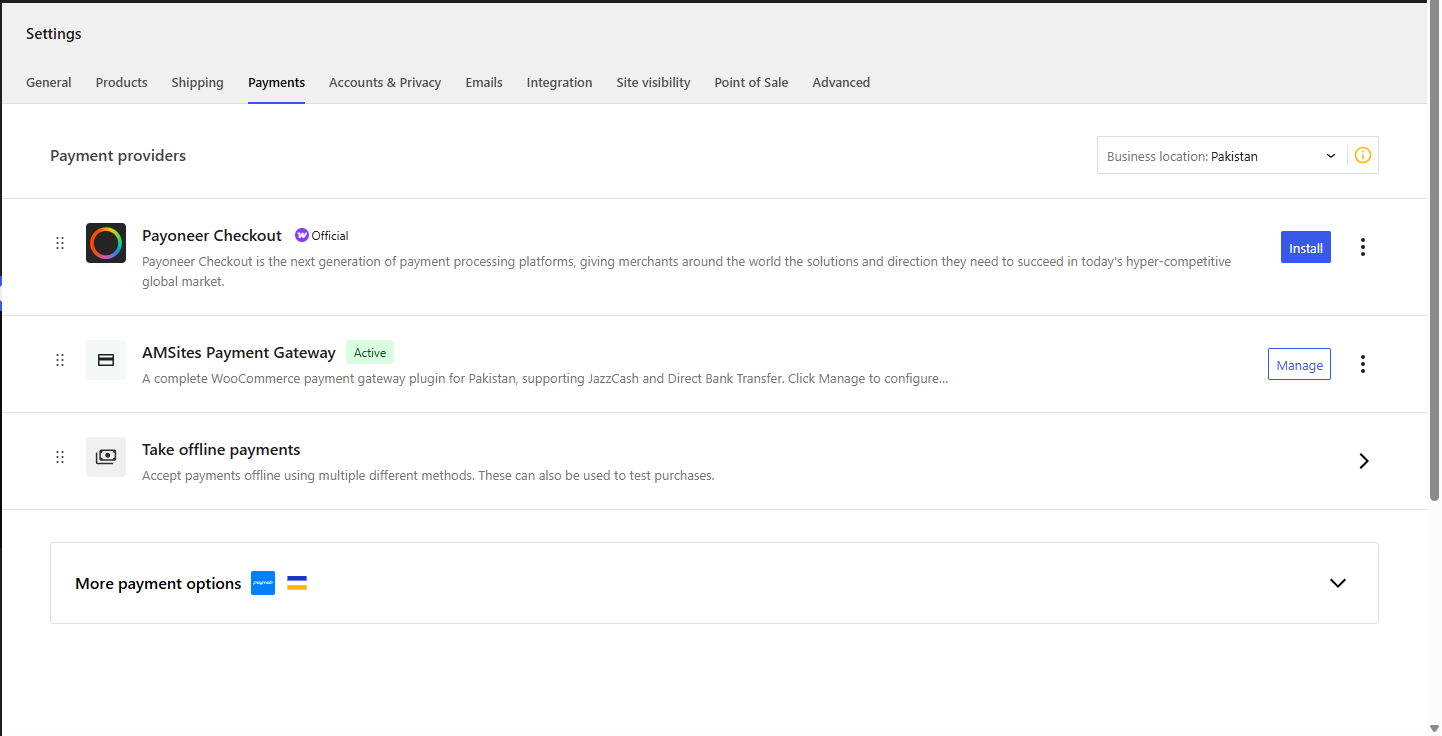
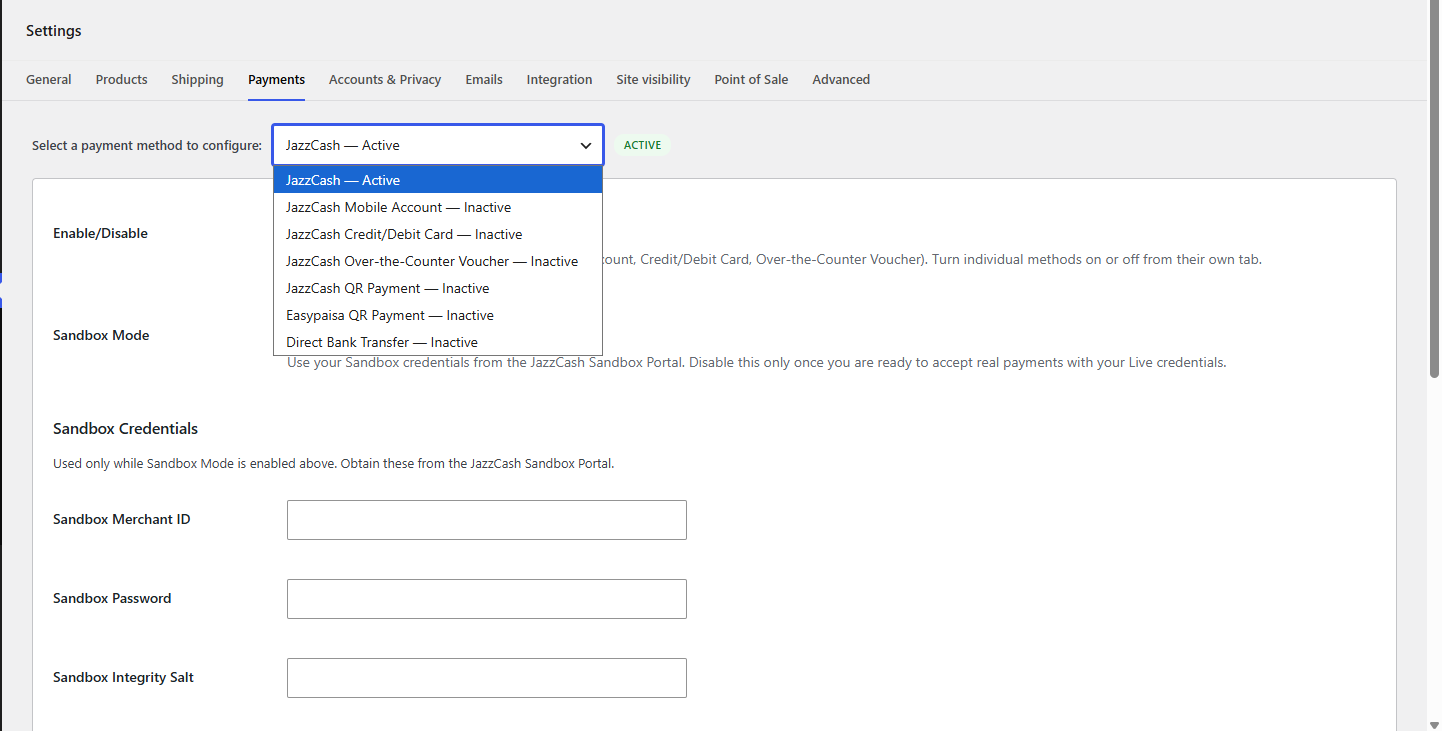
On WooCommerce > Settings > Payments this plugin adds exactly one row: “AMSites Payment Gateway” (Enable/Manage/Disable, exactly like any other WooCommerce gateway). Clicking Manage opens one settings screen with a dropdown to select and configure each payment method — add more methods later and they simply appear as additional dropdown options:
- JazzCash — shared Merchant ID, Password, Integrity Salt and Sandbox/Live mode, entered once and used by all three JazzCash API methods below, plus a master Enable/Disable for JazzCash as a whole.
- JazzCash Mobile Account (mobile wallet balance)
- JazzCash Credit/Debit Card (Visa, Mastercard, via JazzCash’s hosted payment page, including 3-D Secure)
- JazzCash Over-the-Counter Voucher (cash payment at any JazzCash outlet)
- JazzCash QR Payment (manual — customer scans your JazzCash QR code, pays, and enters a Transaction ID for you to confirm; no merchant API account needed)
- Easypaisa QR Payment (manual — same flow as above, for Easypaisa)
- Direct Bank Transfer (manual/offline bank deposit, with support for listing multiple bank accounts)
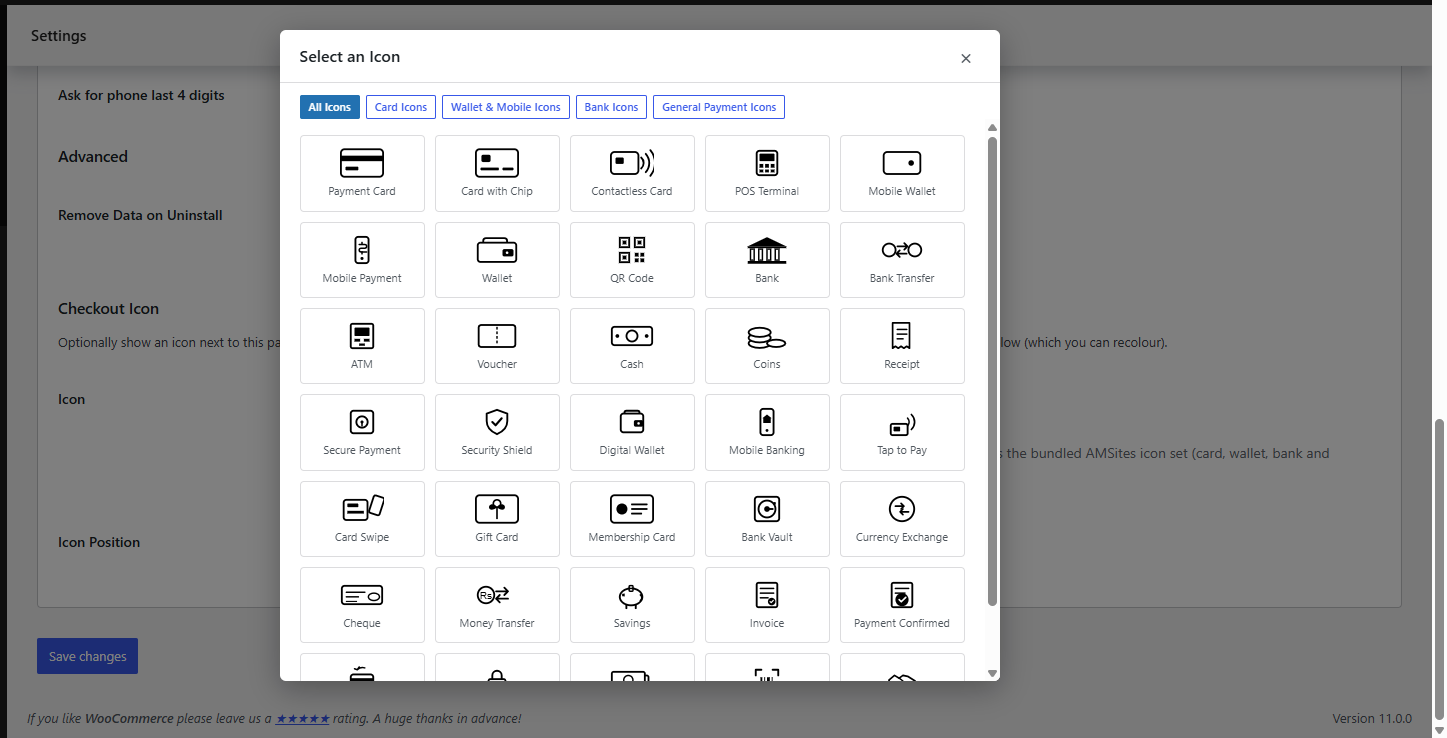
Every method has its own Enable/Disable switch and its own Checkout Icon setting: pick an image from your WordPress Media Library, or choose and recolour one of 35+ bundled preset payment icons (card/wallet/bank/general) — shown before or after the payment method title, your choice.
Coming in future updates
- Easypaisa live API integration (Mobile Account/Card, beyond today’s manual QR option)
- Raast (State Bank of Pakistan’s instant payment system)
Why this plugin
- PCI-DSS friendly by design. JazzCash card and mobile account credentials are entered on JazzCash’s own hosted payment page — your server never receives, stores, or transmits cardholder data.
- Secure Hash on every request and response. Every outgoing JazzCash request and every inbound callback is signed and verified with HMAC-SHA256, exactly as specified in the JazzCash integration guide. Responses that fail verification are rejected and never applied to an order.
- Sandbox Mode built in. Flip a single checkbox per JazzCash gateway to test end-to-end against the JazzCash Sandbox before going live — no code changes required.
- Clean, modern codebase. 100% object-oriented, PSR-4 autoloaded, namespaced, and built strictly against the WordPress Plugin/WooCommerce Payment Gateway APIs. No inline CSS/JS, no direct file access, all output escaped, all input sanitized and validated.
- HPOS ready. Declares compatibility with WooCommerce’s High-Performance Order Storage. Uses the classic (shortcode) checkout — the block-based Cart/Checkout is not yet supported, so gateways will not appear there until a dedicated Blocks integration ships in a future release.
- One plugin, one settings area. All local payment methods for your store live under WooCommerce > Settings > Payments, instead of juggling several separate plugins.
How it works (JazzCash)
- The customer chooses Card, Mobile Account, or Voucher at WooCommerce checkout.
- They’re redirected to JazzCash’s secure hosted page to authorize payment (or, for vouchers, to receive a 12-digit voucher number by SMS).
- JazzCash posts the signed result back to your store, the Secure Hash is verified, and the order is updated automatically — no manual reconciliation.
- For vouchers paid later at a JazzCash outlet, an Instant Payment Notification (IPN) webhook updates the order the moment JazzCash confirms settlement.
How it works (Direct Bank Transfer)
- The customer chooses Direct Bank Transfer at checkout and places the order.
- The order is placed on-hold and the customer sees your configured bank account details on the order confirmation page and in their confirmation email.
- Once you confirm the funds have arrived in your account, you manually mark the order as Processing/Completed from the WooCommerce Orders screen.
Requirements
- WooCommerce 7.0+
- For JazzCash: a JazzCash Merchant account (Sandbox account is free — see Getting Started) and store currency set to PKR
- The classic (shortcode) checkout. If your theme/setup uses the WooCommerce Cart & Checkout Blocks, switch that page back to the classic
[woocommerce_checkout]shortcode — block-based checkout support is not yet included in this release.
External services
This plugin connects to JazzCash’s hosted payment page (Sandbox: https://sandbox.jazzcash.com.pk/CustomerPortal/transactionmanagement/merchantform/, Live: https://payments.jazzcash.com.pk/CustomerPortal/transactionmanagement/merchantform/) to process JazzCash Card, Mobile Account, and Over-the-Counter Voucher transactions — this is required for the plugin’s core purpose, as WooCommerce cannot process JazzCash payments without it. It sends the order amount, currency (PKR), a merchant-generated transaction reference number, the WooCommerce order number, a fixed order-description string, a request timestamp/expiry, your store’s configured Merchant ID and Return URL, and (for Mobile Account/Voucher only) your configured Bank ID and Product ID, each time a customer submits checkout using a JazzCash payment method. No customer name, email, phone number, or billing address is sent. The customer’s browser is then redirected to JazzCash’s own hosted page to enter card or mobile account credentials directly with JazzCash; those credentials never pass through this plugin or your server. JazzCash sends a signed result back to your store’s Return URL and IPN endpoint to confirm or reject the payment. This service is provided by JazzCash (Private) Limited / Mobilink Microfinance Bank: Terms & Conditions, Privacy Notice.
The Direct Bank Transfer method is a manual/offline payment method and does not connect to any external service.
Screenshots
Installation
- Upload the plugin files to
/wp-content/plugins/amsites-payment-gateway, or install the zip via Plugins > Add New > Upload Plugin. - Activate the plugin through the Plugins screen in WordPress.
- Go to WooCommerce > Settings > Payments, make sure AMSites Payment Gateway is enabled, then click Manage.
- From the dropdown, select JazzCash: enter your Sandbox credentials (Merchant ID, Password, Integrity Salt) from the JazzCash Sandbox Portal, keeping Sandbox Mode enabled while testing. Add the Return URL / IPN URL shown here to your JazzCash Merchant/Sandbox Portal configuration.
- Select JazzCash Mobile Account, JazzCash Credit/Debit Card, and JazzCash Over-the-Counter Voucher from the dropdown and enable whichever methods you want to offer (they all use the credentials entered on the JazzCash option).
- Select JazzCash QR Payment / Easypaisa QR Payment (optional, no API account needed): enable, then upload a screenshot of your JazzCash/Easypaisa QR code.
- Select Direct Bank Transfer: enable it and enter your bank account details (Bank Name, Account Title, Account Number, IBAN).
- Place a test order to confirm each enabled method works end-to-end.
- When ready to accept real JazzCash payments, go back to the JazzCash option in the dropdown, enter your Live credentials, and disable Sandbox Mode.
FAQ
-
Does this plugin store customer card numbers?
-
No. Card and mobile-account entry happens entirely on JazzCash’s hosted payment page. This plugin only ever handles the order total, a transaction reference number, and the signed pass/fail result — never a PAN, CVV, or MPIN.
-
Where do I find my JazzCash Merchant ID, Password, and Integrity Salt?
-
Register for a free account at the JazzCash Sandbox Portal to get Sandbox credentials, and complete merchant verification on the live JazzCash Merchant Portal to get Live credentials.
-
What URL do I give JazzCash for the Return URL / IPN URL?
-
The JazzCash option (under AMSites Payment Gateway > Manage) displays the exact URLs to configure. They follow the pattern
https://yourstore.com/?wc-api=amspg_jazzcash_returnandhttps://yourstore.com/?wc-api=amspg_jazzcash_ipn. -
My JazzCash orders aren’t updating after payment — what should I check?
-
Enable Debug Log on the gateway and review WooCommerce > Status > Logs (source:
jazzcash). Most issues trace back to a mismatched Integrity Salt, an incorrect Merchant ID for the selected mode (Sandbox vs Live), or a firewall/security plugin blocking the inbound callback. -
Does Bank Transfer confirm payments automatically?
-
No. Since Pakistani banks do not currently offer a public online payment API, Bank Transfer works like a standard offline/manual payment method: the order is placed on-hold and you confirm receipt of funds yourself before marking the order Processing or Completed.
-
How do JazzCash QR Payment and Easypaisa QR Payment work?
-
They’re manual methods, like Bank Transfer — no merchant API account, Merchant ID, or credentials required. You upload a screenshot of your own JazzCash or Easypaisa QR code; the customer scans it with their app, pays, and enters the Transaction ID (and optionally the last 4 digits of the phone number they paid from) at checkout. The order is placed on-hold with that Transaction ID saved to the order for you to verify in your JazzCash/Easypaisa app before marking it Processing or Completed.
-
Is this plugin affiliated with JazzCash, Easypaisa, or any bank?
-
No. This is an independent, third-party integration built against publicly published API documentation.
-
Why don’t the payment options appear at checkout even though everything is configured correctly?
-
Check whether your Checkout page is using the WooCommerce Cart & Checkout Blocks. This plugin currently supports the classic (shortcode) checkout only; block-based checkout support is not yet included. Edit the Checkout page and confirm it uses the classic
[woocommerce_checkout]shortcode rather than the Checkout block.
Reviews
There are no reviews for this plugin.
Contributors & Developers
“AMSites Payment Gateway” is open source software. The following people have contributed to this plugin.
Contributors
Translate “AMSites Payment Gateway” into your language.
Interested in development?
Browse the code, check out the SVN repository, or subscribe to the development log by RSS.
Changelog
1.0.0
- Initial public release.
- One combined “AMSites Payment Gateway” row on WooCommerce > Settings > Payments — Enable/Manage/Disable like any other gateway. “Manage” opens a dropdown-based settings screen covering every payment method below, so the list never gets cluttered as more methods are added.
- JazzCash Mobile Account, Credit/Debit Card, and Over-the-Counter Voucher — hosted-page redirection with HMAC-SHA256 Secure Hash generation and verification on every request/response, Sandbox/Live mode, and automatic order updates via Return URL and IPN webhooks.
- Shared JazzCash Merchant ID, Password, and Integrity Salt entered once and used by all three JazzCash API methods, alongside a master Enable/Disable for JazzCash as a whole.
- JazzCash QR Payment and Easypaisa QR Payment — manual/offline methods, no merchant API account needed. Upload your QR code image; customers scan, pay, and enter a Transaction ID at checkout for you to confirm.
- Direct Bank Transfer — manual/offline, supports multiple bank accounts.
- Checkout Icon picker on every method: choose an image from the WordPress Media Library, or pick and recolour one of 35+ bundled preset icons (card/wallet/bank/payment), shown before or after the payment method title.
- High-Performance Order Storage (HPOS) compatible. Classic (shortcode) checkout only in this release — block-based Cart/Checkout is not yet supported.