

Description
Show the Right Images for Every Variation
Different variations deserve different images. Additional Variation Images Gallery for WooCommerce lets you create a separate image gallery for each product variation, so customers can see exactly what they’re buying.
Add multiple images to your variations and give customers a better way to explore colors, styles, sizes, and other variations. With flexible gallery controls, responsive layouts, zoom, lightbox, sliders, and more, you can create the experience that fits your store – without touching code.
More Control Over Your Variation Gallery
Your variation gallery should look good and work well across every device – not just display a list of images.
With Additional Variation Images Gallery for WooCommerce, you can control how customers browse and interact with your variation images. Adjust thumbnail placement, slider behavior, zoom, lightbox, mobile sizing, and other gallery settings directly from your WooCommerce setup. No custom code or theme modifications required.
Key Features
🥇 Multiple Images per Variation
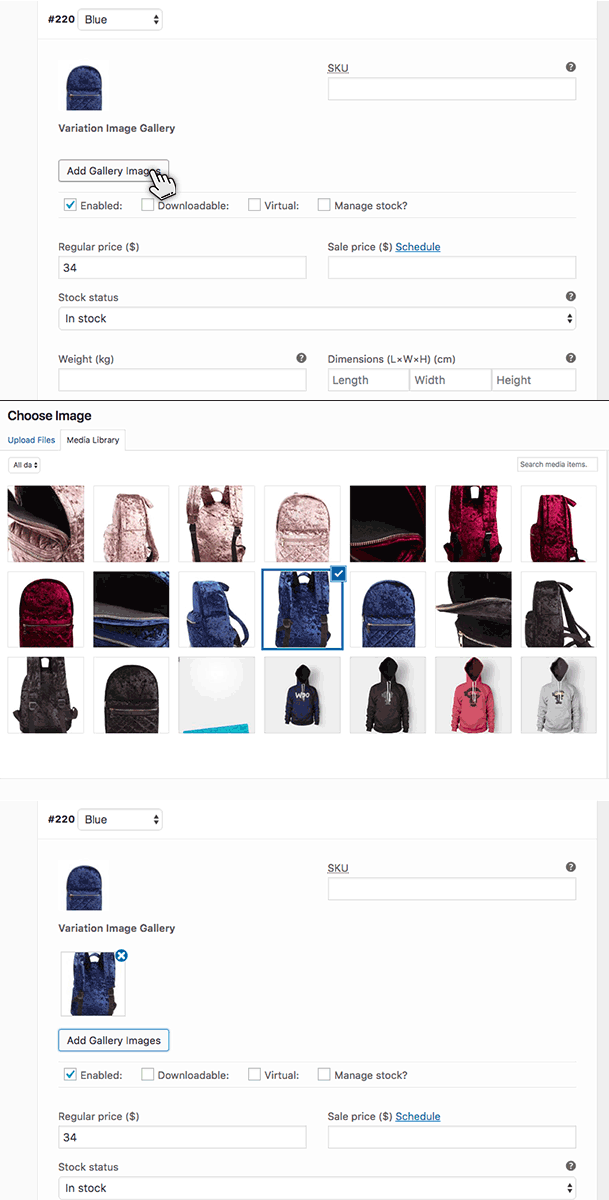
Add multiple images to any WooCommerce variation, whether it’s a color, size, style, or another attribute. When a customer selects a variation, its images automatically appear in the gallery, helping customers see exactly what that variation looks like.
Create a complete visual experience for every variation without relying on custom code or theme modifications.
🥇 Bulk Image Upload
Select and add multiple images from the WordPress Media Library at once instead of adding them one by one. This makes creating variation galleries much faster, especially when a product has many variations and each one needs several images.
Spend less time building galleries manually and more time managing your store.
🥇 Responsive Gallery Width
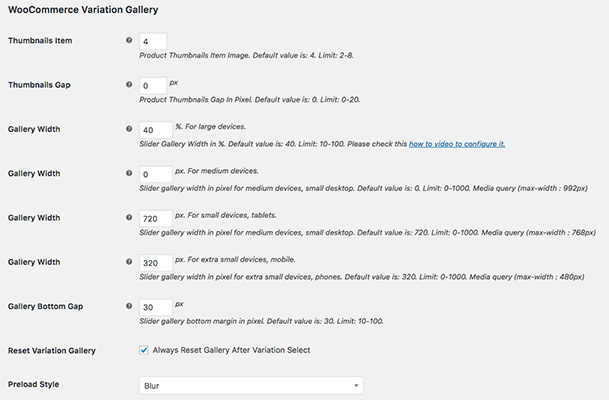
Set the gallery width separately for desktop, tablet, and mobile devices. This gives you more control over how the gallery fits on different screen sizes, so it looks balanced and works well whether your customers are browsing from a computer, tablet, or phone.
Create a gallery that fits your product page perfectly on every device.
🥇 Flexible Thumbnail Position
Choose where your gallery thumbnails appear – left, right, or bottom of the main image. This gives you more freedom to match the gallery with your product images and overall store layout.
Place thumbnails where they look best and make it easier for customers to browse through variation images.
🥇 Thumbnail Slider
Turn your variation thumbnails into a slider when you have multiple images. Instead of letting thumbnails wrap onto additional rows, customers can simply slide through them without making the gallery unnecessarily tall.
Keep your product gallery clean and compact, even when a variation has many images.
🥇 Automatic Image Slideshow & Speed Control
Let the main product image automatically move through the gallery without requiring customers to click the navigation arrows. This gives customers a quick way to see more of the product as they browse.
🥇 Slide or Fade Transitions
Choose between a smooth sliding effect or a simple fade when gallery images change. Pick the transition that best matches the look and feel of your store.
🥇 Custom Thumbnail Count and Spacing
Choose how many thumbnails appear at once, from 2 to 8, and adjust the space between them. This makes it easier to create a gallery that fits neatly into your product page layout.
🥇 Customizable Navigation Arrows
Show or hide navigation arrows for both the main image and thumbnail sliders. Turn them off for a cleaner look or when your theme already provides its own navigation controls.
🥇 Product Image Zoom
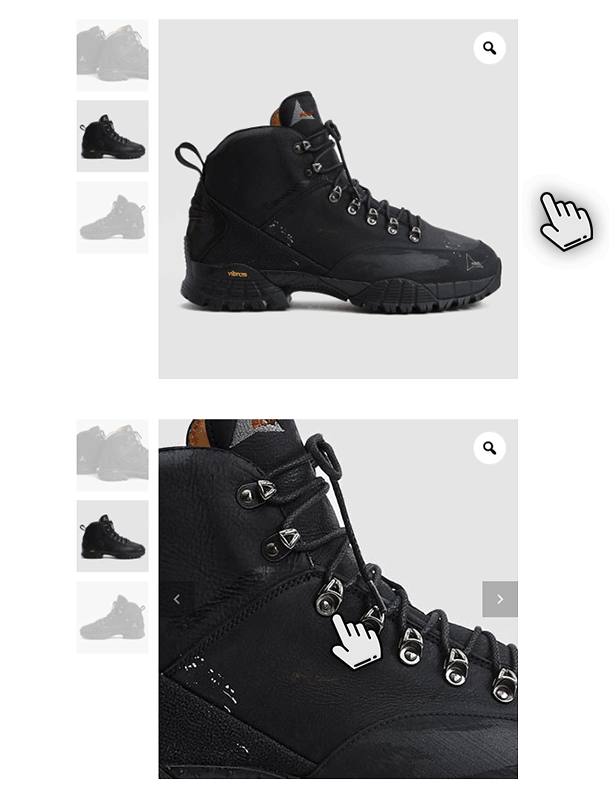
Let customers zoom in on the main product image to see details more closely, such as fabric texture, stitching, or product finishes. Zoom is enabled by default and can be turned off whenever you prefer.
🥇 Lightbox Image Viewer
Open the main product image in a larger lightbox when customers click it. You can also choose where the lightbox icon appears – top-left, top-right, bottom-left, or bottom-right- so it fits naturally with your product images.
🥇 Drag-and-Drop Image Sorting
Reorder variation gallery images by simply dragging them into the sequence you want. Easily change the image order without removing and uploading the images again.
https://getwooplugins.com/wp-content/uploads/2021/12/image4.gif
🥇 Gallery Preloader
Show a preloader while gallery images are loading to give customers a smoother experience. Choose from available preloader styles or disable it completely if you prefer the images to appear as soon as they are ready.
🥇 Hide the Default Featured Image
Choose whether to show or hide WooCommerce’s default featured image when a variation gallery is displayed. Hide it when you want customers to see only the images assigned specifically to the selected variation.
🥇 Disable the Gallery for Specific Product Types
Choose which WooCommerce product types should use the variation gallery. You can disable the gallery for product types where you don’t need it, helping avoid loading unnecessary gallery scripts on those product pages.
🥇 WooCommerce REST API Support
Variation gallery images are available through the WooCommerce REST API, making them accessible to headless stores and custom integrations that use WooCommerce product data.
🥇 Easy Migration From Other Gallery Plugins
Switching from another variation gallery plugin doesn’t mean rebuilding your galleries from scratch. The built-in migration tool can import existing variation image data from supported gallery plugins, making the transition much easier.
https://getwooplugins.com/wp-content/uploads/2021/12/image7.jpg
🥇 Compatible With Popular WooCommerce Themes
Use the plugin with popular WooCommerce themes, including Flatsome, OceanWP, Astra, Divi, Avada, Storefront, BeTheme, Shopkeeper, and more. It’s designed to work smoothly with different themes while giving you the flexibility to make small CSS adjustments when needed.
️ Compatibility Resources Links
👑 Unlimited Images per Variation (Premium)
Add as many images as each variation needs with the Premium version. Show different angles, close-up details, lifestyle photos, and more to give customers a better understanding of the variation they’re viewing.
👑 Video in Variation Galleries (Premium)
Add videos alongside images in your variation galleries with the Premium version. You can use YouTube, Vimeo, or self-hosted videos to show your products in action, helping customers get a better feel for the product without leaving the page.
👑 Add Video To WooCommerce Simple Product Gallery (Premium)
Besides the variable product, it’s possible to insert YouTube, Vimeo, and self-hosted videos in the WooCommerce simple product images gallery.
👑 Add Video to WooCommerce Grouped Product Galleries (Premium)
Add YouTube, Vimeo, or self-hosted videos to WooCommerce Grouped Product galleries. With Premium, you can showcase product videos alongside gallery images, giving customers a better way to explore the products.
👑 Add Video To WooCommerce External/Affiliate Product Gallery (Premium)
External products take users to the sourced website. If you want to engage customers and add a video to the WooCommerce product gallery for external/affiliate products, you are allowed to insert YouTube, Vimeo, and self-hosted videos easily.
👑 Featured Video for Variable Products (Premium)
Show a featured video in the main product image area of your variable products, without requiring customers to select a variation first. Add a YouTube, Vimeo, or self-hosted video to introduce the product and highlight its key features right from the start.
👑 Featured Video for Simple Products (Premium)
Add a featured video to your WooCommerce Simple Products and showcase your product in a more engaging way. Premium supports YouTube, Vimeo, and self-hosted videos, allowing you to highlight product details directly in the main product media area.
👑 Add WooCommerce Product Featured Video For Grouped Product (Premium)
The grouped product comes grouped with a couple of products. If you need to show extra details for the grouped product, you can easily show details with YouTube, Vimeo, and self-hosted video.
👑 Featured Video for External/Affiliate Products (Premium)
Give customers more product information before they visit the external website. Add a YouTube, Vimeo, or self-hosted video as the featured product video to demonstrate the product, explain its features, or highlight important details.
👑 Video Width and Height Control (Premium)
Set the dimensions of your product videos to better fit your gallery layout. This gives you more control over how videos appear on the product page and helps avoid unwanted empty or black areas around the video.
🏆 Free vs Premium 🏆
Everything listed above without a “(Premium)” tag is included in the free version available on WordPress.org. Premium is a paid upgrade sold directly through getwooplugins.com.
📌 Premium adds:
💎 Unlimited images per variation (free is limited to a couple of extra images per variation)
💎 YouTube, Vimeo, and self-hosted video in the variation gallery
💎 Video on simple, grouped, and external/affiliate product galleries
💎 Featured video per product type
💎 Video width and height control
Premium is available with yearly plans (Starter, Business, and Developer) as well as lifetime license options. Pricing depends on the number of sites covered by the license.
🫵Who Is This Plugin For?
Additional Variation Images Gallery for WooCommerce is ideal for stores where different variations need different images. It works especially well for products such as clothing in different colors, furniture in different finishes, phone cases in different patterns, and many other products where customers need to see more than one image of each variation.
It’s also a great choice if you’ve been relying on custom code to create variation galleries and want an easier way to manage them without maintaining code through WooCommerce and theme updates.
👥💬 Documentation & Support
Find detailed setup guides and instructions for every feature in our plugin documentation. If you need help or something isn’t working as expected, our support team is ready to assist you.
View Plugin Documentation | Get Support
Every Premium purchase includes one year of support and updates.
Sites Built With This Plugin
- Flatsome Theme — Clothing Store
- Shopkeeper WooCommerce Theme — Sandal Store
- Divi Theme — Automobile Wheels Store
- Avada Theme — Motorcycle Helmet Store
- Avada WooCommerce Theme — Ladies Purse Bag Store
- Aurum WooCommerce Theme — Mobile Case Store
Compatible WooCommerce Plugins
- Variation Swatches For WooCommerce
- Variation Duplicator For WooCommerce
- Add to Cart Redirect for WooCommerce
Community & Feature Requests
Have a question, found a bug, or have an idea for a new feature? Join our community to get help, share feedback, and suggest improvements.
Join the GetWooPlugins Facebook Group
Visit the GetWooPlugins Website
External services
This plugin can embed video from YouTube and Vimeo inside the product gallery. This is a Premium feature and is off by default – nothing is sent to YouTube or Vimeo unless you add a YouTube or Vimeo video URL to a product or variation yourself.
What is sent, and when: once a store owner adds a YouTube or Vimeo URL to a product or variation, that video is embedded on the corresponding product page using YouTube’s or Vimeo’s own embed player.
When a shopper views that page and the video loads or plays, their browser connects directly to YouTube (a Google LLC service) or Vimeo (Vimeo, Inc.), which may receive the shopper’s IP address, browser/device information, and viewing activity, governed entirely by YouTube’s or Vimeo’s own terms and privacy policy – not this plugin’s.
What is not sent: this plugin does not send any customer, order, or store data to YouTube or Vimeo. It only stores the video URL you provide, in your own WordPress database.
Self-hosted videos, uploaded directly to your WordPress Media Library, do not connect to any third-party service.
Screenshots

Installation
Automatic Install From the WordPress Dashboard
- Log in to your admin panel.
- Navigate to Plugins Add New.
- Search for Additional Variation Images Gallery for WooCommerce.
- Click Install, then Activate.
Manual Install From the WordPress Dashboard
If your server isn’t connected to the internet, use this method instead:
- Download the plugin ZIP file from the WordPress.org plugin page.
- Log in to your site’s admin panel and go to Plugins Add New Upload Plugin.
- Choose the ZIP file and click Install Now, then Activate.
Install Using FTP
If neither method above works due to connectivity or file permission issues:
- Download the plugin ZIP file and unzip it.
- Connect to your server with an FTP client (FileZilla, Cyberduck, or similar), or SSH if you’re comfortable with it.
- Upload the unzipped folder to
wp-content/plugins/. - Log in to your WordPress dashboard, go to Plugins Installed Plugins.
- Activate the plugin.
FAQ
-
Will this work with my WooCommerce theme?
-
Yes, it’s built to work with any WooCommerce theme, including OceanWP, Astra, Flatsome, Avada, Storefront, WP Nitro, Divi, BeTheme, Zerif Lite, Hestia, and Shopkeeper, among others. Heavily customized themes can occasionally need a small CSS tweak, since every theme styles its product gallery a little differently.
-
Does this plugin slow down my store?
-
The plugin only loads its scripts and styles on pages where a gallery can actually appear, and you can disable it entirely for product types you don’t use it on (Simple, Grouped, or External/Affiliate) from the settings. That keeps the extra load limited to pages that need it.
-
How many extra images can I add per variation in the free version?
-
The free version supports a couple of extra images per variation beyond the default one. If a product needs a larger photo set per variation, the Premium version removes that limit and allows unlimited images per variation.
-
Can I add video to my product gallery?
-
Video (YouTube, Vimeo, or self-hosted) is a Premium feature. The free version handles images only. See the External Services section above for what happens when a video is embedded.
-
I switched a variation and the gallery didn’t change. What’s wrong?
-
This usually means that specific variation doesn’t have its own gallery images set yet, so WooCommerce falls back to the product’s default image. Open that variation in the Variations tab and confirm images have been added to its gallery field.
-
Can I move the thumbnails to the side instead of underneath the main image?
-
Yes. The settings include an option to position gallery thumbnails to the left, right, or bottom of the main image.
-
Does it work on a WordPress Multisite install?
-
Yes, the plugin works on Multisite installs the same way it works on a single-site install.
-
I’m migrating from another variation gallery plugin. Will I lose my existing images?
-
The plugin includes a migration option built to pull variation image data over from some other variation gallery plugins, so you shouldn’t need to rebuild galleries from scratch. Back up your site before migrating, as with any plugin switch.
-
No customer or order data is sent by this plugin. But once a video is embedded and a shopper’s browser loads it, standard embed behavior applies: the shopper’s browser connects to YouTube or Vimeo directly, which can receive their IP address and viewing activity under YouTube’s or Vimeo’s own privacy policy. See the External Services section above for details.
-
Can I turn this off for certain product types, like Simple products?
-
Yes. The settings let you disable the gallery plugin’s script for any of WooCommerce’s four product types: Simple, Variable, Grouped, or External/Affiliate.
-
Does this replace WooCommerce’s default gallery, or conflict with the native variation gallery WooCommerce added in 10.9?
-
It works alongside WooCommerce’s normal gallery and variation-switching behavior — this plugin adds a gallery field per variation and swaps in that variation’s images when it’s selected. If you’re on WooCommerce 10.9 or later and have turned on the experimental “Variation gallery” setting (it’s off by default), that setting can also store more than one image per variation, but it doesn’t include a display or interaction layer — no thumbnail position, slider, zoom, lightbox, responsive sizing, or video — and it doesn’t touch simple, grouped, or external/affiliate product galleries at all. This plugin adds all of that. If you plan to turn on WooCommerce’s native setting as well, test on staging first and check with support before running both at once.
-
Yes. Premium removes the image limit per variation and adds video support (YouTube, Vimeo, self-hosted) across variable, simple, grouped, and external/affiliate products. See the Free vs Premium section above for the full list.
-
How to Migrate Additional Variation Images Gallery for WooCommerce Images to WooCommerce Variation Gallery?
-
From WooCommerce 11.1.0 (or higher), you can migrate your existing variation gallery images to the new WooCommerce default Variation Gallery.
To successfully migrate your variation images, follow these steps:
- Hover over the GetWooPlugins menu on your dashboard and click on Gallery Settings
- Click on the Migration tab (GetWooPlugins Gallery Settings Migration)
- Click on Start Migration ( It will start migrating in background )
After a successful migration, WooCommerce’s built-in Variation Gallery will manage your variation gallery images.
Reviews


Contributors & Developers
“Additional Variation Images Gallery for WooCommerce” is open source software. The following people have contributed to this plugin.
Contributors


Translate “Additional Variation Images Gallery for WooCommerce” into your language.
Interested in development?
Browse the code, check out the SVN repository, or subscribe to the development log by RSS.
Changelog
1.4.0 – 17-09-2026
- Fix: Migration issues.
- Fix: Imagify Plugin WebP Issue.
- Update: Template Version
1.3.33 – 06-09-2026
- Add: WP 7.1+ compatibility.
- Add: WC 11.1+ compatibility.
- Add: Migration option to default woocommerce variation gallery.
1.3.32 – 29-06-2026
- Add: WP 7.0+ compatibility.
- Add: WC 10.9+ compatibility.
1.3.31 – 19-05-2026
- Fix: Fixed
WooCommerce\Enums\ProductTypenot found issue.
1.3.30 – 21-04-2026
- Add: WC 10.7+ compatibility.
- Add: Placeholder fallback setting.
1.3.29 – 01-04-2026
- Add: WP 6.9+ compatibility.
- Add: WC 10.6+ compatibility.
- Add: Product image visibility setting.
1.3.28 – 05-03-2025
- Fix: CDN image load issue on admin.
- Update: Updated template version.
- Add: WC 9.7+ compatibility.
1.3.27 – 16-02-2025
- Fix: Settings table broken issue.
- Add: WC 9.6+ compatibility.
1.3.26 – 11-12-2024
- Fix: JS issue on save settings.
- Update: “Hide Main Product Image” setting.
- Add: WP 6.7+ compatibility.
- Add: WC 9.4+ compatibility.
1.3.25 – 15-09-2024
- Fix: Mobile issue on external videos.
- Add: WooCommerce 9.3+ compatibility.
1.3.24 – 25-08-2024
- Fix:
get_current_screenfunction issue for multi-vendor plugins. - Add: WooCommerce 9.2+ compatibility.
Legacy history (2023–2024)
Earlier versions (1.0.0 through 1.3.23) covered: the plugin’s initial release and its move from FlexSlider to Slick Slider; the core feature set now in the free version — thumbnail gaps, preloader styles, image zoom, lightbox, sorting, gallery export/import, and RTL support; a full settings-panel and plugin-structure rewrite in version 1.3.0; WooCommerce REST API gallery data; High-Performance Order Storage compatibility; PHP 8 compatibility; WPML global image translation fixes; YouTube Shorts support for video; a migration tool for switching from other variation gallery plugins; and ongoing theme-compatibility additions for Basel, Oxygen, Customizr, Salient, Divi, Flatsome, Royal, Kalium, and other WooCommerce themes, alongside regular WordPress and WooCommerce version compatibility updates.