
Description
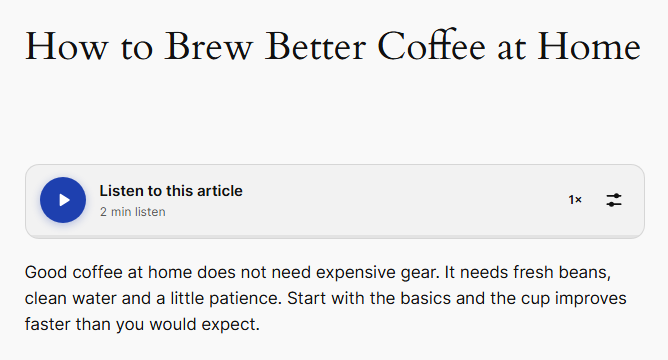
Auvrenth Text-to-Speech Reader adds a listen button to your posts and pages. Visitors press play and the article is read aloud by the voices already built into their browser.
It needs no account, no API key and no monthly cost, and it stores no audio files on your server. The speech is made on the visitor’s own device, so nothing is sent to an outside service.
For visitors
- Play, pause and stop. Stopping keeps the visitor’s place: the button turns into Resume and carries on from the word where reading stopped, where the voice reports its position.
- Skip to the previous or next sentence, or click the progress bar to jump ahead.
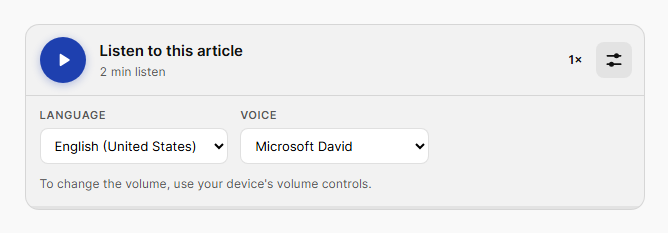
- Reading speed control, and a language and voice switcher whose choice is remembered.
- The sentence being read is highlighted in the article, and the page scrolls along with it. Scrolling by hand pauses the following for a few seconds.
- A mini player stays at the bottom of the screen when the player scrolls out of view while listening.
- Keyboard friendly: the left and right arrow keys skip sentences while the player has focus, and every button has a tooltip and a screen reader label.
For site owners
- Choose the post types, and show the player before or after the content.
- Set a default language, voice, speed and pitch, and test them right from the settings screen.
- Uses a voice that matches your site language when the browser has one.
- Turn sentence highlighting, page scrolling, the mini player and the language switcher on or off.
- Match your site with the play button color, the play icon color and the title and control color.
- Hide the player on single posts, or place it anywhere with the Auvrenth Player block or the
[auvrenth_tts]shortcode. - Change what is read aloud with the
auvrenth_tts_textfilter.
The player only appears in browsers that support speech synthesis, which covers all current versions of Chrome, Edge, Safari and Firefox. Sentence highlighting needs a browser with the CSS Custom Highlight API: current Chrome, Edge and Safari, and Firefox 140 or later. Everything else works without it.
Auvrenth Player block and shortcode
Add the Auvrenth Player block (in the block inserter under Media, or search for “Auvrenth”), or [auvrenth_tts] in a post, page or Shortcode block, to show the player exactly where you want it. It reads the post it is placed in.
- The editor shows the player as visitors will see it, and the block sidebar changes that one player only: the button label, default speed, sentence highlighting, page scrolling, the mini player, and the play button, play icon and text colors. Anything left on “site setting” follows the settings screen.
- The block also has the usual margin and HTML anchor settings.
- Works on any post type, even ones not ticked under “Show on” in the settings.
- When a post contains the block or the shortcode, the automatic player is skipped there, so the player never shows twice.
- Set “Player position” to “Only where I add the [auvrenth_tts] shortcode” to turn off automatic placement everywhere and use the block or shortcode only.
- The block and shortcode show nothing when the player is hidden for that post in the editor, or when the post is password protected.
Screenshots


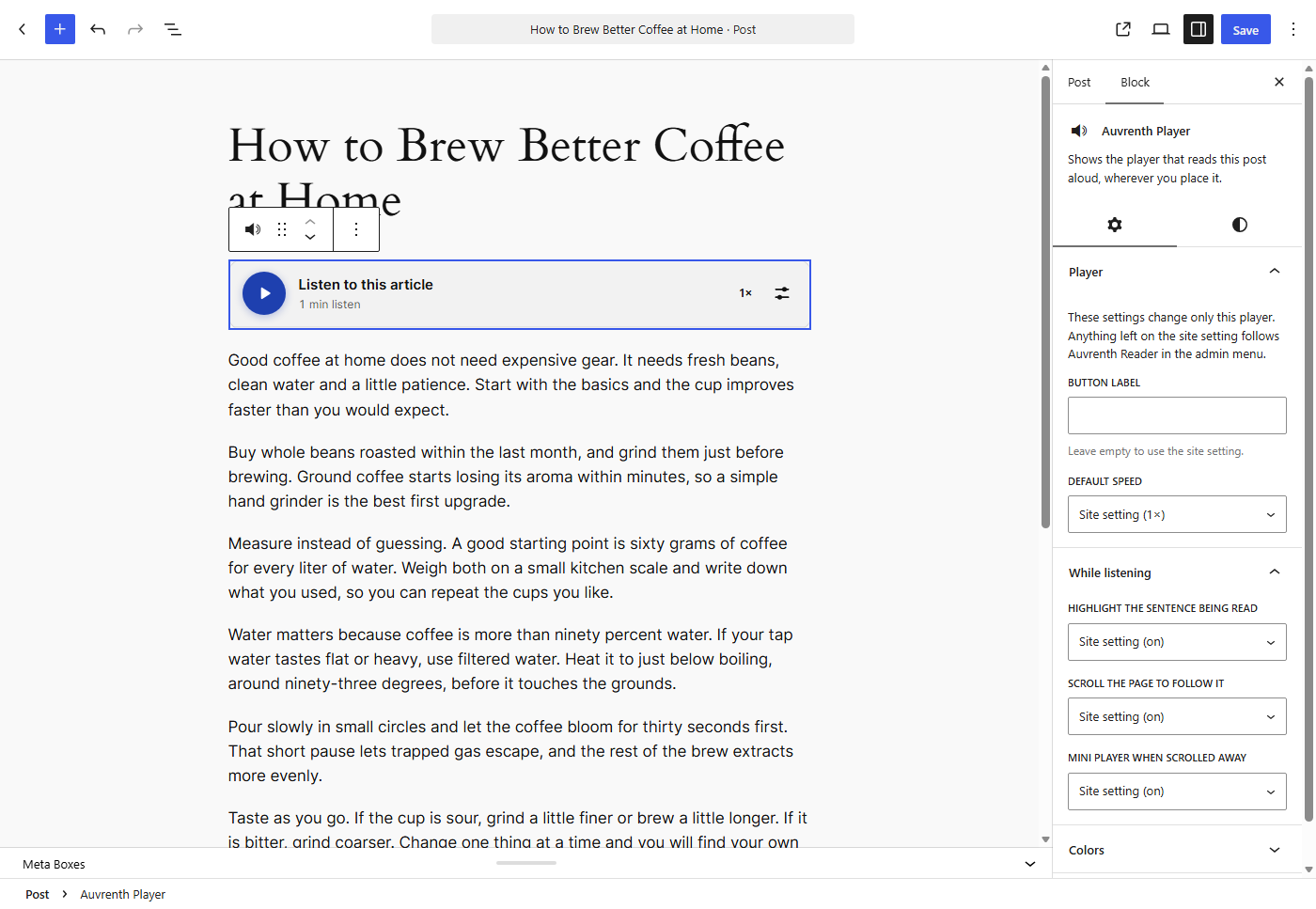
Blocks
This plugin provides 1 block.
- Auvrenth Player Shows the player that reads this post aloud, wherever you place it.
Installation
- Upload the
auvrenth-text-to-speech-readerfolder to/wp-content/plugins/, or install it from the Plugins screen. - Activate the plugin.
- Open Auvrenth Reader in the admin menu to choose where the player appears and how it looks.
FAQ
-
Does it need an API key?
-
No. Speech is generated by the visitor’s browser, so nothing is sent to an outside service.
-
Why does the voice sound different on another device?
-
Each browser and operating system ships its own voices, so the voice depends on the visitor’s device.
-
How do visitors change the volume?
-
With their device’s own volume controls. Browsers do not let a website set the volume for every voice, so the player does not have a volume slider.
-
Why does the pitch setting not change some voices?
-
The default pitch is passed to the browser, but some voices, such as many online or “natural” voices, ignore it and always use their own pitch. The speed setting works with all voices.
-
How do I place the player in a different spot?
-
Add the Auvrenth Player block, or the
[auvrenth_tts]shortcode, where the player should appear. To use it in a theme template, call<?php echo do_shortcode( '[auvrenth_tts]' ); ?>inside the loop and set “Player position” to the shortcode-only option, so the automatic player does not show as well. -
Can I change what is read aloud?
-
Yes. Use the
auvrenth_tts_textfilter to change the text for any post. Line breaks in the text separate blocks such as headings and list items. -
Why is a sentence not highlighted?
-
The player highlights a sentence when it finds the same words on the page. Text that is not shown on the page, such as a title the theme displays elsewhere or text changed with the
auvrenth_tts_textfilter, is still read but not highlighted. -
Can I turn off the highlighting or the page scrolling?
-
Yes. Under “While listening” in the settings you can turn off sentence highlighting, page scrolling and the mini player separately.
-
Can I change the colors?
-
Yes. The settings screen has color pickers for the play button, the icon inside it, and the title and control icons. The Auvrenth Player block can set its own colors for one player. Themes can also restyle the player with the CSS custom properties
--auvrenth-tts-accent,--auvrenth-tts-accent-textand--auvrenth-tts-highlight. -
Can one post look or behave differently from the rest?
-
Yes. Add the Auvrenth Player block to that post and change its settings in the block sidebar. Anything left on “site setting” keeps following the settings screen. To remove the player from a post altogether, tick “Hide the listen button on this page” in the “Auvrenth Text-to-Speech Reader” box in the editor.
-
What does it store about visitors?
-
Only the language and voice a visitor picks in the player, kept in their own browser’s local storage so the choice is remembered. No cookies are set and nothing is sent to your server or to any outside service.
-
What happens to my settings if I delete the plugin?
-
Deleting the plugin from the Plugins screen removes its settings and the per-post “hide the player” switches. Deactivating it keeps them.
Reviews
There are no reviews for this plugin.
Contributors & Developers
“Auvrenth Text-to-Speech Reader” is open source software. The following people have contributed to this plugin.
Contributors
Translate “Auvrenth Text-to-Speech Reader” into your language.
Interested in development?
Browse the code, check out the SVN repository, or subscribe to the development log by RSS.
Changelog
1.0.0
- First release.
- Listen button for posts and pages that reads the article aloud with the browser’s own voices. No API key and no audio files.
- Player controls: play, pause, stop (keeps the visitor’s place and turns into Resume, which carries on from the word where reading stopped), previous and next sentence, click the progress bar to jump, and reading speed.
- Sentence highlighting, with page scrolling that follows the reading and steps aside when the visitor scrolls by hand.
- Mini player pinned to the bottom of the screen when the player scrolls out of view while listening.
- Language and voice switcher in the player, remembered for the visitor’s next visit.
- Left and right arrow keys skip sentences, and every button has a tooltip and a screen reader label.
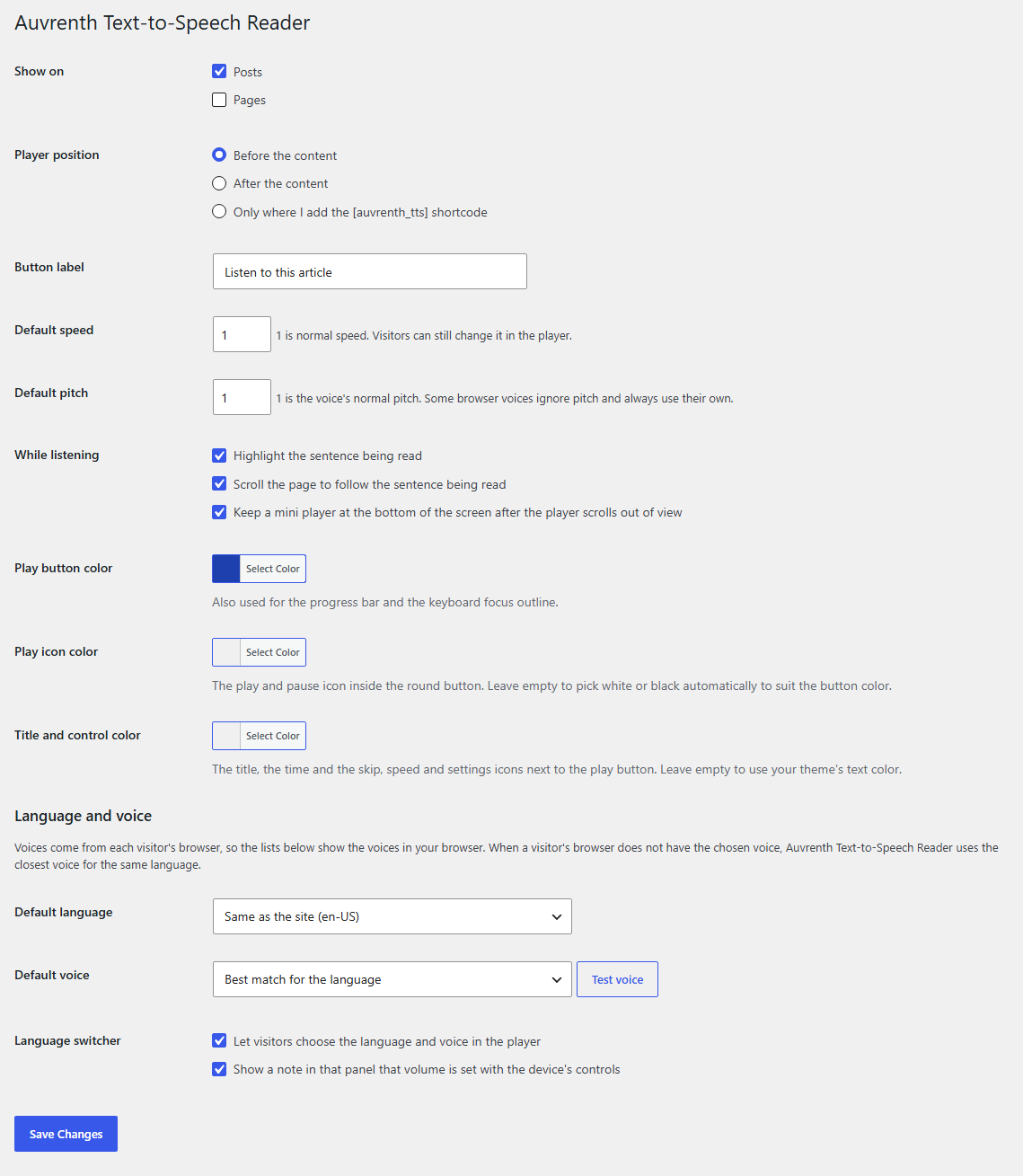
- Settings screen: post types, player position, button label, default speed, pitch, language and voice with a test button, highlighting, page scrolling, mini player, language switcher, and a volume note.
- Color settings for the play button, the play icon, and the title and control icons.
- Auvrenth Player block with a live preview in the editor and its own settings for the label, speed, highlighting, scrolling, mini player and colors, plus the
[auvrenth_tts]shortcode to place the player anywhere, and a per-post switch to hide it. auvrenth_tts_textfilter to change what is read aloud.