

Description
WooCommerce tells you what you sold. Nota Store Analytics tells you what you kept.
Enter what your products cost you and what your payment and shipping providers charge, and the plugin calculates the net profit of every order, including the ones you already have. Then it shows where that profit comes from.
Profit, not just sales
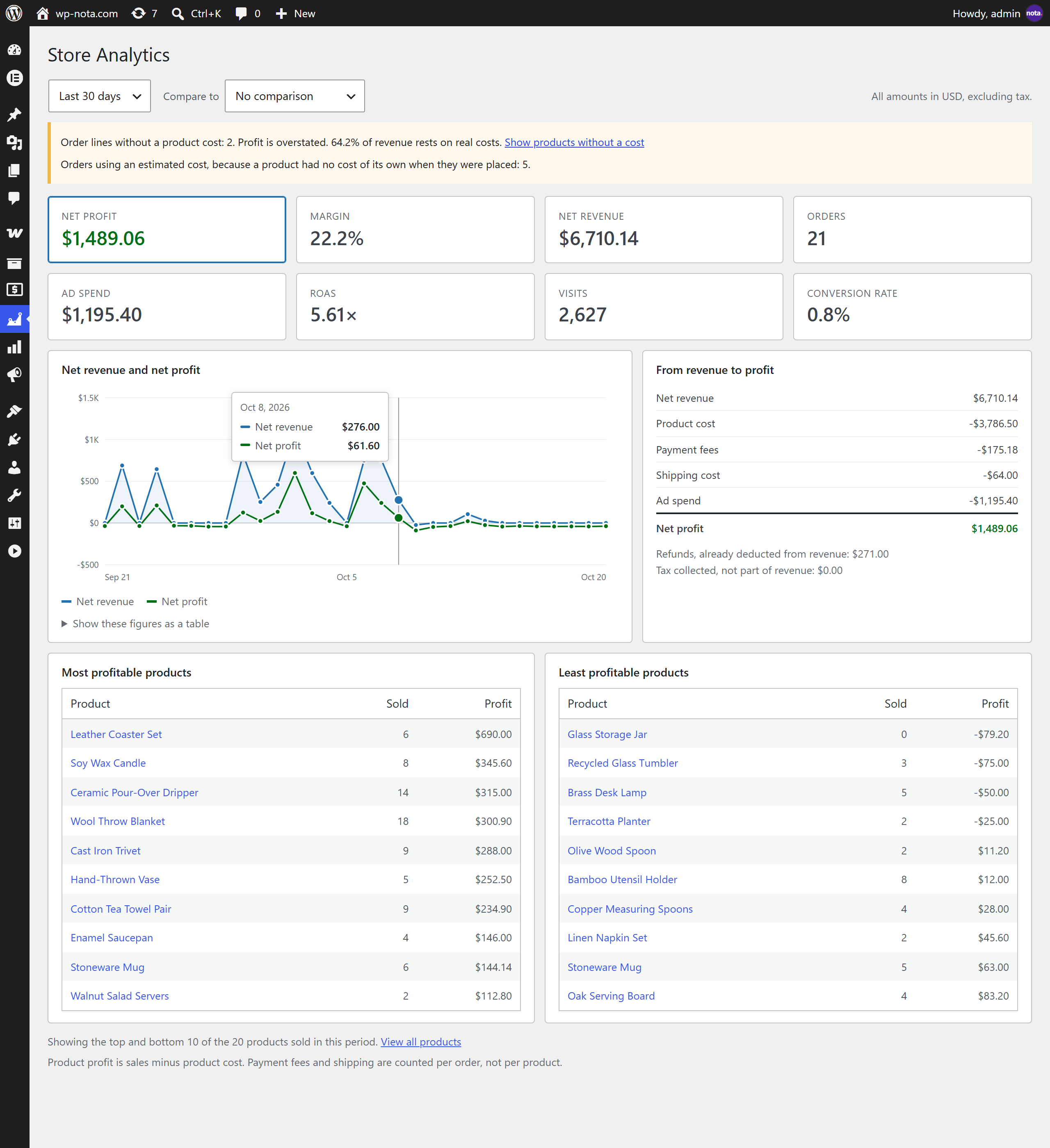
- A dashboard with net profit, margin, net revenue and orders for any date range, compared with the previous period or the same period last year
- A chart of revenue and profit over time, and a breakdown from revenue to profit: product cost, payment fees, shipping cost
- Your most and least profitable products
- A Profit column in the WooCommerce orders list
Products
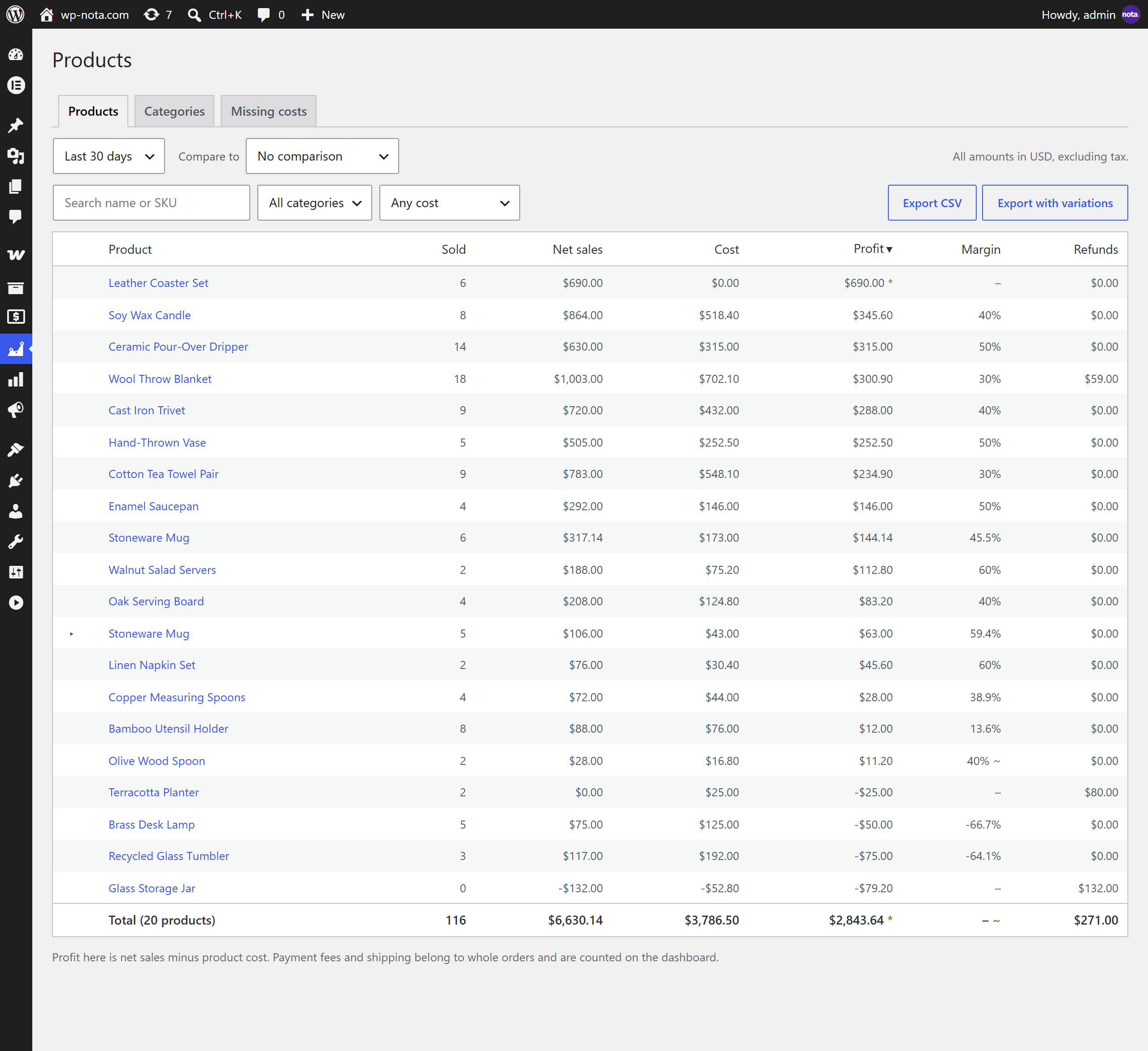
- A report with every product, its variations and its categories: units, net sales, refunds, cost, profit and margin
- A profit page for every product, with its own chart
- A cost field on every product and variation, in quick edit, bulk edit and the product CSV import and export
- A list of products that still need a cost, with a category filter and bulk entry
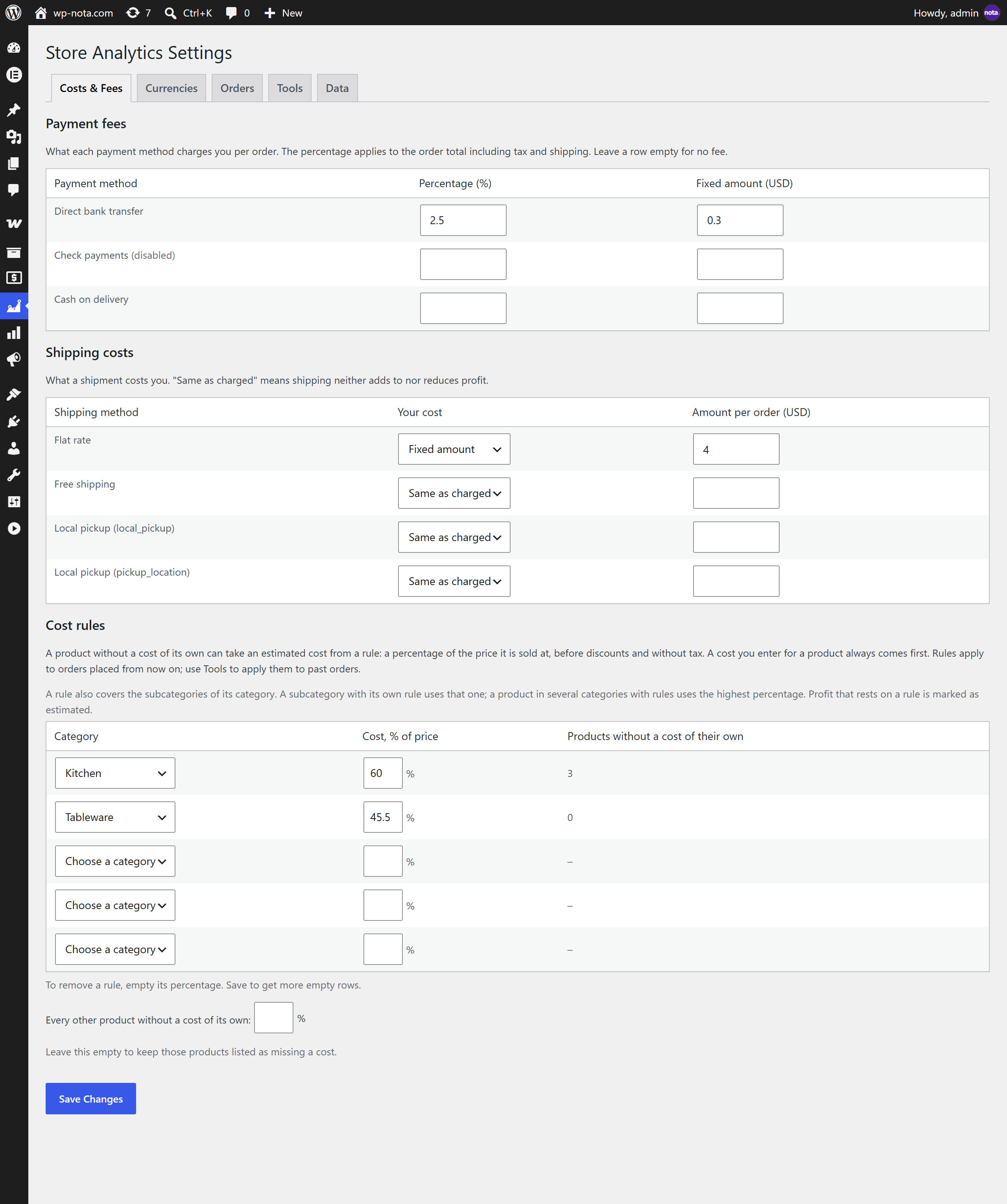
- Cost rules: give the products of a category an estimated cost as a percentage of their price, until you enter a real one
- Cost history: every change of a cost is kept, and you can correct a cost for the past; the orders since then are recalculated
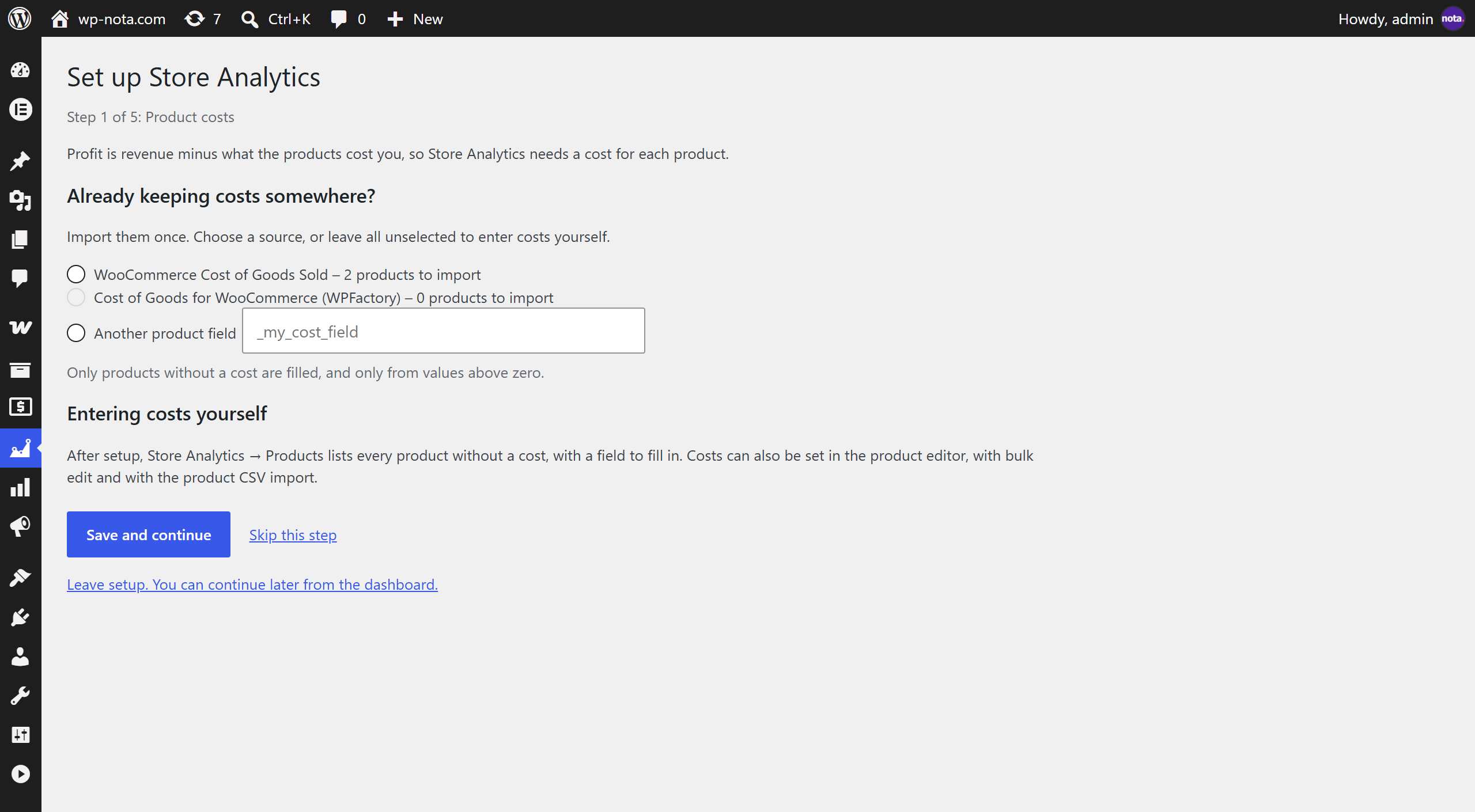
- A one-time import of costs from WooCommerce’s own Cost of Goods Sold or from Cost of Goods for WooCommerce by WPFactory
Where the profit comes from
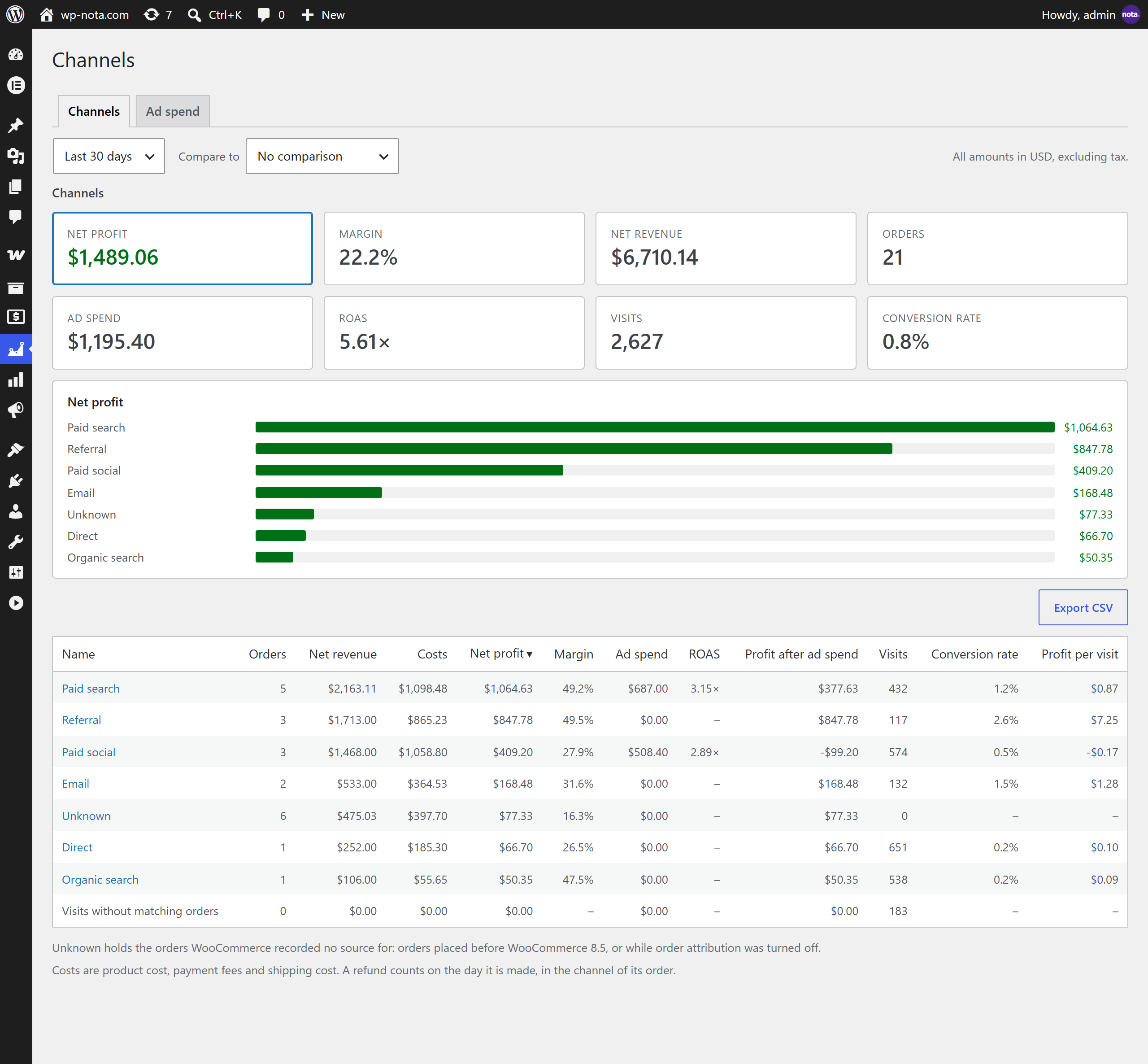
- Channels: profit by channel, source and campaign, built on the order attribution WooCommerce already records
- Ad spend: enter what you spend on Google, Meta, TikTok and other ads by hand or import the daily campaign report as a CSV file. The dashboard then shows net profit after ad spend, and the Channels report shows the spend, the return on ad spend (ROAS) and the profit after ad spend of every channel, source and campaign
- Visits and conversion rate (optional, off until you turn it on): a cookieless counter of visits to your shop, with the conversion rate on the dashboard and by channel, source and campaign
- A weekly summary email (optional, off until you turn it on): last week’s profit, revenue, orders, ad spend, visits and conversion rate, your best products and channel, each compared with the week before
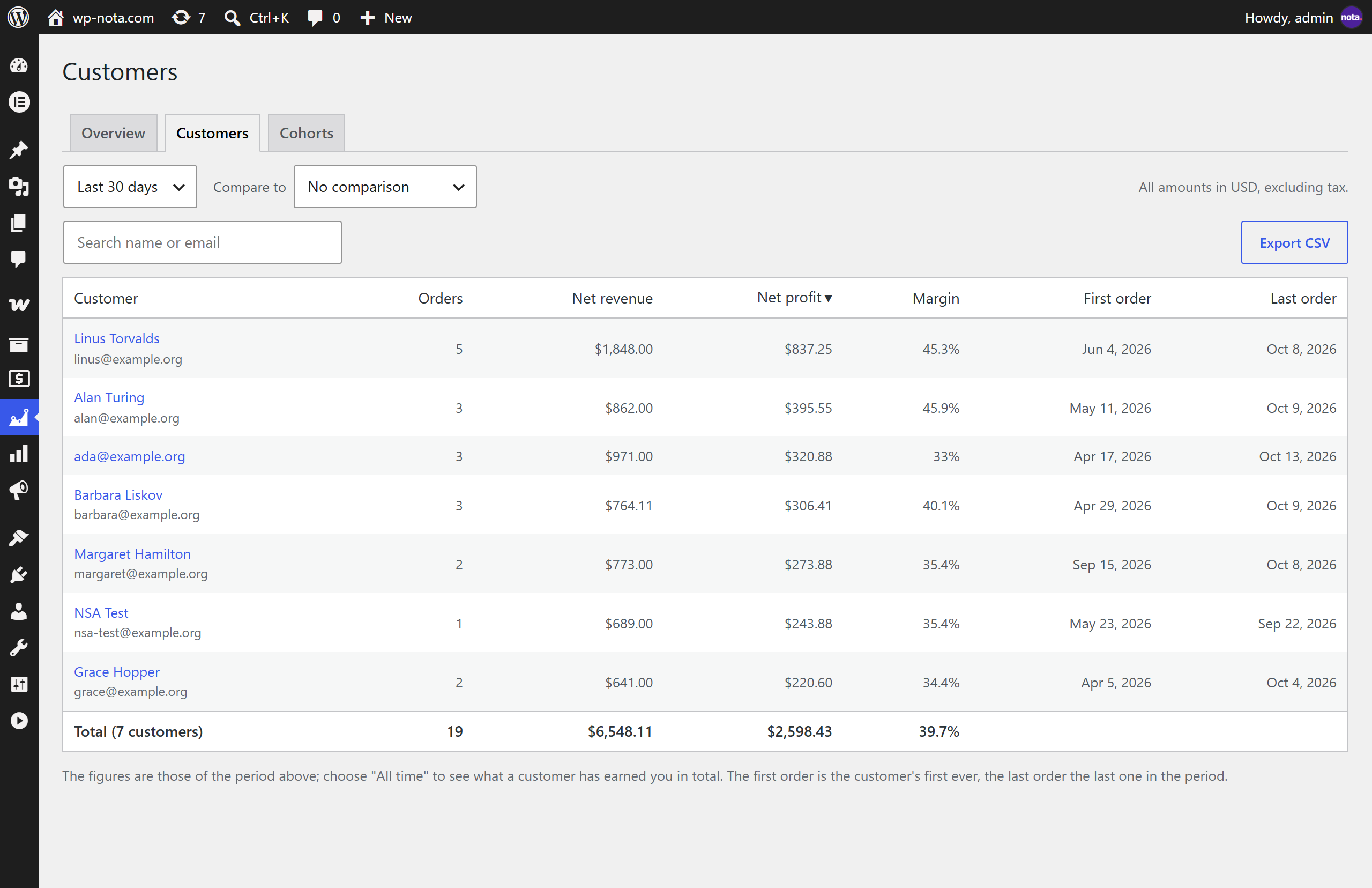
- Customers: new and returning customers, a list of customers with their lifetime profit, cohorts, and a page for every customer
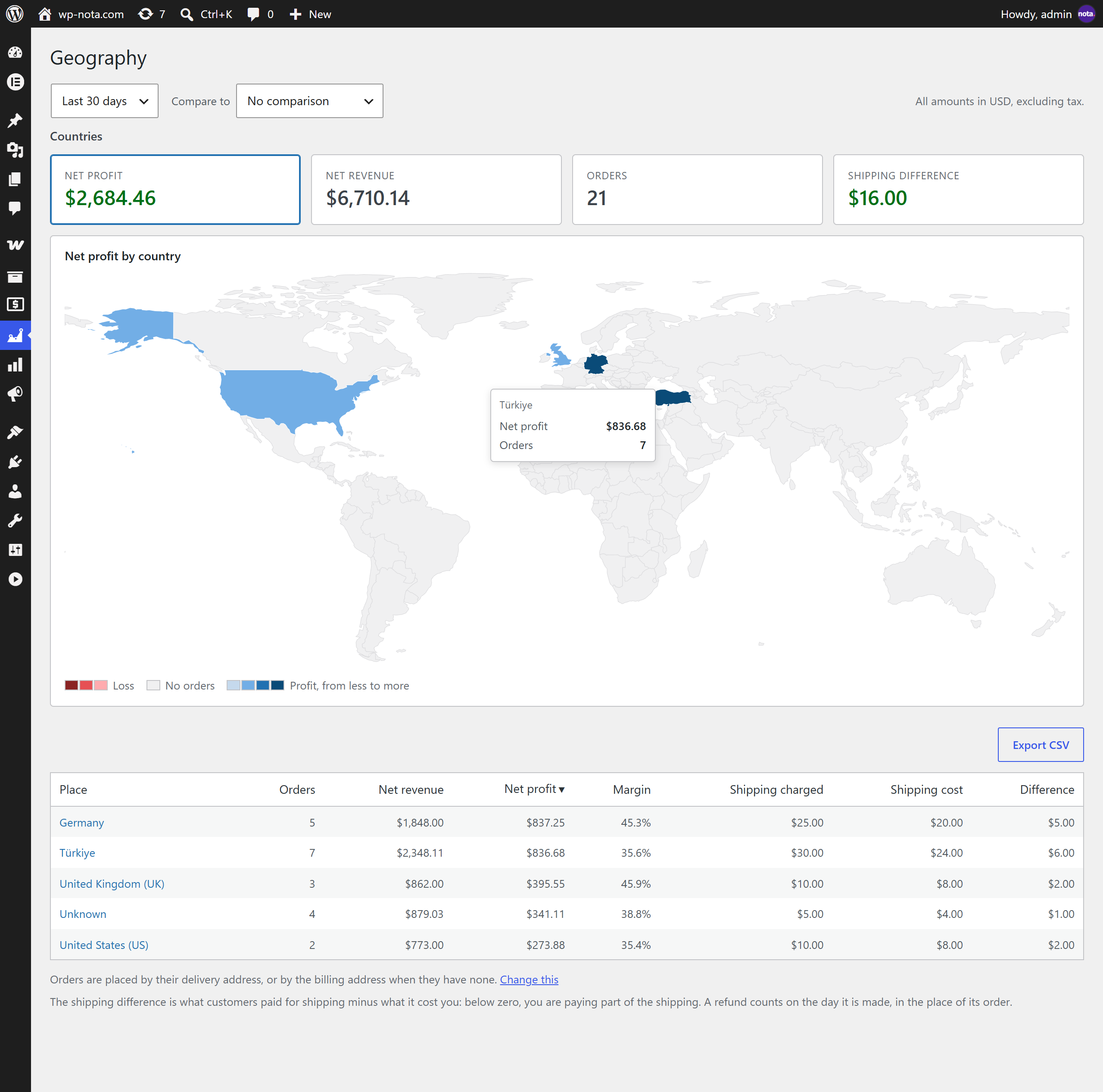
- Geography: profit and shipping by country, state and city, with a world map; shipping you charged compared with what it cost you
- Every report can be downloaded as a CSV file
Built to be right
- The cost of a product is recorded on the order when it is placed, so changing a cost later does not rewrite past profit.
- Refunds are counted on the day they are made, like WooCommerce’s own reports. Net revenue matches WooCommerce’s net sales.
- Orders in other currencies are converted to your store currency. When CURCY or WooPayments stored the exchange rate on the order, that rate is used. Otherwise you can enter the rates yourself, or turn on automatic daily rates from the European Central Bank.
- When a cost or an exchange rate is missing, the plugin says so instead of guessing.
- Works with High-Performance Order Storage and with the older order storage.
Your data stays on your site
The plugin stores everything in your own WordPress database. There is no account to create. The only request it can make to another server is the optional download of exchange rates, described under External services; it is off by default.
The optional visitor counter, which is off until you turn it on, stores daily totals by channel, source and campaign. It stores no IP address, no page address, no user agent and no visitor identifier, uses no cookie, and sends nothing to another server. To stop one browser from flooding the counter, a salted hash of the address is kept for two minutes in a temporary record and then discarded.
Customers are recognised by a keyed digest of their billing email. The plugin keeps no customer name or email of its own; names and emails you see are read from your orders.
More about the plugin: wp-nota.com/store-analytics
External services
The plugin works without contacting any other server. There is one optional exception.
European Central Bank exchange rates
If you turn on “Automatic daily rates” under Store Analytics, Settings, Rates, the plugin downloads the euro foreign exchange reference rates published by the European Central Bank. It uses them to convert orders in other currencies to your store currency at the rate of the order’s day.
This feature is optional and off by default. Nothing is downloaded until you turn it on, and turning it off stops the downloads.
- What is downloaded: the public rate files
eurofxref-daily.xmlandeurofxref-hist-90d.xmlfrom https://www.ecb.europa.eu/stats/eurofxref/ and, once,eurofxref-hist.xmlwhen you have foreign-currency orders older than 90 days. - When: when you turn the setting on, and then once a day.
- What is sent: an ordinary request for a public file. Nothing about your site, your store, your customers or your orders is sent. The European Central Bank’s server sees your server’s address, as any web server does.
-
Source: the reference rates are published by the European Central Bank. Rates page: https://www.ecb.europa.eu/stats/policy_and_exchange_rates/euro_reference_exchange_rates/html/index.en.html
-
Terms of use (disclaimer and copyright; it asks that the data is credited to the European Central Bank as the source): https://www.ecb.europa.eu/services/disclaimer/html/index.en.html
- Privacy statement: https://www.ecb.europa.eu/services/data-protection/privacy-statements/html/ecb.privacy_statement_website.en.html
Source code
The plugin’s PHP, JavaScript and CSS are plain, unminified source files; there is no build step.
The one generated file is features/assets/world-map.js, the country outlines of the Geography map. It is produced from Natural Earth’s 1:110m “Admin 0 – Countries” data (public domain, https://www.naturalearthdata.com/downloads/110m-cultural-vectors/) by the script tools/build-world-map.js, which is included in the plugin. To regenerate it, download the GeoJSON of that dataset and run node tools/build-world-map.js <path to ne_110m_admin_0_countries.geojson> from the plugin’s folder (it needs Node.js and nothing else).
Credits
- Exchange rates: European Central Bank (optional download).
- Country outlines on the Geography map: Natural Earth, public domain.
Screenshots

Installation
- Install and activate the plugin. WooCommerce must be active.
- Follow the setup wizard: product costs, payment fees, shipping costs, currencies, order history.
- Open Store Analytics in the admin menu.
FAQ
-
Does it send my data anywhere?
-
No. Everything is calculated and stored on your own site. The only request the plugin can make to another server is the optional download of exchange rates from the European Central Bank, which sends nothing about your store. See External services. If you turn on the weekly summary email, your site emails the figures to the addresses you choose, using your own email setup.
-
Does it work with High-Performance Order Storage?
-
Yes, and with the older order storage too.
-
I already entered costs in WooCommerce’s Cost of Goods Sold. Do I have to enter them again?
-
No. The setup wizard and Store Analytics, Settings, Tools can import them once.
-
Why does a product show a dash instead of a margin?
-
Some of its sales in that period have no cost, so a margin would be a guess. Enter the cost, or give its category a cost rule, and the margin appears.
-
What is a cost rule?
-
A percentage of a product’s price that stands in for a cost you have not entered. A cost you enter always comes first. Profit that rests on a rule is marked with a tilde.
-
Why is profit negative on a day with no sales?
-
A refund was made that day for something sold earlier. The refund reverses the profit that was counted on the day of the sale.
-
Are payment fees and shipping counted per product?
-
No. They are counted per order. Product profit is sales minus product cost.
-
Why are some orders in the Channels report “Unknown”?
-
WooCommerce records where an order came from since version 8.5. Orders placed before that, or while order attribution was turned off, have no source.
-
How do I enter what I spend on ads?
-
Open Channels, then the Ad spend tab. Add a row for a day, or spread a monthly amount over a range of days. Or export the daily campaign report from Google Ads, Meta Ads Manager or TikTok Ads Manager and import the CSV file; the plugin recognises those files, and for any other file you choose the columns. Importing the same file again replaces its earlier rows. The file is read on your site and is not kept, and the plugin never connects to an ad platform.
-
Why do the customer and geography reports say “Profit before ad spend”?
-
Ad spend belongs to campaigns and days, not to single orders, customers or places. While the date range holds ad spend, the Customers and Geography reports call their profit “Profit before ad spend”. The dashboard and the Channels report show profit after ad spend.
-
Does the plugin send me emails?
-
Only if you turn on the weekly summary in the settings (Orders tab). It is off until then. You choose who gets it and on which weekday; it is sent around 7 in the morning, site time, and holds the figures of the last full week compared with the week before. It contains no images and loads nothing from another site, and you can send last week’s summary at once from the Tools tab to see it. It is sent with your site’s own email setup, so if your site cannot send email, install an SMTP plugin.
-
What does the visitor counter count?
-
It is off until you turn it on in the settings. With it on, a small script on your shop reports one visit per browser session (it uses the tab’s session storage, not a cookie). The plugin adds one to a daily total for the visit’s channel, source and campaign, worked out from the campaign tags in the address and from the site the visitor came from. It does not store the visitor’s IP address, the page address, the browser or any identifier, and it does not count visitors who send Do Not Track, store managers or known bots. To stop one browser from flooding the counter, a salted hash of the address is kept for two minutes in a temporary record and then discarded. It cannot tell one person from another across days: a visit is a session, not a person. A visitor who clears their browser data, or a browser without session storage, can be counted again.
-
Why does the conversion rate start on a certain day?
-
Visits can only be counted from the day you turn the counter on. The conversion rate (orders divided by visits) is worked out over the days the counter was on, and the dashboard says “Counted since” when your date range starts earlier.
-
Does the Customers report store my customers’ emails?
-
No. A customer is a keyed digest of the billing email; the names and emails on screen are read from the orders when the page is built.
-
What happens to my data if I delete the plugin?
-
Nothing, unless you turn on “Delete all Store Analytics data” under Settings, Data.
Reviews
There are no reviews for this plugin.
Contributors & Developers
“Nota Store Analytics for WooCommerce” is open source software. The following people have contributed to this plugin.
Contributors
Translate “Nota Store Analytics for WooCommerce” into your language.
Interested in development?
Browse the code, check out the SVN repository, or subscribe to the development log by RSS.
Changelog
1.0.0
- First release.