
Description
Statbird reads your WooCommerce orders and tells you who your customers really are: who buys often, who has gone quiet, who is worth winning back, and what to do about it. Everything is calculated on your own site.
What you get
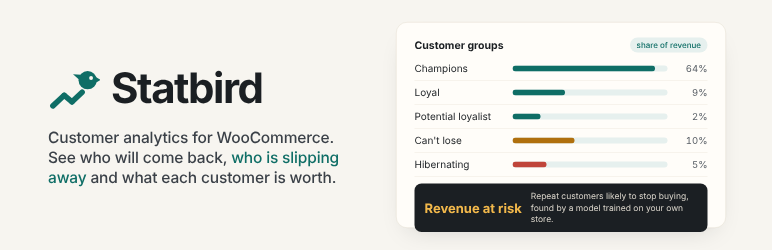
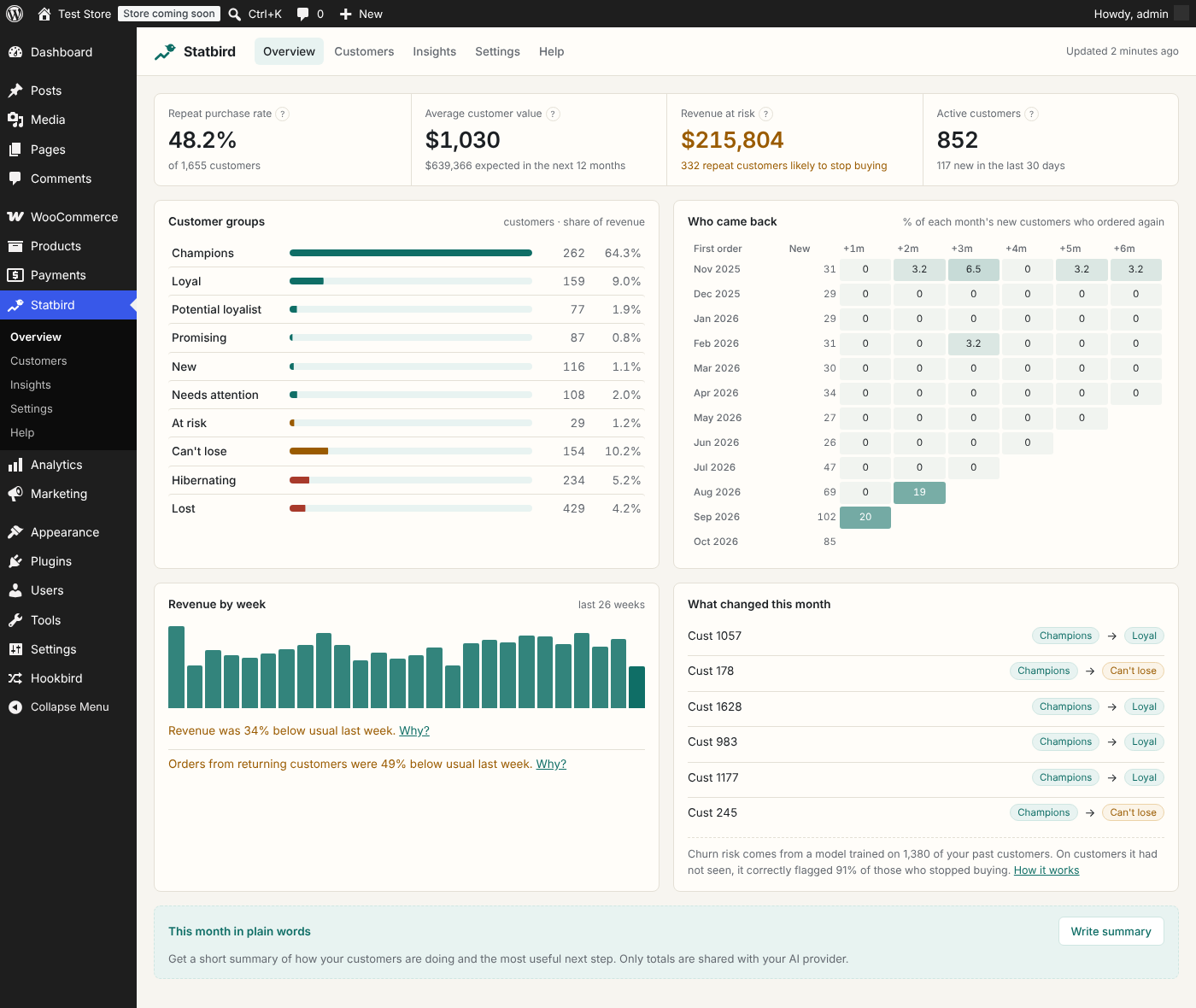
- Ten customer groups. Champions, Loyal, Potential loyalist, Promising, New, Needs attention, At risk, Can’t lose, Hibernating and Lost, based on how recently and how often each customer buys.
- Churn risk for every customer. With enough history, Statbird trains a small prediction model on your own store every night, tests it on customers it has not seen, and only uses it when it beats the simple rule. The dashboard tells you how accurate it was.
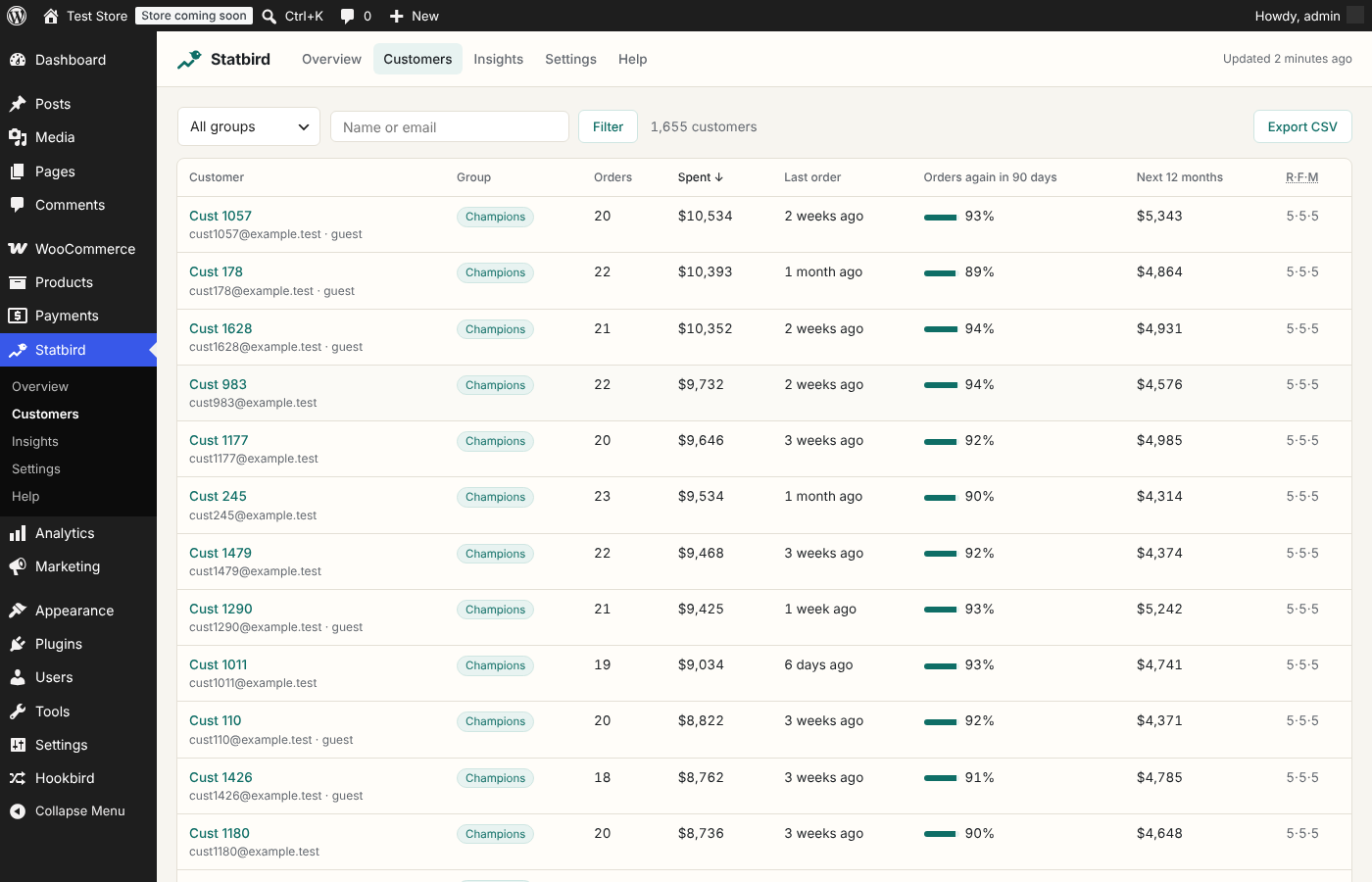
- What each customer is worth. Spend so far after refunds, and a forecast for the next 12 months.
- A clear dashboard. Repeat purchase rate, average customer value, revenue at risk, active customers, who came back month by month, revenue by week, and who moved between groups.
- Unusual weeks flagged. When revenue, orders, new or returning customers move well outside their usual range, Statbird points it out.
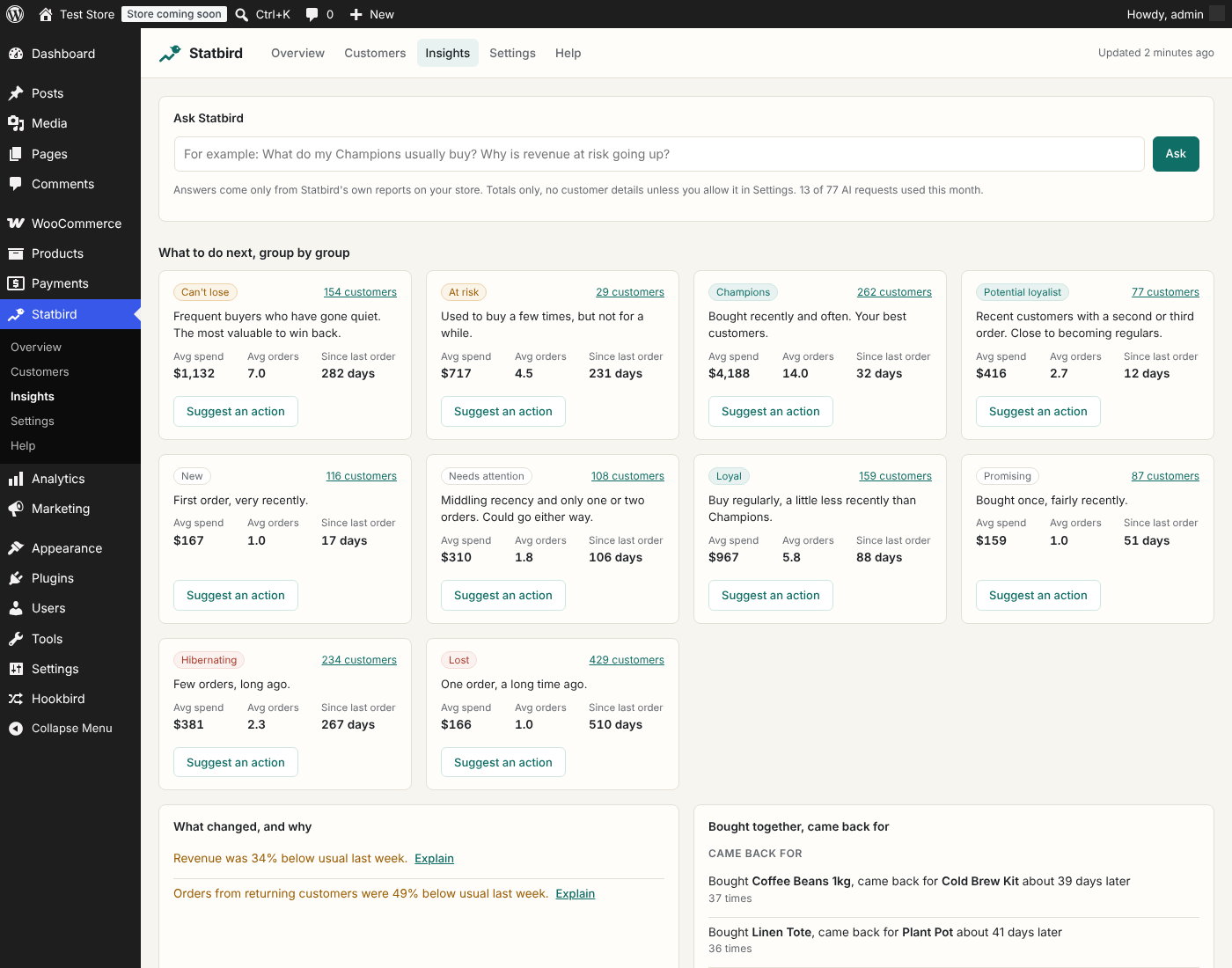
- Bought together, came back for. Products that sell together, and what customers come back for next, with the usual number of days in between.
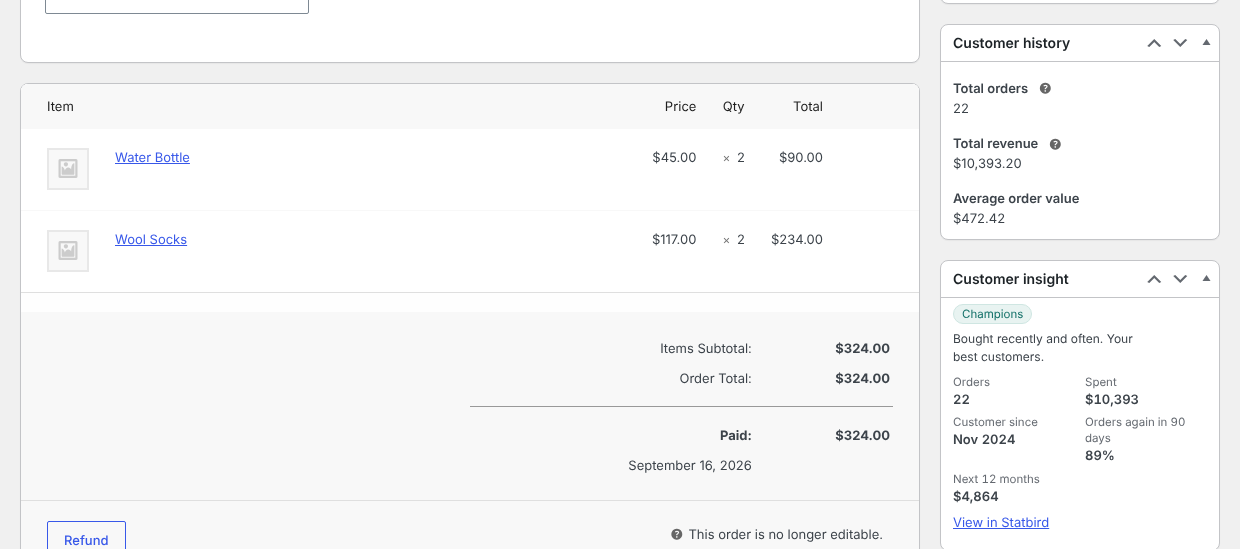
- A customer card on every order. Group, orders, spend, chance of ordering again and 12-month value, right on the order screen.
- CSV export of any group, for your email or ads tool.
- Live and lightweight. Existing orders are read once in the background. After that, only the customer whose order changed is updated. Works with High-Performance Order Storage and the classic posts tables, and stays fast on stores with 100,000 orders.
Optional AI insights
If your site has an AI provider connected in Settings > Connectors (WordPress 7.0 and newer), Statbird can:
- write a short monthly summary in plain words,
- suggest the next best action for each group, with a draft email,
- explain an unusual week,
- turn product patterns into ideas,
- answer questions like “What do my Champions usually buy?” using only Statbird’s own reports.
AI only runs when you click a button, or for the optional weekly briefing. It sees totals and averages, never email addresses. Customer names are shared only if you switch that on. Answers are cached for a day and a monthly limit keeps usage under control. Without an AI provider, everything else works as normal.
Statbird’s reports are also registered as WordPress Abilities, so other AI tools you connect can read them (read-only, store managers only).
Works with Hookbird
Install the free Hookbird plugin to get Statbird alerts in Slack, Discord, Telegram, Microsoft Teams, Google Chat, n8n, Make or Zapier: when a valuable customer becomes at risk, when someone becomes a Champion, and a weekly customer briefing.
For developers
- WP-CLI:
wp statbird rebuild,wp statbird score,wp statbird status. - Actions:
statbird_segment_changed,statbird_scored,statbird_snapshot_built,statbird_customer_refreshed. - Filter:
statbird_counted_statuses(which order statuses count as purchases).
External services
Statbird does not contact any service by itself.
AI provider (optional). If you have connected an AI provider in Settings > Connectors and leave AI insights switched on, Statbird sends a request to that provider when you click an AI button on the Statbird screens, or once a week for the briefing if Hookbird is active and the briefing is switched on. Each request contains summary statistics about your customer groups (counts, averages, revenue shares, product names and weekly totals) and your question if you asked one. It never contains email addresses. The names, order counts and spend of a group’s top five customers are included only if you switch on “Let AI see the names…” in Statbird settings. Which provider receives the data, and its terms and privacy policy, depend on the connector you chose in WordPress.
Hookbird (optional). If the Hookbird plugin is active, Statbird hands its events to Hookbird, which delivers them to the endpoints you set up in Hookbird. Statbird itself does not send them anywhere.
Screenshots
Installation
- Install and activate WooCommerce.
- Install Statbird from Plugins > Add New, or upload the zip, and activate it.
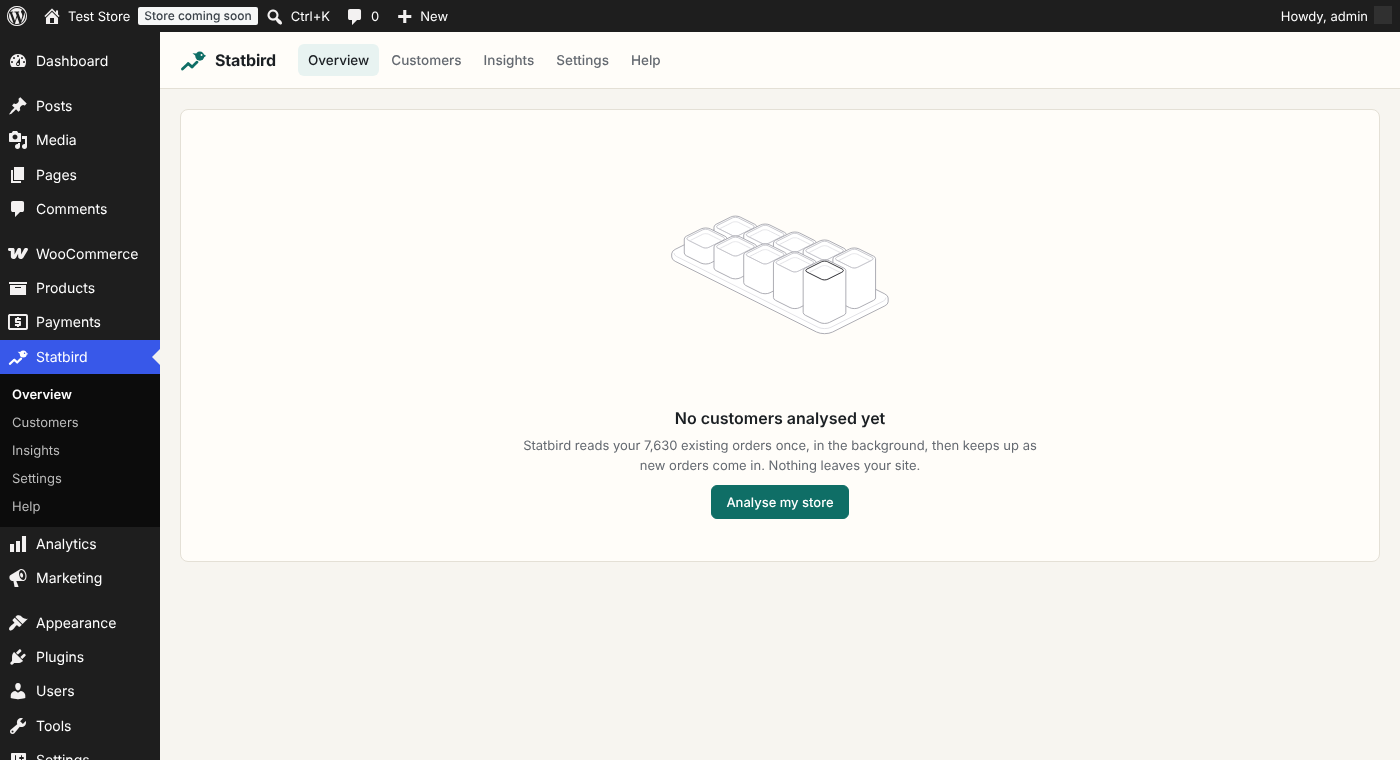
- Open Statbird in the admin menu and click “Analyse my store”. It reads your existing orders in the background.
FAQ
-
Does it slow down my store?
-
No. Nothing runs on your shop’s pages. Reading orders and scoring happen in the background with WooCommerce’s own task scheduler, in small batches.
-
Which orders count?
-
Processing, completed and refunded orders. Refunds are subtracted, and an order that was refunded in full does not count as a purchase. Cancelled, failed and pending orders are ignored. Developers can change the list with the
statbird_counted_statusesfilter. -
What about guest customers?
-
Guests are matched by email. If a guest later creates an account with the same email, their guest orders join their account.
-
How is churn risk calculated?
-
Churn risk is the chance a customer does not order in the next 90 days. With enough history, a small model trained on your store decides it, using recency, frequency, spend and each customer’s buying rhythm. Otherwise a simple rule compares how long it has been with their usual gap between orders. The Help screen explains every number.
-
Do I need an AI provider?
-
No. AI is an optional extra. Groups, risk, value, cohorts, trends, patterns, the order card and exports all work without it.
-
Statbird’s analysis stays on your site. It adds itself to WordPress’s personal data export and erase tools, and removes all of its data when you delete the plugin. See “External services” for exactly what the optional AI features send.
Reviews
There are no reviews for this plugin.
Contributors & Developers
“Statbird” is open source software. The following people have contributed to this plugin.
Contributors
Translate “Statbird” into your language.
Interested in development?
Browse the code, check out the SVN repository, or subscribe to the development log by RSS.
Changelog
1.0.0
- First release.