Description
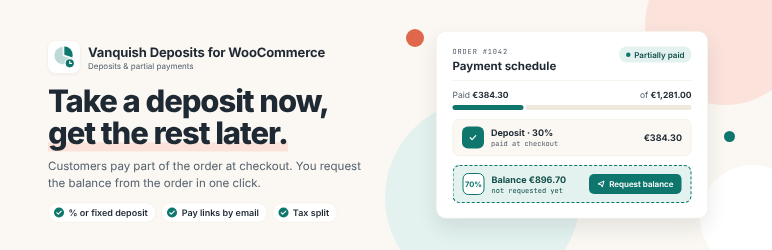
Vanquish Deposits for WooCommerce lets your customers pay part of an order at checkout and the rest later. They choose to pay a deposit (or you make it required), pay it with the payment methods of your store, and receive the balance request by email when you are ready, with a button to pay it online.
The order stays one WooCommerce order with its full total, its products and its shipping, so your stock, your reports and your invoices see the real order. Every payment is recorded on its own, with its amount, its tax, its payment method and its date, and refunds go back through the payment you choose.
How it goes:
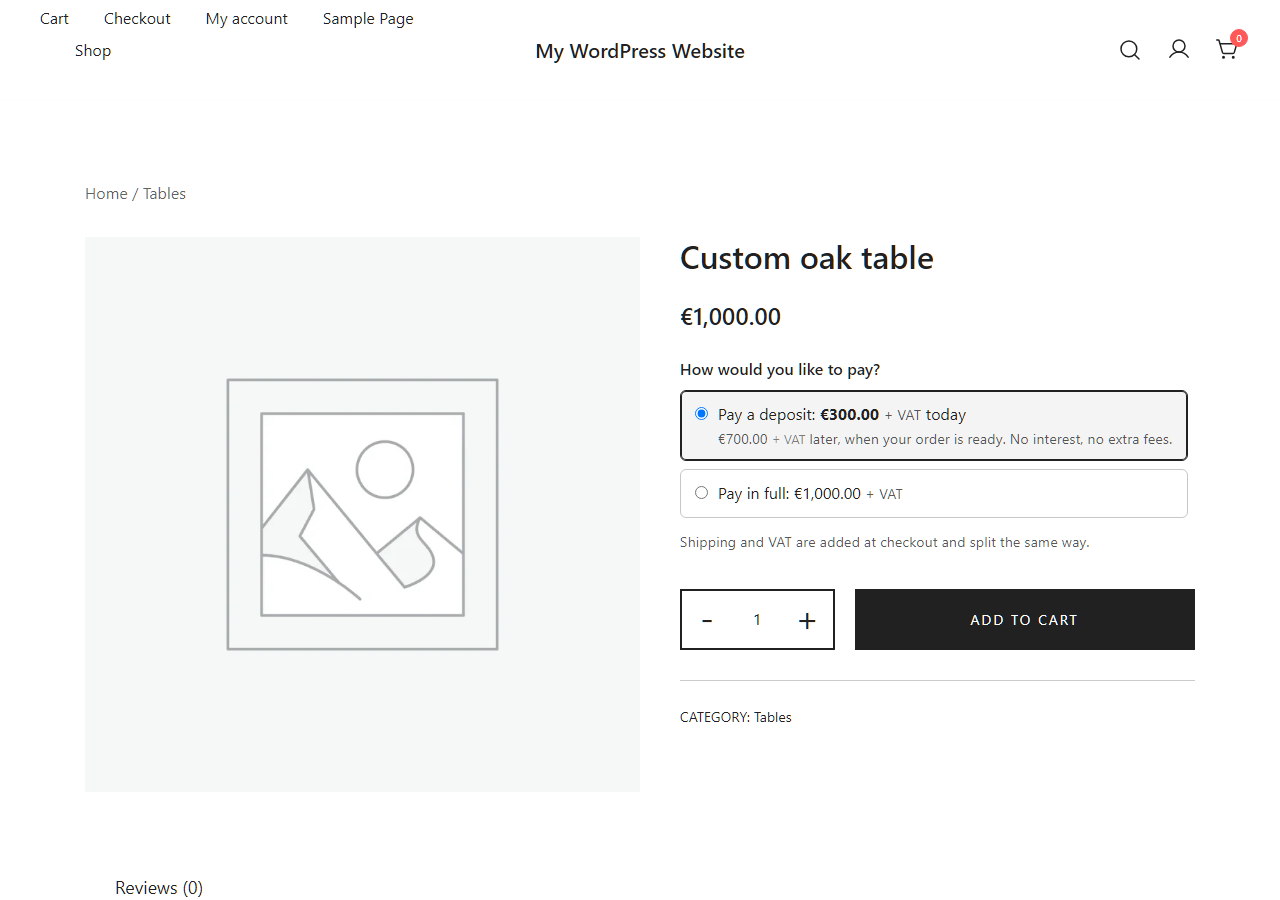
- On the product page, in the cart and at checkout the customer sees what is due today and what is due later, and chooses to pay a deposit or pay in full.
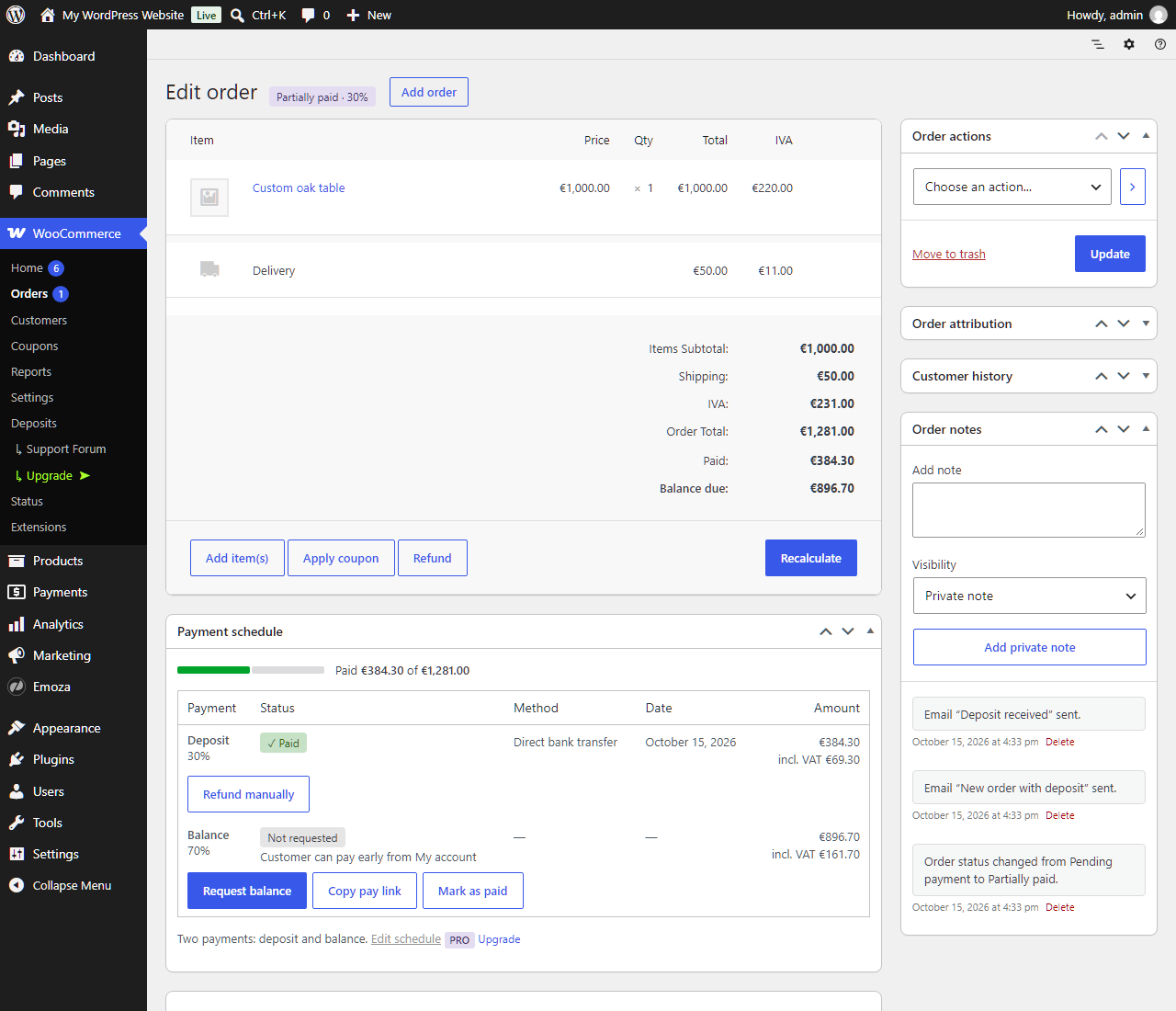
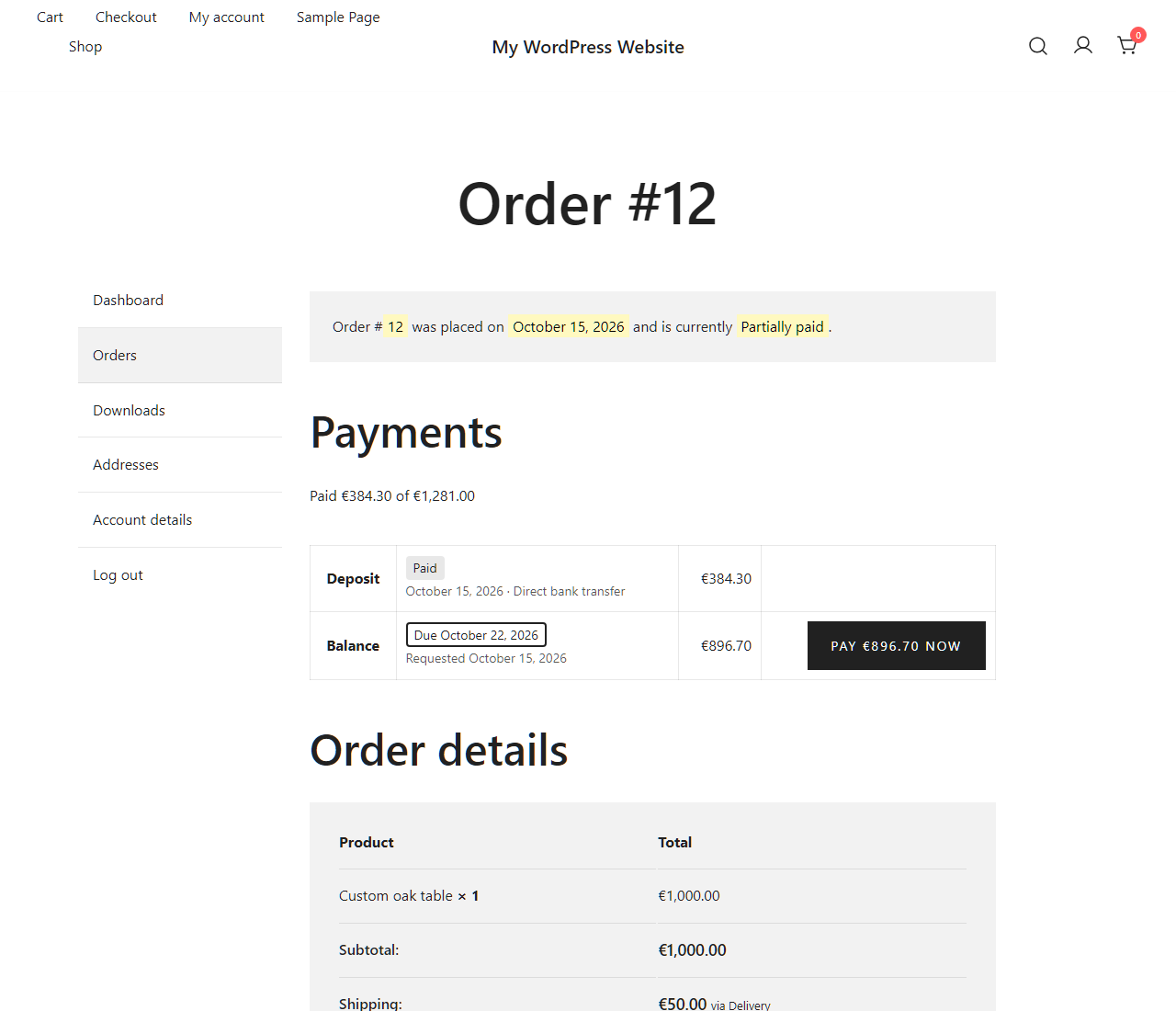
- They pay the deposit at checkout. The order gets the status Partially paid, and you get the “New order with deposit” email.
- When you are ready, you click Request balance on the order. The customer gets an email with a Pay now button and pays the balance online, with an account or without one.
- Once everything is paid, the order moves on to Processing and both of you get an email.
It works with the block checkout and the classic checkout, with HPOS (High-Performance Order Storage), and with light and dark themes.
Free features
- Deposits as a percentage of the order or a fixed amount per item, for the whole store, or only for the products and categories where you turn them on. Each product, each variation and each category can have its own deposit, or none.
- Optional or required: the customer chooses between a deposit and paying in full, or the deposit is the only way to buy. “Pay a deposit” can be pre-selected.
- What is due today and what is due later, shown on the product page, in the cart and at checkout, with your own words for when the balance is due (“when your order is ready”, “before delivery”).
- Taxes split rate by rate on every payment, so each payment can be invoiced on its own. Shipping and fees are split the same way as the products.
- Stock reduced when the deposit is paid, or only when the order is fully paid.
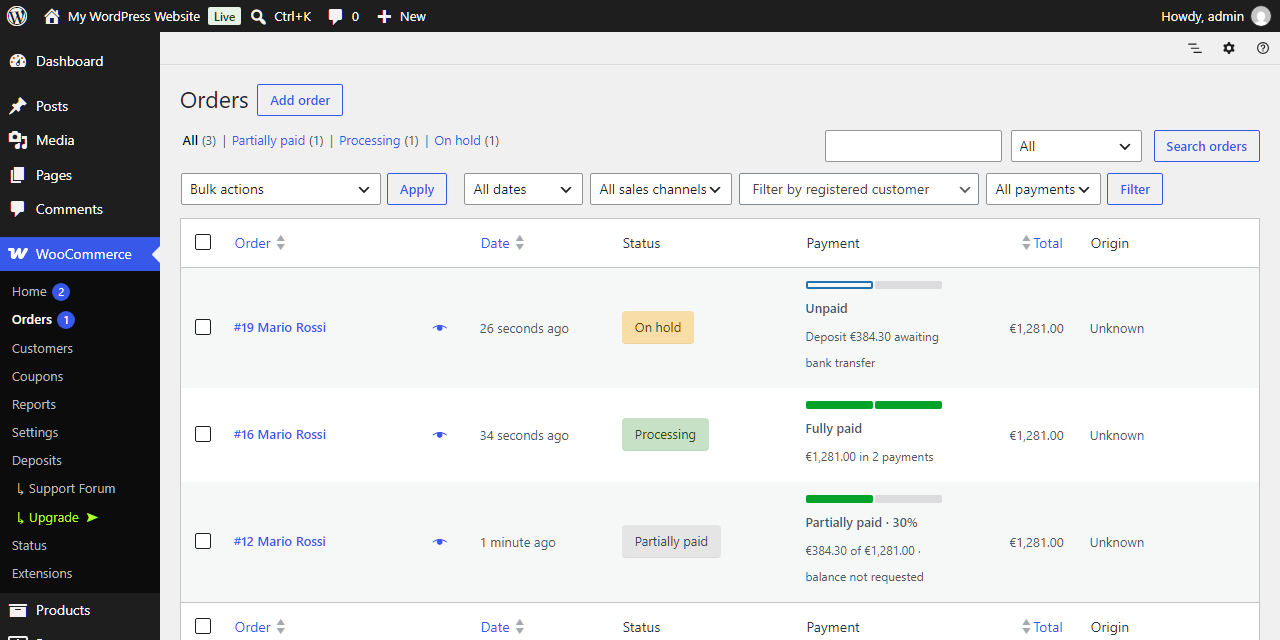
- Partially paid, a status of its own for orders waiting for the balance (or Processing or On hold, if you prefer), and a Payment column with a filter in the orders list.
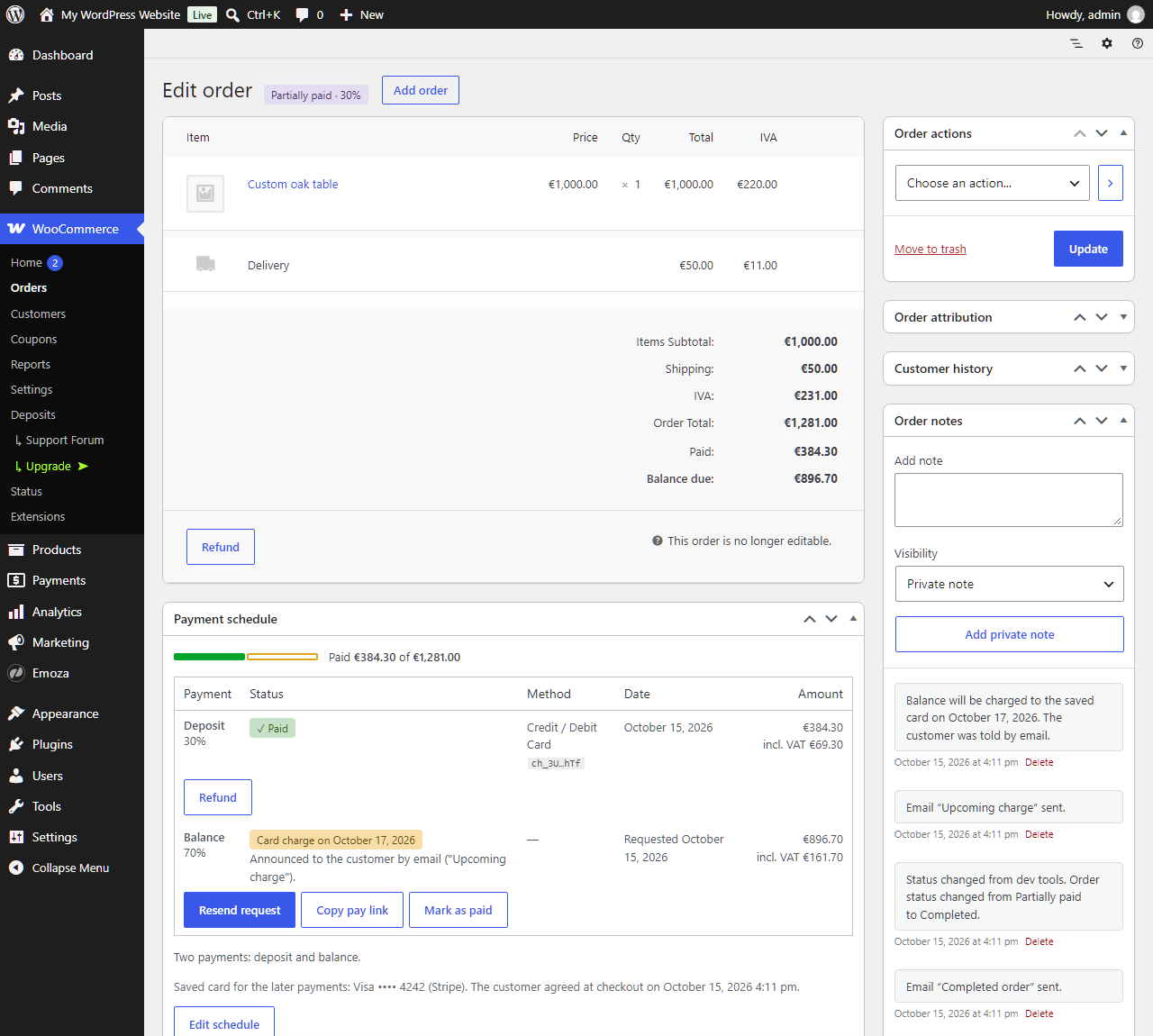
- The Payment schedule box on the order: request the balance with an optional due date and message, send the request again, copy the payment link to send it any way you like, mark a payment as paid when the money arrives outside the site (a smaller amount splits the payment in two), confirm a bank transfer, and refund through the payment you choose. “Paid” and “Balance due” appear under the order totals.
- A Pay now page for each payment, which works without logging in, and the payments of each order in My account, with a Pay button. Customers can pay the balance early, if you allow it.
- Payment methods for the deposit: choose which methods can take the deposit. Later payments can use any method of your store.
- Nine emails, managed in WooCommerce Settings Emails like any other: Deposit received, Payment requested, Payment receipt, Order fully paid, Payment request withdrawn, Balance changed and Bank details for a payment (when the customer pays the balance by bank transfer) for the customer, New order with deposit and Payment received for you. A tenth one, Order placed, nothing to pay today, is listed there too: only the Premium “Nothing to pay today” sends it.
- PDF invoices: with PDF Invoices & Packing Slips for WooCommerce (WP Overnight), WebToffee PDF Invoices and Print Invoice & Delivery Notes for WooCommerce (Tyche) the invoice shows “Paid” and “Balance due”, and single payments never take an invoice number.
- A log of every payment event, always on, to rebuild what happened on an order if a customer asks. It never contains personal data.
- Every text translatable; template overrides from your theme.
Premium features
- Payment plans with as many payments (installments) as you need, such as “30% now, 40% when production starts, the rest before delivery”. Save them and assign them to products and categories, or edit the payments of a single order, each one as a percentage or as an exact amount (“$1,000 now, the rest on delivery”).
- Payments that start by themselves: when the order moves to a status you choose, on a date, or a number of days after the previous payment.
- Nothing to pay today: give a payment plan a first payment of 0%, and the customer places the order without paying (with its own “Order placed, nothing to pay today” email); every payment is requested later.
- Charge the saved card (Stripe): the card used for the deposit is saved, and the customer is told so at checkout; later payments are charged to it. The customer gets an email before each charge, and the payment is requested by email instead whenever the card cannot be charged. Before every automatic charge the order is checked; if anything looks wrong, nothing is charged and you are asked to decide.
- Request part of a payment: ask for $500 of a $1,500 balance now; the rest stays as a separate payment, with its own Pay now link, to request later.
- Reminders while a requested payment is unpaid, an email to you after the days you set, and, if you want, the unpaid payment or the whole order cancelled.
- Rules for who can pay a deposit: by user role, guests included, and by order amount.
- Shipping and fees all in the deposit, or all in the last payment, instead of split across the payments.
- Your own wording, in every language: rewrite what customers read and the subject and heading of each email, in each language of a WPML or Polylang site.
- Works with Vanquish Request a Quote (the accepted quote gets the payment plan of its products) and Vanquish Order Approval (the deposit before or after you approve the order).
Before you buy: what this plugin does not do
- Simple and variable products only. Subscriptions, bundles, composite and grouped products and gift cards are paid in full.
- No express checkout on a deposit. Express buttons (Apple Pay, Google Pay, Stripe Link, PayPal express) charge the full cart total, not the deposit, so they are switched off automatically while a deposit is in the cart. PayPal and cards stay available as payment methods at checkout, with the right amount.
- Automatic card charges (Premium) need the official Stripe plugin, a customer who is logged in at checkout and a card. Everyone else receives a Pay now link by email.
- One invoice for the whole order. A separate invoice for each payment is not available yet.
- It is not a refundable security deposit, and not a “buy now, pay later” service: the money goes to your store, through your own payment methods.
Screenshots, plans, answers and the full guide on the plugin’s page: vanquishplugins.com/plugins/deposits.
External services
This plugin uses Freemius to manage licensing and updates for the premium version, and to offer an optional opt-in when you first activate it. Nothing is sent unless you opt in or activate a license; if you do, Freemius receives your site URL, WordPress and PHP versions and your administrator email address, in order to deliver updates and support. See freemius.com, its terms and its privacy policy.
The premium version can charge later payments to the card the customer saved at checkout, through the official Stripe plugin for WooCommerce. It is off by default and does nothing until you turn on “Charge saved cards”. When it is on, Stripe saves the card used for the deposit, the plugin asks Stripe once for the card’s brand and last four digits (to show “Visa •••• 4242”), and each charge is sent to Stripe with the amount, the order number and the Stripe customer and card references Stripe gave at checkout. The service is provided by Stripe: terms of service, privacy policy.
More WooCommerce plugins by Vanquish
- Vanquish Request a Quote for WooCommerce – let customers ask for a price, answer with your quote, and let them pay it online once you accept it.
- Vanquish Order Approval for WooCommerce – review every order before it goes ahead, and let the customer pay before or after you approve it.
- Vanquish Upload Files for WooCommerce – let customers upload files (even large ones) on the product, cart, checkout and order pages.
- Vanquish Shipping Tracking for WooCommerce – tracking numbers on orders and emails, with 1,600+ carriers, a direct tracking link and a Track button.
- Vanquish Multiple Addresses for WooCommerce – give customers an address book: save several billing and shipping addresses and pick one at checkout.
- Vanquish Attach Me for WooCommerce – attach any file to any order or product, show it to the customer and send it with the order emails.
Screenshots





Installation
- Upload the plugin files to the
/wp-content/plugins/vanquish-deposits-for-woocommercedirectory, or install the plugin through the WordPress plugins screen directly. - Activate the plugin through the ‘Plugins’ screen in WordPress.
- Make sure WooCommerce is installed and active.
- Go to WooCommerce Settings Deposits. Deposits start on the products and categories where you turn them on (the Deposit tab of the product, or the category page), or on every product if you choose “All products”. Set the amount, whether the customer can still pay in full, and when the balance is due.
Requirements and setup
The plugin works as described when the store is set up like this:
- WooCommerce 8.2 or newer. On the block checkout, the “Due today” box under the payment methods needs a recent WooCommerce (11.x); with older versions the amounts due today and later are shown under the order total instead.
- Working email. The balance is requested by email, so use an SMTP plugin or a sending service if your host’s mail is unreliable. You can always copy the payment link from the order and send it yourself.
- Express buttons of other plugins switched off on the classic pages. On the block cart and checkout every express button is switched off automatically while a deposit is in the cart. On the classic product, cart and checkout pages this happens for WooCommerce Stripe, WooCommerce PayPal Payments and PayPal by Payment Plugins; express or one-click “buy now” buttons from other plugins would charge the full cart, so turn them off there.
- Cart, checkout, My account and the Pay now page (
/pay/…) left out of page caching, as WooCommerce already requires. - Refunds made from the order in WooCommerce, choosing the payment in “Return through”. With WooPayments and the WooCommerce Stripe Gateway, refunds made in their dashboard and disputes are recorded on the order as well; with other payment methods, a refund made in their dashboard may not be matched to the right payment.
- The Partially paid status after the deposit if you use invoicing, shipping or accounting plugins. With Processing they treat the order as paid before the balance arrives.
- Premium: scheduled actions running. Reminders and payments that start by themselves run every hour through WooCommerce’s Action Scheduler. On a site with few visits, a real cron job keeps them on time.
FAQ
-
How does the customer pay the balance?
-
You click Request balance in the Payment schedule box of the order (or in the Order actions). The customer gets the “Payment requested” email with a Pay now button, which opens a page with the amount due and the payment methods of your store. Customers with an account also find the order under My account, with a Pay button. You can add a due date and a message to the request, send it again, or copy the link and send it by chat or text message.
-
Do customers need an account?
-
No. Guests pay the deposit at checkout and pay the balance from the link in the email, without logging in. Whoever has the link can see the products and amounts of the order and pay them, but not its addresses, so treat it like the link of a quote. Only the automatic card charge of Premium needs a customer who is logged in.
-
Can the balance be charged to the customer’s card automatically?
-
Yes, in Premium, with the official Stripe plugin. Turn on “Charge saved cards” (WooCommerce Settings Deposits, under Payment methods) and “Saved cards” in the Stripe settings. At checkout the customer is told that the card will be saved for the later payments. Before each automatic charge they get an “Upcoming charge” email (2 days before, by default), so they can still pay another way. If their bank asks them to confirm, they get a “Confirm your payment” email; if the card is declined, they get the Pay now link and you can retry from the order.
The order is checked before every automatic charge: if the amount changed since the customer was told, part of the order was refunded or disputed, another payment of the order was charged in the last 24 hours, the charge is more than 3 days late, or the customer or the Stripe mode changed, nothing is charged. The payment goes on hold, you get an email, and you choose to charge it, send a payment request instead, or cancel the automatic charge. If more automatic charges than you allow are due within an hour (10 by default), all of them pause until you resume them.
-
Which payment methods can I use?
-
Any method that pays a normal WooCommerce order. We tested cards with Stripe, PayPal Payments, bank transfer, cash on delivery and check. If you rely on another method, try it in test mode before you go live. With PayPal Payments, a deposit is paid on PayPal’s page rather than with the buttons in the page, because the buttons would charge the whole cart. Under “Methods for the deposit” you can keep some methods for the balance only, such as cash on delivery.
-
Which products can take a deposit?
-
Simple and variable products. Each variation can have its own deposit, and the product page then shows the lowest amount due today. Subscriptions, bundles, composite and grouped products and gift cards are not supported: the Deposit tab does not appear on them and they are paid in full.
-
How are taxes, shipping and coupons handled?
-
Each payment takes its share of every tax rate, so the deposit and the balance can each be invoiced with the right tax. Shipping and fees are split the same way as the products; with Premium they can go all in the deposit or all in the last payment instead (WooCommerce Settings Deposits Taxes, shipping and stock). Coupons reduce the order total, and the payments are worked out on what is left.
-
Do PDF invoices work?
-
The order keeps its full total, so any invoice plugin invoices the full order. With PDF Invoices & Packing Slips for WooCommerce (WP Overnight) the invoice also shows “Paid” and “Balance due” under the total and a table of the payments; with WebToffee PDF Invoices and Print Invoice & Delivery Notes for WooCommerce (Tyche) it shows “Paid” and “Balance due”. With all three, the single payments never take an invoice number, the invoice is available while the order is “Partially paid”, and it can be sent with the deposit: tick “Deposit received” among the emails it is attached to, in the invoice plugin’s settings. Other invoice plugins show the full order total.
-
What do other plugins see while the balance is unpaid?
-
The order is Partially paid, a status other plugins do not treat as paid: WooCommerce sends no “Processing order” email, downloads stay locked, and invoicing or shipping plugins wait. If you choose Processing instead, they behave as if the order were paid in full. WooCommerce Analytics counts the order at its full value as soon as it is placed; to count only paid orders, exclude “Partially paid” in the Analytics settings.
-
How do refunds work?
-
Refund from the order in WooCommerce, as usual. The refund panel has a “Return through” choice: pick the payment the money goes back through, and the refund goes to the payment method of that payment (for Stripe and PayPal, automatically). The Payment schedule box then shows which payments are refunded.
-
Can I change the payments of an order after it is placed?
-
In the free version you can mark a payment as paid, also for less than its amount (the rest becomes a new payment), and edit the order as usual: the unpaid payments follow the new total, and the customer is told with the “Balance changed” email. Premium adds Edit schedule, to change, add, reorder or remove the unpaid payments of an order, and Split into payments for orders placed without a deposit, with each payment as a percentage or an exact amount. With Premium you can also request only part of a payment: the rest stays to request later.
-
Does it work with page caching?
-
Yes, as long as the cart, the checkout, My account and the Pay now pages are excluded from the cache, which WooCommerce already asks of every caching plugin.
-
Can I change the wording or the look?
-
“How customers read it” in the settings sets the words for when the balance is due. Every other text is translatable, and each email’s subject, heading and additional content are edited in WooCommerce Settings Emails. To change the HTML, copy a file from the plugin’s
templatesfolder toyourtheme/vanquish-deposits/(for exampleyourtheme/vanquish-deposits/frontend/payments-box.php). Developers can use filters such asvandp_text,vandp_cart_summary,vandp_pay_early_allowedandvandp_invoice_rows. Premium adds a Texts screen to rewrite the texts and the emails per language. -
Something went wrong on an order. How do I find out what happened?
-
The plugin keeps a log of every payment event: deposits, requests, payments, refunds, status changes, emails sent and, in Premium, every automatic charge, with where it came from (the admin, the customer, a payment method’s notification, a scheduled action) and who did it. Find it in WooCommerce Status Logs, source “vanquish-deposits”, and attach it to your support request. It contains order numbers, amounts and statuses, never names, addresses or email addresses.
-
Does it work with Vanquish Request a Quote and Vanquish Order Approval?
-
Yes, with Premium. An accepted quote gets the payment plan of its products, and the “Quote accepted” email asks for the first payment. With Order Approval, the deposit can be paid at checkout and the rest after you approve the order, or nothing is paid until you approve it.
-
Is this a security deposit or a “buy now, pay later” plugin?
-
No. The deposit is a first payment of the order’s price, and the balance is the rest of it. For refundable security deposits, or for financing by a third party, use a plugin made for that.
-
What happens if I deactivate or uninstall the plugin?
-
Deactivating keeps everything in place: the orders keep their full totals and their refunds, and the payments come back when you activate the plugin again. Uninstalling removes only the plugin’s scheduled actions and caches: your settings and your orders, with their payments, stay as they are, so reinstalling puts you back where you were.
-
No. The premium package is the same plugin with more in it. Everything described above under “free features” works the same either way, and the settings you have already made are untouched by activating a license. If the license expires, existing orders stay manageable, and payments that would start by themselves wait for you to request them.
-
There are monthly, yearly and lifetime plans, for one site up to ten.
To see the current prices and to order, install and activate the free version, then click Upgrade next to any PRO option in WooCommerce Settings Deposits. The plans and a secure checkout, handled by Freemius, are right there, and the same screen walks you through activating Premium on your site.
-
Yes, and it is strongly recommended. The free version on WordPress.org is the same plugin with fewer features: install it on your own site, with your own theme and payment methods, and check that the deposit choice, the checkout and the Pay now page fit your shop before upgrading. Premium adds features on top of it, on the same foundations.
Reviews


Contributors & Developers
“Vanquish Deposits for WooCommerce” is open source software. The following people have contributed to this plugin.
Contributors

Translate “Vanquish Deposits for WooCommerce” into your language.
Interested in development?
Browse the code, check out the SVN repository, or subscribe to the development log by RSS.
Changelog
1.3.0
- New: the notes a payment method writes on a payment (its transaction ID, why a payment failed, refunds, disputes) are copied to the order, with the name of the payment in front.
- New: refunds made in the WooPayments or Stripe dashboard, and the money taken back by a lost dispute, are recorded on the order through the right payment, so the paid amount and the refunds stay right.
- New: a dispute puts the order on hold, with a note, and the payment keeps counting as paid while it is open. A dispute won puts the order back to its status; after a dispute lost the order stays on hold for you to decide.
- Fix: an order you put on hold yourself after it was fully paid no longer goes back to Processing by itself.
- Fix: the customer no longer gets WooCommerce’s “partially refunded” email about a single payment.
1.2.0
- New (Premium): in “Split into payments” and “Edit schedule”, a payment of the order can be an exact amount (“$1,000 now”) instead of a percentage. Type it in the amount column; the payment comes out at exactly that amount, taxes included, and keeps it when you edit the order later. Payments entered as a percentage follow the new total, and the last one is the rest.
- New (Premium): “Amount to request” in the Request dialog asks for only part of a payment, such as $500 of a $1,500 balance. The amount requested stays as it is if the order changes later; the rest becomes a separate payment, not requested yet, with its own Pay now link.
- New: each payment is sent to the payment method with its own order number, such as “1042-deposit” or “1042-balance”, instead of the number of a hidden payment, so the payments of one order are easier to tell apart. Where it shows depends on the payment method. Developers can change it with the
vandp_payment_order_numberfilter. - Fix (Premium): on an order divided with “Split into payments”, saving or recalculating the order no longer moves the whole unpaid amount onto its first payment. When the total changes, each unpaid payment keeps its percentage of the order (or its amount, if typed as one) and the last one takes the rest.
- Fix: refunds through a payment taken by WooPayments are recorded in WooCommerce. Before, WooPayments sent the money back but reported “A refund cannot be found”, and the refund was not recorded.
- Fix: in the refund panel, “Refund via …” now appears for the payment chosen in “Return through”, with its own payment method. Before, it depended on the order’s payment method: with WooPayments only “Refund manually” was offered, and the money had to be sent back by hand. “Refund manually” also stays available for payments received in cash or by bank transfer, also when WooPayments hides it for the order.
- Fix: the payment schedule says “email sent” only when the “Payment requested” email really left the site. When the site could not send it, the schedule says so, so you know to send the pay link yourself.
- Fix: a product added to an order that is already partially paid now reduces its stock right away, as on a processing order. Before, it waited for the last payment.
- Fix (Premium): in “Split into payments” and “Edit schedule”, the amount shown for the last payment is exact also with decimal percentages (for example 33.3334% of 3,000 showed the rest as 2,000.10; the saved amounts were already right).
1.1.1
- New: when the customer pays the balance (or any later payment) by bank transfer, they get a “Bank details for a payment” email with the amount and your bank details. Before, only the deposit’s transfer was emailed by WooCommerce.
- Fix: the Pay now page of a payment waiting for a transfer shows the bank details again, under “We are waiting for your transfer”.
- Fix: after choosing bank transfer for the balance, the thank-you page no longer says “Your deposit is paid” and “Transfer … to confirm your order”, but “Transfer … to pay the balance”, with the bank details even when the deposit was paid another way, and without that method’s instructions.
1.1.0
- New: works with Print Invoice & Delivery Notes for WooCommerce (Tyche). The invoice shows “Paid” and “Balance due” under the total, and it can be printed and attached to the emails while the order is “Partially paid”.
- Fix (Premium): an order placed with nothing to pay today is no longer reported to other plugins as paid. WooCommerce’s “payment complete” step no longer runs for it, so shipping, membership or marketing plugins that listen to it wait for a real payment.
- Tweak: checked with the current versions of PDF Invoices & Packing Slips for WooCommerce (5.16) and WebToffee PDF Invoices (5.0).
1.0.1
- Tweak: the plugin’s homepage, linked from the Plugins screen, is now its page on vanquishplugins.com, with screenshots, plans, answers and the full guide.
- Tweak (Premium): clearer wording for the saved-card checks and for where the “Upcoming charge” email is turned on.
1.0.0
- First release.