
Description
Brain 2FA protects WordPress accounts with a second authentication factor. After entering their password, users confirm their identity with a six-digit code from an authenticator app or from their email inbox. Users can also sign in without a password using a passkey.
Codes are generated and passkeys are verified on your own server. Brain 2FA does not send any data to third-party services.
Features
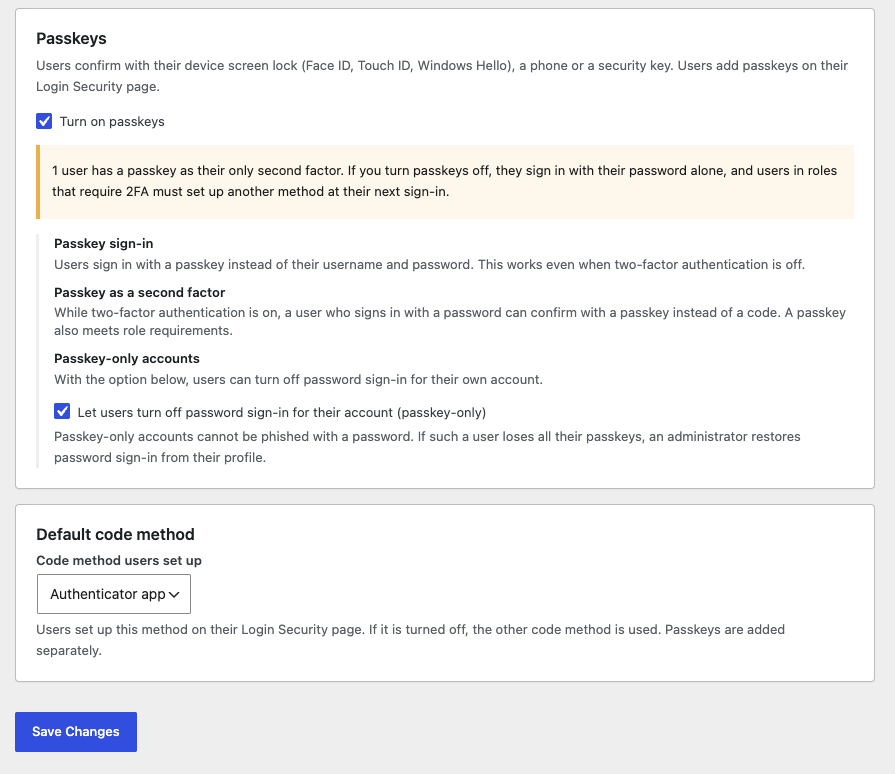
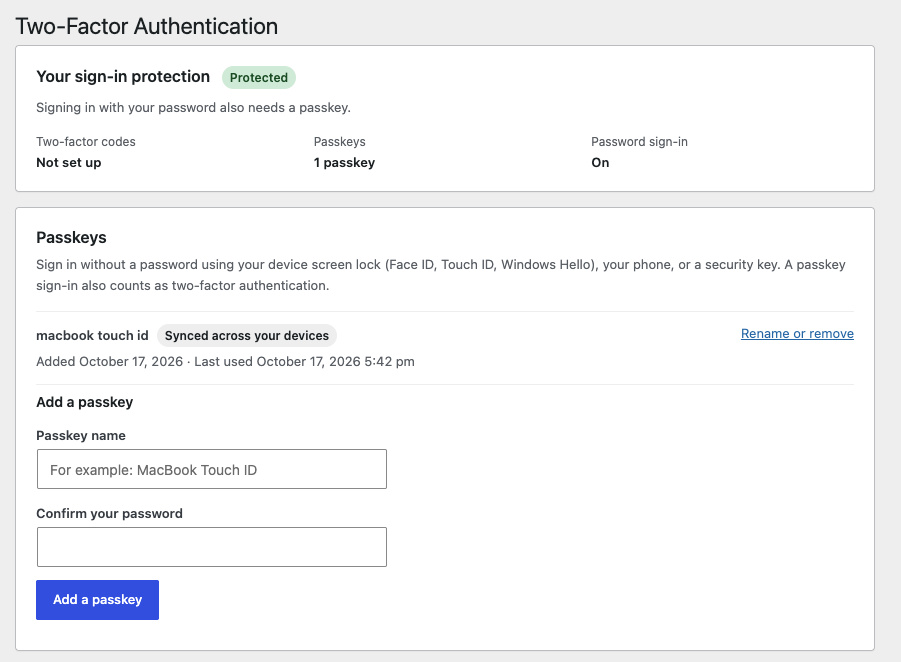
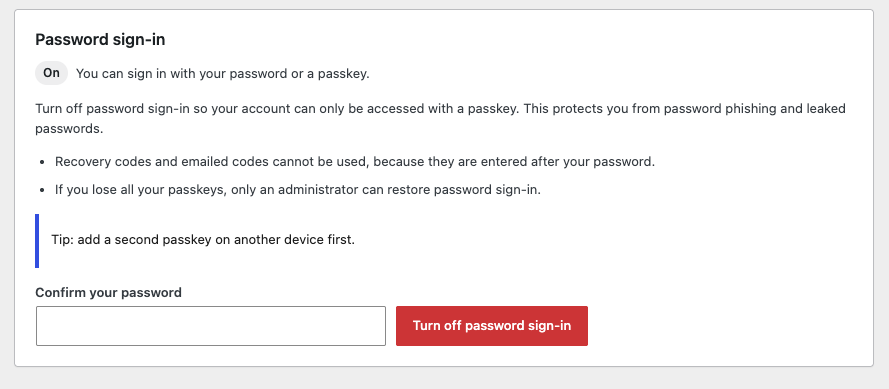
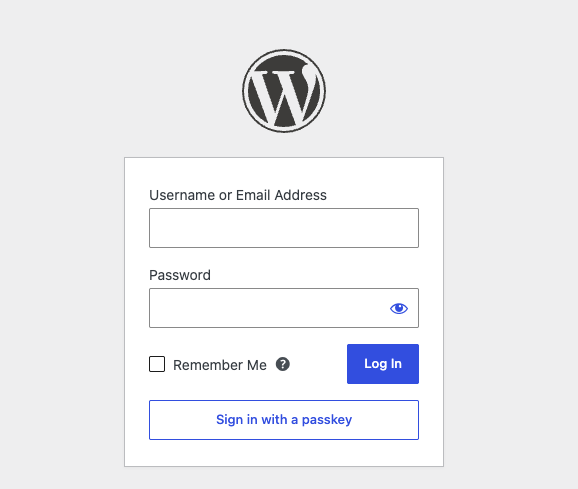
- Passkeys: Sign in without a password using Face ID, Touch ID, Windows Hello, a phone or a security key. Passkeys are offered right in the username field, and a passkey sign-in counts as two-factor authentication. A passkey can also be the second step after a password, counts toward required two-factor setup, and users can optionally turn off password sign-in entirely. Requires HTTPS; turn it on under Brain 2FA > Settings.
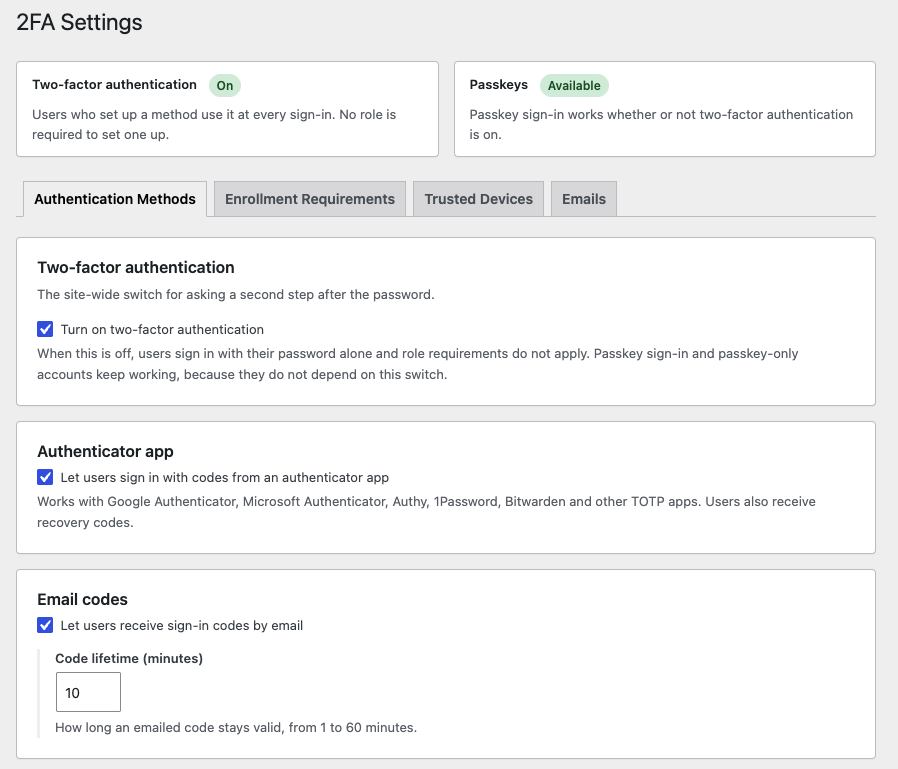
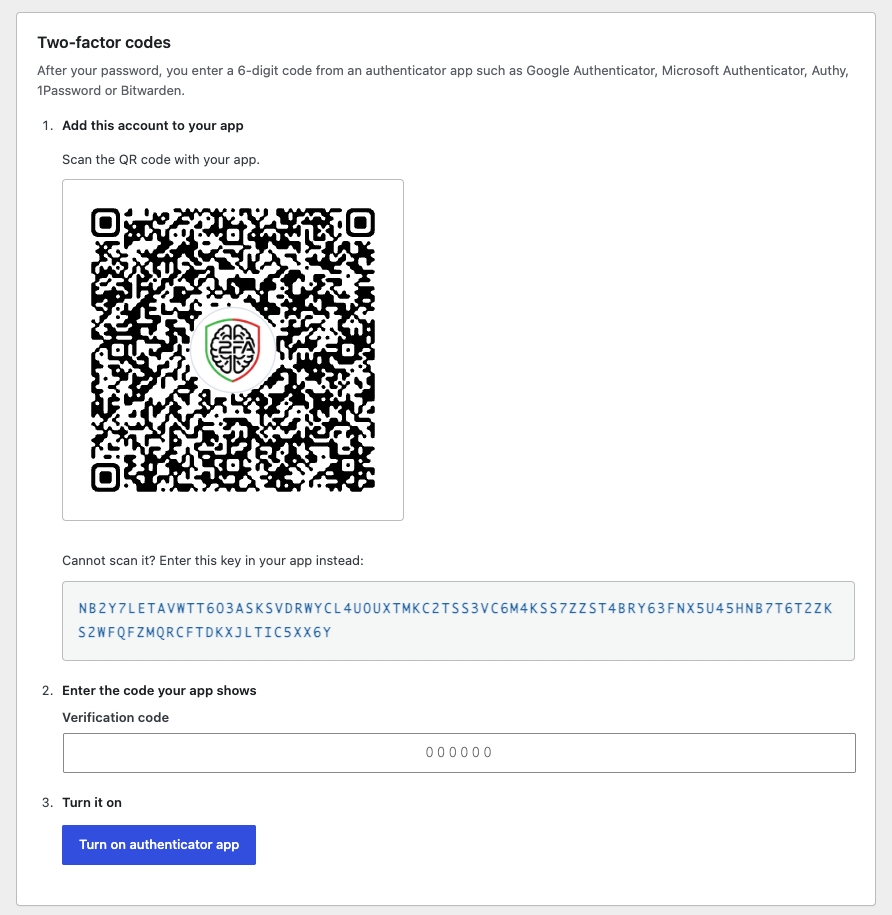
- Authenticator apps (TOTP): Works with Google Authenticator, Microsoft Authenticator, Authy, 1Password, Bitwarden and any other TOTP-compatible app. Users set it up by scanning a QR code or entering the secret key manually.
- Email verification codes: Sends a one-time code to the account email address, with a configurable expiry time.
- Recovery codes: TOTP users receive one-time recovery codes they can download and regenerate in case they lose their phone.
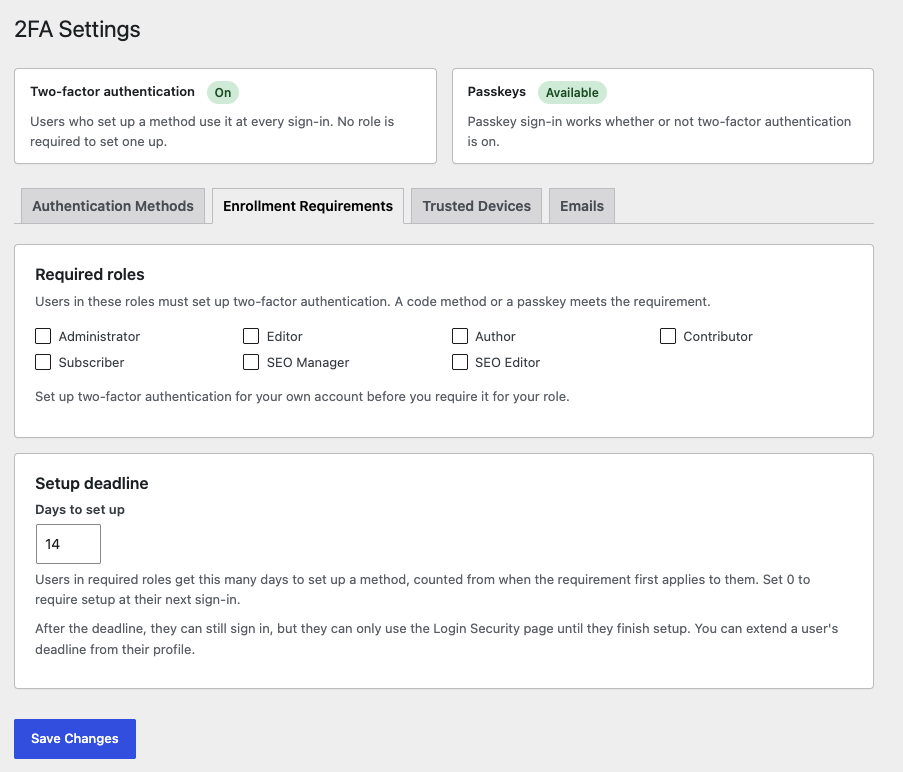
- Role-based enforcement: Require two-factor authentication for selected user roles, such as Administrator, Editor or Shop manager.
- Setup grace period: Give users in required roles a set number of days to enable 2FA. After the deadline, they can sign in but only reach the setup page until 2FA is enabled. Administrators can see deadlines in the Users list and extend them from a user’s profile.
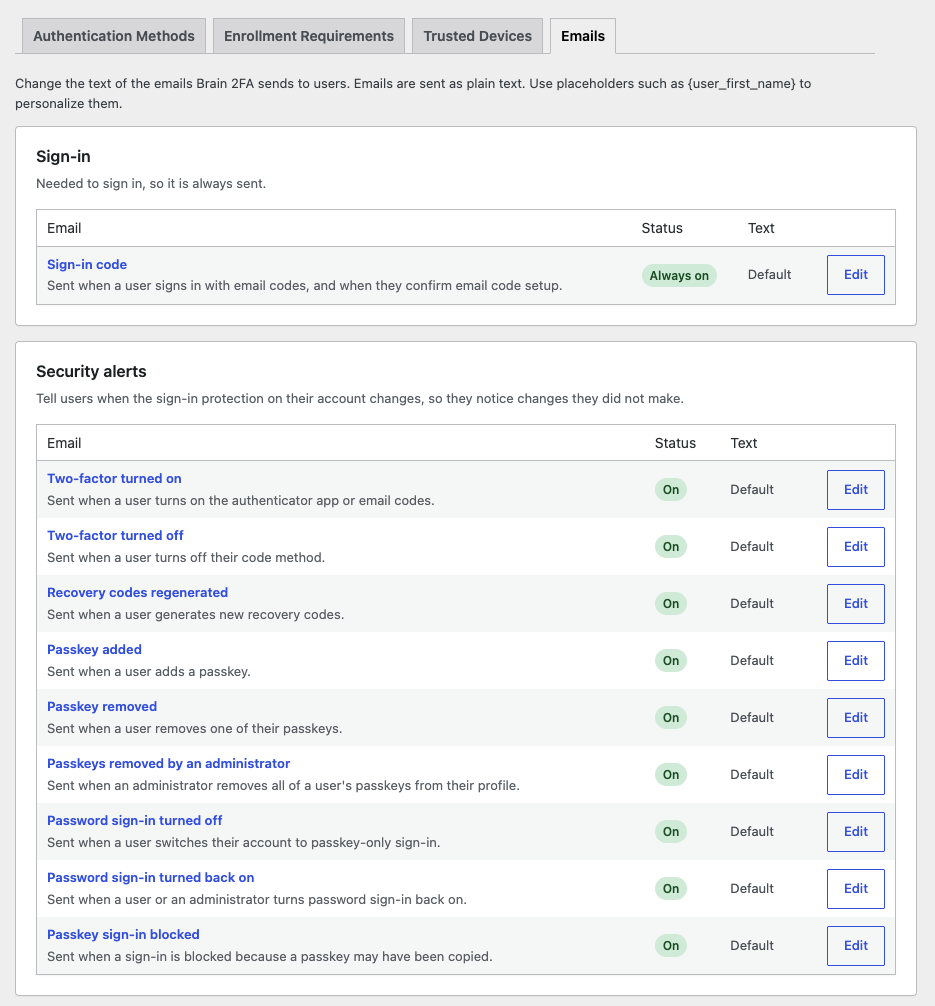
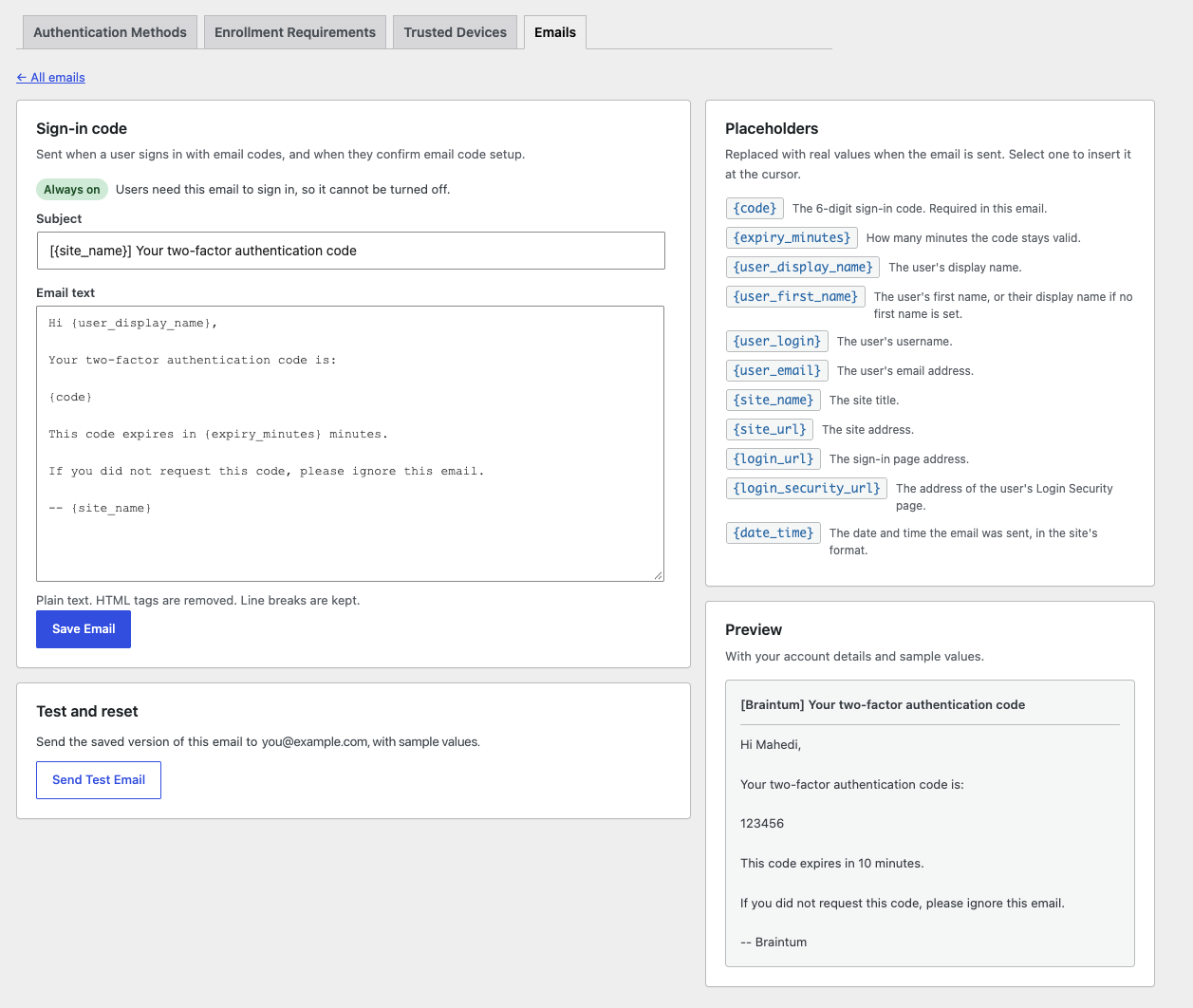
- Editable emails: Change the subject and text of every email the plugin sends, from the sign-in code to security alerts, under Brain 2FA > Settings > Emails. Personalize them with placeholders such as
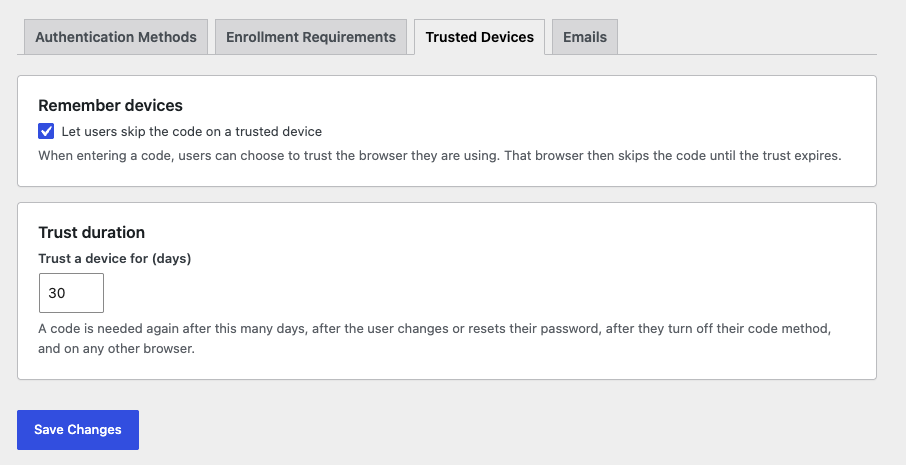
{user_display_name},{site_name}and{date_time}, preview them as you type, send yourself a test, and reset any email to its default. You can also turn off individual alerts and set the sender name and address. - Trusted devices: Users can optionally skip the code on devices they trust, using expiring, password-hashed tokens.
- Consistent enforcement: The 2FA policy applies to every sign-in, including direct submissions of the login form, not only the JavaScript-assisted flow. The credential check before the code step is rate limited per IP address.
- WooCommerce support: Works with the default WordPress login form and the WooCommerce My Account login form. Customers can set up and manage 2FA from a link on their My Account dashboard.
- Works without JavaScript: If the login script cannot run, a verification code field is shown on the login form instead.
- Translation ready: All user-facing text can be translated.
Support
Need help? Visit Braintum Support.
Development
The development source code and build tools for Brain 2FA are publicly available at:
https://github.com/Braintum/brain-2fa
The JavaScript files in assets/js/ are generated from the source files in src/js/.
Screenshots
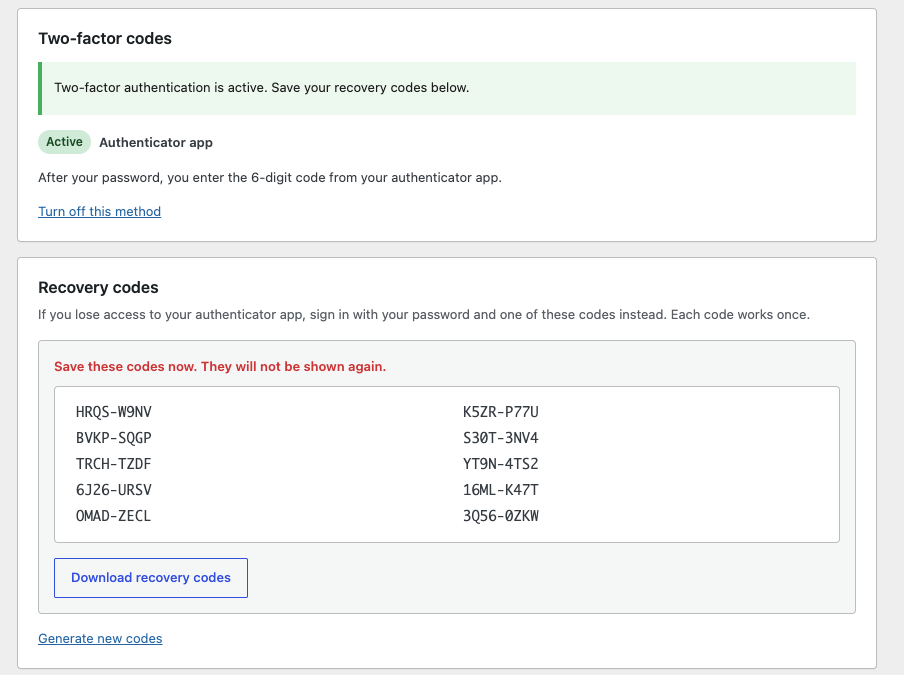
Installation
- Upload the
brain-2fafolder to the/wp-content/plugins/directory, or install the plugin through the WordPress Plugins screen. - Activate the plugin through the Plugins screen in WordPress.
- Open Brain 2FA > Settings and enable two-factor authentication.
- Configure authentication methods and role requirements as needed.
FAQ
-
How do users set up two-factor authentication?
-
Users can open Brain 2FA > Login Security from the WordPress admin area and follow the setup instructions for the configured default method.
-
Which authenticator apps are supported?
-
Any app that supports time-based one-time passwords (TOTP), including Google Authenticator, Microsoft Authenticator, Authy, 1Password and Bitwarden.
-
What happens if a user loses access to their authenticator app?
-
TOTP users can use a recovery code. Site administrators can also manage setup grace periods from the user profile.
-
Can I require two-factor authentication for specific roles?
-
Yes. In Brain 2FA > Settings, select the roles that must use 2FA and set a grace period. Users in those roles get the configured number of days to complete setup. After that, or immediately with a grace period of 0, they can still sign in but are taken to the setup page and cannot use the rest of the site until 2FA is enabled.
-
Does the plugin support WooCommerce login?
-
Yes. The plugin supports the standard WooCommerce My Account login form. Customers can set up two-factor authentication from the link on their My Account dashboard.
-
Can users sign in without a password?
-
Yes, with passkeys. Enable Passkeys under Brain 2FA > Settings, then each user adds a passkey on their Login Security page (after confirming their password). On the login form they can pick their passkey from the username field or use the Sign in with a passkey button. Because a passkey checks the user’s fingerprint, face or device PIN, a passkey sign-in does not ask for a separate verification code.
-
Do passkeys need HTTPS?
-
Yes. Browsers only allow passkeys on secure (HTTPS) sites. On a site without HTTPS, the passkey options stay hidden.
-
Can a passkey be used as the second factor after a password?
-
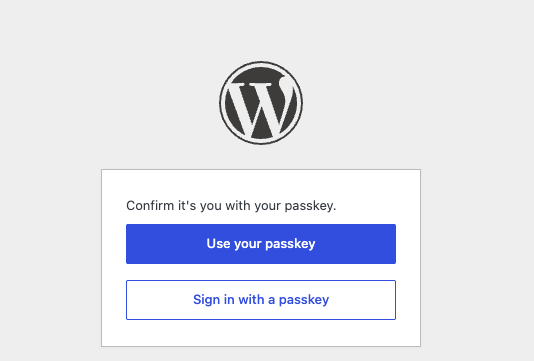
Yes. After entering their password, users with a passkey can confirm with it instead of typing a code. A passkey also counts as two-factor authentication for roles that require it, so users can set up 2FA with a passkey alone.
-
Can users turn off password sign-in?
-
Yes, if you allow it under Brain 2FA > Settings. Users with a passkey can then turn off password sign-in on their Login Security page, so their account can only be accessed with a passkey. If they lose all their passkeys, an administrator can turn password sign-in back on from the user’s profile.
-
What if a user loses the device with their passkey?
-
Unless they turned off password sign-in, they can still sign in with their password (and a two-factor code, if they have one) and remove the lost passkey on their Login Security page. Administrators can remove all of a user’s passkeys from the user’s profile, which also turns password sign-in back on.
-
Can I change the emails the plugin sends?
-
Yes. Open Brain 2FA > Settings > Emails to edit the subject and text of the sign-in code email and of each security alert (for example “Two-factor authentication turned on” or “Passkey added”). Click a placeholder such as
{user_first_name},{site_name}or{login_security_url}to insert it; the preview shows the result with sample values. Use Send Test Email to see it in your inbox, and Reset to Default to undo your changes. Emails you have not edited keep following the plugin’s translations.The sign-in code email cannot be turned off and must contain
{code}, so users can always receive their code. The security alerts can be turned off one by one, but we recommend keeping them: they tell users when someone changes their sign-in settings.Emails are sent as plain text. Under Sender you can set the From name and address; leave them empty to use your site’s normal mail settings.
-
What happens to my data if I delete the plugin?
-
Deactivating the plugin keeps all settings and every user’s setup. Deleting it from the Plugins screen removes everything Brain 2FA stored: settings, email templates, authenticator secrets, recovery codes, trusted devices and passkeys. Users then need to set up two-factor authentication again if you reinstall it. To keep the data when deleting the plugin, add
define( 'BRAIN2FA_KEEP_DATA_ON_UNINSTALL', true );towp-config.php. -
Does Brain 2FA connect to external services?
-
No. Codes, QR codes and recovery codes are generated on your server, passkeys are verified on your server, and verification emails are sent through your site’s normal WordPress mail setup.
-
Where can I get support?
Reviews
There are no reviews for this plugin.
Contributors & Developers
“Brain 2FA” is open source software. The following people have contributed to this plugin.
Contributors
Translate “Brain 2FA” into your language.
Interested in development?
Browse the code, check out the SVN repository, or subscribe to the development log by RSS.
Changelog
1.1.0
- New: Passkeys for passwordless sign-in (Face ID, Touch ID, Windows Hello, phones and security keys). Passkeys are offered in the username field’s autofill and through a “Sign in with a passkey” button on the WordPress and WooCommerce login forms. Off by default; requires HTTPS.
- New: Users add, rename and remove passkeys on their Login Security page. Adding or removing a passkey requires the account password, and users are emailed about each change.
- New: Administrators can remove all of a user’s passkeys from the user’s profile.
- New: A passkey can be the second step after a password, as an alternative to a code or as the only second factor.
- New: Passkeys count toward required two-factor setup: users in required roles can enroll with a passkey alone.
- New: Optional passkey-only accounts. When allowed under Brain 2FA > Settings, users can turn off password sign-in; administrators can turn it back on from the user’s profile.
- New: Every email the plugin sends is editable under Brain 2FA > Settings > Emails: the sign-in code email and nine security alerts. Personalize them with placeholders (user name, site name, sign-in links, date and time, passkey name and more), preview changes as you type, send a test to yourself and reset to the default at any time.
- New: Security alerts can be turned off individually, and the sender name and address can be set for plugin emails.
- New: Developers can add placeholders with the
brain2fa_email_placeholdersfilter and change any email before it is sent withbrain2fa_email_content. - Security: A passkey sign-in requires the device’s biometric or PIN check and counts as two-factor authentication. A passkey that appears to have been copied is blocked, and the owner is notified.
- Improvement: Brain 2FA > Settings is organized into tabs: Authentication Methods, Enrollment Requirements, Trusted Devices and Emails. Each tab saves on its own without changing the others, and a summary at the top shows whether two-factor authentication and passkeys are in effect.
- Improvement: Passkey alerts now name the passkey that was added, removed or blocked.
- Improvement: The settings page warns before you turn off the authenticator app or email codes while users rely on them, with the number of users who could no longer sign in with their password.
- Improvement: The Login Security page starts with a summary of your sign-in protection, followed by separate sections for passkeys, two-factor codes, recovery codes and password sign-in. Errors appear next to the form that caused them.
- Improvement: Deleting the plugin now removes all of its data (settings, email templates, user two-factor data and the passkeys table). Deactivating keeps everything; define
BRAIN2FA_KEEP_DATA_ON_UNINSTALLto keep data on deletion. - Improvement: Compatibility with the next major version of the TOTP library (no more deprecation notice).
- Improvement: A refreshed authenticator app QR code with rounded modules and the logo in a round badge. It stays sharp on high-resolution screens and no longer needs the GD extension.
- Fix: Entering a wrong code while setting up an authenticator app no longer replaces the QR code you already scanned.
1.0.4
- New: Users who miss their setup deadline are no longer locked out. They can sign in, but only reach the setup page until two-factor authentication is enabled. A grace period of 0 now works as described: setup is required at the first sign-in.
- New: WooCommerce customers can set up and manage two-factor authentication from a link on their My Account dashboard.
- New: A verification code field is shown on login forms when JavaScript is unavailable.
- Improvement: Email authentication is turned on only after you enter a code sent to your address, so broken site email cannot lock you out.
- Improvement: Users whose role requires two-factor authentication must set up a new method right after deactivating, instead of getting a new grace period.
- Security: Sessions started before a setup deadline are also restricted to the setup page once it passes. XML-RPC and REST logins stay blocked until setup is complete.
1.0.3
- Security: Limit failed verification attempts. After 5 failed codes, an account is locked out of verification for 15 minutes; repeated failures from one IP address are also limited.
- Security: Turning off two-factor authentication and regenerating recovery codes now require your account password.
- Security: A new authentication method can no longer be set up over an active one.
- Security: Users receive an email when two-factor authentication is turned on or off, or recovery codes are regenerated.
- Security: Trusted devices are revoked when a password is changed or reset.
- Security: Email verification codes can only be used once, even with simultaneous requests.
- Fix: The email code expiry setting is limited to 1–60 minutes.
- Fix: The QR code area is hidden when the QR code cannot be generated; the secret key is still shown.
1.0.2
- Security: TOTP codes can no longer be reused within their validity window.
- Fix: Clock-drift tolerance now correctly accepts the previous and next 30-second authenticator codes.
1.0.1
- Fix: PHP 8.4 deprecation notice in the TOTP fallback verification (explicit nullable
WP_Userparameter).
1.0.0
- Initial release.