

Description
Your analytics stay on your own server. Ponte Analytics for Umami connects WordPress to the self-hosted Umami v3.x instance you run. Visitor data goes straight from the browser to your Umami server – it never reaches nquare, so there is nothing for us to store.
It is for site owners who already run Umami and want WordPress events – form submissions, purchases, button clicks – recorded there, without writing any JavaScript.
Umami is open-source, cookie-free and privacy-friendly by design, and this plugin keeps it that way: purely client-side, no server-to-server calls, and no database tables created.
This plugin never asks for an Umami API key. It has no reason to – nothing talks to Umami from your server, only from your visitors’ browsers.
Two fields and a toggle
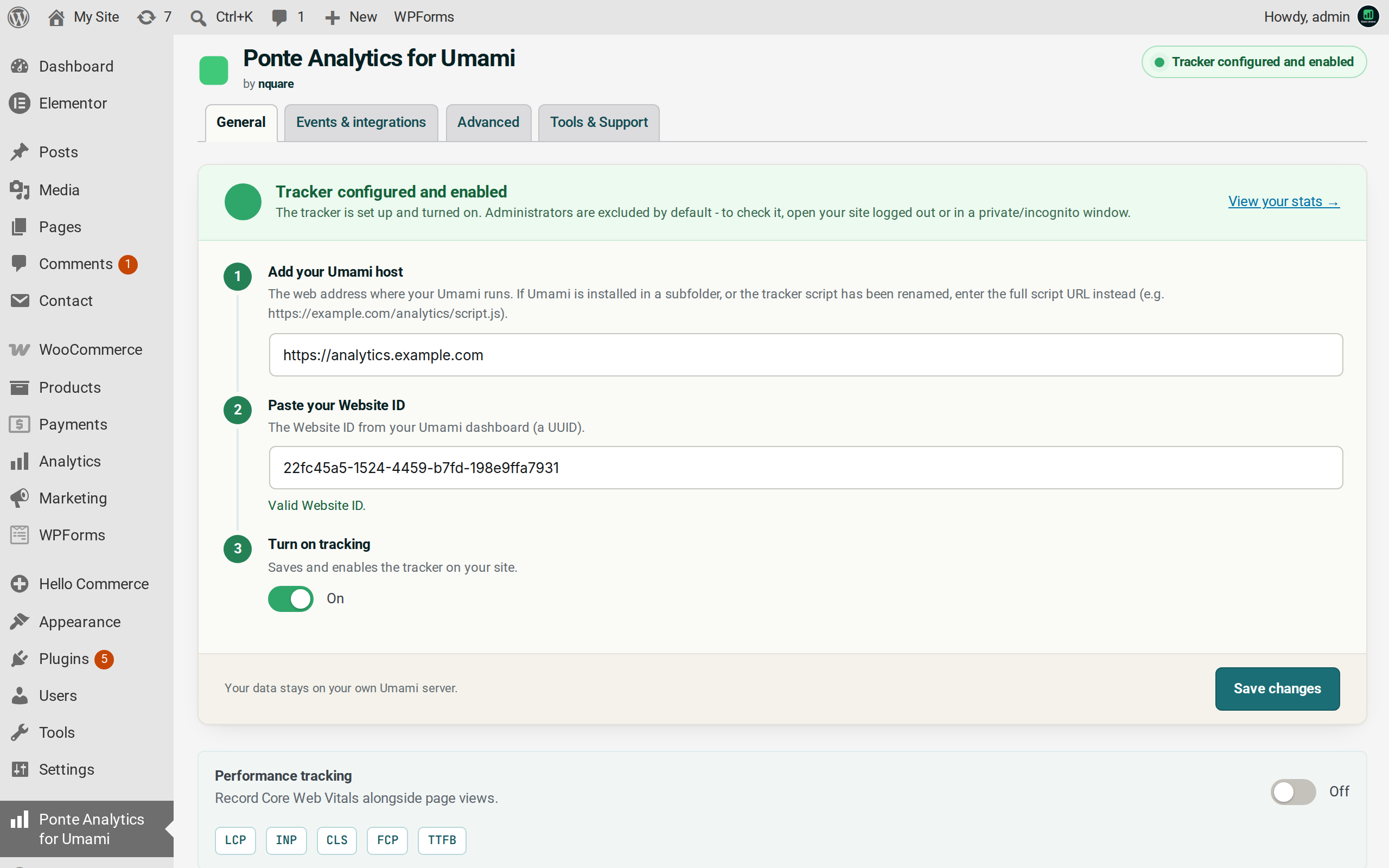
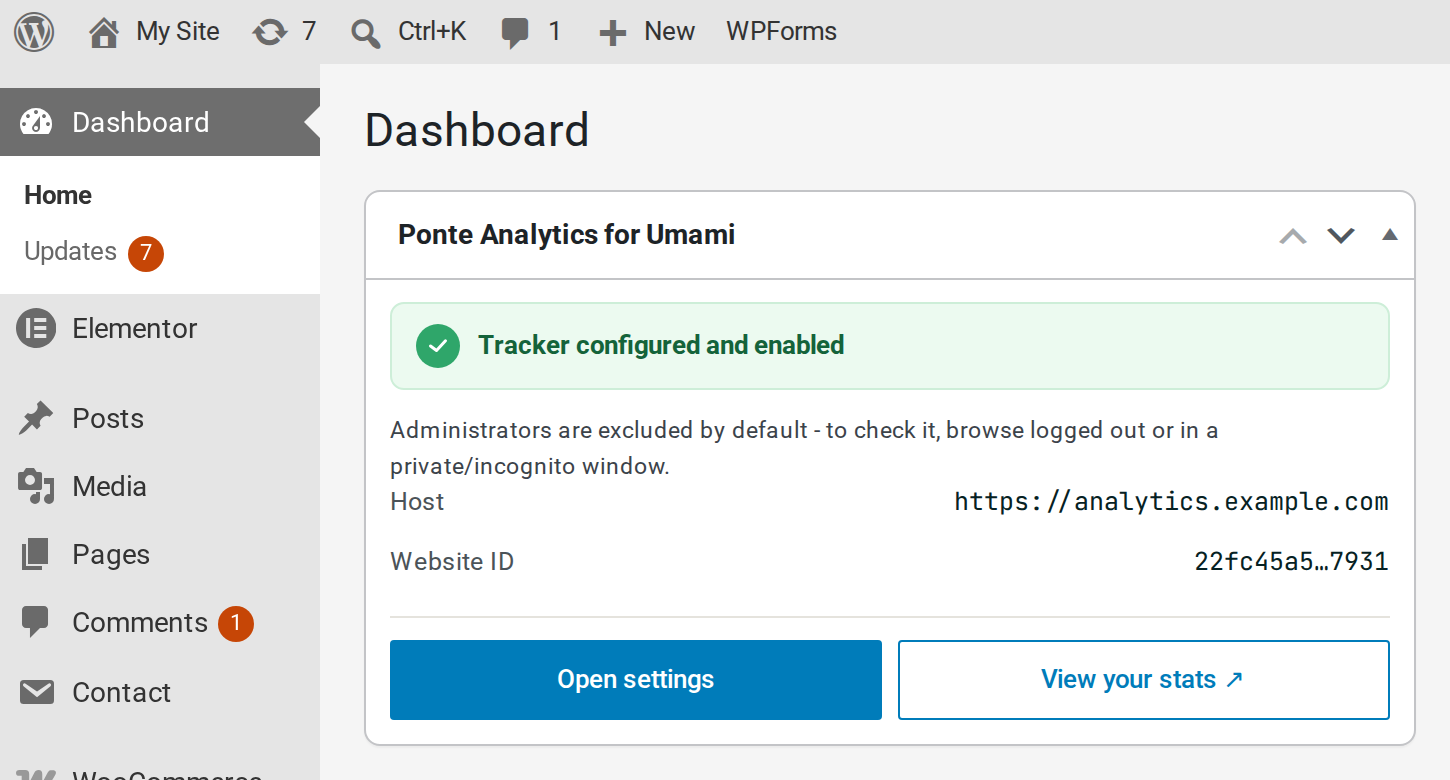
Enter your Umami host URL and Website ID, switch tracking on, and the tracker is live. A WordPress dashboard widget then shows your configuration at a glance, with a direct link to your Umami share URL.
Tracks what matters, without writing code
Each of these is individually toggleable:
- Link clicks and outbound links
- Button clicks – native, standalone buttons
- Form submissions, including the form’s submit button
- Comment submissions
- Web Vitals (opt-in) – LCP, INP, CLS, FCP and TTFB, via Umami 3.x
Works with the plugins you already use
- WooCommerce – a single
purchaseevent carrying revenue, currency and product info, feeding Umami’s revenue reports. Fully compatible with High-Performance Order Storage (HPOS). - Contact Form 7 and WPForms – fire a custom event on a successful submission, named and configured from the form’s own editor.
- Gutenberg – track clicks on core Button blocks, with a custom event name and data set straight from the block editor.
- Elementor – track Elementor button clicks as events, even when general link tracking is off.
Control over the details
Per-role exclusion, with Administrator, Editor and Shop Manager excluded out of the box. Custom script loading (defer/async), a global event tag, URL query/hash stripping, a domains allowlist and Do Not Track honouring – each mapped to a native Umami tracker attribute.
Need something bespoke? Call window.ponteAnalytics.track( 'name', { key: 'value' } ) from your own JavaScript to send your own events.
You will need a self-hosted Umami v3.x instance already running. This plugin is the bridge to Umami – it does not include, bundle or host analytics itself.
Credits
With thanks to the Umami team for the open-source analytics software this plugin connects to – Ponte Analytics for Umami would not exist without their work. It is an independent plugin, not affiliated with or endorsed by Umami. Built and maintained by nquare.
External services
This plugin connects your site to a self-hosted Umami instance that you install and control – not a service operated by nquare.
What is loaded, from where, and when: once you enter a Host URL and Website ID and turn tracking on, the plugin injects Umami’s own tracker script (script.js, or a renamed equivalent, served from the Host URL you configured) into the front-end pages of your site, for visitors whose role is not excluded from tracking. This is executable JavaScript from your own Umami server, not from nquare – loading it is equivalent to adding the tracker snippet Umami itself instructs you to add manually.
What data is sent, and to whom: the tracker script running in a visitor’s browser sends page-view and event data (URL, referrer, browser/device details Umami itself collects, and any custom event names/data configured through this plugin’s integrations or its window.ponteAnalytics.track() API) directly to your own Umami instance – the Host URL you configured, or the Host URL override if you have set one. Nothing is sent to, or passes through, any server operated by nquare – the plugin makes no server-to-server calls and stores no Umami credentials.
Umami’s own terms: Umami is open-source software you self-host under its own terms.
- Documentation: https://umami.is/docs
- Source code: https://github.com/umami-software/umami
- License (MIT): https://github.com/umami-software/umami/blob/master/LICENSE
- Privacy policy: https://umami.is/privacy
Screenshots
Installation
- Install and activate the plugin (via Plugins Add New, or by uploading the zip).
- In your WordPress admin menu, go to Ponte Analytics for Umami.
- On the General tab, enter your Umami host URL (e.g.
https://analytics.example.com) and your Website ID (a UUID, found in your Umami dashboard under the website’s settings). - Turn on tracking, then click Save changes.
- To check it’s working, open your site while logged out or in a private/incognito window – administrators are excluded from tracking by default. In your browser’s dev tools you should see the Umami script load and a request to your Umami server succeed.
You will need a self-hosted Umami instance before you can connect – this plugin is a bridge to Umami, not an analytics platform in itself.
FAQ
-
Do I need my own Umami server, and which version?
-
Yes, and it must be Umami v3.x, self-hosted. Ponte Analytics for Umami connects to an Umami instance that you install and control – it does not include or host analytics itself, and it is built and tested against the v3.x tracker only. See umami.is to get started.
-
Is it private? Does any data go to nquare?
-
No data goes to nquare. The plugin is entirely client-side: the tracker script in your visitors’ browsers sends data directly to your own Umami instance. Nothing passes through, or is stored on, any server operated by nquare.
Umami itself is cookie-free by design, and you control your own instance and its data retention. This plugin adds no cookies of its own. As with any analytics tool, you remain responsible for your own privacy notice and compliance.
-
I don’t see any data in Umami
-
Work through these in order:
- Test as a logged-out visitor. Administrator, Editor and Shop Manager are excluded from tracking out of the box (Advanced tab), so your own visits usually will not appear. Use a private/incognito window.
- Check for an ad blocker or privacy extension in your browser – many block the tracker script or its requests.
- Check the Host URL. If your Umami lives in a subfolder, or you renamed the tracker script, enter the full script URL instead of just the host. Umami’s script name does not have to end in
.js– for examplehttps://example.com/analytics/apporhttps://example.com/stats/script.js. If Umami is at a nested base path and you have not renamed the script, end the Host URL with a trailing slash (e.g.https://example.com/analytics/) so the plugin knows it is a folder, not a script name.
-
How does WooCommerce purchase tracking work?
-
One
purchaseevent per order, carrying revenue, currency and product info. It is fully compatible with High-Performance Order Storage (HPOS) – the plugin declares HPOS support and uses WooCommerce’s order API rather than raw post meta, so it works either way.- When it counts. When WooCommerce considers the order paid – status Processing or Completed. Orders awaiting an offline payment (bank transfer, cheque and similar) are not counted at checkout; they are counted if and when the customer returns to the order-received page after the order has been marked paid. Marking an order Completed is a fulfilment step, not the trigger – an order already in Processing is already paid and already counted.
- Refunds are not deducted. The event was sent at the time of the sale, and this plugin is purely client-side – it cannot retract an event once sent, and Umami’s tracker offers no way to. A refunded order’s revenue stays in your Umami revenue report. Refunding does not send a second event.
- Exclude the order-received page from full-page caching. A cached copy of that page would replay the same purchase event to every later visitor who lands on it. Most caching plugins already exclude cart, checkout and account pages – check the order-received page specifically.
- Speculative loading (WP 6.8+) is a bounded, self-healing edge case. Prefetches are ignored, so they never consume the one-shot tracking flag. If the browser then serves the page from that prefetch, the visitor sees no purchase event – but the flag stays unburned, so a reload still tracks it correctly.
-
Which form plugins are supported?
-
Contact Form 7 and WPForms. A successful submission fires a custom Umami event that you name and configure from the form’s own editor – a validation error or a failed submission never fires it.
WPForms confirmations that redirect off your own site are the one exception, and it depends on the form’s AJAX setting. With AJAX on, WPForms confirms success on your own site before the browser navigates away, so the event is tracked. With AJAX off, the plugin cannot confirm success on a page it does not control, and the event is not tracked. Confirmations that stay on your own site – including the default Message confirmation and same-origin Page/Redirect confirmations – are tracked normally.
-
Does automatic click tracking work with page builders?
-
Yes – the tracker script and page-view tracking work with any theme or page builder.
Elementor is a detected integration (Events & integrations tab, on by default when Elementor is active): its buttons are tracked automatically as link events with their destination URL, even when “Link clicks” is off. If you have just switched this on, an already-cached Elementor page will not pick it up until you clear Elementor’s cache or re-save the page; switching it back off takes effect immediately.
Other builders usually render their “button” elements as links, so turn on “Link clicks” (and “Outbound links” for buttons pointing elsewhere) to record them. “Button clicks” covers native, standalone HTML buttons; a form’s submit button is covered by “Form submissions” instead.
Widgets that only change what is shown without navigating – accordions, tabs, toggles, sliders – fire no event. (Some image lightboxes are a plain link to the image file; those record as a link click when “Link clicks” is on.) To track one, send your own event with the developer API.
-
How do I use the JavaScript developer API?
-
Call
window.ponteAnalytics.track( 'event_name', { key: 'value' } )from your own JavaScript to send a custom event. A few things to know:- It runs on the front end for visitors who are actually tracked. Excluded roles get no tracker and no API, so test while logged out or in a private/incognito window.
- Call it after the page has loaded, or on a user interaction. Events fired before the Umami tracker has loaded are not queued, so a call at the very top of the page can be missed.
- The event name is capped at 50 characters, matching Umami’s own limit – characters outside the Basic Multilingual Plane, such as most emoji, count as two. Your data object is passed to Umami as-is and is subject to Umami’s own data limits.
-
I was using Stats Umami 1.2.0 – how do I move to this plugin?
-
Deactivate and delete Stats Umami first, then activate this plugin. This matters: the plugin folder is different, so WordPress installs this one alongside the old one instead of replacing it – if both end up active at once, the tracker loads twice and every page view and event is counted twice.
After switching over:
- Your settings do not carry over. Re-enter your Umami Host URL and Website ID and turn tracking back on.
- Per-form event settings do not carry over either. Contact Form 7 and WPForms event names and data are stored per form, so open each form you had configured and set its event again.
- Analytics you already collected are unaffected – they live on your own Umami server, not in WordPress. Past WooCommerce orders that were already reported are not counted a second time.
Reviews
There are no reviews for this plugin.
Contributors & Developers
“Ponte Analytics for Umami” is open source software. The following people have contributed to this plugin.
Contributors
Translate “Ponte Analytics for Umami” into your language.
Interested in development?
Browse the code, check out the SVN repository, or subscribe to the development log by RSS.
Changelog
2.0.0
- Fixed: on a site where another plugin rewrites script tags, the tracker could load without its settings attached – so nothing was recorded at all, with no visible error. A second way of locating the tag covers that case too.
- Changed: the tracker and its inline configuration are added through WordPress’s standard script APIs instead of being written directly into the page, which behaves better alongside caching, optimisation and consent plugins.
- Changed: escaping happens at the point of output. A filter callback for the tracker’s attributes receives raw values and must return raw values.
- Changed: the Host URL, Host URL override, and Share URL settings accept only
http://andhttps://addresses, and reject a web address that contains a username or password. - Changed: requires WordPress 6.9 or newer; tested up to WordPress 7.1.
- Changed: documentation clarifies that a WPForms confirmation redirecting off your site is tracked when the form uses AJAX (the submission succeeds on your site before the redirect) and is not tracked otherwise.