

Description
Internal Post Linker helps editors create internal links while writing. Select text in the editor, open the internal link search, choose an existing site result, and the plugin applies the selected result’s permalink to the selected text.
The plugin supports the WordPress block editor and the Classic Editor/TinyMCE visual editor. Search results include useful context before insertion, including title, post type, publication date, excerpt, privacy status, current-post label, and a preview link.
Key Features
- Link selected text to posts, pages, and public custom post types.
- Scan the current article for internal link suggestions.
- Works in the block editor and Classic Editor/TinyMCE visual editor.
- Searches linkable content by title and slug.
- Shows result title, post type, date, excerpt, private status, and current-post label.
- Adds WordPress editor link metadata so newly inserted block editor links display correctly.
- Uses nonce-protected admin-ajax requests for editor search.
- Includes a REST search endpoint for editor integrations.
- Supports older block editor builds that expose toolbar APIs through
wp.editor. - Excludes attachments from link targets.
- Works without a build step.
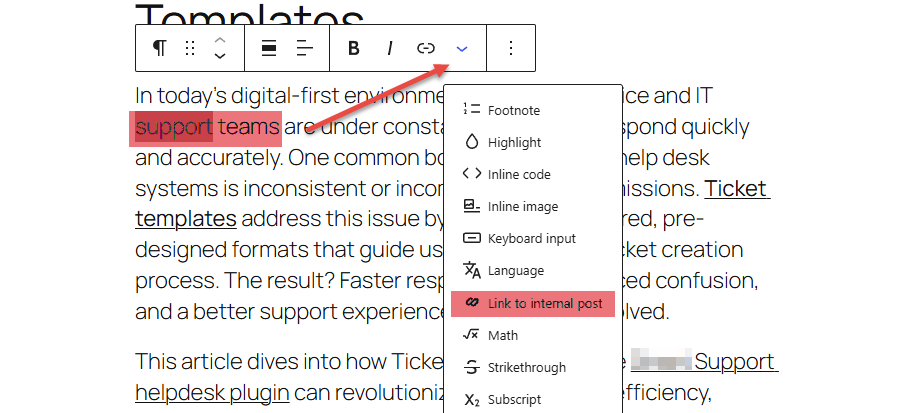
Using It In The Block Editor
- Open a post, page, or supported custom post type in the WordPress block editor.
- Click inside a text block, such as a Paragraph, Heading, List, or other rich text block.
- Highlight the text you want to link.
- Click the Internal Post Link toolbar button.
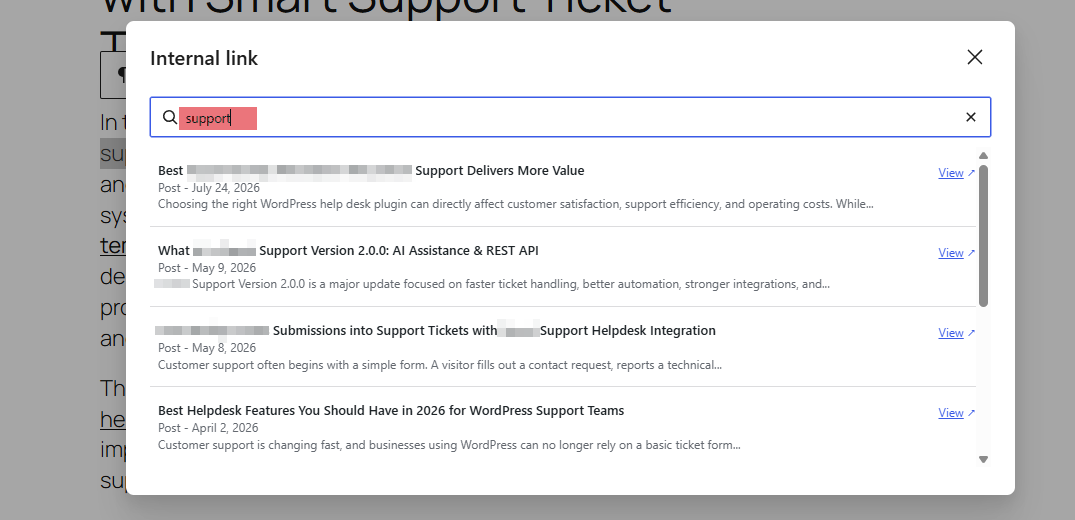
- In the modal, search for the page, post, or article you want to link.
- Review the search results.
- Click the result you want.
- The selected text is linked immediately.
- Save, update, or publish the post as usual.
Suggest Internal Links
The Suggest internal links feature helps editors find internal linking opportunities before publishing. Instead of manually searching for every possible link, editors can scan the current article and review a list of suggested keywords that match existing internal content.
This feature is not AI generated. It uses deterministic matching against existing site content, including:
- Post titles.
- Page titles.
- Product titles when products are available as a public post type.
- Public custom post type titles.
- URL slugs converted into readable phrases.
- Strong multi-word title phrases.
The scanner ignores text that is already linked, so it focuses on unlinked opportunities in the current article.
How To Use Suggestions In The Block Editor
- Open a post, page, or supported custom post type in the WordPress block editor.
- Write or edit the article content.
- Click the Suggest internal links icon near the editor publish controls.
- Review the suggested keywords and target articles.
- Use the suggestion search field to filter the list by keyword, target title, content type, or excerpt.
- Click Apply to link one suggestion.
- Click Apply all to apply all available non-current-article suggestions in the current filtered list.
- Save, update, or publish the post as usual.
How To Use Suggestions In Classic Editor
- Open a post or page in Classic Editor.
- Make sure you are using the Visual editor tab.
- Write or edit the article content.
- In the publish box, click Suggest internal links.
- Review the suggested keywords and target articles.
- Use the suggestion search field to filter the list by keyword, target title, content type, or excerpt.
- Click Apply to link one suggestion.
- Click Apply all to apply all available non-current-article suggestions in the current filtered list.
- Save, update, or publish the post as usual.
Suggestion Details
Each suggestion can include:
- The suggested target title.
- The matched keyword or phrase.
- The target content type, such as Post, Page, Product, or another public custom post type.
- The number of times the keyword appears in the current article.
- A short excerpt from the suggested target.
- Highlighted keyword matches in the title, metadata, and excerpt.
- A quality rating: Normal, Good, Best, or Ideal.
Suggestion ratings are calculated without AI. Ratings are based on match strength signals such as keyword occurrence count, keyword length, and whether the keyword appears in the suggested target title, slug, or excerpt. Higher-rated suggestions are shown first.
Applying Suggestions
Clicking Apply links the first available unlinked occurrence of the suggested keyword in the current article.
Clicking Apply all applies all available suggestions in the current filtered list, skipping current-article suggestions. After a successful bulk apply, the suggestion modal closes automatically.
Current-article suggestions are highlighted so editors can identify possible self-links. They are not applied by Apply all, because linking an article to itself is usually not useful.
Using It In Classic Editor
- Open a post or page in Classic Editor.
- Make sure you are using the Visual editor tab.
- Highlight the text you want to link.
- Click the Internal Link button in the editor toolbar.
- Search for the internal content you want to link.
- Click a result.
- The selected text is linked immediately.
- Save, update, or publish the post as usual.
Search Results
Each result can show:
- Title.
- Content type, such as Post, Page, or a custom post type label.
- Published date.
- Excerpt.
- Private status, when applicable.
- Current post label, when the matching result is the post currently being edited.
- A preview link where available.
The plugin searches titles and slugs. For best results, search using words from the target content title.
Examples:
Product NameGravity FormsDocumentationREST API
Linking To The Current Post
The current post may appear in search results if it matches the search term. It is labeled Current post so editors can identify it before linking.
In most editorial workflows, linking a post to itself is not useful. If you see the Current post label, choose a different result unless you intentionally want a self-link.
Updating An Existing Link
In the block editor:
- Click or select the already linked text.
- Open Internal Post Link.
- Search for the replacement content.
- Click the new result.
The existing link is replaced with the selected internal link.
In Classic Editor:
- Select the linked text.
- Click Internal Link.
- Search and choose the replacement result.
Removing A Link
The plugin focuses on finding and applying internal links. To remove a link, use the editor’s standard unlink control:
- In the block editor, click the linked text and use the unlink option in the link popover or toolbar.
- In Classic Editor, select the linked text and click the standard unlink toolbar button.
Search Security
Search requests are protected with WordPress permissions and nonces. The plugin only returns search results for logged-in users who can edit posts.
The plugin does not expose internal search to public site visitors.
Supported Content Types
The plugin searches public post types that have an editor UI, including:
- Posts.
- Pages.
- Public custom post types.
- Knowledge base articles, documentation articles, or other public editor-backed content types when registered by your site.
Attachments are excluded from search results.
Screenshots
Installation
- Upload the
7sky-internal-post-linkerfolder to/wp-content/plugins/. - Activate 7Sky Internal Post Linker from Plugins -> Installed Plugins.
- Open a post or page in the editor.
- Select text and click Internal Post Link.
- Search for internal content and click a result to apply the link.
FAQ
-
Does it work with pages and custom post types?
-
Yes. It searches public post types that have an editor UI, excluding attachments.
-
Does it work in the Classic Editor?
-
Yes. In Classic Editor visual mode, use the Internal Link TinyMCE toolbar button.
-
Does it work in the block editor?
-
Yes. Select text in a rich text block, then use the Internal Post Link toolbar control.
-
Does it link private posts?
-
Private posts are included only for users who can read private posts.
-
What content does the search use?
-
The search matches post titles and slugs, then returns up to eight recently modified matching results.
-
Are internal link suggestions generated by AI?
-
No. Suggestions are matched from existing post titles, slugs, and strong multi-word title phrases only.
-
Can users without editing permissions search posts?
-
No. Search requests require a logged-in user who can edit posts.
Reviews
There are no reviews for this plugin.
Contributors & Developers
“7Sky Internal Post Linker – Link Internal Posts, Pages, Products without leaving the page” is open source software. The following people have contributed to this plugin.
Contributors
Interested in development?
Browse the code, check out the SVN repository, or subscribe to the development log by RSS.
Changelog
1.0.2
- Feature: Added internal link suggestions that scan the current article for unlinked phrases matching existing internal content titles, slugs, and strong multi-word phrase candidates.
- Feature: Added deterministic suggestion quality ratings: Normal, Good, Best, and Ideal, based on keyword frequency, keyword length, and matches within the target title, slug, and excerpt.
- Feature: Added keyword highlighting in suggestion titles, matched phrases, and excerpts.
- Feature: Added a suggestion search field for filtering results by keyword, title, content type, or excerpt.
- Feature: Added an Apply all action that applies available non-current-article suggestions with unlinked keyword matches and respects the currently filtered suggestion list.
- Feature: Added internal link suggestion controls to the block editor header toolbar, rich text toolbar, Classic Editor publish box, and TinyMCE toolbar.
- Improvement: Current-article suggestions are included and highlighted to identify self-link opportunities while remaining excluded from bulk application.
- Improvement: Individual suggestions can be reviewed and applied to the first available unlinked keyword occurrence.
- Improvement: Moved the suggestion search field inline with the Apply all and Scan actions again.
- Improvement: Apply all now closes the suggestion modal after successfully applying available links.
- Improvement: Improved block editor compatibility with a fallback suggestion button near the Save and More controls when the standard header toolbar slot is unavailable.
- Improvement: Repositioned editor suggestion controls for easier access near the publish and standard link controls.
1.0.0
- Initial production release.
- Added block editor and Classic Editor internal post linking.
- Added secure internal content search and contextual result previews.
- Added compatibility fixes for older editor APIs and WordPress link metadata.
- Added Plugin Check-friendly search and translation handling.