

Description
Add relevant order bumps to your existing WooCommerce checkout with UpsellBay.
UpsellBay helps store owners present optional add-on products at checkout without replacing the checkout page, changing the payment flow, or adding a separate funnel builder.
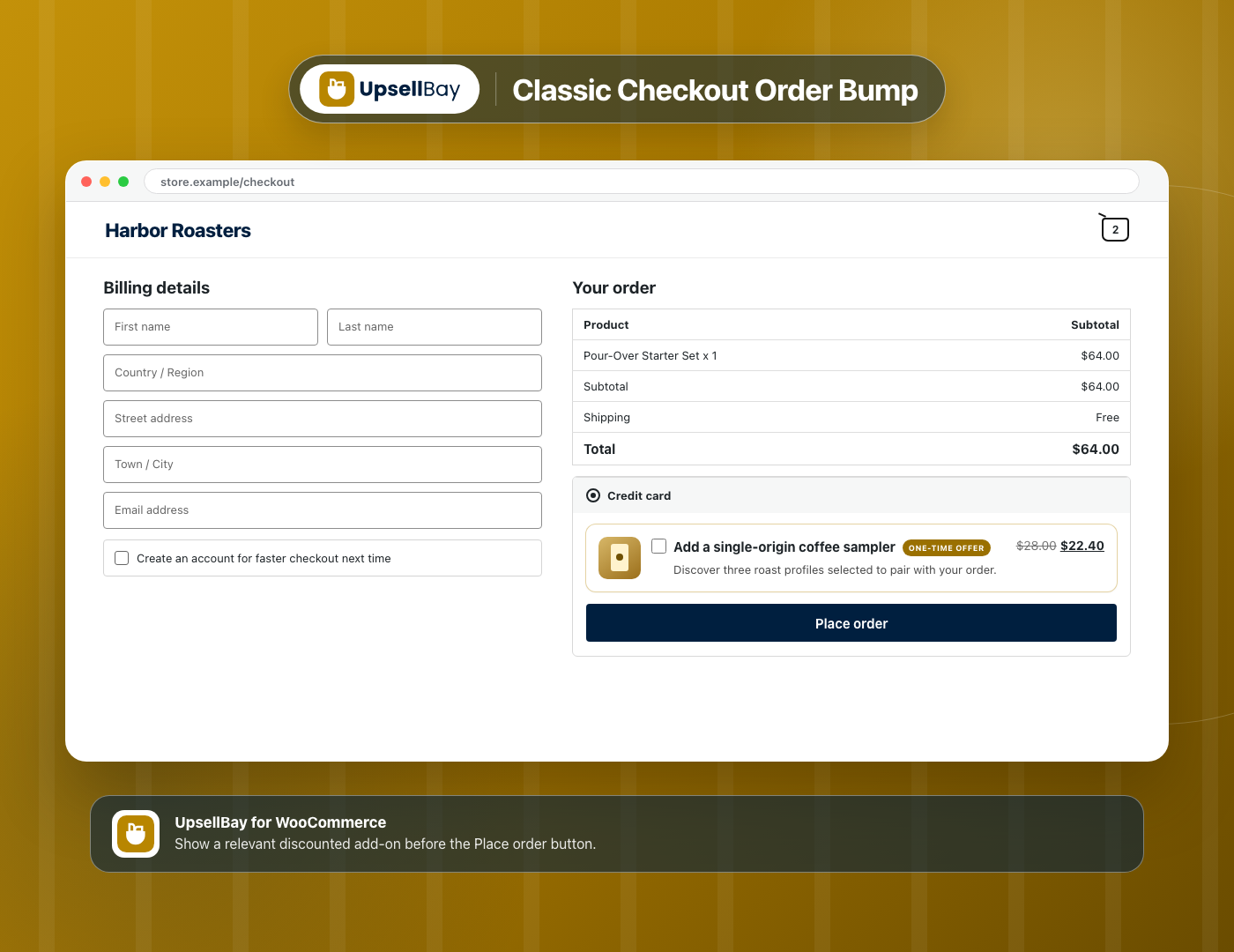
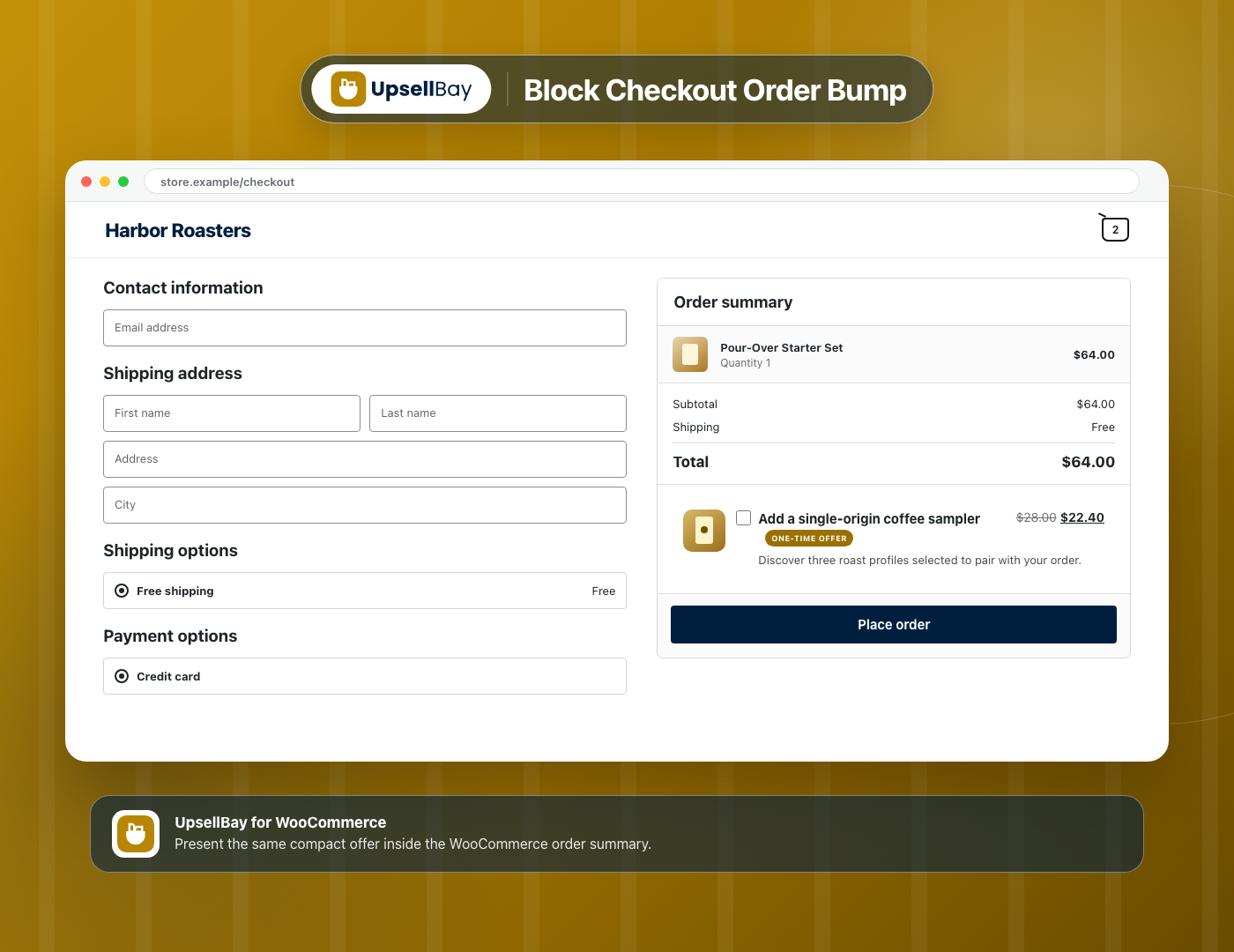
Create the offer in WordPress, choose its product and discount, define who should see it, and publish when ready. Eligible offers appear before the Place order button in Classic Checkout and inside the order summary in Block Checkout.
Why Store Owners Use UpsellBay
- Keep the Existing Checkout – Add order bumps to the WooCommerce checkout your store already uses.
- Offer Relevant Products – Choose a simple product or an individual product variation with native WooCommerce product search.
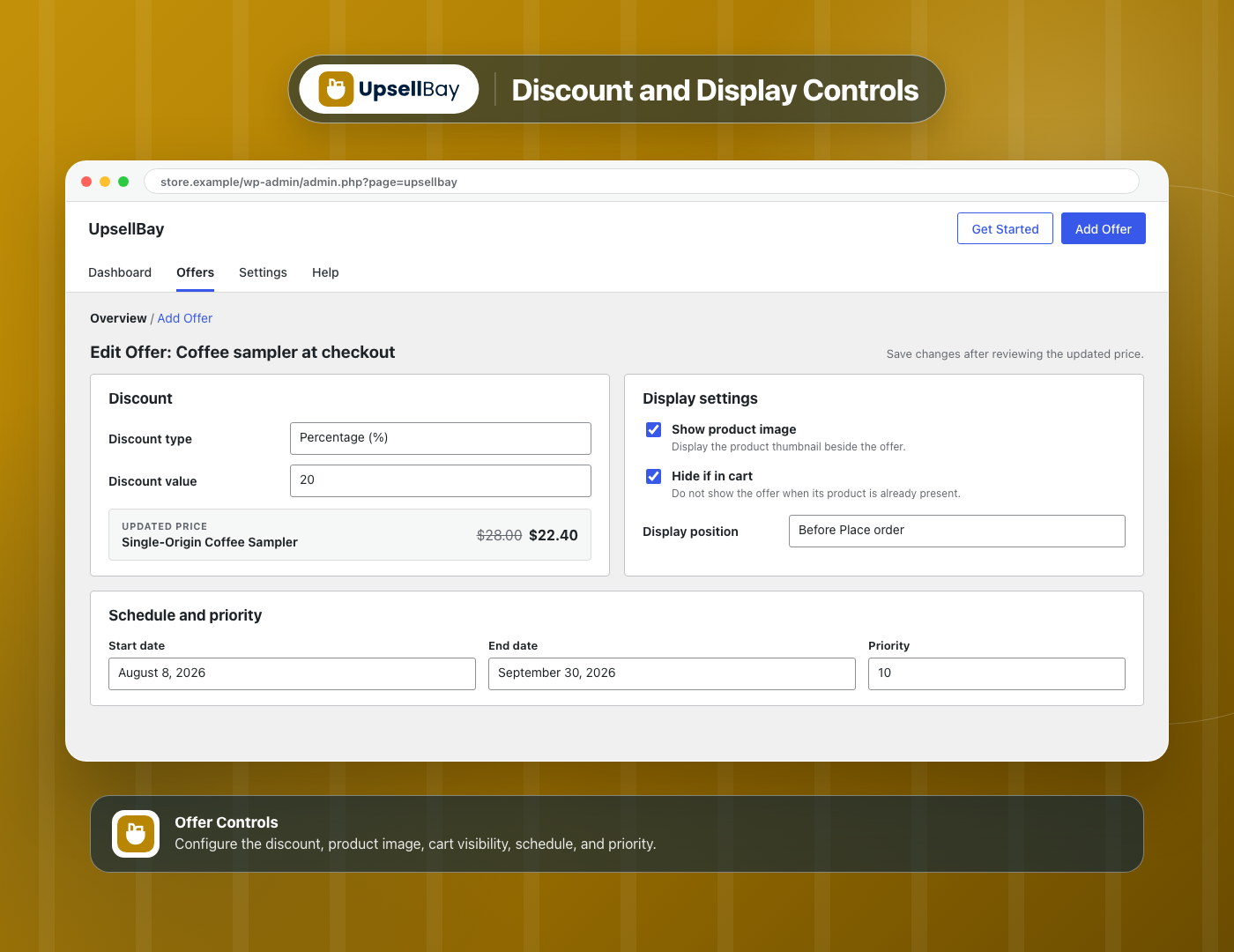
- Control the Price – Use no discount, percentage off, fixed amount off, or a fixed offer price.
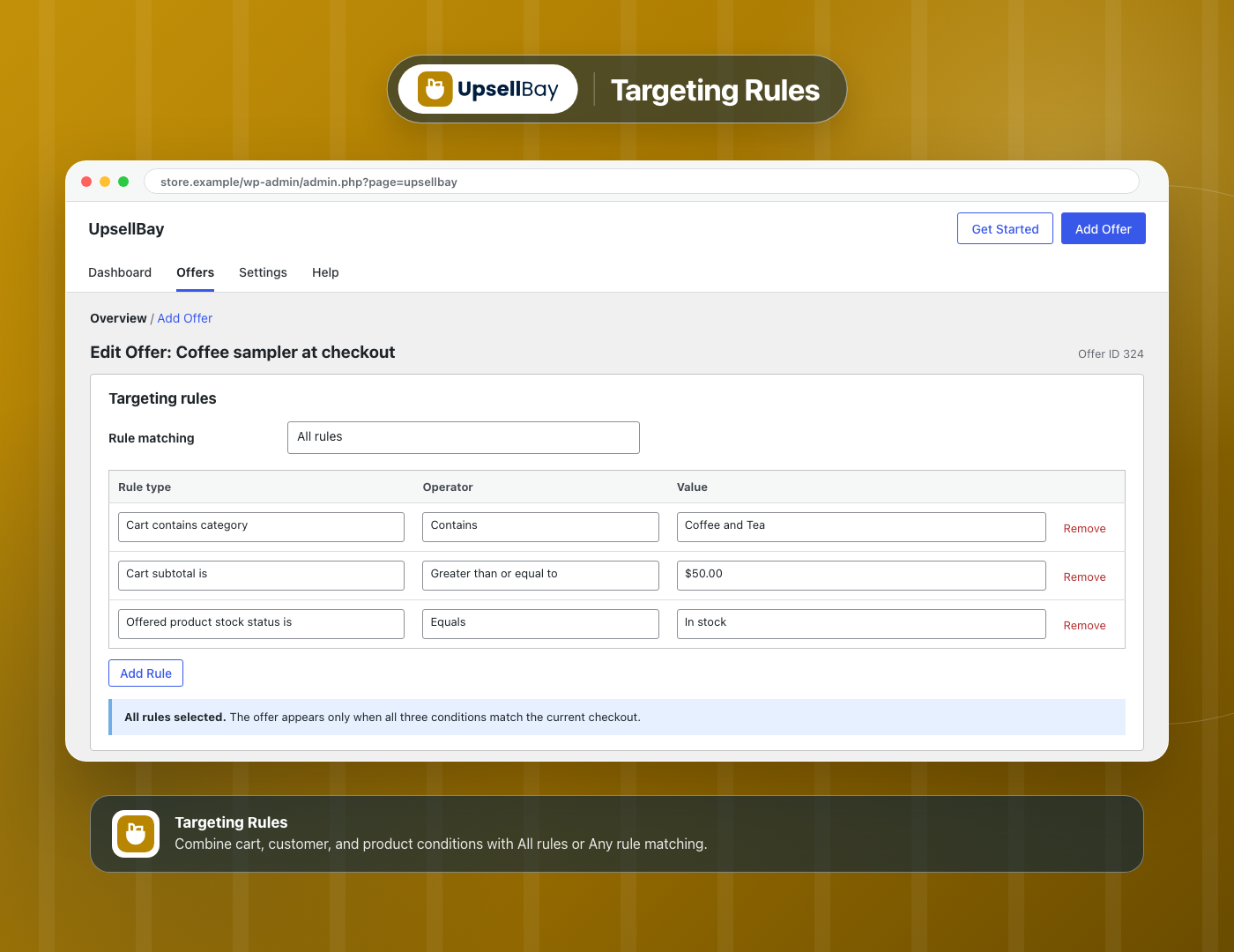
- Target the Right Cart – Combine cart, product, customer, and stock conditions with All rules or Any rule matching.
- Preview Safely – Use test mode so store managers can review offers before shoppers see them.
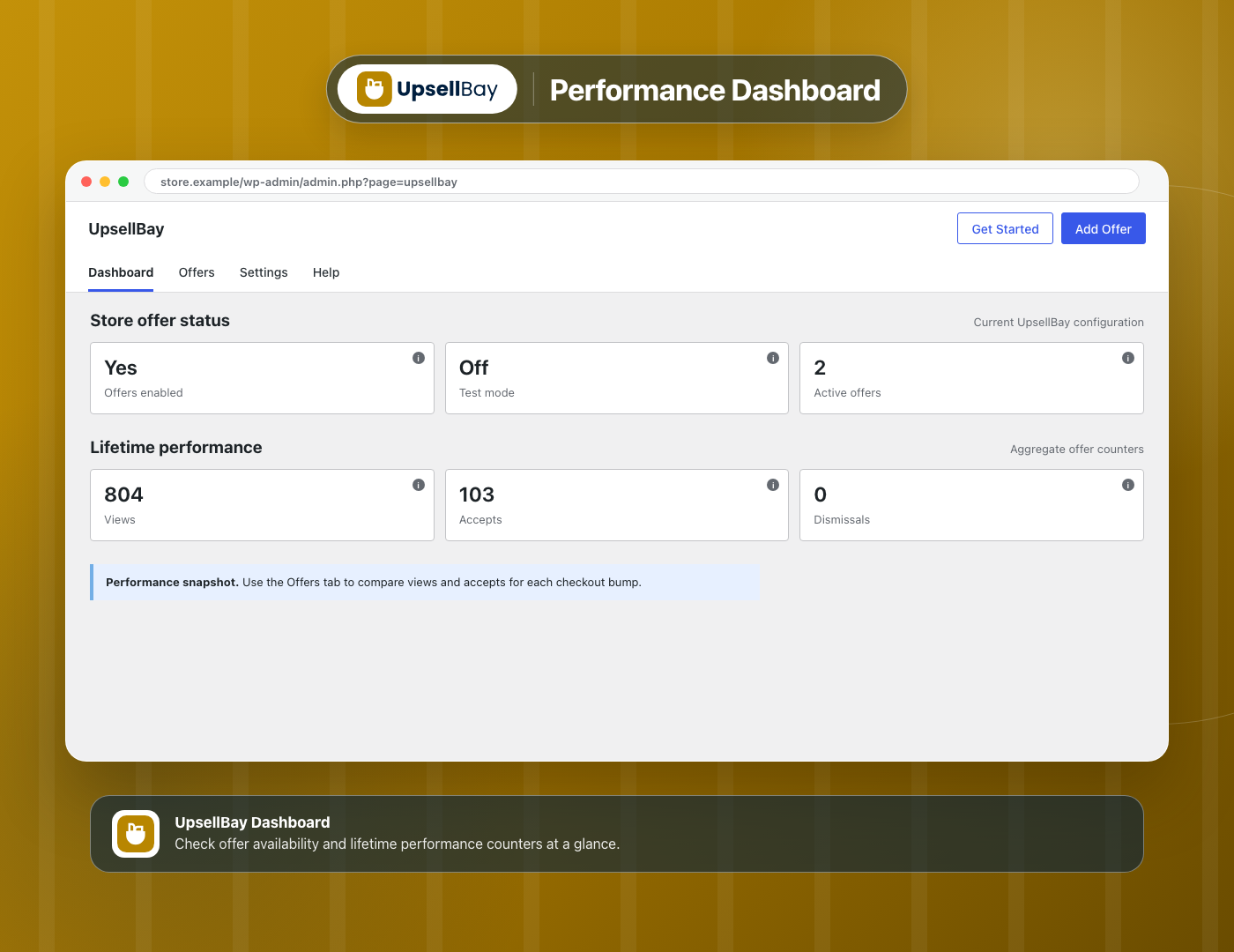
- Measure Results – Review per-offer views and accepts, plus lifetime counters on the dashboard.
Product Page | Official Documentation | Support
Key Features
- Classic Checkout Support – Display a compact checkbox offer before the Place order button.
- Block Checkout Support – Display the same offer inside the WooCommerce order summary.
- Flexible Discounts – Choose no discount, percentage off, fixed amount off, or a fixed offer price.
- Server-Side Pricing – Recalculate the accepted offer from the saved configuration before changing the cart item price.
- Product Support – Offer simple products and individual product variations.
- Product Image Control – Show or hide the offered product image.
- Cart Visibility Control – Hide an offer when its product is already in the cart.
- Rule Matching – Require all targeting rules or allow any matching rule.
- Ten Targeting Rules – Target by cart product, category, tag, subtotal, viewed product, user role, order count, lifetime spend, stock status, or an excluded cart product.
- Scheduling – Set optional start and end dates for each offer.
- Priority – Control which eligible offers are evaluated first.
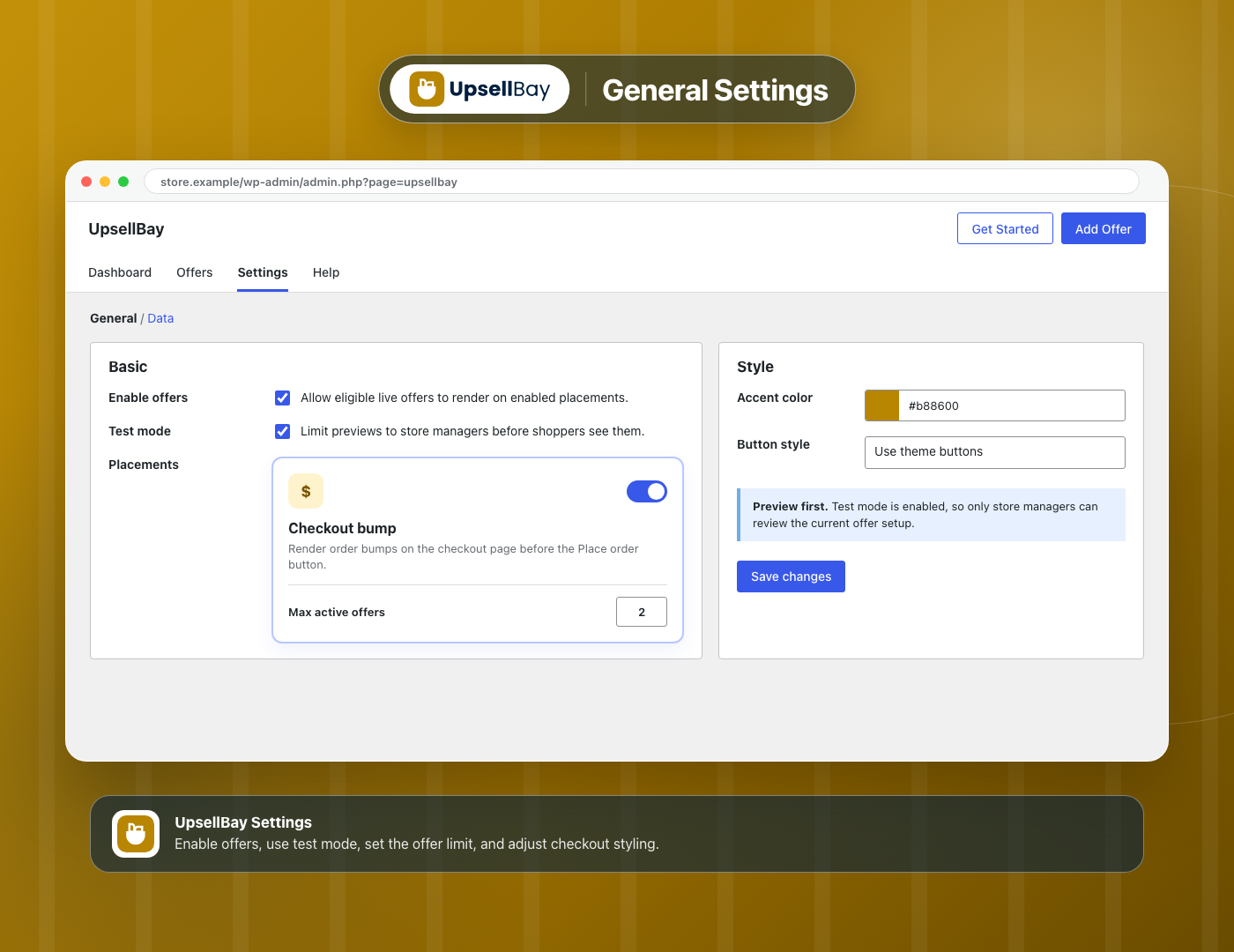
- Offer Limits – Show from one to five active checkout offers at the same time.
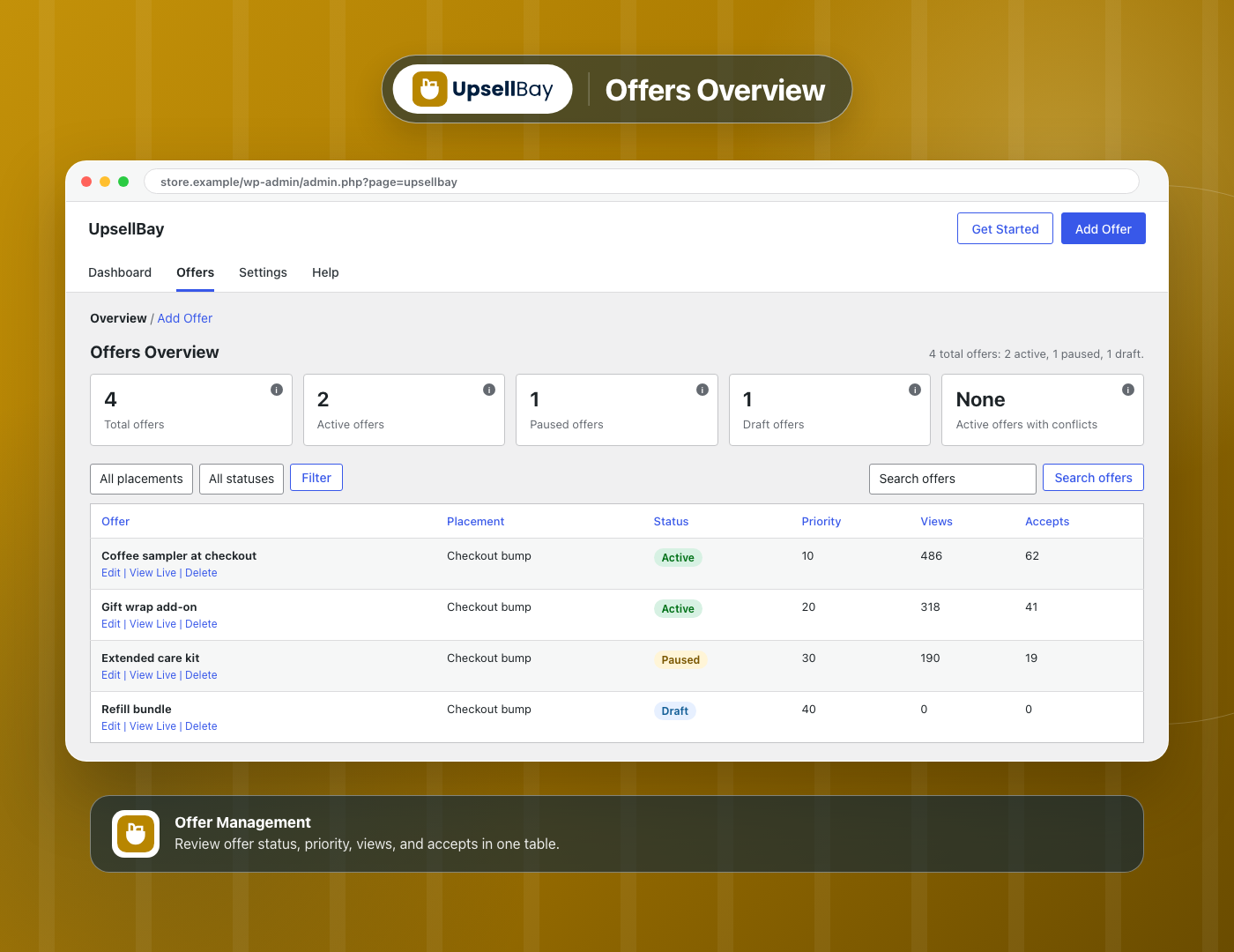
- Offer States – Save offers as draft, active, or paused.
- Test Mode – Limit offer previews to users who can manage WooCommerce.
- Performance Counters – Track views and accepts for each offer.
- Order Attribution – Save accepted offer metadata on WooCommerce order line items through WooCommerce CRUD APIs.
- HPOS Compatibility – Declare compatibility with WooCommerce High-Performance Order Storage.
- Data Control – Preserve plugin data by default or remove it during uninstall when cleanup is enabled.
Targeting Rules
Combine any of these conditions on an offer, and require all rules or any rule to match:
- Cart contains product
- Cart contains category
- Cart contains tag
- Cart subtotal is
- Currently viewing product
- User role is
- Customer order count is
- Customer lifetime spend is
- Offered product stock status is
- Exclude if cart contains product
How UpsellBay Works
- Open WooCommerce > UpsellBay and create an offer.
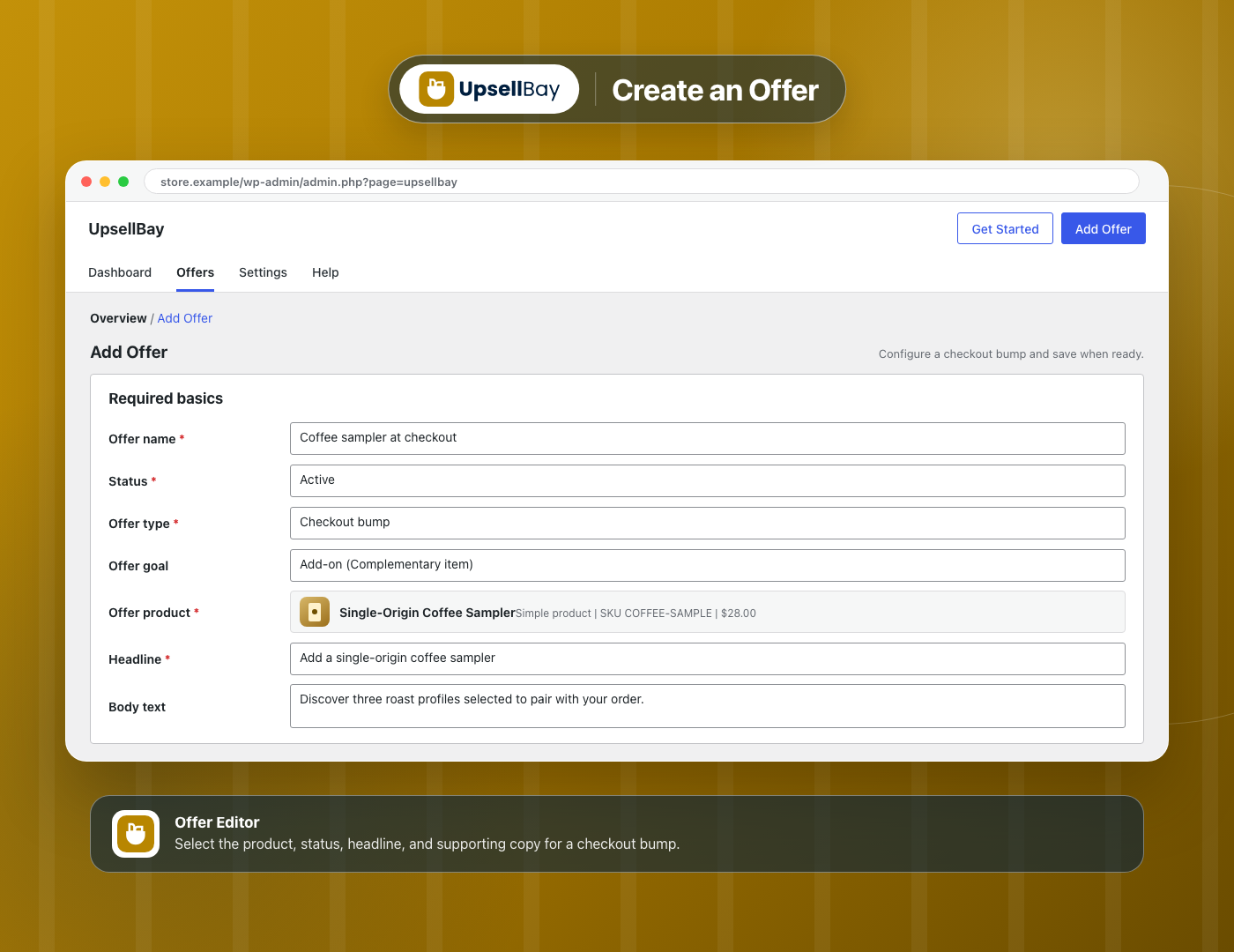
- Select the offer product, discount, content, schedule, and priority.
- Add optional targeting rules and choose All rules or Any rule matching.
- Enable test mode and review the offer on Classic or Block Checkout.
- Activate the offer and review its performance counters in WordPress.
UpsellBay Admin Experience
- Dashboard – Check whether offers are enabled, whether test mode is active, and how the offer library is performing.
- Offers – Search, filter, create, edit, pause, and review checkout bump offers.
- Offer Editor – Configure product selection, content, targeting, discounts, display settings, scheduling, and priority.
- Settings – Enable the checkout placement, choose the maximum number of offers, and adjust the accent color.
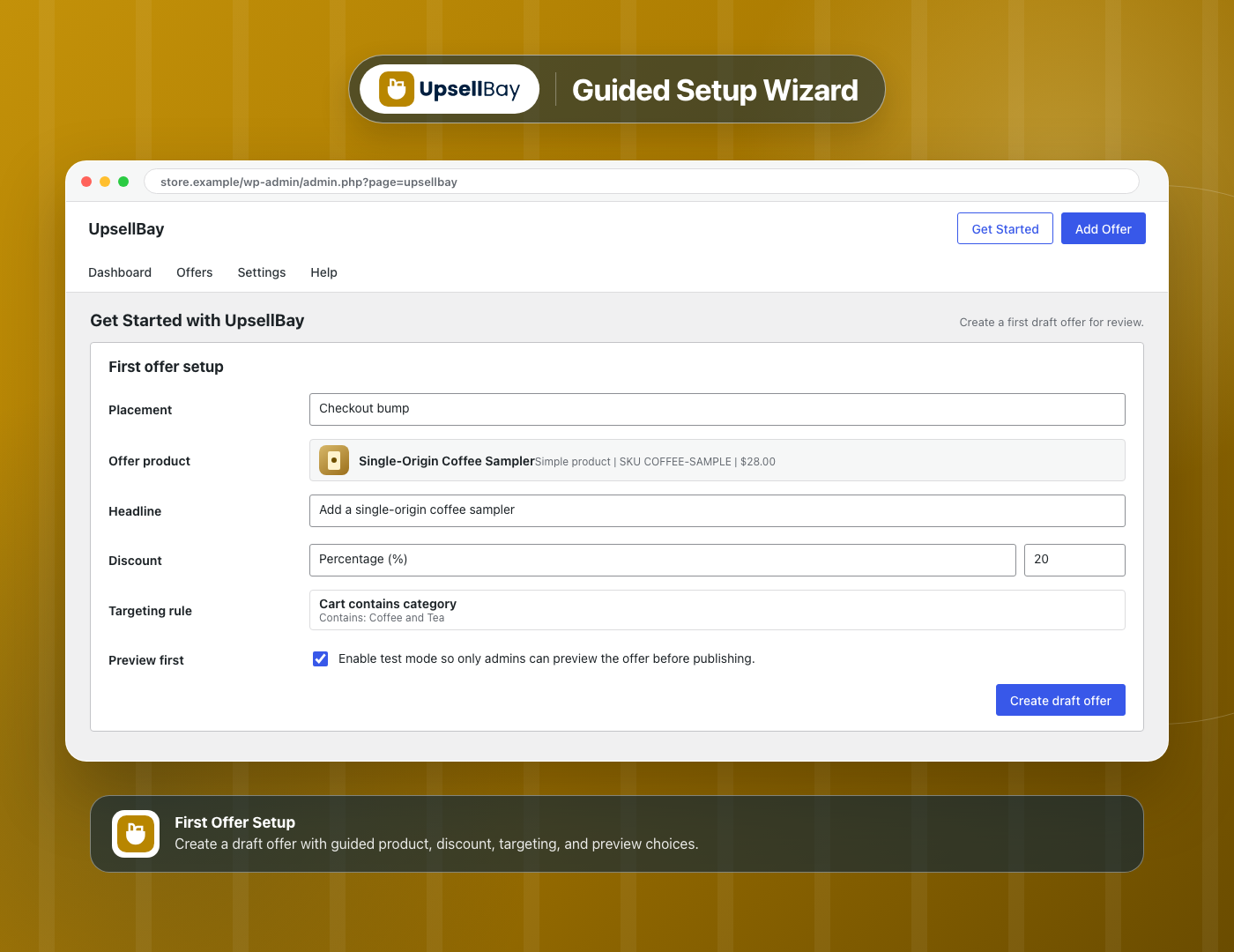
- Setup Wizard – Create a first draft offer with guided product, discount, targeting, and preview choices.
- Help – Open documentation and support resources from the plugin admin.
Use Cases
- Relevant Add-Ons – Offer accessories, care products, or refills that complement the current cart.
- Checkout Upgrades – Present a higher-value companion product at the final buying step.
- Cart-Based Offers – Show a bump only when a selected product, category, or tag is in the cart.
- Spend-Based Offers – Show an offer when the cart subtotal or customer lifetime spend reaches a chosen value.
- Customer Segments – Target offers by WordPress user role or previous WooCommerce order count.
- Scheduled Promotions – Run checkout offers during a defined campaign period.
Privacy and External Services
UpsellBay does not connect to third-party services and does not load remote scripts, tracking pixels, or telemetry. The plugin stores its configuration and operational data in the site’s WordPress and WooCommerce database.
Source Code
UpsellBay is fully open source under GPL-2.0-or-later and contains no obfuscated code. The plugin’s JavaScript is written in an un-minified, human-readable form and is included in this package under the src/ directory:
src/admin/index.js– admin screens (compiled toassets/admin/js/upsellbay-admin.js).src/admin/offer-editor/index.js– offer editor (compiled toassets/admin/js/upsellbay-offer-editor.js).src/admin/analytics/index.js– dashboard counters (compiled toassets/admin/js/upsellbay-analytics.js).src/classic-checkout/index.js– Classic Checkout bump (compiled toassets/frontend/classic-checkout.js).src/block-checkout/index.js– Block Checkout bump (compiled toassets/frontend/block-checkout.js).
The compiled files in assets/ are generated from these sources with the official WordPress build tooling (@wordpress/scripts, which uses webpack). The build tooling and configuration are also included in this package as package.json and webpack.config.js.
To regenerate the compiled assets from source, run these commands in the plugin directory:
npm install
npm run build
Screenshots
Installation
Requirements: WooCommerce must be installed and activated.
From WordPress Dashboard
- Go to Plugins > Add New.
- Search for “UpsellBay”.
- Click “Install Now”, then click “Activate”.
- Open WooCommerce > UpsellBay.
- Use the setup wizard or click “Add Offer” to create your first checkout bump.
Manual Upload
- Download the UpsellBay plugin ZIP.
- Go to Plugins > Add New > Upload Plugin.
- Upload the ZIP and click “Install Now”.
- Click “Activate Plugin”.
- Open WooCommerce > UpsellBay and create your first offer.
Getting Started
Create a draft offer, select a supported product, add an optional discount and targeting rules, then enable test mode. Review the offer on both checkout types used by your store before changing its status to Active.
FAQ
-
Does UpsellBay require WooCommerce?
-
Yes. UpsellBay is built for WooCommerce checkout pages and requires WooCommerce to be installed and active.
-
What are the system requirements?
-
UpsellBay requires WordPress 6.6 or newer, WooCommerce 9.0 or newer, and PHP 8.0 or newer.
-
Does UpsellBay replace my checkout page?
-
No. UpsellBay adds order bumps to the existing WooCommerce checkout and does not replace the checkout page or payment flow.
-
Does it work with both Classic and Block Checkout?
-
Yes. UpsellBay renders checkout bumps before the Place order button in Classic Checkout and inside the order summary in Block Checkout.
-
Which products can I use in an offer?
-
You can select simple products and individual product variations. Variable parent products, grouped products, bundles, composites, and other unsupported product types cannot be used directly.
-
Can I discount subscription products?
-
No. A subscription product can be offered at its normal price, but UpsellBay discounts are not applied to subscription products.
-
Does UpsellBay create WooCommerce coupons?
-
No. The accepted offer price is applied directly to the added cart item, so the plugin does not create coupon records.
-
Can I control who sees an offer?
-
Yes. UpsellBay includes ten targeting rules for cart contents, cart subtotal, viewed product, user role, previous orders, lifetime spend, product stock, and excluded cart products. You can require all rules or allow any rule to match.
-
Can I preview an offer before shoppers see it?
-
Yes. Enable test mode to limit previews to users who can manage WooCommerce while you verify the offer.
-
Does UpsellBay support HPOS?
-
Yes. UpsellBay uses WooCommerce CRUD APIs for order data and declares compatibility with High-Performance Order Storage.
-
Will UpsellBay load assets across my whole site?
-
No. Admin assets load only on UpsellBay screens. Storefront assets are limited to checkout when the placement is enabled, and Classic Checkout assets load only when an eligible offer renders.
-
Does UpsellBay send store or shopper data to an external service?
-
No. UpsellBay contains no telemetry and makes no outbound requests. Its offer, settings, counter, session, and attribution data stays in the WordPress and WooCommerce database.
-
What happens when I deactivate or delete the plugin?
-
Deactivation stops offers from rendering and preserves the saved data. Uninstall also preserves data by default. Data is removed only when “Delete data on uninstall” is enabled before deletion.
-
Where can I get help?
-
Visit the UpsellBay documentation or the WPAnchorBay support portal.
Reviews
There are no reviews for this plugin.
Contributors & Developers
“UpsellBay – Order Bump for WooCommerce” is open source software. The following people have contributed to this plugin.
Contributors

Translate “UpsellBay – Order Bump for WooCommerce” into your language.
Interested in development?
Browse the code, check out the SVN repository, or subscribe to the development log by RSS.
Changelog
1.0.0
- Initial release.