

Description
Tabsmith adds your own tabs to WooCommerce product pages: shipping information, care instructions, sizing, warranty, anything your customers ask about twice a week.
If you are moving from Custom Product Tabs (YIKES), Tabsmith reads your existing tabs and brings them across in one click – including any that were never reaching your customers.
Some of your tabs may not be on your product pages
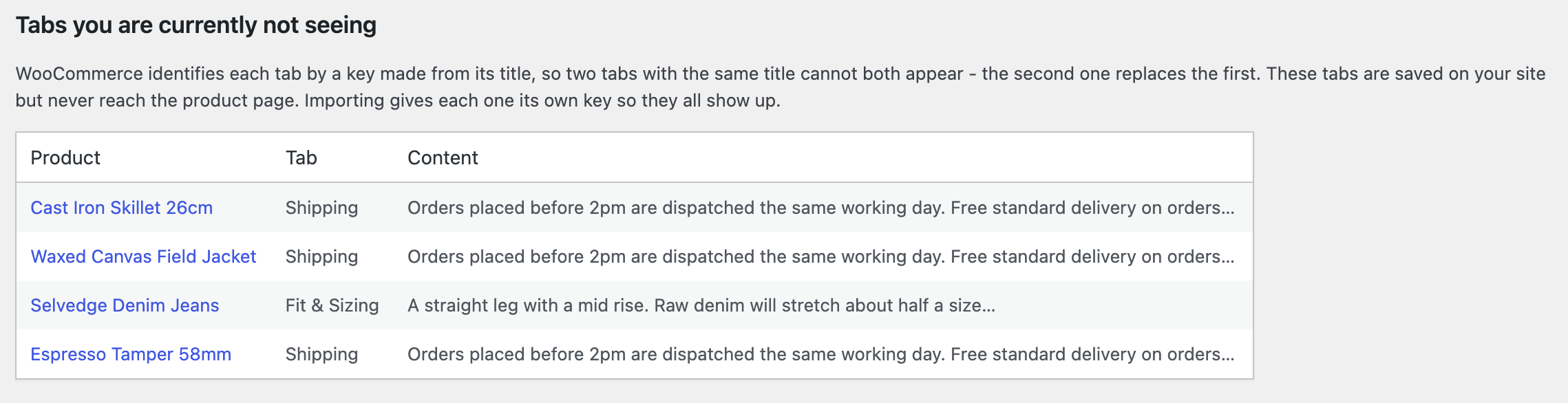
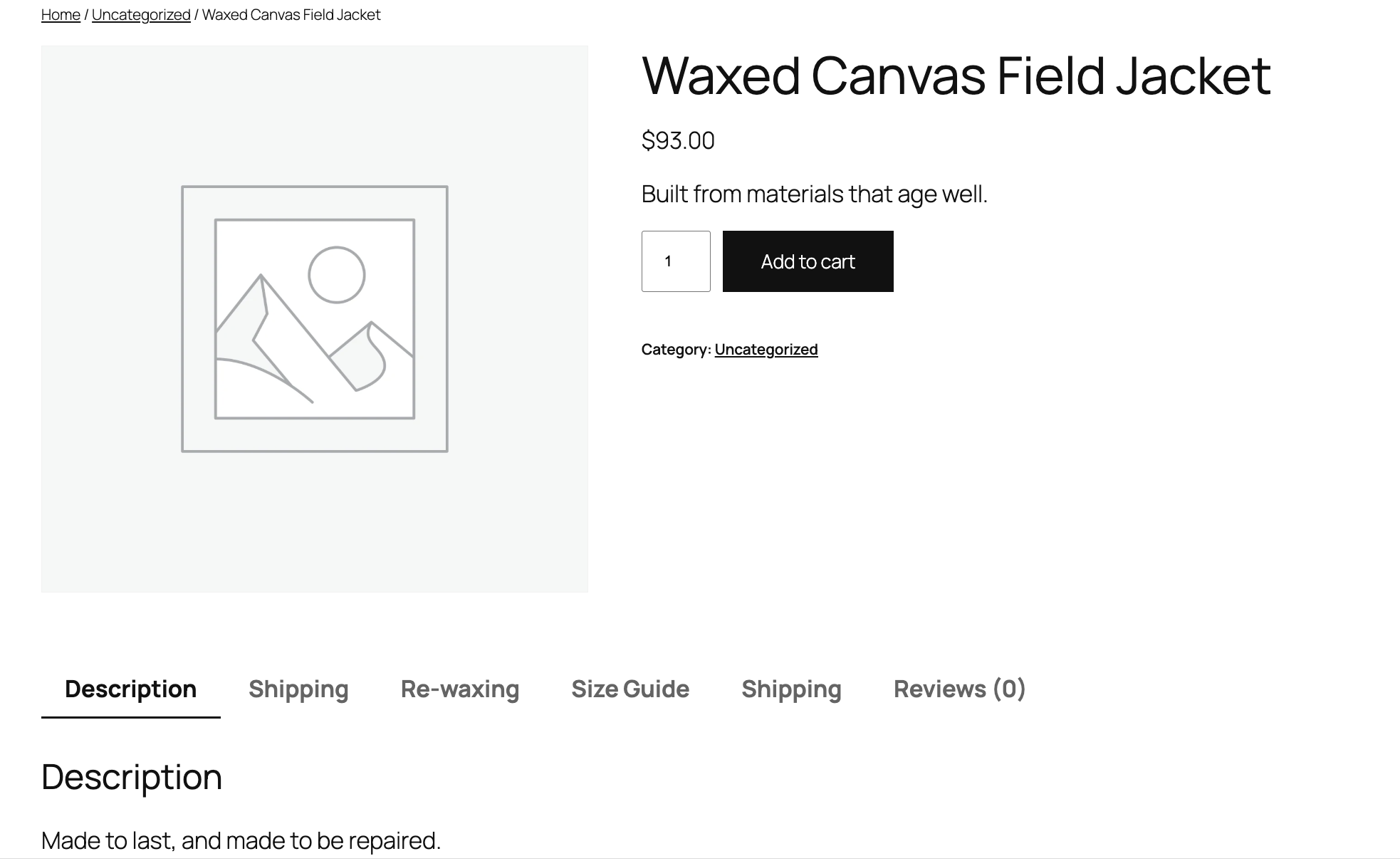
WooCommerce identifies every product tab by a key. That key is built from the tab’s title. Two tabs with the same title produce the same key, and when that happens the second tab replaces the first. The first one is still saved in your database. It simply never renders.
This is easy to do by accident. A shop with “Shipping” on a product and a second “Shipping” tab added later has one tab quietly missing, with no warning anywhere in the admin.
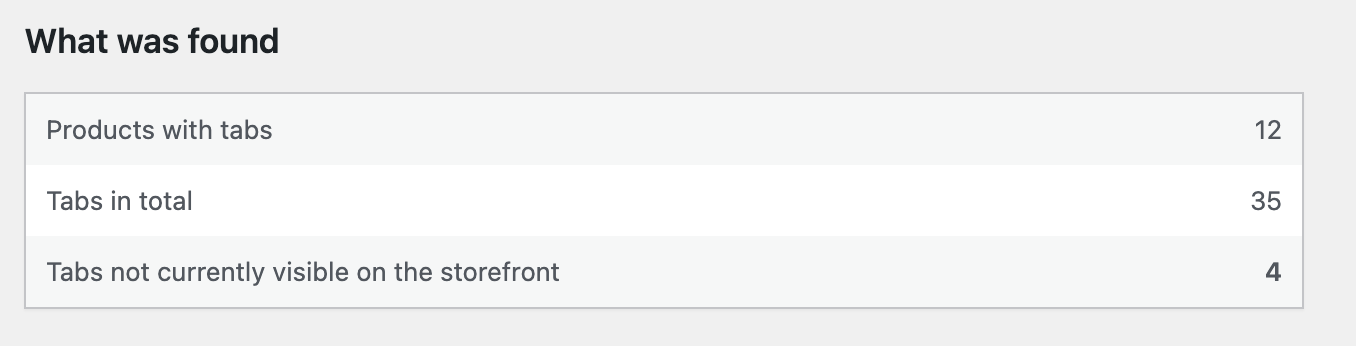
Tabsmith scans for this before it changes anything, and tells you exactly what it found:
3 tabs across 1 product. 1 of them is not currently shown on your product pages.
Importing gives every tab its own key, so all of them appear.
What you get
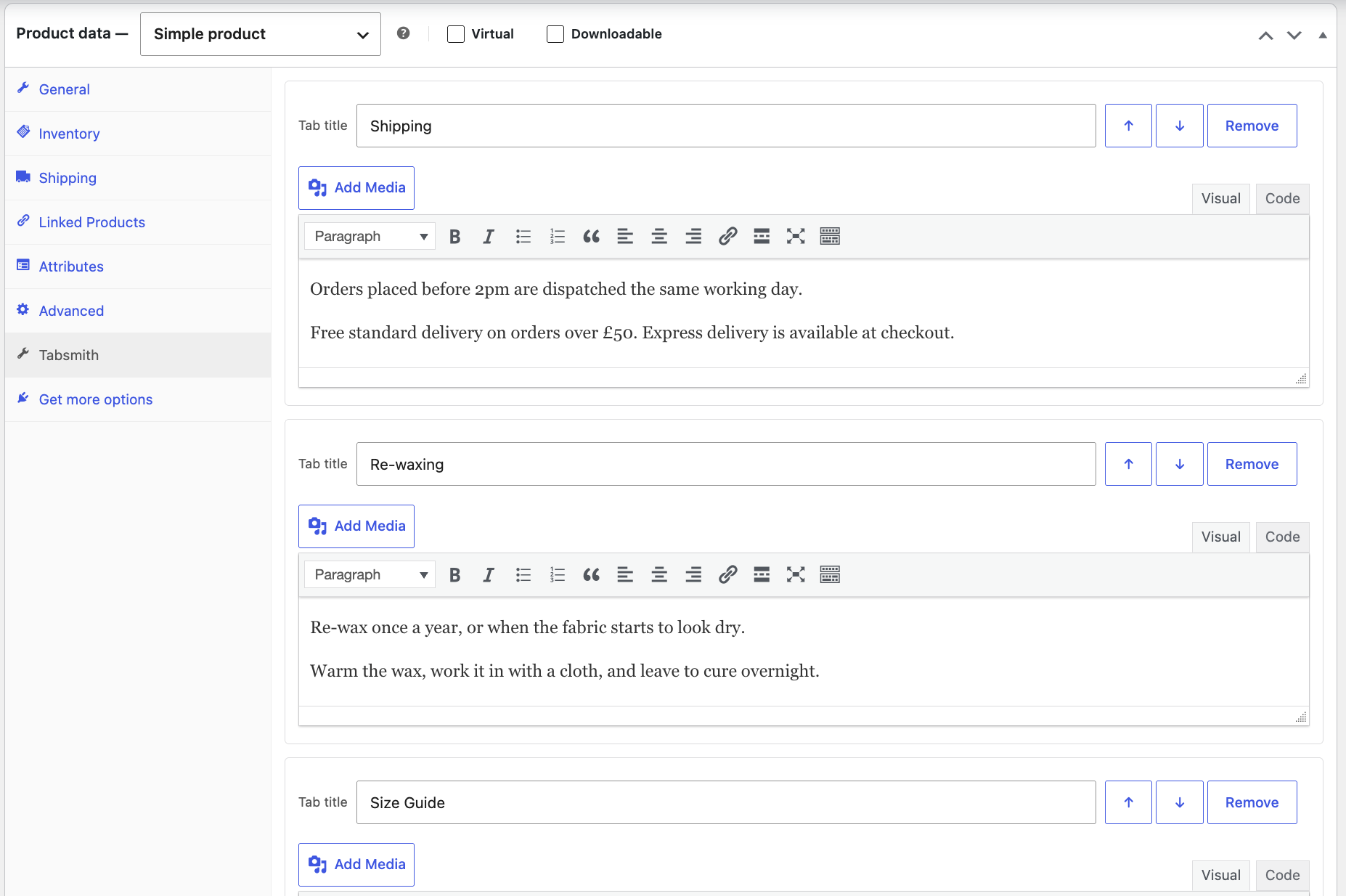
- Add as many tabs as you like, per product
- The full WordPress editor in each tab, with media and shortcodes
- Reorder tabs with up and down buttons – keyboard friendly, and usable on a touch screen
- Tabs appear after Description and Additional information, where shoppers expect them
- Works with classic and block themes
Moving from Custom Product Tabs (YIKES)
- A scan that runs first and writes nothing. The numbers it shows are the numbers the import will act on.
- Nothing belonging to the other plugin is deleted or changed. Its data stays exactly where it is, so you can go back at any time.
- Every import can be undone from the same screen. Anything Tabsmith overwrites is backed up first.
- Large catalogues are handled in batches, so an import cannot time out halfway through.
- Tabs that were being hidden are recovered, each with its own key.
- Existing theme CSS written for the old plugin keeps working, because the same heading classes are still output.
How tab content is rendered
Tabsmith formats tab content the way WordPress formats post content by default: paragraphs, smart quotes and shortcodes.
It does this without running the the_content filter, so page builders such as Divi, Elementor and WPBakery do not add their own layout inside your tabs.
Support
Tabsmith is built and maintained by one developer. Bug reports and compatibility problems are welcome in the support forum and I read every one of them. I am not able to offer individual help with theme customisation or bespoke development.
Screenshots
Installation
- Install and activate Tabsmith.
- Edit any product and open the Tabsmith panel in the Product data box, on the left below Attributes and Advanced. Add a tab there.
- If you are moving from another tabs plugin, go to WooCommerce – Tabsmith to scan what it finds before importing anything.
Tabsmith requires WooCommerce.
FAQ
-
Will importing delete anything from my old plugin?
-
No. Tabsmith only reads. Every row the other plugin stored is left exactly as it is, which is what lets you switch back whenever you want.
-
Every tab appears twice after importing. Why?
-
Both plugins are adding tabs. Tabsmith never overwrites a tab that another plugin registered – quietly losing someone else’s tab is the very problem it exists to solve – so while both are active you see both sets.
Deactivate the old plugin to finish the move. There is a button for it at WooCommerce – Tabsmith, and deactivating does not delete its data.
-
Can I undo an import?
-
Yes. WooCommerce – Tabsmith has an Undo button that puts every product back exactly as it was.
-
Will my product pages look different afterwards?
-
They should not. Tab position, the heading above each tab and the way content is formatted were all matched against the old plugin’s output, including the CSS classes your theme may be styling.
The one intended difference: tabs that were previously not rendering will now be visible.
-
What happens to a tab with no title?
-
It is kept, not discarded, and given a placeholder name you can edit. The scan tells you how many there were.
-
Does this work with block themes?
-
Yes. Custom tabs are added to the Product Details area in block themes as well as classic ones.
-
I have thousands of products. Will the import time out?
-
No. It runs in batches of 100 with a progress display, so the size of your catalogue does not matter.
Reviews
There are no reviews for this plugin.
Contributors & Developers
“Tabsmith – Custom Product Tabs for WooCommerce” is open source software. The following people have contributed to this plugin.
Contributors
Translate “Tabsmith – Custom Product Tabs for WooCommerce” into your language.
Interested in development?
Browse the code, check out the SVN repository, or subscribe to the development log by RSS.
Changelog
0.1.0
- First release.