

Description
Speed Analyzer is a WordPress speed test and performance audit plugin that runs from wp-admin. It combines Google PageSpeed Insights data with WordPress-specific checks that browser-based testing tools cannot access, including autoloaded options, database size, active plugins, persistent object cache, and server information.
Use one dashboard to identify whether a performance bottleneck comes from the server, frontend assets, Core Web Vitals, or the WordPress database. Save results, compare before-and-after tests, schedule recurring checks, receive reports by email, and generate color-coded PDF reports.
WordPress.org reviewers highlight having PageSpeed data inside WP Admin and getting clearer direction about what to optimize.
Read the reviews:
https://wordpress.org/support/plugin/speed-analyzer/reviews/
What Speed Analyzer checks
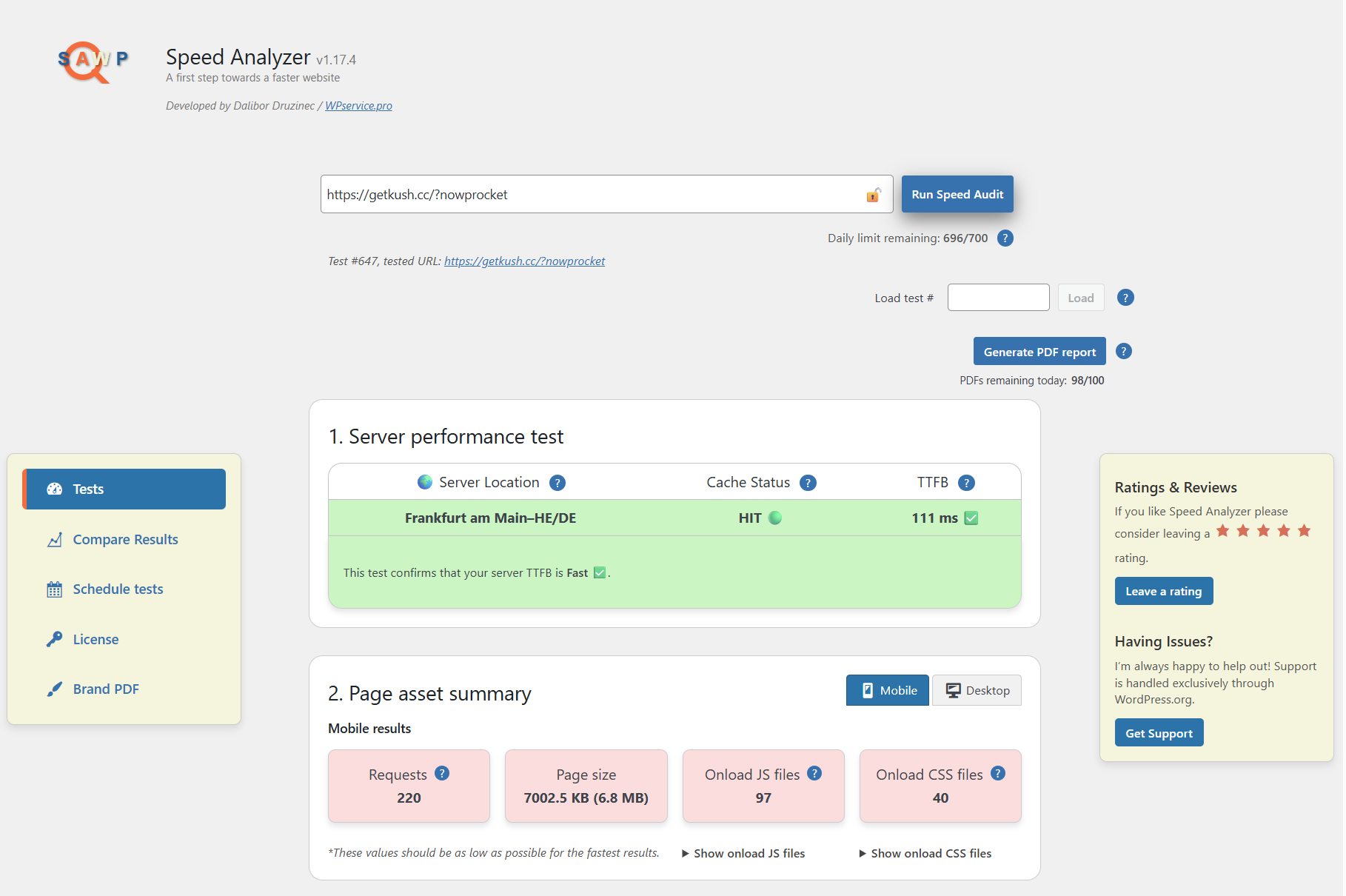
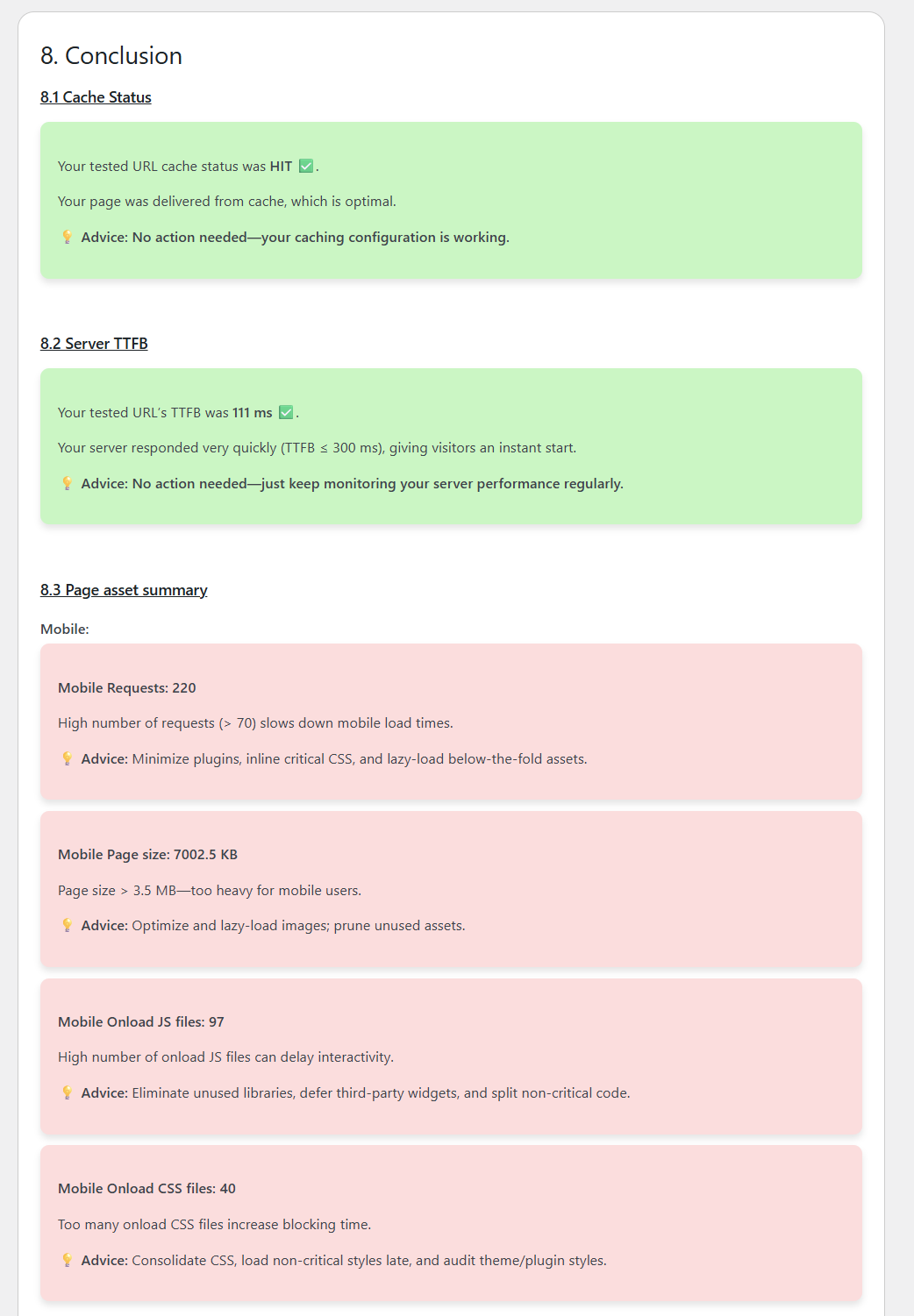
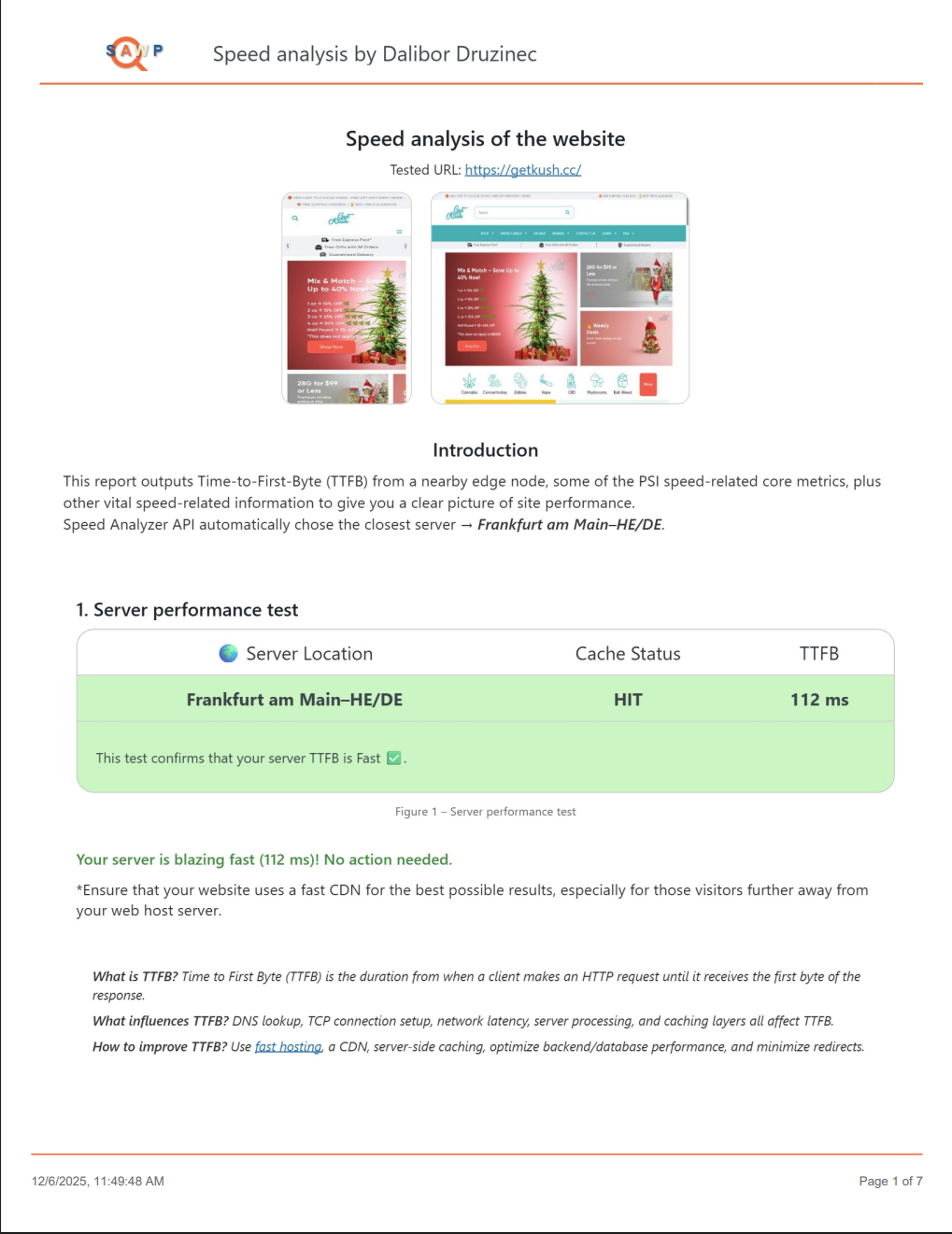
- Server Time to First Byte (TTFB), cache status, and response headers
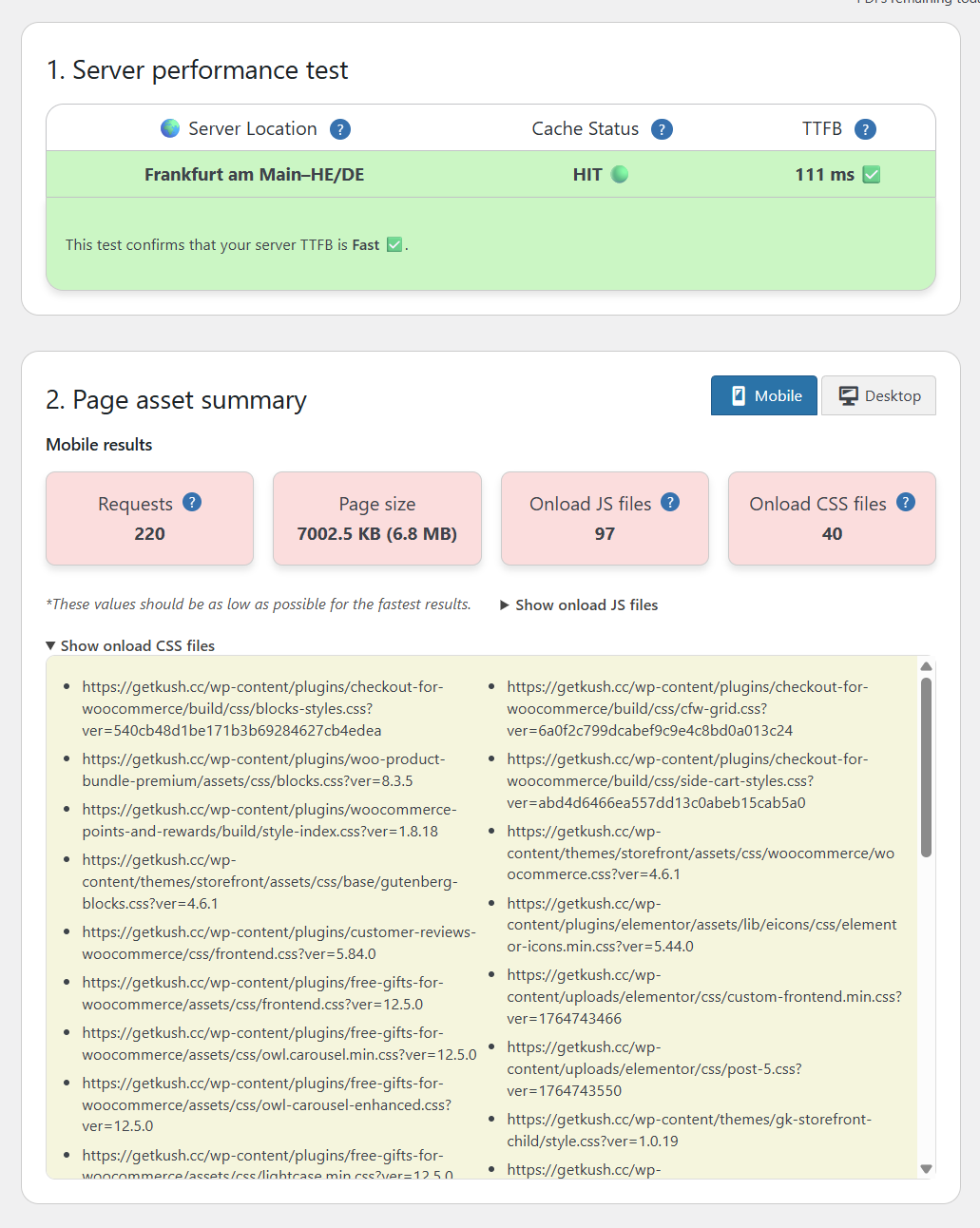
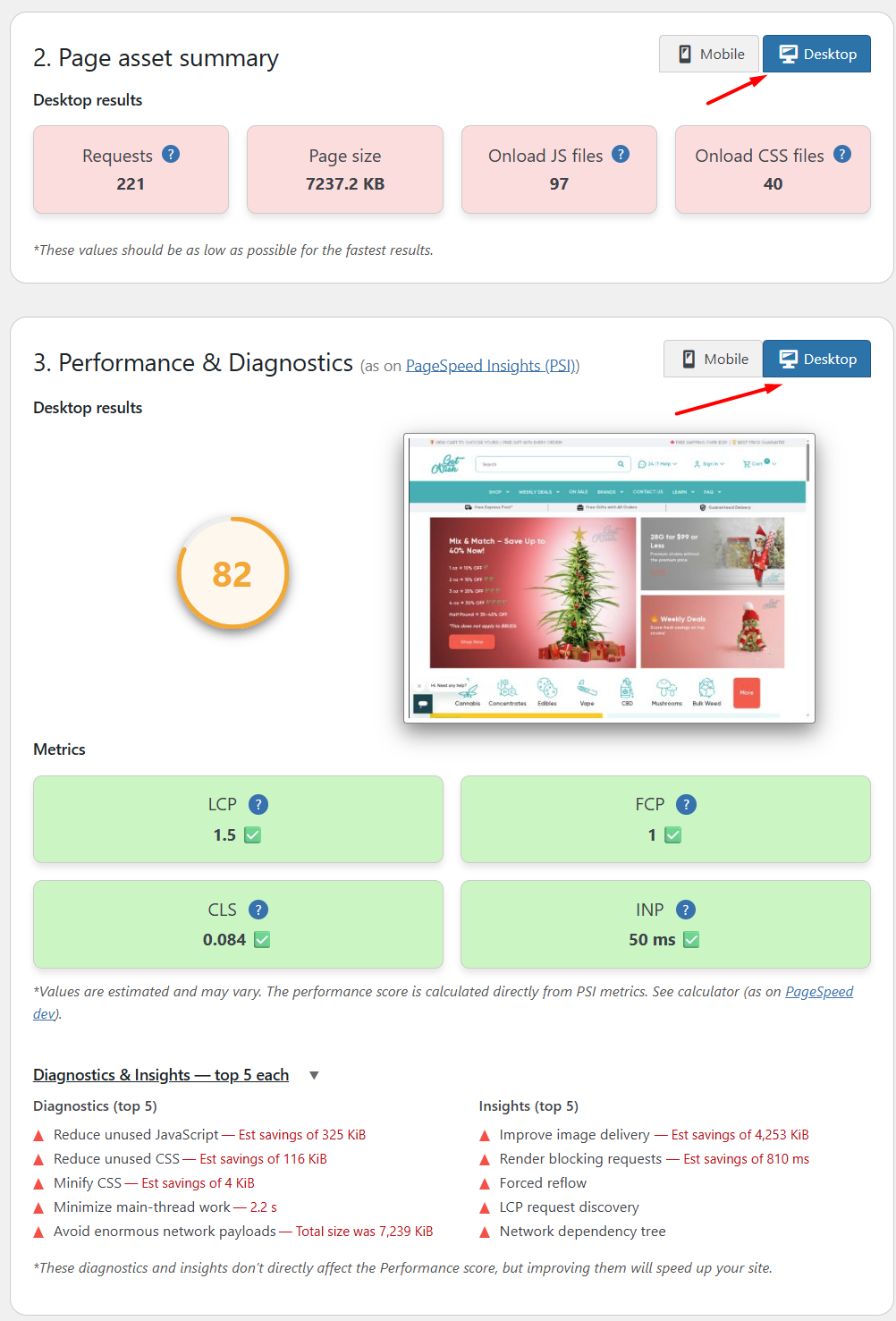
- Page requests, total page size, and loaded CSS and JavaScript files
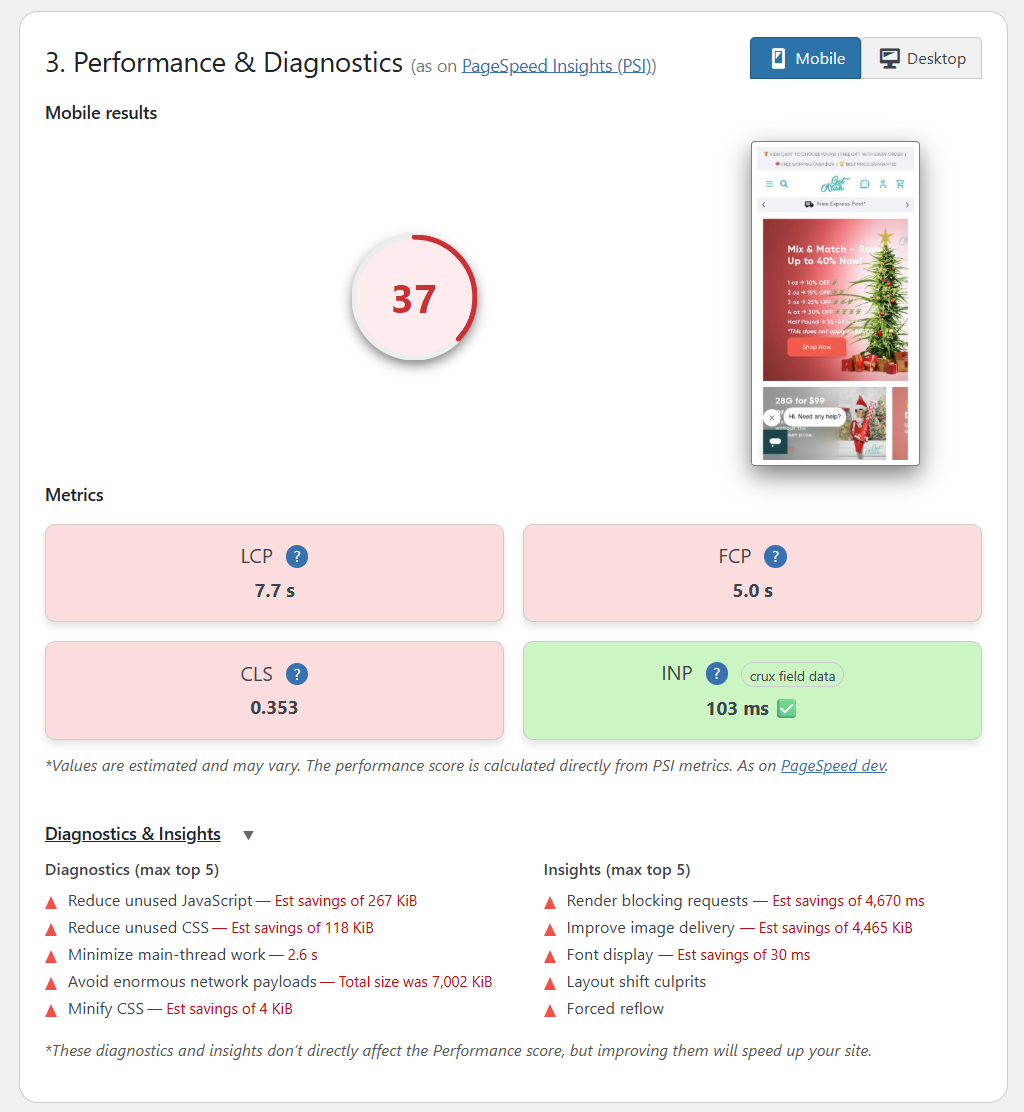
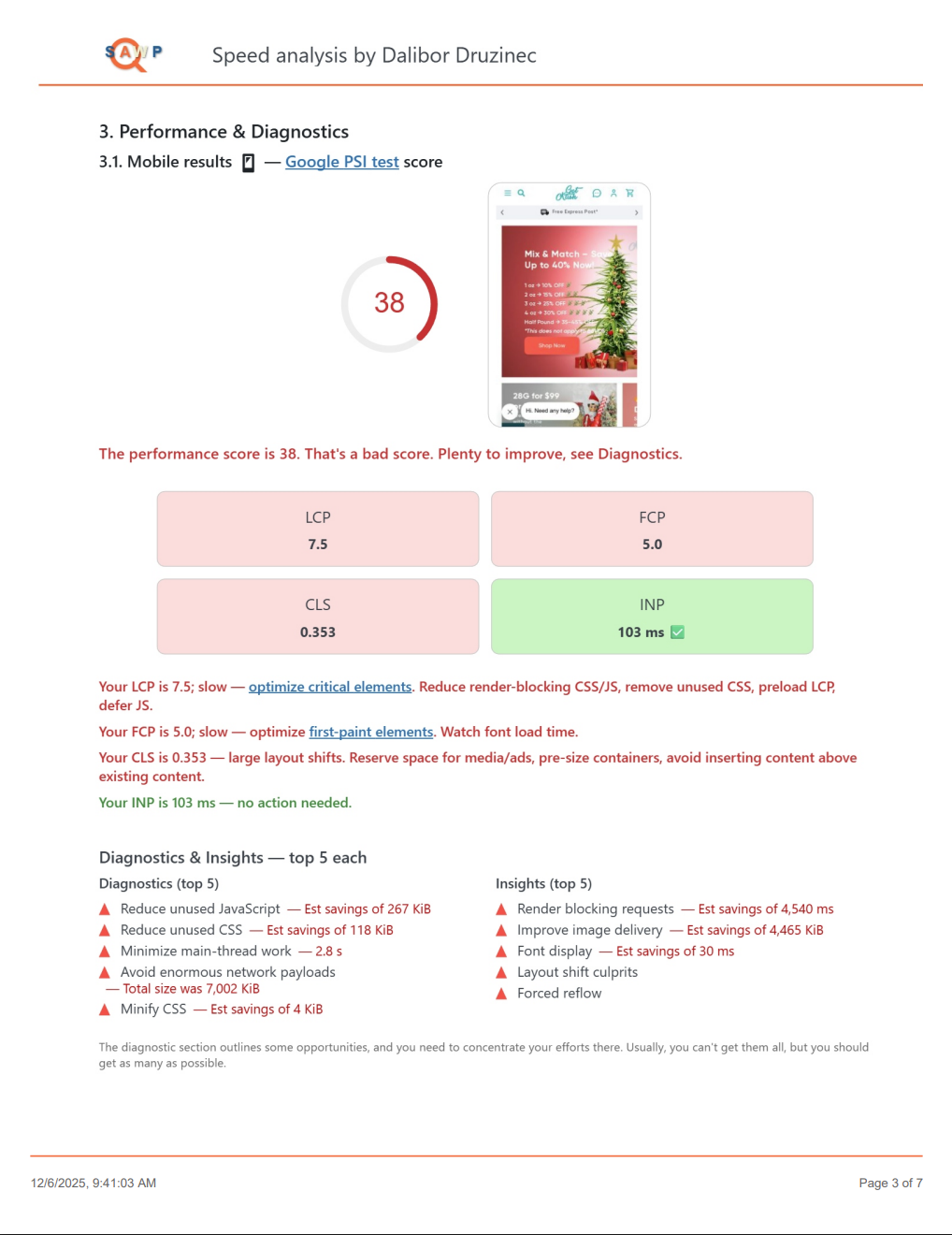
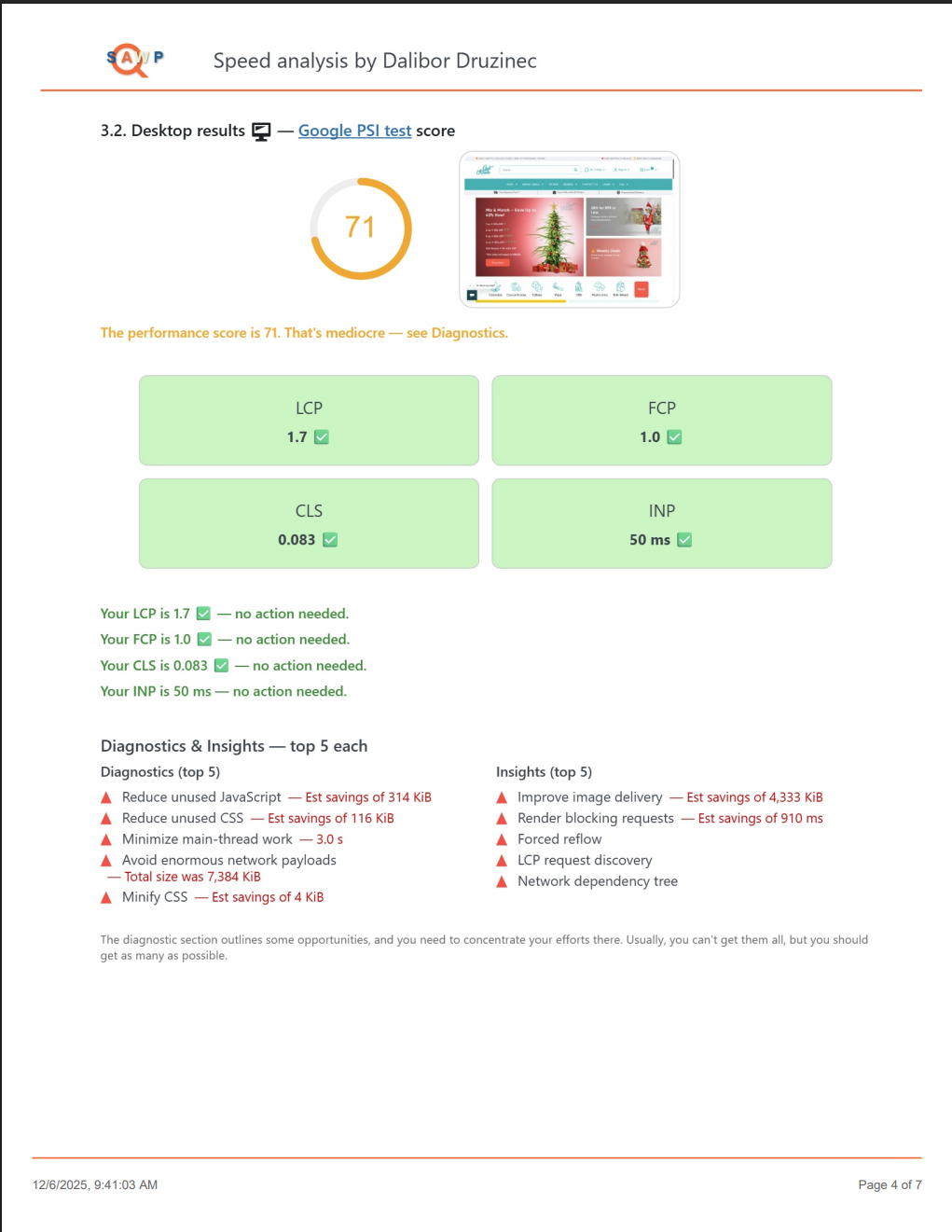
- Google PageSpeed Insights performance score and Lighthouse diagnostics
- Lab metrics including LCP, FCP, CLS, and Total Blocking Time (TBT)
- Available Core Web Vitals field data, including LCP, CLS, and INP
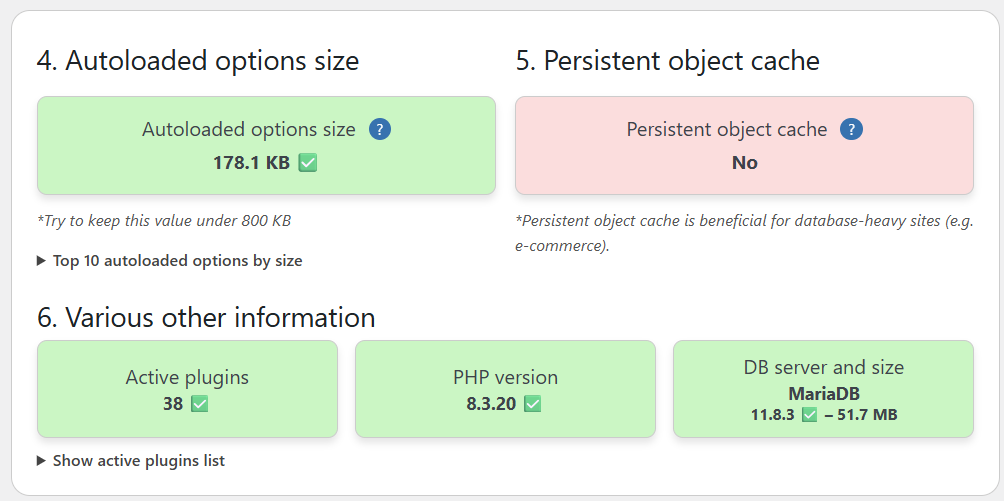
- Autoloaded options size with a list of the largest options
- Persistent object cache status
- WordPress database size, PHP version, database server version, and active plugins
Reports, comparisons, and monitoring
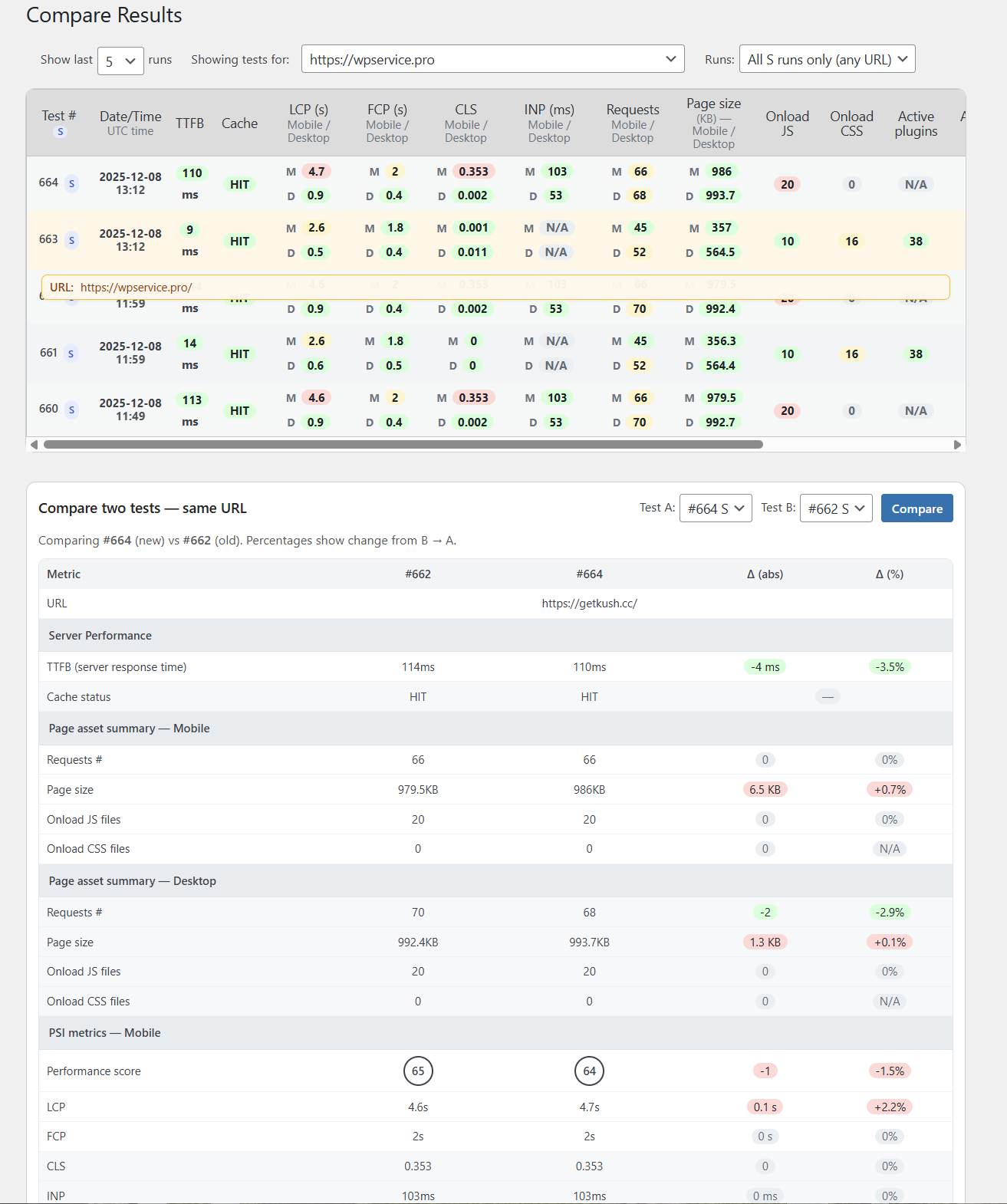
- Compare two saved tests to measure the effect of optimization work
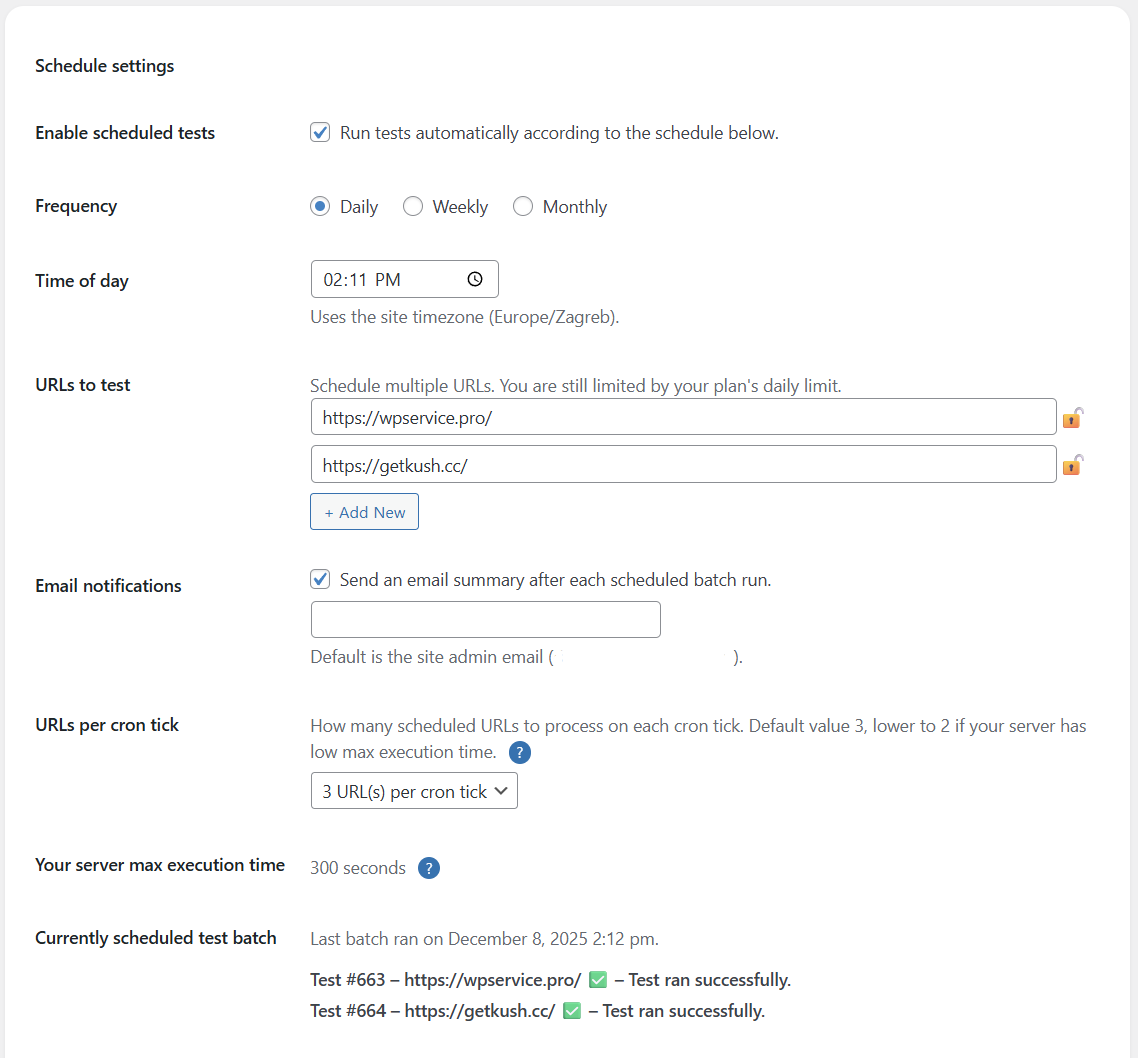
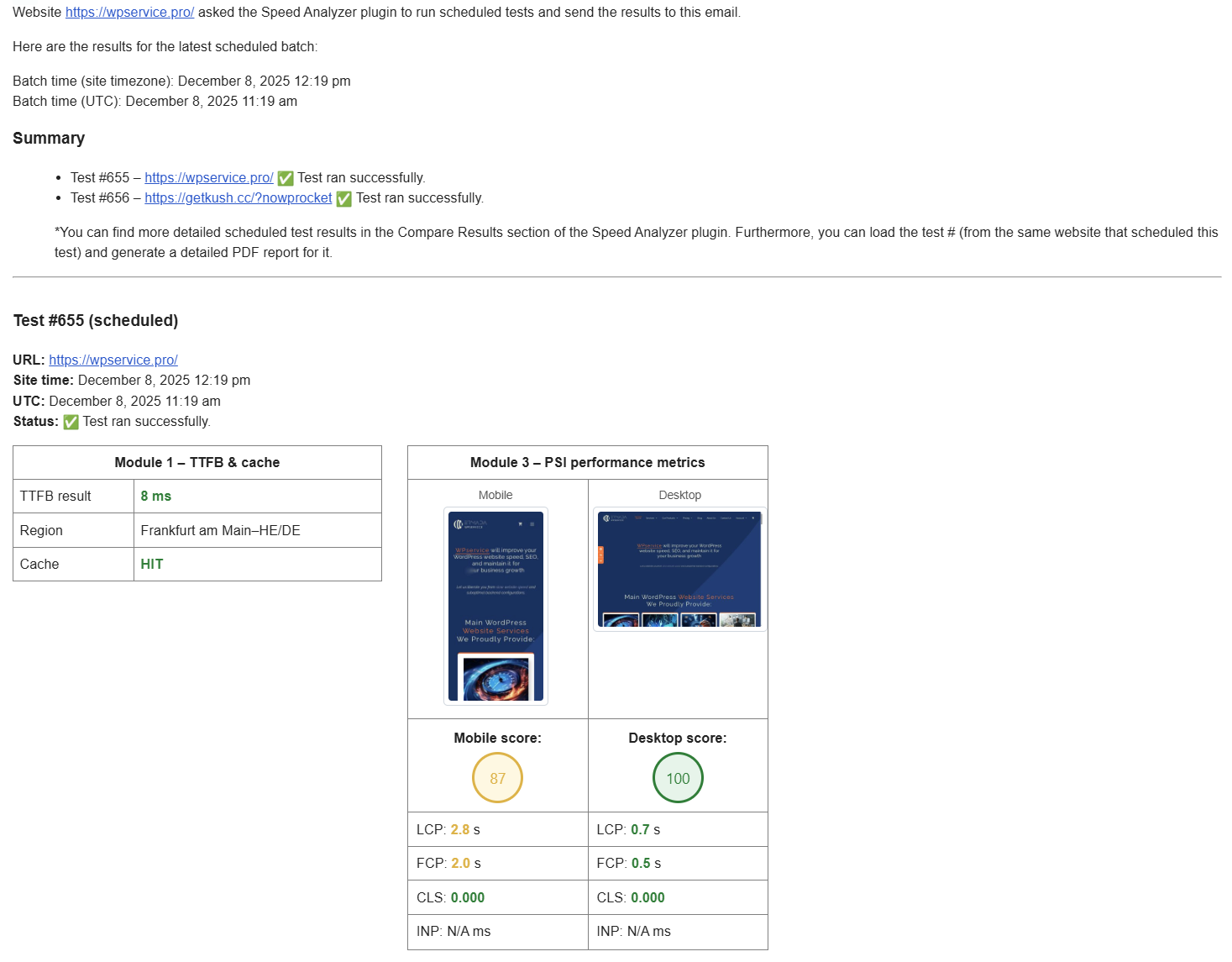
- Schedule recurring tests and receive the results by email
- Configure alerts for performance regressions or metric thresholds
- Generate downloadable, color-coded PDF reports with explanations and recommendations
- Add agency branding to PDF reports on the Agency plan
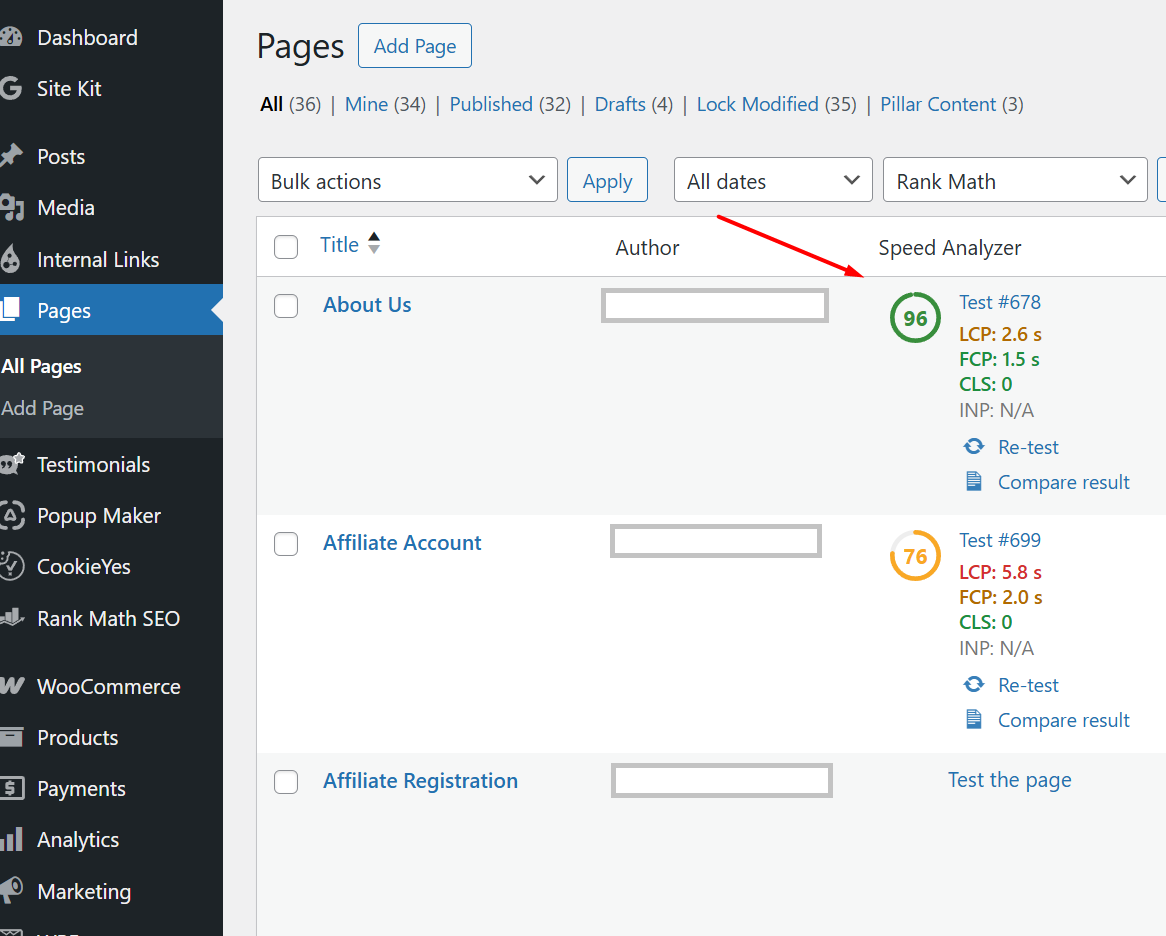
- View the latest performance score and Core Web Vitals from the Posts and Pages screens
Speed Analyzer is a diagnostic and reporting tool. It identifies performance problems and recommends next steps, but it does not automatically apply caching, CSS, JavaScript, image, or database optimizations.
Official plugin homepage:
https://wpservice.pro/our-products/speed-analyzer-wp-plugin/
Free and paid usage limits
The free tier includes up to 10 tests per day and one PDF report per day. Higher limits are available through Pro, Business, and Agency plans. Your current tier and remaining usage are shown under Speed Analyzer > License.
View current limits and pricing:
https://wpservice.pro/our-products/speed-analyzer-wp-plugin/#licenses
Included third-party library
assets/js/html2pdf.bundle.min.js— bundled html2pdf.js v0.10.3 for browser-based PDF generation- Source: https://github.com/eKoopmans/html2pdf.js
External Services
Speed Analyzer performs WordPress-specific database and server checks locally. When you start a speed test, or when a scheduled test runs, selected modules connect to a managed WPservice analysis service and Google PageSpeed Insights.
WPservice hosted analysis service
Endpoint:
https://globalwpspeed.dalibord79.workers.dev/
The hosted service is used for:
- Measuring TTFB from a Cloudflare edge location
- Fetching page asset and PageSpeed data
- Proxying PageSpeed requests to Google
- Enforcing daily usage and PDF-report limits
For TTFB tests, the tested URL is sent to the service. For PageSpeed tests, the tested URL and selected mobile or desktop strategy are sent. The service returns the test data to the plugin. No personal information is intentionally collected, and test results are not stored on the WPservice website.
Privacy policy:
https://wpservice.pro/privacy-policy/
Service terms:
https://wpservice.pro/terms-and-conditions/
Google PageSpeed Insights
The hosted WPservice endpoint forwards the tested URL and mobile or desktop strategy to the Google PageSpeed Insights API. Google returns PageSpeed, Lighthouse, diagnostics, and available Core Web Vitals field data.
Google API Terms of Service:
https://developers.google.com/terms
Screenshots
Installation
- In WordPress, go to Plugins > Add New Plugin and search for Speed Analyzer.
- Click Install Now, then Activate.
- Go to Tools > Speed Analyzer.
- Enter or confirm the URL and run the mobile or desktop speed test.
- Review the results and recommendations, or generate a PDF report.
- Optionally save comparisons, schedule recurring tests, or configure alerts.
No account or API key is required for the free tier.
FAQ
-
Does Speed Analyzer make my WordPress website faster?
-
Not automatically. Speed Analyzer measures performance, identifies likely bottlenecks, and explains what needs attention. You can use its results to guide manual optimization or confirm the effect of changes made by another plugin or developer.
-
How is it different from running PageSpeed Insights directly?
-
Speed Analyzer brings PageSpeed and Core Web Vitals data into wp-admin and combines it with WordPress-only information such as autoloaded options, database size, persistent object cache, active plugins, and server details. It also adds saved comparisons, scheduled tests, alerts, email results, and PDF reporting.
-
Is the free version enough to test my website?
-
Yes for ordinary use. The free tier includes up to 10 tests and one PDF report per day. Higher-volume users and agencies can choose a paid tier.
-
Why is there a daily limit?
-
The remote tests use hosted infrastructure and external API quotas. Limits reset at midnight UTC. When the limit is reached, wait for the reset or upgrade to a tier with a higher allowance.
-
What is sent to external services?
-
The tested public URL is sent for TTFB checks. PageSpeed tests also send the selected mobile or desktop strategy. WordPress-specific information such as your autoloaded-options list, active-plugins list, and database details is processed locally and is not needed by the remote PageSpeed or TTFB tests.
-
Where are my saved test results stored?
-
Saved comparison and scheduled-test data is stored on your WordPress website. WPservice does not store your completed report data on its website.
-
Why can two PageSpeed tests return different scores?
-
PageSpeed results can vary because server response time, network conditions, cache state, third-party scripts, and the tested environment change between runs. Compare several tests rather than treating one score as permanent.
-
Why does Speed Analyzer show TBT and INP?
-
Total Blocking Time is a Lighthouse lab metric used in PageSpeed performance tests. Interaction to Next Paint is a Core Web Vital based on real-user field data. They measure related but different aspects of responsiveness and are not interchangeable.
Reviews


Contributors & Developers
“Speed Analyzer – WordPress Speed Test & Performance Audit” is open source software. The following people have contributed to this plugin.
Contributors
Translate “Speed Analyzer – WordPress Speed Test & Performance Audit” into your language.
Interested in development?
Browse the code, check out the SVN repository, or subscribe to the development log by RSS.
Changelog
1.19.0
- Total Blocking Time (TBT) replaces INP in lab measurements, matching Google PageSpeed Insights.
- TBT uses Lighthouse’s device-specific thresholds: 200/600 ms on mobile and 150/350 ms on desktop.
- Core Web Vitals field data continues to report INP when sufficient real-user data is available.
- Scheduled alerts can now monitor TBT. Existing INP alerts are migrated automatically.
- Fixed missing or stale metrics in Compare Results, Core Web Vitals fields, and Posts and Pages columns.
- Fixed PageSpeed values above 1,000 ms and TBT results of exactly 0 ms being misread.
1.18.6
- Resolved Plugin Check coding-standard and security findings.
- Bundled Chart.js locally instead of loading it from a third-party CDN.
- Limited debug logging to sites with
WP_DEBUGandWP_DEBUG_LOGenabled. - Improved PDF generation with staged processing and progress feedback.
- Tested up to WordPress 7.1.
For the complete release history, see changelog.txt in the plugin folder.