

Description
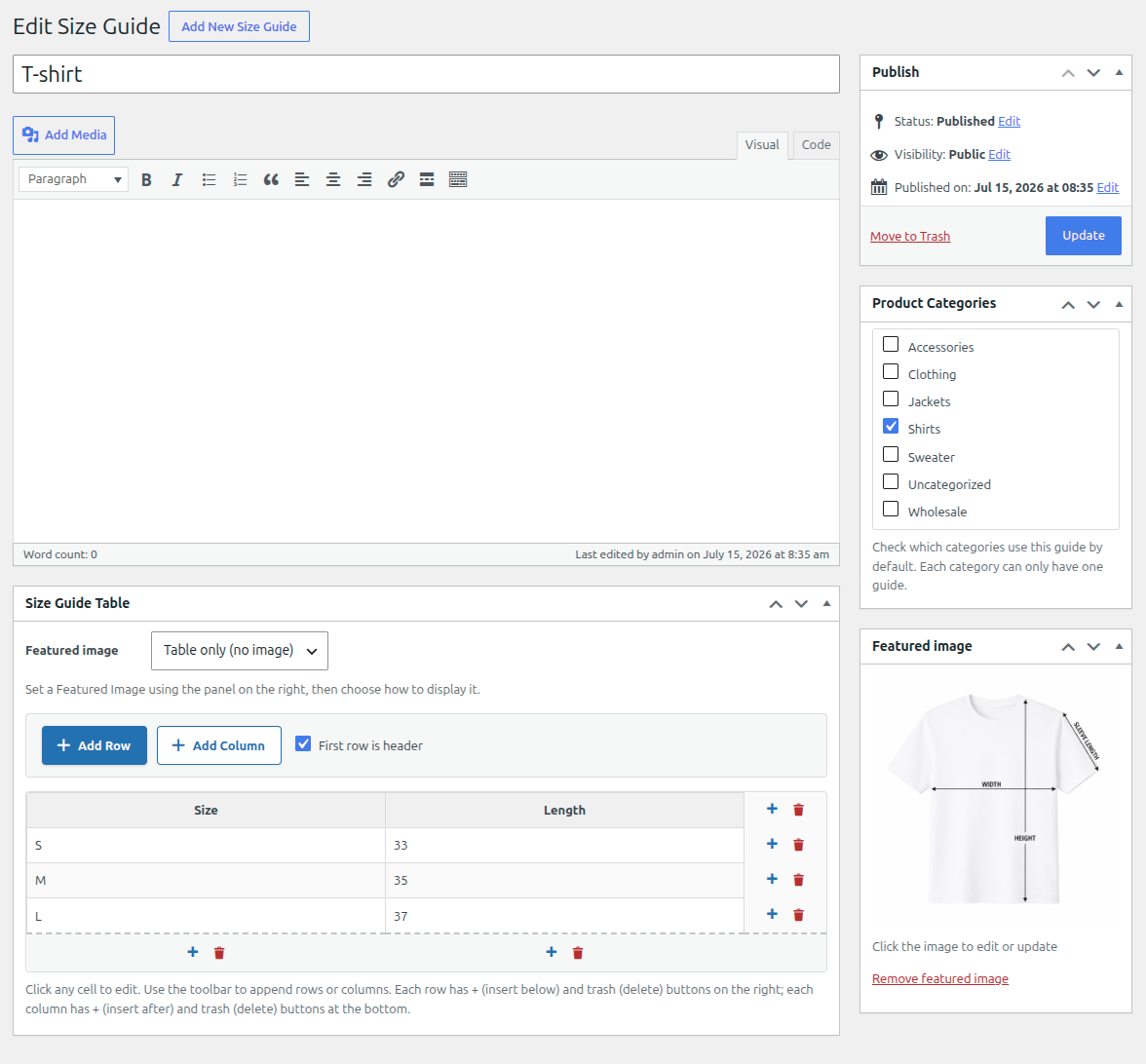
RIACO Size Guide for WooCommerce lets store owners create size guide templates with a visual table builder, assign them to product categories or individual products, and display them on product pages.
Key Features
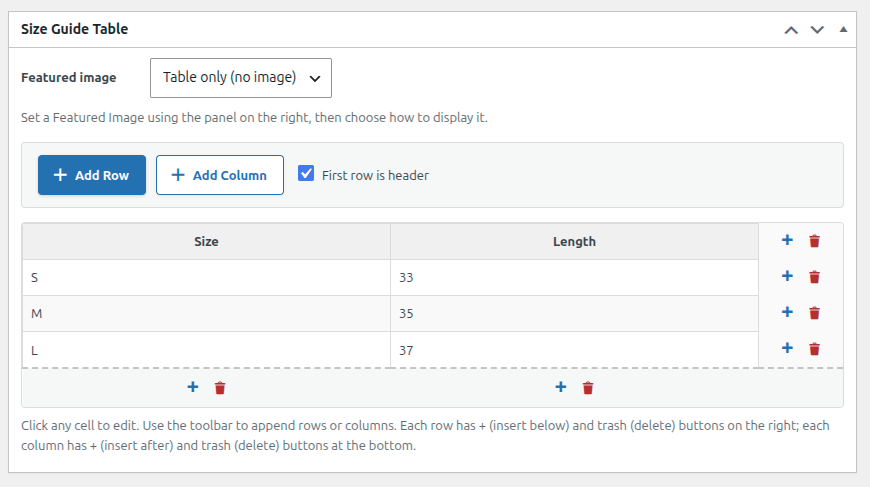
- Visual table builder — add, remove, and reorder rows and columns directly in the editor, no coding required.
- Featured image support — attach a size guide image and choose whether it appears above the table, below the table, or instead of it.
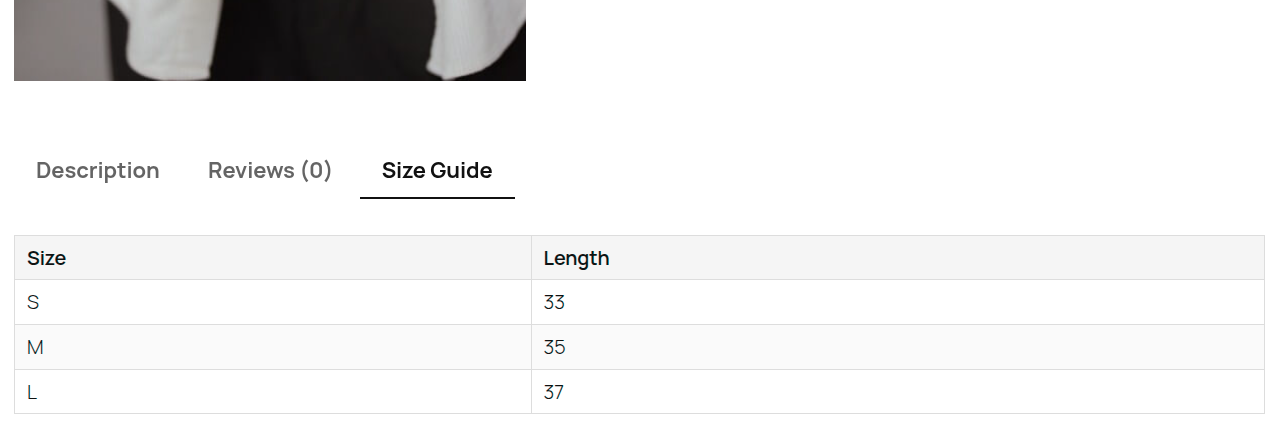
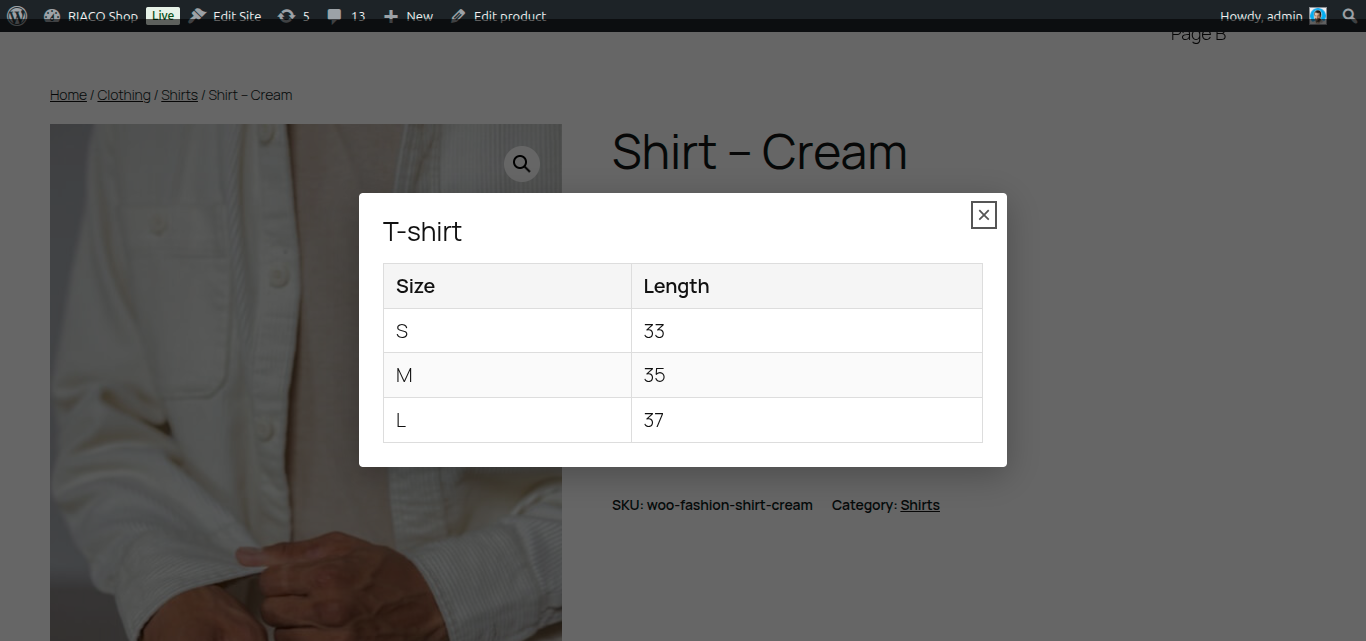
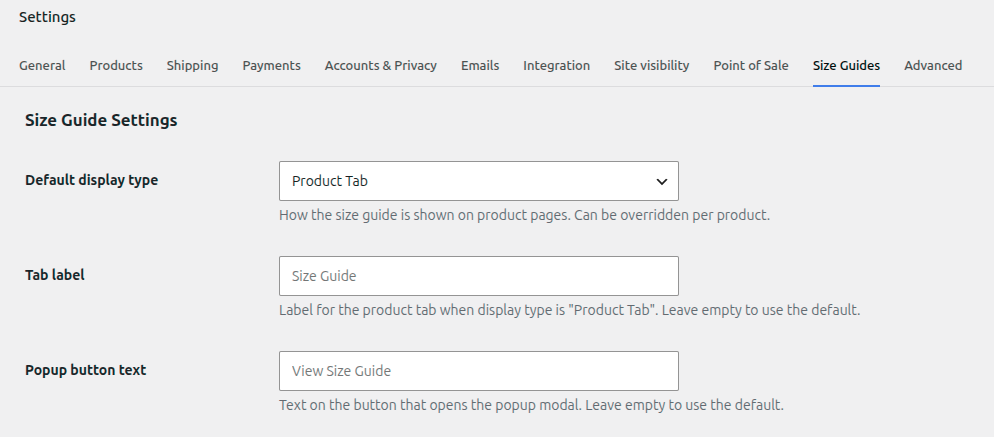
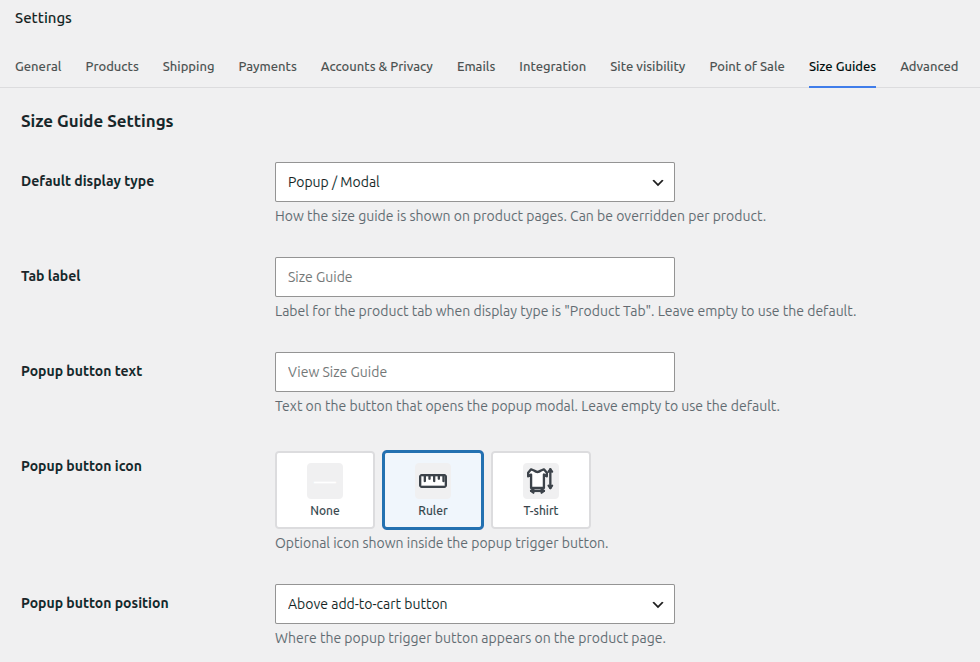
- Flexible display modes — show the guide as a product tab, a popup/modal triggered by a button, or inline above or below the add-to-cart button.
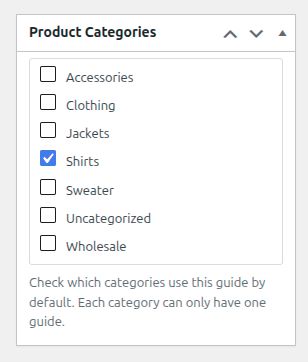
- Category assignment — assign a guide to one or more product categories from the guide edit screen; products inherit the guide automatically.
- Per-product override — override or disable the guide on any individual product from the WooCommerce product data panel.
- Accessible modal — the popup modal is keyboard-navigable and uses proper ARIA roles.
- Developer hooks — four filters let developers override guide resolution, display type, HTML output, and tab arguments.
- HPOS compatible — declared compatible with WooCommerce High-Performance Order Storage.
Developer Filters
riaco_sgfw_chart_for_product— swap or suppress the resolved guide for any product.riaco_sgfw_display_type_for_product— override the display type per product.riaco_sgfw_chart_html— modify the full guide HTML before output.riaco_sgfw_tab_args— change tab label, priority, or callback.
Screenshots
Installation
- Upload the plugin folder to
/wp-content/plugins/, or install via Plugins Add New. - Activate the plugin through the Plugins menu in WordPress.
- Make sure WooCommerce is installed and active.
- Go to WooCommerce Size Guides to create your first size guide.
- Assign the guide to product categories from the guide edit screen, or override it per product in the Size Guide tab of the product data panel.
- Configure the global display type under WooCommerce Settings Size Guides.
FAQ
-
Does this plugin require WooCommerce?
-
Yes. WooCommerce must be installed and active.
-
Who can create and manage size guides?
-
Only users with the
manage_woocommercecapability — administrators and shop managers by default. Other roles cannot create, edit, or assign size guides. -
Can I show a size guide image instead of a table?
-
Yes. Set a featured image on the guide and choose “Image only” from the Image Position meta box on the guide edit screen.
-
Can I disable the guide for a specific product?
-
Yes. Open the product, go to the Size Guide tab in the product data panel, and select Disable (no guide).
-
Where do I configure the display type (tab, popup, inline)?
-
Go to WooCommerce Settings Size Guides.
-
Why is the guide missing on out-of-stock products?
-
The inline display types and the “Above/Below add-to-cart button” popup button positions are attached to the add-to-cart form. When a product cannot be purchased (for example, it is out of stock), WooCommerce does not render that form, so the guide or button is not shown there. If the guide must always be visible, use the Product Tab display type or the After product summary popup button position.
-
Does it work with WooCommerce High-Performance Order Storage (HPOS)?
-
Yes, the plugin declares HPOS compatibility.
Reviews
There are no reviews for this plugin.
Contributors & Developers
“RIACO Size Guide for WooCommerce” is open source software. The following people have contributed to this plugin.
Contributors
Translate “RIACO Size Guide for WooCommerce” into your language.
Interested in development?
Browse the code, check out the SVN repository, or subscribe to the development log by RSS.
Changelog
1.0.0
- Initial release.