
Description
Optimize your image SEO by serving images at the resolution they are displayed in the browser.
Free and WITHOUT credit packages! The images are resized and cached directly on your server in AVIF or WebP format. The original images and database remain untouched. With neoOptimize your images load faster with high image quality. This improves your website performance and boosts SEO ranking.
🏝️ Sandbox for neo Optimize
Try neo Optimize directly in the browser without having to install it.
🚀️ Main Features of neo Optimize
- ✅ Maximize the SEO ranking of your images for better PageSpeed 🎉
- ✅ Your media files and database will not be altered
- ✅ Resizing on your own server without external dependencies
- ✅ Free AVIF and WebP support for delivered images with top performance
- ✅ Optimization of neoDraw SVG illustrations
- ➡️ Image size matched to the display in the browser
🎉 Be the king of neoUniverse
Get the ultimate bundle!
- 🗂️ neoLibrary
Bring order to your media library and see where your images are used! - ✏️ neoRename
Maximize your image SEO with AI efficiently via your own API connection without credit packages. - 💬 neoAlt
Create alt texts and image titles directly in WordPress with AI. - 🔄 neoReplace
Easy replacing with drag and drop! - 🖇️ neoDuplicate
Duplicate images for SEO with page-specific ALT texts. - 🚀 neoOptimize
Optimize your image SEO by serving images at the resolution they are displayed in the browser. - 🎨 neoDraw
Turn creative ideas into drawings directly in WordPress! - 🎬 neoAnimate
Make an impression with animated line-path effects! - 🏃♂️ neoMotion
Make an impression with captivating stop-motion animations! - ✨ neoPlugins
All free neoMedia plugins for WordPress.
❤️ Our drive
Feedback to neo Optimize from WP pros that drives us every day:
- … What neoOptimize solves very well is that all images and the entire content folder remain untouched.
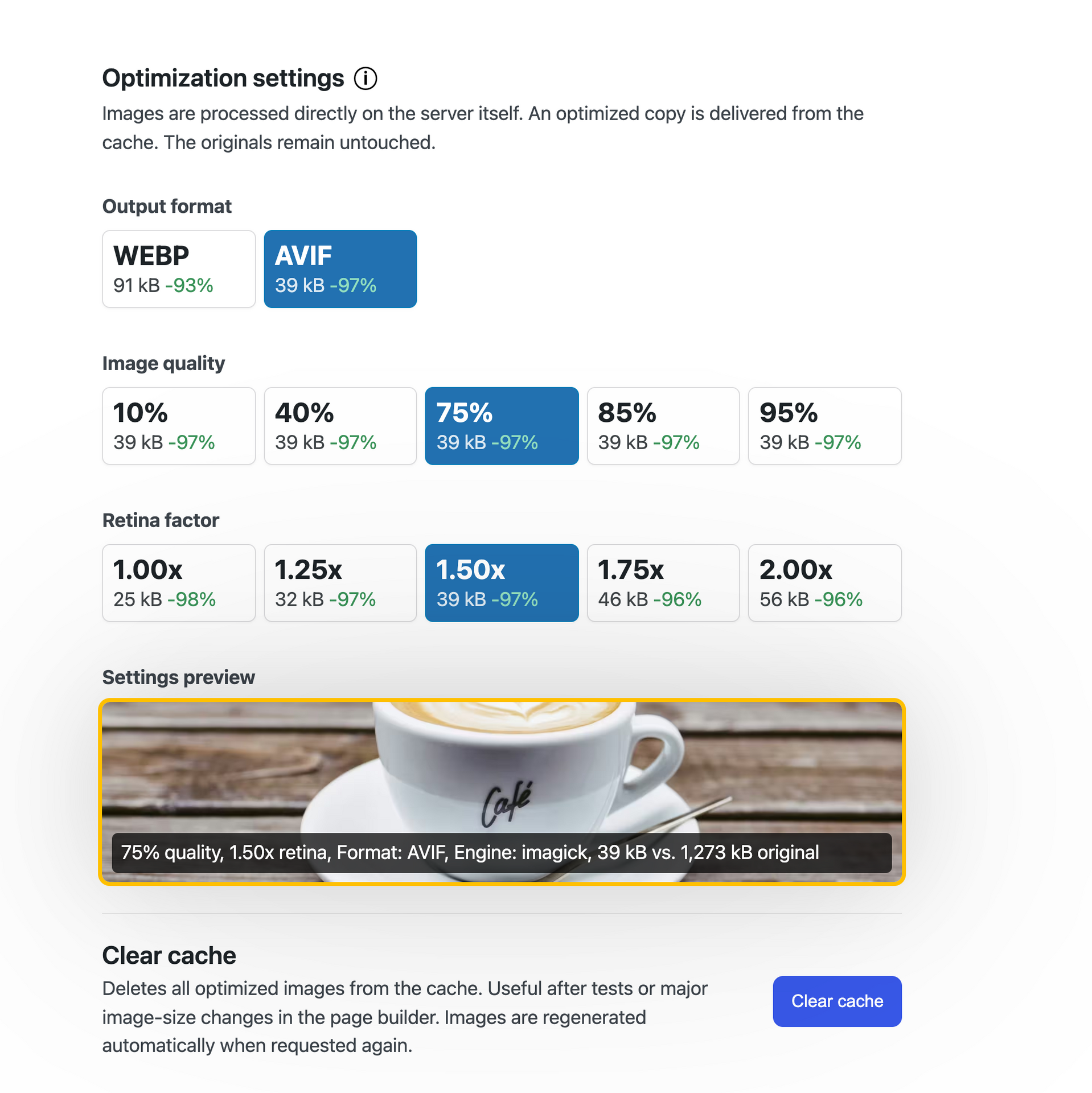
Jonas Gruber ⭐⭐⭐⭐⭐ - … What I particularly like is the image quality setting with an immediate preview of the compressed image. The neoTeam did a great job.
Sasha Simonova ⭐⭐⭐⭐⭐
🎁 Help us, neo Optimize make it even better! Your opinion matters. ➔ Send us feedback
🔮 Look into the future
We are currently developing these features:
- 🔜 Pixel-accurate dynamic image scaling based on the display size in the frontend
- Minimizing raster graphics embedded as pixel data in SVG files
- SEO-friendly, automatically generated alt texts based on SVG text contents
🔍 Related Plugins
We learned from the best to develop the Image Optimizer plugin. If you’re looking for an alternative to neo Optimize check out the following plugins:
- EWWW Image Optimizer – Features: compress, convert, lazy load, resize, webp
- Converter for Media – Optimize images | Convert WebP & AVIF – Features: compress images, convert webp, image optimization, optimize images
- ShortPixel Image Optimizer – Optimize Images, Convert WebP & AVIF – Features:
- Imagify Image Optimization: Optimize Images | Compress & Convert to WebP/AVIF – Features: convert AVIF
- WP-Optimize – Cache, Compress images, Minify & Clean database to boost page speed & performance – Features: cache, caching, image cache, minify, performance cache
- Smush – Image Optimization, Compression, Lazy Load, WebP & CDN – Features: image optimizer
- Image Optimization – Compress Images and Convert to WebP or AVIF – Features: image compression, performance
🤝️ Compatibility
The Image Optimizer Plugin offers maximum compatibility:
- Tested from WordPress 6.2 and PHP 8.0. Optimized for WP 7.0.
- Multilingual support for e.g. English, German, …
- The Image Optimizer Plugin integrates seamlessly into the WordPress backend and is compatible with WooCommerce.
- Compatible media file types: SVG, JPG, JPEG, WEBP, AVIF, PNG, GIF, TIF, BMP, MP4, MOV, WEBM, AVI, MP3, WAV, PDF, TXT, ZIP, …
- The Image Optimizer Plugin is compatible with all common page builders and has been tested with: Bricks, Elementor, Divi, Gutenberg, Classic Editor, …
🛡️ Security & Performance
The Image Optimizer plugin keeps your data safe and your website fast:
- Regular updates for maximum reliability and security
- Thorough testing of new plugin updates by WordPress experts
- Resource-efficient for a fast WordPress backend
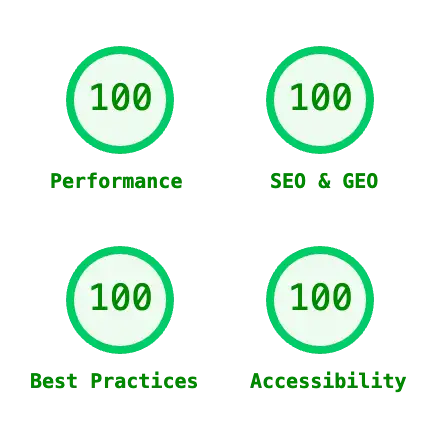
- SEO-optimized for higher rankings in search engines
- Clean uninstallation without leftover database entries
- German-level security according to EU standards GDPR and DSGVO
🌍 Our Community & Support
We continuously develop the Image Optimizer Plugin. If you have questions or problems we are here for you – in the WordPress forum or for Pro users on our website.
- WordPress Forum: https://wp.org/support/plugin/neo-optimize
- Ideas & Requests: https://neo-wp.com/feedback/
- Free Support: https://neo-wp.com/contact/#free
- Pro Support: https://neo-wp.com/contact/#pro
neo Optimize – Local. Resize. Cache. – by neoWP
Technology knows no borders. We are proud that our software is used worldwide. optimize • optimizer • resize • compress • cache • optimieren • Optimierer • Größe ändern • komprimieren • Cache • optimiser • optimiseur • redimensionner • compresser • cache • optimizar • optimizador • redimensionar • comprimir • caché • ottimizzare • ottimizzatore • ridimensionare • comprimere • cache • optimaliseren • optimalisator • formaat wijzigen • comprimeren • cache • boresha • kiboresha • badilisha ukubwa • finyaza • akiba • 优化 • 优化器 • 调整大小 • 压缩 • 缓存 • 最適化 • オプティマイザー • サイズ変更 • 圧縮 • キャッシュ • अनुकूलित करें • अनुकूलक • आकार बदलें • संपीड़ित करें • कैश
Screenshots

Installation
Help and Support
- WordPress Forum: https://wp.org/support/plugin/neo-optimize
- neo Optimize Free support: https://neo-wp.com/contact/#free
- neo Optimize Pro support: https://neo-wp.com/contact/#pro
Get Pro features
Find out what the Pro version of neo Optimize has to offer to unlock the full potential of your media. ➔ What the Pro version can do
Installation & Activation
Installation via the WordPress Plugin Directory
- Open the WordPress dashboard > Plugins > Add New
- Search for “neo Optimize” and click “Install Now”.
- After installation click “Activate”.
Installation from neo Optimize from the official neoWP website
- Download the Image Optimizer plugin from the official website neo-wp.com.
- Open the WordPress backend > Plugins > Add New > Upload Plugin > Activate Plugin
Manual installation of neo Optimize via FTP
- Download the Image Optimizer plugin from the official website neo-wp.com.
- Extract the ZIP file and upload the neo-optimize folder via FTP to the
/wp-content/plugins/directory of your WordPress installation. - Go to the WordPress backend > Plugins > In the list click on “neo Optimize” and click on “Activate”.
After activating the Image Optimizer plugin
- Click in the side bar in the WordPress backend on „neoWP“ to review and adjust the default options.
- Adjust the „neo Optimize” settings to your individual requirements.
Compatibility and Requirements
Minimum system requirements for the Image Optimizer Plugin
- WordPress version 6.2 to 7.0
- PHP version 8.0 or higher
- MySQL version 8.0 or higher
- Optimized for servers with Linux operating system (not Windows)
- Server Memory Limit: min. 128 MB
Compatible plugins and tools with neo Optimize
The plugin neo Optimize was tested with: Bricks, Elementor, Divi, Beaver, Oxygen, Breakdance, Gutenberg, WP Fastest Cache, LiteSpeed Cache, WP Rocket, W3 Total Cache, WP Super Cache, WP-Optimize, Autoptimize, Breeze, Cache Enabler
Legal notice about the Image Optimizer plugin
The plugin neo Optimize is provided free of charge and without warranty under the “GPLv2 or later” license. Use is at your own risk; liability for damages is excluded. Users outside Germany are responsible for complying with local regulations. This plugin may contact external services for licensing via Freemius (EULA, License Terms, Opt-In information, Privacy Policy), updates and support. If you submit the feedback feature, the entered text, the optionally shown email address and website domain, as well as plugin slug, edition, plugin, WordPress and PHP version, language and browser user agent will be transmitted to the neoWP download server. The data will be sent by email to the neoWP team and fully stored in a server log protected from public access to understand the feedback and possibly respond. IP address, Origin and Referrer are not stored in the feedback log or in the feedback email. Email address and domain can be hidden before submission.
Details on data, recipients, storage and transfers to third countries can be found in the full privacy policy.
Open-source Libraries
The plugin was made possible by the following open-source libraries (thank you!):
neo-freemius--thirdparty: Source: https://github.com/Freemius/wordpress-sdk – License: GPLv3 – https://github.com/Freemius/wordpress-sdk/blob/master/LICENSE.txt_global-sweetalert2-thirdparty: Source: https://github.com/sweetalert2/sweetalert2 (https://github.com/sweetalert2/sweetalert2/releases/download/v11.26.24/sweetalert2.esm.min.js) – License: MIT – https://github.com/sweetalert2/sweetalert2/blob/main/LICENSE
FAQ
-
Features of neo Optimize
-
Which features are included in the plugin?
The main features of the Image Optimizer plugin are:
- ✅ Maximize the SEO ranking of your images 🎉
- ✅ Original images and database remain untouched
- ✅ Resizing on your own server
- ✅ Free AVIF and WebP support for served images
- ✅ Optimization of neoDraw SVG graphics
- ✅ Image scaling based on the display size in the frontend
-
In short
-
What is neoOptimize?
The neoOptimize plugin is a WordPress image optimization plugin. It automatically reduces images to the actually required display size and converts image files to the efficient AVIF format. This makes images load faster and your website more performant, which positively affects SEO ranking.
What makes neoOptimize special is that the original images remain unchanged and the optimized versions are stored in a separate cache directory. The plugin also works without credit packages because it optimizes images for free on your own server.
-
Local optimization
-
Are my images sent to external servers?
The neoOptimize plugin processes your images directly on your own server. Local server functions such as Imagick or PHP GD are used for image optimization. This means you do not need credit packages for external image services or any additional cloud processing.
This makes the optimization free, privacy-friendly and independent from external providers.
-
Original images remain intact
-
Does neoOptimize change my original images?
Your original images and database remain fully intact. The neoOptimize plugin only creates optimized copies in the cache and serves those in the frontend. The original files in your media library are not overwritten.
Your WordPress database also remains untouched. When the site loads, only the image URL in the frontend is replaced with the optimized cache version.
If you deactivate or uninstall neoOptimize, everything returns to the way it was.
-
WebP and image quality
-
What image quality should I set?
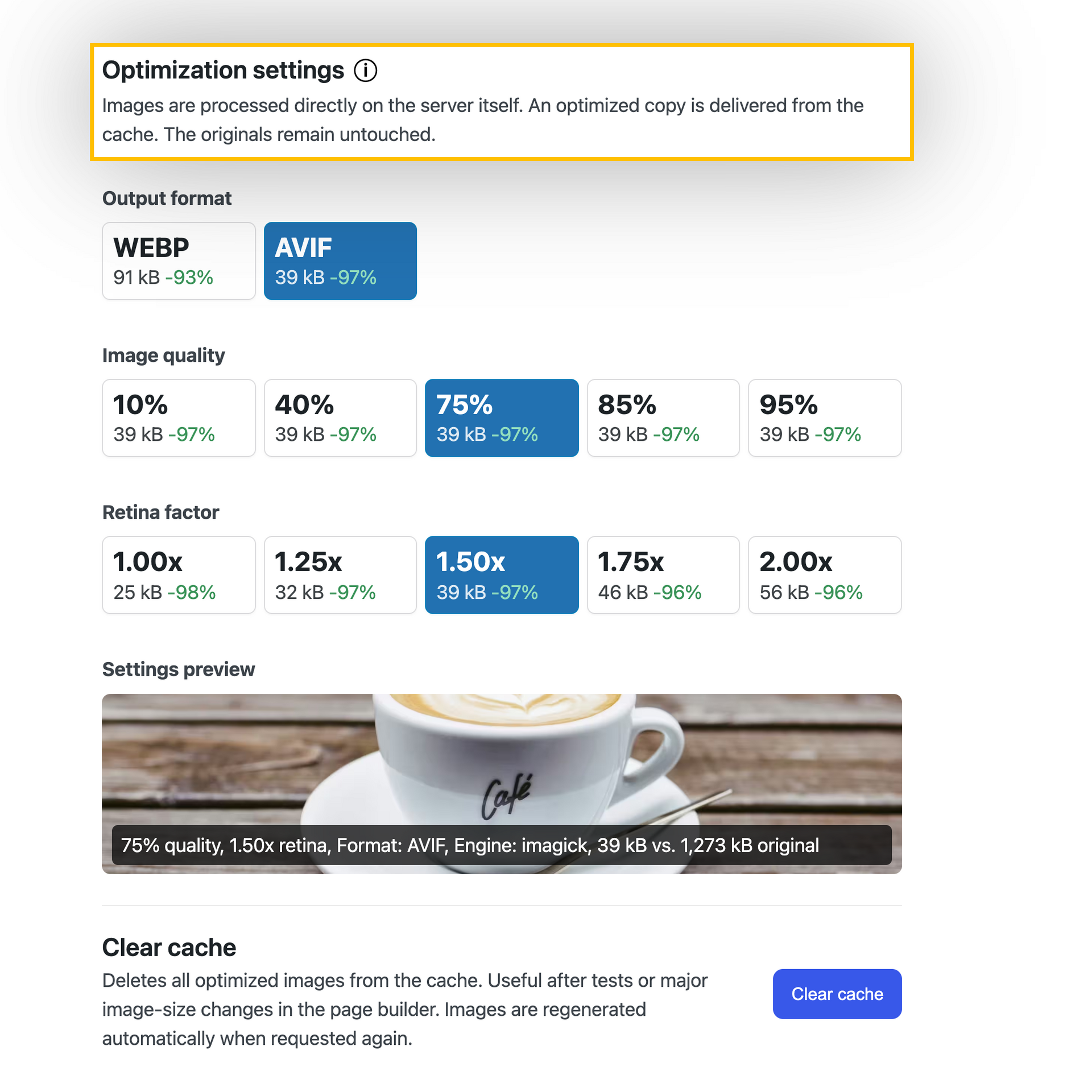
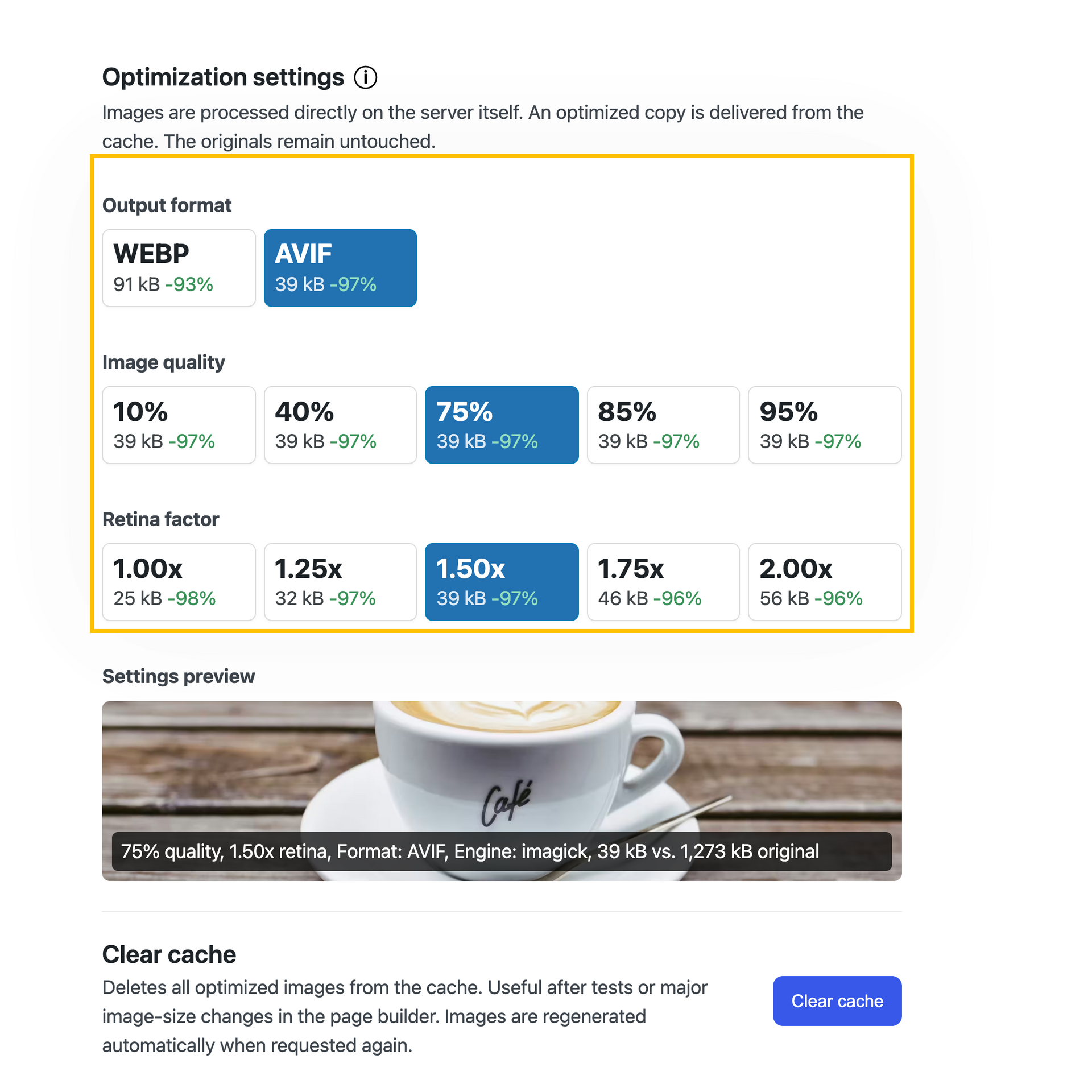
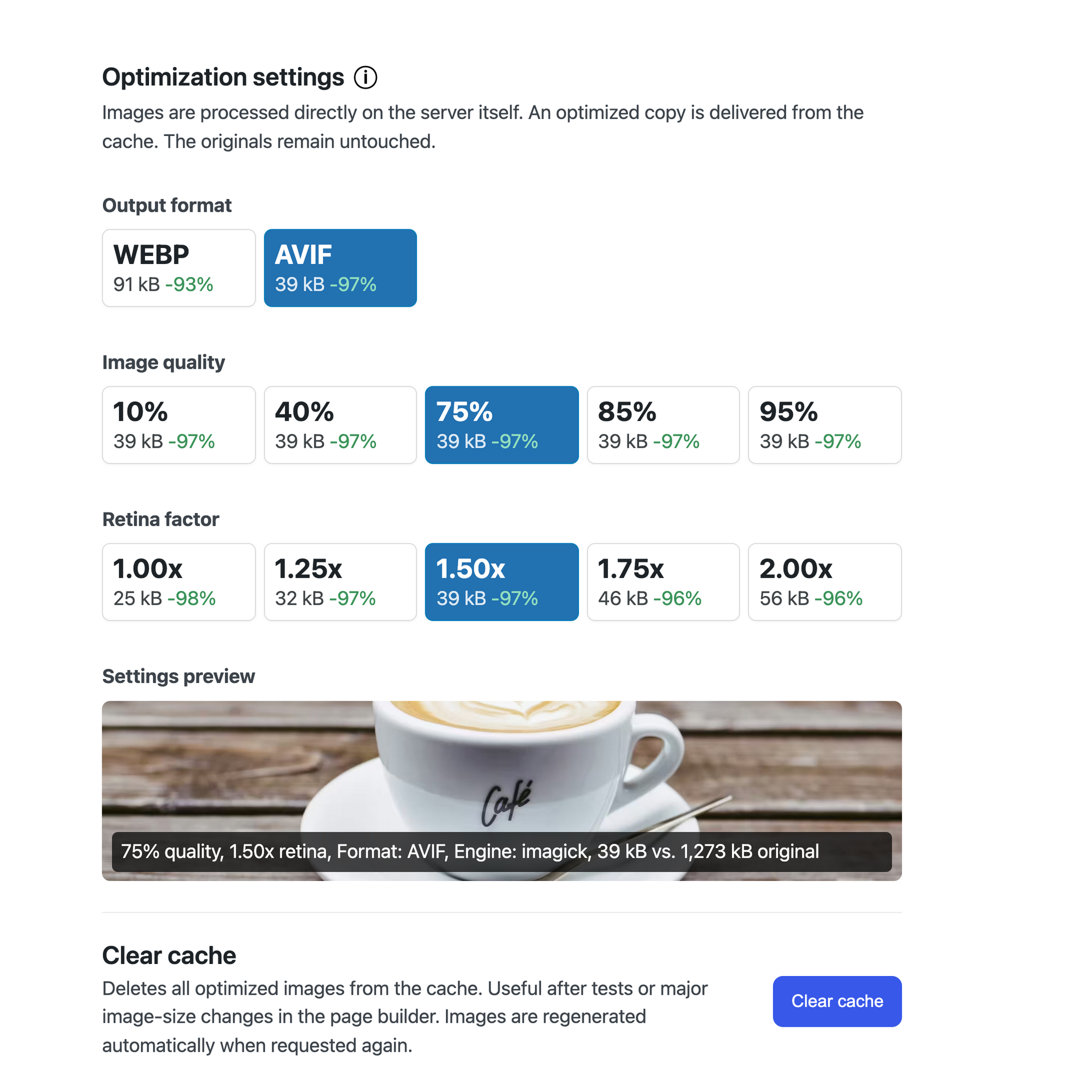
For most websites we recommend an AVIF quality of 75%. The AVIF format is very efficient, so even lower quality settings often still look very good and produce significantly smaller files. You can also switch to the more widely supported WebP format for maximum compatibility.
In the neoOptimize settings you can conveniently select the quality and directly evaluate it via a preview with file size. This helps you quickly find the right balance between high image quality and fast loading times.
-
Retina factor
-
What does the retina factor do?
The retina factor controls the pixel density at which images are displayed for high-resolution screens. A higher value makes images appear sharper on retina displays but also increases file size.
The neoOptimize plugin uses a default retina factor of 1.5x to improve the rendering of small text, icons and image details on retina displays. In the Pro version you can set the retina factor individually and compare it directly in the preview.
-
Clear cache
-
When should I clear the neoOptimize cache?
Under normal operation it is not necessary to clear the neoOptimize cache. The clear cache button can be useful if you want to remove old image variants after many tests or clean up after major changes to image sizes in a page builder. Afterwards the optimized images are automatically regenerated when they are needed again in the frontend.
If you change image quality, the retina factor or other optimization settings, neoOptimize automatically creates new optimized images. When an image is deleted from the WordPress media library the associated cache files are automatically removed. Even optimized images that were renamed with neoRename are cleaned up automatically.
The Clear cache button is therefore mainly intended as a reset and cleanup function.
-
Page Builder
-
Does neoOptimize work with my page builder?
Yes, neoOptimize works with all common page builders. These include Bricks, Elementor, Divi, Beaver, Oxygen, Breakdance and Gutenberg.
neoOptimize can automatically read the configured image sizes and use them as the basis for optimization. This ensures the image is adapted as closely as possible to the actual display size and cached for fast delivery.
-
Override image sizes
-
Can I set image size and quality per image manually?
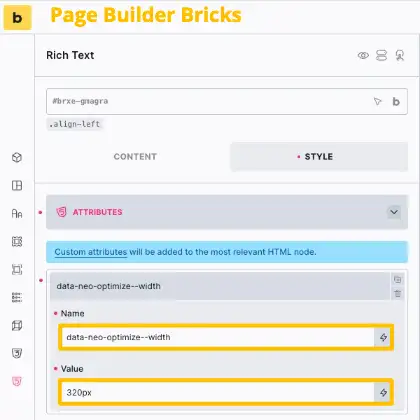
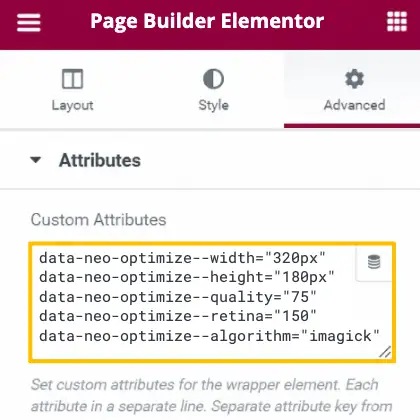
Yes. You can override the automatically detected optimization per image using HTML attributes. This is especially useful when an image is displayed differently in a page builder than it can be detected automatically. Examples:
<img data-neo-optimize--width="320px" src="...">

<img data-neo-optimize--height="180px" src="...">

<img data-neo-optimize--quality="75" src="...">
With the Pro version you can additionally control the retina factor and the algorithm used per image:
<img data-neo-optimize--retina="150" src="..."> <img data-neo-optimize--algorithm="imagick" src="..."> -
Supported formats
-
Which image formats does neoOptimize support?
The image optimization in neoOptimize supports many common raster formats, including JPG, JPEG, PNG, GIF, WebP, AVIF, BMP, HEIC, HEIF, TIFF and many other formats if they can be processed on your server by Imagick or PHP GD.
Raster images are optimized, scaled and stored as AVIF files in the cache. In addition, neoOptimize can also optimize special neoDraw SVG graphics for frontend output.
-
neoDraw SVGs optimize
-
How does neoOptimize optimize drawings from neoDraw?
If an image was created with neoDraw, neoOptimize can automatically optimize it when serving it in the frontend. Unnecessary editor data is removed for display and embedded raster images are converted to the efficient AVIF format.
The original neoDraw file remains fully intact and editable. Visitors get a slimmer, faster version in the frontend while you can still work with the editable original drawing in the backend.
-
Neo universe
-
What is the neoUniverse?
The neoUniverse is more than just a plugin collection. It is your complete toolbox for all media challenges in WordPress. It currently includes ten specialized plugins: neoLibrary, neoRename, neoReplace, neoDuplicate, neoOptimize, neoLazy, neoDraw, neoAnimate and neoMotion. They work seamlessly together, are perfectly matched and cover all areas around media management, SEO and performance. Whether renaming images, replacing files, optimizing SEO, enabling lazy load or drawing and animating content. The neoUniverse makes your media workflow noticeably simpler and more efficient. And the best part: the neoUniverse keeps growing. New tools and features make your WordPress everyday life even better.
-
Download with Safari
-
Why is only a folder shown when downloading?
If you use Safari, your Mac may automatically extract the ZIP file. Instead of the ZIP file you then only get the extracted folder. You cannot upload this directly to WordPress.
Solution: Open Safari preferences and disable the option ”Open safe files after downloading”. After that the ZIP file will remain as you need it.
The video titled ”How to disable Safari auto extract for ZIP files when downloading WordPress plugins” on YouTube shows you exact details.
-
More questions
-
I have more questions. Can you help me?
Sure! You can ask us your questions any time via our support page. We will answer shortly.
Reviews
There are no reviews for this plugin.
Contributors & Developers
“neo Optimize – Resize and cache images – the original remains untouched” is open source software. The following people have contributed to this plugin.
Contributors
Interested in development?
Browse the code, check out the SVN repository, or subscribe to the development log by RSS.
Changelog
Show full changelog: https://neo-wp.com/changelog/?ref=wp-org#neo-optimize
- 2026-08-11 Improvement – neoManagerWporg: Direct installation from the WordPress Plugin Directory
- 2026-08-05 Improvement – neoSettings: neoWP settings page linked under “Tools” instead of under “Settings”
- 2026-08-02 Feature – neoFeedback: Send feedback directly from neoPlugins
- 2026-07-19 Fix – neoFreemius: Update re-enabled for some free users
- 2026-07-18 Improvement – neoLog: Better compatibility regarding encryption through libsodium
- 2026-07-01 Improvement – neoGlobal: Robustness regarding neoWP update server for current plugin lists
- 2026-06-30 Improvement – neoLog: Deduplicate certain log lines
- 2026-06-30 Improvement – neoOptimize: Automatic redirect from AVIF to WebP format and vice versa when changing the format setting
- 2026-06-23 Fix – neoOptimize: Fixed issue with combination of Imagick <7.0.0, transparent images and AVIF
- 2026-06-22 Improvement – neoOptimize: Improved robustness against existing incorrect metadata entries in WP
- 2026-06-17 Fix – neoOptimize: Fixed issue in combination with border-width style on images
- 2026-06-13 Improvement – neoSettings: neoWP settings page located under “Settings” by default
- 2026-06-05 Improvement – neoLog: Improved logs
- 2026-06-04 Fix – neoGlobal: Compatibility with caching plugins such as WP Super Cache ensured
- 2026-06-04 Improvement – neoGlobal: Stay on the plugins page after installation instead of redirecting
- 2026-05-26 Improvement – neowp: WordPress 7 compatibility ensured
- 2026-05-26 Feature – neoSettings: Toggle to link neoWP under Settings and hide the large menu item
- 2026-05-25 Feature – neoOptimize: Maximize the SEO ranking of your images
- 2026-05-25 Feature – neoOptimize: Original images and database remain untouched
- 2026-05-25 Feature – neoOptimize: Resizing on your own server
- 2026-05-25 Feature – neoOptimize: Free WebP support for served images
- 2026-05-25 Feature – neoOptimize: Optimization of neoDraw SVG graphics
- 2026-05-25 Feature – neoOptimize: Image scaling based on the display size in the frontend
- 2026-05-20 Fix – neoGlobal: Cachebust works on localhost
- 2026-05-12 Feature – neoOptimize: Image quality and retina factor adjustable
- 2026-05-12 Feature – neoOptimize: Preview thumbnail in settings
- 2026-05-12 Feature – neoOptimize: Compress images using the modern AVIF format
- 2026-04-10 Feature – neoReset: Button to reset tutorial hints
- 2026-04-03 Improvement – neoReset: Clear dropdown for different plugin reset options
- 2026-04-02 Improvement – neoSettings: Settings organized and grouped per plugin
- 2026-04-02 Improvement – neoSettings: Improved accessibility of the settings page
- 2026-03-21 Improvement – neoFreemius: Contact merged into support link on settings page
- 2026-01-30 Improvement – neowp: Improved enforcement of font size set in browser settings
- 2026-01-30 Improvement – neoGlobal: Secure log folder name derived from WP secret key
- 2026-01-28 Improvement – neoLog: Aggregation of all logs into an additional log file
- 2026-01-16 Fix – neoGlobal: Fixed issue with sporadically hidden settings cards
- 2026-01-15 Improvement – neoGlobal: Enabled but disabled toggles get a slight green tint
- 2026-01-14 Fix – neoGlobal: Robustness against PHP-protected folders due to the php.ini setting open_basedir
- 2026-01-01 Feature – neoSettings: Settings page for neoWP
- 2026-01-01 Feature – neoReset: Implementation of neoReset
- 2026-01-01 Feature – neoFreemius: Freemius integration
- 2026-01-01 Feature – neoManagerWporg: Implementation of neoManager
- 2023-03-12 Birthday – neowp: Founding of neoWP
- 2023-03-12 Birthday – neoOptimize: Birth of the idea for neoOptimize