

Description
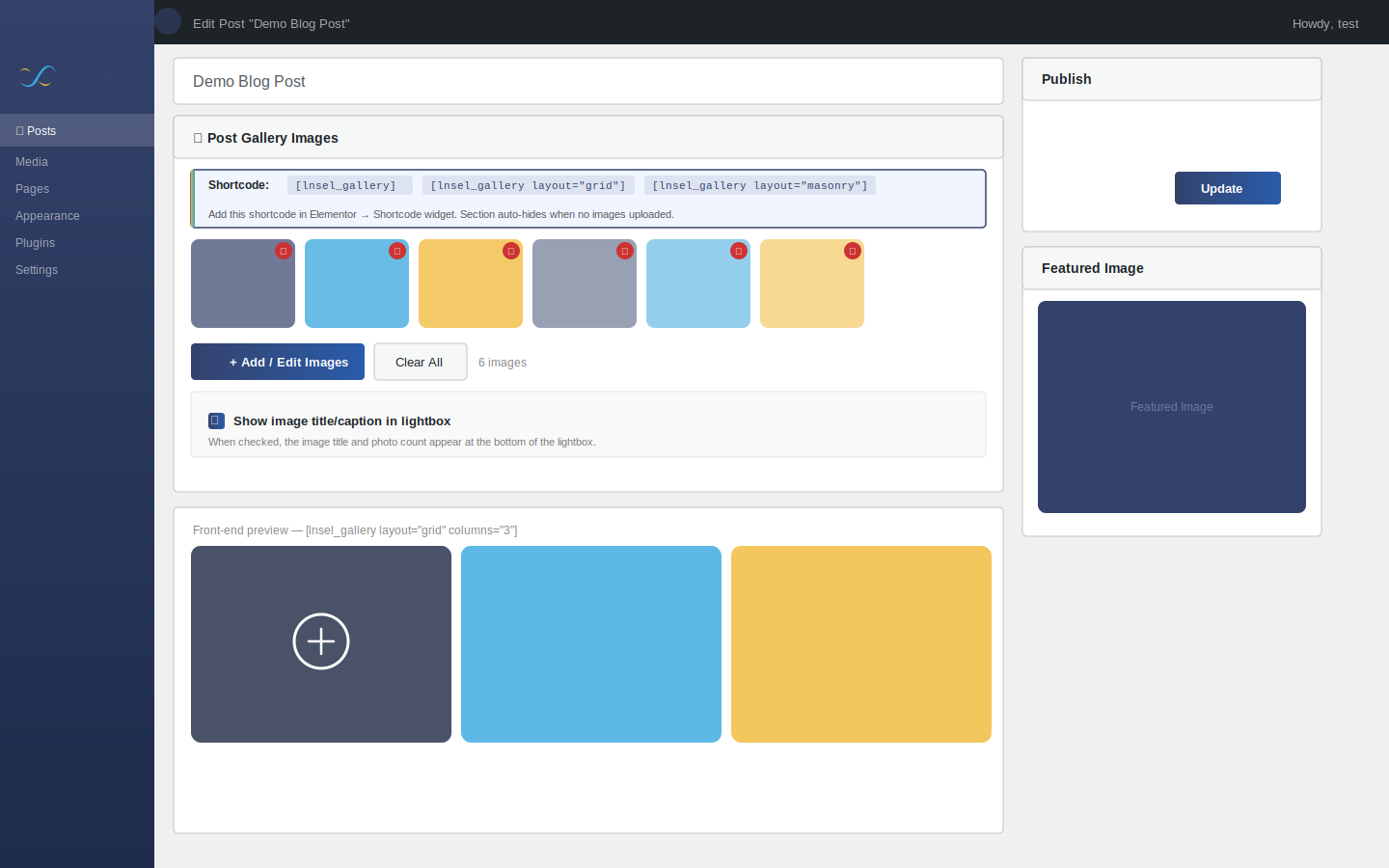
Lnsel Post Gallery Lightbox lets you upload a dedicated set of gallery images to any post or page via a custom meta box in the WordPress editor. Those images are then displayed on the front end using the [lnsel_gallery] shortcode — with a smooth lightbox, keyboard navigation, touch swipe support, and a choice of Grid or Masonry layout.
Key Features:
- 📷 Custom “Post Gallery Images” meta box on every post/page edit screen
- 🖼 Drag-and-drop image reordering in the editor
- ⚡ Choose between Grid (uniform tiles) or Masonry (Pinterest-style) layout
- 🔍 Built-in lightbox with arrow navigation, keyboard ( Esc), and touch swipe
- 📱 Fully responsive — 4 3 2 1 columns at breakpoints
- 🙈 Gallery section is completely hidden when no images are uploaded
- 🔌 Works with Elementor via the Shortcode widget
- No jQuery dependency on the front end — pure vanilla JS
Usage
Basic:
[lnsel_gallery]
Grid layout, 3 columns:
[lnsel_gallery layout=”grid” columns=”3″]
Masonry layout, 3 columns:
[lnsel_gallery layout=”masonry” columns=”3″]
All available attributes:
layout—gridormasonry(default:grid)columns—2,3, or4(default:3)size—thumbnail,medium,large, orfull(default:large)gap— gap between images in px, number only (default:10)
Screenshots
Installation
- Upload the
lnsel-post-gallery-lightboxfolder to/wp-content/plugins/, or install via the WordPress Plugins screen. - Activate the plugin through the Plugins screen in WordPress.
- Edit any post or page — you will see a “📷 Post Gallery Images” meta box below the content editor.
- Click “Add / Edit Images” to select one or more images from your Media Library.
- Add the shortcode
[lnsel_gallery]to your post content or to an Elementor Shortcode widget.
FAQ
-
The gallery section does not appear on my post.
-
Make sure you have added at least one image in the “📷 Post Gallery Images” meta box on the post edit screen, then also added the
[lnsel_gallery]shortcode to your post content or Elementor template. The section is intentionally hidden when no images are uploaded. -
Can I use this with Elementor?
-
Yes. Add an Elementor Shortcode widget and paste
[lnsel_gallery]into it. -
What is the difference between Grid and Masonry?
-
Grid displays all images at a fixed 4:3 aspect ratio in uniform rows. Masonry preserves each image’s natural height, creating a Pinterest-style staggered layout using CSS columns — no JavaScript library required.
-
Can I set a different gallery for each post?
-
Yes. Each post or page has its own independent gallery managed through the meta box.
-
Does this work without Elementor?
-
Yes. The shortcode works in the Gutenberg block editor via a Shortcode block, or in the Classic Editor.
Reviews
There are no reviews for this plugin.
Contributors & Developers
“Lnsel Post Gallery Lightbox” is open source software. The following people have contributed to this plugin.
Contributors
Translate “Lnsel Post Gallery Lightbox” into your language.
Interested in development?
Browse the code, check out the SVN repository, or subscribe to the development log by RSS.
Changelog
1.0.4
*Update Plugin Name
1.0.3
- Updated Author URI to correct WordPress.org profile.
- Minor internal improvements and version bump.
1.0.2
- Fixed lightbox spinner stuck when show_title is disabled (null-guard caption/counter elements).
- Fixed show_title checkbox defaulting to unchecked — now correctly defaults to checked on new posts.
- Improved show_title resolution: only explicit ‘0’ means hidden; unset defaults to shown.
1.0.1
- Fixed lightbox image not loading when show_title disabled (JS null reference).
- Fixed admin checkbox default state.
- Version bump to bust browser cache for frontend.js.
1.0.0
- Initial release.
- Custom meta box for per-post gallery image management.
- Grid and Masonry layout options via shortcode attribute.
- Drag-and-drop reordering in the editor.
- Responsive lightbox with keyboard and touch swipe support.
- All CSS and JS in properly enqueued external files.
- Full output escaping throughout.
- Unique
lnsel_pgl_prefix on all functions, hooks, meta keys, and handles.