

Description
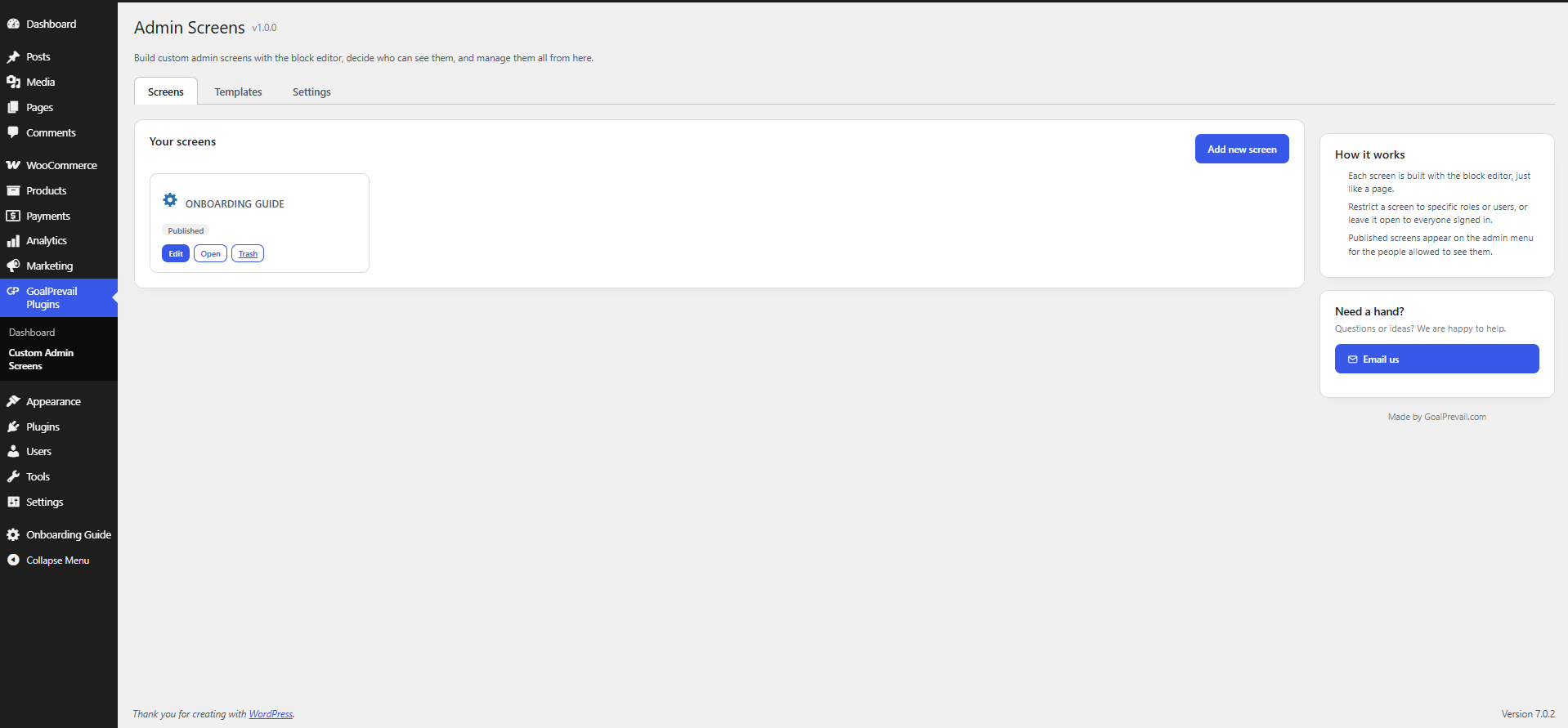
GoalPrevail Custom Admin Screens lets you build backend-only pages with the standard WordPress editor and surface them inside wp-admin.
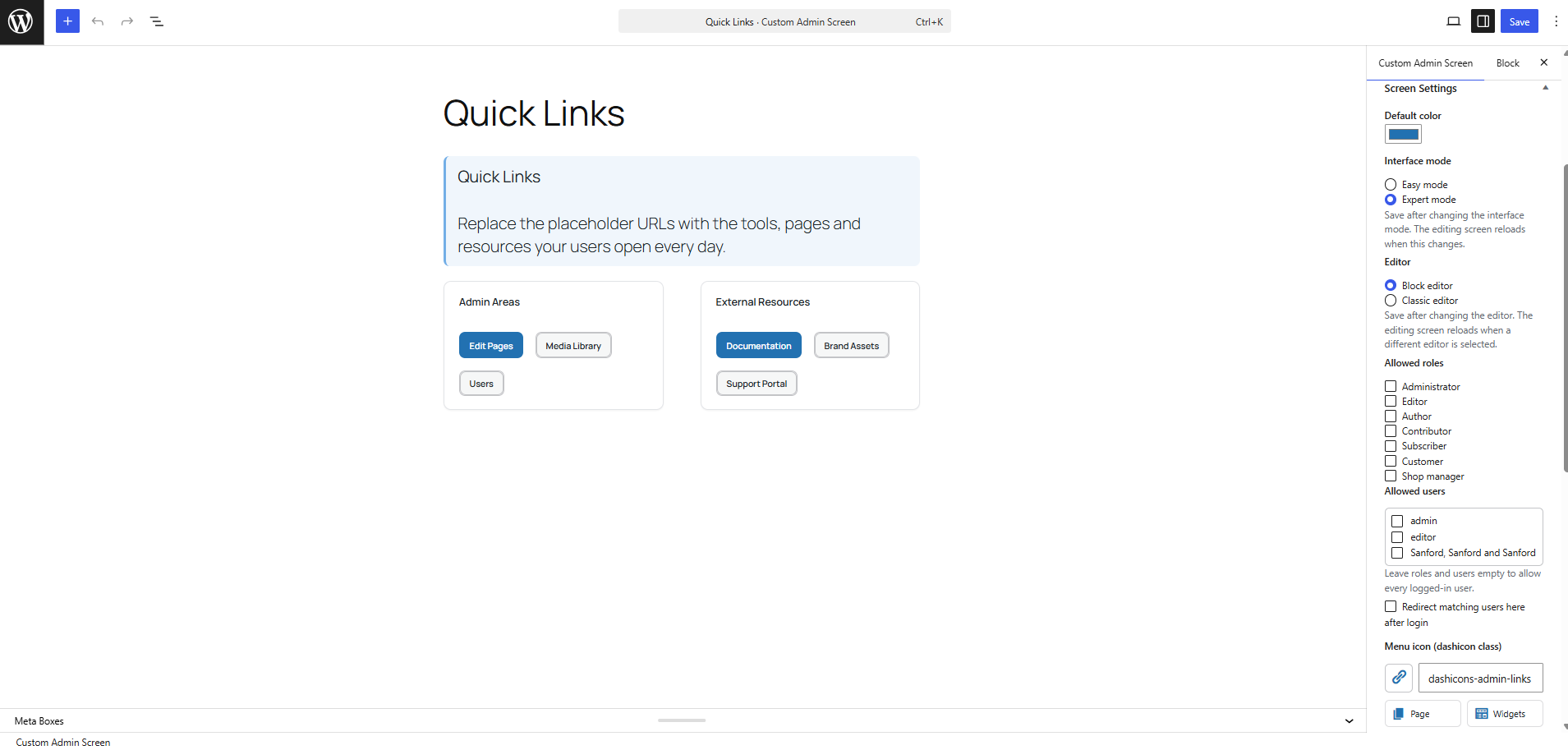
- Choose the Classic editor or Block editor per screen.
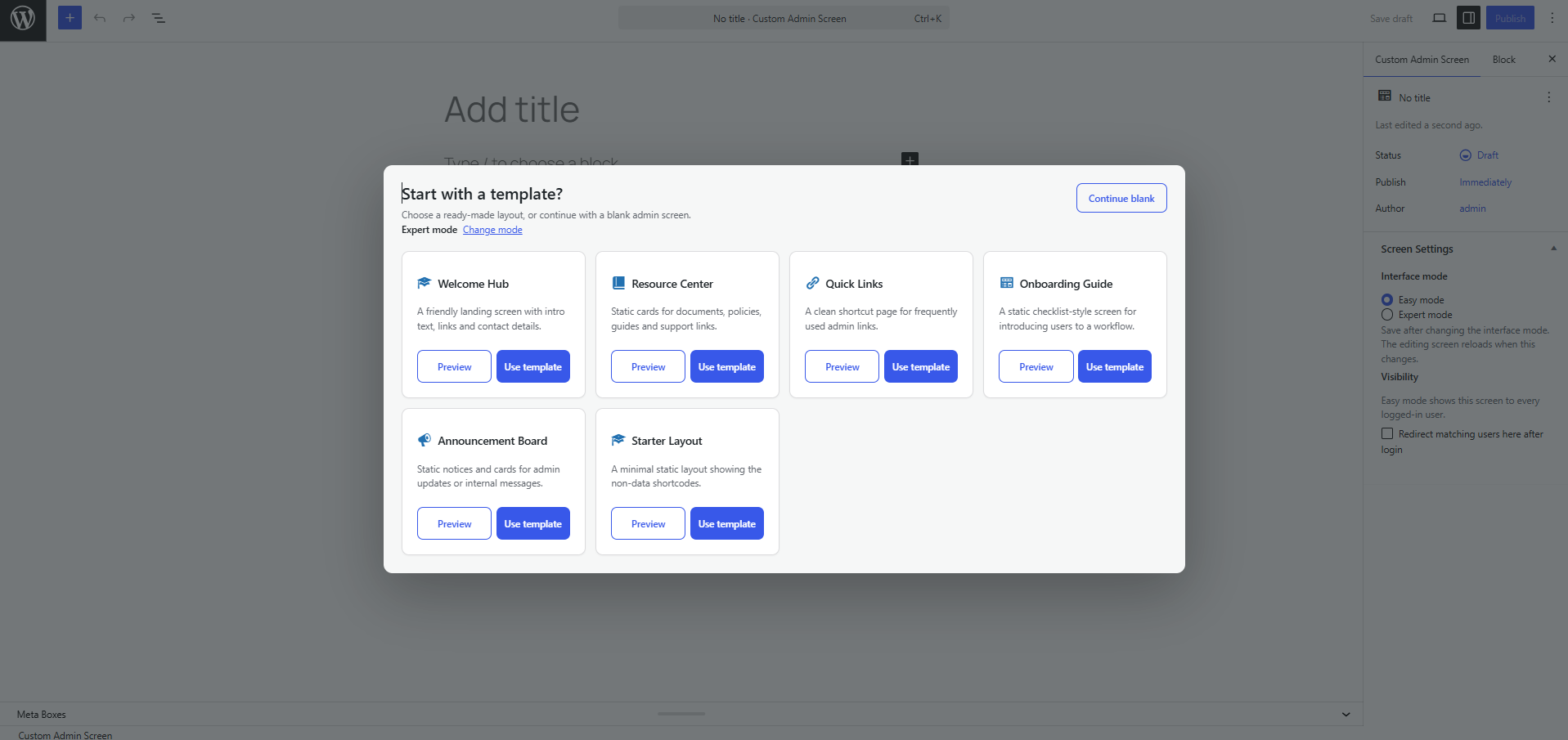
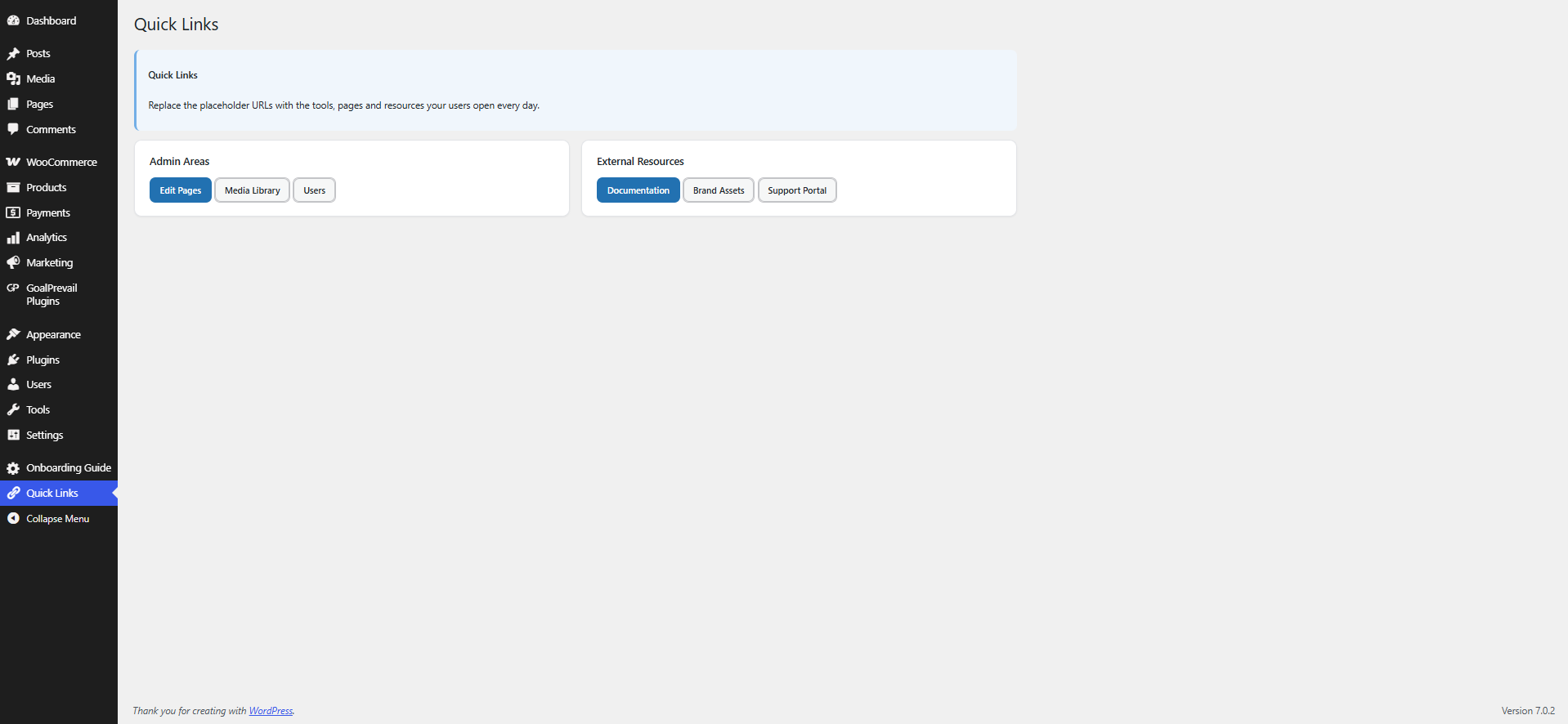
- Start from static prebuilt templates: Welcome Hub, Resource Center, Quick Links, Onboarding Guide, Announcement Board or a Starter Layout.
- When adding a new screen, choose a template from the popup or continue with a blank screen.
- Choose Easy or Expert mode when creating a screen, then change it later from Screen Settings.
- Templates are inserted as editable core blocks by default, and each screen can be switched to the Classic editor from its Screen Settings box.
- Compose admin screens with built-in widget shortcodes: grid, card, button, notice and a personalised greeting. Data-style widgets are still available when you need them.
- Each screen shows up on the admin menu — as a top-level item or grouped under one “My Screens” menu.
- Limit a screen to specific roles, specific users, or leave it open to every logged-in user.
- Mark a screen as a post-login redirect target. Individual-user targeting wins over role targeting, which wins over an unrestricted screen.
- Settings page: default interface mode, login-redirect master switch, default icon and menu placement.
- Screen Settings box: default color, interface mode, editor mode, access rules, redirect target and menu icon.
- The Admin Screens hub is available to users who can edit pages; the Settings tab remains limited to administrators.
- All screen content is sanitized with
wp_kses_post()before it is rendered.
Widget shortcodes
[gpcas_grid columns="3"]...[/gpcas_grid][gpcas_card title="..." icon="dashicons-marker"]...[/gpcas_card][gpcas_stat label="Leads" value="38" icon="dashicons-groups" trend="+12%"][gpcas_button text="Open" url="#" style="primary" icon="dashicons-plus-alt"][gpcas_notice type="success" title="..."]...[/gpcas_notice][gpcas_progress label="Target" value="48" max="100"][gpcas_recent_posts count="5" type="post"][gpcas_user_greeting]
Screenshots
Installation
- Upload the
goalprevail-custom-admin-screensfolder to/wp-content/plugins/. - Activate the plugin through the Plugins menu in WordPress.
- Open “Admin Screens Templates” to create a screen in one click, or “Add New” to start blank.
- Edit the content, then set access and redirect options in the “Screen Settings” box.
FAQ
-
Can each screen use a different editor and default color?
-
Yes. Edit a screen and use the Screen Settings box to choose its default color and whether it opens in the Classic editor or Block editor.
-
What is Easy mode?
-
Easy mode keeps template creation simple by showing fewer action buttons. Expert mode adds template preview actions and fuller controls. Each screen can use its own mode.
-
Who can edit screens?
-
Users who can edit pages (administrators and editors by default).
-
Do shortcodes work?
-
Yes. Screen content renders blocks and shortcodes in the admin screen view.
-
Can other tools or AI read and write screens?
-
Yes, for authenticated users who can edit screens. Screens are exposed over the REST API at
/wp/v2/gpcas-screens, with reads limited to users with theedit_pagescapability so screen content is never exposed publicly, and the access rules, redirect flag and icon are registered meta fields. Thegpcas_user_can_view,gpcas_login_redirect_screenandgpcas_templatesfilters allow extending behaviour in code.
Reviews
There are no reviews for this plugin.
Contributors & Developers
“GoalPrevail Custom Admin Screens” is open source software. The following people have contributed to this plugin.
Contributors
Translate “GoalPrevail Custom Admin Screens” into your language.
Interested in development?
Browse the code, check out the SVN repository, or subscribe to the development log by RSS.
Changelog
1.0.0
- Initial release: custom admin screens, role/user access, post-login redirect, prebuilt templates, widget shortcodes and a settings page.