

Description
The WordPress media library hasn’t really changed in years. A few hundred uploads in, you spend more time scrolling than working. Refined Media Library turns it into an actual asset manager, without adding a single per-image setting for you to babysit.
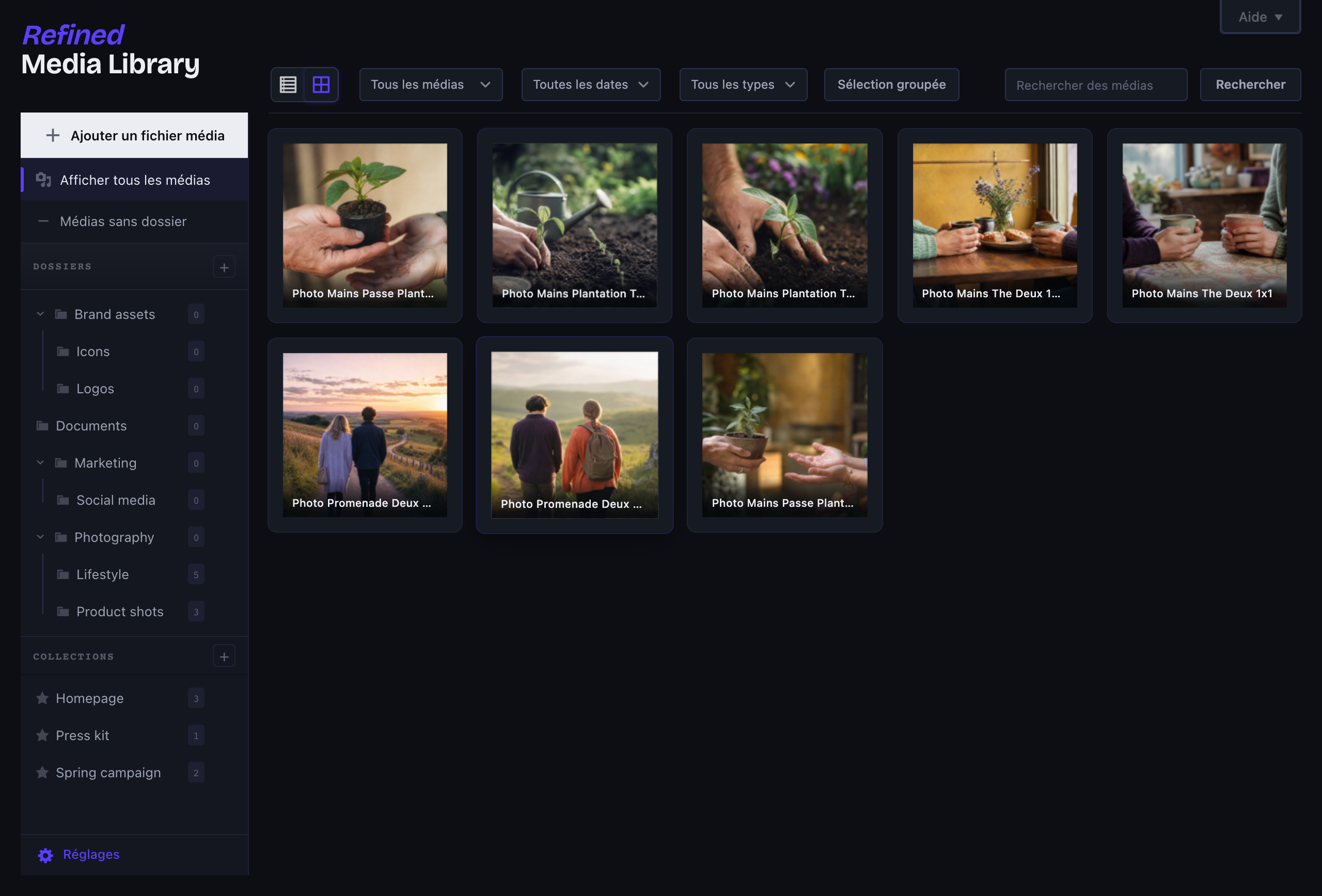
Folders that actually feel like folders
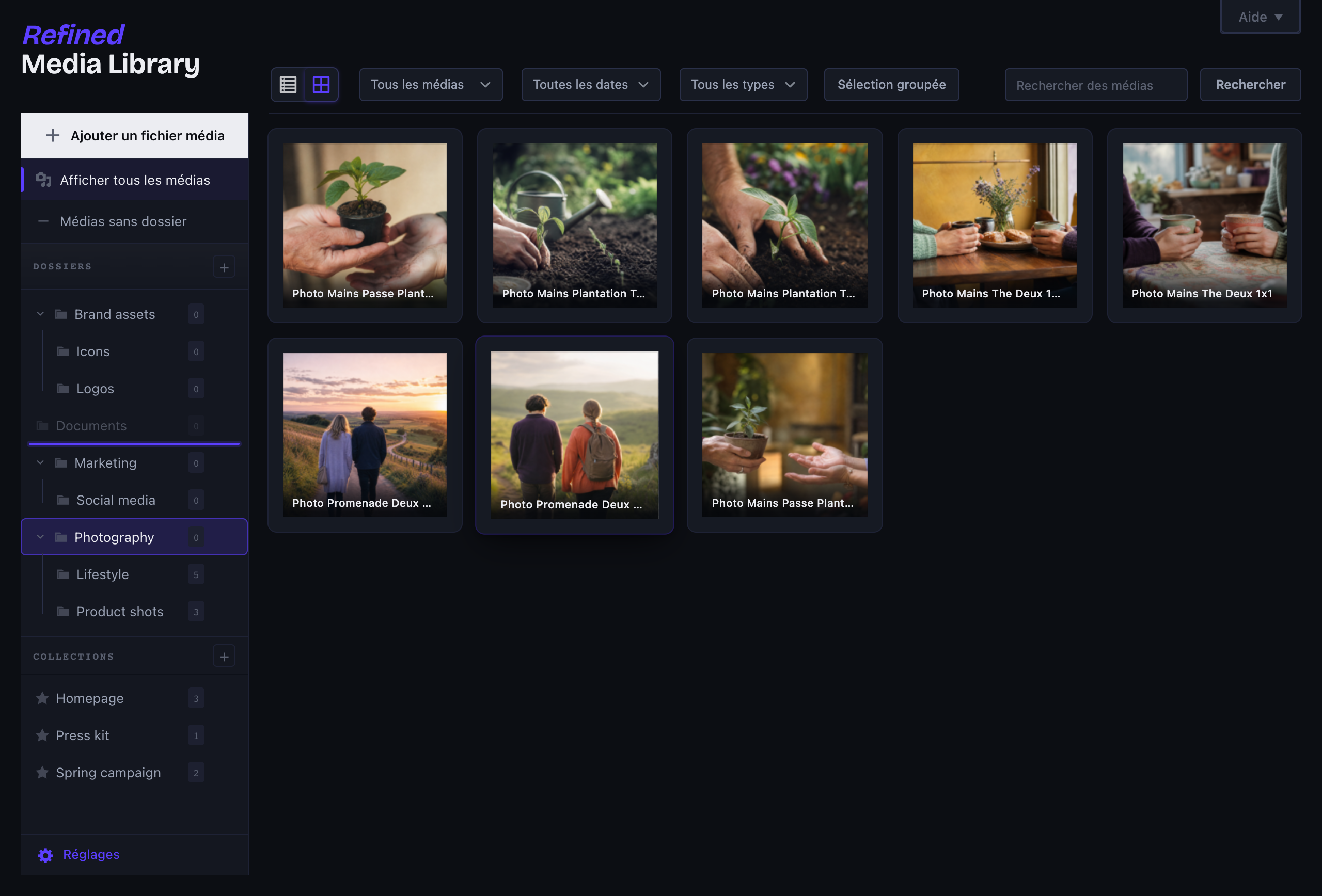
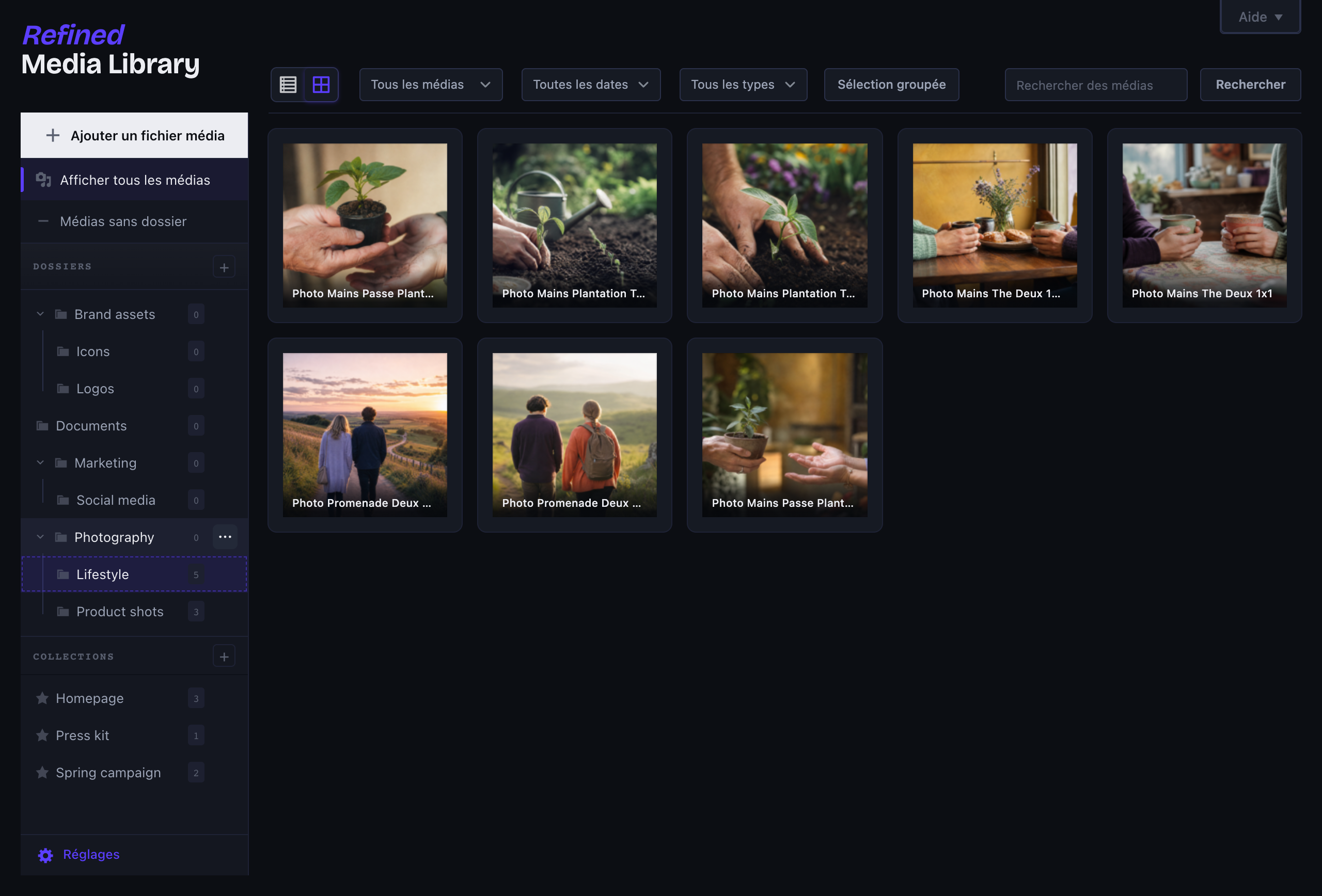
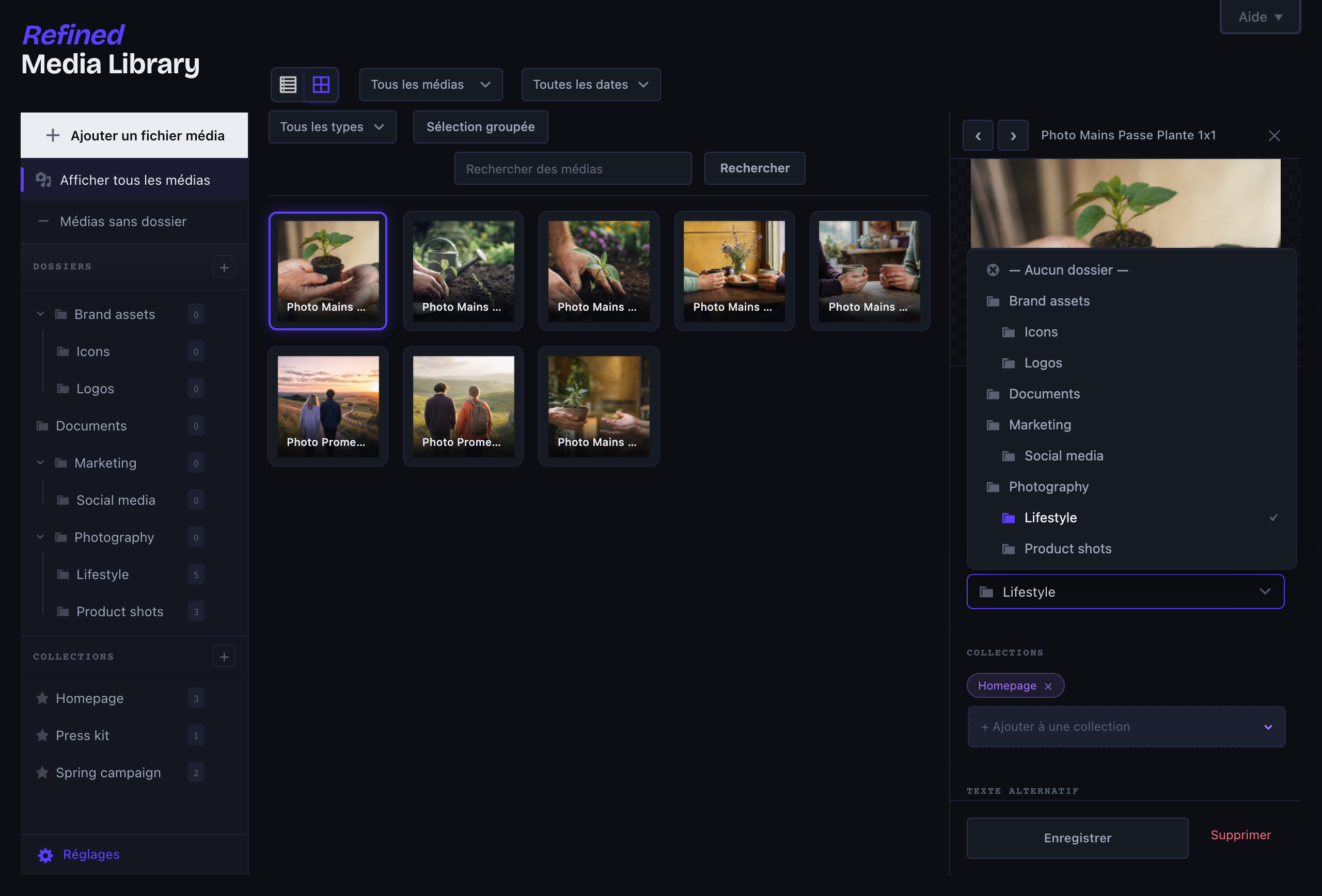
- Real nested folders: create subfolders, drag a folder into another to re-parent it, or drop it between two to reorder, with live drop indicators so there’s no guesswork.
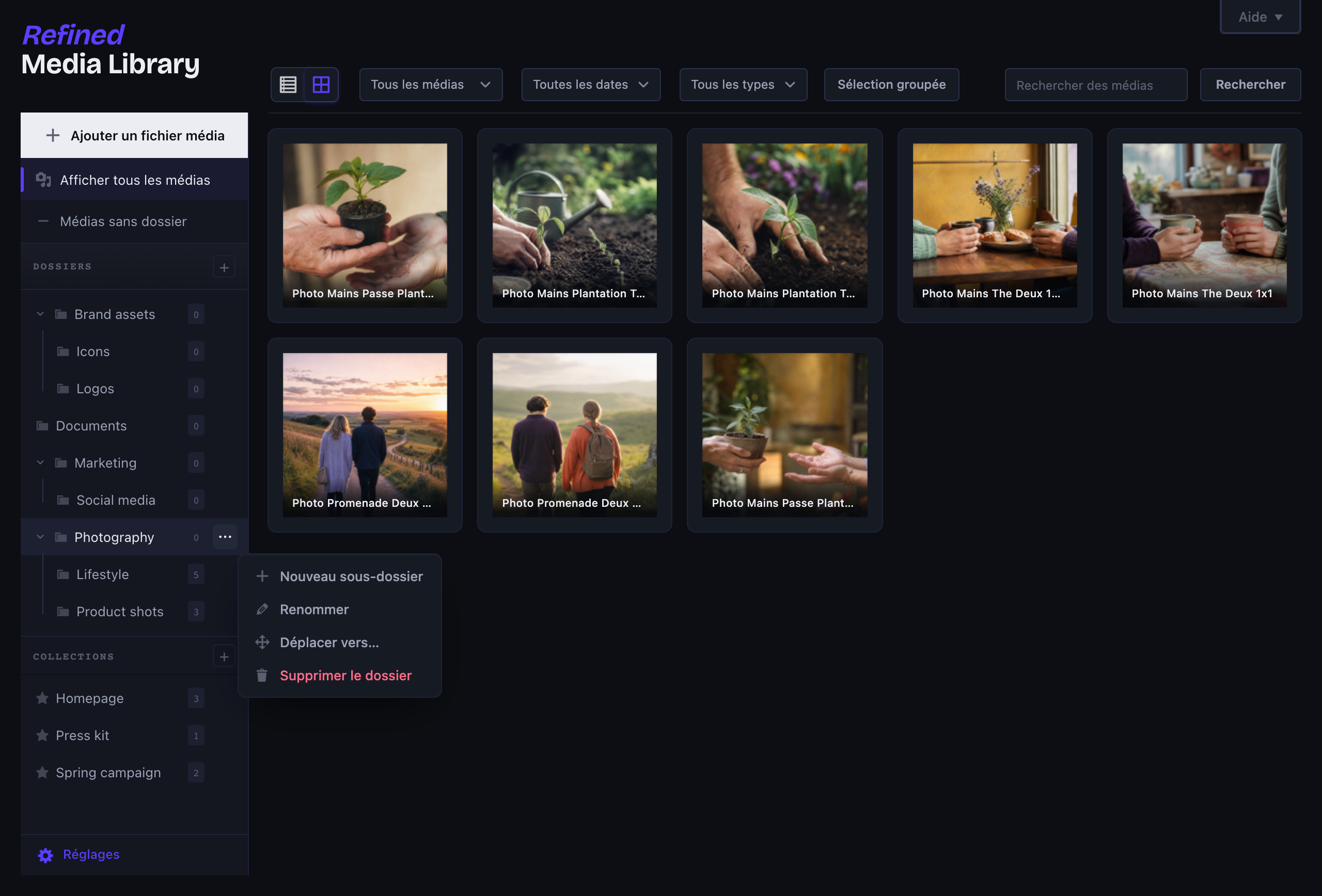
- Right-click any folder (or the ⋯ button) for new subfolder, rename, move and delete, in clean designed dialogs rather than the browser’s grey pop-ups.
- Collections that ignore folder boundaries, so the same image can sit in several at once.
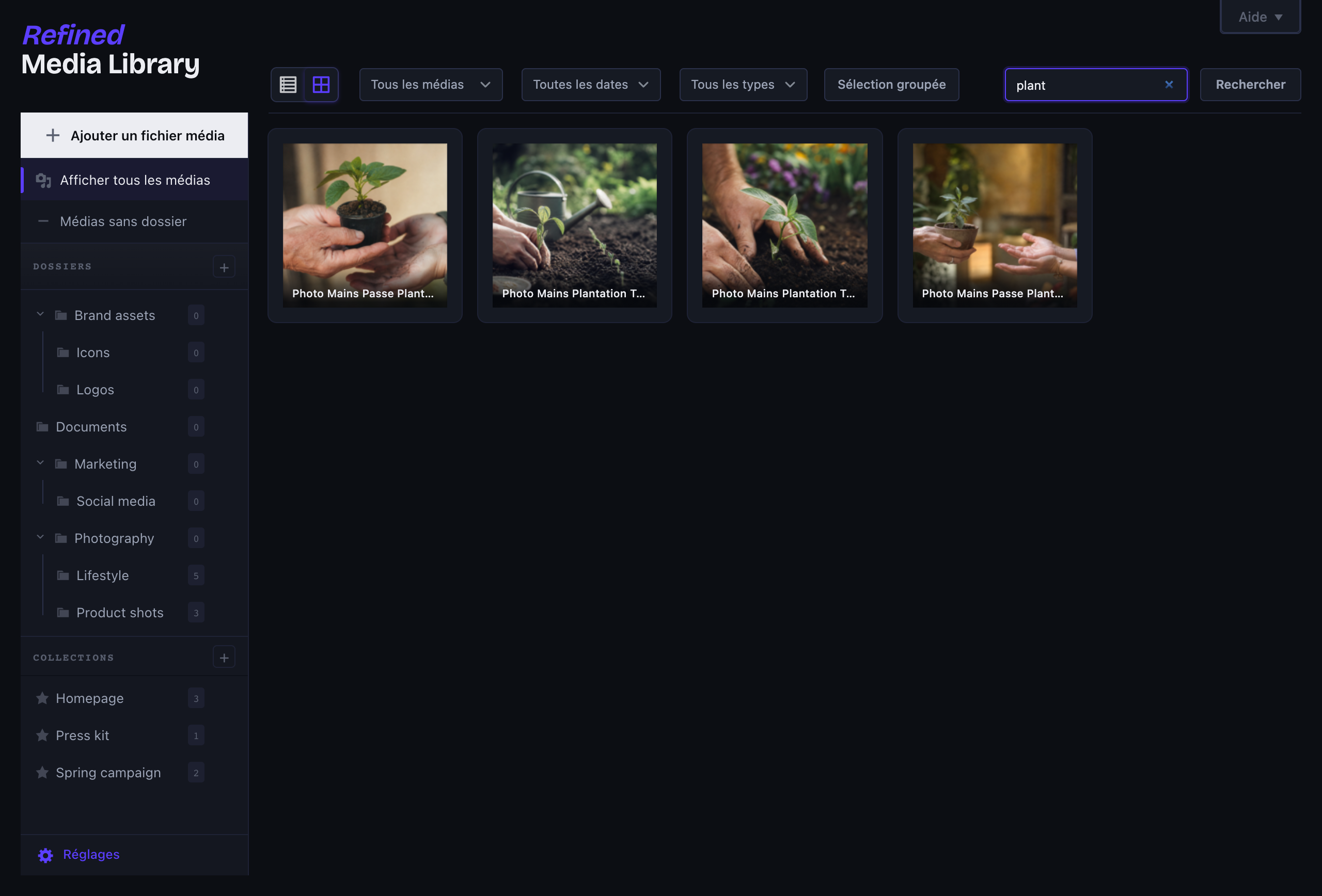
- Drag media straight onto a folder or collection, from the grid or the list, and upload right into the folder you’re looking at.
- Works on top of the native media library, so it behaves the same whether you build with Bricks, Elementor, Gutenberg or Divi.
A real detail panel
Click any file and a panel slides in from the right, no more full-screen modal. Edit the alt text and title, move it to a folder, drop it into collections, copy its URL, and see exactly which posts and pages use it (WooCommerce galleries included). The preview is resizable: it scales proportionally as you widen the panel, and you can drag the handle beneath it to set its height. Click the image to open it full screen in a lightbox and step through the whole library with the arrow keys.
Less clutter, automatically
- Automatic alt text and titles, filled in from the filename on upload, but only when you left them blank. It runs on your server and talks to nobody.
- Duplicate detection: re-upload the same file and it gets flagged, with a link to the original.
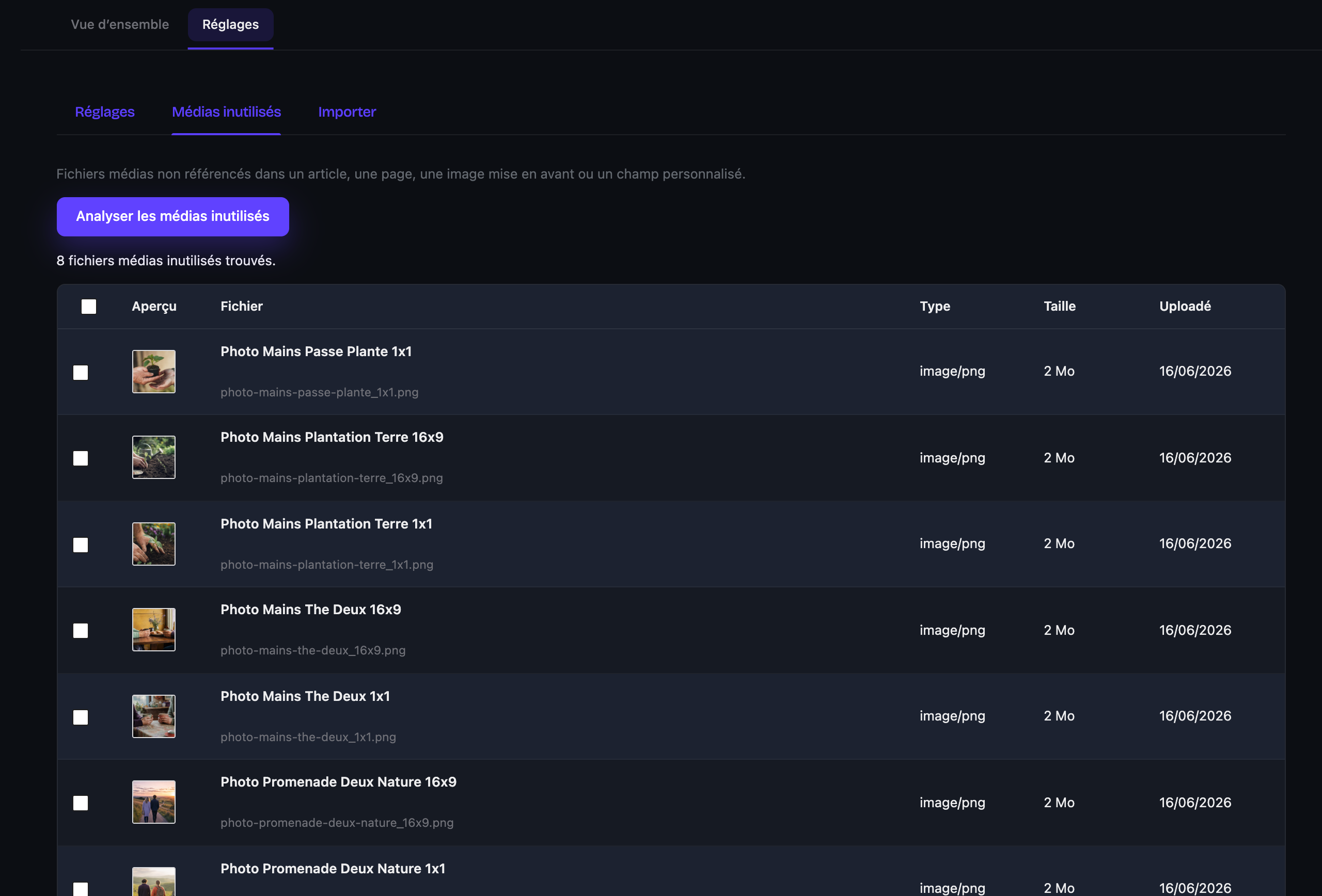
- An unused-media scanner that finds files no post actually references (featured images, content, custom fields, WooCommerce galleries) and lets you bulk-delete them behind a deliberate double confirmation. It errs on the side of caution: if it can’t be sure, it leaves the file alone.
WebP and AVIF on upload
Convert images to WebP and/or AVIF the moment they land, after a quick check that your server can actually do it. Quality is one slider, not a wizard. If another plugin already owns image conversion, Refined Media Library steps aside.
Switching from another plugin?
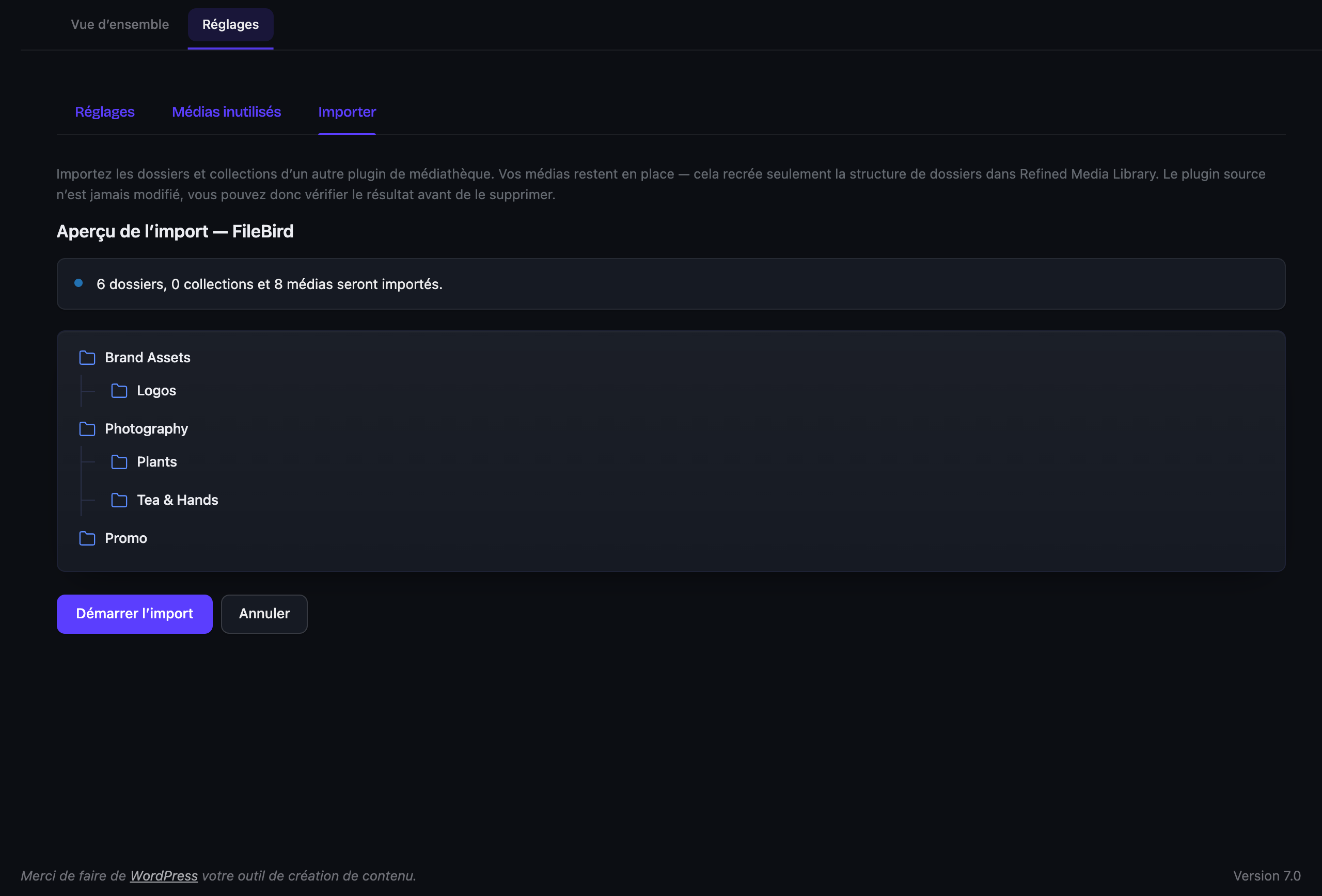
One-click import from FileBird, Real Media Library, HappyFiles, Folders (Premio) and Enhanced Media Library. It reads their data directly, even if the plugin is already deactivated, never touches it, and the import is reversible. Preview first, undo anytime.
No per-image settings
That’s the whole point. A few toggles in one place, sensible defaults everywhere else.
Free, and built to stay that way
No locked features, no “upgrade to unlock folders”, no nag screens. It’s the standalone edition of the Double Youpï suite: the whole thing, free for good and actively maintained.
No per-image settings
That’s the whole point. A few toggles in one place, sensible defaults everywhere else.
Screenshots
Installation
- Install it from the Plugins screen, or upload it to
/wp-content/plugins/doubleyoupi-refined-media-libraryby hand if that’s your thing. - Activate it.
- Open Double Youpï Refined Media Library > Settings and switch on what you want. There isn’t much to switch on, which is rather the point.
FAQ
-
How do I organize the WordPress media library into folders?
-
Create a folder in the media library sidebar, then drag files onto it to file them. Folders can be nested as deep as you like, and you reorganize them by dragging one into another or between two others. A file can also belong to one or more collections, which work across folders, so the same image can live in several places at once.
-
How do I convert images to WebP or AVIF on upload in WordPress?
-
Enable conversion in the settings and every image you upload is converted to WebP and/or AVIF automatically, after a quick check that your server (Imagick or GD) supports it. Quality is a single slider. If another plugin already handles image conversion, Refined Media Library detects it and steps aside.
-
How do I find and delete unused images in WordPress?
-
Run the unused-media scanner. It lists files that no post, page, featured image, custom field or WooCommerce gallery references, and lets you delete them in bulk behind a deliberate double confirmation. When it cannot be sure a file is unused, it leaves it alone.
-
Does it create real folders, or just categories and filters?
-
Real folders. You manage them with drag-and-drop and a right-click menu, and they nest as deep as you need. Under the hood they are standard WordPress taxonomies, so nothing is moved on disk and your files stay portable. Disable the plugin and you simply fall back to the stock library, with nothing lost.
-
Can I import my folders from FileBird, Real Media Library or HappyFiles?
-
Yes. One-click import is supported for FileBird, Real Media Library, HappyFiles, Folders (Premio) and Enhanced Media Library. It reads the source directly (even if that plugin is deactivated), never modifies it, and the whole import can be undone.
-
Will it work with my page builder?
-
Yes. It improves the native media library rather than replacing it, so Bricks, Elementor, Gutenberg, Divi and everything else all see the same thing.
-
Does it send my images anywhere?
-
No. Alt text is built from the filename, right there on your server. Conversion uses Imagick or GD, also local. Nothing about your media leaves your site.
-
What is the catch with “free”?
-
There isn’t one. This is the standalone version, no strings attached. If it saves you an afternoon and you feel like it, there’s a coffee button somewhere. Entirely optional.
Reviews
There are no reviews for this plugin.
Contributors & Developers
“Double Youpï Refined Media Library – Folders, Collections & WebP” is open source software. The following people have contributed to this plugin.
Contributors
Translate “Double Youpï Refined Media Library – Folders, Collections & WebP” into your language.
Interested in development?
Browse the code, check out the SVN repository, or subscribe to the development log by RSS.
Changelog
0.1.2
- Readme and wording refresh, clearer feature descriptions and an expanded FAQ. No functional changes.
0.1.1
- Detail panel: the image preview now scales proportionally as you widen the panel, a drag handle underneath resizes the image, and clicking it opens a full-screen lightbox gallery with keyboard navigation.
- Buttons added to the media screen by other plugins (such as Elementor) now move neatly into the folder panel instead of crowding the page title.
0.1.0
- First public release. Nested folders with drag-to-reorganise and a right-click menu, collections, a Finder-style detail panel, duplicate and orphan cleanup, automatic alt text and titles, WebP/AVIF conversion on upload, and one-click import from FileBird, Real Media Library, HappyFiles, Folders and Enhanced Media Library.