

Description
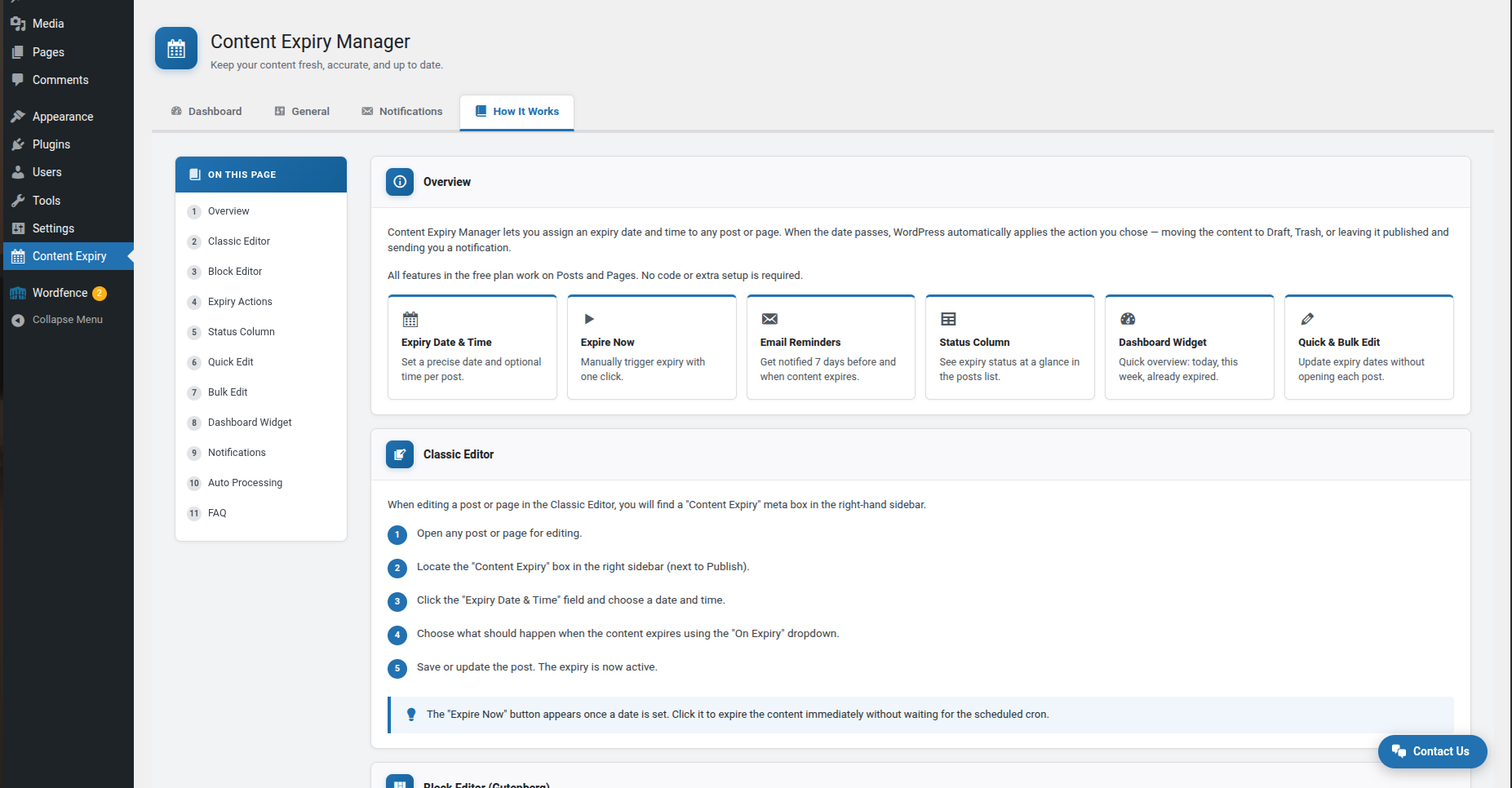
ContWiz Content Expiration Manager enables you to automatically expire WordPress posts and pages on a schedule. Set an expiry date and time on any post or page, choose what happens when it expires, and let the plugin handle the rest — no manual cleanup needed.
Whether you manage a news site, a promotional landing page, a job board, or a blog, outdated content hurts your credibility and SEO. ContWiz Content Expiration Manager keeps your WordPress site fresh and accurate, automatically.
How It Works
- Edit any post or page and set an expiry date and time.
- Choose an expiry action: Move to Draft, Move to Trash, or Keep Published with a notification.
- The plugin automatically processes expired content on your configured schedule.
- You receive email reminders before content expires so you can review or update it.
Key Features
Flexible Content Expiration
- Set a precise expiry date and time on any post or page
- Choose what happens on expiration: Move to Draft, Move to Trash, or Notify Only
- “Expire Now” button for immediate manual content expiration
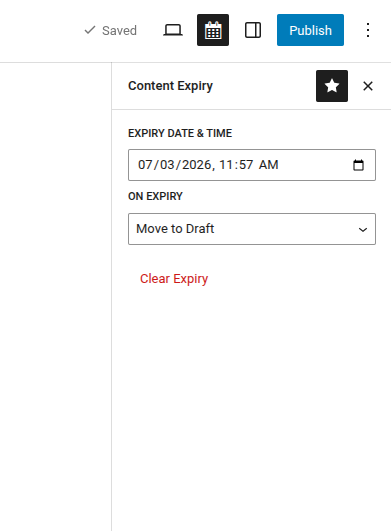
- Block Editor (Gutenberg) sidebar panel for seamless post expiration management
- Classic Editor meta box — works with the Classic Editor plugin
Automated Expiry Processing
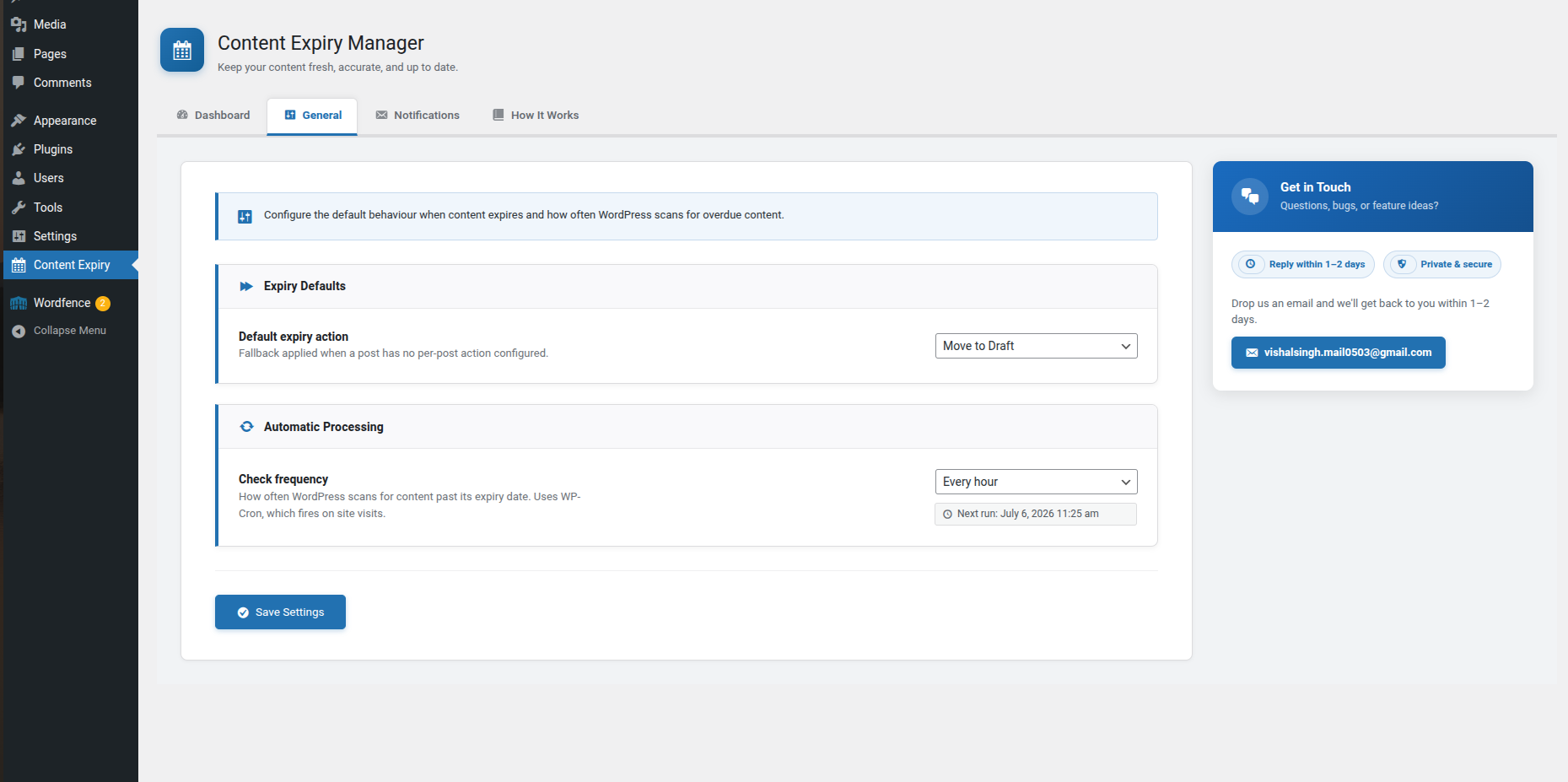
- WordPress Cron-powered automatic expiration — runs hourly, twice daily, or daily
- Processes all expired posts and pages without manual intervention
- Configurable processing frequency from the Settings page
Content Management & Visibility
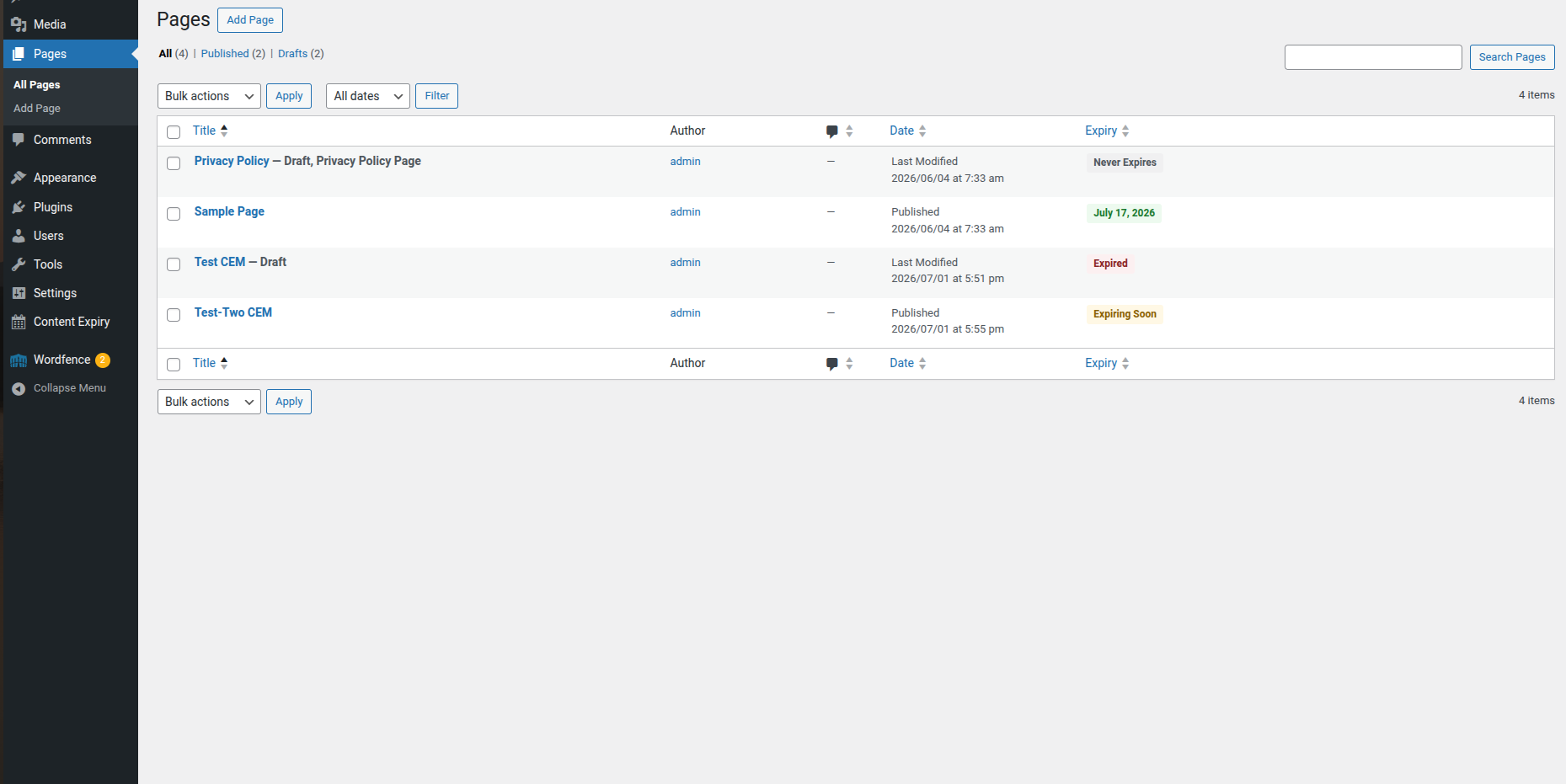
- Expiry status column on the Posts and Pages list screens — see every post’s expiration status at a glance
- Status badges: Never Expires, Expiring Soon (within 7 days), Expired
- Sortable expiry column — quickly find the posts expiring soonest
- Quick Edit support — update expiry dates without opening each post
- Bulk Edit support — set or update expiry dates on multiple posts at once
Dashboard Overview
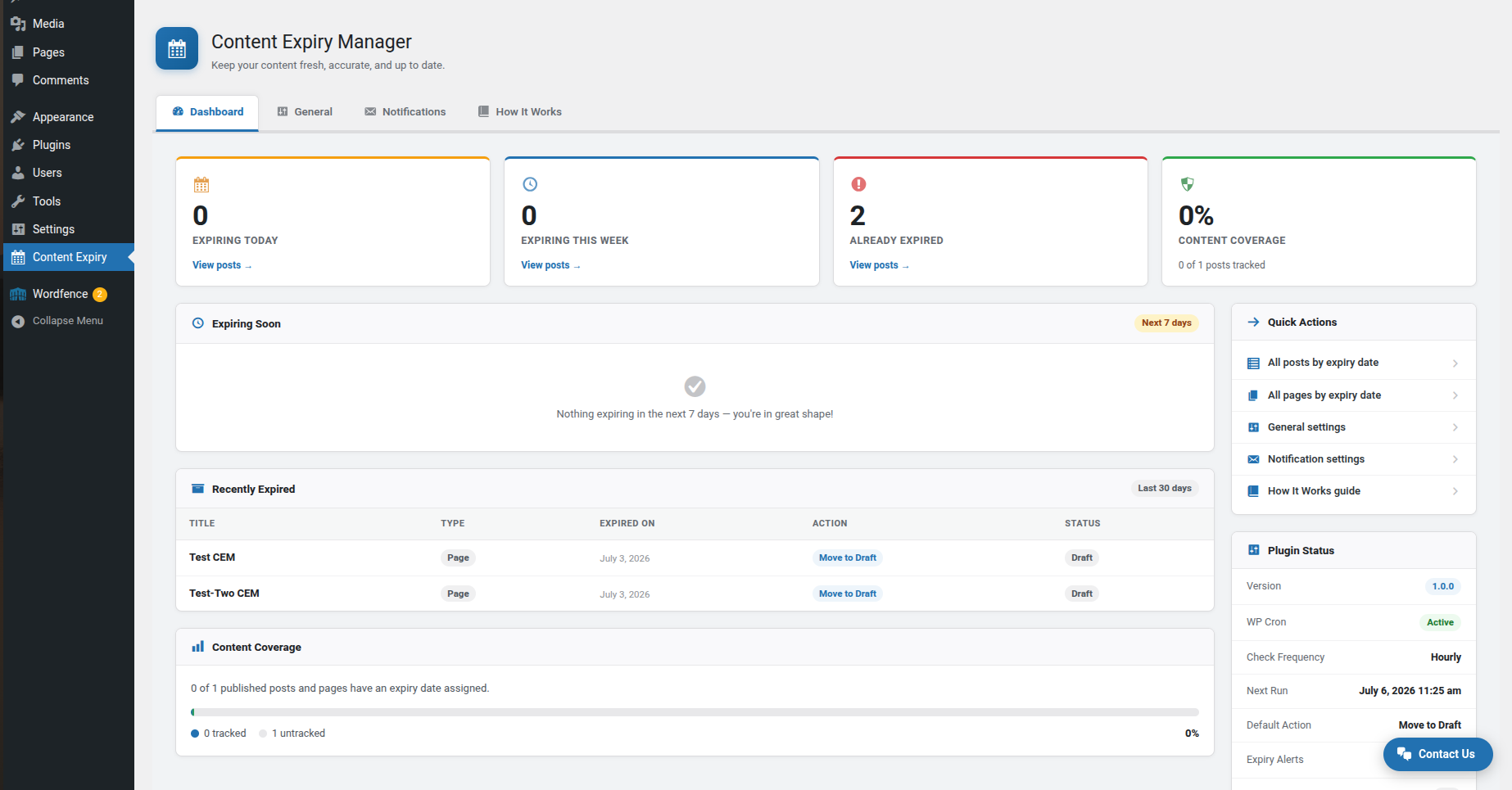
- WordPress Dashboard widget showing:
- Posts and pages expiring today
- Posts and pages expiring this week
- Total already-expired content count
Perfect For
- News & Media — automatically remove or draft time-sensitive articles and breaking news
- Marketing & Promotions — expire sale pages, coupon posts, and limited-time offers automatically
- Job Boards & Events — auto-remove job listings and event pages after the deadline
- Legal & Compliance — ensure outdated policy pages, terms, or regulatory content doesn’t remain published
- Blogs & Editorial — keep your content library fresh and accurate with scheduled content reviews
- Agencies — manage content expiration across client websites efficiently
Works With
- Block Editor (Gutenberg) ✓
- Classic Editor plugin ✓
- WP Mail SMTP ✓
- FluentSMTP ✓
- Easy WP SMTP ✓
- Post SMTP ✓
- All major WordPress themes ✓
Screenshots
Installation
From the WordPress Plugin Directory (recommended)
- Go to Plugins Add New in your WordPress admin.
- Search for ContWiz Content Expiration Manager.
- Click Install Now, then Activate.
- Go to Content Expiry in the left-hand menu to configure settings.
- Edit any post or page and set an expiry date in the Content Expiry panel.
Manual Installation
- Download the plugin zip file.
- Upload the
contwiz-content-expiration-managerfolder to/wp-content/plugins/. - Activate the plugin through the Plugins menu in WordPress.
- Go to Content Expiry Settings to configure.
FAQ
-
How do I set an expiry date on a post or page?
-
Open any post or page for editing. In the Block Editor, find the Content Expiry panel in the right-hand sidebar. In the Classic Editor, find the Content Expiry meta box below the Publish panel. Set a date and time, choose an expiry action, and save the post.
-
What expiry actions are available?
-
Three actions are available in the free plan:
- Move to Draft — unpublishes the post; it remains in WordPress but is no longer visible to visitors.
- Move to Trash — moves the post to the Trash; it will be permanently deleted after 30 days unless restored.
- Keep Published (Notify Only) — the post stays live and you receive an email so you can review it manually.
-
Will my content expire at the exact time I set?
-
Content expiration is processed by WordPress Cron (WP-Cron), which runs when your site receives a visitor. On sites with regular traffic, expiration is accurate to within one hour. For sites with very low traffic or for time-critical content, configure a real server cron job to call
wp-cron.phpon your desired schedule. -
Can I automatically expire posts in bulk?
-
Yes. Go to Posts All Posts (or Pages), check multiple posts, select Edit from the Bulk Actions dropdown, and set a shared expiry date and action. All selected posts will be updated at once.
-
Does the plugin send email reminders before content expires?
-
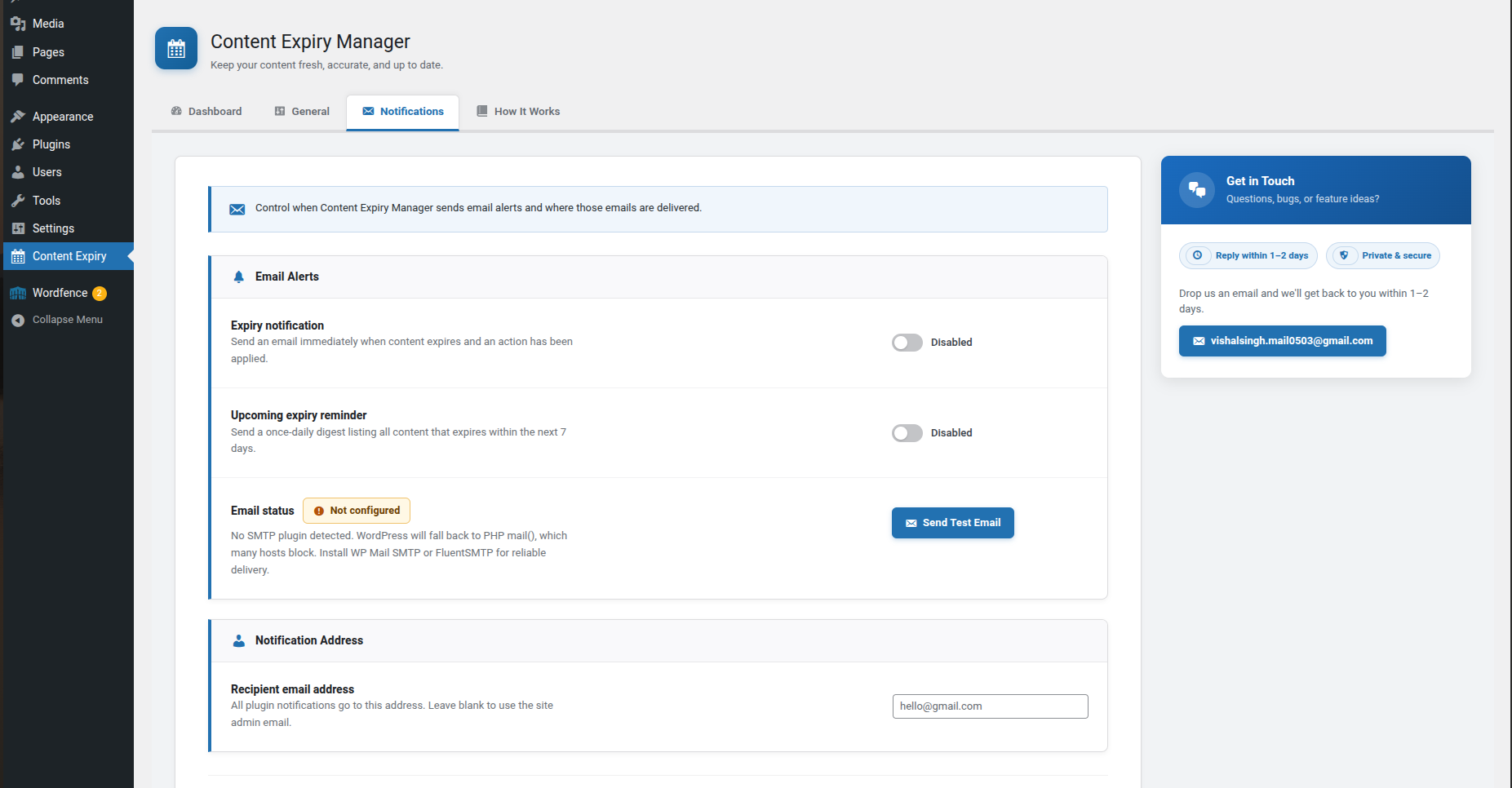
Yes. You will receive a daily digest email listing all posts and pages expiring within the next 7 days. A separate instant notification is sent when content actually expires and an action is applied. Both can be toggled on or off from the Notifications settings tab.
-
What timezone does the plugin use for expiration?
-
The plugin uses your site’s configured timezone, set under Settings General in WordPress. All expiry dates and times you enter are interpreted in that timezone.
-
Does it work with the Classic Editor plugin?
-
Yes. When the Classic Editor plugin is active, expiry settings are managed through a dedicated meta box in the post editing sidebar.
-
Does this work on Custom Post Types?
-
The free plan supports Posts and Pages. Custom post type support is available in the upcoming Pro plan.
-
Can I undo an expiry action?
-
Yes. If a post was moved to Draft, change its status back to Published from the post list or editor. If it was moved to Trash, restore it from the Trash screen within 30 days before it is permanently deleted.
-
Will a post expire again if I republish it after expiration?
-
No. Once a post has been processed, an “expired” flag is set. Republishing the post will not re-trigger the expiry. To schedule a new expiration, open the post, set a new expiry date — this automatically clears the expired flag.
-
My emails are not being delivered. What should I do?
-
WordPress uses PHP mail() by default, which many web hosts block or send to spam. Install a free SMTP plugin such as WP Mail SMTP or FluentSMTP to route emails through a proper mail service. The plugin’s Notifications tab shows your current SMTP status and includes a Send Test Email button to verify delivery.
-
Is the plugin compatible with page builders like Elementor or Divi?
-
The free plan works with any theme or page builder since expiry is managed through post meta, not the page content itself. Native page builder integrations (for expiring individual sections or modules) are planned for the Pro version.
Reviews
There are no reviews for this plugin.
Contributors & Developers
“ContWiz Content Expiration Manager” is open source software. The following people have contributed to this plugin.
Contributors
Translate “ContWiz Content Expiration Manager” into your language.
Interested in development?
Browse the code, check out the SVN repository, or subscribe to the development log by RSS.
Changelog
1.0.0
- Initial release
- expiry date & time
- Draft/Trash/Notify actions
- Quick Edit
- Bulk Edit
- Gutenberg sidebar
- Classic Editor meta box
- Expiry status column