

Description
Cabintale Booking Calendar puts your Cabintale booking widget on your WordPress site without touching any code.
Add the Cabintale booking widget block in the block editor, or use the [cabintale_widget] shortcode in Elementor, Bricks, the classic editor or a theme template. Both produce the same widget.
What you get on your page
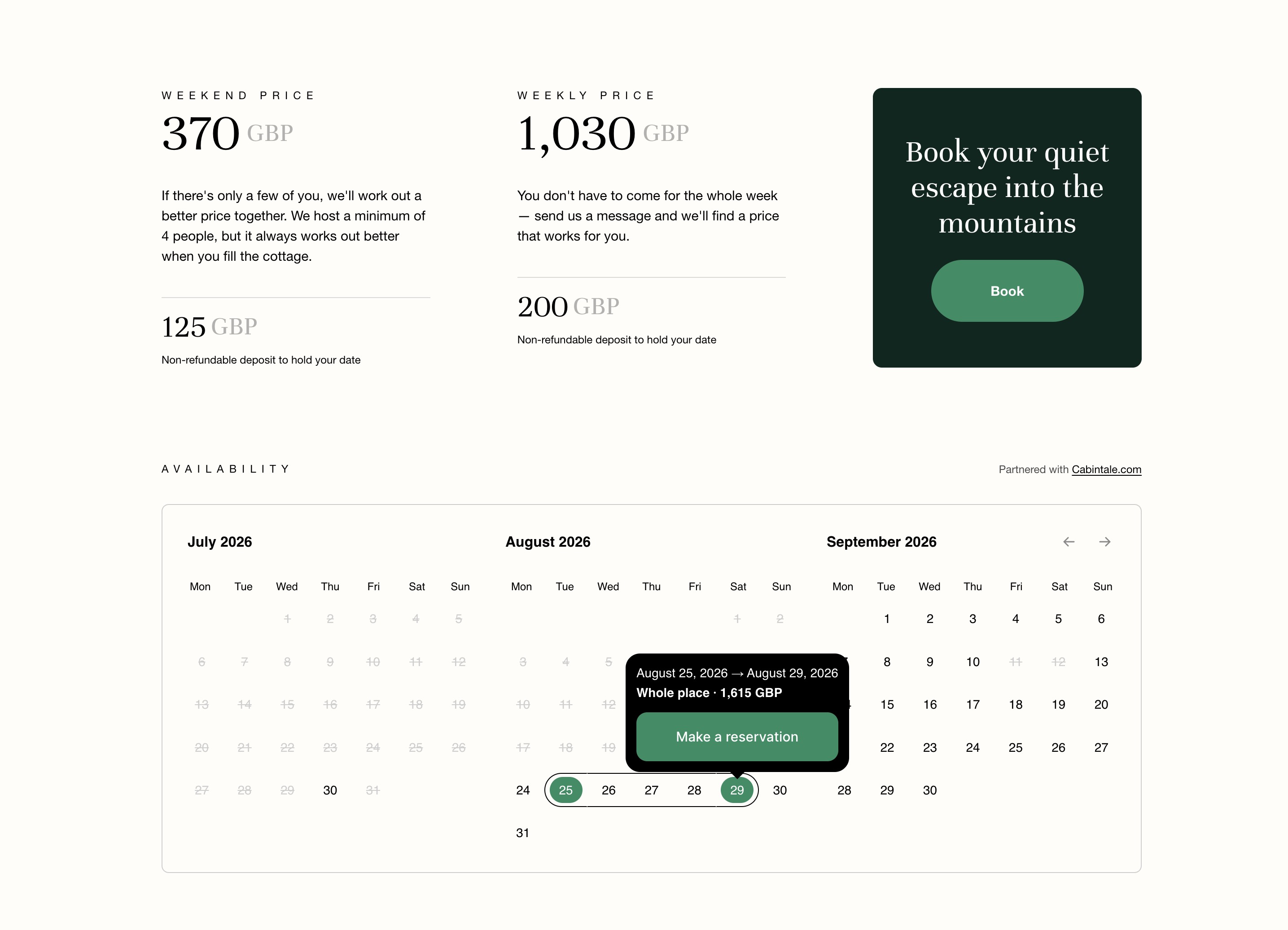
- An availability calendar showing which dates are free, with your prices
- Time-slot booking for services (saunas, hot tubs, guided tours)
- A checkout button for products and vouchers
- Availability-only mode, when you want to show a calendar without taking bookings
Why use the plugin instead of pasting embed code
Many themes, security plugins and page builders strip <script> tags out of post content, which quietly breaks copy-and-paste embed snippets. This plugin enqueues the script the way WordPress expects, so the widget keeps working. It also loads that script only on pages where you actually placed a widget.
Do I need a Cabintale account?
Yes. Cabintale is a booking system for cabins, cottages and small rentals, and this plugin displays widgets from it. Creating an account is free — the free Starter plan covers up to 2 places and 2 services, availability calendars, seasonal pricing and two-way iCal sync with Airbnb, Booking.com and Vrbo. Taking booking requests through the widget and accepting payments are paid plans — both are free for everyone while Cabintale is in beta.
External services
This plugin connects to Cabintale, the booking service that stores your places, availability and widgets. It is required for the plugin to do anything.
Every request below goes to admin.cabintale.com. Nothing else is contacted, and no request is made on a front-end page that has no widget on it.
On your public pages, when a page contains a widget. The visitor’s browser loads admin.cabintale.com/widget-embed.js and displays the widget in an iframe from the same domain. As with any embedded content, those requests carry the visitor’s IP address and browser user agent. If the visitor makes a booking, whatever they type into the widget is submitted to Cabintale.
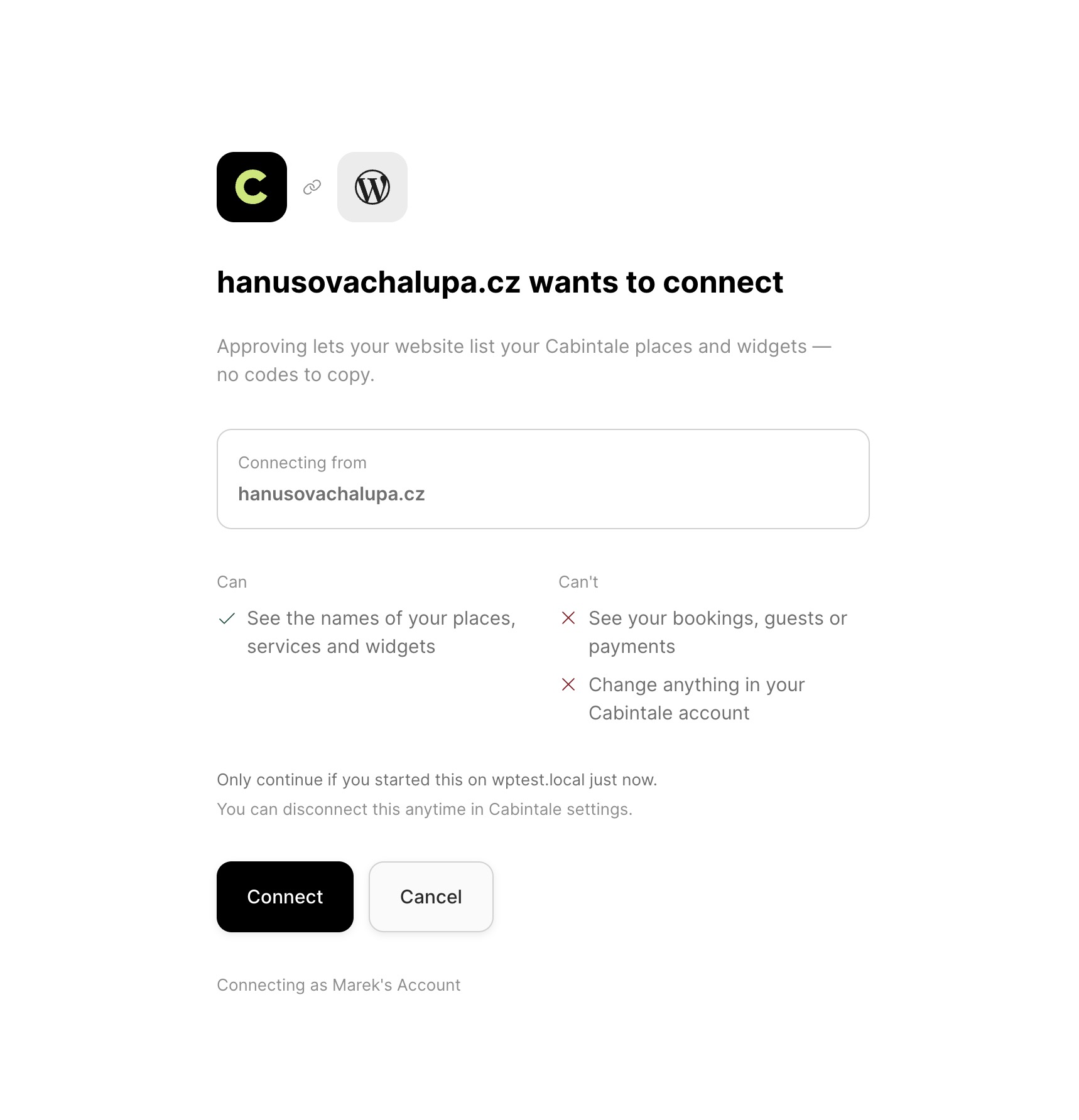
When you click “Connect to Cabintale” (optional — the plugin also works with a pasted widget ID). Your browser is sent to admin.cabintale.com/connect/wordpress with your site’s URL, your site’s name and the WordPress address to return to, so Cabintale can show you what it is about to grant. If you approve it, this site exchanges a one-time code at /api/v1/connect/token, server to server, and stores the read-only access token it gets back.
While you are connected. Your server sends the token to /api/v1/widgets to fetch the names of your places, services and widgets — on the Settings Cabintale screen and in the block editor, cached for ten minutes. Clicking Disconnect posts the token to /api/v1/connect/revoke so Cabintale invalidates it. No visitor data is involved in any of these.
When you open a preview in Settings Cabintale. That preview is the live widget in an iframe, so your own browser’s IP address and user agent reach Cabintale exactly as a visitor’s would. Previews load only when you click one, never on page load.
Service provided by Cabintale: cabintale.com — terms of service and privacy policy.
Shortcode attributes
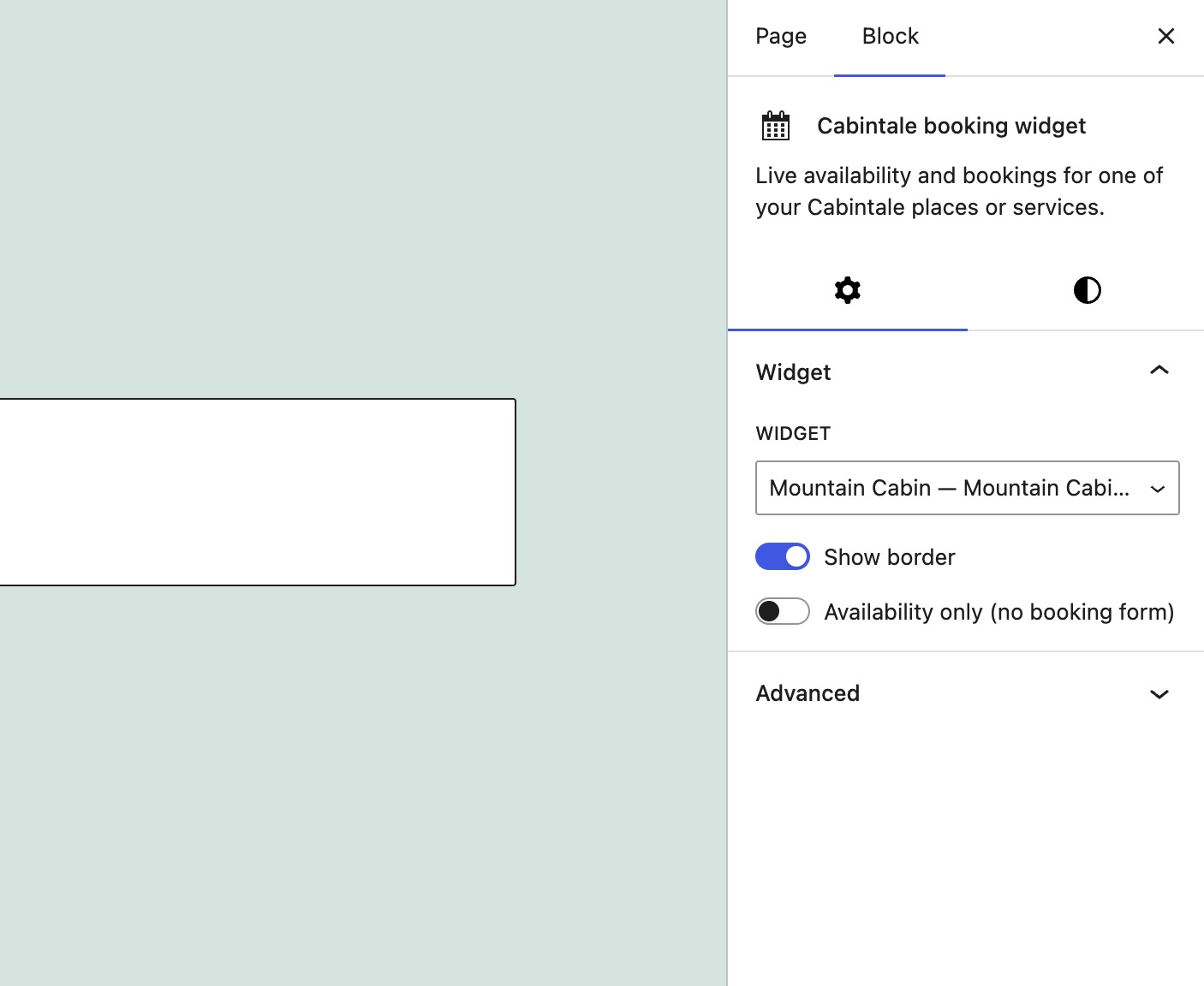
token— the widget ID. Defaults to the one saved in Settings Cabintale.type—property(availability calendar),service(time slots) orcheckout(product button). Defaultproperty.placeis accepted as a synonym.border—1or0. Default1.availability_only—1or0. Places only. Default0.
Example: [cabintale_widget type="service" border="0"]
Screenshots
Blocks
This plugin provides 1 block.
- Cabintale booking widget Live availability and bookings for one of your Cabintale places or services.
Installation
- Install and activate the plugin.
- Go to Settings Cabintale and click Connect to Cabintale. Sign in, or create a free account — the sign-up walks you through adding your place, prices and availability, and makes your first widget for you.
- Back in WordPress, click Create my booking page — or add the Cabintale booking widget block to any page and pick a widget from the list.
Prefer not to connect? Paste a widget ID under “Use a widget ID instead” and skip the rest.
FAQ
-
Do I have to copy a widget ID?
-
No. Connect your account under Settings Cabintale and your widgets appear in a dropdown, by name. The ID field is still there if you prefer it.
-
What can this plugin see in my Cabintale account?
-
Only the names of your places, services and widgets. The connection is read-only: it cannot see your bookings, guests or payments, and it cannot change anything. You can disconnect it at any time from Settings Cabintale or from your Cabintale settings.
-
Where do I find my widget ID, if I want to use one?
-
Log in to Cabintale, open the widget you want to show, and copy the ID from its embed code. It looks like
3f8a1c22-9b41-4d0e-8a77-2c1f9e5d4b60. -
Is it free?
-
The plugin is free, and Cabintale has a free Starter plan that includes the embeddable widget, availability calendar, seasonal pricing and iCal sync. Accepting booking requests and payments through the widget belongs to a paid Cabintale plan, but is free for everyone while Cabintale is in beta.
-
Does it work with Elementor, Bricks or the classic editor?
-
Yes. Use the shortcode
[cabintale_widget]anywhere those accept shortcodes. -
Can I show more than one widget on a page?
-
Yes. Add as many blocks or shortcodes as you need, each with its own widget ID.
-
Can I show availability without taking bookings?
-
Yes. Turn on Availability only in the block settings, or use
[cabintale_widget availability_only="1"]. -
My widget is set to two or three months, but fewer show up
-
The calendar fits as many months as it has room for, and drops the rest rather than squeezing them until the dates are unreadable. Each month needs roughly 320 pixels, so two months want about 640 and three about 960.
Most themes make the content column narrower than that — 645 pixels is typical — which is enough for two months but not three. Give the widget more room and the missing months come back:
- The Cabintale block: select it and use the alignment button in its toolbar — Wide width usually gives around 1300 pixels, Full width gives the whole screen.
- A shortcode in the block editor: WordPress’s Shortcode block has no alignment of its own. Select it, open the options menu (three dots) and choose Group, then set that Group to Wide or Full width.
- Elementor, Bricks, Divi: widen the section, container or column the shortcode sits in, or set it to full width.
- Any theme: many offer a full-width or no-sidebar page template, which widens everything on the page.
On a phone you will always see one month, whatever the setting. Three months side by side on a 390 pixel screen would be unusable.
-
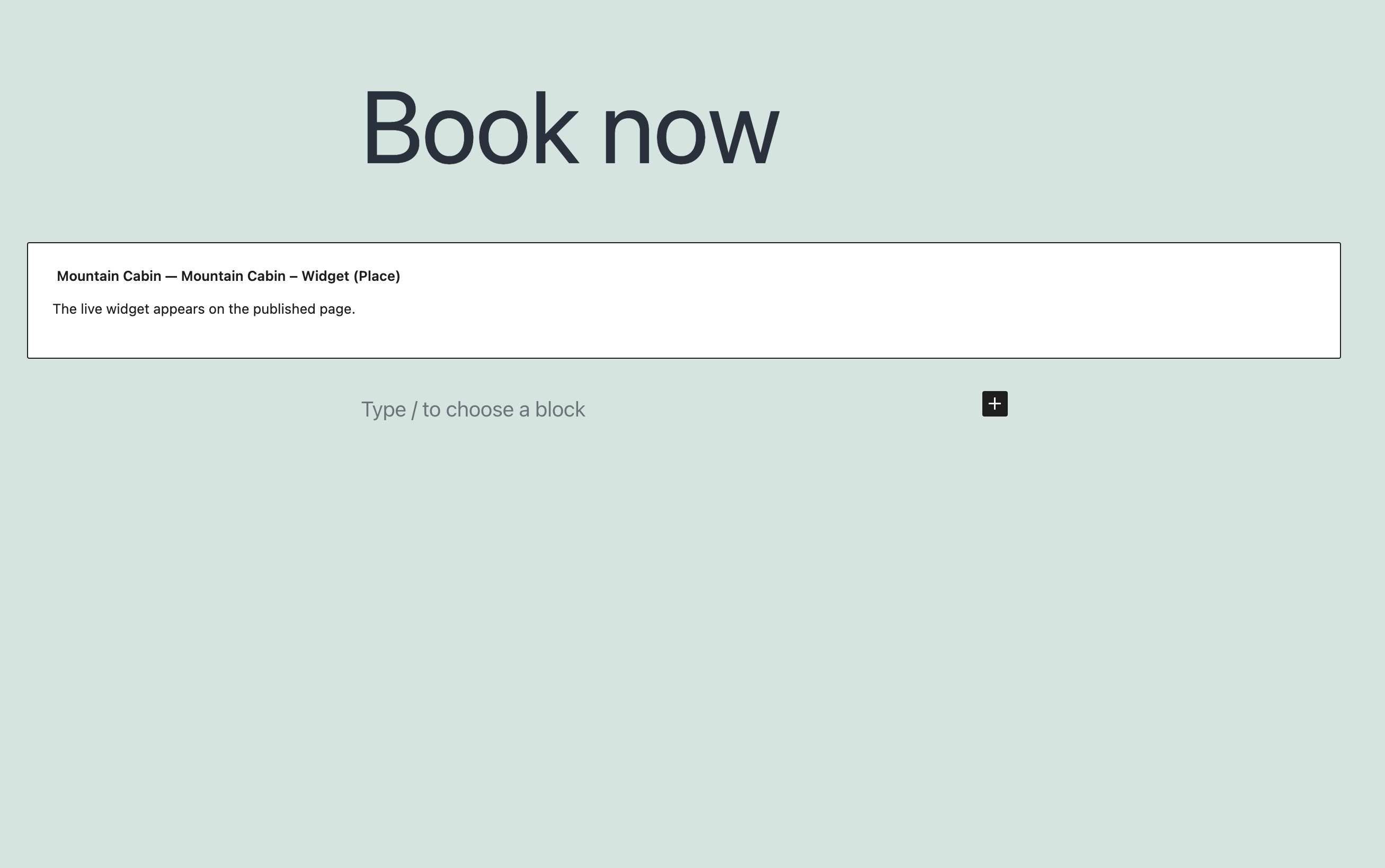
Why does the block show a card instead of the widget while I am editing?
-
The editor shows a placeholder on purpose. The booking dialog opens as a full-screen overlay, which does not behave well nested inside the editor canvas. Preview or publish the page to see the real widget.
-
The widget does not appear on my page
-
Check that the widget ID is correct and that the widget is active in Cabintale. If your site is behind a security plugin or a strict content security policy, allow
admin.cabintale.com.
Reviews
There are no reviews for this plugin.
Contributors & Developers
“Cabintale Booking Calendar” is open source software. The following people have contributed to this plugin.
Contributors
Translate “Cabintale Booking Calendar” into your language.
Interested in development?
Browse the code, check out the SVN repository, or subscribe to the development log by RSS.
Changelog
0.7.4
- Translations now come from translate.wordpress.org, so every locale the community translates is delivered automatically instead of only the ones bundled here.
0.7.3
- New FAQ: how much room a two- or three-month calendar needs, and where to widen it — including the Shortcode block, which has no alignment of its own.
0.7.2
- The cached widget list is now invalidated when its shape changes, so an upgrade can no longer show stale “Needs setup” badges for ten minutes.
- Uninstalling now clears the stored token on every site of a large network, not just the first hundred.
- The preview timeout no longer announces a failure for a panel you already closed, and says plainly that it only knows nothing arrived.
0.7.1
- The “Needs setup” badge now sits under the widget type instead of beside its name, and the status message after connecting no longer lands inside the Cabintale header.
0.7.0
- Every string in the plugin is now translatable.
- Fixed a fatal error on the settings screen introduced in 0.6.0.
- Fixed every widget being labelled “needs setup” even when its availability was set up.
- A preview that cannot load now says so after ten seconds, instead of showing “Loading preview…” forever.
- Clearer external-services disclosure: every request this plugin makes to Cabintale, and what it carries.
0.6.0
- Widgets with no availability set up in Cabintale are now flagged in the editor and in Settings, so an empty calendar explains itself.
0.5.2
- Fixed the widgets table clipping its buttons and squeezing every column.
0.5.1
- A link straight to your Cabintale account from the settings screen.
- Fixed misaligned button icons and the shortcode Copy button wrapping onto its own line.
0.5.0
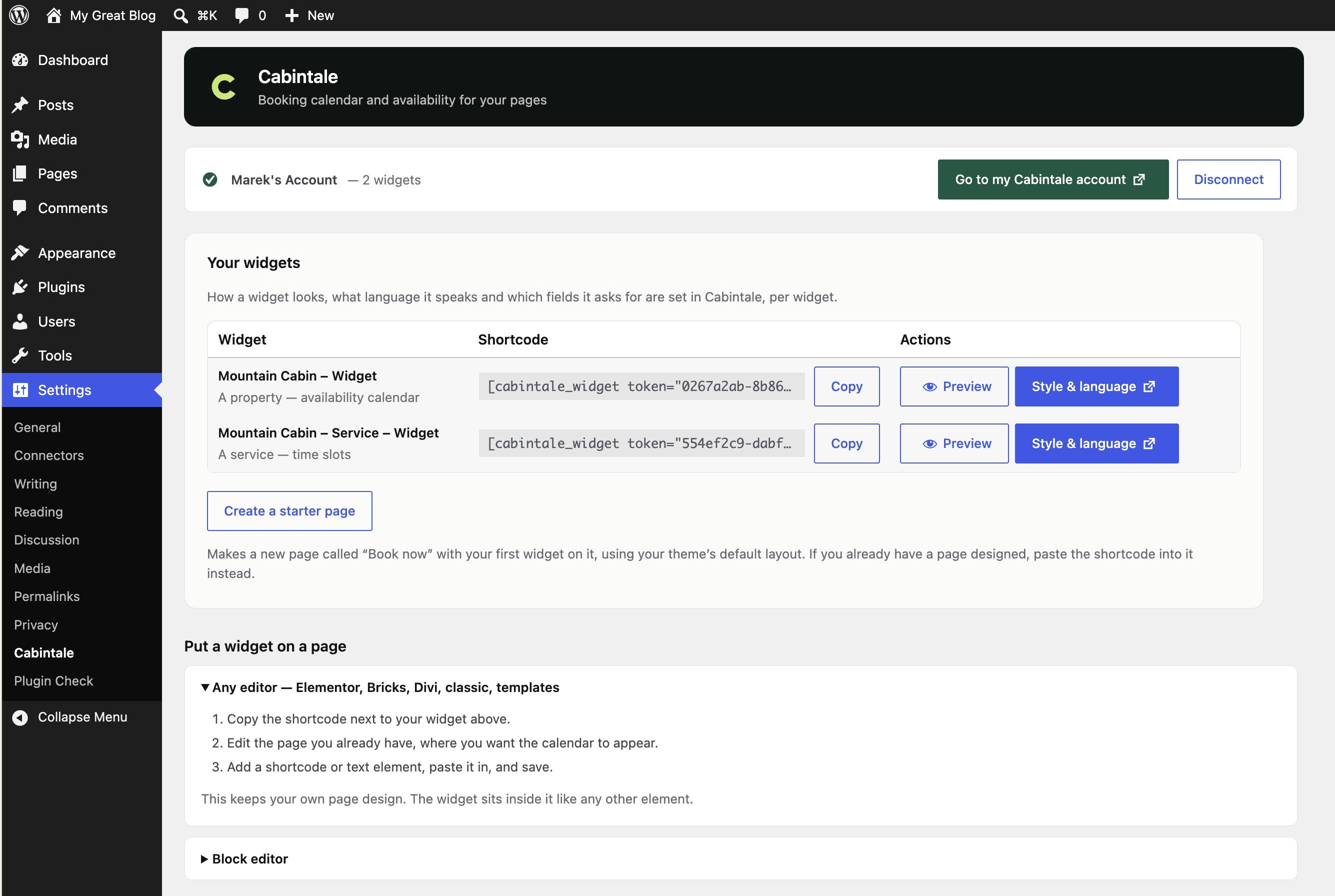
- Every widget now shows its own shortcode with a copy button — the path that works in Elementor, Bricks, Divi, the classic editor and theme templates.
- “Create booking page” is now a secondary shortcut called “Create a starter page”, and says plainly that it uses your theme default layout.
0.4.2
- Fixed the widgets table being squeezed into a narrow column.
0.4.1
- Wider settings layout, and the widget actions are now buttons rather than a text link.
0.4.0
- Each widget now links straight to its style, language and booking-form settings in Cabintale.
- Links to the Cabintale documentation throughout the settings screen.
0.3.0
- Cabintale branding on the settings screen, layered over standard WordPress admin components so it still follows your admin colour scheme.
- Settings screen rebuilt: it now explains what lives in Cabintale and what lives in WordPress, and only shows instructions once they can be acted on.
- Preview any widget from the settings screen before putting it on a page.
- Connect, Disconnect and Create booking page now show progress instead of sitting silent for a second.
- Terminology follows the Cabintale documentation — a single cabin is a “property”. The shortcode accepts
type="property"as well astype="place".
0.2.0
- Connect your Cabintale account and pick widgets by name instead of copying IDs.
- The block now asks only which widget to show — each one is labelled as a place, service or product, so there is no type to keep in sync.
- Settings screen rewritten to explain what lives in Cabintale and what lives in WordPress, with links to the right place for each.
- One-click “Create my booking page”.
0.1.0
- First release: Cabintale booking widget block,
[cabintale_widget]shortcode, and a default-widget setting.