
Description
Connect your WordPress site to Braspin Chat and offer your visitors a modern chat experience without changing theme files or writing integration code.
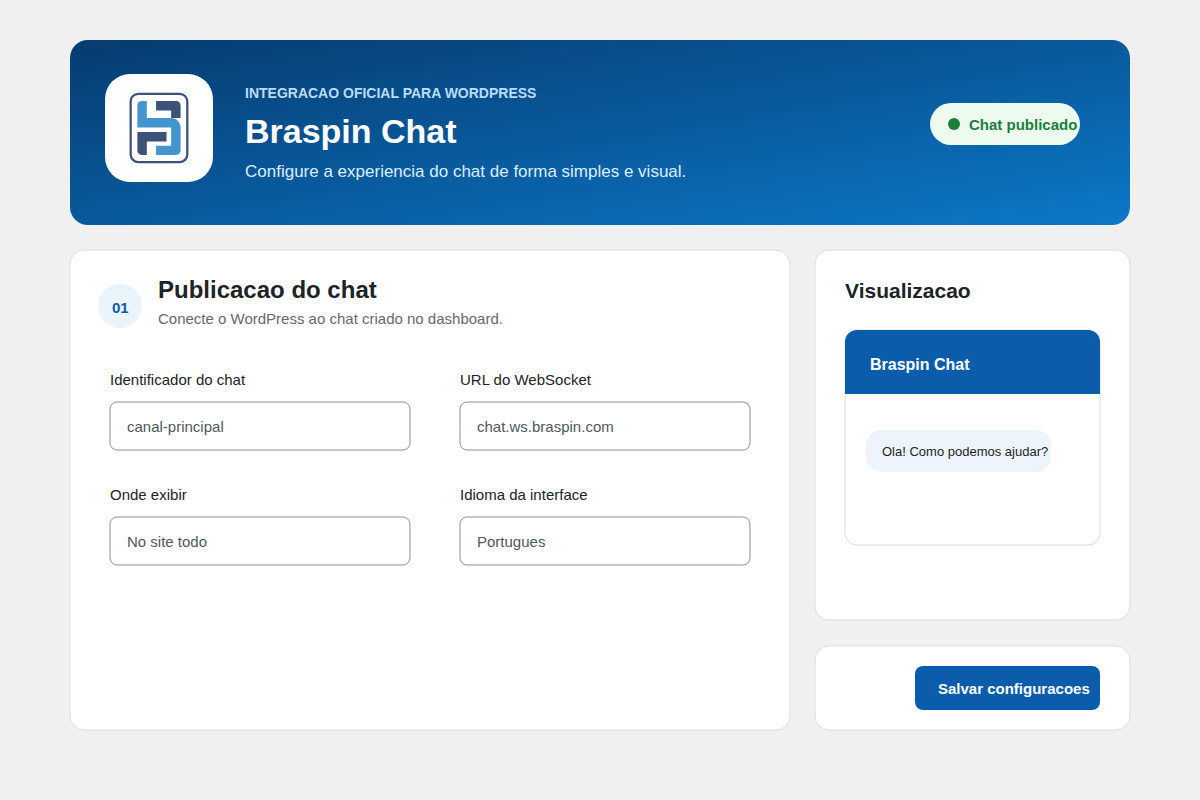
After activation, use the dedicated Braspin Chat settings screen to connect your chat, choose where it should appear and adjust its presentation. You can apply one global configuration or use the native Gutenberg block to create a tailored experience for an individual page.
Highlights
- Quick setup: connect the plugin with the chat identifier from your Braspin dashboard.
- Flexible display rules: show the chat across the site, on pages, on posts or only on selected content.
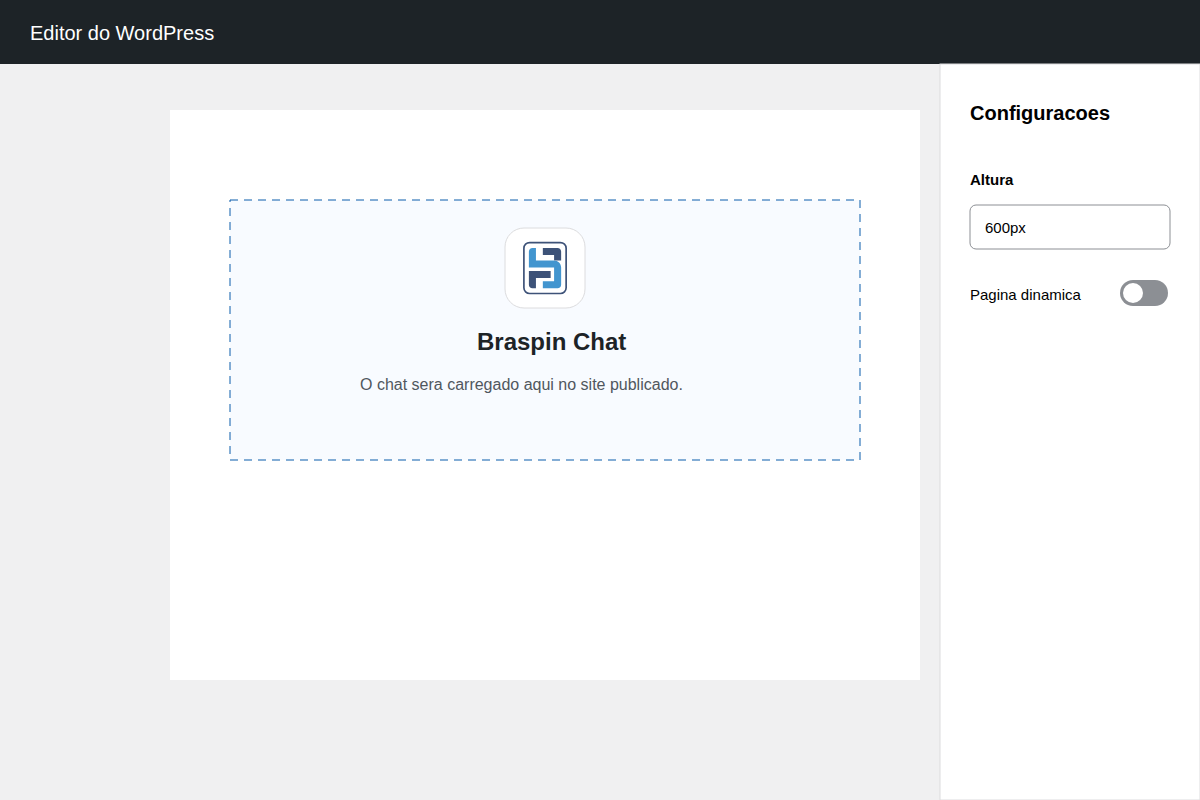
- Native Gutenberg block: add Braspin Chat directly in the block editor.
- Per-page customization: override the title, language, behavior, dimensions, positioning and colors for a specific page while keeping global defaults everywhere else.
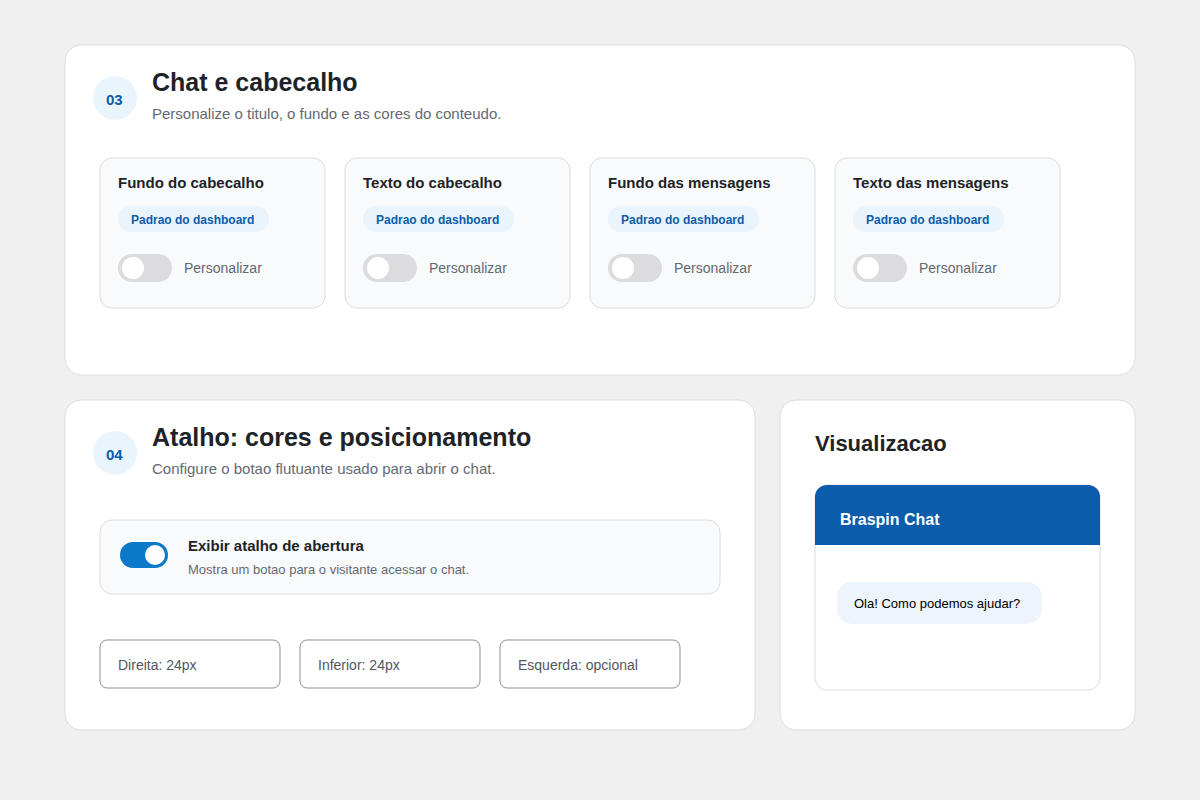
- Clear color controls: immediately see whether each color uses the global default or a page-specific customization.
- Responsive presentation: configure floating mode, minimized state, mobile half-screen mode, resizing, dimensions and positioning.
- Custom shortcut: control shortcut visibility, colors, badge colors and position.
- Multiple languages: configure Portuguese, English or Spanish.
- Live preview: review visual choices before publishing.
- Connection diagnostics: verify SDK availability from the WordPress administration area.
- Shortcode support: use
[braspin_chat]when a shortcode fits your content workflow better. - Official delivery: load the Braspin SDK automatically from the official production CDN.
Built for both simple and tailored sites
Use a single global setup when the same chat experience should appear throughout the site. For landing pages, events, campaigns or dedicated communities, add the Gutenberg block and activate only the page-level options you want to change. Every untouched option continues to inherit the global configuration.
The editor clearly labels inherited values as Global default and overrides as Customized on this page, making it easy to understand what will be published.
External services and privacy
This plugin loads the Braspin Chat SDK from the official Braspin CDN and connects visitors to the configured Braspin WebSocket domain. These requests are necessary to display and operate the chat.
No Braspin service is contacted while chat display is disabled. The SDK is loaded only on a public page where an administrator has configured and enabled the chat, or when the administrator explicitly runs the connection test.
When enabled, the browser downloads executable JavaScript and CSS from the Braspin CDN and opens a connection to the configured Braspin WebSocket service. Messages and other information voluntarily submitted through the chat, together with technical information required to establish and protect the connection, can be transmitted to Braspin according to the Braspin account configuration, terms and privacy policy. The SDK may use browser storage for session, authentication and chat operation as described in the Braspin privacy policy.
The WordPress plugin itself stores only its configuration options, such as chat identifier, WebSocket URL, public key and display preferences. It does not add analytics or independently transmit WordPress administrator data to Braspin.
Service provider: Braspin
Service URL: https://braspin.com
Privacy policy: https://braspin.com/privacy
Terms: https://braspin.com/terms
SDK CDN: https://cdn.braspin.com/chat/
Support contact: contato@braspin.com
Screenshots
Blocks
This plugin provides 1 block.
- Braspin Chat Add the configured chat to this page.
Installation
- In WordPress, go to Plugins > Add New and search for Braspin Chat.
- Select Install Now, then activate the plugin.
- Open Braspin Chat in the WordPress side menu.
- Enter the chat identifier created in your Braspin dashboard.
- Enter your public key if you use features that require it, such as Super Chat.
- Choose the language, appearance, behavior and display locations.
- Save the settings and use the live preview or connection test to review the setup.
- To embed a customized chat in specific content, add the Braspin Chat block in Gutenberg and enable only the page-level customizations you need.
You can also install an official ZIP by selecting Upload Plugin on the Add Plugins screen.
FAQ
-
Do I need to edit my WordPress theme?
-
No. The plugin loads the Braspin Chat SDK automatically when the chat is enabled.
-
Can I enable the chat on only one page or post?
-
Yes. In the Braspin Chat settings screen, choose manual mode. Then open the page or post editor and enable Braspin Chat for that content.
-
Can I place the chat inside the page content?
-
Yes. Add the native Braspin Chat block in Gutenberg. The block lets you keep the global configuration or customize selected options for that page.
You can also add a Shortcode block and use
[braspin_chat]. The shortcode renders the chat inline, without the side shortcut and without floating over the page by default.You can override global options when needed:
[braspin_chat width="100%" height="700px" resize="true" title="Page chat"]Header buttons can be controlled independently:
[braspin_chat show_detached_button="false" show_close_button="true"] -
What is the chat field?
-
It is the chat identifier created in the Braspin dashboard.
-
What is the public key used for?
-
The public key identifies your Braspin account for Super Chat checkout.
-
Can each page have different colors or a different title?
-
Yes. Select the Braspin Chat block and open its settings in the editor sidebar. Each option uses the global configuration until you explicitly enable customization for that page. This includes the title, language, behavior, dimensions, positioning, chat colors and shortcut colors.
-
What does dynamic page mode do?
-
Dynamic page mode sends the current WordPress URL as the chat page. Keep it disabled if the same chat should be shared across the whole site.
-
Does this plugin collect data by itself?
-
The plugin stores only its configuration options in WordPress. The Braspin Chat SDK communicates with Braspin services to operate the chat when enabled.
-
How can I contact Braspin support?
-
Send an email to contato@braspin.com.
Reviews
There are no reviews for this plugin.
Contributors & Developers
“Braspin Chat” is open source software. The following people have contributed to this plugin.
Contributors
Translate “Braspin Chat” into your language.
Interested in development?
Browse the code, check out the SVN repository, or subscribe to the development log by RSS.
Changelog
1.1.1
- Standardize all source strings in English for WordPress.org localization.
- Complete Brazilian Portuguese and Spanish translations for PHP and Gutenberg interfaces.
- Make preset size labels translatable.
1.1.0
- Add per-page Gutenberg controls for title, language, behavior, dimensions, positioning and colors.
- Clearly identify global defaults and page-specific customizations in the block editor.
- Add a responsive editor preview and one-click restoration of global settings.
- Keep the close and open-in-new-window header controls available in regular embeds.
- Add independent controls for the close and open-in-new-window buttons in settings, Gutenberg and shortcode attributes.
- Improve the plugin directory description, installation guide, feature highlights and FAQ.
1.0.0
- Add production-ready validation, responsive settings, preview, diagnostics and Gutenberg block.
- Synchronize relevant SDK appearance, positioning and authentication options.
- Add translations, automated quality checks and WordPress.org assets.
0.0.13
- Update the SDK/plugin release version.
0.0.9
- Add signup callout to the settings header and keep the chat open by default on new installs.
0.0.8
- Preserve uppercase and lowercase characters in the chat identifier field.
0.0.7
- Update the SDK/plugin release version.
0.0.6
- Add shortcode overrides for all chat options and resize support.
0.0.5
- Add the entire site display mode and simplify display mode labels.
0.0.4
- Update the SDK/plugin release version.
0.0.3
- Move the settings screen to its own WordPress side menu with a chat icon.
- Add display modes for the entire site, pages, posts, all content, or manual per-content activation.
0.0.2
- Initial version prepared for WordPress.org review.