
Description
AutoPhotos for WooCommerce is a lightweight bridge between your WooCommerce
store and your AutoPhotos.ai account.
Normally, connecting a store to AutoPhotos means going to WooCommerce ->
Settings -> Advanced -> REST API, generating a key by hand, and pasting it
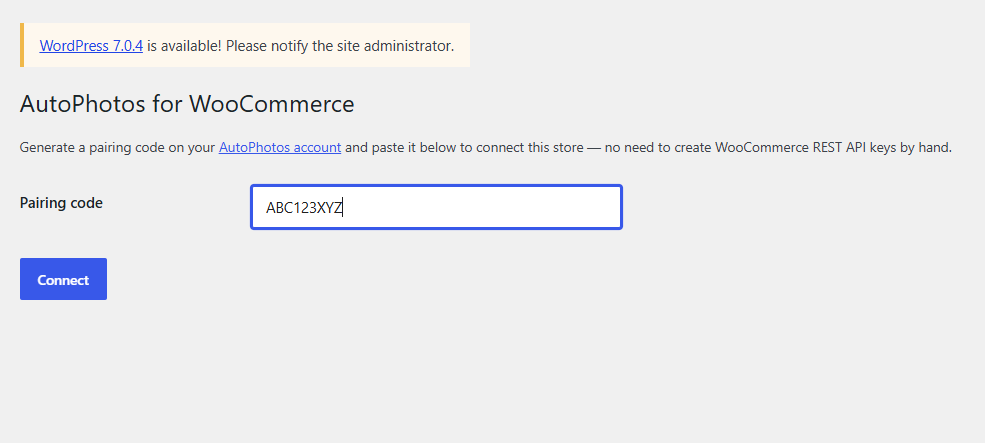
into the AutoPhotos panel. This plugin does that step for you: generate a
one-time pairing code on your AutoPhotos account, paste it into this
plugin’s settings page, and your store is connected — no manual key
creation.
All photo processing still happens in your AutoPhotos panel at
autophotos.ai/integrations/woocommerce/,
billed against your normal AutoPhotos credit balance. This plugin does not
process any images itself and does not add anything to your storefront —
it only manages the connection.
What this plugin does
- Generates a WooCommerce REST API key (read/write) for your store.
- Sends that key, together with your pairing code, to AutoPhotos.ai so your
account and your store are linked. - Lets you disconnect at any time from the plugin’s settings page, which
revokes the key it created.
What this plugin does NOT do
- It does not upload, store, or process any product images itself.
- It does not modify your products, theme, or storefront.
- It does not communicate with AutoPhotos.ai except during the one-time
connect/disconnect action.
External services
This plugin connects to AutoPhotos.ai, the service that performs the actual
product photo processing (background removal, drop shadow, color
correction, and more) and that this plugin acts as a connection bridge for.
It sends data to AutoPhotos.ai only once, when you click “Connect” on the
plugin’s settings page: your store’s URL and the WooCommerce REST API key
(consumer key and secret) the plugin just generated for your store,
together with the one-time pairing code you pasted in. This links your
store to your AutoPhotos.ai account so the AutoPhotos panel can read your
product photos and write processed results back to your product gallery.
No data is sent automatically or on a schedule — only when you initiate the
connect action.
This service is provided by AutoPhotos.ai: Terms of Service, Privacy Policy.
Screenshots
Installation
- Install and activate WooCommerce if you haven’t already.
- Install and activate this plugin.
- Go to WooCommerce -> AutoPhotos.
- Open autophotos.ai/integrations/woocommerce/ in another tab, sign in, and click “Generate pairing code”.
- Paste the code into the plugin’s settings page and click Connect.
- Process your product photos from the AutoPhotos panel.
FAQ
-
Do I need an AutoPhotos.ai account?
-
Yes. Photo processing happens on autophotos.ai using your own AutoPhotos
credit balance — this plugin only connects your store to that account. -
What permissions does the generated API key have?
-
Read/write, the same as if you created a key by hand under WooCommerce ->
Settings -> Advanced -> REST API. AutoPhotos uses it to read your product
photos and write processed results back to the product gallery. -
How do I disconnect?
-
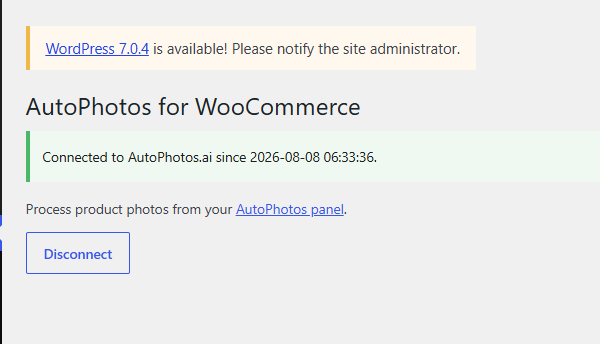
Go to WooCommerce -> AutoPhotos and click Disconnect. This revokes the
WooCommerce REST API key the plugin created.
Reviews
There are no reviews for this plugin.
Contributors & Developers
“AutoPhotos for WooCommerce” is open source software. The following people have contributed to this plugin.
Contributors
“AutoPhotos for WooCommerce” has been translated into 1 locale. Thank you to the translators for their contributions.
Translate “AutoPhotos for WooCommerce” into your language.
Interested in development?
Browse the code, check out the SVN repository, or subscribe to the development log by RSS.
Changelog
1.0.1
- Added translations: Dutch, French, German, Italian, Japanese, Polish, Portuguese (Brazil), Spanish.
1.0.0
- Initial release: pairing-code connect flow.