

Description
Keep your login URL. Keep the bots out.
MisticGate™ places a private gate in front of the standard WordPress login page. You reach the login form from your gate bookmark. Brute-force bots never get that far.
As soon as you install MisticGate, the screen for setting your gate URL opens. After you bookmark it, check the box and enable the gate, and setup is complete.
What MisticGate does
- Puts a private gate in front of your login page.
- Administrators with a valid session skip the gate. You choose which other roles may skip it too.
- Supports Multisite, with one gate for the whole network or a gate for each site.
- After you pass through the gate with a single-use pass, reusing that pass returns a 404.
- The gate URL is built so you can switch it periodically while you keep using the gate.
- The settings screen also has documentation that explains recovery and more.
Recommended setup
MisticGate is the first layer. We recommend combining it with:
- Two-factor authentication (2FA) from a security plugin.
- A login challenge, such as a math question or CAPTCHA.
- HTTPS and strong, unique passwords.
Screenshots
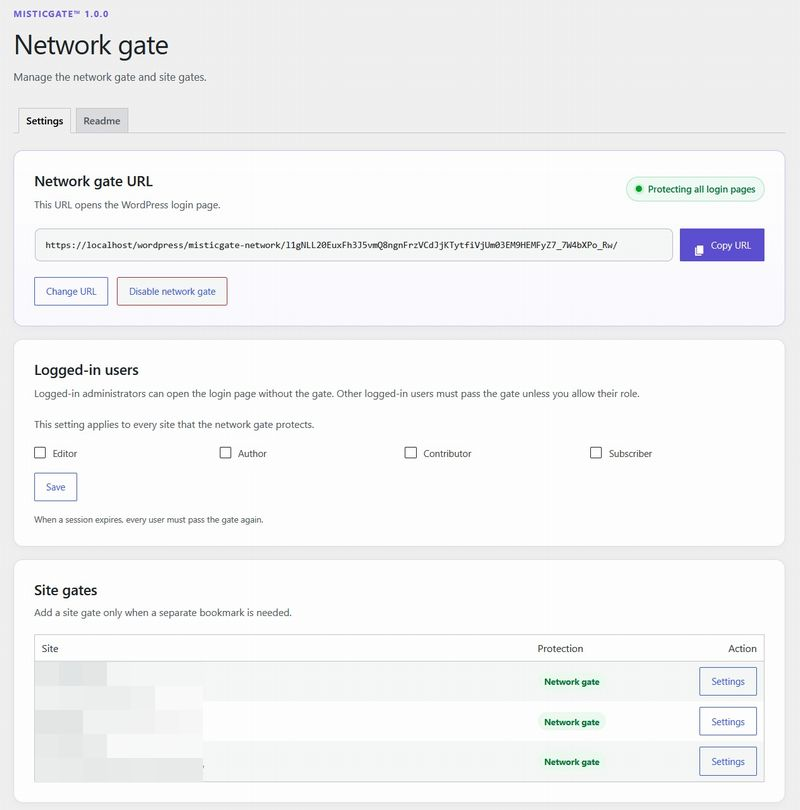

Installation
- Install and activate MisticGate. The settings screen opens.
- Copy the gate URL and save it as a bookmark.
- Confirm that you saved the bookmark, then enable the gate.
From then on, log in from your bookmark.
FAQ
-
I lost my gate URL. How do I log in?
-
Add
define( 'MISTICGATE_DISABLE', true );towp-config.phpand log in. Check or change the URL in the MisticGate settings, then remove the line. -
Can I use MisticGate with a plugin that changes the login URL?
-
No. MisticGate protects the standard login URL. Do not combine it with plugins that change or hide the login URL.
-
Where can I find the full instructions?
-
In the Readme tab of the MisticGate settings.
Reviews
There are no reviews for this plugin.
Contributors & Developers
“MisticGate” is open source software. The following people have contributed to this plugin.
Contributors
“MisticGate” has been translated into 1 locale. Thank you to the translators for their contributions.
Translate “MisticGate” into your language.
Interested in development?
Browse the code, check out the SVN repository, or subscribe to the development log by RSS.
Changelog
1.0.0
- Initial release.