
Description
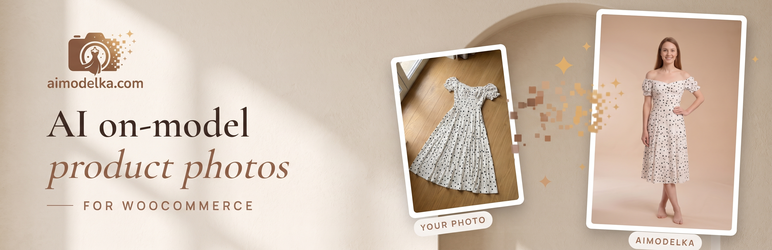
aiModelka makes photos of clothes on a model from ordinary product photos: a flat lay, a hanger shot or a mannequin.
You get AI on-model photos of your own clothes from flat lay, hanger and mannequin shots, without a photo shoot, right from the WooCommerce product editor.
The plugin adds a “Generate photos” button to the classic WooCommerce product editor and to the product page in your shop:
- Click “Generate photos” in the product editor — or on the product page in your shop: there the button is shown only to people who can edit products, customers never see it. The aiModelka window opens with the product photos.
- Dress the model: drag the product photos you need into the slots — top, bottom, shoes and so on — or add your own photo from your computer or phone, and click “Continue”.
- Choose a scene: a model, one or more poses and a background, then click “Generate photo”. Every pose becomes its own scene.
- Get the photos: pick the variant you like and click “To product gallery” or “Set as product image”. The photo goes into the Media Library and into the product. For a product with variations, “Set as product image” asks whether the image is for the whole product or for a variation — for example, for every size of one colour.
- Need another photo in the product? Pick it and click again. Photos that are already in the product are marked in the window.
The “Arrange photos” button is a quick and easy way to manage the product photos: reorder the gallery, choose the product image, remove a photo from the product and set the image of each variation — all in one small window, without leaving the page. No aiModelka key needed, and no files are deleted from the Media Library.
Everything heavy happens on aimodelka.com: the plugin only keeps your key, opens the aiModelka window, sends the product photos you chose and puts the finished photos into the product.
- The same product always opens the same photo session, so you can come back and make another pose.
- Works from a phone too: open the product in your shop, tap the button and add photos straight from the phone.
- Photo size for the product: 1K or 2K. With 2K, variants are made in 2K right away and cost the 2K price. The size shown on the photo is the one saved to the product. File type: JPEG or PNG.
- Settings decide where a new photo goes in the gallery (first or last) and what happens to the previous product image (moved to the gallery or removed from the product). The file always stays in the Media Library.
- An optional column in the product list shows how many aiModelka photos a product has and when they were saved. Turn it on in Screen Options.
- If saving is interrupted, the plugin finishes it in the background.
You need an aiModelka account. Generating photos uses the credits of that account; see the prices on aimodelka.com.
External services
This plugin works with aiModelka, an online service that makes photos of products on a model. The plugin cannot work without it.
Nothing is sent to aiModelka until you enter an aiModelka key in WooCommerce aiModelka.
What is sent to aimodelka.com, and when:
- When you click “Check connection” on the settings page, and once a day in the background: your aiModelka key and the address of your site. aiModelka answers with the email address and the credit balance of the account.
- When you click “Generate photos” or “Open photo shoot” in a product: your key, the address of your site and of its admin area, and the product name and ID.
- When the aiModelka window opens: your key, the address of your site and the ID of the product’s photo session — the plugin checks which product images are already in the photo session.
- When you click “Continue” in the aiModelka window: the image files of the product images you placed into the slots — only those — with your key and the address of your site. Images already sent are not sent again.
- When you click “To product gallery” or “Set as product image” in the aiModelka window: your key, the address of your site and the ID of the chosen photo. The plugin then downloads the finished image file to your Media Library.
The aiModelka window itself is a page of aimodelka.com that opens in your browser. It shows the product images straight from your site: your browser loads them, and they are not sent to aiModelka until you place them into the slots and click “Continue”. Photos you add in the window from your computer or phone go to aimodelka.com straight from your browser.
Finished image files are stored by aiModelka at Cloudflare R2 (cloudflarestorage.com); the plugin downloads them from there by a temporary link. Only the download request goes to Cloudflare; no data of your site is sent there.
Screenshots


Installation
- Install and activate WooCommerce 9.0 or newer.
- In Plugins Add New Plugin, search for “aiModelka”, click “Install Now” and then “Activate”.
- Create a key: sign in at aimodelka.com, open Account API keys and click “Create key”.
- Paste the key in WooCommerce aiModelka and click “Check connection”.
- Open a product and click “Generate photos”.
FAQ
-
Everyone in the shop who can edit products. They all spend the credits of the aiModelka account whose key is in the settings. The “Arrange photos” button on the product page in the shop only rearranges the photos the product already has and does not use the account.
-
Does the plugin delete my product photos?
-
No files are ever deleted from the Media Library. “To product gallery” adds the photo to the gallery — first or last, as set in WooCommerce aiModelka. “Set as product image” replaces the product image; the previous one is moved to the gallery or removed from the product, as set there. A photo removed from the product stays in the Media Library.
-
How do variations work?
-
For a product with variations, “Set as product image” asks whether the image is for the whole product or for a variation. Choose the attribute values — for example, colour “Blue” and size “any” — and every variation with those values gets the image; the product image itself does not change. You can turn the question off in the settings; then the photo always becomes the image of the whole product.
-
Saving the same photo twice — will I get duplicates?
-
No. A photo that is already in the product is not downloaded again, and a photo already in the gallery is not added a second time.
-
The button is in the aiModelka box in the right-hand column of the classic product editor, above “Product image”. If the box is not there, turn it on in Screen Options at the top of the page. If the new product editor (beta) is turned on in WooCommerce, turn it off in WooCommerce Settings Advanced Features.
-
Can I keep the key out of the database?
-
Yes. Add
define( 'AIMODELKA_API_KEY', 'amk_…' );to wp-config.php. The settings page then shows that the key is set in wp-config.php. -
I use FileBird folders in the Media Library
-
If FileBird is active, a new photo from aiModelka goes into the same folder as the product photos: the folder of the product image, or else of the first gallery photo that is in a folder. If no photo of the product is in a folder, the new photo goes to “Uncategorized”, as usual.
-
My Media Library is on S3 or a CDN
-
That works: the plugin adds photos through the standard WordPress media functions, so storage plugins see them as usual.
-
Where can I see what the plugin did?
-
In WooCommerce Status Logs, source “aimodelka”.
Reviews
There are no reviews for this plugin.
Contributors & Developers
“aiModelka – AI On-Model Product Photos for WooCommerce” is open source software. The following people have contributed to this plugin.
Contributors
Translate “aiModelka – AI On-Model Product Photos for WooCommerce” into your language.
Interested in development?
Browse the code, check out the SVN repository, or subscribe to the development log by RSS.
Changelog
1.7.6
- First release in the WordPress.org plugin directory.