
Description
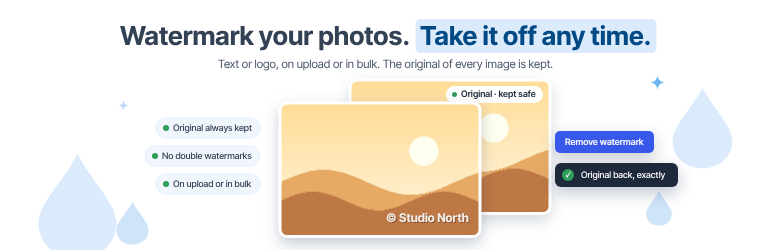
Put your name or logo on your photos, so they keep your credit when they are shared or copied. Reinvent Watermark adds the watermark when you upload, or to your whole Media Library in one click.
You can always take it back. Before an image gets a watermark, its original is copied to a private folder. Remove the watermark from one image or from all of them, and the exact originals come back. There’s no backup setting to remember to turn on first.
Change your mind without double watermarks. New logo, different corner? Apply again: each image goes back to its original first and then gets the new watermark, so you never end up with two.
See it before you change anything. The settings page shows a live preview on your own images as you adjust the watermark.
Everything is free
- Text watermark (your words or “©” and your site name) with color, size and opacity
- Image or logo watermark (a transparent PNG works best) with size and opacity
- 9 positions and a distance from the edge
- Choose which image sizes get the watermark, and skip small images
- Watermark new uploads automatically
- “Watermark all images” and “Remove from all”, with a progress bar
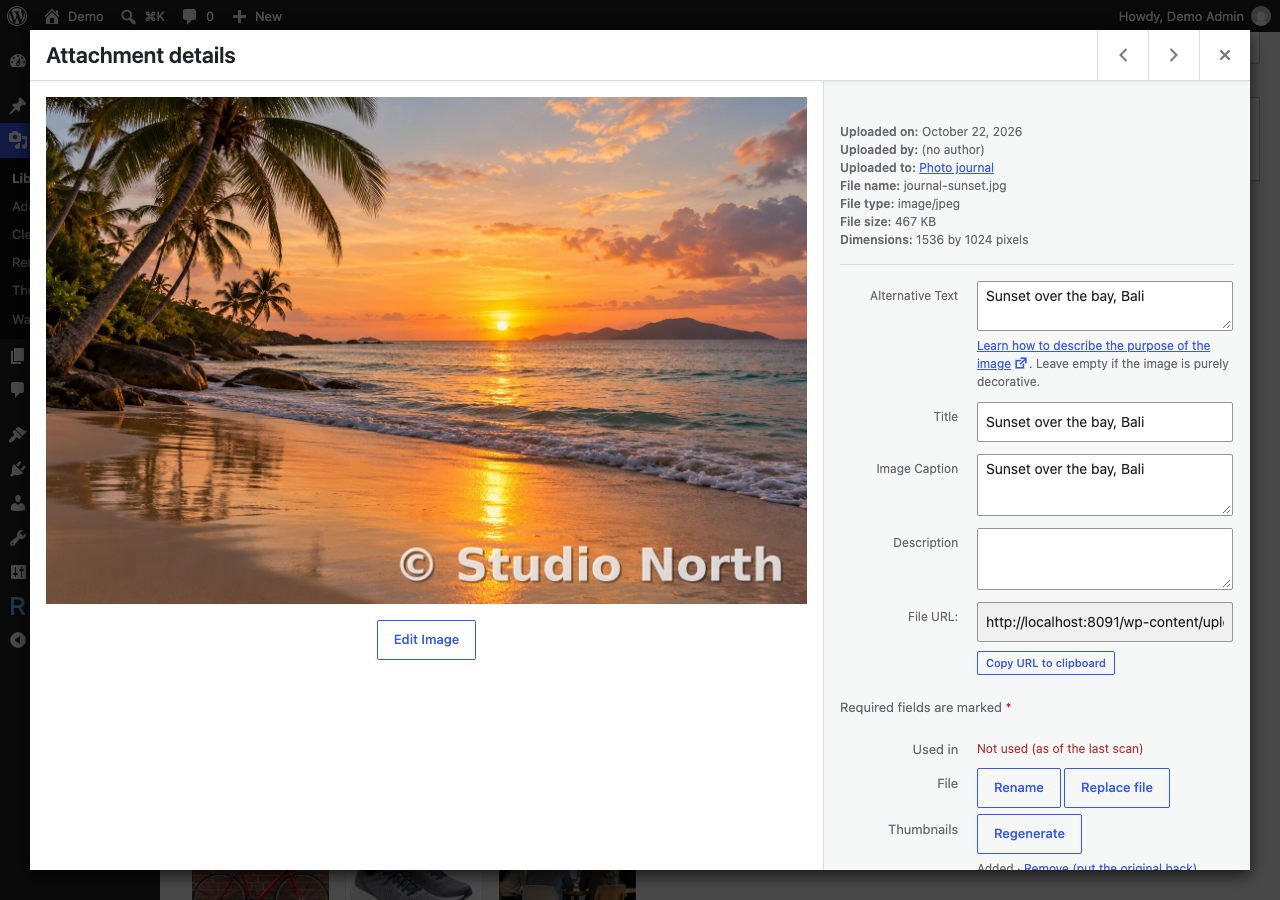
- Add, redo or remove the watermark on one image from the Media Library
- JPEG, PNG, WebP and AVIF (when your server supports it)
Safe by design
- The original of every watermarked file is kept until you remove the watermark.
- Applying again starts from the original, so watermarks never stack.
- GIFs are skipped, so animations aren’t broken.
- The watermark image itself never gets a watermark.
- Deleting an image also deletes its kept original.
Tip: keep a recent backup of your site, like with any tool that changes files.
External services
Watermarks are added on your server. Your images are never uploaded anywhere. The plugin connects to one external service, operated by us:
Reinvent WP Services (services.reinventwp.com), used for two things:
- The list of Reinvent WP apps on the Reinvent WP Dashboard page. When an administrator opens that page, your site downloads the current list at most once a day and keeps a copy. Nothing about your site or you is sent.
- The assistant (the Describe a problem with your site field) on the Reinvent WP Dashboard page and on this plugin’s page. When you send a question, it is sent with any screenshots or text files you attach to it (of a file, only its newest part, with emails, IP addresses, passwords and keys hidden by your browser first), the last few messages of the conversation and the list of Reinvent WP plugins on your site (whether each is active, inactive or not installed, and its version), so the answer can point to the right plugin and setting. Nothing is stored; the conversation stays in your browser tab. If you send feedback from the assistant’s form, your email, site address and message go to the Reinvent WP team, like the feedback form.
Reinvent WP Services: Terms of use, Privacy policy.
Source Code
The Reinvent WP Dashboard page and the assistant (public/hub) are built from https://github.com/reinventwp/reinventwp-apps.
Credits
Text watermarks use the DejaVu Sans Bold font (Bitstream Vera license with DejaVu changes in the public domain). The license is in fonts/LICENSE-DejaVu.txt.
Screenshots


Installation
- Install the plugin from Plugins Add New, or upload the zip.
- Activate it and open Media Watermark.
- Choose a text or an image, check the preview, and click Save Changes.
- Turn on “Add the watermark to every image I upload”, or click Watermark all images.
FAQ
-
Can I remove the watermark later?
-
Yes, always. Use “Remove from all” on the settings page, or “Remove watermark” on one image in the Media Library (list view or the image details). The original files are put back exactly as they were.
-
I changed my logo. Will my images get two watermarks?
-
No. Click Watermark all images again: each image goes back to its original first and then gets the new watermark.
-
Where are the originals kept?
-
In a private folder inside your uploads folder (
reinvent-watermark-originals-followed by a random code). It has an.htaccessfile and an unguessable name, so the originals aren’t linked or listed anywhere. They use extra disk space, about the size of the files that got a watermark. -
Which images get a watermark?
-
The full image and the sizes you choose (by default, every size at least 768 pixels wide). Images narrower than the limit you set (300 pixels by default) and GIFs are skipped. WordPress also keeps an unchanged copy of very large uploads (the file without “-scaled”), which isn’t shown on your site; Reinvent Watermark leaves it as it is.
-
Does it work on images I uploaded before?
-
Yes. Click Watermark all images on the settings page, or use the “Add watermark” bulk action in the Media Library list view.
-
What does my server need?
-
The PHP GD image library, which almost every host has. Text watermarks also need GD’s font support (FreeType); without it, use an image watermark. WebP and AVIF work when your server’s GD supports them.
-
What happens if I delete the plugin?
-
Its settings are removed. Your watermarked images and their kept originals stay, so nothing is lost. If you want your originals back, click Remove from all before deleting the plugin.
-
Does the plugin send any data anywhere?
-
No. Everything happens on your own server.
Reviews
There are no reviews for this plugin.
Contributors & Developers
“Reinvent Watermark” is open source software. The following people have contributed to this plugin.
Contributors
Translate “Reinvent Watermark” into your language.
Interested in development?
Browse the code, check out the SVN repository, or subscribe to the development log by RSS.
Changelog
1.0.1
- New: describe a problem with your site on the Reinvent WP Dashboard page or on this plugin’s page, and the assistant suggests the Reinvent WP app that fixes it.
- New: the Reinvent WP Dashboard page shows your Reinvent WP apps first, then the others you can install, from an up-to-date list (read once a day, with a built-in list as fallback).
1.0.0
- First release.