

Description
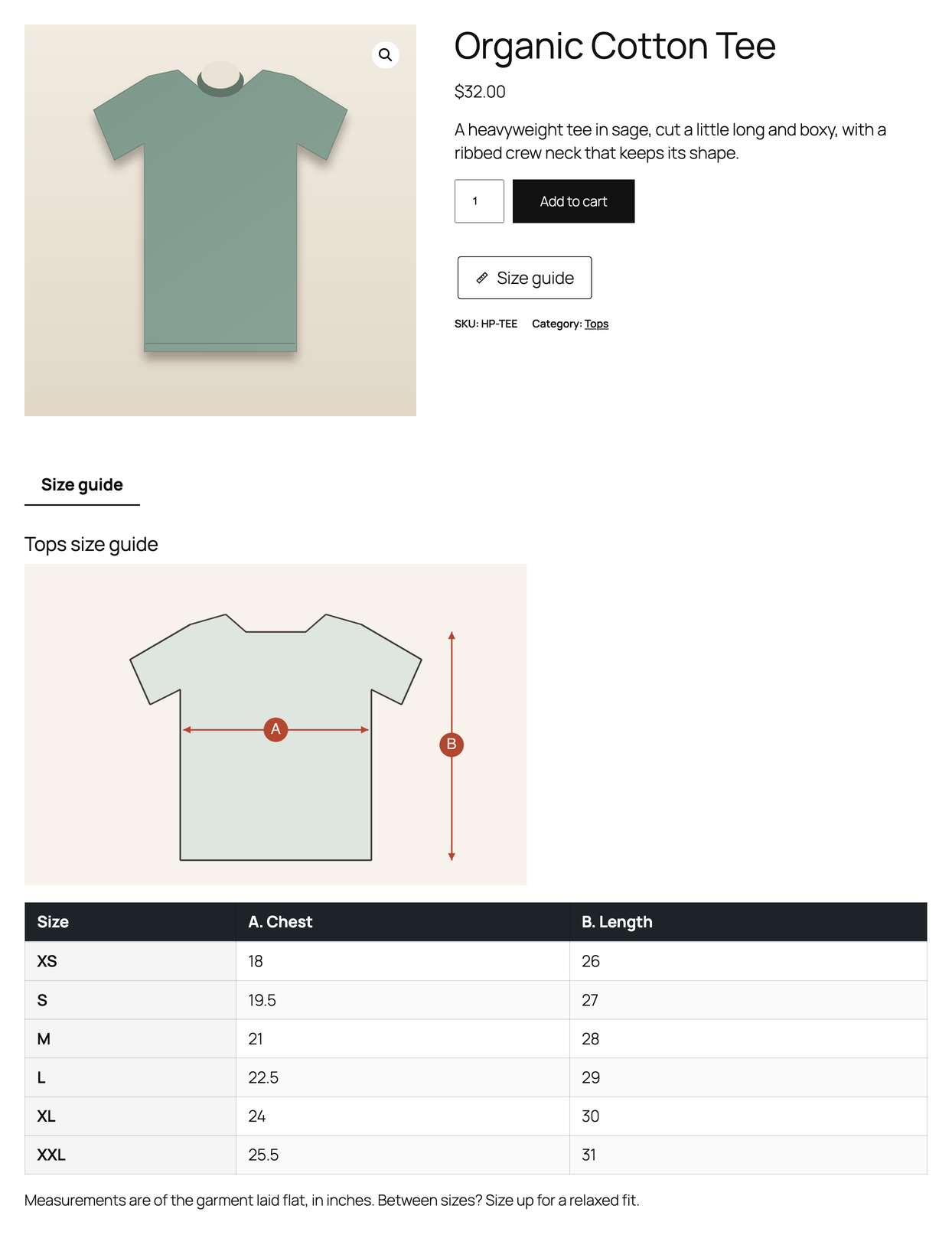
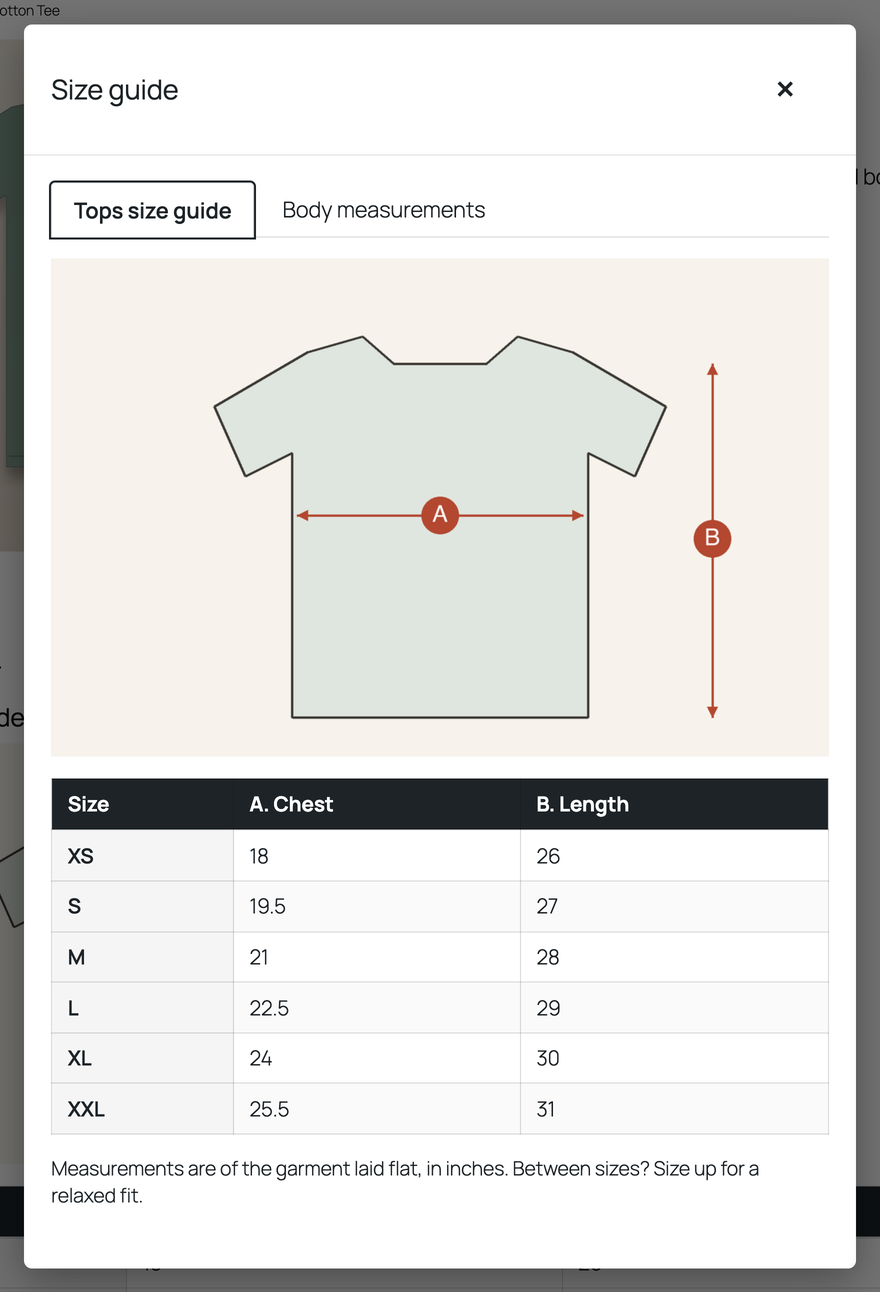
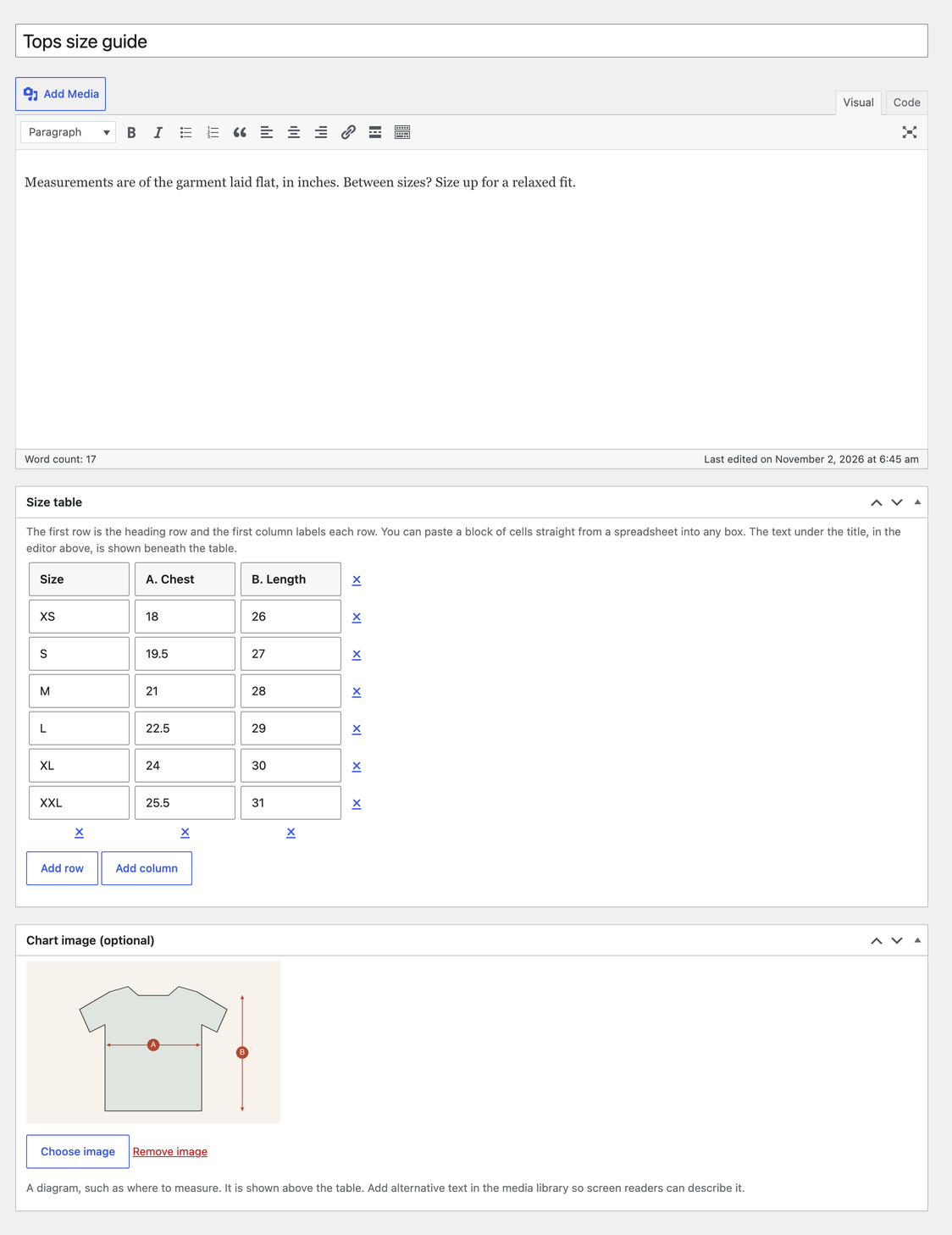
Size Charts for WooCommerce lets you build a size chart once and show it on every product it belongs to. Each chart is a table you type in, with an optional picture and notes. Assign it to products, categories or tags, or to the whole shop, and it appears on the product page as a button or text link that opens a popup, as a product tab, or both, and each chart can be limited to one of the two.
There is no limit on the number of charts, rows or products. The free version is permanent: it does not expire, needs no licence key, and never contacts PluginCity or anyone else. There is no tracking and no account.
The popup is built for keyboards. It is a real dialog: focus moves into it, Tab stays inside it, Escape closes it, and focus returns to the button you pressed. Tables have captions and row and column headings, and a wide table scrolls sideways without a mouse.
It works with classic themes and with block themes. The popup button is placed by the add to cart form in either, and the tab uses WooCommerce’s own product tabs, which the block theme’s Product Details block also draws.
What you get
- Unlimited size charts, each with a table, an optional picture and notes
- Charts assigned to products, to categories (including their sub-categories), to tags, or to every product
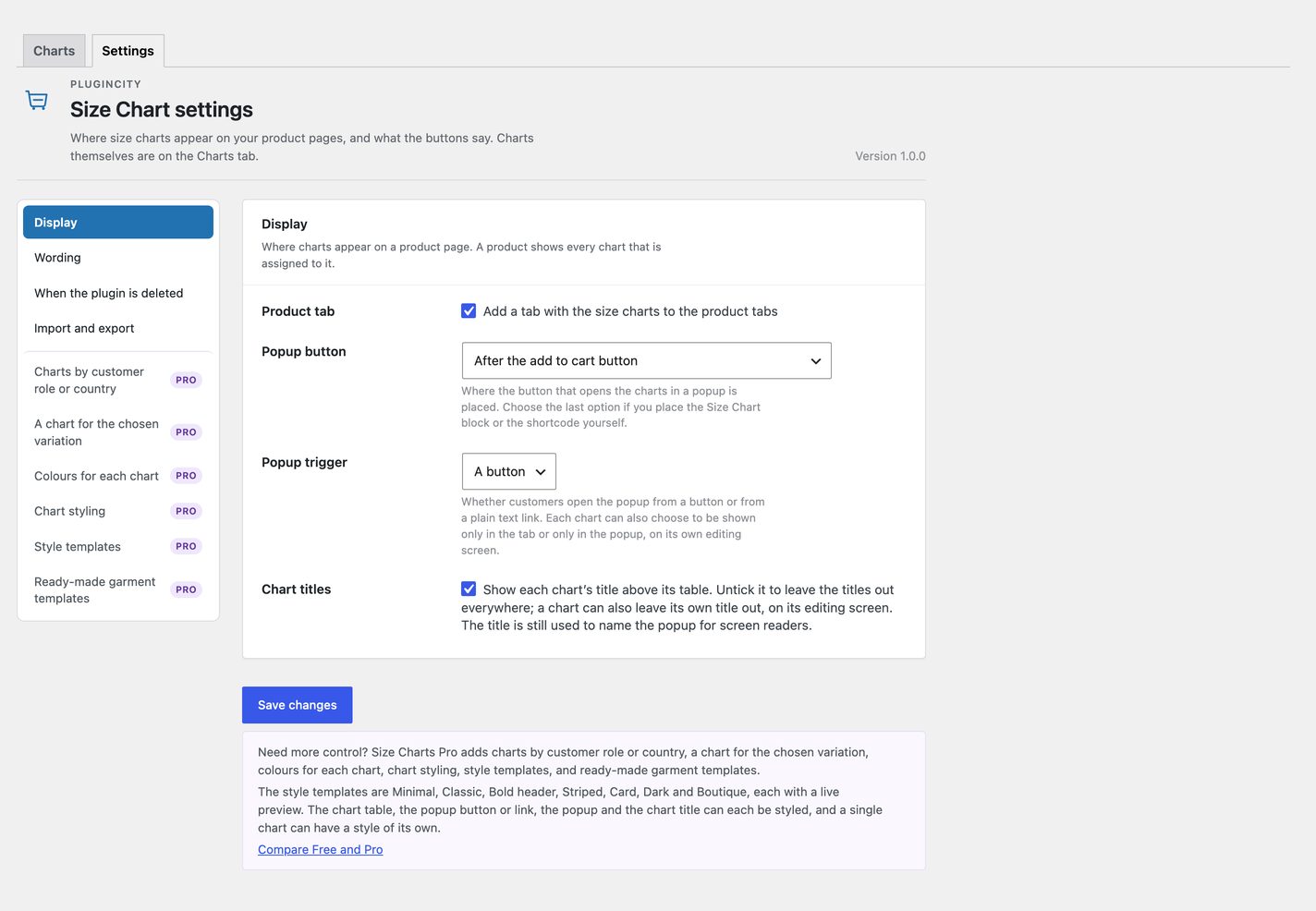
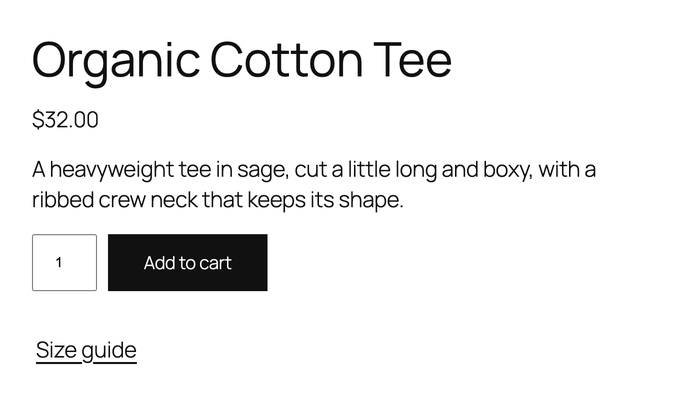
- A popup button on the product page, before or after the add to cart form
- A popup trigger that can be a button or a plain text link
- A size chart tab on the product page
- Tab, popup or both, chosen separately for each chart
- Each chart’s title can be shown or hidden, for one chart or for the whole shop
- Products and categories chosen from a searchable list
- An accessible popup with a focus trap, Escape to close and focus returned to the button
- A shortcode,
[szcwc_size_chart], and a block to put a chart anywhere - Chart import and export, so charts can be copied to another shop or kept as a backup
- One example chart to edit, made as a draft when the plugin is first activated
- Charts and settings kept when the plugin is deleted, unless you ask for them to be removed
- High-Performance Order Storage compatibility
The free version never phones home. There is no account, no licence key, and no trial clock.
Different customers sometimes need different charts. Pro adds charts by customer role or country, a chart for the chosen variation, colours for each chart, chart styling, style templates, and ready-made garment templates.
Pro’s Styling tab has seven style templates (Minimal, Classic, Bold header, Striped, Card, Dark and Boutique) with a live preview, style options for the table, the popup button or link, the popup and the title, and a style of its own for any single chart.
Pro is a separate paid version, sold by PluginCity. It is not included in this plugin or installed by it, and nothing above depends on it. Your charts and settings carry over if you buy it. One note about Pro sits above the chart list; you can dismiss it.
Configuration
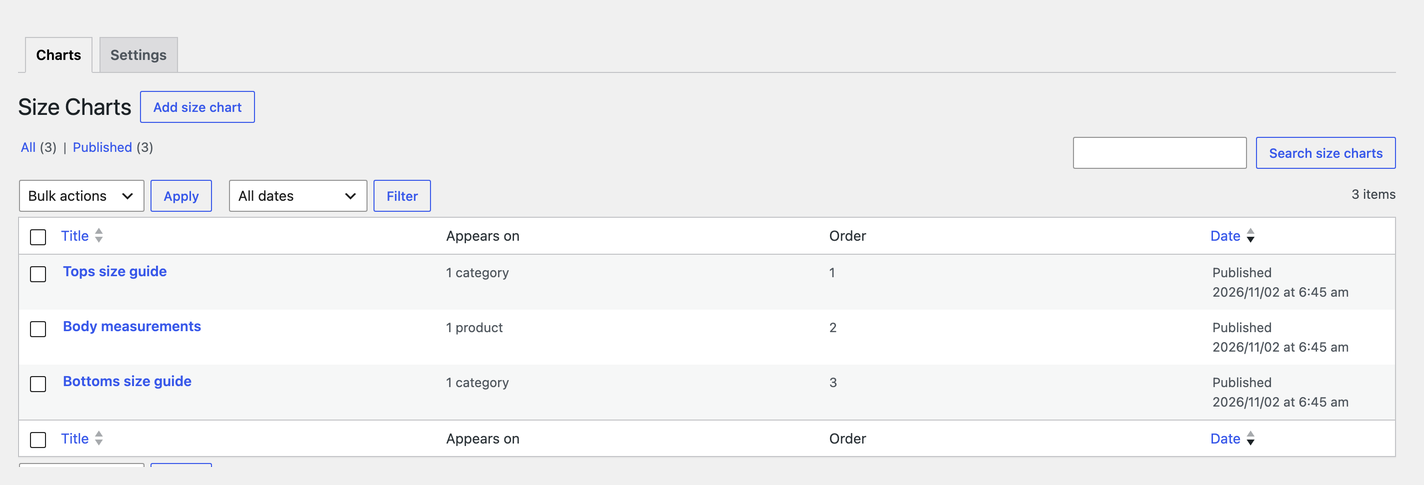
- Go to WooCommerce Size Charts and choose Add chart.
- Give the chart a name, then fill in the table. The first row is the heading row and the first column labels each row.
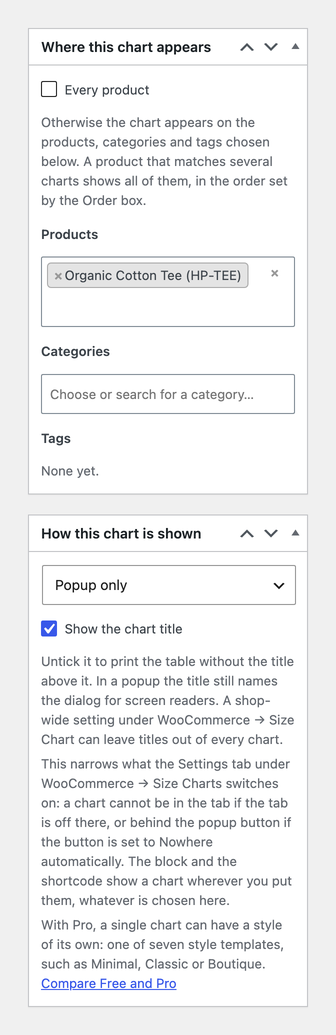
- Under Where this chart appears, choose products, categories or tags from the lists, or tick Every product.
- Under How this chart is shown, leave it on tab and popup, or choose tab only or popup only. Untick Show the chart title to print the table without a heading above it.
- Publish the chart. It now shows on the products it is assigned to.
- Open the Settings tab beside the chart list, at the top of WooCommerce Size Charts, to choose a popup button or text link, a tab, or both, and to change the wording.
A draft example chart, assigned to no product, is made the first time the plugin is activated. Edit it, delete it, or ignore it; it is only made once, and nothing shows to customers until you publish a chart.
Charts that apply to the same product are all shown, in the order set by the Order box on each chart and then by name. Inside the popup they appear as tabs.
Screenshots

Blocks
This plugin provides 1 block.
- Size Chart Shows the size charts for a product, as a button that opens a dialog or as the chart itself.
Installation
WooCommerce must be installed and active first.
- In WordPress, go to Plugins Add New.
- Search for Size Charts for WooCommerce.
- Click Install Now, then Activate.
- Go to WooCommerce Size Charts to make your first chart.
To install from a downloaded ZIP instead, use Plugins Add New Upload Plugin and leave the ZIP as it is.
FAQ
-
Is there a limit on the number of charts?
-
No. The free version has no cap on charts, rows, columns or products.
-
Does it work with block themes?
-
Yes. The tab appears through WooCommerce’s product tabs, and the popup button is added next to the add to cart form whether the theme draws it with a classic template or with the block editor. If your theme draws a product page without either, use the block or the shortcode to place a chart yourself.
-
How do I put a chart somewhere else?
-
Use the Size Chart block in the editor, or the shortcode
[szcwc_size_chart id="123"], where 123 is the chart’s ID. The shortcode prints the table on the page; adddisplay="button"to put it behind a popup button instead. Leave the id out on a product page to show whichever charts apply to that product. -
Can I show a chart only in the tab, or only in the popup?
-
Yes, for each chart separately. A chart’s choice can only narrow what the shop-wide settings allow: if the tab is switched off in the settings, a chart set to tab only does not show. The shortcode and the block always show the chart you name.
-
Yes. On the Settings tab under WooCommerce Size Charts, set Popup trigger to a text link. It is still a real button underneath, so keyboard and screen reader use is the same.
-
Can I change the colours and spacing?
-
The free plugin draws a chart in a plain style that follows your theme, and has no setting that accepts CSS, JavaScript or PHP. Pro adds ready-made controls for it: colours, borders, spacing, corner rounding and type sizes, each chosen from a colour picker, a number box or a list, with no code to write.
-
Can I hide the chart’s title?
-
Yes. Untick Show the chart title on a chart, or Chart titles on the Settings tab to hide them all, in the tab, the popup, the block and the shortcode. A popup is still named for screen readers.
-
How big does the chart picture get?
-
Never wider than its space. It stops at 420px tall in the tab and 70% of the window in the popup, so the close button stays in view. Pro’s chart styling can set the picture’s height.
-
Why is there already a chart in my list?
-
The plugin makes one draft example chart when it is first activated, so you have something to edit. It is assigned to no product and does nothing until published. Delete it whenever you like; it is not made again.
-
Is the popup accessible?
-
It is a native dialog with a dialog role, a label, a visible close button and a focus trap. Escape closes it and focus returns to the button that opened it. Several charts in one popup are tabs that respond to the arrow keys, Home and End.
-
What happens to my charts if I deactivate or delete the plugin?
-
Deactivating changes nothing. Deleting the plugin from the Plugins screen also keeps your charts and settings, so removing it by mistake costs you nothing. To remove everything, tick Remove all data on the Settings tab under WooCommerce Size Charts before you delete it.
-
Does it send any data anywhere?
-
No. There is no tracking, no usage reporting and no outside request.
-
Can I copy my charts to another shop?
-
Yes. Use the export on the Settings tab and import the file on the other shop. Products, categories and tags travel by name and are matched on the other shop; any that are not found are left out and counted for you. Pictures are not carried across, and imported charts arrive as drafts so you can look them over first.
-
Does it work with High-Performance Order Storage?
-
Yes. The plugin never reads or writes orders, so HPOS shops are fully supported.
-
What happens if I deactivate WooCommerce?
-
The plugin steps aside and shows a notice. Your charts are waiting when WooCommerce comes back.
-
Do I need an account or a licence?
-
No. It is free for as long as you like, needs no key, and never contacts PluginCity.
Reviews
There are no reviews for this plugin.
Contributors & Developers
“PluginCity Size Charts for WooCommerce” is open source software. The following people have contributed to this plugin.
Contributors
Translate “PluginCity Size Charts for WooCommerce” into your language.
Interested in development?
Browse the code, check out the SVN repository, or subscribe to the development log by RSS.
Changelog
1.0.0
- First public release: unlimited charts, a popup button or text link, a product tab, a tab or popup choice for each chart, one example chart, a shortcode and block, and import and export.
- No setting accepts custom CSS, JavaScript or PHP. The Custom CSS box an earlier build had is removed, and any CSS it stored is deleted on update and on uninstall.