

Description
JAT Site Shield hardens a WordPress site and keeps a record of what happens on it. It’s built for agencies and freelancers who look after many sites: one plugin, safe defaults, and no account or outside service to sign up for.
JAT Site Shield is made by Jeremy Anderson Tech, the “JAT” in the name. It pairs with JAT Shell Scanner: Site Shield keeps attackers out, and the scanner checks whether one already got in.
Login protection
- Locks out an IP address after repeated failed logins, with a longer lockout for repeat offenders. IPv6 addresses are grouped by /64 so attackers can’t rotate through them.
- Login and password-reset forms give the same answer whether or not an account exists, so they can’t be used to find usernames.
- Optional custom login address.
wp-login.phpand/wp-adminreturn “Not Found” to logged-out visitors. - An allowlist for your office IP. Works behind Cloudflare out of the box, and shows exactly which IP it sees for you.
Two-factor authentication
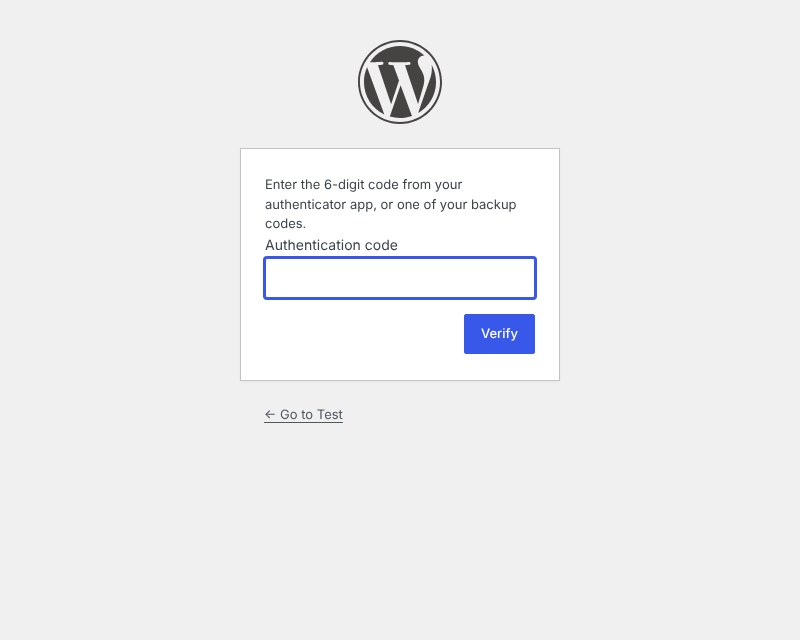
- Six-digit codes from any authenticator app (1Password, Google Authenticator, Microsoft Authenticator, Authy and others), plus 10 single-use backup codes.
- Required by role. Administrators are required by default and must set it up before they can use the dashboard.
- Every login session records that it passed two-factor, so plugins that log people in another way can’t skip it.
- Secrets are encrypted with a key kept outside the database.
Hardening
- Blocks XML-RPC (left on automatically if Jetpack needs it).
- Blocks username scanning through
?author=, the REST API users endpoint, oEmbed and the users sitemap. - Turns off the theme and plugin file editor.
- Blocks PHP in the uploads folder, with a one-click test to confirm it works on your server.
- Sends security headers and hides the WordPress version (files still refresh after updates). HSTS and turning off application passwords are optional.
Activity log and alerts
- Records logins, failed logins, lockouts, two-factor events, new users, role changes, email and password changes, plugin and theme installs and updates, core updates, and changes to key settings such as the site address and admin email.
- Filter, search and export the log to CSV.
- Emails critical events, or warnings too, to the addresses you choose. At most 10 emails an hour, so an attack can’t flood your inbox.
File integrity
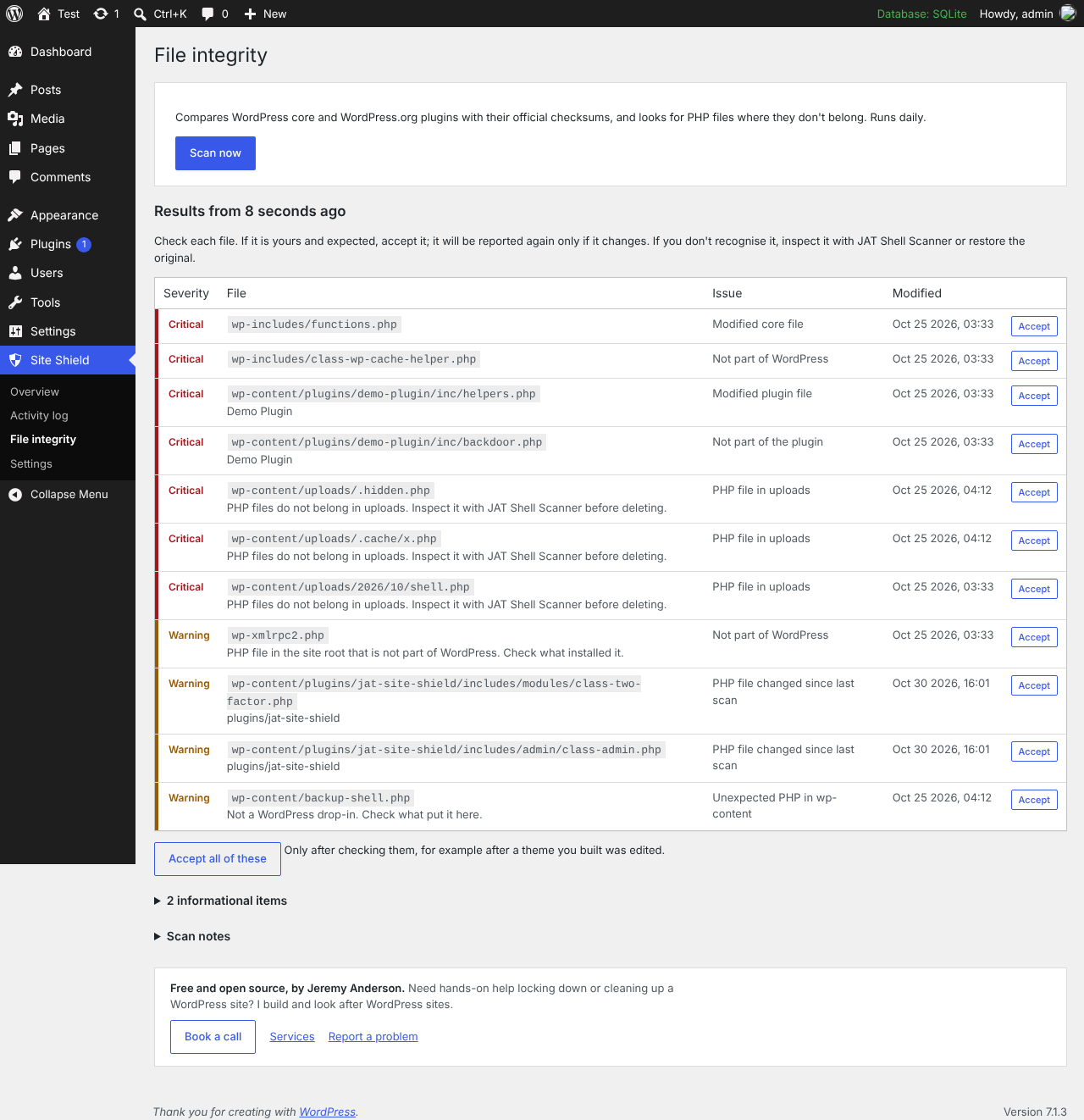
- A daily scan compares WordPress core and every plugin from WordPress.org with the official checksums.
- Themes, must-use plugins and plugins from elsewhere are compared with the previous scan instead.
- Flags modified files, unknown PHP files, PHP files in uploads (hidden folders included) and stray PHP files in
wp-content. - Runs in small steps in the background, so large sites don’t time out.
Free, open source, no account
Everything in the plugin is free. There is no paid version, no sign-up and no tracking. Development happens in the open on GitHub.
Made by Jeremy Anderson Tech
Jeremy Anderson Tech builds, secures and looks after WordPress sites. If you’d rather have someone lock down or clean up a site for you, book a call or see the services.
For developers
- WP-CLI commands:
wp jat-shield status,login-url,lockouts,unlock,reset-2fa,scanandlog. - Every event fires the
jatss_event_loggedaction, so you can send events to your own monitoring system.
External services
This plugin connects to WordPress.org for the file integrity scan. No personal data is sent.
- WordPress.org core checksums API (
https://api.wordpress.org/core/checksums/1.0/). Used once a day during the scan, and when you click Scan now, to download the official checksums for your WordPress version. It sends your WordPress version and site language. This is the same service WordPress uses for its ownwp core verify-checksumscheck. - WordPress.org plugin checksums (
https://downloads.wordpress.org/plugin-checksums/). Used during the same scan, once per installed plugin, to download that plugin’s official checksums. It sends the plugin’s slug and version number. You can turn this off with Include WordPress.org plugins in the settings.
Both are provided by WordPress.org: Terms of service, Privacy policy.
The “Test it now” button for PHP in uploads sends one request from your site to its own uploads folder. It does not contact any outside service.
Privacy
The activity log stores IP addresses, browser user agents and usernames for security events in your site’s database. It is kept for 90 days by default; you can change this under Settings Monitoring and alerts. Nothing is sent outside your site except the alert emails you set up. Suggested text for your privacy policy is added under Settings Privacy.
Credits
The two-factor QR code is drawn with qrcode-generator by Kazuhiko Arase, MIT license (bundled in assets/vendor/).
Built by Jeremy Anderson Tech.
Screenshots




Installation
- In WordPress, go to Plugins Add New, search for “JAT Site Shield”, then install and activate it.
- You’ll be asked to set up two-factor for your administrator account. Scan the QR code with your authenticator app, enter the code, and save your backup codes in a password manager.
- Open Site Shield Overview and work through anything on the checklist that isn’t green.
Recommended next steps:
- Settings Login protection: turn on Move the login page, choose an address that isn’t easy to guess, and bookmark it.
- Settings Hardening: click Test it now under “Block PHP in the uploads folder”.
- Settings Monitoring and alerts: add the address that should receive alerts.
- Optional: put the site behind Cloudflare’s free plan with the free Cloudflare setup guide.
FAQ
-
I used Anderson Site Shield. How do I switch?
-
Install and activate JAT Site Shield while Anderson Site Shield is still installed. It copies your settings, custom login address, two-factor setup, backup codes and activity log, keeps you logged in, and turns Anderson Site Shield off. Nobody has to set up two-factor again. Check the activity log for the “Moved settings” entry, then delete Anderson Site Shield from the Plugins screen; that removes its old data and its key file.
-
I’m locked out. How do I get back in?
-
Add
define( 'JATSS_SAFE_MODE', true );towp-config.php. This pauses the custom login address, two-factor and lockouts while logging and hardening stay on. Remove it once you’re back in. With WP-CLI you can also runwp jat-shield login-url,wp jat-shield unlock <ip>orwp jat-shield reset-2fa <user>. As a last resort, rename the plugin’s folder over SFTP to deactivate it. -
I lost my phone and my backup codes.
-
Another administrator can reset your two-factor from your user profile, or run
wp jat-shield reset-2fa <user>. You’ll set it up again at your next login. -
Where is the two-factor encryption key kept?
-
Two-factor secrets are encrypted with a random key the plugin creates when you activate it and keeps in the database, so it travels with normal backups and migrations. It doesn’t depend on the WordPress salts, so changing the salts after an incident doesn’t break two-factor.
For extra protection, keep the key out of the database: add
define( 'JATSS_SECRET_KEY', '...64 random characters...' );towp-config.php. Two-factor keeps working for people who already set it up; their secrets move to the new key the next time they log in. Keep a copy of that line with your backups. If the key is lost, two-factor has to be reset for each user.Sites that used version 1.0 or 1.1 had the key in
wp-content/jatss-key.php. The plugin carries that key over automatically; once you’ve logged in with two-factor on 1.1.1 or later, you can delete the file. -
The PHP-in-uploads test says the server doesn’t refuse PHP requests.
-
The test asks your site for a made-up
.phpaddress in the uploads folder; nothing is written. A server that blocks PHP there refuses the request. If it doesn’t, your server is probably nginx, which ignores.htaccessfiles. Ask your host to block PHP files inwp-content/uploads. -
Does it work with Cloudflare?
-
Yes. It detects Cloudflare by itself and reads real visitor IPs from Cloudflare’s header, but only when the request really comes from Cloudflare’s network, so the header can’t be faked. Settings Network shows which IP it sees for you. For a step-by-step free-plan setup (SSL, firewall rules, rate limiting, locking your server to Cloudflare), see the free Cloudflare setup guide.
-
My site is behind another proxy or load balancer.
-
If Settings Network shows a private address such as 127.0.0.1 for you, add that address under Trusted proxies. For other proxies, choose the header they use under Visitor IP comes from and list their addresses under Trusted proxies.
-
A single sign-on or “log in with Google” plugin stops working for administrators.
-
For users with two-factor turned on, Site Shield ends any login session that didn’t go through its two-factor step, so other plugins can’t skip it. If you trust a sign-on plugin to do its own second factor, allow it with the
jatss_session_requires_2fafilter. Logins through the REST API (for example JWT plugins) aren’t supported for those users; use application passwords instead. -
The site runs on several servers.
-
The two-factor key is kept in the database, so every server already shares it. If you define
JATSS_SECRET_KEYinwp-config.php, use the same value on every server. Lockouts are stored as WordPress transients, so use a shared object cache (Redis or Memcached) if you want lockouts to apply across servers. -
The file check never seems to run.
-
It runs on WP-Cron, which needs visitors to trigger it. On quiet sites, or when
DISABLE_WP_CRONis set, add a server cron job that loadswp-cron.phpevery few minutes. The overview warns you if the last scan is more than three days old. -
Alerts don’t arrive.
-
Click Send a test alert under Settings Monitoring and alerts. If it doesn’t arrive, the site can’t send email reliably; set up an SMTP plugin.
-
Visitors on my membership site get “Not Found” when they log in.
-
With the custom login address on, login links your theme shows to logged-out visitors (such as “Log in to reply”) still point to
wp-login.php. On sites where visitors need to log in, either link to the new address or leave this feature off. -
Does it work with multisite?
-
Yes, but the custom login address is turned off on multisite.
-
Does it slow my site down?
-
No. Nothing heavy runs on page loads. The file integrity scan runs once a day in the background, in small steps.
-
Does it send any data to you?
-
No. See “External services” below for the only outside requests it makes.
-
Is it available in other languages?
-
Yes. Every message is translatable, and a Spanish (es_ES) translation is included. Choose the language under Settings, then General, then Site Language.
-
Where do I report a bug?
-
Use the support forum. Security problems in the plugin itself: please report them privately through GitHub.
Reviews
There are no reviews for this plugin.
Contributors & Developers
“JAT Site Shield” is open source software. The following people have contributed to this plugin.
Contributors
Translate “JAT Site Shield” into your language.
Interested in development?
Browse the code, check out the SVN repository, or subscribe to the development log by RSS.
Changelog
1.1.1
- Added: Spanish (es_ES) translation.
- Changed: the two-factor encryption key is kept in the database instead of a file in wp-content. Sites that had the old key file keep their key automatically. Define JATSS_SECRET_KEY in wp-config.php to keep the key out of the database.
- Changed: the “Test it now” check for PHP in uploads no longer writes a test file. It asks for a made-up .php address in uploads and checks that the server refuses it.
- Changed: resetting another user’s two-factor from their profile is checked with its own nonce, and every admin action checks its nonce directly.
1.1.0
- New: sites that ran Anderson Site Shield, this plugin’s name before 1.0, are moved over automatically on activation. Settings (including the custom login address), two-factor enrolment and backup codes, current login sessions and the activity log come across, and Anderson Site Shield is turned off. Two-factor secrets are re-encrypted with this plugin’s key, so nobody has to set up two-factor again.
- The file integrity scan no longer flags Anderson Site Shield’s key file, wp-content/anshield-key.php.
1.0.2
- Release prepared for the WordPress.org plugin directory. No changes to how the plugin works since 1.0.1.
- Updated documentation, support links and the bug report form.
1.0.1
- Fixed: the QR code on the two-factor setup screen was missing from builds made from the GitHub repository, because the bundled QR library wasn’t included. The manual setup key always worked.
- Fixed: while an administrator was still setting up two-factor, the admin screens logged a REST error because reading their own profile was blocked. That one read is now allowed; everything else in the API stays blocked until setup is finished.
1.0.0
- First release: login lockouts, generic login errors, custom login address, two-factor authentication with backup codes, hardening, activity log, email alerts, file integrity scanning and WP-CLI commands.