
Description
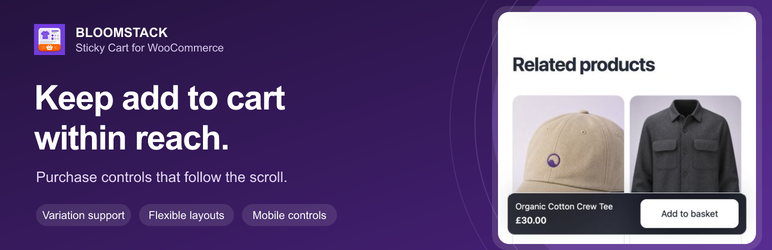
Keep the purchase controls within reach as customers explore a product. BloomStack Sticky Cart for WooCommerce shows a bottom purchase bar after the original add-to-cart control has scrolled above the viewport, with the product image, title, price and purchase button.
Explore Sticky Add to Cart on Bloom Stack for screenshots and feature details.
Compatibility: supports classic WooCommerce simple and variable product forms. The block-based Add to Cart + Options product form is not supported. HPOS and the block-based cart and checkout are compatible; those declarations do not extend support to block-based product forms.
Purchase controls that follow the product
- Appears as customers scroll: stays hidden until the original purchase control has scrolled above the viewport, and hides again when they return to it.
- Uses the original product form: clicks WooCommerce’s existing add-to-cart button, using its current quantity and validation. There is no separate checkout or duplicate purchase request.
- Follows selected variations: updates the bar’s price and thumbnail when WooCommerce supplies them. If options are still needed, Select options returns customers to the original variation controls.
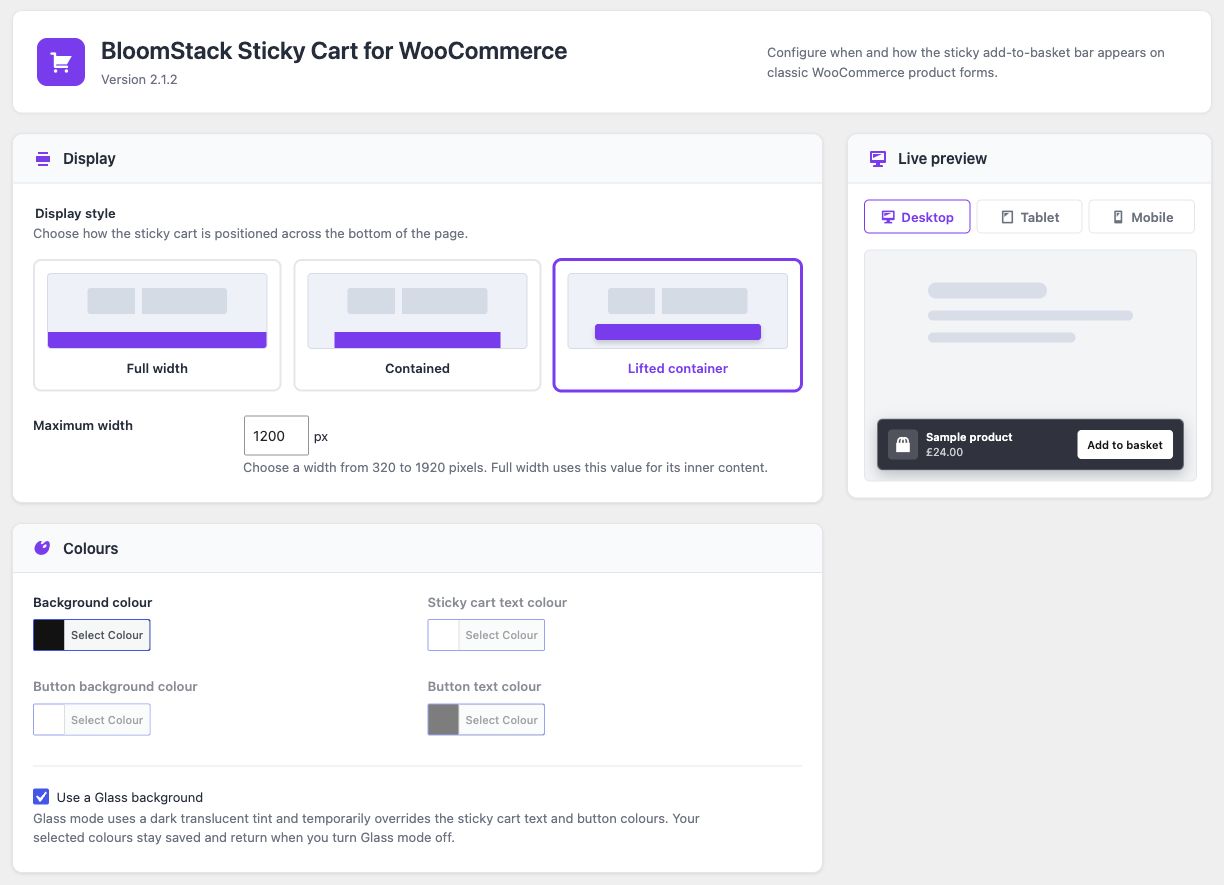
- Fits your store: choose Full width, Contained or Lifted container layouts, set colours, or enable a translucent Glass background.
- Responsive controls and preview: choose image, title and price visibility for desktop, tablet and mobile, with an optional full-width mobile button. Preview appearance changes before saving.
- Control where it appears: Simple and Variable are enabled by default. Choose eligible product types and set a fixed header offset for the return-to-options action.
Getting started
- Activate WooCommerce and this plugin.
- Open WooCommerce Sticky Cart and choose your layout, colours and product-detail visibility.
- Select Save Changes, then open a simple or variable product and scroll past its original purchase controls.
Read the Sticky Cart documentation for setup, appearance settings and troubleshooting.
Theme and developer integration
Classic product templates must retain WooCommerce’s woocommerce_after_add_to_cart_button hook and normal form/button conventions. Selecting another product type in settings does not make its form supported. Test custom product add-ons, swatches and theme overrides with their complete purchase journey.
Themes can override the public --bsc-* CSS custom properties and use --bsc-height to leave space for the bar. The bloom_sticky_cart_is_eligible filter can exclude particular products or categories. A fixed header offset affects scrolling back to options; it does not reposition chat widgets or other fixed elements.
Data and services
The plugin stores its settings in one WordPress option and removes that option on uninstall. It adds no custom tables, analytics collection or external preview service. Purchase actions continue to use WooCommerce and any services already connected to your store.
Screenshots


Installation
- Install BloomStack Sticky Cart for WooCommerce from Plugins Add New Plugin, or upload the plugin ZIP using Upload Plugin.
- Activate the plugin with WooCommerce active.
- Open WooCommerce Sticky Cart. Simple and Variable products are enabled by default.
- Choose your appearance settings and select Save Changes.
- Test a classic product page by scrolling past its original add-to-cart control. For variable products, test both an unresolved selection and a selected variation.
FAQ
-
When does the bar appear?
-
After the original add-to-cart control has scrolled above the viewport. It stays hidden while that control is visible or further down the page. The product must also be eligible, purchasable and in stock according to WooCommerce.
-
Does it support block-based product forms?
-
No. This release supports classic simple and variable product forms. The Add to Cart + Options product form is not supported. Compatibility with HPOS and the block-based cart and checkout concerns those separate WooCommerce features.
-
How do customers choose variations or change quantity?
-
They use the original product form. When a variation is unresolved, the sticky button says Select options and scrolls back to those controls. Once WooCommerce resolves the selection, the bar follows the original purchase button and uses variation price/image data when supplied. There is no separate quantity selector in the bar.
-
Does it add AJAX purchasing or a cart drawer?
-
No. It triggers the original add-to-cart button. WooCommerce, the theme and your existing extensions determine validation, AJAX behaviour, redirects and cart drawers.
-
Can I customise it for mobile?
-
Yes. Set image, title and price visibility separately for desktop, tablet and mobile. The product image is hidden on mobile by default. You can also give the mobile purchase button its own full-width row. Check the live preview and a real product page before finishing setup.
-
What happens when I deactivate or delete the plugin?
-
Deactivation stops the bar and retains settings. Deleting the plugin removes its saved settings for the site; WooCommerce products, orders and media are unchanged.
Reviews
There are no reviews for this plugin.
Contributors & Developers
“BloomStack Sticky Cart for WooCommerce” is open source software. The following people have contributed to this plugin.
Contributors
Translate “BloomStack Sticky Cart for WooCommerce” into your language.
Interested in development?
Browse the code, check out the SVN repository, or subscribe to the development log by RSS.
Changelog
2.1.2
- Added: declares compatibility with WooCommerce High-Performance Order Storage and the block-based cart and checkout
- Changed: the settings preview shows its sample price in the store’s own currency
- Changed: the sticky bar price is passed through wp_kses_post(); one shared colour helper replaces three copies
2.1.1
- Fixed: WordPress and third-party admin notices appear below the complete branded settings header
2.1.0
- Added: appearance settings for full, contained and lifted layouts, colours, Glass mode, responsive product visibility, an optional mobile full-width button, and a local live preview
- Fixed: settings notices stay below the complete branded header; the sticky preview clears the WordPress admin bar