
Description
Use any gateway you’ve connected in PayLexer to sell Tutor LMS courses: Stripe, PayPal, Paystack, Flutterwave, Mollie, Dodo Payments and more.
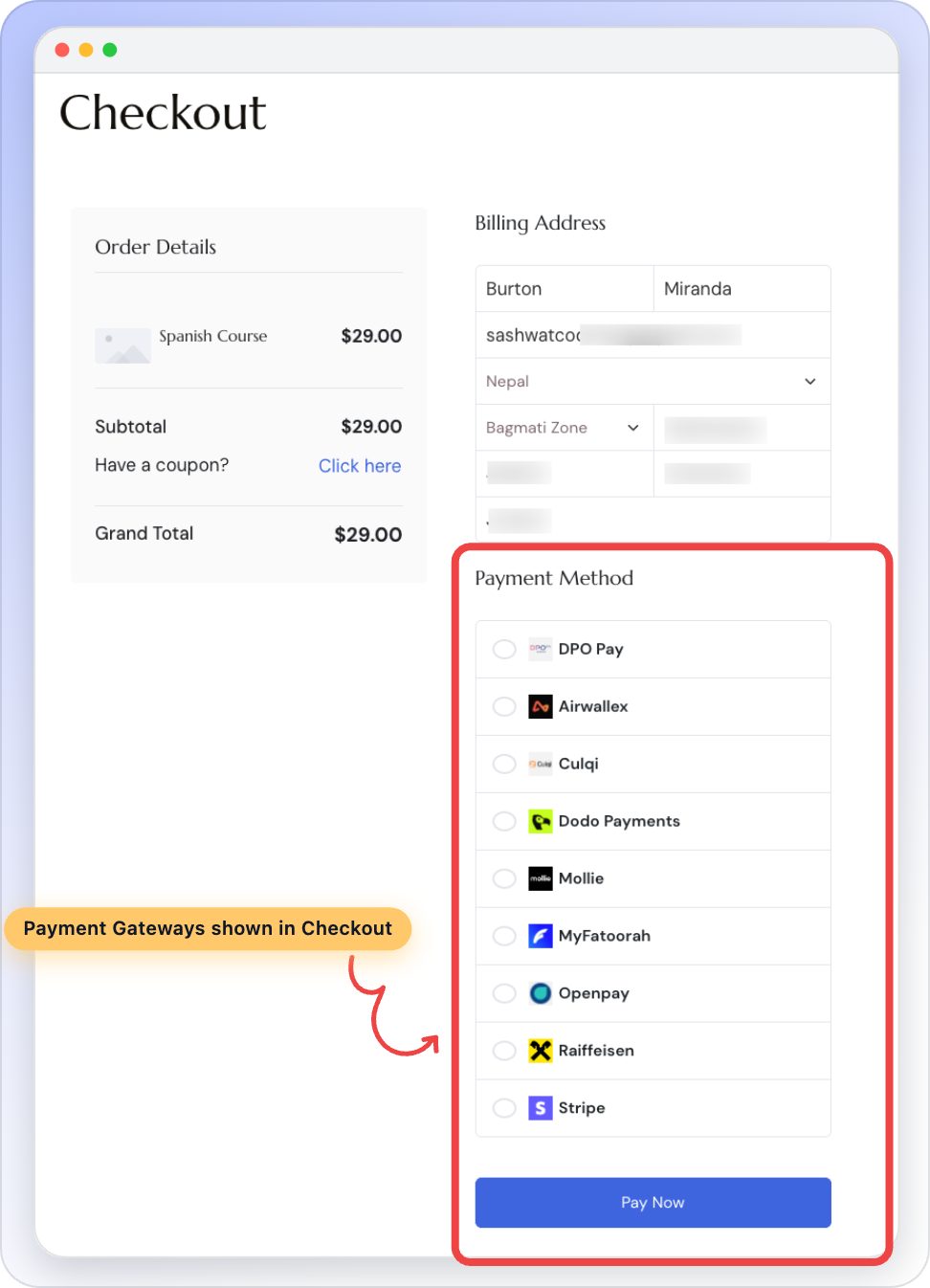
A “payment gateway” is the service that takes the student’s money, like Stripe or PayPal. You connect your gateways once in PayLexer, and this add-on shows them as payment options on your Tutor LMS checkout page.
What the student sees
- The student picks a course and goes to checkout.
- They choose how to pay, for example “Stripe” or “PayPal”.
- They go to that gateway’s own secure payment page to pay.
- They come back to your site and get access to the course as soon as the payment goes through.
Features
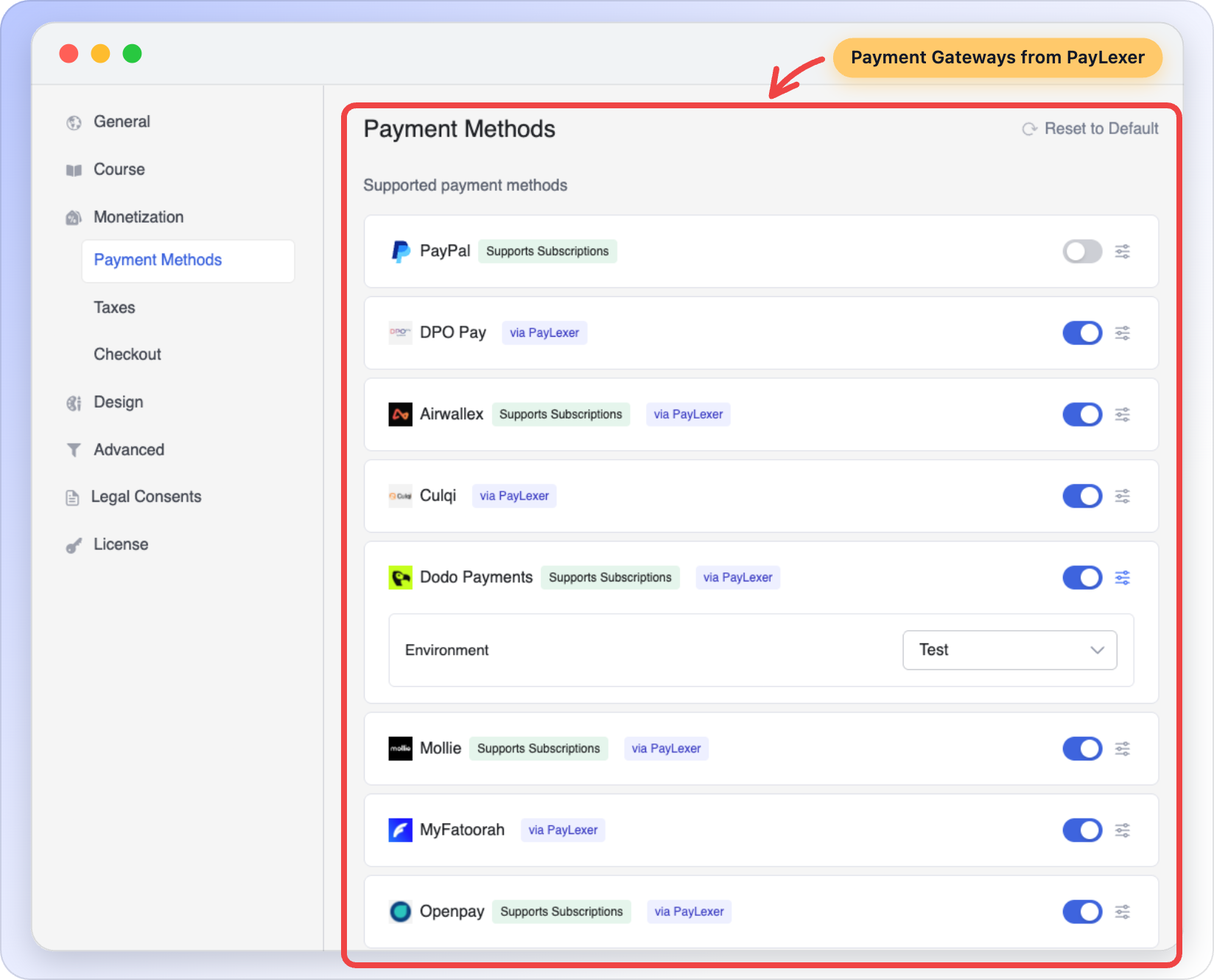
- Each gateway is a separate payment option. Every gateway you turn on in PayLexer appears in Tutor LMS Settings Payment Methods with its own card, labelled “via PayLexer”, and its own on/off switch.
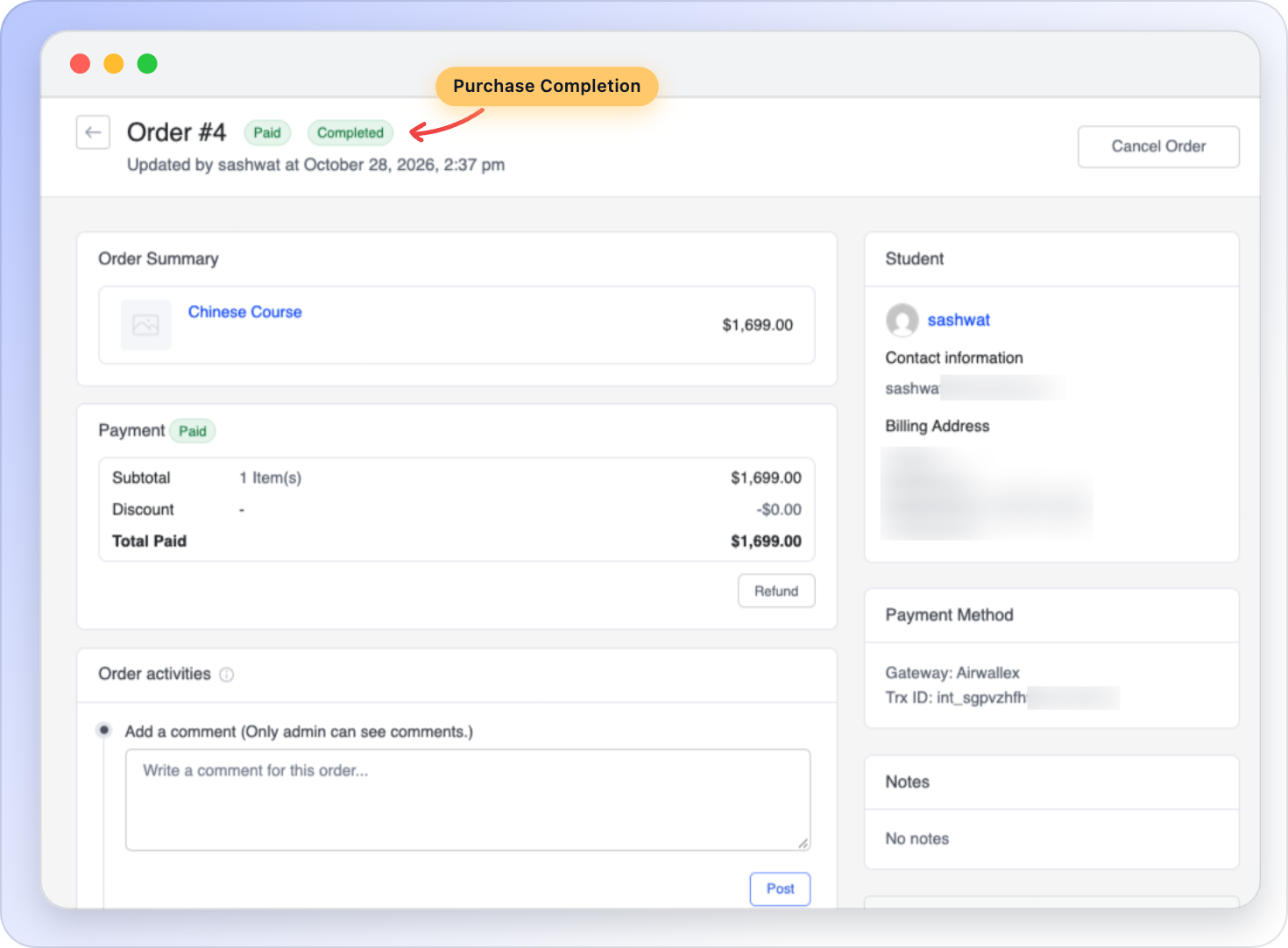
- Students get access right away. As soon as the payment goes through, the add-on marks the order as paid and enrolls the student. Most students see their course unlocked within seconds of returning to your site.
- Refund from Tutor LMS. Click Refund on a Tutor LMS order and the add-on sends the refund to the gateway for you, in full or in part. If you refund in the gateway’s own dashboard or in your PayLexer dashboard instead, in full or in part, the Tutor LMS order updates to match.
- Payment details on every order. Each Tutor LMS order shows a “PayLexer Details” box with the customer email, the gateway, the transaction ID and the PayLexer order ID, each with a link.
- Test mode for every gateway. Make practice payments with no real money before you go live.
- Only gateways that accept your currency are shown. If a gateway can’t take payments in your store currency, students won’t see it at checkout.
- Subscriptions (needs Tutor LMS Pro). Sell recurring course plans. The gateway charges the student on each renewal date, and the add-on keeps their course access active.
What you need
This plugin is an add-on. It works together with two other plugins:
- Tutor LMS version 3.0 or later, with its built-in eCommerce turned on. (Go to Tutor LMS Settings Monetization and choose “Native” as the eCommerce engine.)
- PayLexer version 2.0.7 or later, connected to your PayLexer account, with at least one gateway turned on.
For subscription plans you also need Tutor LMS Pro.
You can activate this add-on before PayLexer is ready. Until PayLexer is installed, active and up to date, the add-on shows a message in your WordPress admin with a link to fix it, and it adds nothing to your checkout.
This add-on never sees or stores your gateway passwords or API keys. Those stay in your PayLexer account.
Documentation | Supported Payment Gateways | Support
External services
This plugin does not connect to any outside service on its own. It passes payments, refunds, subscriptions and payment status checks to the PayLexer plugin. PayLexer sends them to the PayLexer service (https://paylexer.com/), and from there to the payment gateway the student chose.
The add-on sends this data through PayLexer:
- When a student checks out: the order total, currency, course names, the Tutor LMS order number, and the billing details the student entered at Tutor LMS checkout (name, email, phone number and address).
- When a student buys a subscription plan: the same details as above, plus the plan price, how often it renews, any free trial, any enrollment fee and the number of billing cycles.
- When a student returns from the payment page: the PayLexer order reference, to check whether the payment went through.
- When you refund an order: the PayLexer order reference, the refund amount and the reason you entered.
- When you or a student cancels a subscription: the PayLexer subscription reference.
Each gateway decides which of these details it uses. Some gateways only use the email address and ask the student to enter their name and address again on their payment page.
PayLexer also sends messages back to your site (called webhooks) when a payment, renewal or refund happens, so the add-on can update the Tutor LMS order.
Your use of the PayLexer service falls under the PayLexer Terms of Service and Privacy Policy. Each payment gateway’s own terms and privacy policy apply as well.
Screenshots


Installation
- Install and activate Tutor LMS 3.0 or later. Go to Tutor LMS Settings Monetization and choose “Native” as the eCommerce engine.
- Install and activate PayLexer 2.0.7 or later. Connect your PayLexer account and turn on at least one gateway.
- Go to Plugins Add New, search for “PayLexer for Tutor LMS”, then install and activate it. You can also upload the ZIP file there.
- Go to Tutor LMS Settings Payment Methods. Each PayLexer gateway has its own card labelled “via PayLexer”, in the same list as Tutor LMS’s own payment methods. Switch on the ones you want, then set Environment to Test (for practice payments) or Live (for real payments).
- To confirm everything is connected, go to PayLexer General. Under Supported Integrations, Tutor LMS should show as “Activated”.
Using test mode: Test mode only works if you have added the gateway’s test (sandbox) keys in PayLexer. Make a test purchase with a gateway’s test card to check that enrollment works, then set that gateway’s Environment to Live.
FAQ
-
What do I need to use this?
-
Tutor LMS 3.0 or later with “Native” eCommerce, and PayLexer 2.0.7 or later connected to your account. Subscription plans also need Tutor LMS Pro. See “What you need” in the Description for details.
-
Does this work if Tutor LMS uses WooCommerce or Easy Digital Downloads for payments?
-
No. This add-on works with Tutor LMS’s own checkout only. Go to Tutor LMS Settings Monetization and choose “Native” as the eCommerce engine.
-
Which gateways can I use?
-
Any gateway that you connect and turn on in PayLexer, as long as it accepts your Tutor LMS store currency. See the list of supported gateways.
-
A gateway doesn’t appear at checkout. Why?
-
Check these four things:
- The gateway is turned on in PayLexer.
- The gateway accepts your Tutor LMS store currency.
- The gateway’s “via PayLexer” card is switched on in Tutor LMS Settings Payment Methods.
- For subscription plans, the gateway supports subscriptions.
Every gateway connected in PayLexer has a card under Payment Methods, but students only see the ones that accept your store currency. If your currency isn’t in Tutor LMS’s Currency list, PayLexer adds the currencies your gateways accept to it.
-
My currency was added by PayLexer. Is anything different?
-
Payments and refunds work the same way. Tutor LMS itself doesn’t know these currencies, so a few Tutor LMS screens built on the server show “$” instead of the currency’s symbol, and a refund can log a PHP warning from Tutor LMS. Neither affects the amount charged or refunded. PayLexer can’t change this, because Tutor LMS’s own currency list can’t be extended by other plugins.
-
When does a student get access to the course?
-
As soon as the payment is confirmed. That happens either when PayLexer notifies your site, or when the student returns from the payment page and the add-on checks the payment, whichever comes first.
-
Can I refund from Tutor LMS?
-
Yes. Open the order in Tutor LMS and click Refund. You can refund the full amount or part of it. The add-on sends the refund to the gateway for you. If the gateway refuses the refund, Tutor LMS shows you the reason and leaves the order unchanged.
-
The refund window says the refund is sent automatically. Is that right?
-
Yes, for PayLexer gateways. On orders paid through a gateway labelled “via PayLexer”, the add-on replaces Tutor LMS’s usual “refund manually” note, because the refund goes to the gateway for you. Don’t refund the payment again in the gateway’s dashboard, or the student will be refunded twice.
-
I refunded in the gateway’s dashboard. Does Tutor LMS know?
-
Yes. The gateway tells PayLexer, PayLexer tells your site, and the add-on records the refund on the Tutor LMS order: “Partially refunded” for part of the amount, “Refunded” (and the order cancelled) for all of it.
-
Does it support subscriptions?
-
Yes, if you use Tutor LMS Pro subscription plans.
- Gateways that can handle subscriptions show a “Supports Subscriptions” badge in Tutor LMS and appear at checkout for subscription plans.
- The gateway charges the student on each renewal date. The add-on records each renewal as a new order in Tutor LMS, so the student keeps access.
- Free trials, enrollment fees and limits on the number of payments are passed to the gateway. If a gateway can’t offer a trial or charge a fee, the student sees a message at checkout asking them to choose another payment method.
- When you or the student cancels a subscription in Tutor LMS, the add-on cancels it at the gateway too.
- Hourly plans are not supported.
-
Can I take test payments before going live?
-
Yes. Add the gateway’s test (sandbox) keys in PayLexer, then set Environment to Test on that gateway’s card in Tutor LMS Settings Payment Methods. No real money is charged in test mode.
-
Why does the payment page ask the student for their name and address again?
-
Some gateways only take the email address from your checkout and ask for the rest on their own payment page. This depends on the gateway, not on your settings.
-
Does this plugin store card details or gateway keys?
-
No. Students enter their card or account details on the gateway’s own payment page, not on your site. Your gateway keys stay in your PayLexer account. The add-on only saves the PayLexer order reference on each Tutor LMS order.
-
What happens to subscriptions if I turn off this add-on?
-
Subscriptions keep billing at the gateway even when the add-on is off. While it’s off, Tutor LMS can’t record those renewals. If you plan to remove the add-on, cancel active subscriptions in Tutor LMS first, or move those students to another payment method.
Reviews
There are no reviews for this plugin.
Contributors & Developers
“PayLexer for Tutor LMS” is open source software. The following people have contributed to this plugin.
Contributors
Translate “PayLexer for Tutor LMS” into your language.
Interested in development?
Browse the code, check out the SVN repository, or subscribe to the development log by RSS.
Changelog
1.0.0
- First release.
- Adds every gateway connected in PayLexer as its own payment method in Tutor LMS checkout.
- Enrolls students automatically once the payment is confirmed.
- Sends full and partial refunds from Tutor LMS to the gateway, and records refunds made in the gateway or PayLexer dashboard on the Tutor LMS order.
- Supports Tutor LMS Pro subscription plans, with renewals billed by the gateway.