

Description
🚀 Your Whole Migration Toolkit, In One Screen
Quick Migrate puts the jobs you run during a WordPress site operation on one admin screen:
- Export a portable archive of your site (database + the files you choose).
- Back up the database before you make a risky change.
- Find & Replace URLs and server paths across the database, including serialized WordPress data, without corrupting it.
Everything runs on your own server. Quick Migrateneeds no account, has no build step and does not call any external service.
🛡️ Built for Data Safety Under Interruption
Migrations can run for minutes or hours on shared hosting with short time limits, unstable networks and browser tabs that get closed. Quick Migrateis designed for that:
- Every long operation can be paused, resumed and recovered.
- Risky changes are prepared in a working copy first and switched in all at once at the end.
- If something fails or you cancel, the working copies are removed and your live site is left as it was.
✨ Why Choose Quick Migrate?
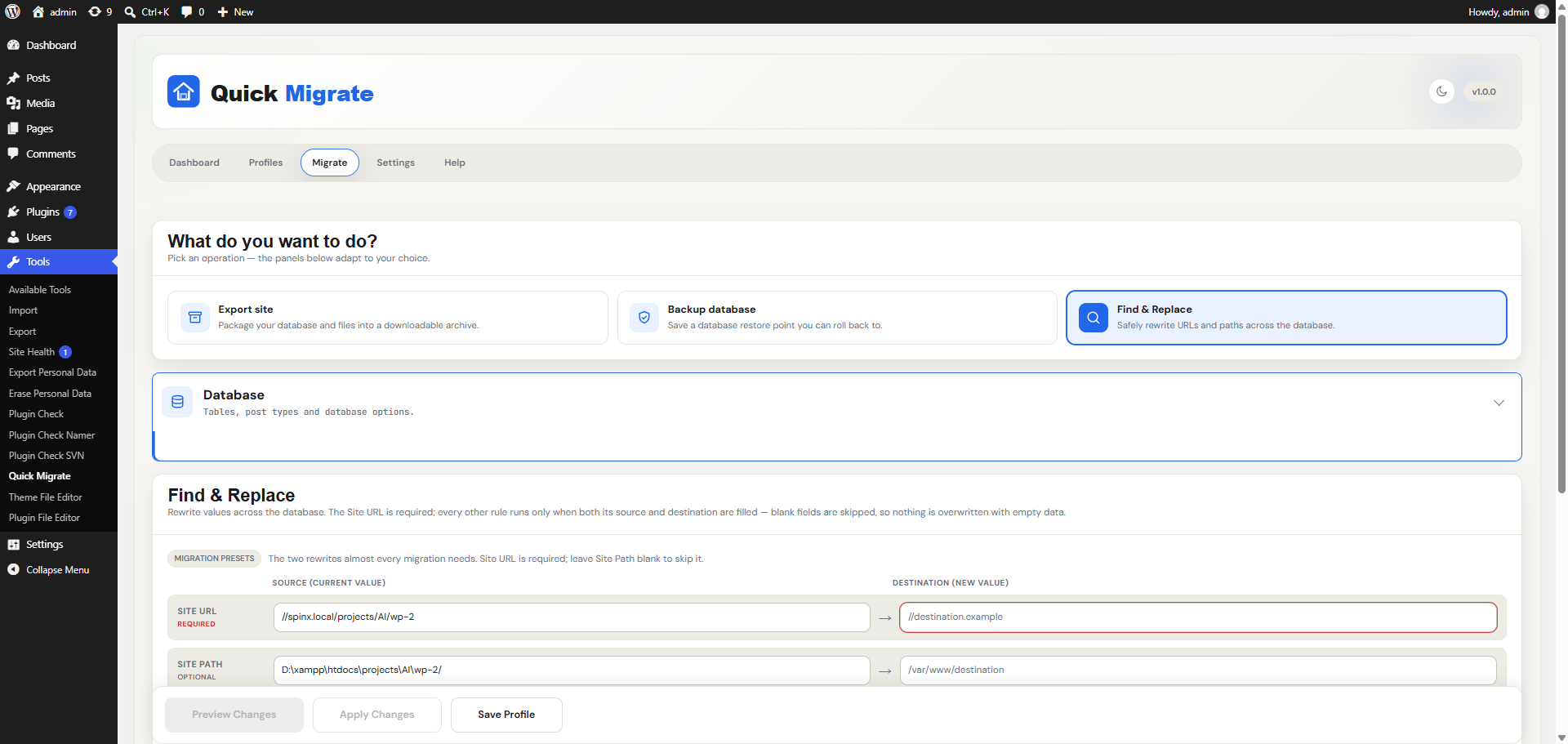
- One Screen, Three Core Jobs: Export, Backup and Find & Replace live on one guided Migrate tab. Pick an operation tile and only the panels for that job appear.
- Serialization-Safe Rewrites: Plugin settings, WooCommerce data and page-builder layouts keep working after a URL change, because Quick Migraterecalculates stored string lengths.
- Staged, All-at-Once Switch: Find & Replace changes copies of your tables, checks each copy and then swaps them all in one step.
- Pause, Resume, Cancel, Retry: You control every job, and a job keeps running if you reload the page.
- Reusable Profiles: Save a configuration once and run it again with one click, from the browser or from WP-CLI.
- 100% Local & Private: No phone-home, no analytics and no third-party services.
📦 Features at a Glance
🗂️ Site Export
Creates one downloadable ZIP that holds the database (database-<timestamp>.sql), the file components you selected and a manifest.json export summary.
- Database: all tables or only the tables you select, with an optional post-type filter.
- Advanced row filters: exclude spam comments, WordPress transients and post revisions.
- Media Uploads: all files, only files changed since the last operation, or files modified after a date you pick.
- Themes / Plugins: all, active only, selected, or all except the ones you select.
- Must-Use Plugins: the whole
mu-pluginsfolder. - WordPress Core Files: the core files, without
wp-content/and withoutwp-config.php(it holds your database password and security keys). - Exclusion patterns: 35 sensible defaults plus your own path patterns (
wp-content/backup*), filename patterns (*.log) and folder or file names (node_modules). - Automatic download: the ZIP downloads when the job finishes and the server copy is then removed. The completion line shows the real final ZIP size.
💾 Database Backup
- Back up all tables or a selected subset.
- Save it as a plain
.sqlfile or a compressed.sql.gzfile. The compression level runs from Fast to Smallest, and the default is Balanced (level 6). - The backup downloads automatically and is then deleted from the server, so nothing is left behind.
🔁 Find & Replace
- Site URL rule (required), Site Path rule (optional) and any number of custom rules.
- Preview first: see the affected tables and columns with before/after samples before anything is written.
- Pre-flight backup: choose no backup, all prefixed tables, only the tables being migrated (the default), or tables you pick by hand.
- Incomplete or empty rules, tables without a primary key and tables with no text columns are skipped automatically.
- Temporary tables are cleaned up automatically if the run is cancelled or fails.
📁 Profiles & Recent Configurations
- Save Export, Backup and Find & Replace settings as a named profile.
- Load a profile with one click, update an existing profile, rename it, or create a new one. Duplicate names are blocked.
- Your last 10 unsaved configurations are kept automatically. You can change how many are kept. Use Save As to turn one into a permanent profile.
📊 Dashboard
- Active jobs, the last operation with a colored status label, and the recent activity table.
- A storage meter for backups and exports that turns orange at 75% and red at 90%.
- Quick-action tiles to start an Export, Backup or Find & Replace, or to manage profiles, plus a first-run tour.
📝 Audit Log
A permanent record of every operation: who ran it, what was run, when it started and finished, how long it took, the result and any error message.
⌨️ WP-CLI Support
Run export, backup, find-replace and profile from the command line with wp spinx-qm. This helps when a browser can’t stay open, or on hosts where the site can’t send requests to itself.
⏯️ Stay in Control of Every Long Operation
Every export, backup and Find & Replace runs in a live progress popup. The popup shows the percentage, the current item, the bytes processed, the elapsed time and a checklist for each component.
- Pause: stops after the current small batch, and the elapsed clock freezes. You can pause safely at any point.
- Resume: continues from the last checkpoint. Paused time is not counted.
- Cancel: stops immediately, cleans up any partial output and leaves your live site as it was.
- Retry: appears after a failure so you can run the operation again.
- Reconnect: close the tab if you need to. The job’s state lives on the server, so when you reopen Quick Migratethe popup reattaches to the running job.
Pause and Cancel take effect between batches, usually within a second or two. They also work on servers with aggressive caching.
🔄 How Find & Replace Protects Your Data
- Preview: see exactly which tables and rows would change.
- Back up: a pre-flight backup becomes your rollback file. If this backup fails, nothing has been changed.
- Copy: working copies of the selected tables are created.
- Replace: the rewrites are applied to the copies only.
- Verify & switch: each copy is checked for the right number of rows, then all copies replace the live tables in one atomic step. If a check fails, the changes are rolled back and live data is untouched.
- Complete: you see the number of replacements and rows, plus a button to download your backup file. The backup stays on the server for 24 hours and is then removed automatically.
🔒 Privacy & External Services
Quick Migratedoes not contact any external server. It does not phone home, collects no analytics and bundles no third-party services.
Exports, backups and log entries stay on your own site. The audit log stores the name, email, role, IP address and browser of the user who ran each operation. This data is kept in your own database for accountability and troubleshooting, and it is never sent anywhere. It is included in WordPress’s Export Personal Data and Erase Personal Data tools (erasing anonymizes the entries), and Quick Migrateadds a suggested paragraph to the Privacy Policy Guide.
💡 Best For
- Agencies and developers moving sites between local, staging and production.
- Site owners who want a database backup before an update or a risky change.
- Anyone changing a domain, switching to HTTPS or moving a site to a new server path.
- Teams on shared hosting with short PHP time limits, where long jobs need to pause and resume safely.
- Engineers who prefer to script migrations with WP-CLI and saved profiles.
🛠️ For Developers
Filters
spinxqm_required_cap: the capability required to use the plugin (defaultmanage_options, ormanage_network_optionson multisite).spinxqm_trust_proxy: useHTTP_X_FORWARDED_FOR/HTTP_CLIENT_IPwhen recording the IP address in the audit log (defaultfalse).spinxqm_storage_limit: the storage soft limit, in bytes, for the dashboard storage meter (default 100 GB).spinxqm_storage_retention: how long, in seconds, export and backup files may stay on the server before the daily cleanup removes them (default 24 hours).spinxqm_batch_size,spinxqm_chunk_bytes,spinxqm_max_insert_bytes,spinxqm_gzip_level,spinxqm_process_timeout,spinxqm_process_memory_limit,spinxqm_job_ttl,spinxqm_fr_use_staging: throughput and safety tuning for limited hosts.
REST API
Endpoints are registered under the spinxqm/v1 and spinxqm/v2 namespaces. They serve the plugin’s own admin screen, and each one requires the plugin capability (manage_options, or manage_network_options on multisite; filterable) and a valid REST nonce.
Credits
Quick Migratebundles the DM Sans and JetBrains Mono fonts, both licensed under the SIL Open Font License 1.1 (see assets/fonts/).
Screenshots



Installation
WordPress Admin Method
- In your WordPress admin, go to
Plugins > Add New. - Search for
Quick Migrate. - Click
Install Now, thenActivate. - Open
Tools > Quick Migrate.
FTP Method
- Upload the
spinx-quick-migratefolder to the/wp-content/plugins/directory. - Activate the plugin through the
Pluginsscreen in WordPress. - Open
Tools > Quick Migrate.
After Activation
- Open the Dashboard tab for an overview, or follow the first-run tour.
- Go to the Migrate tab and pick an operation tile: Export site, Backup database or Find & Replace.
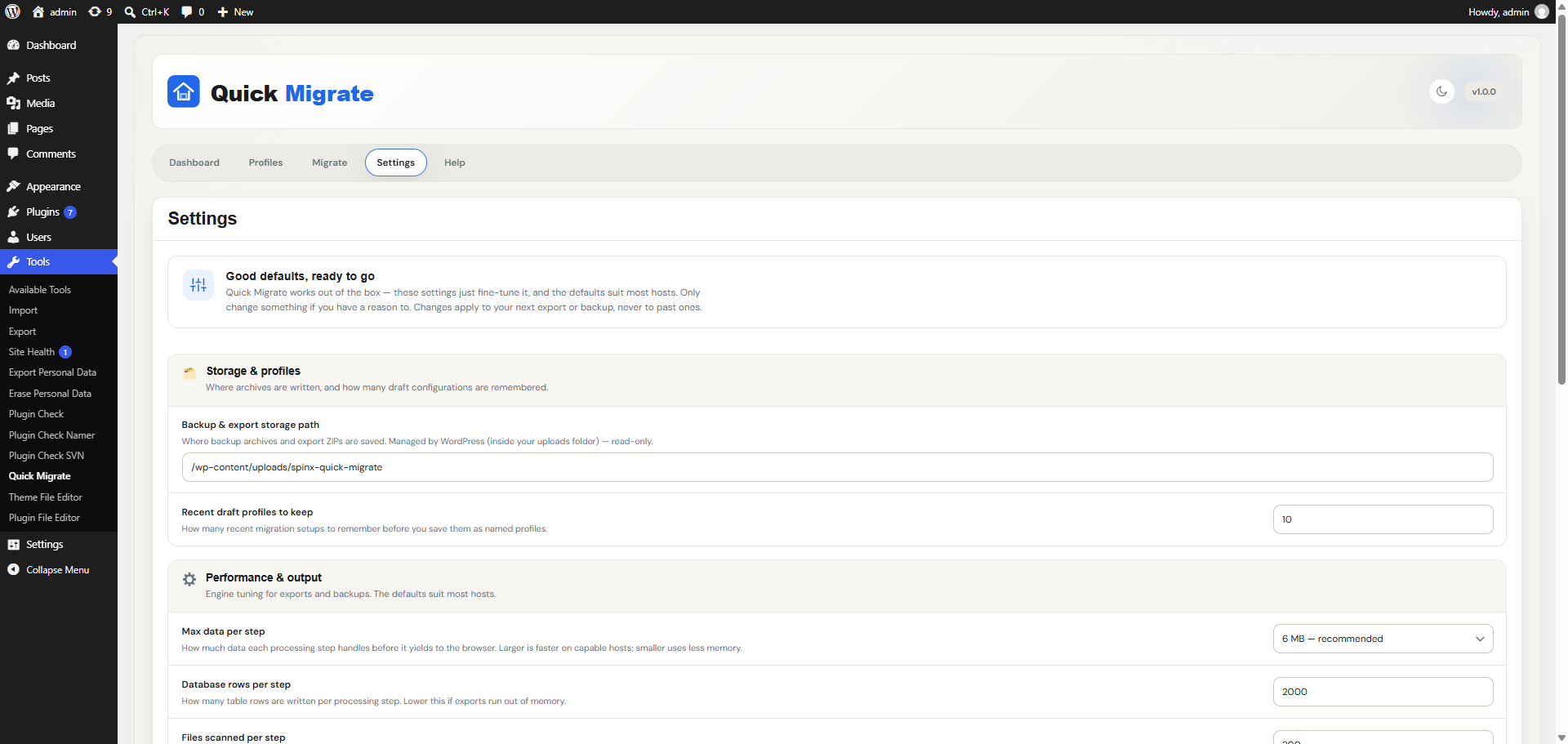
- Optional: check Settings to adjust performance limits or export exclusions. The defaults are safe for most hosts.
Requirements
- WordPress 6.5 or newer
- PHP 8.1 or newer
- The
mysqliandzipPHP extensions (standard on modern hosts) - An Administrator account (the
manage_optionscapability), or a Super Admin on multisite
FAQ
-
Will I lose data if I run Find & Replace?
-
Find & Replace rewrites your live database, so always click Preview first. The preview changes nothing and shows the rows that would change. On production sites, also choose a pre-flight backup so you have a rollback file. The replacement itself runs on copies of your tables, and the live tables are only swapped once every copy is verified.
-
Are serialized values handled safely?
-
Yes. Quick Migratewalks serialized PHP structures and rewrites their string lengths. The stored value stays valid instead of breaking, as it would after a plain text replacement.
-
What is inside the export ZIP?
-
The database as
database-<timestamp>.sql(unless you left the database out), the file components you selected and amanifest.jsonexport summary. The archive is namedmigration-export-<date-time>.zip. -
I clicked Export and got “Nothing to export”. Why?
-
Every file component is unticked by default, so an export is database-only until you opt in. Tick the Database card or at least one file component.
-
Where are exports and backups stored?
-
In a
spinx-quick-migratefolder inside your uploads directory (normallywp-content/uploads/spinx-quick-migrate/). The folder is created the first time you run an export or backup and is protected against direct web access. Files are downloaded only through a secure link that requires you to be logged in with permission to use the plugin, and every file name includes a random token.Exports and backups are deleted from the server as soon as they have been downloaded. Anything left behind, such as a find & replace pre-flight backup or a file created with WP-CLI, is removed automatically after 24 hours.
-
What happens if I close the browser during a long job?
-
The job’s state is stored on the server. When you reopen Quick Migrate, the progress popup reattaches to the running export, backup or Find & Replace and continues. A paused job can be resumed within one hour.
-
My host keeps timing out during exports. What can I do?
-
Go to Settings and lower Max data per step (default 6 MB) or Rows per SQL batch (default 2,000). Each step then does less work, which helps on hosts with short PHP time limits. You can also run the job from WP-CLI.
-
Can I run migrations from the command line?
-
Yes. With WP-CLI installed you get
wp spinx-qm export,wp spinx-qm backup,wp spinx-qm find-replaceandwp spinx-qm profile. For example:wp spinx-qm export --files --tables=wp_posts,wp_optionswp spinx-qm backup --gzipwp spinx-qm find-replace --url-from=https://old.test --url-to=https://new.test --dry-runwp spinx-qm profile run "Nightly export"
Export accepts file-selection flags (
--files,--media,--themes[=<slugs>],--plugins[=<slugs>],--muplugins,--core,--skip-db,--exclude,--tables,--post-types) or a saved profile (--profile=<name>). For a files-only run, use--skip-db. The form--no-dbis not valid. -
Does it work on multisite?
-
The plugin can be activated network-wide and installs its tables on every site, including sites created later. On multisite, only Super Admins can use it, because exports, backups and find & replace can reach network-wide tables such as users. Each site keeps its own exports, backups and profiles. Migrating a subsite into a standalone install, or the reverse, is not supported.
-
My host is behind a reverse proxy. Why does the audit log show the wrong IP?
-
By default, Quick Migratetrusts only
REMOTE_ADDR. To use forwarded headers, add:add_filter( 'spinxqm_trust_proxy', '__return_true' );Only enable this if you really are behind a proxy that strips forged headers.
-
How do I let a non-administrator role run migrations?
-
Require a custom capability instead of
manage_options:add_filter( 'spinxqm_required_cap', function () { return 'spinxqm_manage'; } );Then give
spinxqm_manageto every role that should use the plugin, including Administrator, with a role editor plugin orget_role( 'editor' )->add_cap( 'spinxqm_manage' );. Only grant it to people you trust: the plugin can export and rewrite the whole database. -
Does deactivating the plugin delete my data?
-
No. Deactivating clears the plugin’s scheduled tasks and never deletes user data.
-
How do I remove everything the plugin stored?
-
Delete the plugin from the Plugins screen. Uninstalling removes its settings, its operation-history and audit-log tables, any leftover job records and temporary find & replace tables, and the
spinx-quick-migratestorage folder (including any exports or backups still in it) on every site of the network. -
How do I get support?
-
When you open a support request, please include:
- WordPress version
- PHP version
- The operation you ran (Export, Backup or Find & Replace) and its settings
- The error message shown in the progress popup, if any
- Steps to reproduce the issue
Reviews
There are no reviews for this plugin.
Contributors & Developers
“Quick Migrate” is open source software. The following people have contributed to this plugin.
Contributors
Translate “Quick Migrate” into your language.
Interested in development?
Browse the code, check out the SVN repository, or subscribe to the development log by RSS.
Changelog
1.0.0
- Initial release.
- Site Export: a single ZIP with the database, the file components you select (Media, Themes, Plugins, Must-Use Plugins, Core) and a
manifest.jsonsummary. - Database scoping: table selection, post-type filter and row filters for spam comments, transients and revisions.
- Exclusion patterns: path patterns, filename patterns and folder/file names, with 35 defaults.
- Database Backup to
.sqlor.sql.gzwith an adjustable compression level. - Find & Replace with preview, a pre-flight backup, serialization-safe rewrites and a staged, atomic table swap.
- Profiles with recent configurations (last 10 kept automatically).
- Job engine with live progress, pause, resume, cancel, retry and reattach after a page reload.
- Dashboard with active jobs, the last operation, a storage meter, quick actions, recent activity and a first-run tour.
- Audit log of every operation.
- WP-CLI commands:
export,backup,find-replaceandprofile. - Light and dark color schemes, keyboard-navigable tabs and a responsive layout.