

Description
Aha.is for WooCommerce connects your WooCommerce store to Aha, an online marketplace in Iceland. You keep managing your products and orders in WooCommerce. Aha lists your products and sends the orders to your store. Stores and restaurants can connect.
This plugin needs an Aha account. You send your store details to Aha with the plugin, and Aha reviews them before your store goes live.
What you can do with this plugin
- Connect with Aha. Use a guided setup in the WooCommerce admin. Enter your store details, send the request, and see the review status on the same page.
- Sync your products. Aha reads your product catalog (products, variations, SKUs, prices and stock). When a product or its stock changes, the plugin tells Aha which products changed.
- Receive Aha orders in WooCommerce. Orders placed on Aha are created in your store as WooCommerce orders. A retried request does not create a second order.
- Keep order status in step. Aha updates the status of an Aha order in your store. Refunds and cancellations from Aha are applied to the WooCommerce order. The plugin can put the stock of cancelled items back.
- Check your connection. The Diagnostics tab shows the connection, the background job queue and failed orders. It also has a JSON export for support.
How it works
- Install and activate WooCommerce and this plugin.
- Go to WooCommerce Aha and select Connect with Aha.
- Sign in to Aha, or create an Aha account. Then enter your store type, name, address and phone number.
- Aha reviews your request. The plugin shows the review status.
- After Aha approves the request, Aha reads your product catalog and sends orders to your store.
Who this plugin is for
This plugin is for owners of a WooCommerce store or a restaurant in Iceland who want to sell on Aha and keep working in WooCommerce. You need access to the WordPress admin of the store.
Important notes
- You need an Aha account. Aha reviews every request before your store goes live.
- Your site must use HTTPS. The plugin does not start a connection from a site without an HTTPS address.
- WooCommerce 8.0 or later must be active. Without WooCommerce, the plugin shows a notice and does nothing.
- After Aha approves your request, the plugin creates a WooCommerce REST API key for Aha. The key has read permission on the whole WooCommerce REST API, so it can also read orders, customers and coupons. Aha uses it to read your product catalog. You can revoke the key under WooCommerce Settings Advanced REST API, or you can disconnect.
Security and privacy
- The connection between your store and Aha uses HMAC-SHA256 and ECDSA P-256 signatures, X25519 key exchange, and ChaCha20-Poly1305 encryption.
- Aha masks customer data in the orders it sends. See the External services section for details.
- Only a user with the WooCommerce management capability can connect or disconnect the store.
- When you disconnect, the plugin stops its calls to Aha and deletes the API keys it created. When you uninstall the plugin, it also deletes its settings.
- The plugin sends data only to Aha. The External services section lists what it sends and when.
External services
This plugin connects to the Aha service, operated by Aha, at https://www.aha.is. The plugin does not work without it. The plugin starts to contact Aha when a merchant selects Connect with Aha.
1. Connect with Aha: setup and credentials.
When: the merchant starts a connection, sends or edits store details, and later while the connection is active (status checks, credential refresh, disconnect). While Aha reviews the request, the plugin checks the status every 60 seconds.
Data sent: the site URL and callback addresses, a public signing key and a public encryption key made for this installation, a random installation ID, the plugin, WordPress and WooCommerce versions, and the store details the merchant types: store name, street address, postcode, city, phone number and an optional description. After approval, the plugin sends signed requests that carry short-lived tokens and random command IDs.
2. Catalog access.
When: after Aha approves the connection.
Data sent: the plugin creates a WooCommerce REST API key and sends its consumer key and consumer secret to Aha, signed. The key has read permission on the whole WooCommerce REST API. That includes orders, customers and coupons, not only products. Aha uses the key to read your product catalog (products, variations, SKUs, prices, stock). The plugin deletes its keys when the merchant disconnects or uninstalls the plugin.
3. Product and stock changes.
When: a product or a variation is created, updated, trashed, restored, deleted, or its stock changes, and when the merchant asks for a full sync. The plugin groups changes in a 60 second window.
Data sent: the IDs of the changed products only (at most 20 for each request), plus the signed request fields. When more than 20 products change in one window, the plugin sends one full-sync request with no product IDs. When the merchant turns automatic sync on again after changes were skipped, the plugin also sends one full-sync request. Aha then reads the product data through the key in item 2.
4. Order requests from Aha to your store.
When: a customer buys on Aha, or an Aha order changes. Aha calls the REST API of your site to create the order, update its status, and apply a refund or cancel. Each request is signed.
Data received by the plugin: the Aha order ID and number, the line items (SKU, quantity, prices), the shipping line, the payment method, the paid flag, the currency, the target status, the refunded amount and a credit memo ID. The plugin also receives the billing and shipping address fields: first name and last name (masked by Aha, which keeps only the first 3 characters of the first name), street address, city, postcode and country. The billing address also carries an email and a phone number. The contract says these are Aha service contact values, or the per-store email override, and never the real customer email or phone. The plugin receives the customer note, which Aha builds from the company ID, the Aha order ID, the schedule date and the customer notes. The plugin also stores any extra order meta data that the request carries.
Data returned to Aha: the WooCommerce order ID and number and a result or an error code.
5. Connection checks on your site.
When: during Connect.
Aha calls your site to check that the store owns the site. Data returned: a signed proof with connection IDs, the site address, the callback and proof addresses, and the thumbprints of the public keys.
After the merchant consents on Aha, Aha sends the merchant’s browser back to your site.
6. Heartbeat and health.
When: Aha calls the health check of the plugin on your site.
Data returned: the site URL, the installation ID, the PHP, WordPress, WooCommerce and plugin versions, the number of pending and failed background jobs and the age of the oldest pending job, the WordPress environment type, and flags for safe mode, disabled WP-Cron and HPOS.
Terms of service: https://www.aha.is/terms
Privacy policy: https://www.aha.is/personuvernd
Screenshots


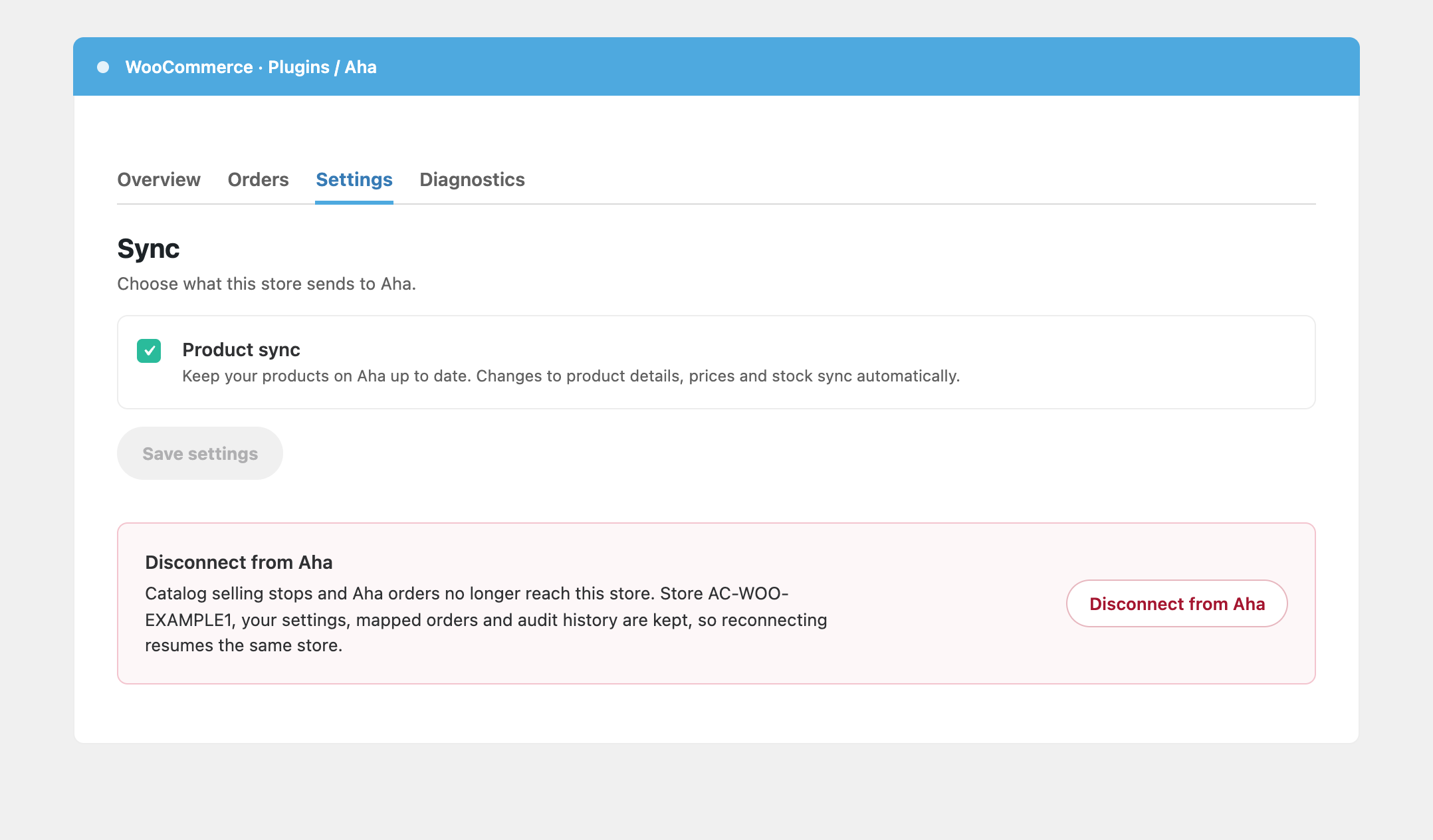

Installation
Minimum requirements
- WordPress 6.0 or later
- WooCommerce 8.0 or later
- PHP 7.4 or later
- A site that is reachable over HTTPS
- An Aha account
Recommended
A real server cron job for low-traffic stores. WordPress runs scheduled work only when a visitor opens a page. A quiet store gets few visits, so product and stock updates can wait for hours. To fix this, add define( 'DISABLE_WP_CRON', true ); to wp-config.php. Then add a server cron job that calls wp-cron.php every minute. Ask your hosting provider for help if you do not have shell access. A store with regular visits can skip this step.
Automatic installation
- In the WordPress admin, go to Plugins Add New.
- Search for Aha.is for WooCommerce.
- Select Install Now, and then select Activate.
Manual installation
- Download the zip file from the plugin page on WordPress.org.
- Go to Plugins Add New and select Upload Plugin.
- Select the zip file, select Install Now, and then select Activate.
First connection
- Make sure WooCommerce is active.
- Go to WooCommerce Aha and select Connect with Aha.
- Sign in to Aha, or create an account.
- Choose Store or Restaurant. Enter the name, street address, postcode, city and phone number. A description is optional.
- Select Send integration request to Aha.
- Wait for Aha to review your request. The page shows the status.
Updating
Update the plugin from the Plugins screen as you do for other plugins. An update does not delete the plugin settings. Only uninstall deletes them.
FAQ
-
Do I need an Aha account?
-
Yes. The plugin sends a request to create or link your Aha store. Aha reviews it before your products go on sale.
-
Does the plugin work without WooCommerce?
-
No. WooCommerce must be active. WordPress shows a notice and the plugin stays idle when it is not.
-
Which data does Aha read from my store?
-
Aha uses a WooCommerce REST API key that the plugin creates. The key has read permission on the whole WooCommerce REST API, so it can also read orders, customers and coupons. Aha uses it to read your product catalog (products, SKUs, prices, stock). Revoke the key under WooCommerce Settings Advanced REST API or disconnect to stop access. See the External services section for the full list.
-
What happens when I disconnect?
-
The plugin stops its calls to Aha and deletes the API keys it created. Existing WooCommerce orders stay in your store.
-
What happens when I uninstall the plugin?
-
Uninstall deletes the plugin settings and the API keys it created. It keeps the
{prefix}aha_is_woocommerce_order_maptable and the Aha order meta on purpose. They hold order history, so a reinstall does not create duplicate orders. -
Why is the sync slow?
-
The plugin groups product changes in a 60 second window. It then sends them to Aha as background jobs. These jobs run in the WooCommerce scheduler (Action Scheduler), and WordPress starts that scheduler through WP-Cron. WP-Cron runs only when a visitor opens a page, so a low-traffic store can wait for hours. Set up a server cron job that calls
wp-cron.phpevery minute. See the Installation section. The Diagnostics tab shows background job information, and its support export shows the queue lag. -
Is the plugin compatible with HPOS?
-
Yes. The plugin declares compatibility with High-Performance Order Storage (custom order tables). It does not require HPOS.
-
Can a restaurant use the plugin?
-
Yes. When you connect, choose Restaurant as the store type. Aha reviews the request before your restaurant goes live.
-
Where do I find logs and diagnostics?
-
Go to WooCommerce Aha and open the Diagnostics tab. Select Check connection to test the connection. The tab also lists failed orders and has a JSON export for support. The plugin writes its log to WooCommerce Status Logs. Select the file with the source
aha-is-for-woocommerce-sync. -
Does the plugin work on WordPress multisite?
-
The plugin stores its connection and settings as options of each site. On uninstall, it removes them from every site in the network. The plugin has no separate network settings screen.
-
Where do I get support?
-
Use the support forum for this plugin on WordPress.org, or send an email to tech@aha.is.
Reviews
There are no reviews for this plugin.
Contributors & Developers
“Aha.is for WooCommerce” is open source software. The following people have contributed to this plugin.
Contributors
Translate “Aha.is for WooCommerce” into your language.
Interested in development?
Browse the code, check out the SVN repository, or subscribe to the development log by RSS.
Changelog
1.0.0
- First release on WordPress.org.