
Description
Ovanap Admin Toolkit (formerly OvKit) is one plugin with 44 switches for WordPress: performance, security, cleanup, admin tidying, tracking, an announcement bar and maintenance mode. It replaces the stack of single-purpose tweak plugins many sites collect, each of which is one more thing to update and one more possible conflict.
Every switch is off until you flip it. Each one says what it does, what it saves or protects, and what it could break, with a risk label: Safe, Recommended, Advanced or Careful. Every change goes into an activity log you can roll back from.
The plugin is free, has every feature listed here, works on any number of sites and needs no account. It never contacts Ovanap or any other server on its own.
Get started in one click
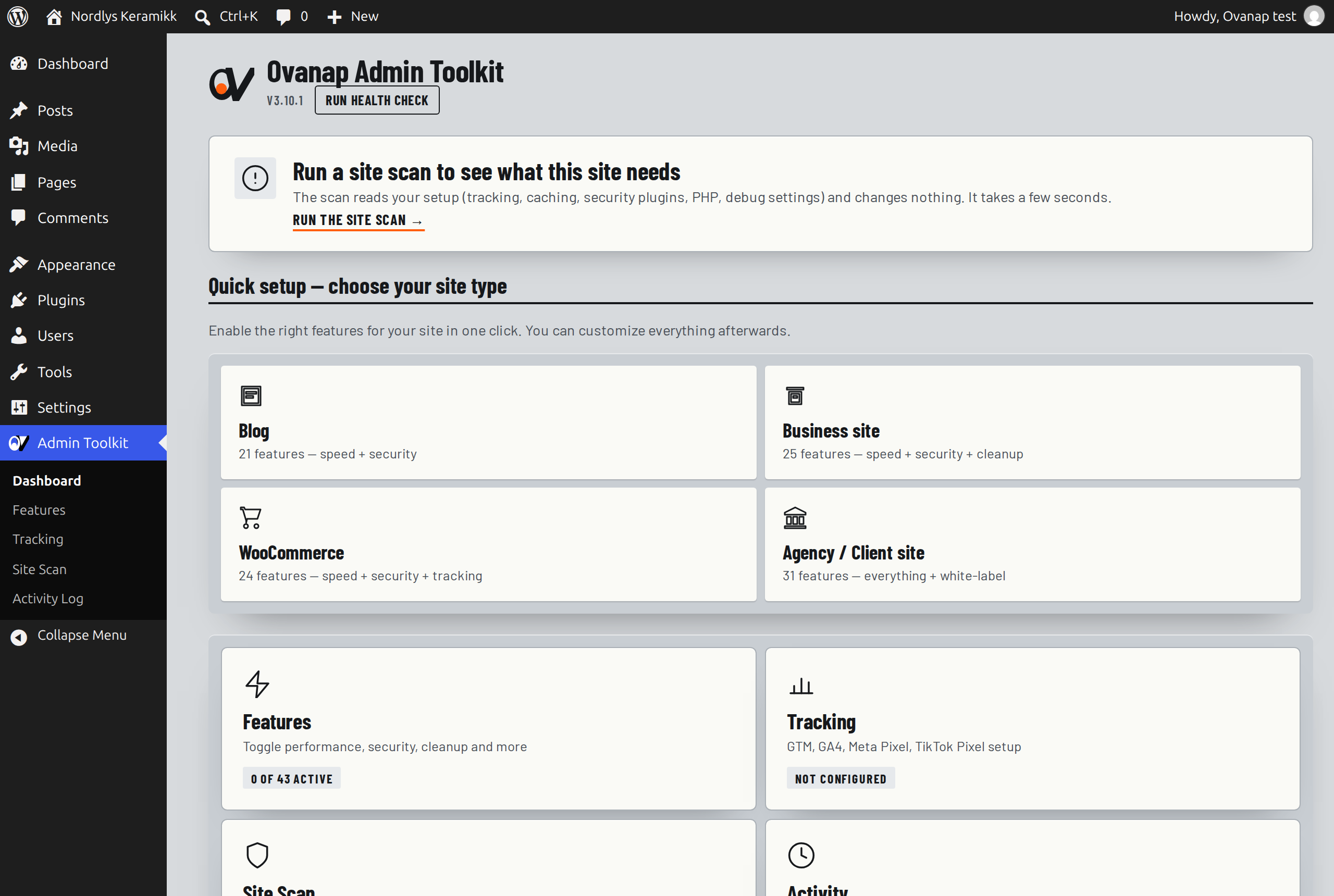
The dashboard offers four site-type presets: Blog, Business site, WooCommerce and Agency / Client site. Each switches on a set of Safe and Recommended features for that kind of site, and you can change any of them afterwards. Or use Apply safe defaults on the Features screen, which turns on only the Safe and Recommended features the scan found a reason for.
Features screen
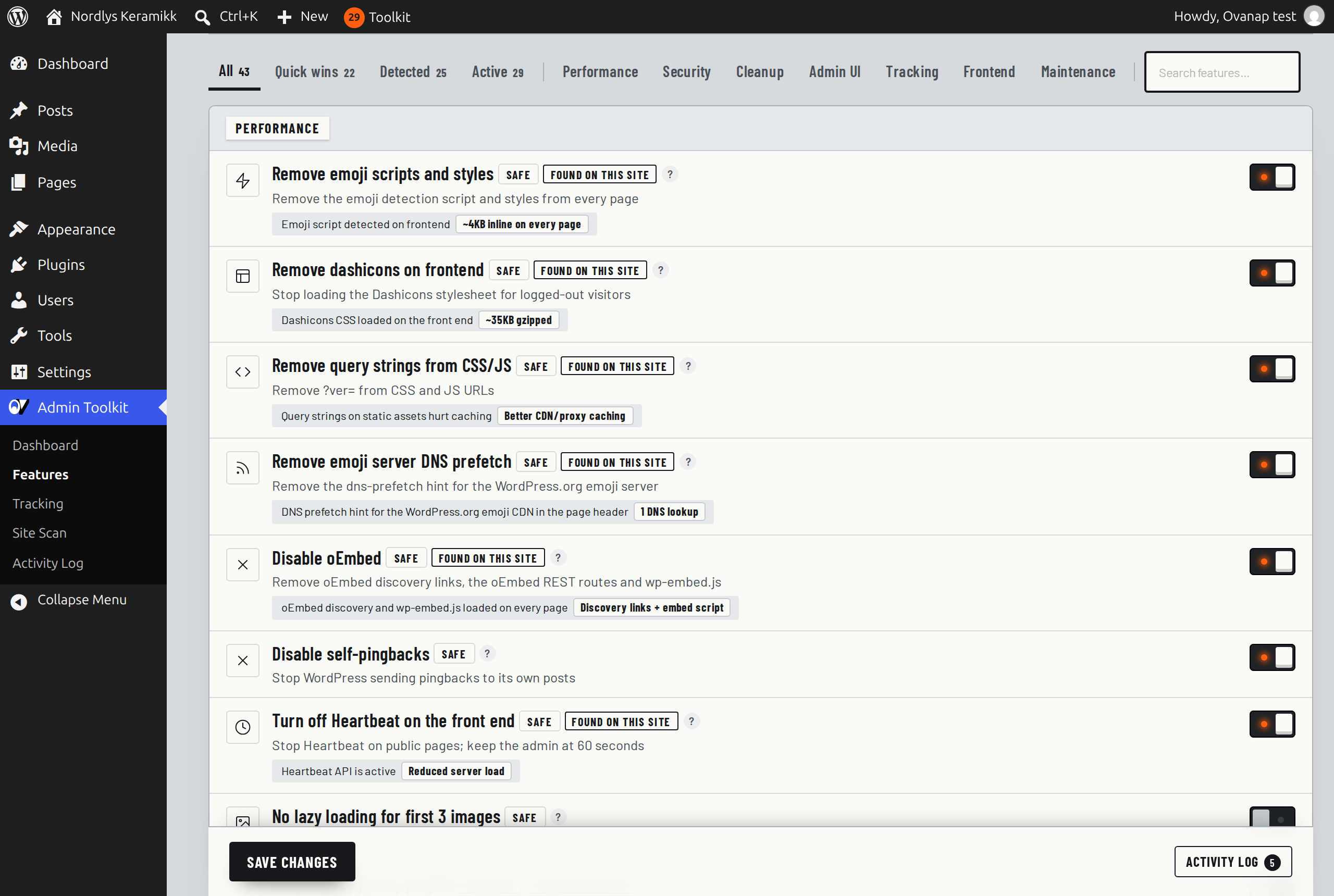
- Filters: All, Quick wins, Detected (features that apply to this site), Active, one tab per category, and a search box.
- “Found on this site” badges: the plugin checks your own front end and admin and shows what it found, for example “Emoji script detected on frontend, ~4 KB inline on every page”.
- A “?” help panel on every feature explains what it changes, before and after, and the trade-offs.
- Export settings to a JSON file and import them on another site, or Disable all in one click.
Performance (10 switches)
- Remove emoji scripts and styles: drops the inline emoji detection script and styles (about 4 KB on every page).
- Remove dashicons on the front end: logged-out visitors no longer download the admin icon font (about 35 KB compressed) when a theme or plugin loads it.
- Remove query strings from CSS/JS: strips ?ver= for caches that skip URLs with query strings.
- Remove the emoji server DNS prefetch hint.
- Disable oEmbed: removes the discovery links, the oEmbed REST routes and wp-embed.js.
- Disable self-pingbacks: no more pingbacks from your own posts.
- Turn off Heartbeat on the front end and keep the admin at 60 seconds.
- No lazy loading for the first 3 images in post content, so a large top image is not delayed (better Largest Contentful Paint).
- Drop jQuery Migrate on the front end (Advanced).
- Remove block editor CSS from the front end for sites without block content (Advanced; the plugin tells you when your content uses blocks).
Security (10 switches)
- Hide the login page URL: serve the login form at your own address; /wp-login.php returns a 404. An emergency bypass button makes a single-use link to the standard login page, valid for 5 minutes, for a colleague or a tool that needs /wp-login.php.
- Limit login attempts: by default 5 failed attempts lock that IP address out for 15 minutes (both adjustable).
- Disable XML-RPC, a common target for password guessing.
- Block author ID lookups (/?author=1), used by bots to collect usernames.
- Block the public REST API user list (/wp-json/wp/v2/users).
- Disable the theme and plugin file editor in the admin.
- Hide login error hints: one generic message instead of “this username exists”.
- Hide the WordPress version number from the page source and asset URLs.
- Add security headers: X-Frame-Options, X-Content-Type-Options and Referrer-Policy, plus optional HSTS, Permissions-Policy and Cross-Origin-Opener-Policy, each with its trade-off explained.
- Disable application passwords if nothing on your site uses them.
Cleanup (9 switches)
- Disable comments site-wide: closes comments and removes the comment menu, widget and admin bar item.
- Disable RSS feeds, author pages and attachment pages (attachment pages redirect to the post that uses the file).
- Disable front-end search (marked Careful).
- Remove the RSD link, Windows Live Writer link, shortlink and REST API discovery links from the page head.
Admin UI (11 switches)
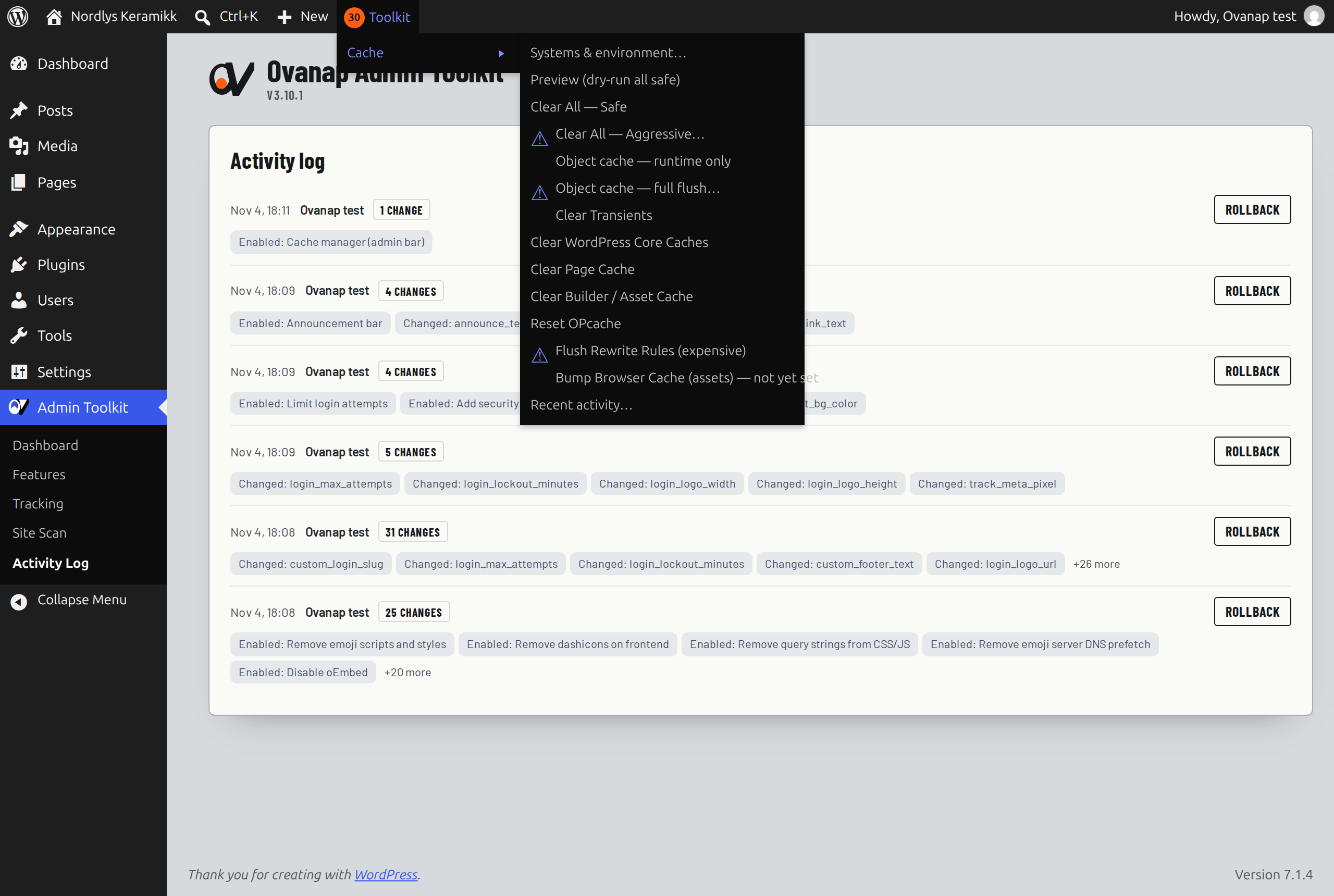
- Cache manager in the admin bar: clear WordPress caches, transients, the object cache, OPcache, rewrite rules and builder CSS, and purge WP Rocket, W3 Total Cache, WP Super Cache, LiteSpeed Cache, SG Optimizer, Hummingbird, Cache Enabler, WP Fastest Cache, Elementor, GenerateBlocks and Autoptimize when they are installed. A dry-run preview shows what would be cleared first.
- Smart admin notices: info notices fold into one summary bar; errors and warnings stay visible.
- Clean dashboard widgets: removes five default widgets that most site owners do not use.
- Custom login page: your logo, size, background and button colours, and an option to hide the language switcher.
- Custom admin footer text, for example your agency name.
- Custom site favicon and quick site title and tagline editing from the toolkit.
- Hide the Help tab and Screen Options for users who are not administrators.
- Hide the core update nag for agencies that update on a schedule; updates are still listed under Dashboard, Updates.
- Disable the admin email verification screen.
Tracking (2 switches)
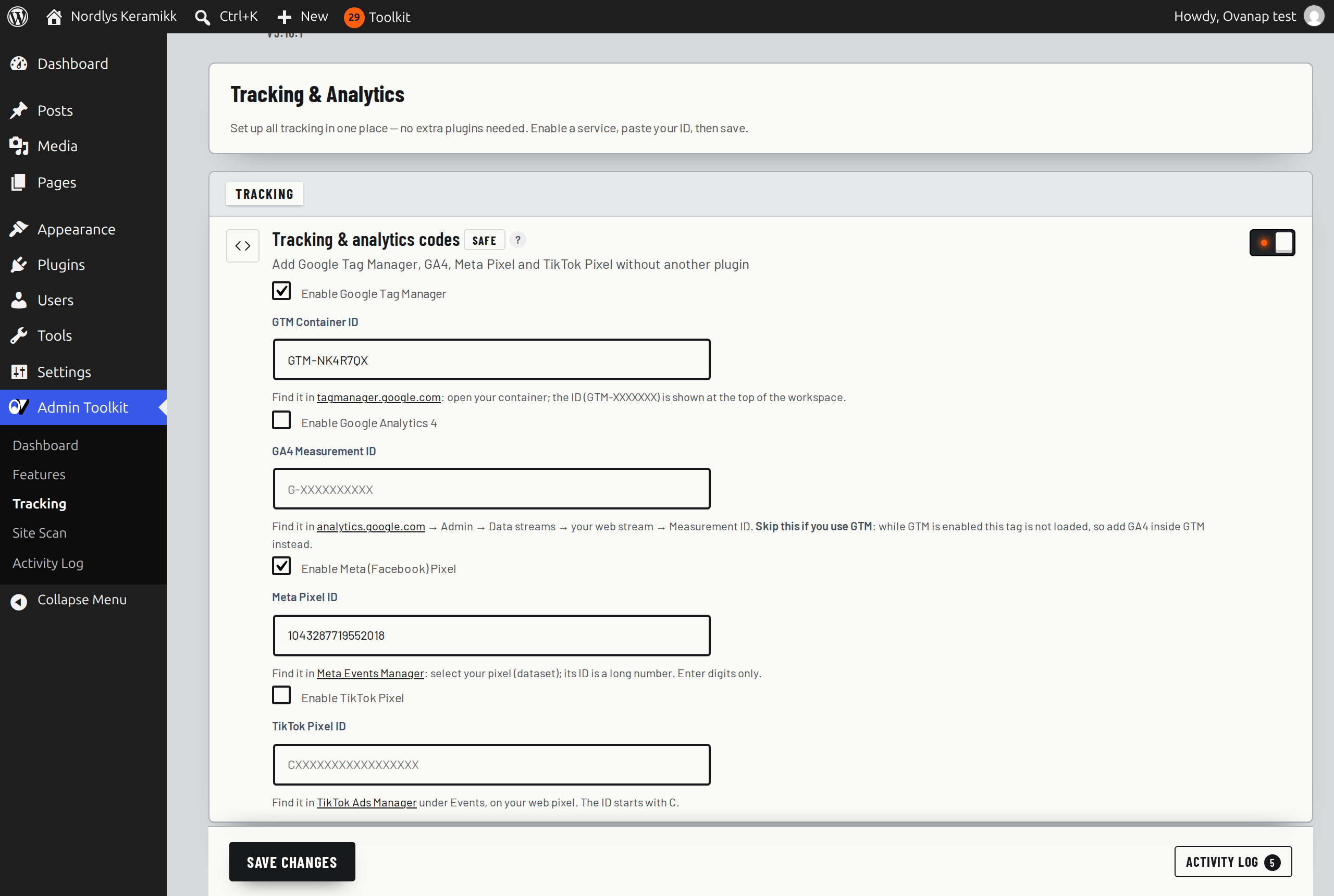
- Tracking and analytics codes: Google Tag Manager, Google Analytics 4, Meta Pixel and TikTok Pixel, each with its own switch. You enter the ID only, and the plugin checks its format. GA4 is not loaded while GTM is on, so visits are not counted twice.
- WooCommerce conversion tracking: product view, add to cart and purchase events to GTM’s dataLayer, GA4 or Meta Pixel.
See “External services” below for exactly what each service receives.
Frontend and maintenance
- Announcement bar: a message at the top of the site for holidays, delivery delays or offers, with an optional link, your own colours, a close button and a homepage-only option.
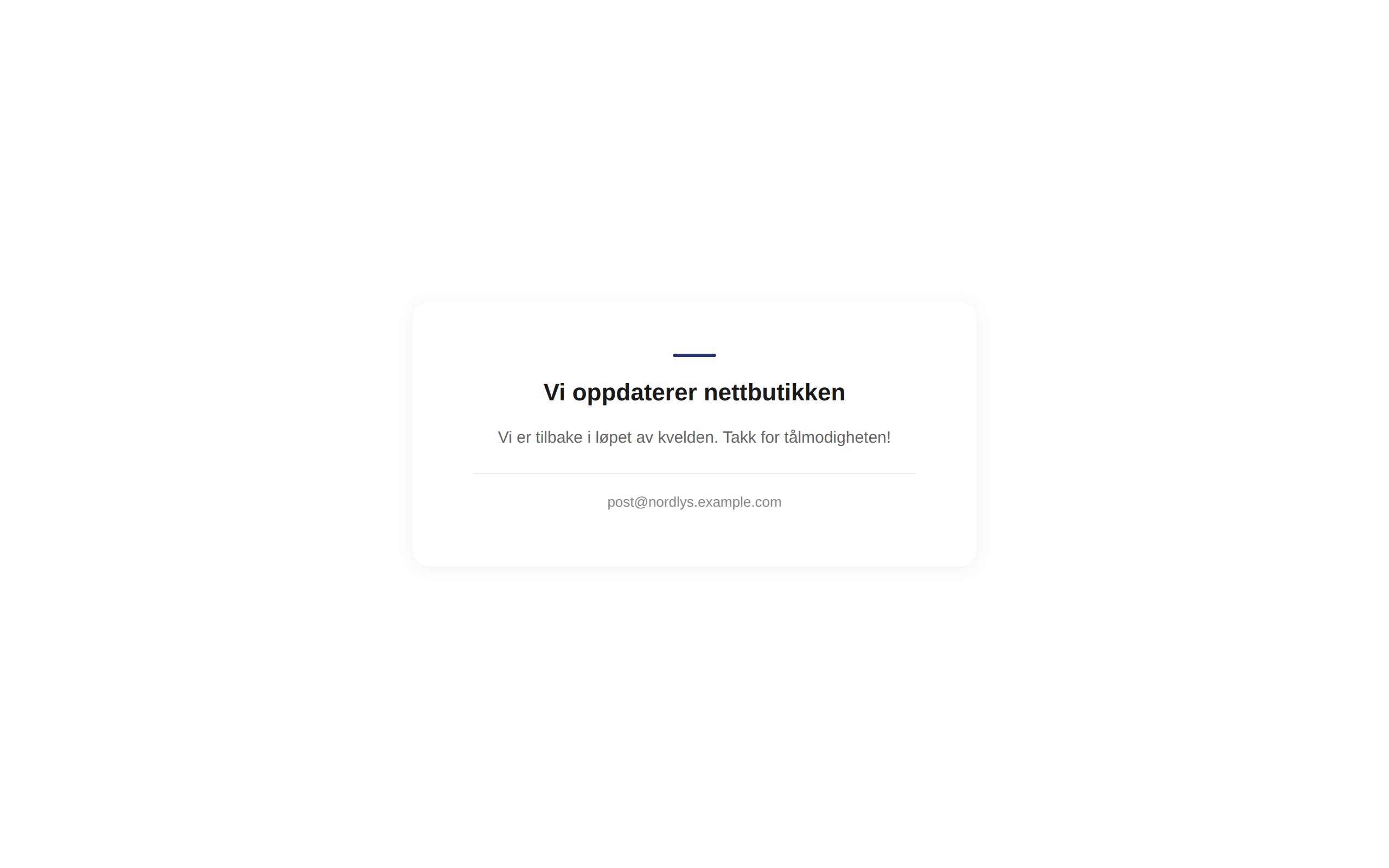
- Maintenance mode: a 503 page with your logo, heading, message, contact line and colours, which tells search engines to come back later. Logged-in administrators keep seeing the normal site.
Site environment scan
The scan runs on your own server, changes nothing and sends nothing anywhere. It reports:
- Tracking tags already on the site and duplicates (for example GTM loaded by two plugins), Google Site Kit and code-injection plugins
- Whether a cookie consent plugin is installed
- Page cache, SEO plugin and security plugin presence, and login page protection
- Search engine visibility, HTTPS, debug mode (including WP_DEBUG with WP_DEBUG_DISPLAY left unset) and WordPress version exposure
- Whether your server’s PHP version includes the October 2026 “php2shell” security fixes; this check also appears in Tools, Site Health
Results are grouped as Recommended, All good and Not configured, with a “Set up in Toolkit” link where the plugin can fix it. “Run health check” on the dashboard tests the plugin’s own files, settings and feature conflicts.
Safe by design
- Every switch is off by default.
- Risk labels and a help panel on every feature.
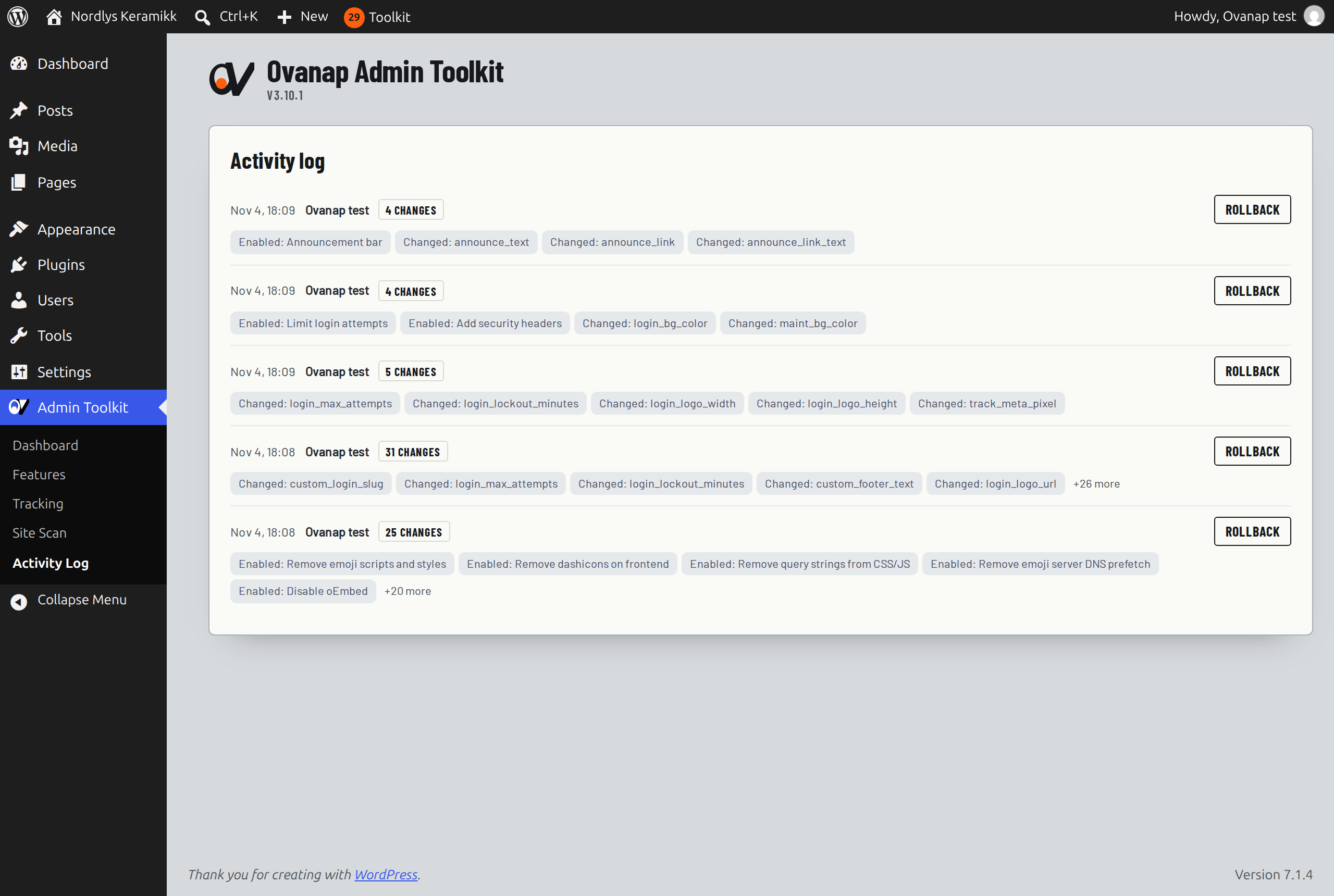
- Activity log: every save is recorded with who changed what, and any entry can be rolled back (the rollback is logged too).
- Saving clears the page cache of supported cache plugins, so visitors see the change.
- Deactivating stops every tweak: maintenance mode turns off and the login URL returns to the default. Settings are kept.
- Deleting the plugin removes all of its data.
- No account, no licence key, no telemetry, no ads in the admin.
Ovanap Admin Toolkit Pro
Pro is a separate, optional paid add-on, sold at ovkit.com. It adds tools and never unlocks anything held back from this plugin. Pro adds a read-only Security Check (core files against the official checksums, PHP files in uploads, outdated software, public debug.log, guessable admin usernames and more), custom head and body tracking code, and an emergency recovery link for when an update crashes the site. This free plugin does not need Pro.
External services
The plugin itself makes no server-side HTTP requests and sends no data to Ovanap. The optional tracking features below load third-party scripts in your visitors’ browsers. Each one is off by default and loads only after a site administrator switches on “Tracking & analytics codes”, enables that service and saves a valid ID. These services set cookies and may need visitor consent under privacy law (for example GDPR and ePrivacy); configuring consent is the site owner’s responsibility.
Google Tag Manager
Loads a Google Tag Manager container so the site owner can manage tags in GTM.
- Loaded from: https://www.googletagmanager.com/gtm.js (and https://www.googletagmanager.com/ns.html for browsers without JavaScript)
- When: on every front-end page view, once GTM is enabled with a container ID (GTM-XXXXXXX)
- Data sent: the container ID, the page URL and referrer, the visitor’s IP address, browser and device information, and whatever the tags configured inside the container collect
- Terms of Service: https://marketingplatform.google.com/about/analytics/tag-manager/use-policy/
- Privacy Policy: https://policies.google.com/privacy
Google Analytics 4 (gtag.js)
Measures site traffic in the site owner’s Google Analytics property. Only loaded when Google Tag Manager is not enabled, to avoid counting twice.
- Loaded from: https://www.googletagmanager.com/gtag/js
- When: on every front-end page view, once GA4 is enabled with a Measurement ID (G-XXXXXXXXXX)
- Data sent: the Measurement ID, page URL, title and referrer, the visitor’s IP address, browser, device and screen information, an analytics cookie identifier, and the WooCommerce events below when that feature is enabled
- Terms of Service: https://marketingplatform.google.com/about/analytics/terms/us/
- Privacy Policy: https://policies.google.com/privacy
Meta Pixel
Measures ad conversions for the site owner’s Meta (Facebook and Instagram) ads.
- Loaded from: https://connect.facebook.net/en_US/fbevents.js (and https://www.facebook.com/tr for browsers without JavaScript)
- When: on every front-end page view, once Meta Pixel is enabled with a Pixel ID
- Data sent: the Pixel ID, a PageView event with the page URL and referrer, the visitor’s IP address, browser information and Meta cookies, and the WooCommerce events below when that feature is enabled
- Terms of Service: https://www.facebook.com/legal/technology_terms
- Privacy Policy: https://www.facebook.com/privacy/policy/
TikTok Pixel
Measures ad conversions for the site owner’s TikTok ads.
- Loaded from: https://analytics.tiktok.com/i18n/pixel/events.js
- When: on every front-end page view, once TikTok Pixel is enabled with a Pixel ID
- Data sent: the Pixel ID, a page view event with the page URL and referrer, the visitor’s IP address, browser information and TikTok cookies
- Terms of Service: https://ads.tiktok.com/i18n/official/policy/business-products-terms
- Privacy Policy: https://www.tiktok.com/legal/page/row/privacy-policy/en (visitors in the EEA, UK and Switzerland: https://www.tiktok.com/legal/page/eea/privacy-policy/en)
WooCommerce conversion tracking
Does not load any script of its own from a third party. On a product page, on add to cart and on the order confirmation page it passes the event (product ID or SKU, name, category, price, quantity, currency, order ID and order total; no customer name, email or address) to Google Tag Manager’s dataLayer, or directly to Google Analytics 4 and Meta Pixel when those are enabled above. The data then goes to those services under the terms listed above.
Screenshots




Installation
- Upload the
ovanap-admin-toolkitfolder to/wp-content/plugins/, or install the plugin from the Plugins screen. - Activate the plugin through the Plugins screen.
- Open Admin Toolkit in the admin menu.
- Run the site scan to see what needs attention.
- Switch features on one at a time, or start with “Apply safe defaults”.
FAQ
-
Does it replace security plugins like Wordfence?
-
No. It provides lightweight hardening basics (hidden login URL, login attempt limits, XML-RPC blocking). For a firewall and malware scanning, use a dedicated security plugin alongside it.
-
Does it replace cache plugins?
-
No. It removes unnecessary scripts and assets to reduce page weight and can trigger the purge of supported cache plugins. For full page caching, use a cache plugin.
-
Will enabling features break my site?
-
Every feature carries a risk label, and Advanced features explain their trade-offs before you switch them on. Every change is logged and can be rolled back from the Activity Log.
-
Does the plugin send any data externally?
-
The plugin does not contact any server by itself. Only the optional tracking features load third-party scripts in visitors’ browsers, and only after you enable them and enter an ID. See “External services” for exactly what is sent.
-
Does it work with WooCommerce?
-
Yes. WooCommerce-only features appear when WooCommerce is active, and features that could conflict with WooCommerce are flagged.
-
What happens when I deactivate the plugin?
-
Its tweaks stop. Maintenance mode turns off, search engine visibility is restored and the login URL returns to the default. Your settings are kept for re-activation.
-
What happens when I delete the plugin?
-
All of its data is removed from the database: settings, scan results and the activity log.
-
How is this different from installing several small plugins?
-
One plugin to update instead of many, one settings screen, one log of every change with rollback, and a scan that tells you which switches apply to your site. Each feature is small and only loads when it is switched on.
-
Which switches should I start with?
-
Run the site scan, then use a site-type preset or “Apply safe defaults”. Both turn on only Safe and Recommended features. Leave Advanced and Careful features until you have read their help panel.
-
I hid the login page and forgot the address. What now?
-
The address is shown under the “Hide login page URL” switch, so bookmark it when you set it. If you are locked out, rename the plugin folder (wp-content/plugins/ovanap-admin-toolkit) over SFTP or your host’s file manager. WordPress then deactivates the plugin and the login page is back at /wp-login.php. Rename the folder back and activate the plugin again; your settings are kept.
-
Can I copy my settings to another site?
-
Yes. Use Export settings on the Features screen, then Import settings on the other site. The import is logged and can be rolled back.
-
Is there a paid version?
-
There is an optional paid add-on, Ovanap Admin Toolkit Pro (see the Description). Everything in this plugin is free, with no limits.
-
I used the earlier OvKit plugin. How do I move over?
-
Settings are shared, so nothing has to be re-entered. Deactivate OvKit, then activate Ovanap Admin Toolkit. Remove the old ovkit folder with your file manager or SFTP rather than with the Delete link on the Plugins screen: the old plugin’s uninstall routine would erase the shared settings.
Reviews
There are no reviews for this plugin.
Contributors & Developers
“Ovanap Admin Toolkit” is open source software. The following people have contributed to this plugin.
Contributors
Translate “Ovanap Admin Toolkit” into your language.
Interested in development?
Browse the code, check out the SVN repository, or subscribe to the development log by RSS.
Changelog
3.10.1
- Site scan: “Debug mode” now also flags WP_DEBUG on with WP_DEBUG_DISPLAY left unset (WordPress then shows errors on pages).
- Site scan and Site Health now check whether the server’s PHP version includes the October 2026 “php2shell” security fixes (CVE-2026-109618, CVE-2026-109619) and say what to ask your host if it does not.
3.10.0
- Renamed from OvKit to Ovanap Admin Toolkit (new slug and text domain; settings carry over).
- All scripts and styles now load through the WordPress script and style APIs.
- Settings are read field by field and sanitized by type; tracking IDs must match the vendor’s ID format.
- Removed free-form code fields; tracking is configured with IDs only.
- “Disable file editor” now uses a capability filter instead of a global constant.
- Debug messages go to the PHP error log (only with WP_DEBUG_LOG) instead of a file in the plugin folder.
- Deactivation no longer changes which other plugins are active.
- The custom admin footer no longer adds a credit link by default.
3.5.3
- Added benefit descriptions to all features.
- Fixed the login form action URL for the hidden login page.
- Fixed attachment page redirects to the parent post.
- Fixed XML-RPC blocking for all request types.
- Features now clean up after themselves when switched off.
3.4.0
- Added the site environment scan.
3.0.0
- Initial release.