
Description
Most sites need three or four plugins for their media: one to make images lighter, one for folders, one to replace or edit images, one for backups. Image Manager does all of it in one place, on your own server, with no account, no key and no credits. Your originals are never overwritten: optimized pictures are separate copies you can switch off at any time.
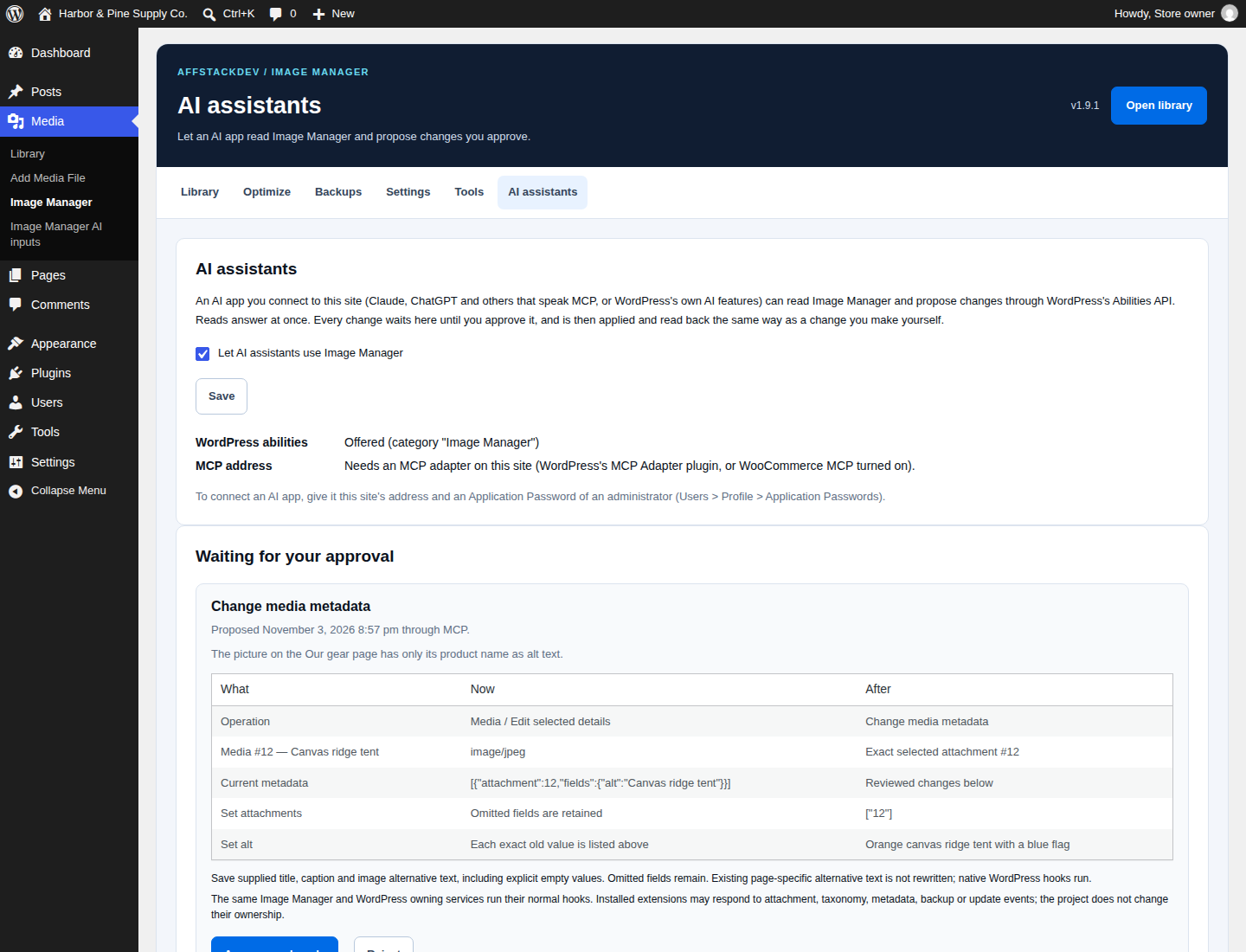
AI ready. Image Manager registers its tools with WordPress’s Abilities API and opens its own MCP address, so an AI app you connect over MCP, or WordPress’s own AI tools, can read your media and settings and propose changes, such as alt text, folders or settings. Every change waits on the AI assistants tab until you approve it, and is then applied and read back the same way as a change you make yourself. You can switch it off.
Make images lighter
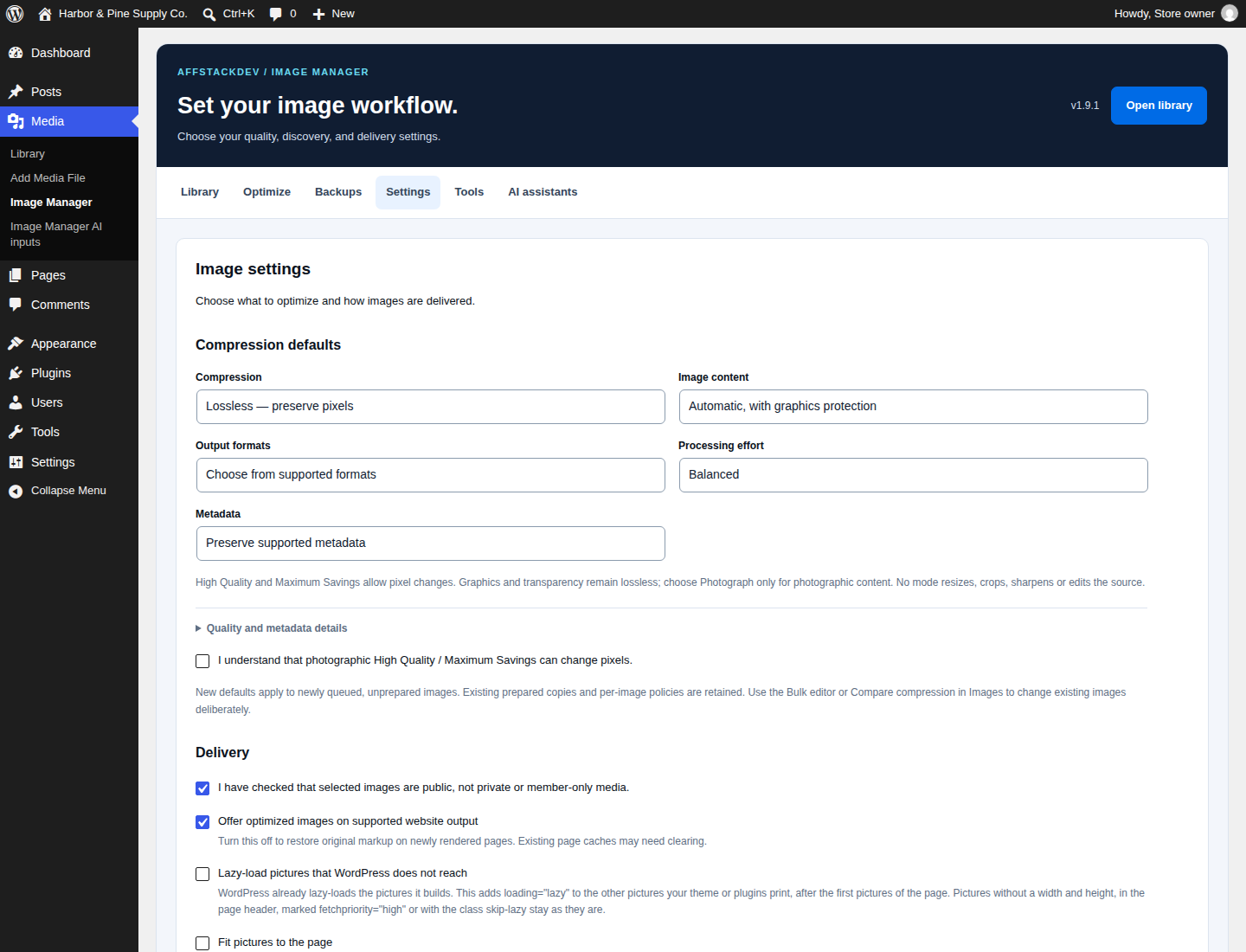
- Lossless, High Quality and Maximum Savings levels; JPEG, PNG, WebP and AVIF where your server’s image library supports them; GIFs get lossless WebP copies, animated ones too where Imagick is installed.
- Bulk runs with pause, resume and saved progress, and automatic processing of new uploads.
- Copies without the photo’s details (camera, dates, location) when you choose, orientation and colour profile kept.
- Pictures sized to fit your pages: measured on your public pages, then the right display sizes for phones, tablets and screens.
- The missing width and height added to theme pictures, only where the measurement shows nothing moves, so pages do not jump while they load.
- Lazy loading for pictures a theme prints without WordPress’s own functions.
- Pictures from the active theme, and from other folders inside wp-content you name, get copies too.
- An optional watermark on the copies your public pages show: a PNG or WebP from your library, at the place, width and opacity you choose. Your original files are never changed.
- Choose the largest new upload WordPress uses on pages (its -scaled copy), or keep the full picture.
- Choose which sizes WordPress makes for new uploads, and make missing or out-of-date sizes for the library without overwriting or deleting anything.
- Optional delivery through a CDN you already have, checked daily with a test picture.
- It tells apart a file that is ready, a page that offers it, and a browser that really loaded it.
Organize
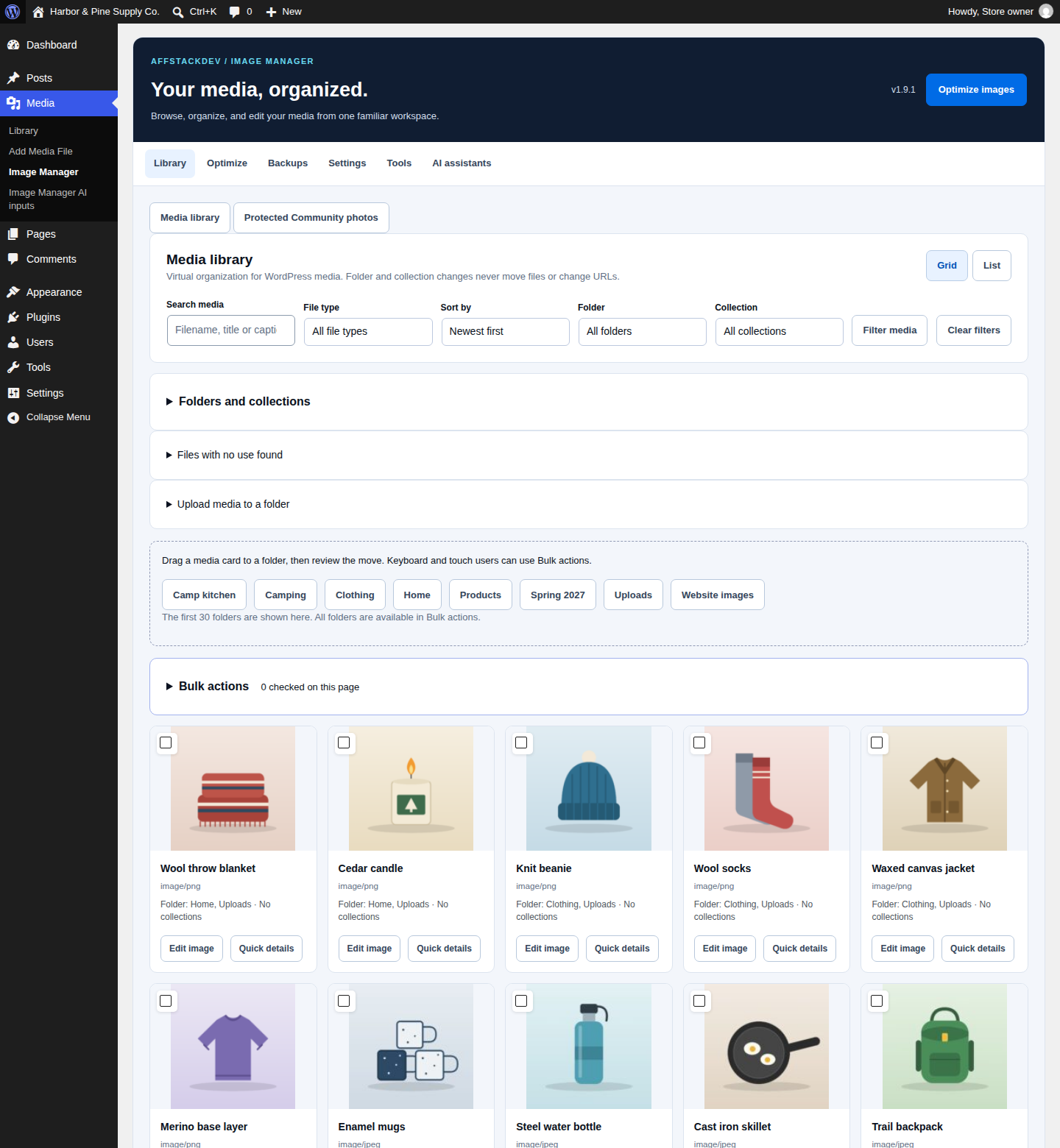
- Unlimited folders and collections; a file can be in several collections. Nothing moves on disk and no address changes.
- Upload files or a whole folder from your computer into folders (its sub-folders become folders), drag and drop, folders for the admin lists of pages, posts and products.
- SVG uploads for the roles you choose (off at the start): each file is cleaned before it is saved, scripts and references to other sites removed.
- Sort the library by file size, file type, title or date.
- Photo details (camera, exposure, keywords, a note when the original holds GPS coordinates), and the photo’s own caption and title on request.
- Folder galleries (block and shortcode); import folders from FileBird, Real Media Library, HappyFiles, Enhanced Media Library and Folders.
- Titles, captions and alt text for many files at once; “where is this used?”; a list of files with no use found, and of files in the uploads folder the Media Library does not know (nothing is deleted).
- Alt text and titles from file names for new uploads (off at the start), and a Tools button that fills the library’s empty alt text; text someone wrote is never replaced.
Edit safely
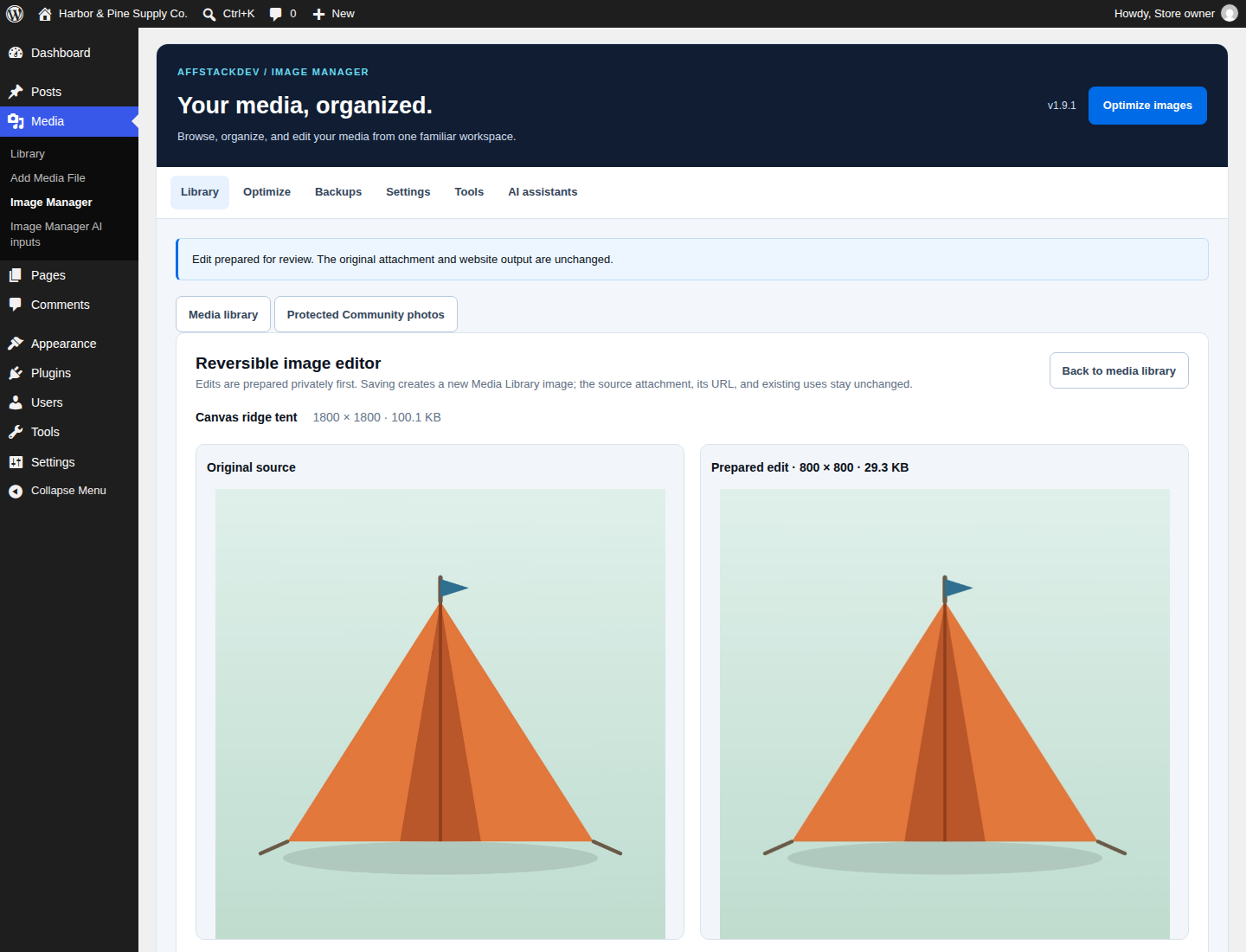
- Crop, rotate, flip and resize into a new copy; the original stays where it is used.
- Turn a PDF page into a picture, where your server’s Imagick can read PDF files.
- Make a smaller copy of a PDF where your server has Ghostscript: checked for every page, the same text, links and bookmarks and the same look, then saved as a new media item; the PDF itself is never changed.
- Replace a picture in place with undo and a recovery copy.
Back up and restore
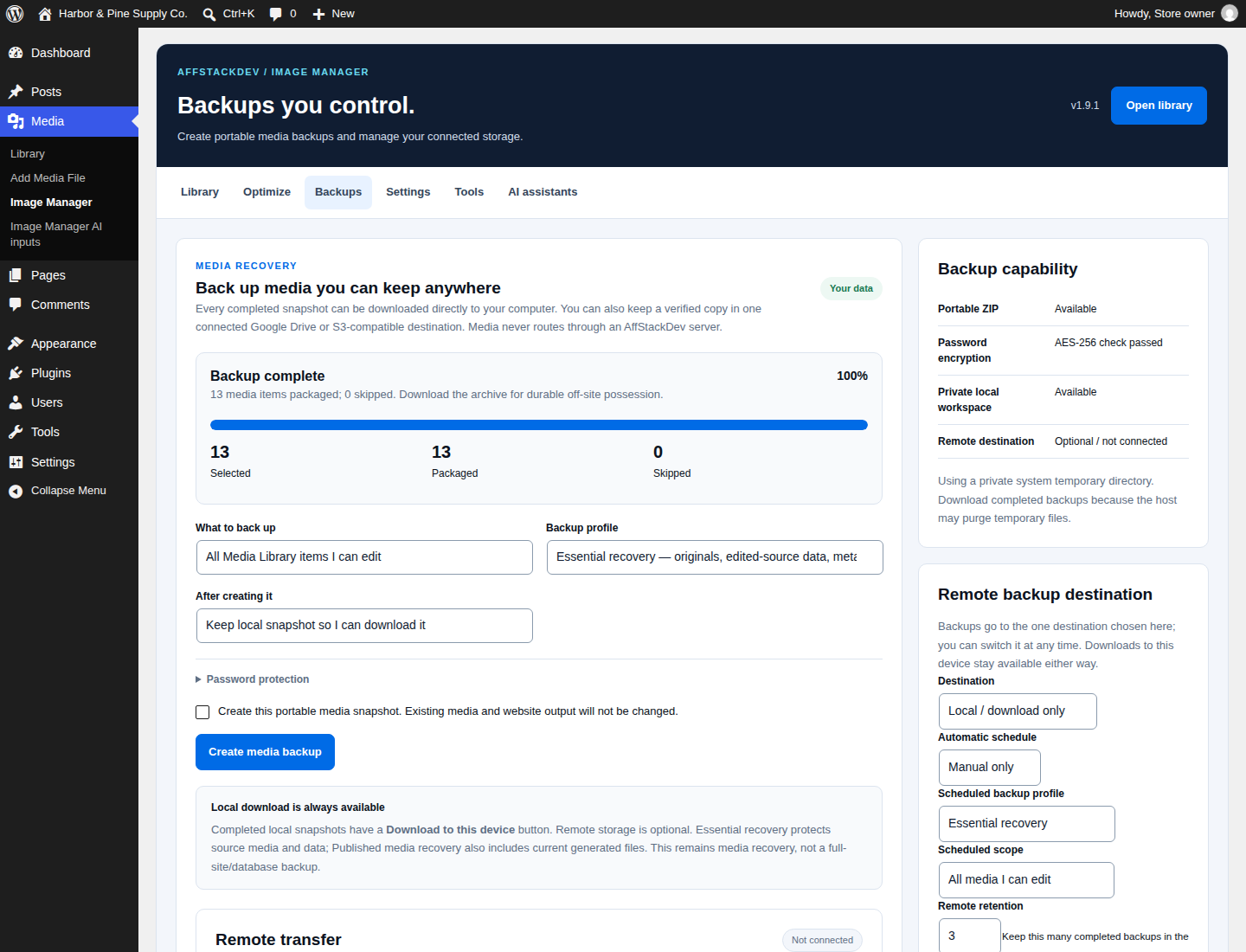
- Portable media backups (ZIP with a manifest and checksums), downloaded to your computer or sent to your own Google Drive or S3-compatible storage, daily or weekly.
- Restore on the same site or another one.
WooCommerce
Product galleries, including variation images, can show optimized pictures while zoom and lightbox keep the originals.
External services
Image Manager processes images on your own server. Remote backup and CDN delivery are optional services you connect yourself; nothing is sent to them until you set one up:
- Google Drive (remote backup). When you connect Google Drive with your own Google OAuth client, you sign in at accounts.google.com and Image Manager gets its access from oauth2.googleapis.com. It then uses the Google Drive API (www.googleapis.com, scope drive.file) to make its own folder, upload the backups you start or schedule (ZIP files of your media with their manifest, password-encrypted when you choose that), check each upload, download a backup when you restore it, and delete the backups your retention setting or you remove. Google APIs Terms of Service, Google Privacy Policy.
- Amazon S3 or another S3-compatible storage (remote backup). When you choose S3-compatible storage and enter a bucket and access keys, Image Manager sends requests signed with your keys (the secret key itself is never sent) to the endpoint in its settings, which starts as Amazon S3’s (https://s3.amazonaws.com) and which you can change to another provider’s: a small test file when you test the connection (deleted right away), the backups you start or schedule (the same ZIP files), and the requests that check, download (to restore) and delete them. With Amazon S3, Amazon Web Services’ AWS Customer Agreement and AWS Privacy Notice apply; another provider has its own terms and privacy policy.
- Your CDN (delivery). When you turn on delivery through your CDN, your public pages load their pictures through the CDN address you entered, and Image Manager requests a new test picture through it when you save it and once a day, to check it comes back unchanged.
No image, setting or visitor data is sent to AffStackDev. Smaller PDF copies are made by Ghostscript on your own server, and SVG files are cleaned there too.
Credits
SVG files are cleaned with svg-sanitizer by Daryll Doyle (version 1.1.1, GPLv2 or later), included in the plugin.
Privacy
Image Manager adds no visitor tracking. Provider credentials are stored encrypted and are left out of backups and diagnostics. An AI app sees only what an administrator’s Application Password allows, and changes nothing without your approval.
Screenshots

Blocks
This plugin provides 1 block.
- Image Manager folder gallery
Installation
- Install and activate Image Manager from Plugins > Add New.
- Open Media > Image Manager.
- Under Tools, run the background check and review Release health before relying on unattended processing.
Installing or updating never starts a full-library run by itself.
FAQ
-
Is there a limit on how many images I can optimize?
-
No. There is no image count or credit; your server’s CPU, memory and disk set the pace.
-
Does it overwrite my originals?
-
No. Optimized pictures and edits are separate copies; the original file and its address stay.
-
Do I need an account, a key or an AI subscription?
-
No. Everything works on its own. To use an AI app, connect the one you already have.
-
Is this a full-site backup?
-
No. It backs up media. Keep a full backup of your site’s files and database as well.
-
What happens if I uninstall?
-
Nothing is deleted automatically: your media, the optimized copies and your folders stay, because cached pages may still use them.
Reviews
There are no reviews for this plugin.
Contributors & Developers
“AffStackDev Image Manager” is open source software. The following people have contributed to this plugin.
Contributors
Translate “AffStackDev Image Manager” into your language.
Interested in development?
Browse the code, check out the SVN repository, or subscribe to the development log by RSS.
Changelog
1.9.1
- Flip: Horizontal now mirrors a picture left to right and Vertical turns it top to bottom; they were swapped. Copies saved earlier stay as they are.
- Release health: the background row now passes once the background check has run.
- The whole-folder upload and Measure pages now work after moving between tabs, without reloading the screen.
1.9.0
- First release in the WordPress.org plugin directory.