

Description
Website quality is usually checked in pieces: one tool for accessibility, another for SEO, a UX review, and lately something for AI visibility. That means four reports in four vocabularies, with conflicting priorities and no shared list for the people who fix things.
SitePrimed checks your posts and pages the way visitors, search engines and AI assistants read them, across four lenses in one scan. It ranks every finding on one severity scale and turns them into one list of fixes. You approve the fixes in SitePrimed, and the plugin writes them into your content. The checks run on the SitePrimed service, so the plugin needs a free SitePrimed account.
Try it first: run a free audit of any page at https://siteprimed.com/scan. No account needed.
Four lenses, one scan
- Accessibility & EAA: checks against WCAG 2.1 AA and EN 301 549. Each finding names the WCAG success criterion it fails.
- SEO: titles, meta descriptions, headings and crawlability, the basics search engines still rely on.
- UX: mobile ergonomics, layout and navigation, so you know whether people can actually use the page.
- GEO: structured data, AI crawler access and answer-ready content, so AI assistants can read, trust and quote your pages.
What you get
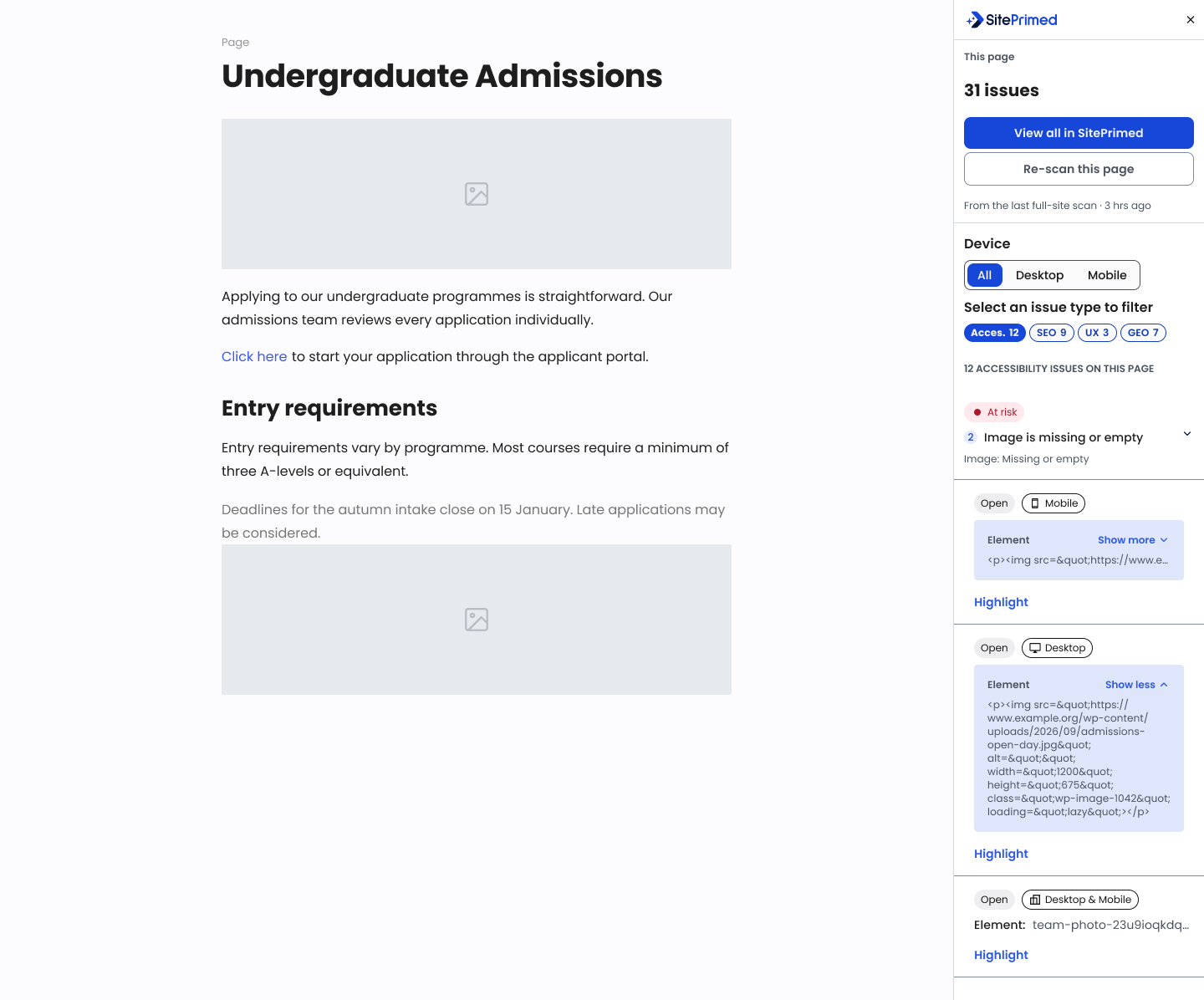
- A SitePrimed panel in the block editor with the issues on the page you are editing, filtered by lens. Each issue shows its severity, its status and whether it affects mobile or desktop.
- Highlight shows where an issue sits on the page, and Show in code selects its HTML in the code editor. Fix in SitePrimed opens it in SitePrimed, where you review and approve the fix.
- Re-scan a page from the editor, or open all its findings in SitePrimed.
- Findings in the admin lists of posts and pages, with a Check action on each row and a notice when a check finishes, even if you have left the list.
- One severity scale across all four lenses, so the list reads in priority order.
- Desktop and mobile checked in every scan.
- A proposed fix for every finding, and AI-drafted fixes for content such as alt text, meta descriptions and summaries.
- Fixes written into your content. No overlay, no widget.
How it works
- Connect: add this site to your SitePrimed account and connect it with its site key on the SitePrimed settings screen.
- Scan: save a post or page and scan it from the SitePrimed panel in the block editor.
- See what is wrong: every issue in plain language, tied to the element on the page, across all four lenses.
- Fix: select Fix in SitePrimed, review and approve the fix there, and it is written back to WordPress.
What automated checks can and cannot tell you
Automated checks find many common problems, such as images without alternative text, links without a name and missing SEO descriptions. They cannot find every problem.
A scan with no findings does not mean a page conforms to WCAG 2.1 AA, EN 301 549 or the European Accessibility Act. Confirming conformance still needs manual testing, including testing with assistive technologies.
How fixes are applied
- You approve every fix. Select Fix in SitePrimed in the editor panel to review a fix in SitePrimed; nothing is written to WordPress until you approve it.
- Approved fixes change post content, the SEO title or the SEO description, and show as Applied in the editor panel. They never touch your theme, templates or code.
- A fix to post content is saved with wp_update_post(), so WordPress keeps a revision of the previous version wherever revisions are enabled for that post type, and you can restore it from the Revisions screen. Fixes arrive as signed Hub requests rather than from a WordPress user, so the revision has no author, and the post’s own author is unchanged. SEO title and description fixes are stored as post meta, which WordPress does not revision.
- Fixed content is filtered with wp_kses_post() before it is saved, so a fix cannot add scripts or other HTML that WordPress does not allow in posts.
- Requests that read saved content or submit fixes are signed with the shared secret issued when you connect. Each request carries a timestamp, a nonce and a signature, and the plugin keeps replay records to reject reused requests.
REST endpoints
Every REST route the plugin adds needs either a logged-in user who can edit the content or a request signed by the Hub. The plugin adds no public endpoints.
Requirements
- A SitePrimed account and a site key issued for this site. The Free plan is enough.
- The block editor, to scan pages and see findings while editing.
- Outbound HTTPS connections from your server to the SitePrimed Hub. Some hosts and firewalls block these by default.
- A site the Hub can reach over the internet. The Hub reads saved content, including a published page’s rendered HTML, through the plugin’s authenticated endpoints. The UX audit renders that HTML in a browser, which still loads the page’s stylesheets, scripts and images from the site’s public address. Local sites, and staging sites behind HTTP authentication or an IP allow-list, cannot be scanned, because the Hub cannot reach their REST endpoints.
- Yoast SEO, for the SEO title and description. Without Yoast, SEO title and description fixes are saved in Yoast’s fields but nothing on the site uses them.
Who can do what
- Administrators connect and disconnect the site.
- Editors request scans and review findings.
External services
This plugin connects to one external service, the SitePrimed Hub. SitePrimed and this plugin are developed and operated by ITML – Information Technology for Market Leadership IKE, Mark. Filippidi 5, Athens, Greece. The scan and findings features depend on the Hub, and connecting requires a site key issued for this WordPress site.
- Service website: https://siteprimed.com
- Account registration: https://hub.siteprimed.com/onboarding/plugin
- Plans and prices: https://siteprimed.com/pricing/
- Production Hub endpoint: https://hub.siteprimed.com
- Terms of Service: https://siteprimed.com/terms/
- Privacy Policy: https://siteprimed.com/privacy-policy-2/
- Support: https://siteprimed.com/contact/
When you create an account
Nothing is sent until an administrator clicks “Create your account”. That opens the SitePrimed sign-up page in the browser, with the administrator’s WordPress email address, the WordPress site URL and a generated installation identifier filled in as link parameters. The email address can be changed on the sign-up page before the account is created.
When you connect
When an administrator connects with a site key, the plugin sends that key, the WordPress site URL and the generated installation identifier to the Hub. This step does not send the administrator’s email address. The Hub returns connection details and a shared authentication secret, which the plugin stores locally. The site key and the secret are stored encrypted.
After you connect
The plugin sends saved post IDs to start scans and scan IDs to retrieve status and findings. Content-list requests send the visible post IDs and pagination information. Authenticated requests also carry the Hub site ID and request-signing headers, including timestamps, nonces and signatures.
Some admin screens contact the Hub when they open, while the site is connected:
- The SitePrimed settings screen checks that the Hub still accepts this site’s credentials. If the Hub rejects them, the plugin removes the stored connection and asks you to reconnect.
- The Pages and Posts lists ask the Hub for this site’s remaining page checks, cached for one minute, and for the latest findings for the posts on the screen.
- While a check you started is running, every admin screen asks the Hub for its result until it finishes, so the plugin can show a notice when it’s done.
These requests send post IDs and pagination, not post content.
What the Hub can read and change
The authenticated Hub can read content types, published content and saved drafts, including titles, content, URLs, dates, image information and supported SEO metadata. Single-item responses can include rendered published HTML or a noindex draft preview. The Hub can submit updates to content and SEO metadata, as described under “How fixes are applied”. Unsaved editor changes are not included in scans.
How the service handles your data
- Hosting: SitePrimed is EU-owned and runs only on EU-region infrastructure. Content and scan data are never transferred or stored outside the EU.
- Processing purposes: to provide and secure the service, to communicate with you, and to meet legal obligations.
- Other processors and AI providers: a limited set of vetted EU-based sub-processors for hosting, email delivery, payments and AI processing, each bound by a data processing agreement. The current list is available on request through https://siteprimed.com/security/.
- Use of content for AI training: your site content is not used to train AI models. AI processing takes place in the EU.
- Retention: scan results, drafts and content are kept for 12 months from the scan date, or until you delete them. Logs are kept for the same period. Account data is kept for the life of the account plus 3 months.
- Deletion: delete scans or close your account at any time in SitePrimed, or email info@itml.gr to request erasure.
- Revoking access: an administrator clicks “Disconnect this site” on the SitePrimed settings screen. The plugin asks the Hub to revoke this site’s shared secret, then deletes the stored connection, site key and secret. The license stays assigned to the site so you can reconnect later. To release it, or to revoke access after the plugin was deleted without disconnecting, remove the site’s license in SitePrimed under Settings Sites.
- Data processing agreement: available on request through https://siteprimed.com/security/ or by email to info@itml.gr.
Disconnecting and uninstalling
Disconnecting asks the Hub to revoke this site’s shared secret, then clears the locally stored connection, site key and shared secret. Deactivating the plugin keeps its settings so you can reactivate it later.
Deleting the plugin removes its local connection, credentials, installation ID, replay records, transient caches and dismissed-notice preferences. On multisite, local site data is cleaned up across the network. Your posts and pages are kept.
Temporary connect and scan entries held only in an external object cache expire at their existing time limits. Database transients and indexed findings caches are deleted during uninstall.
Deleting the plugin does not send a deletion or revocation request to the Hub, and it cannot remove constants or environment variables set by your host. To delete data held by SitePrimed, delete the scans or close your account in SitePrimed, or email info@itml.gr to request erasure. To revoke the site’s access, disconnect it before deleting the plugin, or remove its license in SitePrimed under Settings Sites.
Developer notes
- SITEPRIMED_HUB_URL sets the Hub address. It is a PHP constant, defined in wp-config.php (environment variables are not read), and must be an HTTPS URL. Leave it unset to use the production Hub; set it only when SitePrimed gives you a different Hub address, for example for a dedicated or staging Hub. Set it before connecting: the connection and its credentials belong to the Hub it names.
- The siteprimed_hub_default_base_url and siteprimed_hub_base_url filters can change the Hub address from code.
Source code
The plugin has no build step. Its JavaScript and CSS in assets/ are the hand-written sources, not compiled or minified, and use the scripts WordPress already ships (wp-element, wp-components, wp-data and others) rather than bundled libraries.
Screenshots


Installation
- In WordPress, go to Plugins > Add New Plugin, search for “SitePrimed”, then install and activate the plugin. You can also upload the plugin folder to /wp-content/plugins/ and activate it from the Plugins screen.
- Create a free SitePrimed account, add this site and copy its site key. See “Account registration” under External services.
- Open SitePrimed in the WordPress admin menu and connect with the site key.
- Open a saved post or page in the block editor and scan it from the SitePrimed panel.
The plugin connects to the production Hub by default. Hosts can point it to a different Hub with SITEPRIMED_HUB_URL, described under “Developer notes”.
FAQ
-
Is the plugin free?
-
Yes. The plugin is free, and so is the SitePrimed Free plan: every check, 3 page scans and 4 AI-drafted fixes a month, one per lens. Pro and Agency plans add full-site scans, more scans and AI-drafted fixes, progress tracking over time, team roles and reports. Plans and prices are on the pricing page linked under External services.
-
Will it change my site?
-
Only when you approve a fix. SitePrimed writes nothing on its own, and fixes never touch your theme, templates or code. See “How fixes are applied”.
-
Can I undo a fix?
-
Yes, for content fixes. WordPress keeps a revision of the previous content wherever revisions are enabled for the post type, so you can restore it from the Revisions screen. SEO title and description fixes are not revisioned; change them back in Yoast SEO. See “How fixes are applied”.
-
Does it work with my theme or page builder?
-
SitePrimed checks the rendered page, so findings cover what visitors see, whatever theme you use. The editor panel works in the block editor. Without the block editor (for example with the Classic Editor plugin) the editor panel is not available, but the SitePrimed column and its Check action in the Pages and Posts lists still work. Fixes are written into the post content, so they apply to block and Classic Editor content. Page builders that keep their layout outside the post content, such as Elementor, do not show fixes written there.
-
Are unsaved changes scanned?
-
No. Save the post or page before scanning it. Saved drafts are checked with the Hub-side content rules only; the UX audit runs on published posts and pages.
-
Is this an accessibility overlay?
-
No. SitePrimed adds no overlay or widget to your pages. Approved fixes are written into your content, where every visitor, search engine and AI assistant reads them.
-
Is my content used to train AI models?
-
See “Use of content for AI training” under External services.
-
Does it work with content in languages other than English?
-
Yes. Most checks look at the page’s structure and code, such as alternative text, headings, contrast, link names, metadata and structured data, and work in any language. A few checks compare text against English word lists, for example generic page titles such as “Home” and vague link text such as “click here” or “read more”. On pages in other languages those checks can miss problems.
-
Will it slow down my site?
-
Scans run on the SitePrimed Hub, not on your server. The plugin adds no scripts or styles to public pages; its assets load only in the WordPress admin and the block editor.
-
Does it work on staging or local sites?
-
Only if the SitePrimed Hub can reach the site over the internet. See Requirements.
-
Does it work on multisite?
-
Yes. Each site connects with a site key issued for that site. Deleting the plugin cleans up local plugin data across the network.
-
Where is my data?
-
SitePrimed is EU-owned and EU-hosted. See “How the service handles your data” under External services.
-
What happens when I delete the plugin?
-
The plugin removes its local settings, credentials and caches. Your posts and pages are kept. Data held by SitePrimed is handled separately; see “Disconnecting and uninstalling”.
-
Where can I get support?
-
Ask in this plugin’s WordPress.org support forum; we aim to reply within 24 hours. For accounts, licenses and plans, use the support link under External services. Paid plans include faster support.
-
How do I report a security issue?
-
Please report security issues privately to siteprimed-dev@itml.gr, not in the public support forum.
Reviews
There are no reviews for this plugin.
Contributors & Developers
“SitePrimed” is open source software. The following people have contributed to this plugin.
Contributors
Translate “SitePrimed” into your language.
Interested in development?
Browse the code, check out the SVN repository, or subscribe to the development log by RSS.
Changelog
1.0.0
- Initial release.
- Connect WordPress to SitePrimed with a site key.
- Scan saved posts and pages from the SitePrimed panel in the block editor, with findings filtered by lens and device.
- Highlight an issue on the page or select its HTML in the code editor, and open it in SitePrimed to review and approve its fix.
- Findings in the admin lists of posts and pages, with a Check action on each row.
- Signed endpoints the Hub uses to read content and to write approved content and SEO metadata fixes.