
Description
ParcelOps for WooCommerce connects your online store to your courier company. It is for South African merchants whose courier company runs ParcelOps and has given them a customer account.
What it does
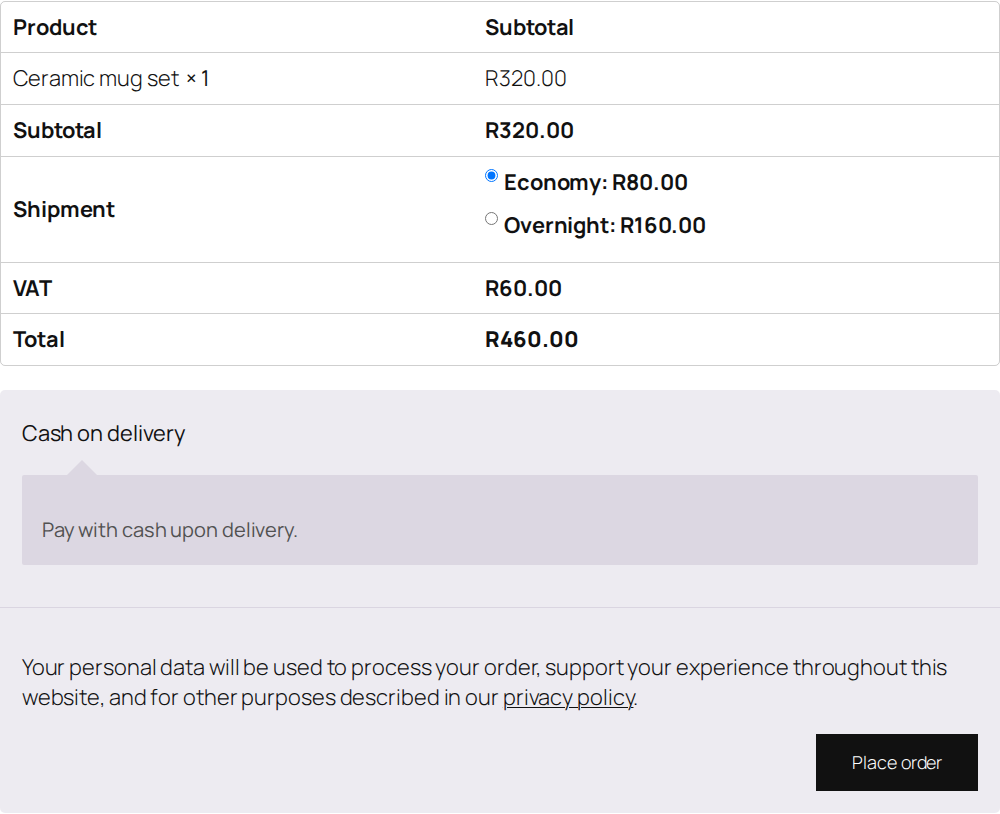
- Live courier rates at checkout. Customers see the courier’s own services and prices for their address, in the classic checkout and in the block checkout. Prices are shown exactly as your courier quotes them, rounded to the cent.
- Booking. Book an order with one click from the order screen, or let the plugin book it for you when the order reaches Processing or Completed. Each order is booked once, even if a request is repeated.
- Tracking and proof of delivery on the order. The waybill number, a tracking link and the delivery status appear in a ParcelOps box on the order. Customers get the tracking link in their order emails and are told by order note when the parcel is out for delivery and when it is delivered. You can open the proof of delivery from the order.
- Labels. Download the waybill label from the order screen.
- Your rules. Choose which courier services customers see and what they are called, add a fixed amount or a percentage to the courier price, offer free shipping above an amount, and set a backup flat rate for the rare moment your courier cannot be reached.
- Address check. If a customer types a suburb your courier does not know, they see a friendly message with suggestions. You can choose to require a recognised address.
- Safe by design. Your API key is kept on your server and is never shown on a page. Every action needs the WooCommerce manager permission and a security check.
What you need
- A customer account with a courier company that runs ParcelOps.
- Your own customer API key from your courier’s customer portal (Integrations, API keys). It starts with po_.
- Store currency set to South African rand (ZAR), and delivery addresses in South Africa.
The plugin works with high-performance order storage and with the cart and checkout blocks.
External services
This plugin connects to the ParcelOps API, the system your courier company uses to run its business. The plugin cannot work without it. The API address is https://api.parcelops.co.za/api/v1 by default. You can change it under Advanced in the settings if your courier gives you a different address.
The plugin only contacts ParcelOps after you have entered your API key, and only when one of these happens:
- A customer reaches the cart or checkout with a South African address. The plugin sends the delivery suburb, town, postal code and province, your collection address (suburb, town, postal code and province), and the weight and size of the items in the cart, to get the courier’s prices and to check the address.
- An order is booked (automatically, or when you press Book with ParcelOps). The plugin sends the order number, the recipient’s name, phone number, email address and delivery address, your collection address and contact details, the weight and size of the items, any delivery note the customer left, and a link to the order in your admin when your site uses https.
- You use a button on an order (label, proof of delivery, cancel), or the plugin checks open orders every 30 minutes. The plugin sends the shipment reference, and receives the waybill, status, tracking link and documents.
- You save the settings. The plugin sends your collection address (suburb, town, postal code and province) to check that the courier knows it. The same check is made for a delivery address in the cart or at checkout (described above) and, when an order has no province, when it is booked.
- You press Test connection or Create webhook. The plugin sends your API key to read your account name, and the address of your store’s webhook so your courier can send tracking updates to it.
ParcelOps also sends tracking updates to your store at /wp-json/parcelops/v1/webhook. Each update is checked with a secret before it is used.
The plugin sends nothing else, adds no tracking or analytics, and shows no advertising.
- ParcelOps terms of service: https://www.parcelops.co.za/terms
- ParcelOps privacy policy: https://www.parcelops.co.za/privacy
- Support: hello@parcelops.co.za or https://www.parcelops.co.za/contact
Screenshots




Installation
- In WordPress, go to Plugins > Add New, search for ParcelOps for WooCommerce, then Install and Activate. WooCommerce must be active.
- Go to WooCommerce > Settings > Shipping > ParcelOps. Paste your API key and press Save changes, then press Test connection. You should see your account name.
- Check the collection address. Anything you leave blank is taken from your store address in WooCommerce > Settings > General. Add a contact phone number: your courier needs it.
- Go to WooCommerce > Settings > Shipping > Shipping zones, open your South Africa zone and add the shipping method ParcelOps.
- Press Create webhook on the ParcelOps settings screen so your courier can send tracking updates to your store. If your site does not have a public https address, use the manual steps shown there. The plugin also checks open orders every 30 minutes.
- Choose when to book: never (use the button on each order), when an order is Processing, or when it is Completed.
FAQ
-
Do I need a ParcelOps account?
-
You need a customer account with a courier company that runs ParcelOps. ParcelOps is the system your courier uses. Ask your courier for access to their customer portal, where you create your API key.
-
Where do I get the API key?
-
In your courier’s customer portal, open Integrations, then API keys, and create a key for your store. Use your own customer key. Never use a key that belongs to your courier company.
-
I see no courier rates at checkout.
-
Check that the store currency is South African rand, that the delivery address is in South Africa, that the ParcelOps method is added to the shipping zone, and that Test connection works. If your courier has no price for the address, no rate is shown. Turn on the backup rate if you want customers to always see a price.
-
Are the prices with or without VAT?
-
ParcelOps quotes prices without VAT. The plugin does not change that. With the method’s tax status set to Taxable, WooCommerce adds VAT as set in your tax settings, so customers see VAT on top.
-
What if my courier is slow or down at checkout?
-
Checkout waits at most 4 seconds. After that, the backup flat rate is shown if you set one. It is shown when the courier cannot be reached or has a fault, and also when the API address saved in your settings is not allowed (the settings screen and the order notes say so, and you keep selling). It is never shown when the courier refuses your key, has no price, or does not know the address. Identical quotes are kept for 5 minutes so repeated page loads are fast.
-
Which orders are booked automatically?
-
Only orders where the customer chose a ParcelOps rate. You can also tick “Also book orders that chose another shipping method”. Orders with no shipping line, pickups, cancelled, refunded and failed orders are never booked automatically. The Book with ParcelOps button works for any order, except while the site address is not confirmed (see the next answer).
-
What happens if my site is copied, moved or restored?
-
The plugin remembers the address of your WordPress site (the host and the folder, ignoring http or https, www, a port and a trailing slash). If the address changes, for example a copy for testing on another domain, or in a sub-folder such as /staging, everything that changes something is switched off: booking (by hand and automatic, Rebook included), Cancel booking, Create webhook, tracking updates and the 30 minute check. Each order that was not booked says so in its notes. An administrator sees a notice on the ParcelOps settings screen with one Confirm button. Only confirm if this is your real shop at a new address. If this is a copy for testing, leave it: booking stays off. After you confirm, the orders that were skipped are queued for booking again (if automatic booking is on). Confirming on a copy of a shop makes that copy live: it books with the saved key and follows the copied orders. This is a safety net: it cannot see a copy made at the same address, which is why the next answer matters.
-
How does it avoid booking an order twice?
-
Every booking carries a key made from the order’s own unique data (its secret WooCommerce order key, its number and the attempt number), stored on the order the first time it is made. The courier answers a repeat of the same key with the first booking and makes no second one. An exact copy of an order therefore gets the first booking back, and a different order that happens to reuse the number of a lost order has another order key, so it can never be answered with someone else’s booking.
-
How does “free shipping from” work?
-
When the cart total reaches the amount you set, the cheapest ParcelOps service is free. The cart total used is the items after discounts and without VAT.
-
Who can change the API key?
-
Only administrators (the manage_options permission). Shop managers can use the order screen, but cannot see, change or test the key, and the key is only ever sent to your courier’s ParcelOps address: https on api.parcelops.co.za or another parcelops.co.za host, or the one staging host parcelops-api-staging.fly.dev. No other host is accepted.
-
What does it not do?
-
- One booking carries all the shippable items of an order, with the service of the first ParcelOps shipping line. Orders split into several packages by a multi-vendor or split-package plugin are booked as one parcel set, and an order with a local pickup line is never booked automatically (use the button).
- Cancelling or refunding the WooCommerce order does not cancel the courier booking: use Cancel booking in the order box.
- South African addresses and rand only, one collection address, no international shipments.
- Deleting the plugin on a multisite network cleans the site it is deleted from only; zone entries of the ParcelOps method stay in the shipping zones.
-
Is it safe to press Book twice?
-
Yes. Every booking carries a unique reference for the order, so a repeat is recognised and no second parcel is booked. If the answer from your courier is lost, press the button again: it finds the first booking. To book an order again on purpose, use Rebook, which appears once the first booking has a waybill. If the courier says an earlier booking already exists for an order that has since changed, that booking is linked after it is checked to be the order’s own, and Book again as a new booking lets you book the changed order as a second step.
-
An order has no phone number.
-
The courier needs a phone number to deliver. The plugin will not book the order and says so on the order. Add a phone number and press Book with ParcelOps again. Tip: make the phone field required at checkout.
-
Can two stores use one API key?
-
It is best to create one key per store in your courier’s customer portal. Updates are matched to orders by order number and booking reference, and a second store using the same key could receive updates it should not act on.
-
Which tracking plugins does it work with?
-
The plugin adds the waybill to the standard tracking list that popular tracking plugins read, and shows tracking in WooCommerce order emails and the My Account order page. It also works on its own without any tracking plugin.
-
What happens to my data if I delete the plugin?
-
The plugin removes its settings and saved quotes. Order notes and the waybill details saved on your orders are kept.
Reviews
There are no reviews for this plugin.
Contributors & Developers
“ParcelOps for WooCommerce” is open source software. The following people have contributed to this plugin.
Contributors
Translate “ParcelOps for WooCommerce” into your language.
Interested in development?
Browse the code, check out the SVN repository, or subscribe to the development log by RSS.
Changelog
1.0.0
- First release: live courier rates at checkout (classic and block), booking on order, labels, tracking and proof of delivery on the order, address check, backup rate and rate rules.