
Description
Pixalink is a customer loyalty platform for retail and F&B businesses. This plugin connects a WooCommerce store to a Pixalink outlet so online orders count exactly like in-store purchases.
- Earn on every order. Paid orders are sent to Pixalink and the shopper earns points on the same programme as your outlets.
- Vouchers and points at checkout. Verified members redeem Pixalink vouchers and convert points into a discount in both the Cart & Checkout blocks and the classic checkout.
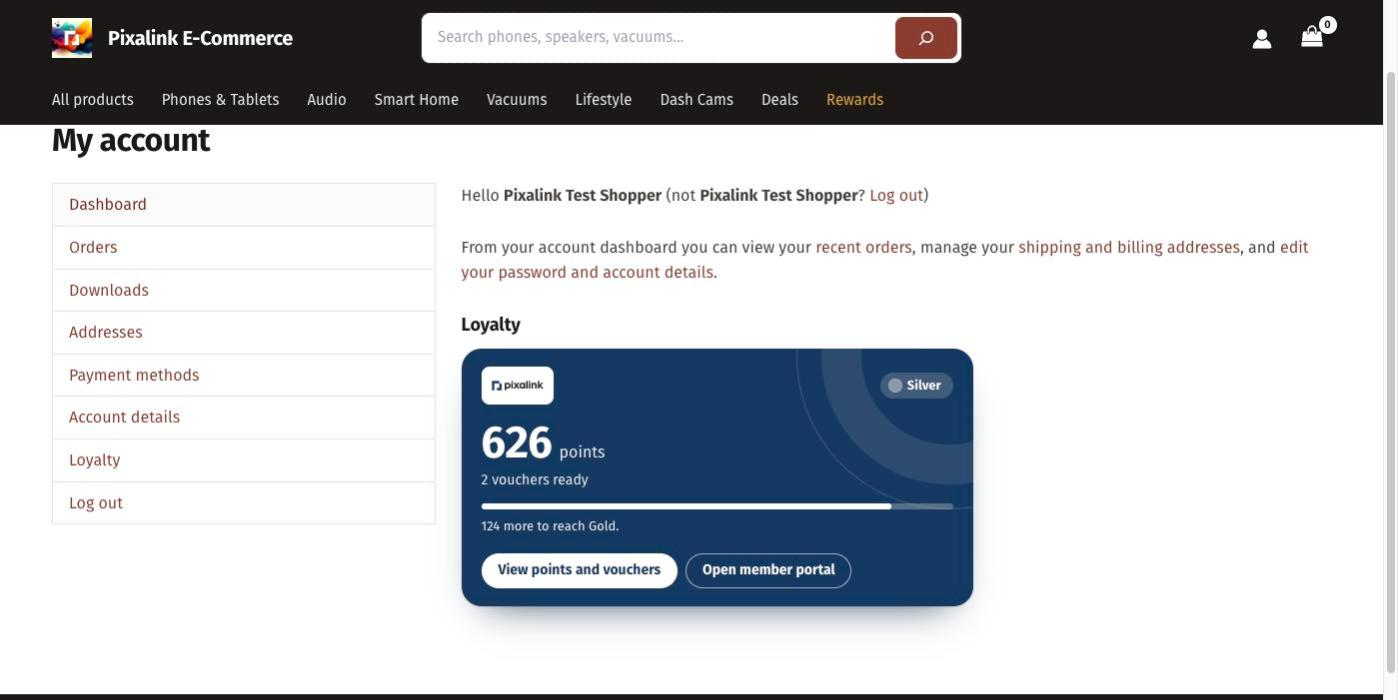
- My Account › Loyalty. Members see their balance, tier, vouchers and a QR code to scan at your outlets.
- Phone number and marketing consent. Checkout captures an international phone number and an explicit, separately recorded marketing consent.
- Reliable delivery. Order events are sent to Pixalink as soon as the shopper’s page has loaded, and also queued on your site and retried with Action Scheduler, so short outages never lose an order.
The plugin is compatible with High-Performance Order Storage and the Cart & Checkout blocks. It sends no telemetry.
A Pixalink account is required. Store owners who are not on Pixalink yet can request access from the plugin’s Connect screen.
External services
This plugin connects to the Pixalink Commerce API (https://explore.pixalink.io/api/commerce/v1), operated by Pixalink, to run the loyalty programme you configure in Pixalink. Nothing is sent until a store administrator connects the store.
What is sent, and when:
- When you connect the store: your site URL, the plugin, WordPress and WooCommerce versions, and a one-time authorisation code. You sign in on pixalink.io; your Pixalink password is never entered on your site.
- When you choose “Request access” (stores not on Pixalink yet): your store name, site URL, your name and e-mail address, the store’s country, currency, time zone, language and checkout type, the plugin, WordPress, WooCommerce and PHP versions, and your choice in the optional Pixalink marketing box, so Pixalink’s team can contact you. Nothing is sent until you click the button, and you submit the request on pixalink.io.
- Periodically while connected (heartbeat, every 6 hours): your site URL, plugin and WooCommerce versions, and the number of queued and failed order events. Pixalink answers with the features switched on for your store and your member portal’s name, logo, colours, address and sign-in page.
- When you disconnect: a request asking Pixalink to revoke the store’s key.
- When an order is paid for, completed, cancelled, refunded or (unpaid) deleted: the order number and key, totals, currency, line items (product name, SKU, category, quantity, price), coupons, shipping total, and the shopper’s name, e-mail address, phone number, WordPress user id (if logged in) and marketing-consent choice with its time and the hash of the consent text shown.
- When an administrator sends a test ping from the settings: an empty test event.
- When a shopper verifies their phone number (My Account › Loyalty): the phone number to look the member up; if Pixalink has no member with it, the shopper’s WordPress user id, name, e-mail address, phone number and country, and their recorded marketing choice, to create one. Pixalink then sends a one-time code by WhatsApp or SMS, and the plugin sends the code the shopper types.
- When a member arrives from the Pixalink member portal (the
pixalink_ssolink): the single-use sign-in ticket in the link and, if they are logged in to a customer account, their WordPress user id (never the id of a staff account: editors, shop managers and administrators are never linked to a member). Pixalink answers with the member’s id, phone number, name and e-mail address, which the plugin uses to sign the member in or create their customer account. - When a verified member clicks a portal button: their Pixalink customer id, WordPress user id and the page to open; Pixalink answers with a one-time sign-in link, which the browser is sent to at once.
- When a shopper presses Sign in with the member portal: the browser goes to the Pixalink portal with the store page to return to and a random check value; Pixalink sends back a one-time sign-in ticket. The store then redeems that ticket with the check value as described for the
pixalink_ssolink above. - When Pixalink offers OAuth sign-in to your store (after a heartbeat): your store’s sign-in return address (
/?pixalink_oauth=callbackon your site), to register the store’s sign-in client; Pixalink answers with the client’s id and secret. - When a shopper presses Sign in with the member portal or Verify with WhatsApp and OAuth is offered: the browser goes to the Pixalink portal with the store’s client id, its return address, the requested permissions (
profile store:link), a random check value and a PKCE challenge. When the member comes back, the store sends the one-time code, its return address and the PKCE verifier to Pixalink’s token address with the client id and secret, then sends the access token it receives and, if the shopper is logged in to a customer account, their WordPress user id. Pixalink answers with the member’s id, phone number, name and e-mail address, as for thepixalink_ssolink above, and revokes the token. - When a verified member views My Account › Loyalty, the My Account dashboard or the loyalty shortcodes: their Pixalink customer id, to show points, credits, tier, vouchers, memberships, recent activity and the member QR code (drawn in the browser; no image service is used).
- When a shopper changes their loyalty phone number or marketing choice (checkout, registration, Account details) or links their account: a customer update with their WordPress user id, Pixalink customer id, phone number and country, e-mail address, name and marketing choice with its time, where it was given and the hash of the wording shown.
- When a verified member opens checkout or changes the rewards they use: their Pixalink customer id and the cart contents needed to price vouchers, points and credits (product names, SKUs, categories, quantities and prices, store discounts, shipping and tax totals).
- When a member places an order using vouchers, points or credits: the order key, the cart contents and the rewards to hold for the order; when payment fails or an unpaid order is abandoned, a request to release them.
Pixalink also calls the store: POST /wp-json/pixalink-loyalty/v1/webhook receives signed notifications (a member’s details or balance changed, a voucher was issued) so cached balances refresh and a withdrawn marketing consent is recorded. Requests are verified with the same key and rejected unless correctly signed and recent.
Every request is signed with a key derived from your outlet API key. Pixalink processes this data as your service provider under its terms.
- Pixalink Terms and Conditions: https://pixalink.io/terms
- Pixalink Privacy Policy: https://pixalink.io/privacy-policy
The member QR code is drawn with qrcode-generator by Kazuhiko Arase (MIT License, see assets/js/THIRD-PARTY-LICENSES.txt), bundled in the plugin.
Self-hosted builds downloaded from the plugin’s GitHub releases (not the WordPress.org version) also check GitHub (https://api.github.com, repository Pixalink-MY/pixalink-woocommerce-plugin) for plugin updates about twice a day, and download an update from GitHub when one is installed. Each check is a standard WordPress HTTP request, which carries the site URL in its User-Agent. GitHub Privacy Statement: https://docs.github.com/site-policy/privacy-policies/github-general-privacy-statement
Screenshots


Installation
- Install and activate WooCommerce.
- Upload the plugin and activate it through Plugins.
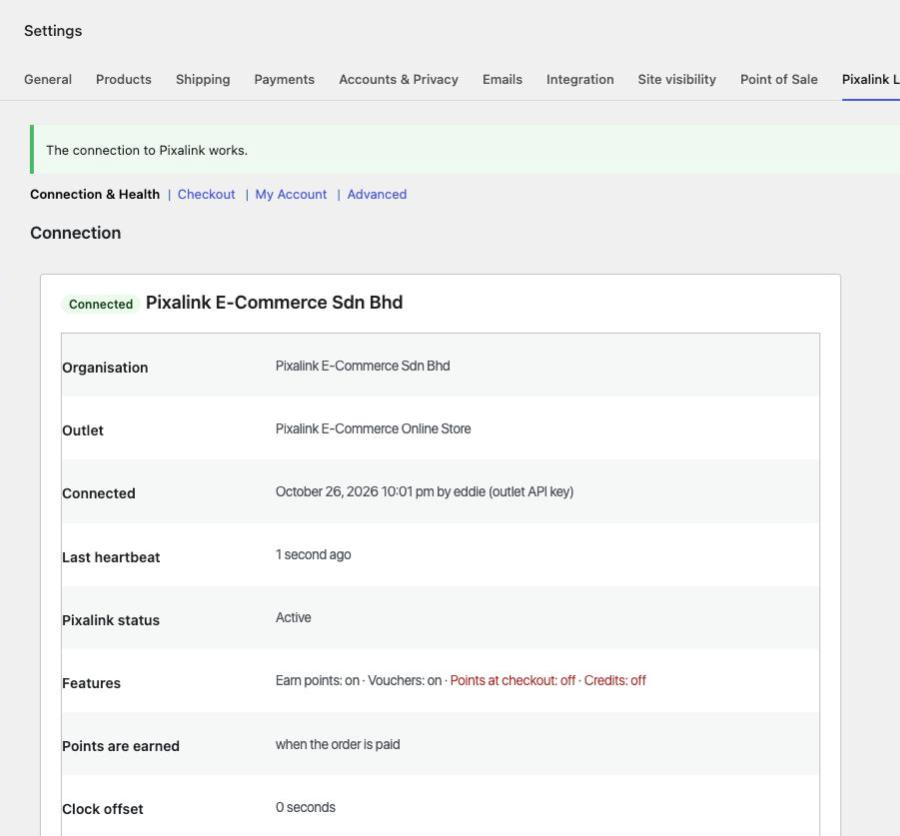
- Open WooCommerce › Settings › Pixalink Loyalty and choose Connect to Pixalink. Sign in with your Pixalink vendor account and pick the outlet that represents your online store.
Advanced: the outlet API key can be set in wp-config.php with define( 'PIXALINK_LOYALTY_API_KEY', '...' );, which overrides the key stored by the Connect screen.
FAQ
-
Do shoppers need a Pixalink account?
-
No. Guests earn points with the phone number they enter at checkout. Shoppers who want to spend points or vouchers verify their phone number once with a one-time code.
-
Do shoppers need a code to verify?
-
Not if your member portal can sign them in. Logged-in shoppers who have not verified yet see Verify with WhatsApp on My Account › Loyalty and on the dashboard card. It takes them to your Pixalink member portal, which confirms their number the way your portal normally signs members in (for example by sending a WhatsApp message to Pixalink), and brings them straight back to the Loyalty tab with their membership linked. If their browser is already signed in to the portal, they only confirm it is them. Shoppers can still choose Or get a code by WhatsApp or SMS instead. The button shows once Pixalink offers secure portal sign-in (OAuth) to your store, while Sign in from Customer Portal is on and your store is connected; it never shows to staff accounts or to accounts that are already linked, and it never switches an account that is linked to another member. The checkout’s “Verify now” link opens the same Loyalty tab.
-
What happens if Pixalink is unreachable?
-
Checkout keeps working. Order events are normally sent right after the page that created them has loaded; when Pixalink cannot be reached they wait in a queue on your site and are retried automatically. Redemptions are only offered while Pixalink confirms them.
-
Which phone number earns the points?
-
The mobile number entered in the “Mobile number for loyalty points” field at checkout (also on the registration and Account details forms). It is stored in international format, so 012-345 6789 in Malaysia becomes +60123456789. Once a member verifies a number, forms never overwrite it; they verify a new number on the Loyalty tab instead.
-
Is the marketing box ever ticked for the shopper?
-
No. It starts unticked at checkout and registration, and an unticked box records nothing. Under Account details it shows the shopper’s saved choice so they can withdraw at any time. The exact wording shown is recorded (as a hash) with every answer.
-
Can I still create my own coupons whose code starts with “PXL-“?
-
No. Coupon codes starting with
PXL-(any case) are reserved for Pixalink: vouchers appear at checkout asPXL-coupons, and points and credits aspxl-pointsandpxl-credits. A store coupon with such a code is ignored while the plugin is active. -
How do points and credits discounts work with tax?
-
Like any WooCommerce fixed cart coupon: in a store whose prices exclude tax, the discount comes off the price before tax, so the order total falls by the discount plus its tax. Credits are applied as a discount, so the part of an order paid with credits does not earn points.
-
What does the loyalty card on the My Account dashboard show?
-
Verified members see their points balance, the next points to expire, their tier and progress to the next one, and how many vouchers they can use in your online store, with a link to the Loyalty tab for the details. Shoppers who have not verified their phone number see one line that takes them to the Loyalty tab to do so. If your store is not connected or Pixalink cannot be reached, the card is simply left out. Turn it off under WooCommerce › Settings › Pixalink Loyalty › My Account › Dashboard summary (it also disappears when the Loyalty tab is off). Themes can override it by copying
templates/myaccount/dashboard-card.phptoyourtheme/pixalink-loyalty/myaccount/dashboard-card.php. -
What does “Match your member portal” do?
-
With it on (the default), My Account (the Loyalty tab, the dashboard card and the phone verification form) and the loyalty panel in both checkouts use the logo and colours of your Pixalink member portal, so members see one brand in your store and in the portal. Turn it off under WooCommerce › Settings › Pixalink Loyalty › My Account › Match your member portal to use your theme’s colours instead; the layout stays the same. The colours arrive with the six-hourly connection check, so a change in Pixalink shows up within a few hours.
Theme developers can override the colours with CSS custom properties on the plugin’s own wrappers (
.pixalink-loyalty-account,.pixalink-loyalty-dashboard-card,.pixalink-loyalty-linkand.pixalink-loyalty-panel):--pxl-primary(brand fill: member card, buttons, points slider),--pxl-on-primary(text on the brand fill),--pxl-ink(brand colour as text on white),--pxl-accent(tints only) and--pxl-tier(the member’s tier colour). While the portal colours are in use the wrappers also carry theis-brandedclass. -
Do members have to sign in again to open the member portal?
-
No. For a member who verified their phone number, “View all rewards”, “Full points history”, “Credits” and “Open member portal” open the Pixalink member portal already signed in. The link is created by Pixalink at the moment of the click, works once for 60 seconds, is never shown in the page or stored, and the redirect asks the browser not to pass the store’s address on. If Pixalink cannot be reached, the member gets the portal’s normal sign-in page instead. Shoppers who have not verified their phone number get the portal’s normal sign-in page. A portal button clicked after the shopper’s store session ended takes them to your store’s login form first, and back to the Loyalty tab once they are logged in.
-
How does “Sign in from Customer Portal” work?
-
Logged-out shoppers see an “or” line and a Sign in from Customer Portal button under the login form on My Account and in the classic checkout’s “Returning customer?” form (the Checkout block has no login form, so it does not show there). With “Match your member portal” on, the button uses your portal’s logo and colours; otherwise it takes your theme’s text colour.
When a member presses it, they go to your Pixalink member portal. If they are not signed in there yet, they sign in (or join) the way they always do. The portal then sends them straight back to the page they started on, signed in to your store.
A member who has no account in your store gets one automatically, even if you have turned shop registration off, as long as Pixalink has an e-mail address for them. Without an e-mail address they stay a guest for that visit and still earn points on their order. An existing store account with the same e-mail address is never taken over: the member is asked to log in to it with their password. Staff accounts (editors, shop managers, administrators) are never signed in this way.
The button only works in the browser that pressed it: the store keeps a random check value in a short-lived cookie and only accepts the sign-in when the value comes back with it. Where Pixalink offers it, the round trip uses OAuth 2.1 (authorization code with PKCE): the store registers its own sign-in client with Pixalink automatically and keeps its secret encrypted, and no sign-in token is stored. The button appears once the connection check has received the portal’s sign-in details from Pixalink. To turn it off, untick WooCommerce › Settings › Pixalink Loyalty › My Account › Sign in with your member portal. Themes can override it by copying
templates/global/portal-sign-in.phptoyourtheme/pixalink-loyalty/global/portal-sign-in.php, and restyle it with--pxl-primary,--pxl-on-primaryand--pxl-inkon.pixalink-loyalty-sign-in. -
Does uninstalling delete my data?
-
Only if you enable Delete all data on uninstall in the plugin settings. Order notes and order meta stay with your orders either way.
Reviews
There are no reviews for this plugin.
Contributors & Developers
“Pixalink Loyalty for WooCommerce” is open source software. The following people have contributed to this plugin.
Contributors

Translate “Pixalink Loyalty for WooCommerce” into your language.
Interested in development?
Browse the code, check out the SVN repository, or subscribe to the development log by RSS.
Changelog
1.0.4
- Sign-in through the member portal now allows 30 minutes (enough for new members to register), shows the cancelled / try-again message to logged-out shoppers too, and logs why a sign-in did not finish.
1.0.3
- Members can verify with WhatsApp: “Verify with WhatsApp” on My Account › Loyalty sends them to your member portal and back, linked. Sign in from Customer Portal now uses OAuth 2.1 when your Pixalink account has it turned on.
- The one-time code by WhatsApp or SMS stays available.
1.0.2
- Settings now show the right organisation after the store’s outlet API key is changed to another merchant’s outlet.
1.0.1
- Security: loyalty output from shortcodes, My Account and checkout is escaped with an explicit allow-list, including theme template overrides.
- Security: the phone and marketing-consent fields on registration and Account details are only saved when the form’s nonce verifies.
- The “connect your store” reminder now shows only on the Plugins screen.
1.0.0
First public release.
- Foundation: requirements checks, HPOS and Cart & Checkout blocks compatibility, encrypted credential storage, signed API client.
- Connect screen under WooCommerce › Settings › Pixalink Loyalty: connect with your Pixalink sign-in or an outlet API key, request access, test and disconnect; connection heartbeat and admin notices.
- Phone number (international format) and a separate, unticked marketing-consent box at checkout (blocks and classic), registration and Account details.
- My Account › Loyalty: phone verification with a one-time code, points, credits, tier, vouchers, memberships, activity and a member QR code;
[pixalink_loyalty_summary]and[pixalink_loyalty_qr]shortcodes. - Sign-in from the Pixalink member portal, signed webhooks from Pixalink, and personal data export and erasure.
- Checkout: members use Pixalink vouchers, points and credits in the Checkout block and the classic checkout; they are held when the order is placed and released if payment fails or the order is cancelled or abandoned.
- Staff accounts (editors, shop managers, administrators) are never linked to a Pixalink member: a portal link opened while signed in as staff links nothing and says so, and the Loyalty tab explains it instead of offering the phone code.
- Members the portal recognises but who have no account on the store (or cannot get one automatically) are told they will earn points on this visit, and how to create an account where the store allows it.
- My Account and checkout match the member portal’s logo and colours (“Match your member portal”, on by default); the Loyalty tab and dashboard card show a member card, and portal buttons open the member portal already signed in.
- “Sign in from Customer Portal” on the My Account and classic checkout login forms: members sign in through the portal and come back signed in, with a store account created for them when they have none (“Sign in from Customer Portal” setting, on by default).
- When Pixalink pauses a store, points and vouchers switch off and the store admin is told why; orders placed meanwhile are kept and sent to Pixalink automatically once the store is turned back on.
- Order updates reach Pixalink right after the checkout or order screen has loaded instead of waiting for WordPress background tasks, so members see their points at once on quiet stores; the event delivery panel warns when an update has waited more than 5 minutes.