

Description
Cache Watch clears every cache on your WordPress site from one place, at the right time, then warms it back up.
Most WordPress sites have three or four caches stacked on top of each other: a cache plugin, the host’s server cache, a CDN like Cloudflare and the object cache. You update a page, menu or theme file, and visitors still see the old version, because one of those layers didn’t get cleared.
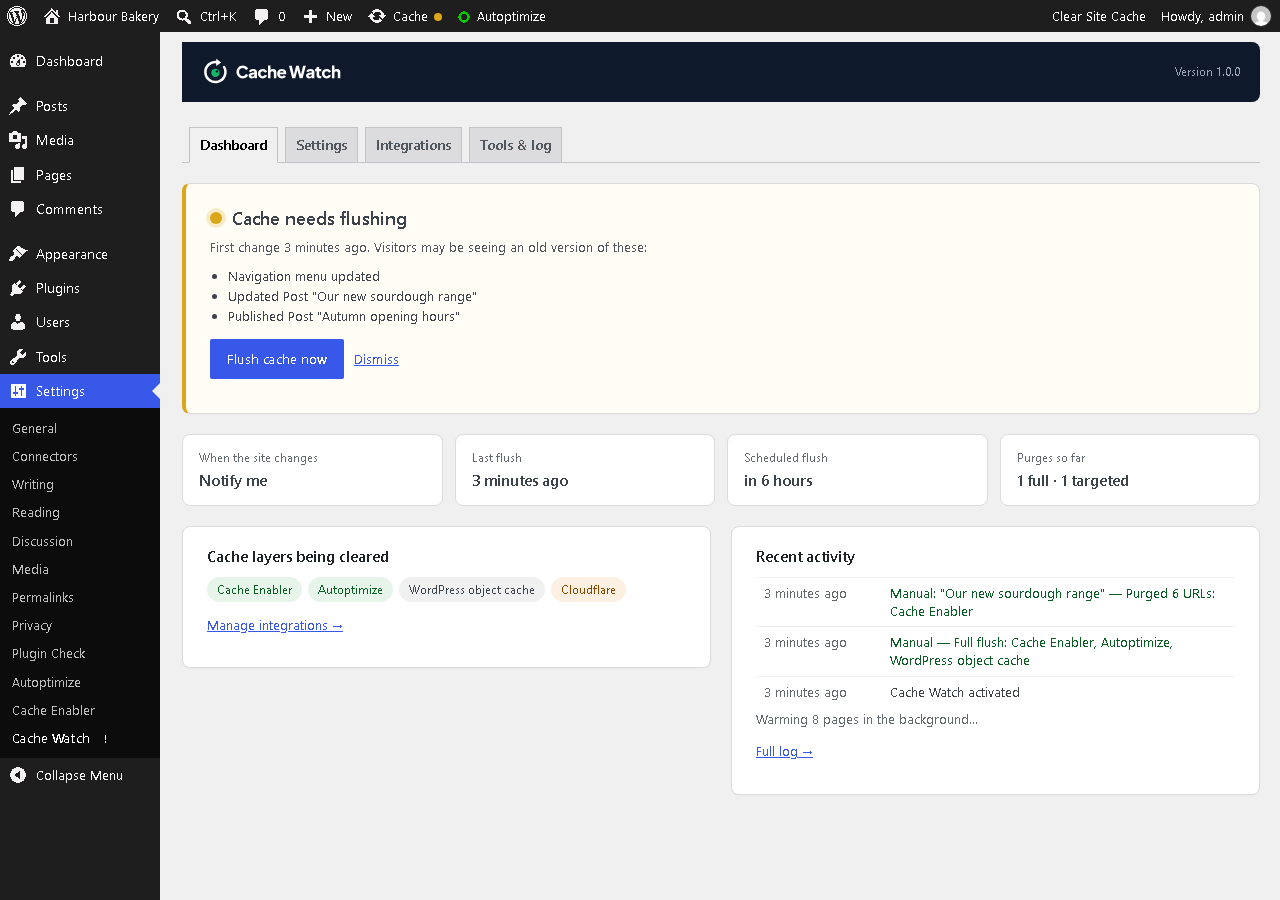
Cache Watch fixes that. It notices when something on your site changes, tells you (or just deals with it), purges every cache layer it finds, then preloads the cache so visitors never hit a slow page.
It works alongside the cache plugin you already have. It doesn’t replace it.
Why people use Cache Watch
- One button clears everything: cache plugin, host cache, Cloudflare, Bunny CDN, Varnish, Redis / Memcached object cache and page builder CSS
- Catches changes other plugins miss: menus, widgets, Customizer, block theme templates, global styles, and even theme files uploaded by FTP or deployed with git
- Smart purging: edit one post and only the affected pages are cleared, so the rest of your site stays fast
- Cache warming: purged pages are revisited in the background so the next visitor gets a cached page
- Auto-detects your setup: 12 cache plugins, 9 managed hosts and the major CDNs, with no configuration needed for most sites
- Built for developers: WP-CLI commands, a deploy webhook, an activity log and hooks
- Private by design: no analytics, no telemetry, no account needed
Knows when your site has changed
- Posts, pages, WooCommerce products and custom post types published, updated, unpublished or deleted
- Slug changes (the old URL is purged too)
- Block theme templates, template parts, global styles, patterns and navigation
- Menus, widgets, Customizer, site title, tagline, homepage and permalink settings
- Categories, tags and other public taxonomies
- Theme switches, plugin activations, and core, plugin and theme updates
- Approved comments, WooCommerce stock changes and ACF options pages
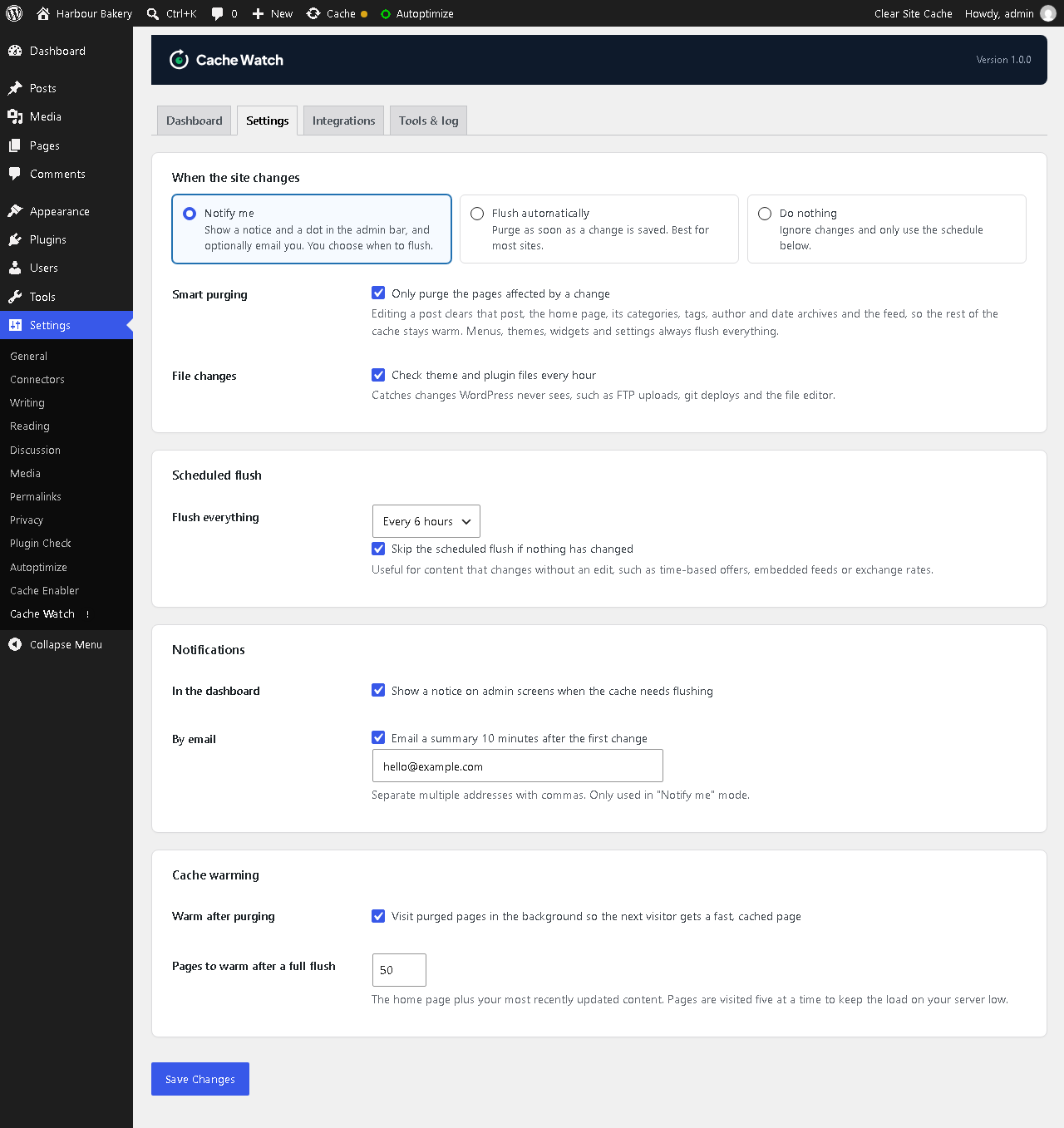
- Changes WordPress never sees: an hourly scan of theme and plugin files catches FTP uploads, git deploys and file editor changes
You choose what happens
- Notify me: an admin notice, a status dot in the admin bar, a dashboard widget and an optional email summary with a link to flush
- Flush automatically: purge the cache the moment a change is saved
- Scheduled flush: clear the cache every 1, 3, 6 or 12 hours, daily or weekly. It can skip the flush when nothing has changed.
Smart purging
Editing one post doesn’t need to wipe your whole cache. Cache Watch purges only that post, the home page, its categories and tags, the author, date archives and the feed, so the rest of the site stays fast. Menus, themes and settings changes still flush everything.
Clears every cache layer
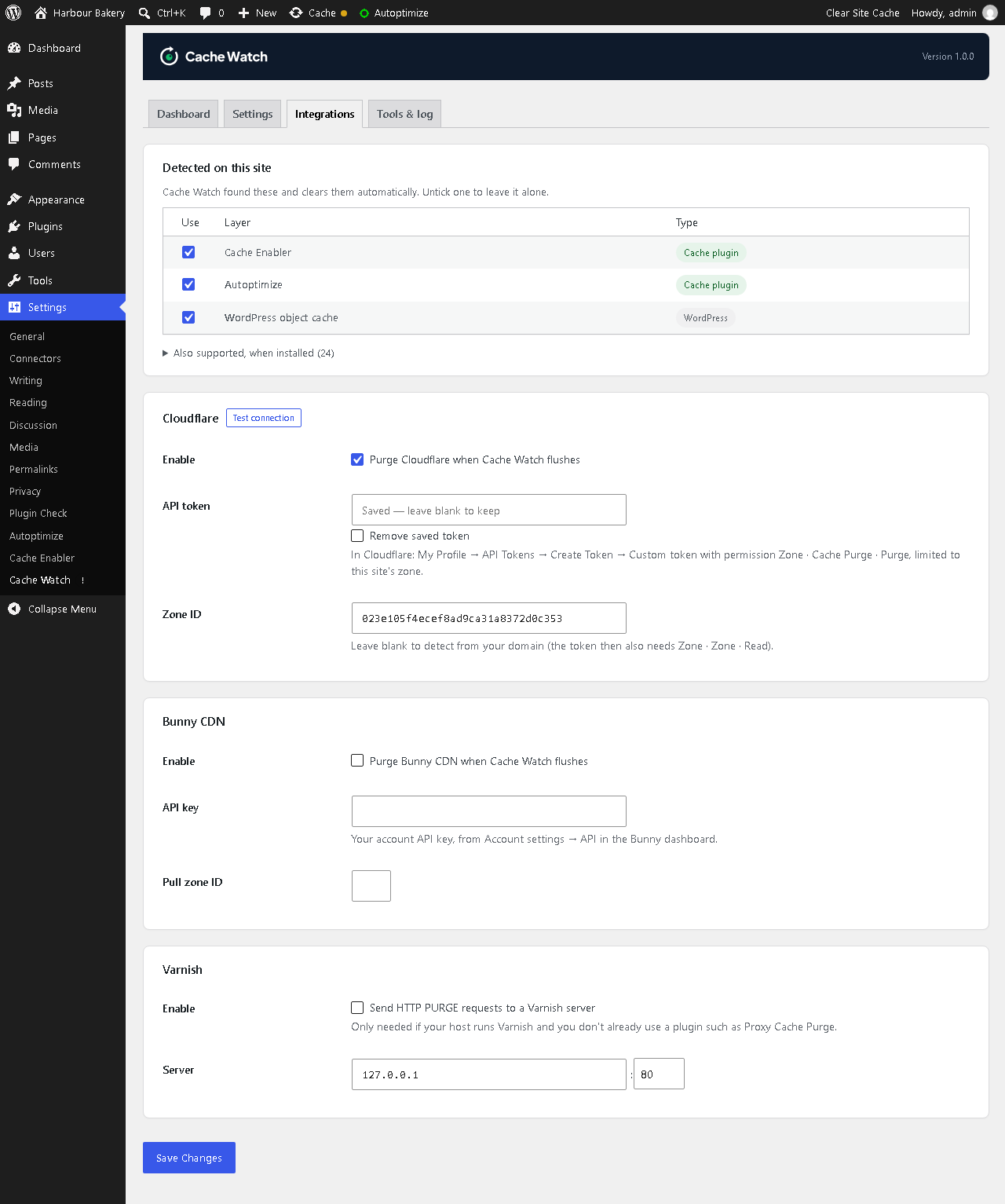
Cache plugins: WP Rocket, W3 Total Cache, WP Super Cache, LiteSpeed Cache, WP Fastest Cache, WP-Optimize, FlyingPress, Cache Enabler, Hummingbird, Swift Performance, Comet Cache, Autoptimize
Managed hosting: Kinsta, WP Engine, SiteGround, Cloudways (Breeze), Pantheon, GoDaddy Managed WordPress, Pagely, SpinupWP, Pressable / WordPress VIP (Batcache)
CDN and server cache: Cloudflare, Bunny CDN, Varnish (direct HTTP PURGE or Proxy Cache Purge), Nginx Helper
Page builders: Elementor, Divi and Beaver Builder generated CSS
WordPress: the object cache, including Redis and Memcached
Cache warming and preload
After a purge, Cache Watch visits the affected pages in the background, five at a time, so the next real visitor gets a fast, cached page instead of a slow one.
For developers and agencies
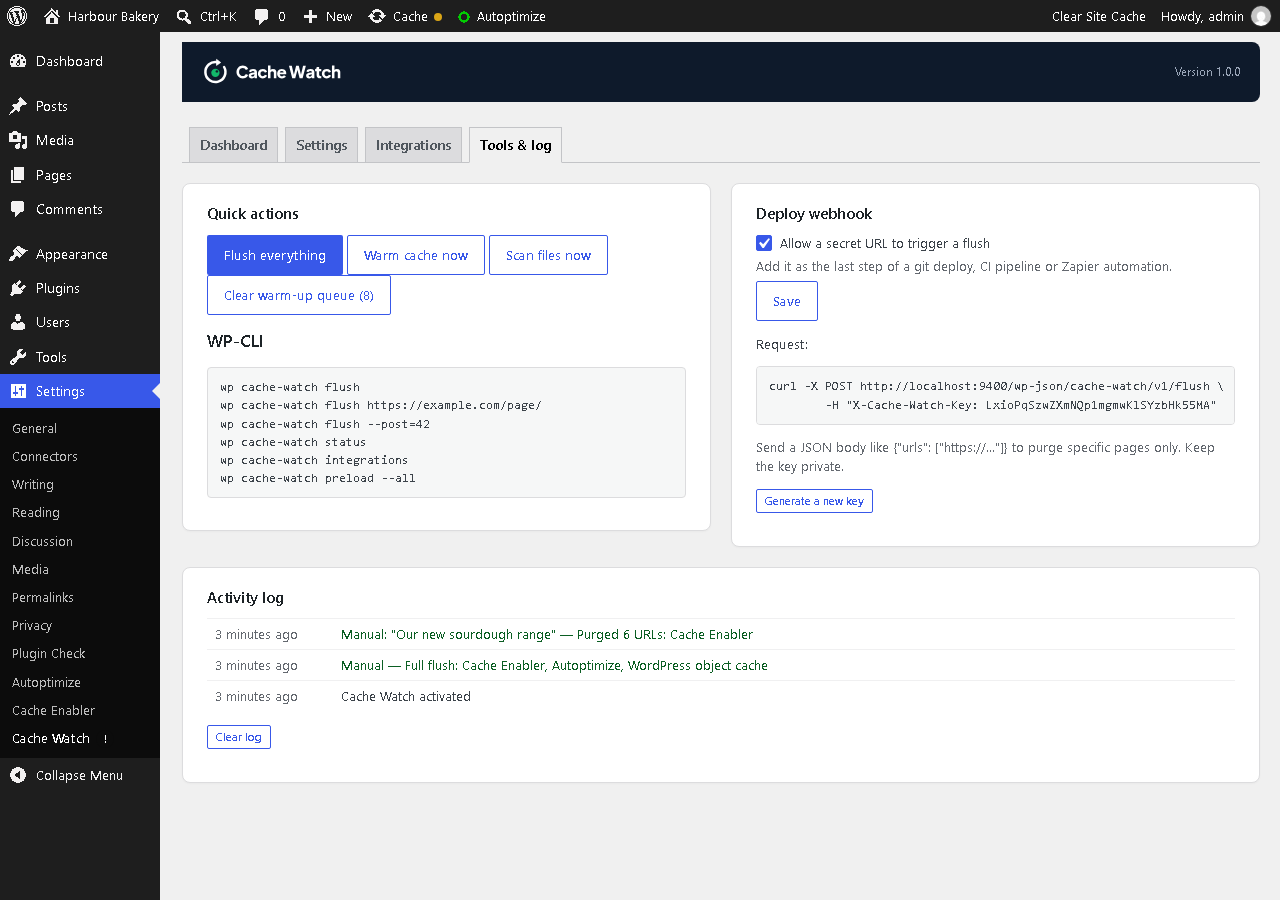
- WP-CLI:
wp fcb-cache-watch flush,flush <url>,flush --post=<id>,status,integrations,scan,preload - Deploy webhook: one secret URL to clear the cache from GitHub Actions, a deploy script or Zapier, with optional per-URL purging
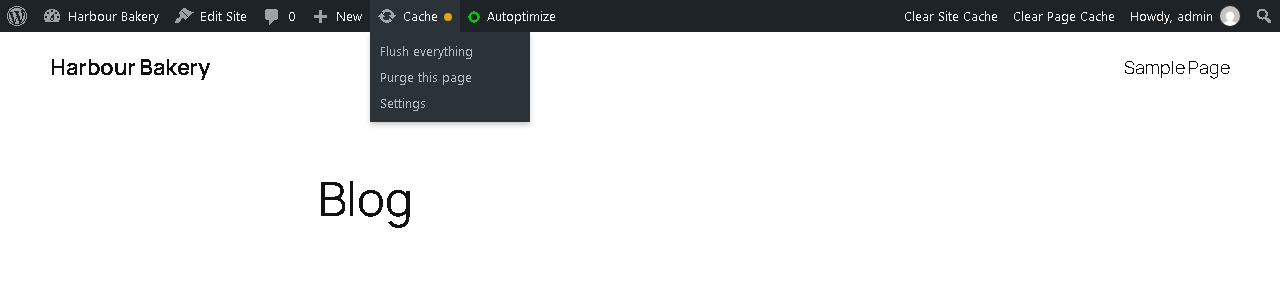
- Purge buttons in the admin bar (“Purge this page”) and in post lists
- Activity log of every change, purge, email and error
- Hooks to add your own cache layer, change which URLs are purged, or run code after a flush
External services
Cache Watch does not send analytics or telemetry. Cloudflare and Bunny CDN are contacted only when you enable the integration and provide its credentials on the Integrations tab. Varnish requests are sent only when you enable it and configure a server.
Cache Watch stores its settings, change status, activity log and cache-warming queue in this WordPress site’s database. API credentials are stored in the plugin settings. These options are removed when the plugin is deleted. Optional email summaries are sent to the addresses you configure using this site’s WordPress mail service. Cache warming makes requests to this site’s own pages.
Cloudflare
Used to purge your Cloudflare cache. When Cache Watch flushes, it sends your API token and either a “purge everything” request or the list of page URLs to purge to the Cloudflare API (api.cloudflare.com). When you test the connection, or haven’t entered a Zone ID, it also sends your domain name to look up the zone.
Bunny CDN
Used to purge your Bunny CDN pull zone. When Cache Watch flushes, it sends your API key and either your pull zone ID or the page URLs to purge to the Bunny API (api.bunny.net).
Varnish purges and cache warming only send requests to your own server.
Screenshots
Installation
- Install from Plugins > Add New (search for “Cache Watch”), or upload the
fcb-cache-watchfolder to/wp-content/plugins/. - Activate the plugin.
- Go to Settings > Cache Watch. Your cache plugin and host are detected automatically.
- Choose Notify me or Flush automatically, and set a schedule if you want one.
- If you use Cloudflare, Bunny CDN or Varnish, add the details on the Integrations tab and click Test connection.
FAQ
-
Is this a caching plugin?
-
No. Cache Watch doesn’t cache anything itself. It works with the cache plugin, host and CDN you already have, and makes sure they’re cleared at the right time.
-
My cache plugin already clears the cache when I update a post. Why do I need this?
-
Most cache plugins only clear the post you edited. They often miss menus, widgets, Customizer changes, theme files uploaded by FTP, and the other layers above them, like your host’s server cache and Cloudflare. Cache Watch covers all of those, in one place.
-
Why am I still seeing old content after clearing my cache?
-
Usually because another cache layer is still serving the old page, often Cloudflare, Varnish or your host’s server cache. Cache Watch clears every layer it detects together, so nothing is left behind.
-
How do I clear the Cloudflare cache automatically from WordPress?
-
Add a Cloudflare API token on the Integrations tab and choose Flush automatically. Cache Watch will purge the changed URLs from Cloudflare whenever you update your site, or purge everything when a site-wide change is made.
-
Does it work with WP Rocket, LiteSpeed Cache and W3 Total Cache?
-
Yes. These and nine other cache plugins are detected and cleared automatically. See the full list above.
-
Does it work with WooCommerce?
-
Yes. Product updates and stock changes are detected, and the affected product and archive pages are purged.
-
Will flushing the cache slow my site down?
-
Briefly, because pages have to be rebuilt. That’s why Cache Watch uses smart purging (only clearing what changed) and warms the cache afterwards.
-
What permissions does the Cloudflare API token need?
-
Zone · Cache Purge · Purge. If you want Cache Watch to find your Zone ID automatically, also add Zone · Zone · Read. Restrict the token to the zone for this site.
-
The scheduled flush doesn’t run on time.
-
WordPress runs scheduled tasks when someone visits the site, so on quiet sites they can run late. For exact timing, add
define( 'DISABLE_WP_CRON', true );to wp-config.php and set up a real cron job on your server to requesthttps://yoursite.com/wp-cron.phpevery 5 to 15 minutes. -
Can I clear the cache from a deploy or CI pipeline?
-
Yes. Use the deploy webhook on the Tools tab from GitHub Actions, a deploy script or Zapier, or run
wp fcb-cache-watch flushwith WP-CLI. -
Can I add my own cache layer?
-
Yes. Extend
FCB_Cache_Watch_Integrationand register your class with thefcb_cache_watch_integrationsfilter. Or, for a simple case, hook intofcb_cache_watch_flush:add_action( 'fcb_cache_watch_flush', function ( $source, $result ) { /* purge something */ }, 10, 2 ); -
Which hooks are available?
-
fcb_cache_watch_integrations(filter): add or remove cache layersfcb_cache_watch_post_urls(filter): URLs purged when a post changesfcb_cache_watch_preload_urls(filter): URLs warmed after a full flushfcb_cache_watch_watched_options(filter): settings that count as a site-wide changefcb_cache_watch_ignored_post_types(filter): post types to ignorefcb_cache_watch_fingerprint_dirsandfcb_cache_watch_fingerprint_extensions(filters): what the file scan looks atfcb_cache_watch_capability(filter): who can manage Cache Watch (defaultmanage_options)fcb_cache_watch_flush(action): after a full flushfcb_cache_watch_purge_urls(action): after a targeted purgefcb_cache_watch_changes_pending(action): when changes are waiting for a flush
Reviews
There are no reviews for this plugin.
Contributors & Developers
“Cache Watch – Clear Cache Everywhere” is open source software. The following people have contributed to this plugin.
Contributors
Translate “Cache Watch – Clear Cache Everywhere” into your language.
Interested in development?
Browse the code, check out the SVN repository, or subscribe to the development log by RSS.
Changelog
1.0.1
- Renamed to FCB Cache Watch. The plugin folder is now fcb-cache-watch. Settings, activity log and schedules move across automatically and the old Cache Watch plugin is switched off, so you can delete it.
- The deploy webhook is now /wp-json/fcb-cache-watch/v1/flush with the X-FCB-Cache-Watch-Key header. The old URL and header keep working.
1.0.0
- First release.