

Description
Hivenza is a workspace for customer conversations: live chat, an AI agent, email, social messages and a help centre in one inbox. This plugin adds the Hivenza website chat to your WordPress site in a minute: paste your chat key, choose the pages, done.
Who it is for
Shops on WooCommerce, service businesses, agencies and any WordPress site that wants live chat with an AI agent behind it, and one inbox for the team that answers.
What it does
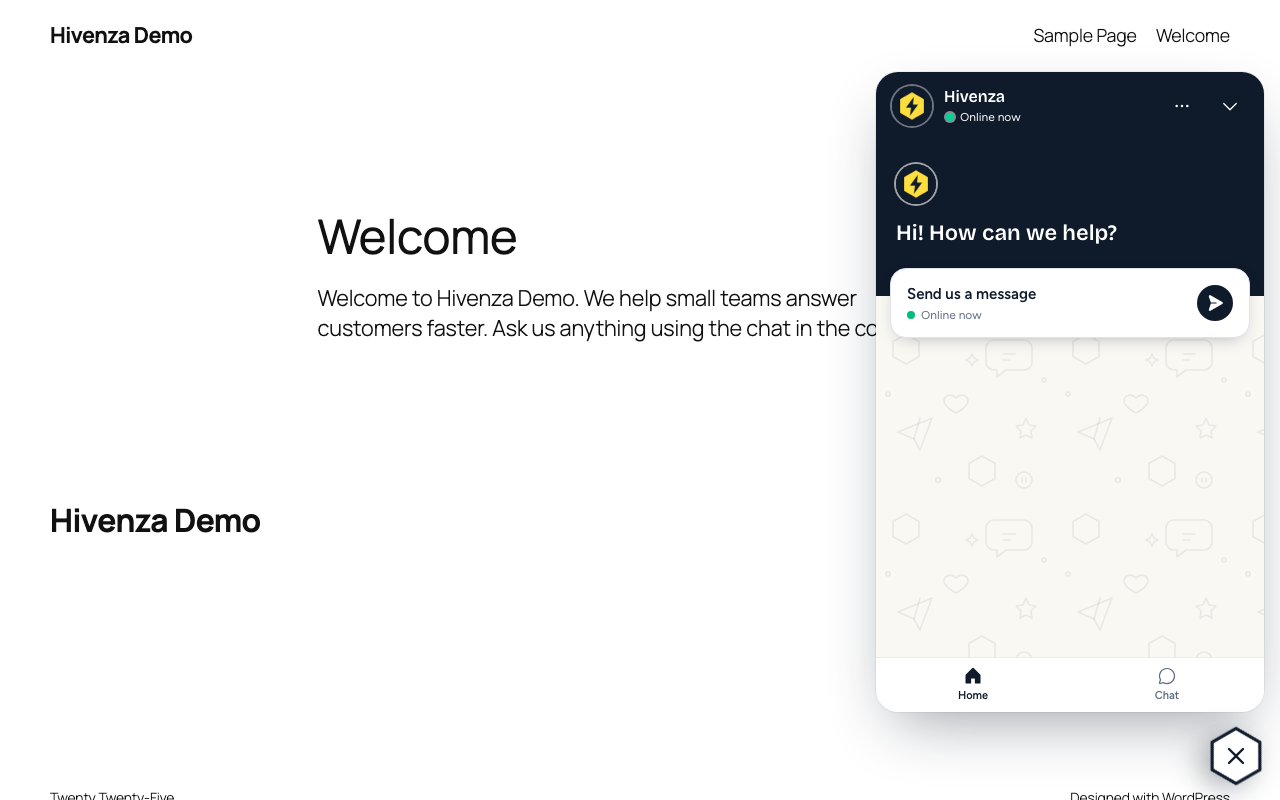
- Website chat and AI agent on every page, or only the pages you choose (or everywhere except some).
- Signed-in users are recognised (you can turn this off). Logged-in WordPress users are identified to the chat with a signature made on your server, so their conversation follows them on every device. Your secret never reaches the browser.
- WooCommerce. For signed-in customers only, the agent sees their name, email and recent order numbers, so it can answer “where is my order?” without asking.
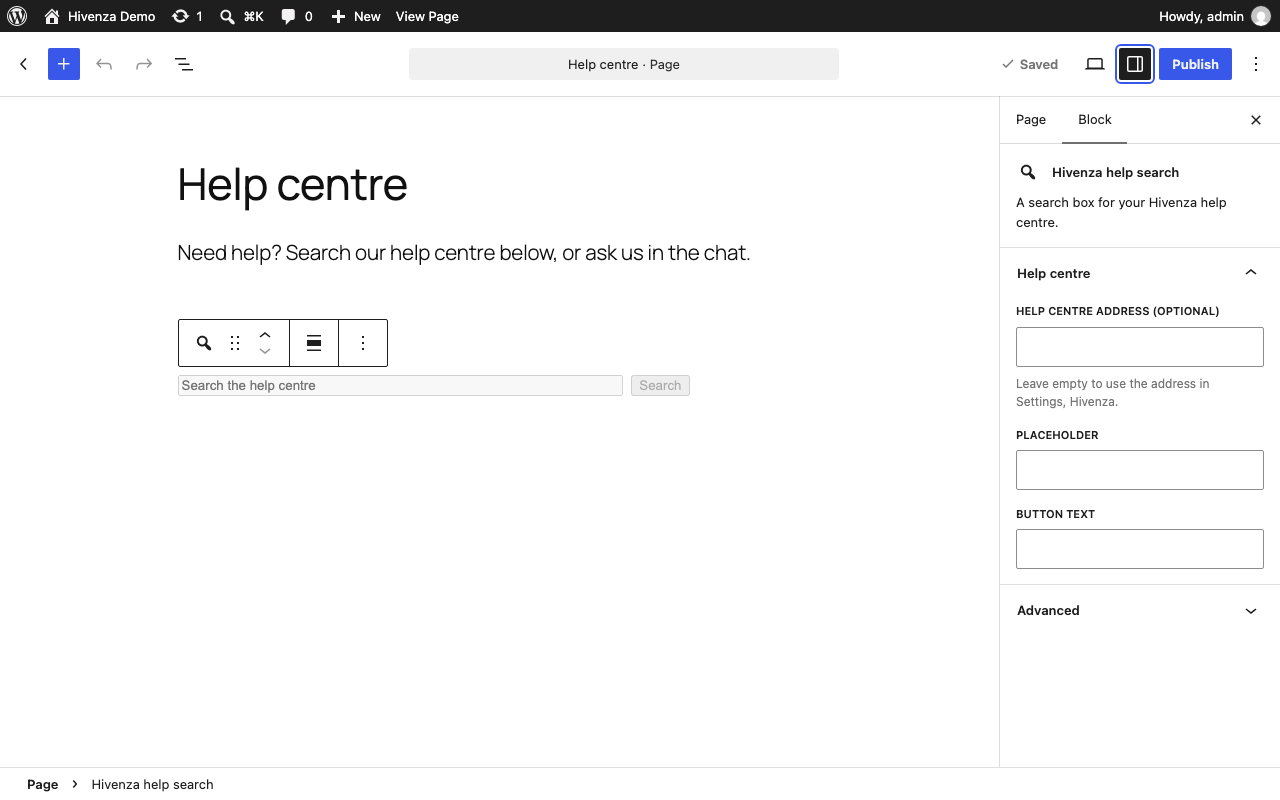
- Help centre search. A Gutenberg block and the
[hivenza_help]shortcode add a search box (or a link) for your Hivenza help centre. - Privacy options. Optionally wait for the visitor’s agreement (WP Consent API) before the chat loads.
- Ready for translation. Translations are managed at translate.wordpress.org; French is included there.
How it works
- Create a Hivenza account at hivenza.com and copy your website chat key (Website chat, Install).
- Paste it in Settings, Hivenza, and test the connection.
- Choose where the chat shows. Visitors write; your team and the AI agent answer from the Hivenza inbox.
You need a Hivenza account. The website chat is included on every Hivenza plan, including Free; see hivenza.com/pricing.
Shortcode
[hivenza_help] shows a search box for your help centre.
[hivenza_help mode="link" label="Help centre"] shows a link.
Optional: slug, placeholder, button.
External services
This plugin connects your site to Hivenza (https://hivenza.com), a customer conversation service. It is needed for the plugin to work.
- What it does: when a chat key is saved in the settings, every page the rules allow loads the chat script from
https://hivenza.com/widget.js. The chat then talks to hivenza.com to show the chat and send and receive messages. The help centre block and shortcode link to your help centre on hivenza.com, and the search box opens its search page there. The “Test connection” button, used by an administrator, requestshttps://hivenza.com/api/public/chat/<your chat key>. - What data is sent, and when: the address of the page the visitor is on and its title, the visitor’s browser, device and language information, and the messages and details the visitor types into the chat. For logged-in users: their WordPress user ID, name and email, with a signature of the ID. If WooCommerce is active and the option is on, for logged-in customers only: their order count and their recent order numbers with status. When the consent option is on, nothing is loaded or sent until the visitor agrees. Searching the help centre sends the search words to hivenza.com when the visitor submits the form.
- Session replay (optional): if the site’s team turns on session replay in their Hivenza account, the chat also loads
https://hivenza.com/replay.js, which records how visitors use the pages (clicks, scrolling, page changes) and sends it to hivenza.com. It is off unless the team enables it in Hivenza, and with the consent option on it stays off until the visitor allows the “statistics” consent category. - Browser storage: the chat keeps an anonymous visitor ID and its access token in the visitor’s browser (local storage), so a conversation continues between pages and visits. The plugin also keeps a flag
hivenza_wp_signedin local storage on browsers where a user was signed in, so the chat can be signed out when they sign out of WordPress. Nothing else is stored. - Terms of service: https://hivenza.com/terms
- Privacy policy: https://hivenza.com/privacy
Screenshots

Blocks
This plugin provides 1 block.
- Hivenza help search A search box for your Hivenza help centre.
Installation
- Upload the
hivenzafolder to/wp-content/plugins/, or install the plugin from the Plugins screen. - Activate it.
- In Hivenza, open Website chat, then Install, and copy the chat key.
- In WordPress, go to Settings, Hivenza, paste the key and save. Use “Test connection” to check it.
- Optional: paste the identity secret (or define
HIVENZA_SECRETin wp-config.php) to recognise signed-in users.
FAQ
-
How do I add live chat to my WordPress site?
-
Install and activate this plugin, paste your Hivenza website chat key in Settings, Hivenza, and save. The chat appears on your pages.
-
Is it free?
-
The plugin is free software (GPL). The website chat is included on every Hivenza plan, including Free. Prices for other features are on hivenza.com/pricing.
-
Where does the AI agent get its answers?
-
The AI agent is part of your Hivenza account and answers from the knowledge you give it there. The plugin only shows the chat on your site.
-
Do I need a Hivenza account?
-
Yes. The chat, the AI agent and the help centre are part of Hivenza. Sign up at https://hivenza.com.
-
Is the identity secret safe?
-
The signature is computed in PHP on your server. The secret is not printed in any page. For the best protection, define
HIVENZA_SECRETin wp-config.php instead of saving it in the database. -
What happens without the identity secret?
-
Signed-in users are still passed to the chat, but without a signature. Hivenza then marks them as “Not verified” (or ignores them, if your chat only accepts signed identities).
-
What does WooCommerce add?
-
Only for signed-in customers: name, email, number of orders and their five most recent order numbers with status. Guests are never described. Turn it off in Settings, Hivenza.
-
Can I load the chat only after consent?
-
Yes. Tick the privacy option and install a consent plugin that supports the WP Consent API (the plugin shows a notice if the WP Consent API is missing). The chat then loads only after the visitor allows the “functional” category. That category covers the chat only. Counting visitors and session replay (if your team turns it on in Hivenza) are kept off until the visitor also allows the “statistics” category (the plugin calls
Hivenza.track(false)until then). -
What happens when someone signs out of WordPress?
-
The chat is signed out too, the next time the visitor opens a page with the chat, so the next person on a shared computer does not carry on the last person’s chat. This also works on cached pages.
-
Can I stop sending user names and emails?
-
Yes. Turn off “Recognise signed-in users” in Settings, Hivenza. Nothing about your users is then sent.
-
Can I hide the chat on some pages?
-
Yes: choose “Everywhere except the pages I select”.
-
What is removed when I uninstall?
-
The plugin’s settings. Your Hivenza account and conversations are not touched.
Reviews
There are no reviews for this plugin.
Contributors & Developers
“Hivenza – Live Chat, AI Agent & Help Centre” is open source software. The following people have contributed to this plugin.
Contributors

Translate “Hivenza – Live Chat, AI Agent & Help Centre” into your language.
Interested in development?
Browse the code, check out the SVN repository, or subscribe to the development log by RSS.
Changelog
1.0.3
- Clearer listing: a plain short description, tags for live chat, AI chatbot and WooCommerce, sections for who it is for and how it works, and more answers in the FAQ. No change to how the plugin works.
1.0.2
- The plugin is now published under the Hivenza account. No change to how it works.
1.0.1
- Plugin Directory review fixes: translations are no longer bundled (WordPress.org serves them), the plugin address points to hivenza.com, and the block’s script header has the direct-access check.
1.0.0
- First release: website chat loader, page rules, signed identity for logged-in users, WooCommerce customer details, help centre search block and shortcode.