Description
B2B and wholesale stores need different checkouts for different customers: invoice payment only for approved trade accounts, freight delivery only above a weight, no cash on delivery for export orders. This plugin handles both halves with one rule screen:
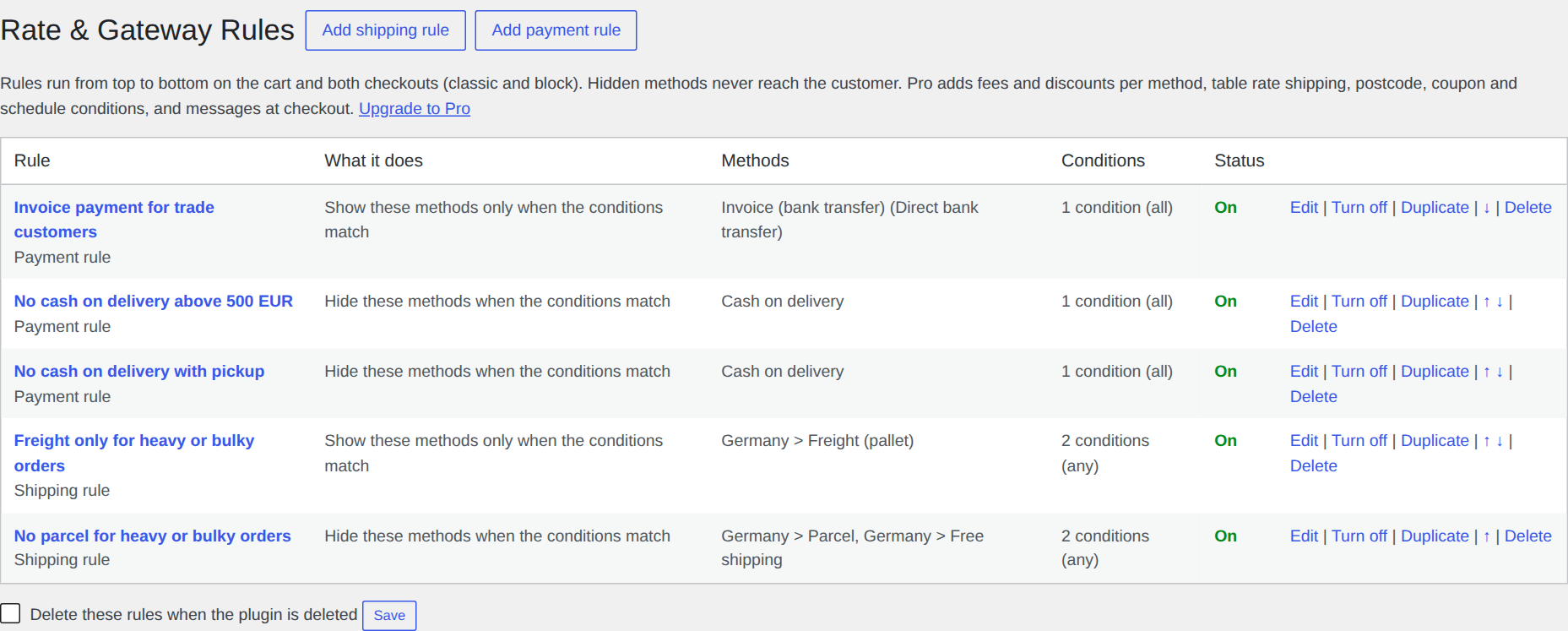
- Shipping and payment rules together. A rule hides chosen shipping methods or payment methods, or shows them only when its conditions match.
- B2B conditions built in: customer role (with an “any wholesale role” shortcut that covers AovUp Wholesale Pricing’s roles), guests, and tax-exempt customers (WooCommerce VAT-exempt customers, and customers that AovUp Tax Exemption exempts: see the FAQ for the versions).
- Cart conditions: subtotal, number of items, weight, products, categories (sub-categories included) and shipping classes, each with “contains any”, “every item is” and “contains none”.
- Address and checkout conditions: shipping country, billing country, and for payment rules the chosen shipping method (for example: no cash on delivery with parcel lockers).
- Match all conditions or any of them. Rules run top to bottom; turn them on and off, duplicate and reorder them.
- Works on the classic checkout and the Cart and Checkout blocks, because the rules run where WooCommerce decides which methods are available. Hidden methods also can’t be used by a crafted request.
- Targets one method in one shipping zone, or every method of a type (for example every “Flat rate”).
- HPOS (High-Performance Order Storage) compatible.
Pro
AovUp Rate & Gateway Rules Pro adds fees and discounts per shipping or payment method (fixed or a percentage), a table rate shipping method (weight, subtotal or item bands), postcode, coupon, weekday, time of day and customer history conditions, messages at checkout that explain a hidden method, and rule import and export.
Screenshots
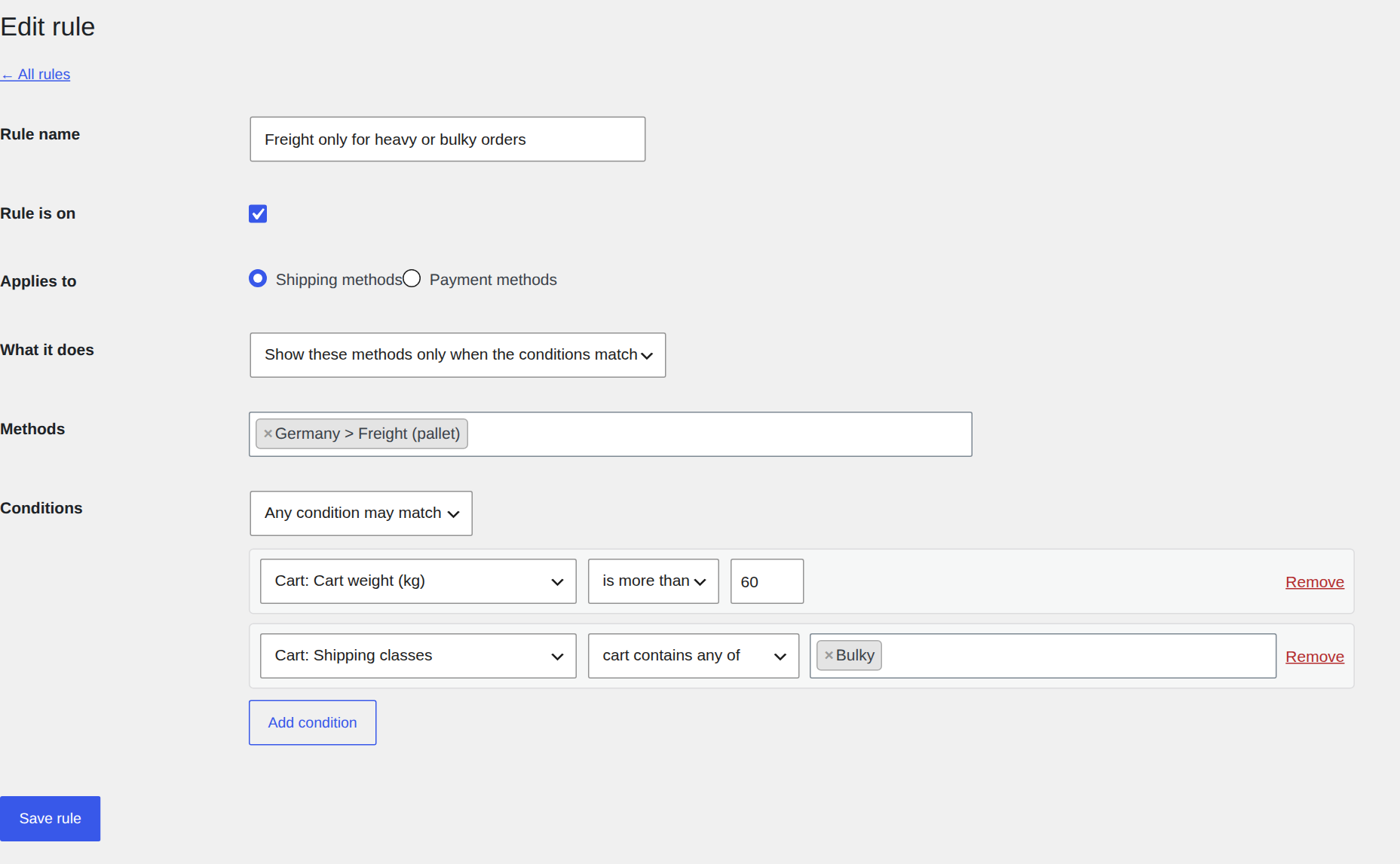
Installation
- Install and activate the plugin (WooCommerce must be active).
- Go to WooCommerce > Rate & Gateway Rules.
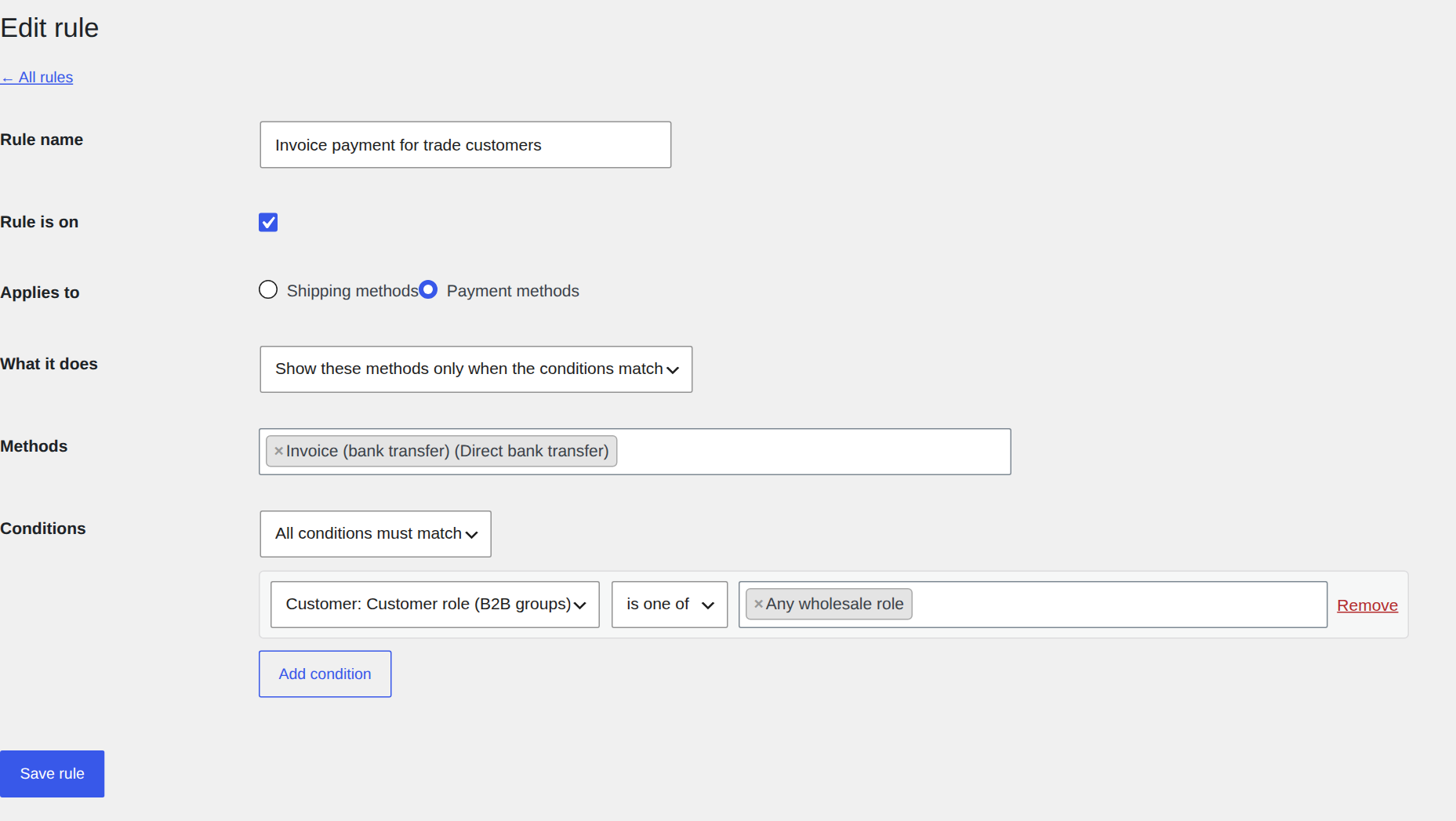
- Click “Add payment rule” or “Add shipping rule”, pick the methods, add conditions and save.
FAQ
-
Does it work with the Cart and Checkout blocks?
-
Yes. The rules apply on WooCommerce’s own available-methods filters, which both the classic checkout and the blocks use.
-
How do I offer invoice payment only to trade customers?
-
Add a payment rule: Methods = your invoice or bank transfer method, “Show these methods only when the conditions match”, condition “Customer role (B2B groups) is one of: Any wholesale role” (or your trade role).
-
Can I hide shipping methods for heavy or bulky orders?
-
Yes. Add a shipping rule: Methods = the methods to hide, “Hide these methods when the conditions match”, condition “Cart weight is more than 30”, or “Shipping classes: cart contains any of: Bulky”.
-
What does “tax exempt” mean here?
-
A customer whose order is VAT exempt in WooCommerce (for example after a verified VAT number with AovUp EU & UK VAT Validation), and the customers the AovUp Tax Exemption editions exempt:
- AovUp Tax Exemption for WooCommerce (the free edition, 1.0.0 or newer): an account it exempts, by its account flag (until the end date set there) or one of the tax-exempt roles chosen in its settings. The rules ask that plugin itself, so this also works before the checkout.
- AovUp Tax Exemption from aovup.com, 1.1.8 or newer: a customer it exempts as a shopper, because one of its rules matches them (role, user, country or coupon) or because they claimed the exemption at checkout with a tax number the store checked. That is the decision that also removes the tax from the shipping. Only rules that match the shopper alone count: a rule that needs all of its conditions and also has a product, category or tax-rate condition doesn’t, even when it removes the tax from that customer’s items. Versions up to 1.1.7 don’t tell other plugins their decision: update Tax Exemption to use this condition.
- AovUp Tax Exemption from WooCommerce.com, 1.0.1 or newer: a customer it exempts on the whole order (by its rules that don’t depend on a product).
Developers can extend it with the
aovup_spr_customer_tax_exemptfilter. -
Does it work with currency switchers?
-
The amounts in your rules (the cart subtotal limits) are in your store’s base currency. WooCommerce has no common way to convert them, so let your currency switcher convert them with the
aovup_spr_amountfilter. It gets the amount, what it is and the currency to convert to (the order’s currency on the “Pay for order” page, otherwise the shop’s current currency), and returns the amount in that currency, converted in proportion (amount × exchange rate). An order paid for in your base currency is never converted. -
Do shipping rules look at the whole cart or at one shipment?
-
At the whole cart, the same as payment rules: every item (also virtual ones, which don’t ship, and items in other shipments), and the cart’s subtotal, number of items and weight. So “Cart subtotal is at least 100” means the same in a shipping rule and a payment rule. Only the address is the shipment’s own. If your store splits the cart into several shipments (several addresses, vendors or warehouses) and you want each one judged on its own items, return true from the
aovup_spr_shipping_rules_use_packagefilter. -
What happens if a rule hides every shipping method?
-
WooCommerce shows its usual “no shipping options” message. Check your rules, or use Pro’s checkout messages to tell customers why.
-
What happens if a rule hides every payment method?
-
The customers it hides them from can’t pay: WooCommerce only tells them that no payment methods are available. This happens with a rule such as “Show bank transfer only to trade customers” when bank transfer is the only method your store has switched on: guests and retail customers are left with nothing. The rule editor warns you when a payment rule covers every payment method that is switched on. Leave at least one method that every customer can use, or use Pro’s checkout messages to tell customers what to do.
-
What if another plugin fails while a rule is checked?
-
The checkout keeps working. A rule that can’t be checked counts as not matching: a “show only when” rule hides its methods, a “hide when” rule hides nothing, and a Pro fee rule adds nothing. The error is written to WooCommerce > Status > Logs (source “aovup-spr”), at most once an hour per rule, with the plugin or filter it came from.
-
Does it send data anywhere?
-
No. The plugin makes no outside requests.
Reviews
There are no reviews for this plugin.
Contributors & Developers
“AovUp Rate & Gateway Rules for WooCommerce” is open source software. The following people have contributed to this plugin.
Contributors
Translate “AovUp Rate & Gateway Rules for WooCommerce” into your language.
Interested in development?
Browse the code, check out the SVN repository, or subscribe to the development log by RSS.
Changelog
1.0.2
- Renamed from Shipping & Payment Rules; settings, rules and slugs are unchanged.
- Shipping rules now look at the whole cart, the same as payment rules: its subtotal, number of items and weight, and every item (also virtual ones and items in other shipments). Before, they looked only at the shipment’s items. The new
aovup_spr_shipping_rules_use_packagefilter keeps the old way for stores that split the cart. - A rule that fails while it is checked (because of another plugin or a filter) no longer stops the checkout: it counts as not matching and is written to WooCommerce > Status > Logs.
- The rule editor warns when a payment rule covers every payment method that is switched on, and the FAQ explains what customers then see.
- Uninstalling: the rules stay while another edition is installed, also from a renamed folder, and every site of a multisite network is cleaned up by its own setting.
1.0.1
- “Tax exempt” condition: the readme names the AovUp Tax Exemption versions it works with and what each one counts as exempt.
- Currency switchers: the
aovup_spr_amountfilter also gets the currency to convert to. On the “Pay for order” page that is the order’s currency, and an order in your base currency is no longer converted.
1.0.0
- First release.