
Description
Some stores should not show prices to everyone. A wholesaler only quotes trade customers. A members club keeps its prices for members. A manufacturer wants dealers to log in before they see a price list. And plenty of shops simply want visitors to create an account before they can buy.
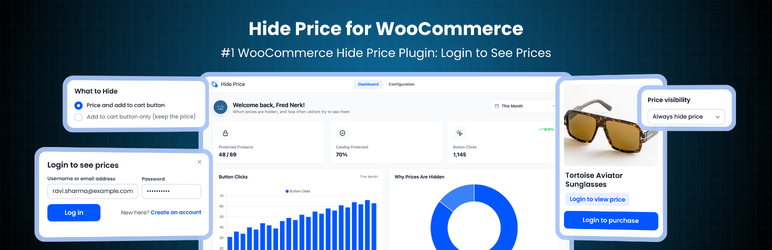
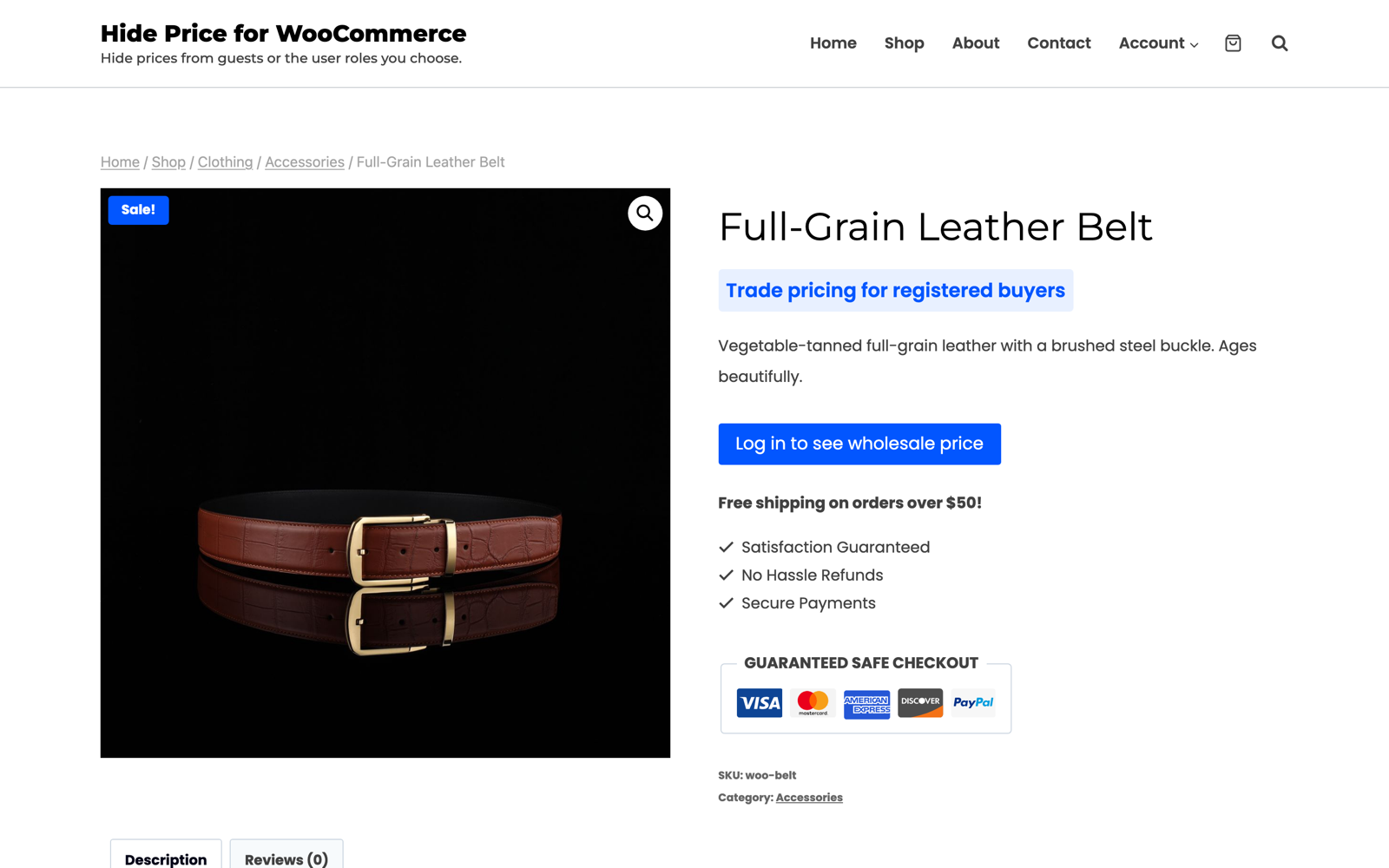
Hide Price for WooCommerce is a free WooCommerce hide price plugin that hides the price and the Add to Cart button from the visitors you choose, on your whole catalog or only on the products and categories you pick. In their place, visitors see your own message, such as “Login to view price”, and a button that gives them a next step: a login popup that brings them straight back to the product, or a link to your contact or trade application page.
A hidden price is also removed from the product’s schema markup and from WooCommerce Store API responses used by block themes, and protected products cannot be added to the cart, so the price stays hidden everywhere the plugin hides it.
Quick links
How it works
- Choose who should not see prices: guests, any user role, or both.
- Choose where: all products, or selected products and categories.
- Write the message shown in place of the price and pick what the button does.
- A visitor in that audience sees your message and button instead of the price and Add to Cart.
- They log in through the popup and land back on the same product, now with the price.
What the free plugin does
Hide prices for guests or any user role
- Hide prices from guests (logged out visitors), the most common setup
- Add any WordPress or WooCommerce role, such as Customer or Subscriber, to run a wholesale or members only catalog
- Logged in customers outside the audience see your normal store
Hide the price, or only the Add to Cart button
- Hide the price and the Add to Cart button together
- Or keep prices public and hide only Add to Cart, for a catalog that takes orders another way
Choose which products are protected
- Hide prices on all products, or only on the products and categories you select
- Pick single variations of a variable product. The price range of the parent is rebuilt from the variations visitors may see, so a hidden price never shows up in a range
- Grouped products get the same treatment
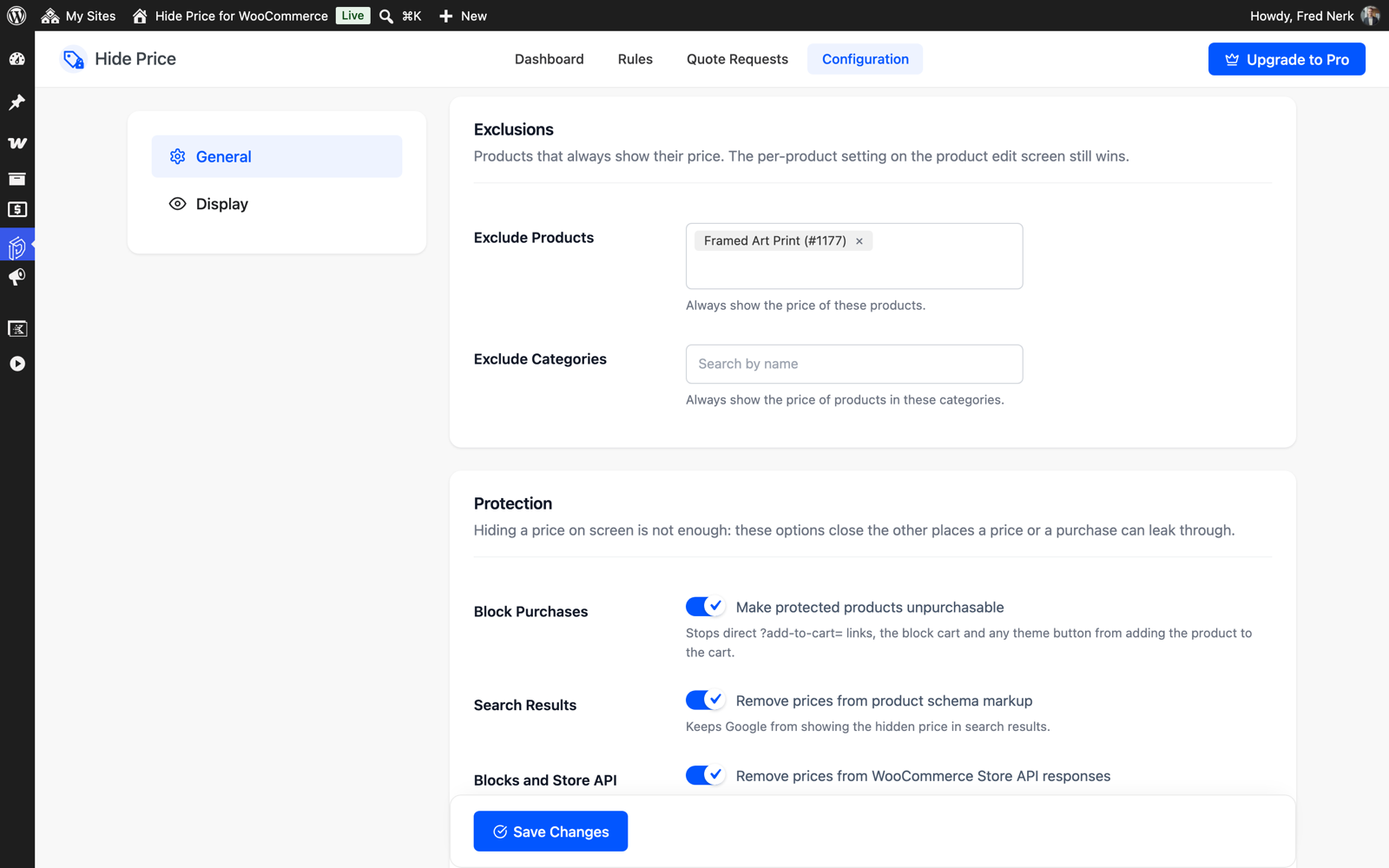
- Exclude products or categories that should always show their price
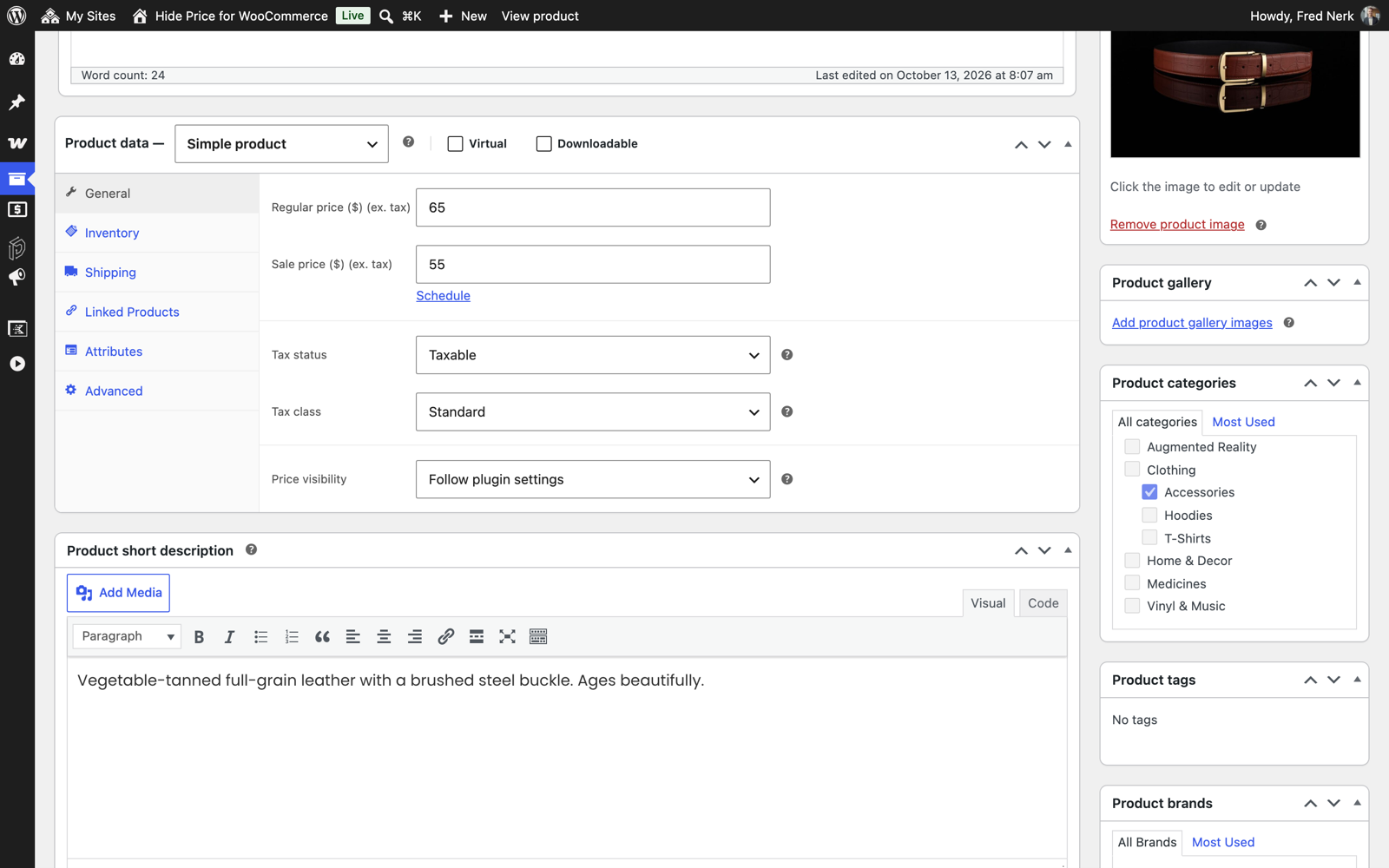
- A Price visibility setting on every product edit screen: Always hide price, Always show price, or Follow plugin settings
Your message in place of the price
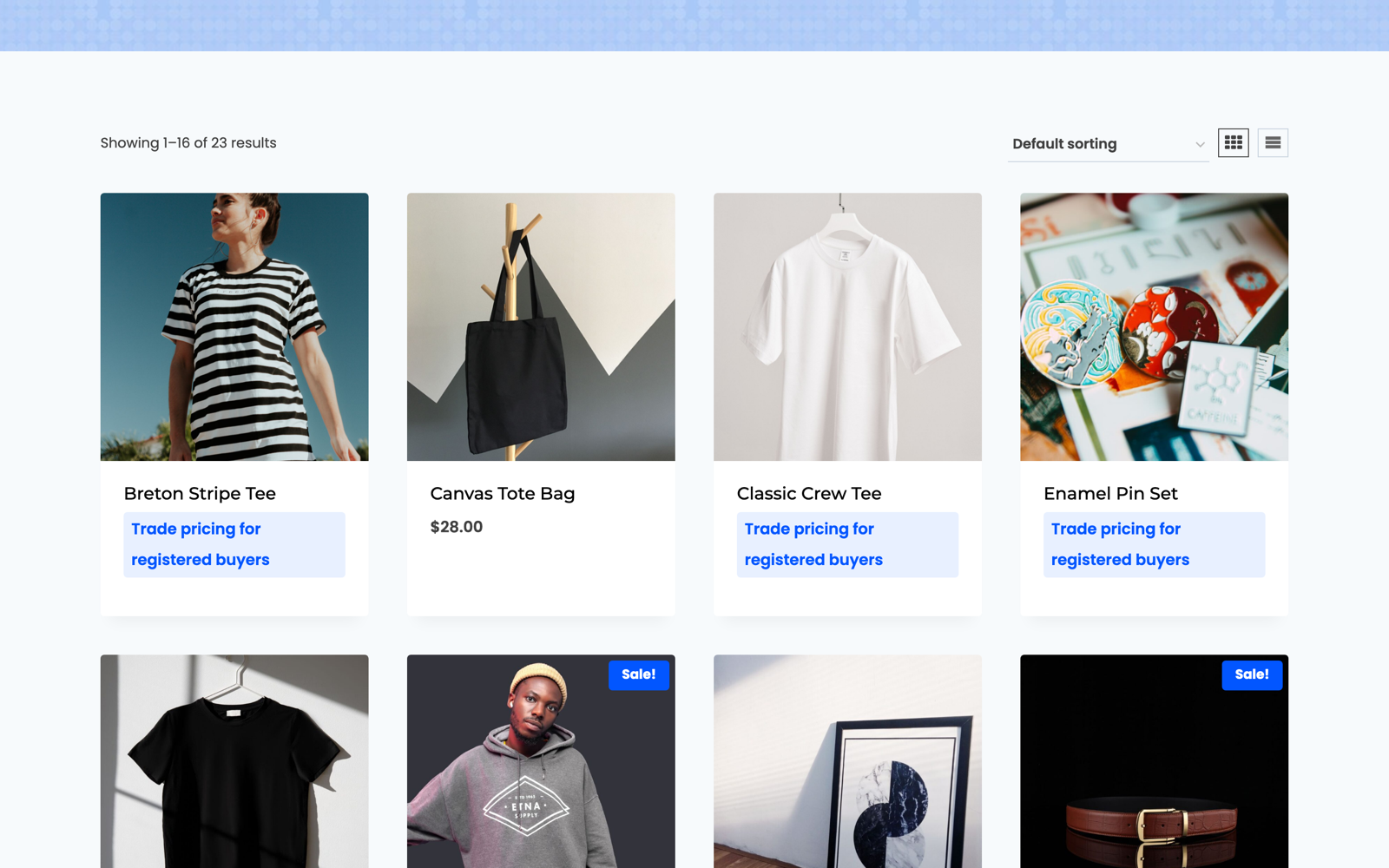
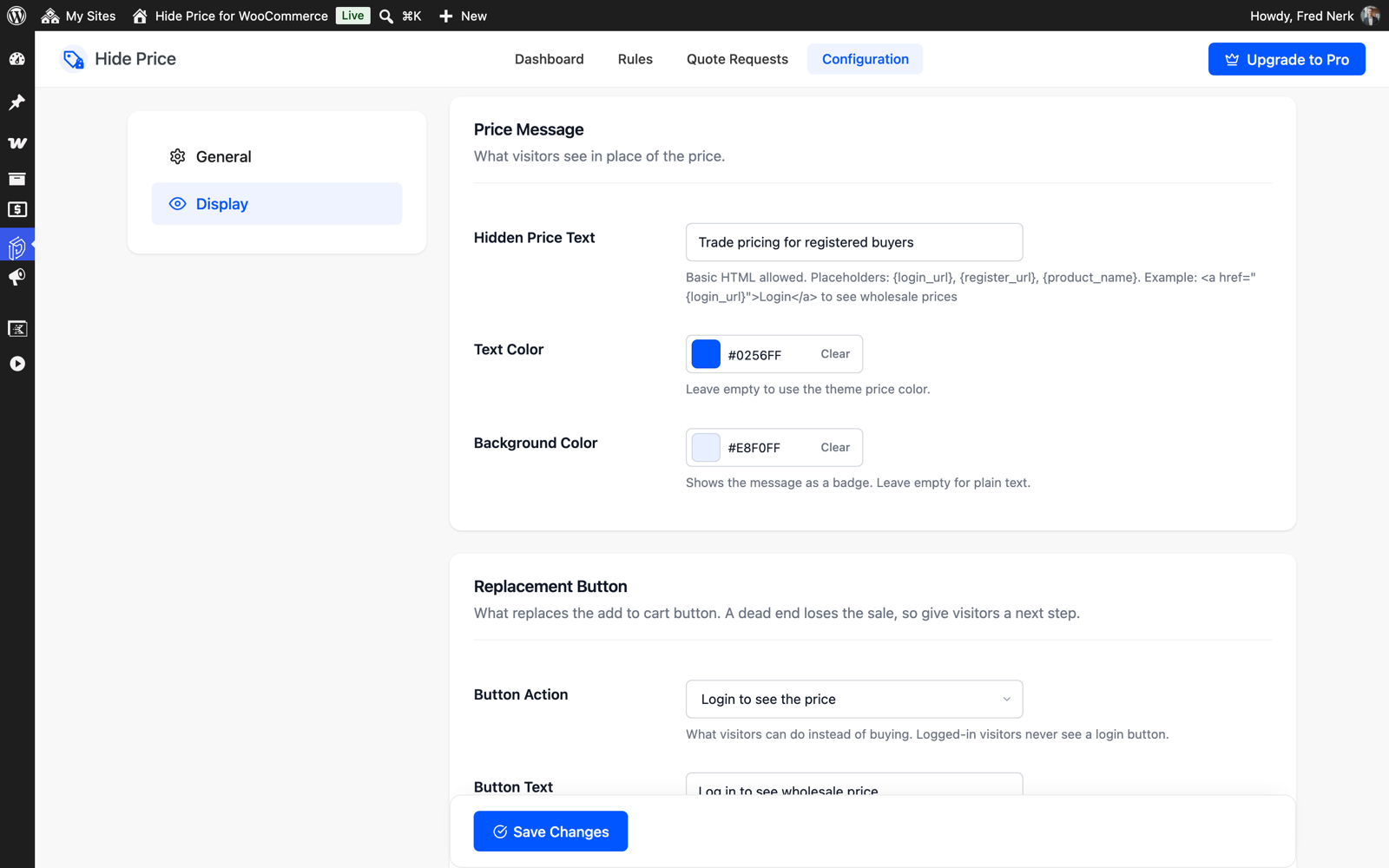
- Write your own text, for example “Login to view price” or “Trade prices for members”
- Basic HTML is allowed, so the message can contain a link
- Placeholders: {login_url}, {register_url} and {product_name}
- Pick a text color and a background color to show the message as a badge
A replacement button that keeps the visitor
- Login to see the price: opens a login popup on the product page. After logging in, the visitor lands back on the same product. Account registration links to My Account when you allow it
- Custom URL: send visitors to a contact page, a wholesale application form or any link you like
- No button: just the message
- Your own button text, plus extra CSS classes to match your theme’s buttons
- Logged in visitors never see a login button. When you hide prices from a logged in role, they get a Learn more button to your custom URL instead, such as a trade application page
Leak proof price hiding
- Block purchases: protected products cannot be bought, even through a direct ?add-to-cart= link, the Cart block or a theme that ignores the hidden button
- Search results: the price is removed from the product’s schema markup, so Google does not show it in rich results
- Blocks and Store API: prices are stripped from WooCommerce Store API responses, which product blocks and headless front ends read. The price range behind the Filter by Price block is withheld too, so it cannot reveal a hidden price
- Works on shop pages, category pages, single products, related products and quick view plugins that load products over admin-ajax
- Works with classic themes and block themes, including the Add to Cart form block
Dashboard and setup wizard
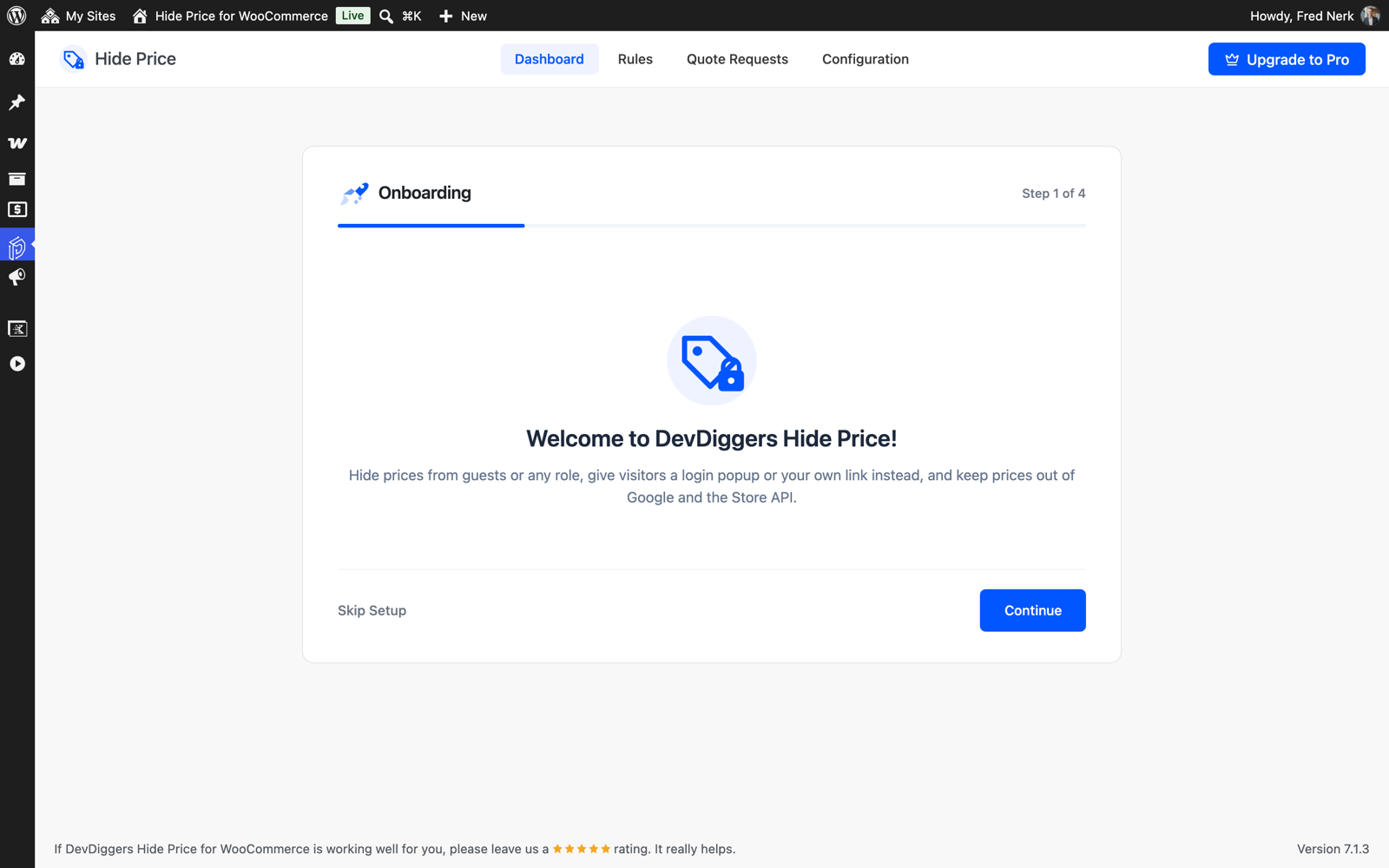
- A setup wizard gets you running in four short steps
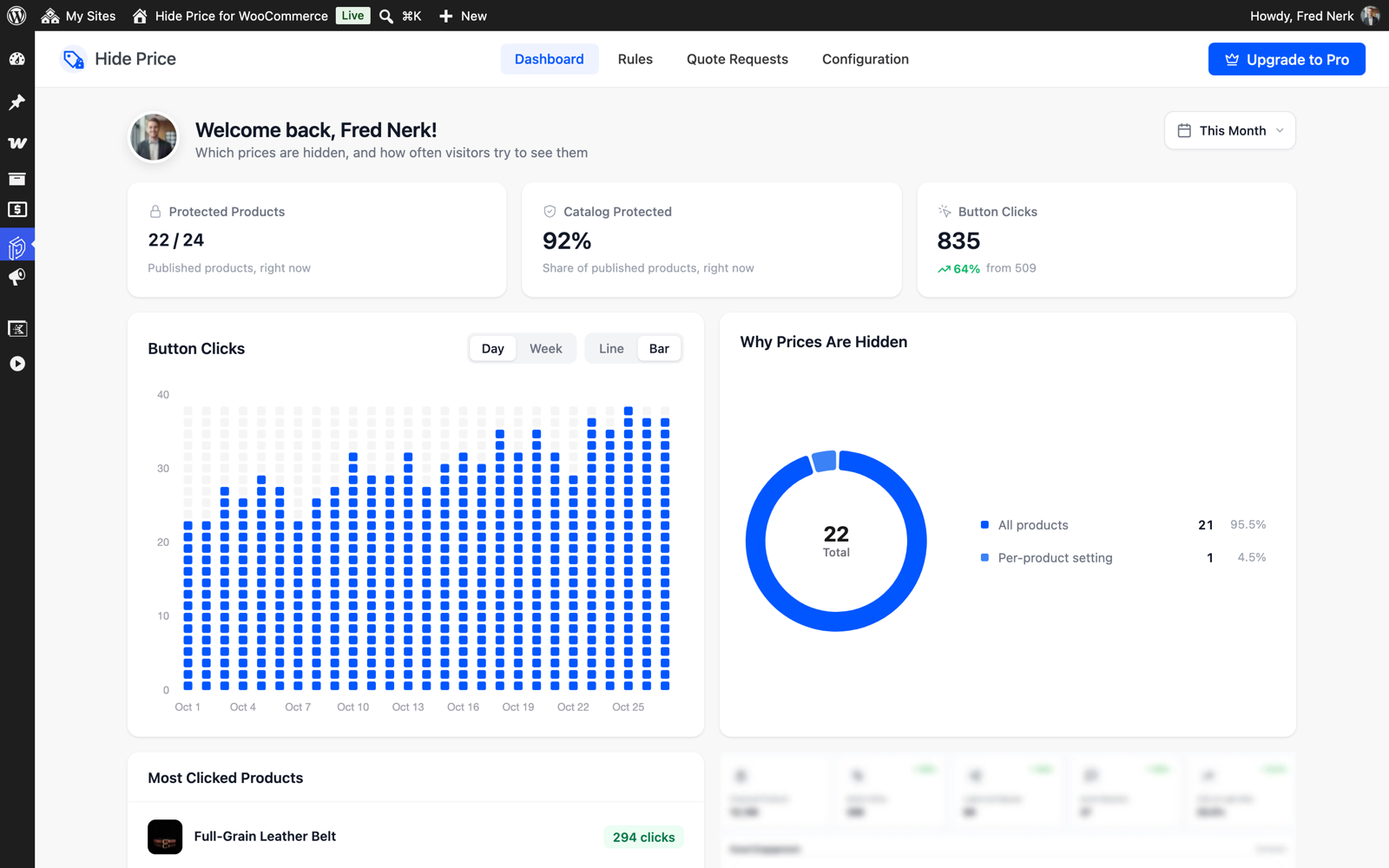
- The dashboard shows how many products are protected, why each one is protected, and how many times visitors clicked the replacement button, with a trend chart and your most clicked products
- A checklist on the dashboard shows what is left to set up
Who this is for
- Wholesale and B2B stores that only show prices to trade customers
- Members only shops and private catalogs
- Manufacturers and distributors with dealer price lists
- Stores that want more registered customers
- Shops that show a catalog but take orders by phone, email or a form
Free vs Pro
The free plugin covers one audience and one set of protected products for your whole store. Hide Price Pro adds the tools for stores that need more than one rule, want to collect quote requests, or want to know which hidden prices turn into customers.
Rules engine (Pro)
- As many rules as you need, run by priority, each with ALL or ANY matching
- Conditions on product, category, tag, product type, price, stock quantity, stock status, on sale, featured, virtual, downloadable, review count, average rating and published date
- A different audience, price text, button action, button text and link for every rule
- Start and end dates, for example to reveal prices at a product launch
- Duplicate, pause and reactivate rules in one click
Request a quote (Pro)
- A Request a Quote button that opens a form on the product page
- Every request stored in a Quote Requests inbox with search, statuses and bulk actions
- Email alerts to your team and a copy to the customer, editable under WooCommerce > Settings > Emails
- Honeypot and rate limit spam protection
Country rules and conversion analytics (Pro)
- Hide prices only in the countries you choose, or everywhere except them
- See the logins and signups that came from a hidden price, the click to login rate, and quote requests by status
Every setting you make in the free plugin carries over when you upgrade.
A note from the founder
We build DevDiggers plugins for real WooCommerce stores, and we answer the support forum ourselves. If something does not work the way you expect, or you would like a feature, open a topic in the support forum. We read every one.
External services
The bundled DevDiggers framework, which draws the admin screens, connects to the services below. All of them run only inside the WordPress admin. The storefront makes no external requests.
1. DevDiggers extensions directory
- What it is: A read only API on devdiggers.com that returns the public list of DevDiggers extensions.
- What it is used for: Showing available DevDiggers extensions on the Extensions admin page.
- When data is sent: Never by default. The Extensions admin page shows a “Load extensions from devdiggers.com” button, and the list is requested only after an administrator clicks it (opt-in). The response is cached for 24 hours.
- What data is sent: A standard outbound HTTP request only, meaning your server’s IP address and a plugin user agent string. No personal data and no store data are sent. The page also loads each listed extension’s image from devdiggers.com in the administrator’s browser.
- Endpoint: https://devdiggers.com/wp-json/ddwcs/v1/plugins
2. Newsletter subscription (optional)
- What it is: A contact and newsletter endpoint on devdiggers.com.
- What it is used for: Adding your email address to the DevDiggers newsletter, only if you choose to subscribe.
- When data is sent: Only when an administrator submits the optional newsletter form in the plugin dashboard. Nothing is sent automatically.
- What data is sent: The email address you enter and your site URL.
- Endpoint: https://devdiggers.com/?fluentcrm=1&route=contact
The services above are provided by DevDiggers. By using them you agree to the DevDiggers Terms and Conditions (https://devdiggers.com/terms-and-conditions/) and Privacy Policy (https://devdiggers.com/privacy-policy/).
3. Gravatar (avatar images)
- What it is: Gravatar, the avatar service operated by Automattic.
- What it is used for: WordPress core’s
get_avatar_url()shows the logged in administrator’s avatar in the plugin dashboard header. This is standard WordPress behaviour. - When data is sent: Only when a logged in administrator opens the plugin dashboard and avatars are enabled under Settings > Discussion. Turning avatars off there stops the request.
- What data is sent: A hash of the administrator’s email address inside the image URL, plus the usual request data such as IP address and user agent.
- Endpoint: https://secure.gravatar.com/avatar/
- Terms of Service: https://automattic.com/terms/
- Privacy Policy: https://automattic.com/privacy/
This plugin contains no licence checks, no update checks and no telemetry.
Source code and build tools
The admin and storefront JavaScript and CSS in assets/ are compiled from the src/ folder with webpack and Babel. The complete, human readable source code, including all build configuration, is published in our public GitHub repository:
https://github.com/DevDiggers-Technologies/hide-price-for-woocommerce
To build the assets from source:
- Run
npm installto install the build dependencies listed inpackage.json. - Run
npm run buildto compile the production assets intoassets/jsandassets/css.
Two third party libraries used by the admin screens ship unmodified under the MIT licence inside devdiggers-framework/assets/js/: Chart.js (https://www.chartjs.org) and Select2 (https://select2.org).
Screenshots


Installation
Automatic installation
- In your WordPress admin, go to Plugins > Add New.
- Search for “DevDiggers Hide Price”.
- Click Install Now, then Activate.
Manual installation
- Download the plugin zip file.
- Go to Plugins > Add New > Upload Plugin and choose the zip file.
- Click Install Now, then Activate.
After activating
- The setup wizard opens. Choose who should not see prices, where to hide them and what visitors see instead.
- Fine tune exclusions and protection under DevDiggers Plugins > Hide Price > Configuration.
- Open your shop in a private browser window to see it as a guest.
Requirements
- WordPress 6.5 or later
- WooCommerce 9.0 or later
- PHP 7.4 or later
FAQ
-
How do I hide prices from guests in WooCommerce?
-
Install the plugin and turn it on in the setup wizard. Guests is the default audience and All products the default scope, so every price is hidden from logged out visitors right away.
-
How do I show prices only to logged in customers?
-
Leave Hide Prices For set to Guests. Everyone who is logged in sees prices. To hide prices from some logged in customers too, add their user role.
-
Can I hide prices for a wholesale or members only catalog?
-
Yes. Add the roles that should not see prices, for example Customer, and keep your wholesale role out of the list. Those users see the price message, everyone else sees prices.
-
Yes. Under Configuration > General, set What to Hide to “Add to cart button only”.
-
Can I hide prices on some products only?
-
Yes. Set Hide Prices On to “Selected products and categories” and pick them. You can also set any product to always hide or always show its price from its edit screen.
-
Does it work with variable products?
-
Yes. Hide a whole variable product, or pick single variations. When only some variations are hidden, the price range shown for the product is rebuilt from the visible ones.
-
Can visitors still buy a protected product through a direct link?
-
No, as long as Block Purchases is on (it is by default). The product is marked as not purchasable on the server, so ?add-to-cart= links and the Cart block refuse it.
-
Not from your product pages. The price is removed from the schema markup. Search results already indexed may take a while to refresh.
-
Does it work with the WooCommerce blocks?
-
Yes. Prices are removed from the Store API responses that the product blocks use, and protected products cannot be added to the Cart block.
-
Does it work with block themes?
-
Yes. In block themes such as Twenty Twenty-Five, the Add to Cart form block is replaced by your button on protected products, just like the classic product page.
-
Can shop managers change the settings?
-
Yes. Anyone who can manage WooCommerce can open and save the plugin settings, so a Shop Manager does not need administrator access.
-
Does it work with page caching?
-
Logged in visitors usually bypass the page cache, so they always see the right prices. If your cache serves pages to logged in users, exclude product and shop pages for them.
-
What does the dashboard count?
-
Clicks on the button that replaces Add to Cart, per day and per product, plus how many products are protected. You can turn the click counter off under Configuration > General.
-
Does the plugin collect personal data?
-
No. The click counter stores a daily total and a total per product in your own database. It does not store IP addresses, user IDs or cookies.
-
Will my settings be kept if I upgrade to Pro?
-
Yes. Pro uses the same settings, and turns your protected products into its first rule automatically.
-
Can I translate the plugin?
-
Yes. It is translation ready, and the price text, button text and custom URL can be translated with WPML.
-
Where can I get help?
-
Open a topic in the support forum or read the documentation.
Reviews
There are no reviews for this plugin.
Contributors & Developers
“Hide Price for WooCommerce – Login to See Price, Hide Add to Cart & Catalog Mode” is open source software. The following people have contributed to this plugin.
Contributors
Interested in development?
Browse the code, check out the SVN repository, or subscribe to the development log by RSS.
Changelog
1.0.0
- Initial free release.
- Hide prices and the Add to Cart button from guests, any user role, or both.
- Hide the price and Add to Cart together, or only the Add to Cart button and keep prices public.
- Protect all products, or only selected products, variations and categories, with product and category exclusions.
- Price visibility setting on every product: always hide, always show, or follow the plugin settings.
- Your own message in place of the price, with HTML, {login_url}, {register_url} and {product_name} placeholders and badge colours.
- Replacement button: a login popup that returns the visitor to the same product, a link to your own page, or no button.
- Leak proof hiding: protected products cannot be bought through direct links or the Cart block, and prices are removed from schema markup, the Store API and the Filter by Price block.
- Works with classic and block themes, variable and grouped products, and quick view plugins.
- Dashboard with protected products, button clicks and a setup checklist, plus a four step setup wizard.
- Shop Managers can open and save the settings.
- Translation ready, with WPML support for the price text, button text and custom URL.