
Description
Lots of WooCommerce stores start out with one simple product per color or size: “Classic Tee Black”, “Classic Tee Blue”, “Classic Tee Red”. Shoppers see three listings where there should be one, and you have three products to keep in sync.
Fixing that by hand means building a variable product, re-entering every SKU, price, stock level and image, and then hiding the old products. Variation Converter does it for you.
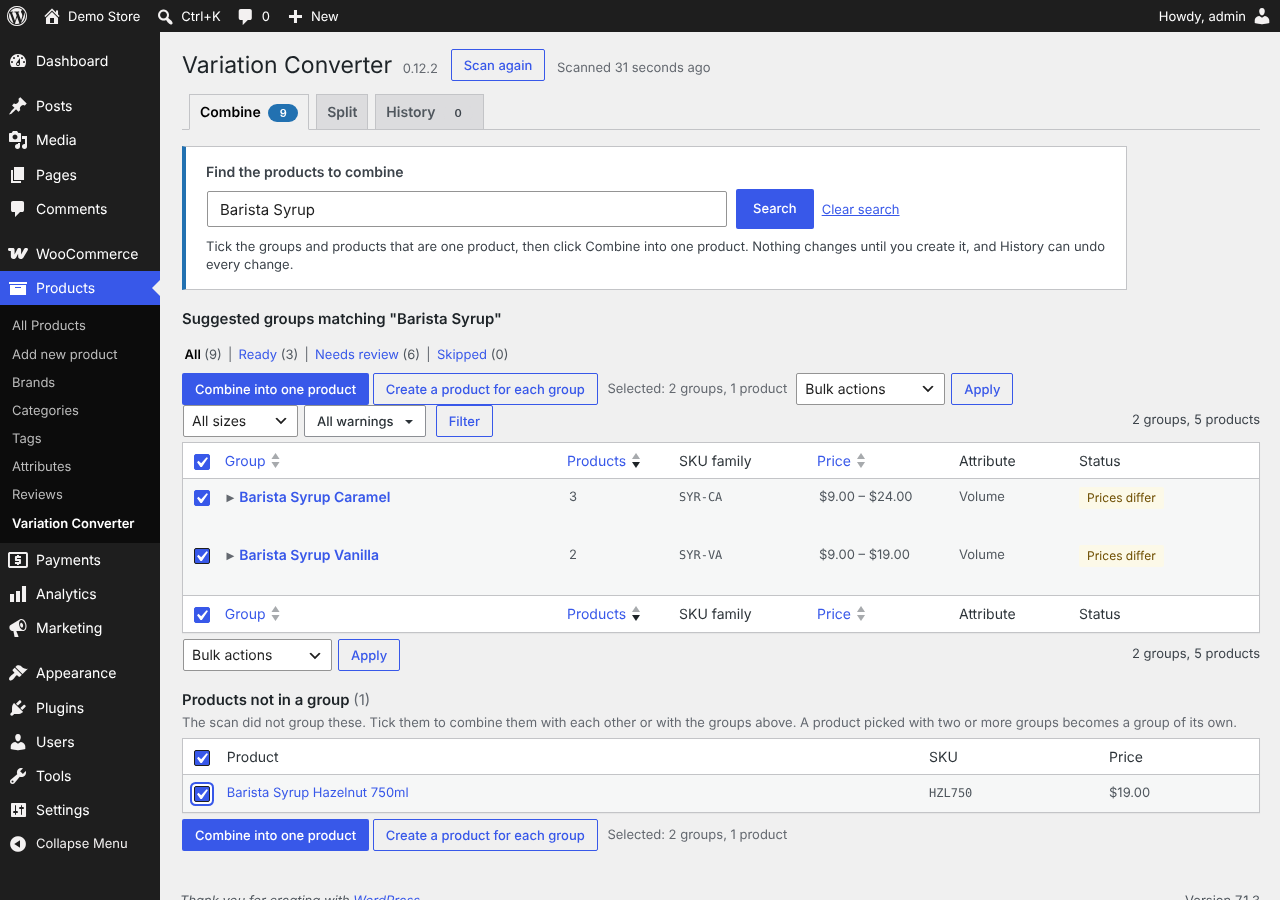
It scans your catalog, finds the simple products that are really one product in several variants, and shows you each group. You check it, adjust anything you like, and click once. You get one variable product with a variation for each original. The originals are hidden, not deleted, and Undo puts everything back the way it was.
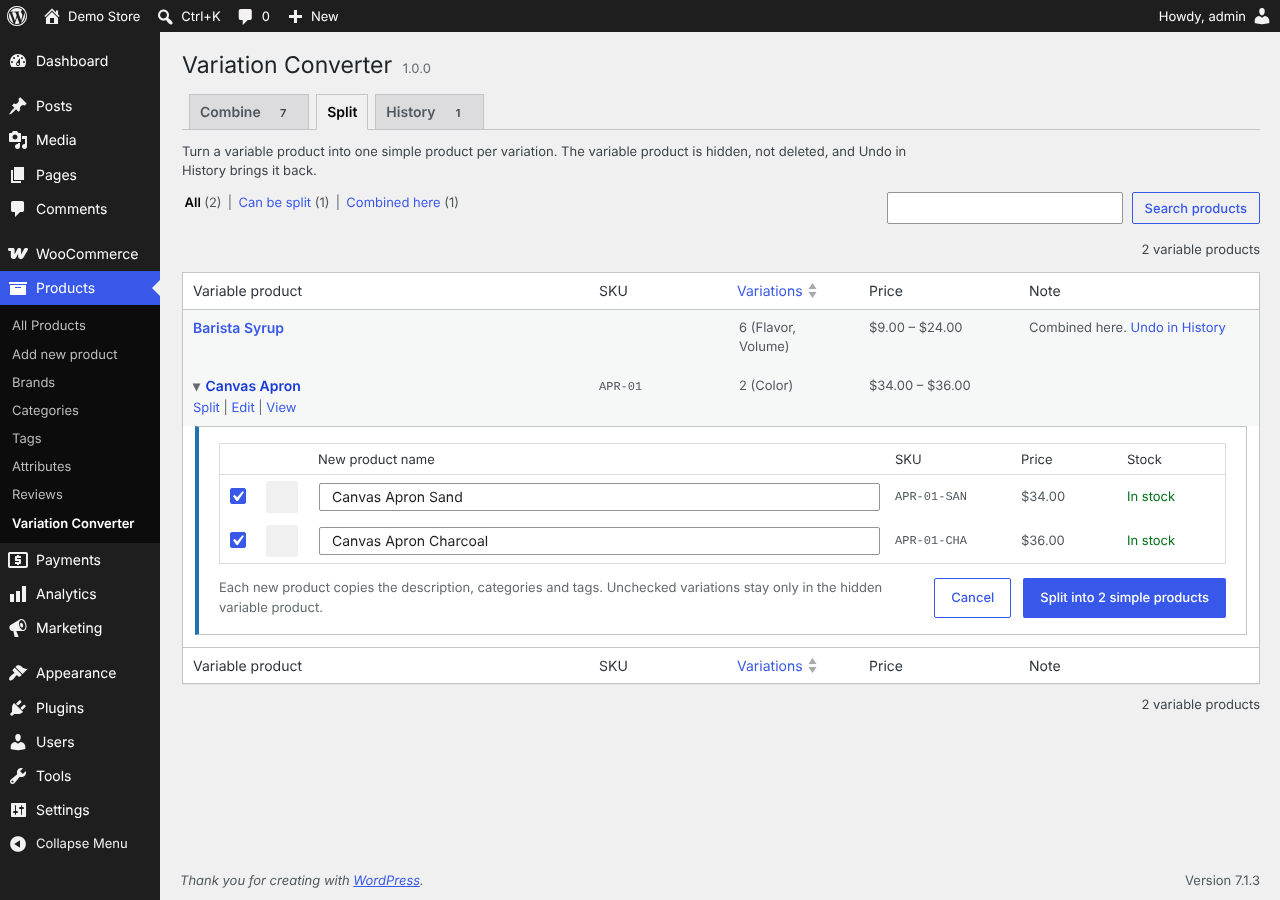
It works the other way too. If a variable product would sell better as separate listings, or you’re moving to a setup that needs one product per variant, Variation Converter splits it into simple products the same way: preview, one click, and Undo.
How it works
- Go to Products > Variation Converter. The plugin scans your published simple products.
- Each proposed group shows its members, the variant label it read from each name (“Black”, “Blue”, “Red”), a guessed attribute (Color, Size, Flavor, Scent or Volume) and a suggested parent SKU.
- Untick any product that doesn’t belong, and edit the product name, attribute or labels.
- Click Create variable product. Or click Not a collection to dismiss the group so it stops appearing.
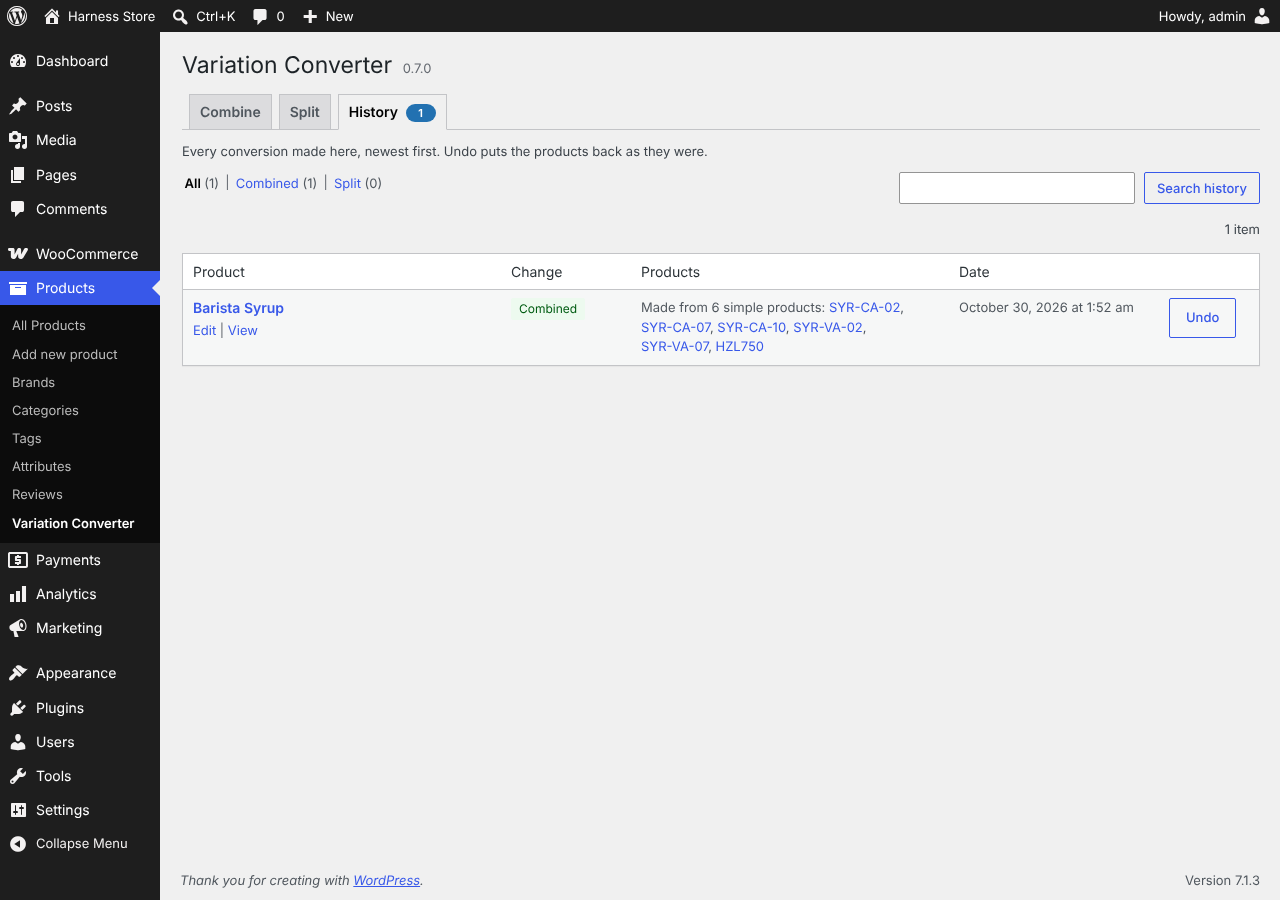
- Changed your mind? The History tab has an Undo button for every product the plugin made.
Features
- Both directions. Merge simple products into a variable product, or split a variable product into simple products.
- Finds the groups for you. Products are grouped when their SKUs share a family (SE1421-01, SE1421-03) and their names share a beginning. You don’t have to pick products one by one.
- Review before anything changes. Nothing is created until you approve a group. You can rename it, change the attribute, fix labels and leave products out.
- Flags the things worth a second look: different prices, different categories, duplicate labels, or labels long enough to suggest these aren’t really variants.
- Keeps your data. Each variation takes its original’s SKU, regular and sale price, sale dates, stock settings, weight, dimensions and image. The variable product takes the first member’s description, images, categories, tags, tax and shipping class, plus every member’s image in its gallery.
- Non-destructive. The products you convert from are hidden from your shop and search, never deleted. Their orders, reviews and links stay as they were.
- One-click Undo. Undo removes what the plugin made and brings the originals back with the visibility they had before.
- All or nothing. If WooCommerce fails to save any part of a new product, the partial product is removed and your catalog is untouched.
- Lightweight. No settings page, no front-end code, no external services, and nothing stored beyond a few product meta fields.
Splitting a variable product
Going the other way works too. On the Split tab, or from the Split into simple products link under any variable product in Products > All Products, pick a variable product. You get one row per variation with a suggested name (“Classic Tee Black”), which you can edit. Click Split and each checked variation becomes a simple product with its SKU, prices, stock, weight, dimensions and image, plus the variable product’s descriptions, categories, tags and other attributes. The variable product is hidden, not deleted, and Undo in History brings it back and removes the simple products.
A variable product the plugin made by merging offers Undo instead of a split, so you get your original products back rather than new copies.
Who it’s for
- Stores imported from a supplier feed or another platform that created one product per variant.
- Shops that grew one product at a time and now want a tidier catalog.
- Developers cleaning up a client’s catalog who want a safe, reversible tool instead of a spreadsheet.
Screenshots

Installation
- Make sure WooCommerce is installed and active.
- In your WordPress admin, go to Plugins > Add New, search for “Variation Converter”, then install and activate it. Or upload the
variation-converter-for-woocommercefolder to/wp-content/plugins/and activate it on the Plugins screen. - Go to Products > Variation Converter to see the proposed groups, or open the Split tab to split a variable product.
You need a user role that can manage WooCommerce products (Shop Manager or Administrator).
We recommend taking a database backup before converting many products at once. Undo is there, but a backup is always good practice.
FAQ
-
Will this delete my products?
-
No. The original simple products are set to hidden catalog visibility so they no longer show in your shop or search results. They are not deleted, and Undo makes them visible again.
-
What happens to existing orders, reviews and links?
-
They stay with the original simple products. Past orders still point to them, and old product URLs still open because hidden products can still be reached by their link. Reviews are not copied to the new variable product.
-
How does it decide which products belong together?
-
Two things must match: the SKUs share a family (for example SE1421-01 CL and SE1421-03 CL, or D1701-12 and D1701-14), and the product names start with the same words. Whatever follows the shared words becomes the variant label. You review every group before anything is created.
-
My products don’t have SKUs. Will it work?
-
Not yet. Grouping relies on SKUs, so products without one are never proposed. Only published, visible simple products are scanned. Name-only matching is being considered for a future version.
-
Why are there two products with the same SKU after a conversion?
-
The originals are kept, hidden, so Undo can restore everything exactly. Each SKU exists on the hidden original and on the new product. Once you’re sure you’ll keep the new product, you can delete the hidden one yourself.
-
I just changed some products and the list didn’t update.
-
Scan results are cached for 30 minutes. Click Scan again to refresh them.
-
Can a product have more than one attribute, like color and size?
-
Not in this version. Each variable product gets one attribute. You can change its name before creating, for example from “Color” to “Finish”.
-
It guessed the wrong attribute. Can I change it?
-
Yes. The attribute is only a suggestion. Edit it in the group before you click Create.
-
What if I undo after customers have ordered the new variable product?
-
Undo deletes the variable product and its variations. Orders keep their line items and totals, but those lines will no longer link to a product. If the new product has already sold, it’s usually better to keep it.
-
Does it work with my search plugin?
-
It reindexes changed products in Relevanssi automatically. Other search plugins will pick up the changes on their next reindex.
-
Does it convert variable products into simple products?
-
Yes. Use the Split tab, or the “Split into simple products” link under a variable product in your product list. Undo deletes the new simple products and shows the variable product again; as with merging, any orders already placed for those simple products keep their line items but lose the product link.
-
Why can’t I split some variations?
-
A variation set to “Any” for an attribute (for example “Any Size”) isn’t one specific product, so there’s nothing to turn into a simple product. Give it a specific value first.
Reviews
There are no reviews for this plugin.
Contributors & Developers
“Variation Converter for WooCommerce” is open source software. The following people have contributed to this plugin.
Contributors
Translate “Variation Converter for WooCommerce” into your language.
Interested in development?
Browse the code, check out the SVN repository, or subscribe to the development log by RSS.
Changelog
0.4.0
- Bulk create runs on the server, through WooCommerce’s Action Scheduler, so it finishes even if you leave the page. Its progress shows on every tab, with a Stop button.
- The plugin’s version shows beside the page title.
0.3.1
- Combine keeps every product’s gallery images on the new variable product, not just the first product’s.
0.3.0
- The WP-CLI command is now
wp varconv(waswp variation-converter). The admin page address is nowpage=varconv; old links redirect. - The Combine list explains its Ready, Needs review and Skipped views, with tips on hover.
- Clearer example product names in the description and empty list.
0.2.4
- Undo brings back current prices and stock: sales made while products were combined or split now carry over to the restored products.
0.2.3
- The plugin’s slug and text domain are now variation-converter-for-woocommerce, to match its wordpress.org address.
0.2.2
- Split tab: sort variable products by number of variations.
0.2.1
- Hover over or focus a product thumbnail in a Combine or Split card to see a larger image.
0.2.0
- Combine list: a sortable, filterable table with Ready, Needs review and Skipped views, an inline card per group, and Select by SKU.
- Combine from the Products list: select products and choose “Combine into variable product”.
- Create many groups at once, from the list or with WP-CLI (
wp varconv combineandundo). - Split and History tabs are list tables too.
- Better grouping: sizes in size order, “12 oz” and “12oz” treated alike, bracketed labels unwrapped, clearer notes about duplicates, prices and categories.
- A free parent SKU is suggested when the group’s SKU is taken.
- Old product URLs now 301 to the variable product with the option chosen (filter:
varconv_redirect_url). Undo stops it. - Fixes: cards on phones, the next group after a partial create, works without mbstring.
0.1.0
- First public version: detect groups of simple products, review them, merge each into a variable product, split variable products into simple products, and undo either.