
Description
Lighter photos, ready for the web. Upload as usual: Parisia Media resizes each image for its placement (aspect ratio kept, never upscaled) and saves it as WebP or AVIF at the best quality that stays light, never below the minimum quality you set. Conversion runs on your own server, with no account and no external service. The original can be kept in a private folder. Images already in your library can be converted in one click; their old files are kept so links already in your pages keep working.
AI alt text and descriptions. Connect a free Parisia account and new images get an alt text and description automatically.
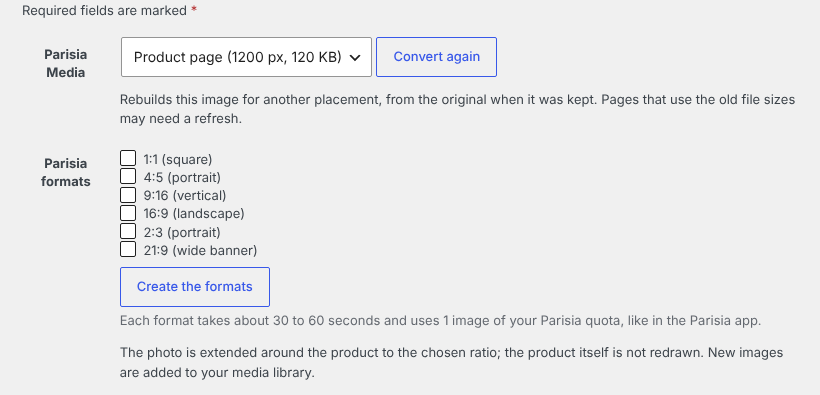
Extra aspect ratios. A “Parisia formats” field on each image creates the same photo in 1:1, 4:5, 9:16, 16:9, 2:3 or 21:9. The scene is extended around the product, which is not redrawn. Each ratio uses one image of your Parisia plan (a paid plan or the free trial; a free account without a plan has no image quota) and is added to your media library as a new image.
External service
Optional. Converting and resizing images happens on your own server and sends nothing to anyone. The plugin only contacts a service if you connect a Parisia account (by pasting a site key or with the Connect button in Media > Parisia Media).
The service is the Parisia API, https://jewellab-api.vercel.app, operated by Parisia (https://parisia.app). To produce alt texts and extra formats, the Parisia API sends the image to Google Gemini (Google), which analyses it or extends it. Parisia does not keep the images you send.
What is sent, and when:
- When you connect, and on each check: the site key and this site’s public address.
- When alt texts are enabled, for each image to describe: the image (resized, 3 MB at most), the site name and tagline, the site language and, if the image belongs to a post, that post’s title, categories and focus keyword.
- When you use “Create the formats” on an image: the image (resized, 3 MB at most) and the chosen ratio. Each format uses 1 image of your Parisia quota, like in the Parisia app.
Nothing is sent until you connect. Disconnecting (or uninstalling) removes the key from your site.
Terms of use: https://parisia.app/cgu/
Privacy policy: https://parisia.app/confidentialite/
Data processing agreement: https://parisia.app/dpa/
Google’s terms for the Gemini API: https://ai.google.dev/gemini-api/terms
Privacy
Nothing is sent to Parisia until you connect an account. See “External service” above for exactly what is sent. A suggested paragraph for your privacy policy is added in Settings > Privacy.
Screenshots
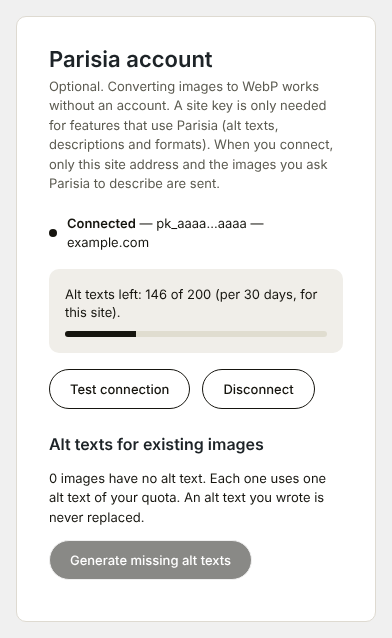
FAQ
Do I need a Parisia account?
No. Converting and resizing images to WebP or AVIF works without any account. A free Parisia account (no card needed) adds AI alt texts and descriptions. Creating other aspect ratios uses the image quota of a Parisia plan, so it needs a paid plan or the free trial.
Are my original images kept?
Yes, by default in a private folder (uploads/parisia-originals), so you can convert an image again for another placement. You can turn this off in Media > Parisia Media.
What happens to the images already in my library?
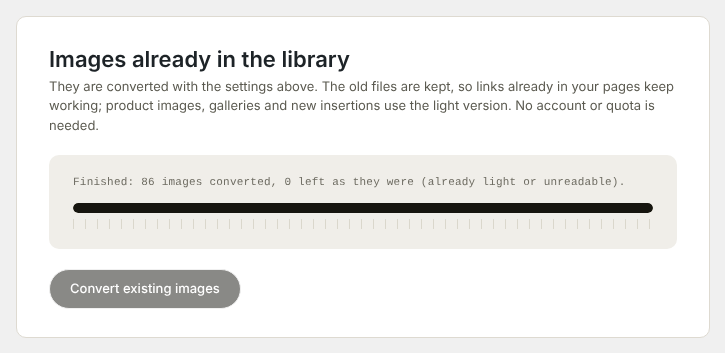
Click “Convert existing images” in Media > Parisia Media; it keeps running in the background, so you can leave the page. The old files are kept, so links already written in your pages keep working; the media itself, product images and galleries use the light version, and posts show the converted file when they are displayed. Deactivating the plugin brings the old files back on screen.
Does it work with Elementor and WooCommerce?
Yes. Images sent to the media library are converted whichever tool uses them. Elementor background images from converted media also show the converted file.
Another image plugin is active, is that a problem?
Two plugins converting or compressing the same image can undo each other. We advise keeping a single image optimizer; the settings page warns you when it detects one.
Which languages are available?
The plugin is translation-ready. Translations are contributed by the community on translate.wordpress.org.
Reviews
There are no reviews for this plugin.
Contributors & Developers
“Parisia Media – WebP & AVIF Images, Smart Resize, AI Alt Text” is open source software. The following people have contributed to this plugin.
Contributors
Translate “Parisia Media – WebP & AVIF Images, Smart Resize, AI Alt Text” into your language.
Interested in development?
Browse the code, check out the SVN repository, or subscribe to the development log by RSS.
Changelog
0.9.4
- Admin scripts and styles are now registered with the WordPress enqueue functions; translations are left to translate.wordpress.org.
- New: adds the missing width and height to images on your pages (setting “Image dimensions”, on by default) to reduce layout shifts.
- The Parisia account block now explains what you get without an account, with a free account and with a paid plan.
- Alt texts for existing images are now written in the background: you can leave the settings page and the generation continues (progress is shown when you come back). If WP-Cron is disabled, the page does the work as before.
- The number of images without alt text and the remaining quota now update on the page as soon as a run ends.
0.9.3
- Safer reading of the saved conversion statistics (no object can be rebuilt from it).
0.9.2
- A “Parisia Media” shortcut in the top admin bar (administrators): one click to the settings, and it shows when a conversion is running.
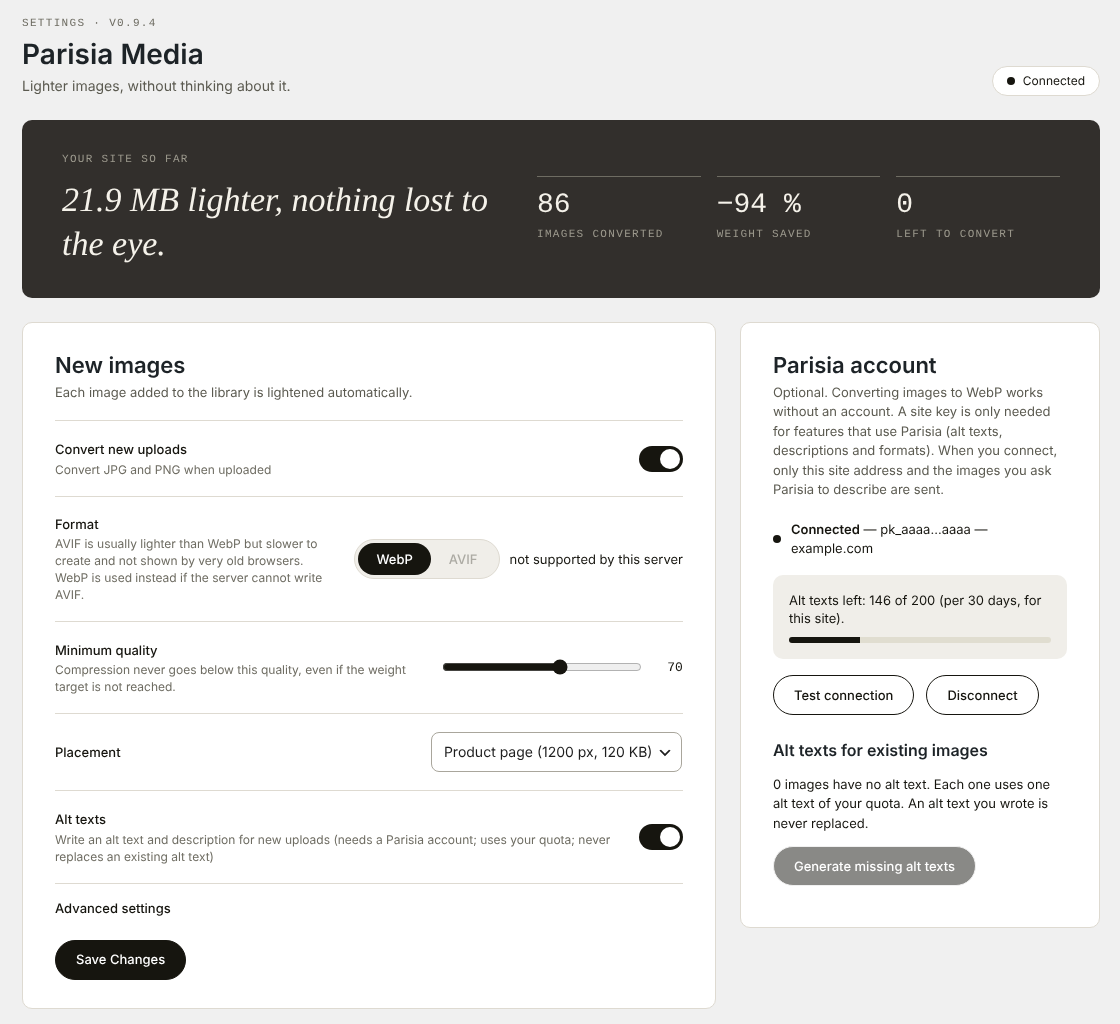
- New settings page: a clear summary of your savings, the settings in three clear blocks (new images, existing images, Parisia account), simple switches, a format selector and a quality slider; advanced settings are folded away. Works on phones too.
0.9.1
- Cleaner settings page: summary tiles (images converted, weight saved, left to convert, updated live) and settings grouped in cards.
0.9.0
- Converting existing images now runs in the background (WP-Cron): you can leave the settings page and keep working; progress is shown when you come back. If WP-Cron is disabled on the site, the page does the work as before.
0.8.11
- The account connection now uses the live Parisia app.
0.8.10
- Converting existing images: the list now covers all languages (Polylang, WPML) and gives the same count on the settings page and during the run.
0.8.9
- Converting existing images: the list of images left is always read fresh (no stale query cache), so the count and the end of the run are reliable.
0.8.8
- The weight saved and the number of images left now update live while existing images are converted.
0.8.7
- Translations of the same media (Polylang, WPML) share one converted file instead of being converted once per language, and deleting one translation no longer deletes the file of the others.
- Converting existing images: after a server error (HTTP 5xx) the run tries again by itself, a few times, skipping the image that caused it.
0.8.6
- Converting existing images: media whose file is already WebP/AVIF (left by another optimizer but still listed as JPG/PNG) are skipped instead of being re-read.
0.8.5
- Converting existing images: an image that crashes the server is skipped next time instead of blocking the run, and an error now shows its cause (HTTP code and message). Smaller batches (12 s) for slower hosts.
0.8.4
- Converting existing images now shows a progress bar and a live count (X of Y).
0.8.3
- Suggested text added to Settings > Privacy for your privacy policy.
- Code checked against the WordPress Plugin Check rules.
- Readme completed (FAQ, screenshots, privacy).
0.8.2
- The site icon (favicon) is left as PNG when converting existing images (Apple devices do not show WebP home-screen icons).
0.8.1
- Elementor: background images converted from the library show the WebP/AVIF file (Elementor’s CSS cache is rebuilt after a conversion).
0.8.0
- Pages written before the conversion now show the converted image (the address is swapped when the page is displayed; nothing is changed in the database).
- The settings page shows how many images were converted and the weight saved.
0.7.1
- The “Parisia formats” and “Convert again” labels are aligned with the first option.
0.7.0
- Convert the JPG and PNG images already in the library (Media > Parisia Media), a few at a time, with progress. Old files are kept so existing links keep working, and removed with the media.
- “Formats” link under each image in the media library list.
0.6.0
- Welcome notice after activation, with a button to connect Parisia.
0.5.3
- Settings page: a notice appears when another image optimizer plugin is active (it may compress converted images again).
0.5.2
- Formats: the field is greyed out, with a message, when the Parisia account has no image left or a failed payment; the remaining images are shown.
0.5.1
- Formats are named by ratio only; no need to keep the window open for a format already started.
0.5.0
- New “Parisia formats” field on each image (connected accounts): create the photo in other ratios (1:1, 4:5, 9:16, 16:9, 2:3, 21:9). Same rights and image quota as the Parisia app; each format takes about 30 to 60 seconds. New images are added to the library.
0.4.0
- New “Convert again” field on each image: rebuild it for another placement (banner, zoom…) from the original.
- Optional AVIF output (when the server and WordPress 6.5+ support it); WebP stays the default.
0.4.0
- Alt text and description (not the caption) are filled for new uploads.
0.3.4
- Option to hide the Rank Math “Generate Alt” button (on by default).
0.3.3
- Fix: the return address was cut when coming back from Parisia, so the connection was never saved.
0.3.2
- Alt text at upload starts right away and shows the reason when it fails.
0.3.1
- Test build: connects through the test version of the Parisia app.
0.3.0
- Alt text and description for new uploads (optional, needs a Parisia account) and a button to fill the images that have none. Existing alt texts are never replaced.
0.2.3
- Remaining alt texts shown on the settings page (refreshed every 5 minutes).
0.2.2
- Connect with one click (log in to Parisia and approve the site); pasting a key stays available.
0.2.0
- New: optional connection to a Parisia account with a site key (connect, test, disconnect).
0.1.3
- New option: hide the WP-Optimize image column in the media library (on by default).
0.1.2
- Fix: WebP temp file naming (conversion silently skipped on real WordPress).
0.1.1
- Settings moved to Media > Parisia Media, plus a Settings link on the Plugins screen.
0.1.0
- First version: WebP conversion on upload, placements, custom size, media library column.