

Description
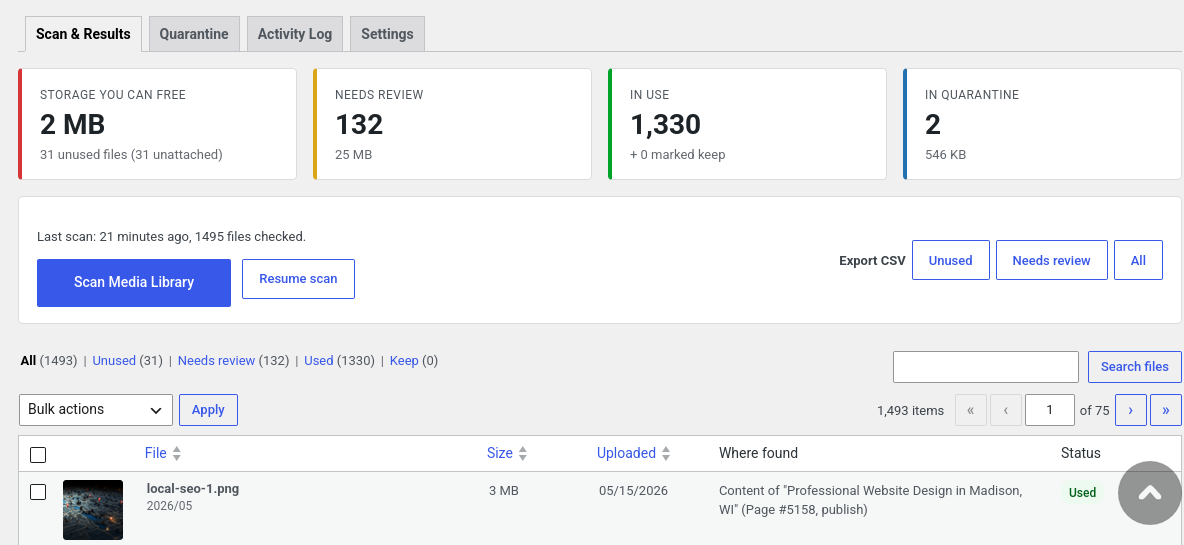
TamizhApps Unused Media Cleaner scans your Media Library in small batches and checks where every file is used. It then marks each file as Used, Unused or Needs review.
Where it looks
- Post content and excerpts of all post types and statuses, including drafts (Gutenberg blocks, Classic editor, Divi shortcodes, galleries)
- Featured images, including WooCommerce products and variations
- WooCommerce product galleries and category thumbnails
- Elementor data and other page builder meta (including JSON and serialized values)
- ACF image, gallery and file fields (posts and terms)
- Widgets, Customizer settings, theme mods, site logo and site icon
- Options table values and user profile fields
- Optional: active theme and plugin files, for hard-coded paths
Files are matched by full URL, file name and every resized version (for example photo-300x200.jpg), as well as by attachment ID.
Safe cleanup
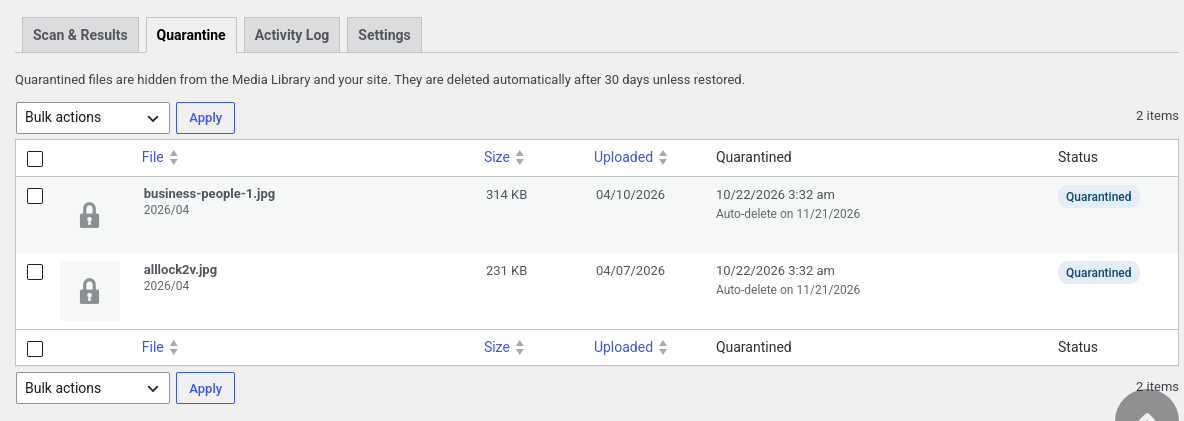
- Nothing is deleted directly. Files are first moved to a protected quarantine folder and hidden from the site.
- One-click restore.
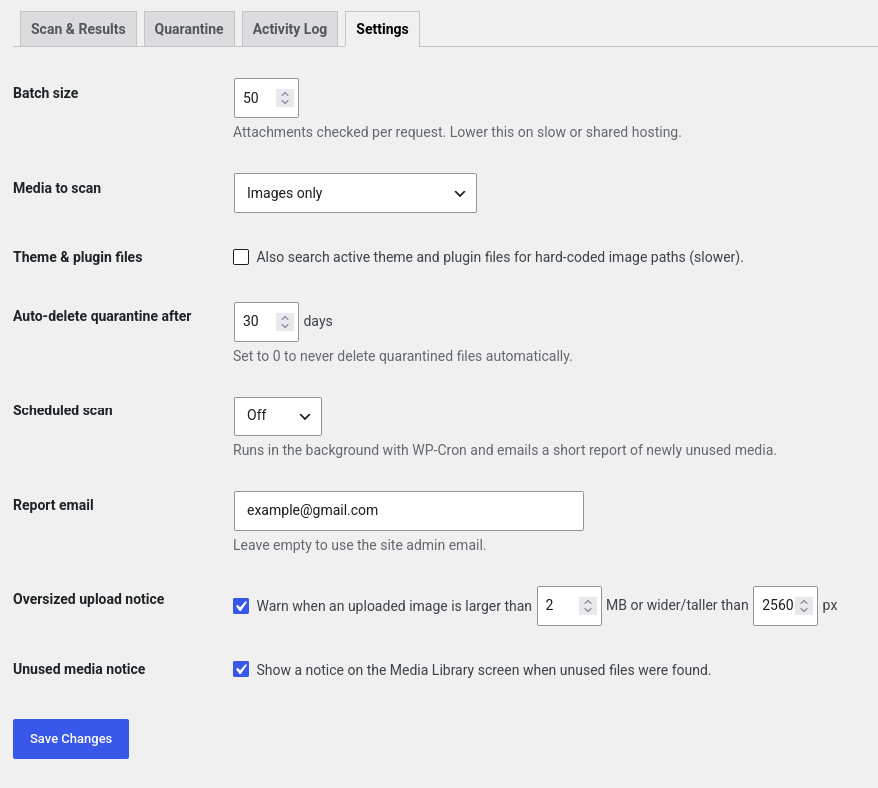
- Configurable auto-delete after quarantine (default 30 days).
- Keep list for files you never want flagged.
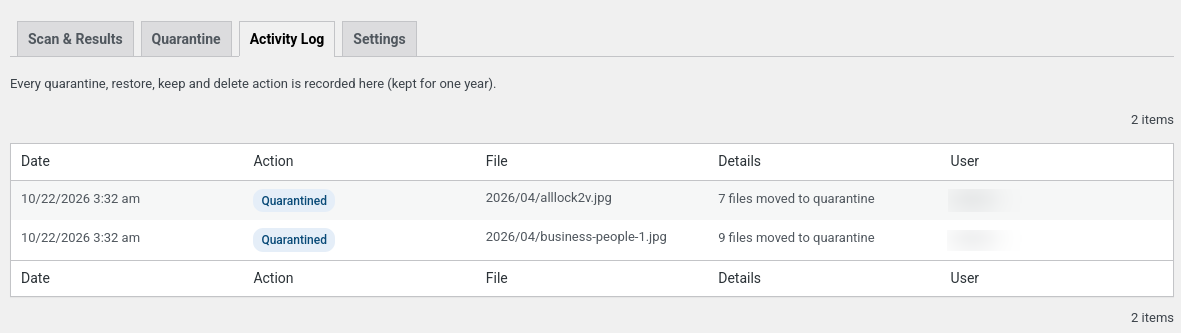
- Activity log of every quarantine, restore and delete.
- CSV export of results.
For new and existing sites
- Baseline scan in the background on activation.
- Optional weekly or monthly scheduled scan with an email report of newly unused media.
- Optional notice when oversized images are uploaded.
- A reminder to scan again after content is deleted.
Important: always take a full backup before cleaning up. No automatic tool can detect every use. Images loaded only from CSS backgrounds, custom JavaScript, external sites or emails may not be detected.
Screenshots
Installation
- Upload the
tamizhapps-unused-media-cleanerfolder to/wp-content/plugins/, or install it from the Plugins screen. - Activate the plugin.
- Go to Media Media Cleaner and click Scan Media Library.
- Review the Unused and Needs review files, starting with the largest.
- Move files to quarantine, check your site for a few days, then delete them permanently.
FAQ
-
Will this delete my images?
-
Not directly. Files are moved to quarantine first and can be restored at any time until they are permanently deleted, either by you or by the auto-delete period.
-
Should I take a backup?
-
Yes. Always take a full backup of your files and database before cleaning up.
-
What does “Needs review” mean?
-
The file was not found by URL or file name, but its ID appears somewhere that might be a reference (for example a custom field), or it was uploaded to a post that does not show it. Check these files manually.
-
My site uses a cache or CDN.
-
After quarantining or deleting files, clear your caching plugin and CDN cache, then check your site.
-
Does it work with large libraries?
-
Yes. The scan runs in batches (50 files per request by default, configurable), so it does not time out. Keep the tab open, or let a scheduled scan run in the background.
-
Does it support multisite?
-
Each site in a network scans its own Media Library. A network-wide dashboard is planned.
-
What happens when I uninstall the plugin?
-
All quarantined files are restored first. Then the plugin’s tables, options and scheduled events are removed.
Reviews
There are no reviews for this plugin.
Contributors & Developers
“TamizhApps Unused Media Cleaner” is open source software. The following people have contributed to this plugin.
Contributors
Translate “TamizhApps Unused Media Cleaner” into your language.
Interested in development?
Browse the code, check out the SVN repository, or subscribe to the development log by RSS.
Changelog
1.0.0
- First release: batched scan, quarantine, restore, delete, keep list, CSV export, activity log, scheduled scans and email reports.