
Description
Simonov AI Site Manager turns your WordPress site into a Model Context Protocol (MCP) server: one Streamable-HTTP endpoint, served by your own site, that an AI client you connect can use to work with your content.
Stop formatting content by hand
Every post, page and product needs the same routine: paste the text, fix the headings, pick categories and tags, upload a picture and set it as the featured image, write an excerpt, fill in the custom fields, set the price, schedule it. Do that for everything you publish, and it adds up to hours every week.
Connect Claude or ChatGPT, describe the result you want in plain words, and let the assistant do the clicking:
- “Turn this text into a post: proper headings, a short intro, the Recipes category, fitting tags, this photo as the featured image. Publish on Friday at 9:00.”
- “Create products from this price list: titles, descriptions, SKUs, prices and stock. Save them as drafts so I can check them first.”
- “Put a 20% sale price on every product in the Summer category.”
- “Rewrite the excerpts of my ten latest posts so each one is under 160 characters.”
- “Make a Polish translation of yesterday’s post and link the two.” (with Polylang)
- “Go through the comments waiting for moderation, approve the genuine ones and reply to the questions.”
The work that used to take a morning of copying and pasting becomes a few sentences, and it is done on your real site, in your own WordPress, with no export and no import.
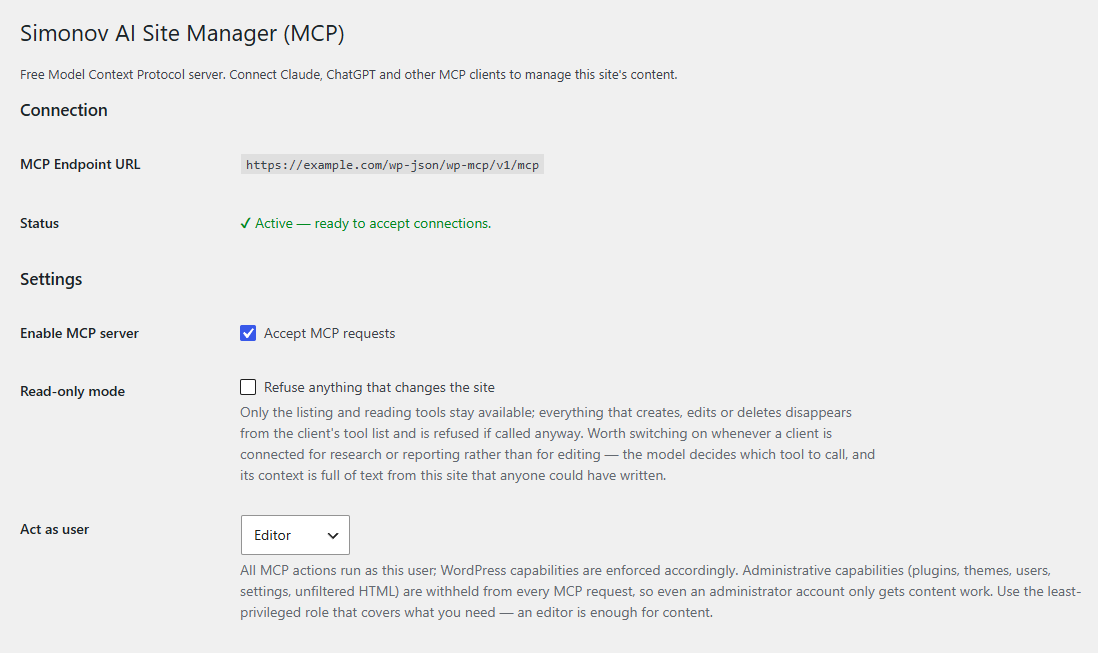
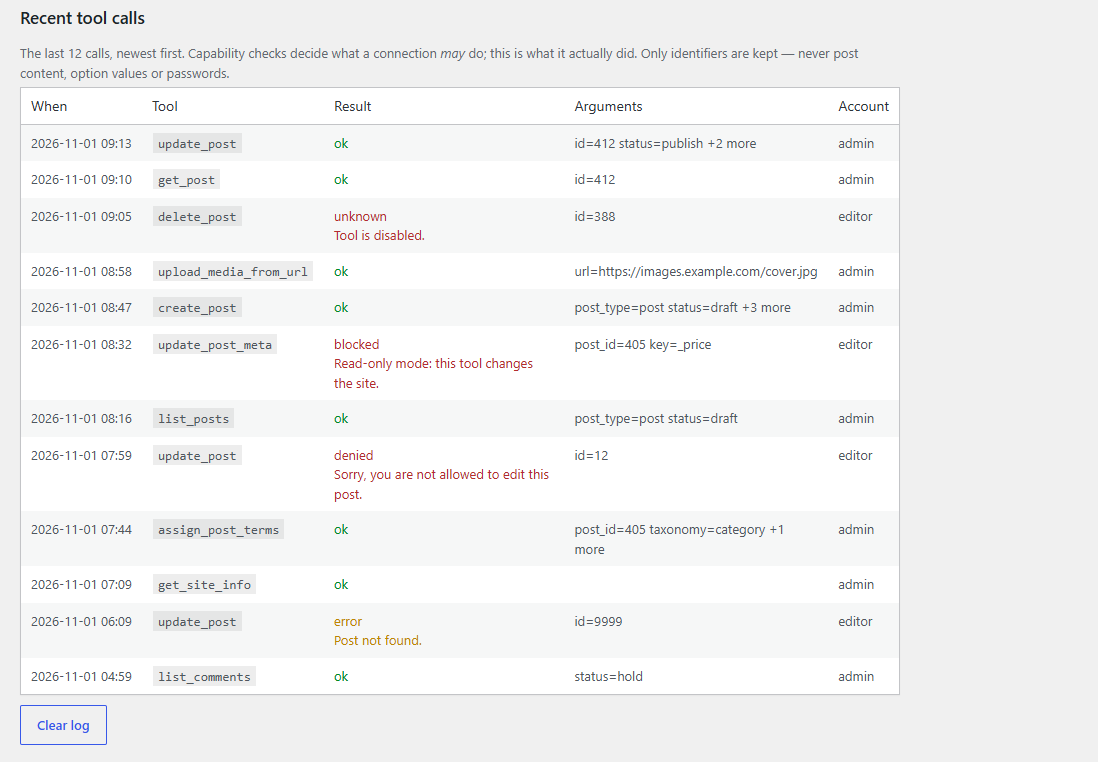
You stay in charge of what the assistant may touch. It works through a WordPress account you choose, with that account’s permissions. Ask for drafts when you want to review first, switch on read-only mode when you only need answers, and check the audit log to see every change it made.
What it can do
It can manage:
- Posts, pages and any custom post type — create, read, update, delete, meta.
- Taxonomies & terms — categories, tags, custom taxonomies, term assignment.
- Media — upload from URL or base64, edit metadata, featured images.
- Comments — moderate, reply, delete.
- WooCommerce — products and order status (auto-enabled when WooCommerce is active).
- Polylang — languages, translations, linking (auto-enabled when Polylang is active).
And look up, read-only:
- Site info and navigation menus.
It does not administer the site, and it cannot be made to. There are no tools for plugins, themes, users or site settings, and every MCP request runs without administrative capabilities: managing plugins, themes, users, options or core, editing files, posting unfiltered HTML and editing theme configuration are refused for the whole request, even when the connected account is an administrator. Administration stays in the WordPress dashboard.
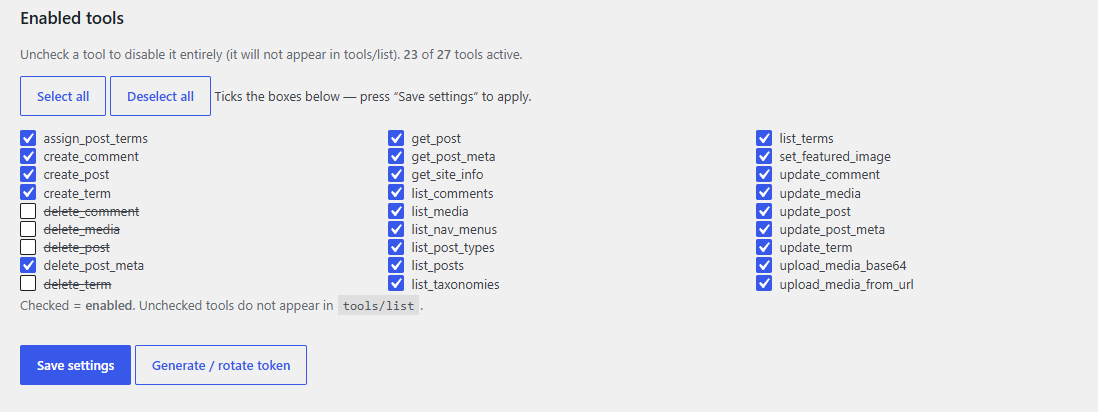
Every action runs as a WordPress user you choose, so capability checks are always enforced. Read-only mode, per-tool switches, revocable connections and an audit log let you decide how much of this a client can reach.
No external service
The plugin is the server and runs entirely on your site. There is no relay, account or service operated by the plugin author: the AI client you choose connects straight to your site’s REST API, and access is granted either by you signing in to WordPress and approving the client (OAuth) or by a token you generate. Tokens are stored on your site, hashed, and can be revoked at any time from the settings page.
Requirements
WordPress 5.8 or newer and PHP 7.0 or newer. Everything works the same on old and new installs.
Security
- The token is stored hashed (never in plaintext) and compared in constant time.
- Every tool enforces WordPress capabilities against the specific object it touches — not just a generic capability — so a non-admin configured user cannot edit content it does not own.
- No tool changes plugins, themes, users or site settings.
- Media uploads validate file content against the extension and block fetches to internal/cloud-metadata addresses.
- Disable individual tools from the settings page if you want to reduce surface area.
Note: the configured user acts with its full WordPress capabilities. Use the least-privileged role that meets your needs, and treat the token as a site credential.
Roadmap
- WPML integration.
Screenshots

Installation
- Install from Plugins Add New, or copy the
simonov-ai-site-managerfolder towp-content/plugins/and activate it. - Make sure Settings Permalinks is set to any option other than “Plain”.
- Go to Settings Simonov AI Site Manager, tick “Accept MCP requests” and save.
The settings page shows your MCP endpoint URL. It is always your site address followed by /wp-json/wp-mcp/v1/mcp:
https://example.com/wp-json/wp-mcp/v1/mcp
Paste this full address into the client, not just the domain: the site’s home page is not an MCP server.
The client connects as the WordPress account that signs in, with that account’s permissions. An Editor is enough for content work and is the safer choice.
Connect Claude (claude.ai)
Custom connectors work on every Claude plan; the free plan allows one.
- In claude.ai open Customize Connectors, click “+ Add”, then “Add custom connector”.
- Give it a name (your site’s name is fine), paste the MCP endpoint URL and click “Continue”.
- Keep sign-in turned on. If Claude asks which OAuth client to use, choose “Register automatically”. Click “Add”.
- Click “Connect”. Claude opens your site’s WordPress login in a new tab. Sign in.
- The authorization screen names the address the access will be sent to. Check that it says claude.ai, then click “Approve”.
- In a chat, open the “+” menu Connectors and switch your site on.
Then ask, for example: “List my five most recent drafts” or “Publish the post about the spring sale and set its featured image”.
On Team and Enterprise plans an owner adds the connector once under Organization settings Connectors; each member then clicks “Connect” and signs in with their own WordPress account.
Connect ChatGPT
ChatGPT connects custom MCP servers through developer mode. Whether your plan offers it, and whether a workspace admin has to allow it first, is up to OpenAI — check ChatGPT’s Settings Apps.
- In ChatGPT open Settings Apps Advanced settings and turn on developer mode.
- Click “Create app”. Give it a name, paste the MCP endpoint URL and choose OAuth as the authentication. Confirm that you trust the server and create the app.
- ChatGPT opens your WordPress login. Sign in, check that the authorization screen says chatgpt.com, then click “Approve”.
- In a chat, open the “+” menu, choose developer mode and select your site.
Tools that only read run straight away. Before anything that changes the site, ChatGPT asks you to confirm. Read what it is about to do before you confirm.
Connect Claude Code
claude mcp add --transport http my-site https://example.com/wp-json/wp-mcp/v1/mcp
Then run /mcp inside Claude Code, choose the server and authenticate. Your browser opens the same WordPress login and authorization screen.
Connect with a token (Claude Desktop config, scripts, other clients)
For clients that cannot sign in through a browser:
- On the settings page choose “Act as user”, then click “Generate / rotate token”.
- Copy the ready-made connection URL or the Claude Desktop config shown at the top of the page. The token is shown once.
Treat the token, and any URL containing it, as a password. Generating a new token invalidates the old one.
Use more than one client
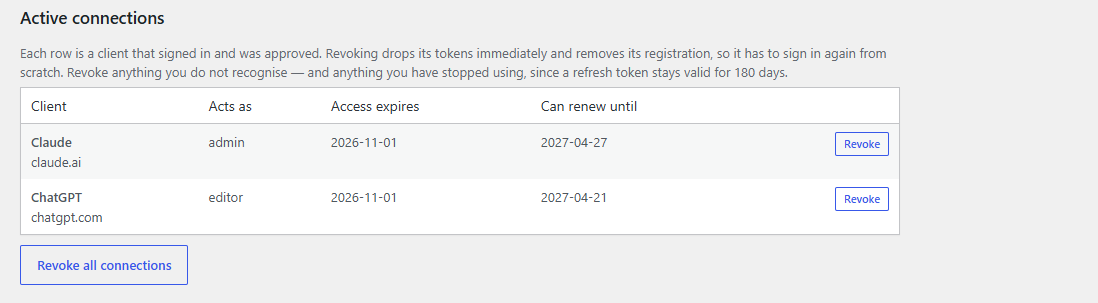
Claude, ChatGPT and any other client can be connected at the same time. Each one signs in separately and appears as its own row under Active connections, where you can revoke it without affecting the others.
FAQ
-
How do I connect Claude or ChatGPT?
-
Step-by-step instructions for claude.ai, ChatGPT, Claude Code and token-based clients are on the Installation tab. In every case you paste the MCP endpoint URL from the settings page, sign in to WordPress and approve the client.
-
What address do I paste into the client?
-
The full MCP endpoint URL from Settings Simonov AI Site Manager, e.g.
https://example.com/wp-json/wp-mcp/v1/mcp. Pasting only the domain does not work. -
The client signs in, then says the server refused its request
-
Almost always a filter in front of WordPress that blocks AI user agents, not this plugin.
The sign-in happens in your browser, so it passes. The MCP request that follows is made by the AI provider’s own servers, carrying their own user agent — and that is what gets blocked. Hence the confusing “you signed in, but then it was refused”.
Every provider uses separate agents for crawling and for requests a person actually asked for, and only the second kind has to be allowed:
- Claude — allow
Claude-User;ClaudeBotandClaude-SearchBotmay stay blocked. - ChatGPT — allow
ChatGPT-User;GPTBotandOAI-SearchBotmay stay blocked. - Perplexity — allow
Perplexity-User;PerplexityBotmay stay blocked.
Allowing the user-initiated agent does not open your site to AI training crawlers. Those arrive under the other names, and you can keep blocking every one of them.
To check your site from any machine with curl:
curl -A "Claude-User/1.0 (+Claude-User@anthropic.com)" -o /dev/null -w "%{http_code}\n" https://example.com/200 means nothing is blocking. A 403, 405, 406 or 418 — especially as a plain HTML error page rather than WordPress output — means the request never reached WordPress. Run the same command without
-Ato confirm the user agent is the only difference.Such a filter normally lives in one of three places, worth checking in this order: your hosting control panel (an option like “Block AI bots” or “AI crawler protection” — on shared hosting the rule is in the server’s own nginx or Apache config, so you may have to ask support, and no plugin or .htaccess of yours can override it); Cloudflare or a similar CDN (Security Bots “Block AI Scrapers and Crawlers”, or a custom WAF rule); or a security or “AI blocker” plugin that filters by user agent.
Ask for the user-initiated agent to be removed from the block list by name. Blocking it is rarely deliberate — these lists are usually copied wholesale from a published crawler list, without noticing that one entry on it is how your own integrations reach the site.
- Claude — allow
-
How do I update the plugin?
-
Through WordPress, like any other plugin from the directory: new versions appear under Dashboard Updates and on the Plugins screen. Nothing has to be configured and nothing is fetched from anywhere but WordPress.org.
Reviews
There are no reviews for this plugin.
Contributors & Developers
“Simonov AI Site Manager (MCP)” is open source software. The following people have contributed to this plugin.
Contributors
Translate “Simonov AI Site Manager (MCP)” into your language.
Interested in development?
Browse the code, check out the SVN repository, or subscribe to the development log by RSS.
Changelog
0.9.2
- Every tool now tells the client whether it only reads, adds something new, or can overwrite or delete. ChatGPT and other clients run reading tools without asking and ask before changes.
0.9.1
- MCP requests never hold administrative capabilities, whichever account is connected.
- Removed the option, user, plugin and theme lookup tools.
0.9.0
- First release in the WordPress.org directory.