
Description
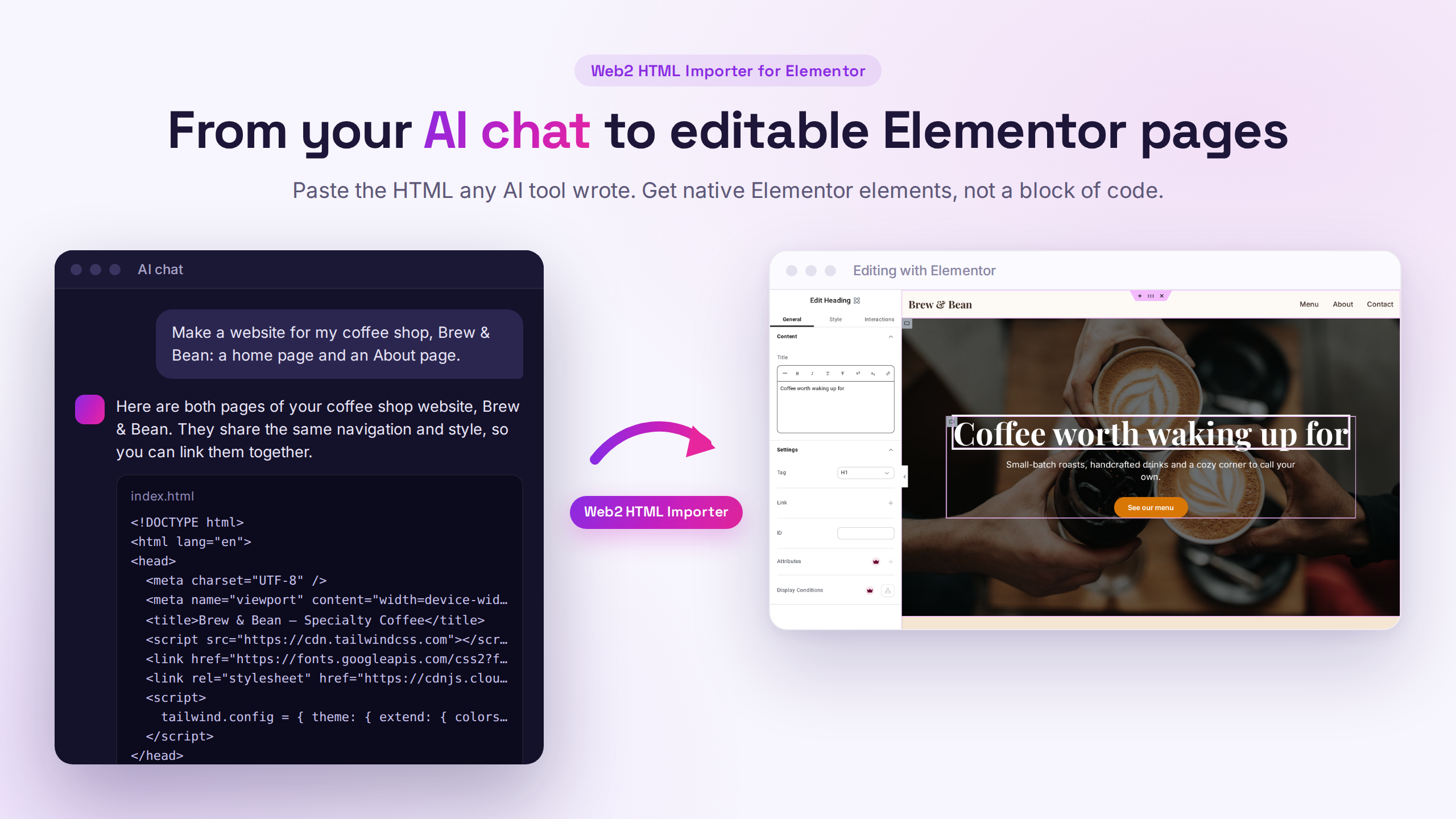
Import HTML into Elementor as real, editable pages. Paste the HTML an AI tool wrote for you — or your own — and Web2 HTML Importer builds it as native Elementor elements: headings, text, images, buttons and containers you edit by clicking, not a block of code.
Why it’s different
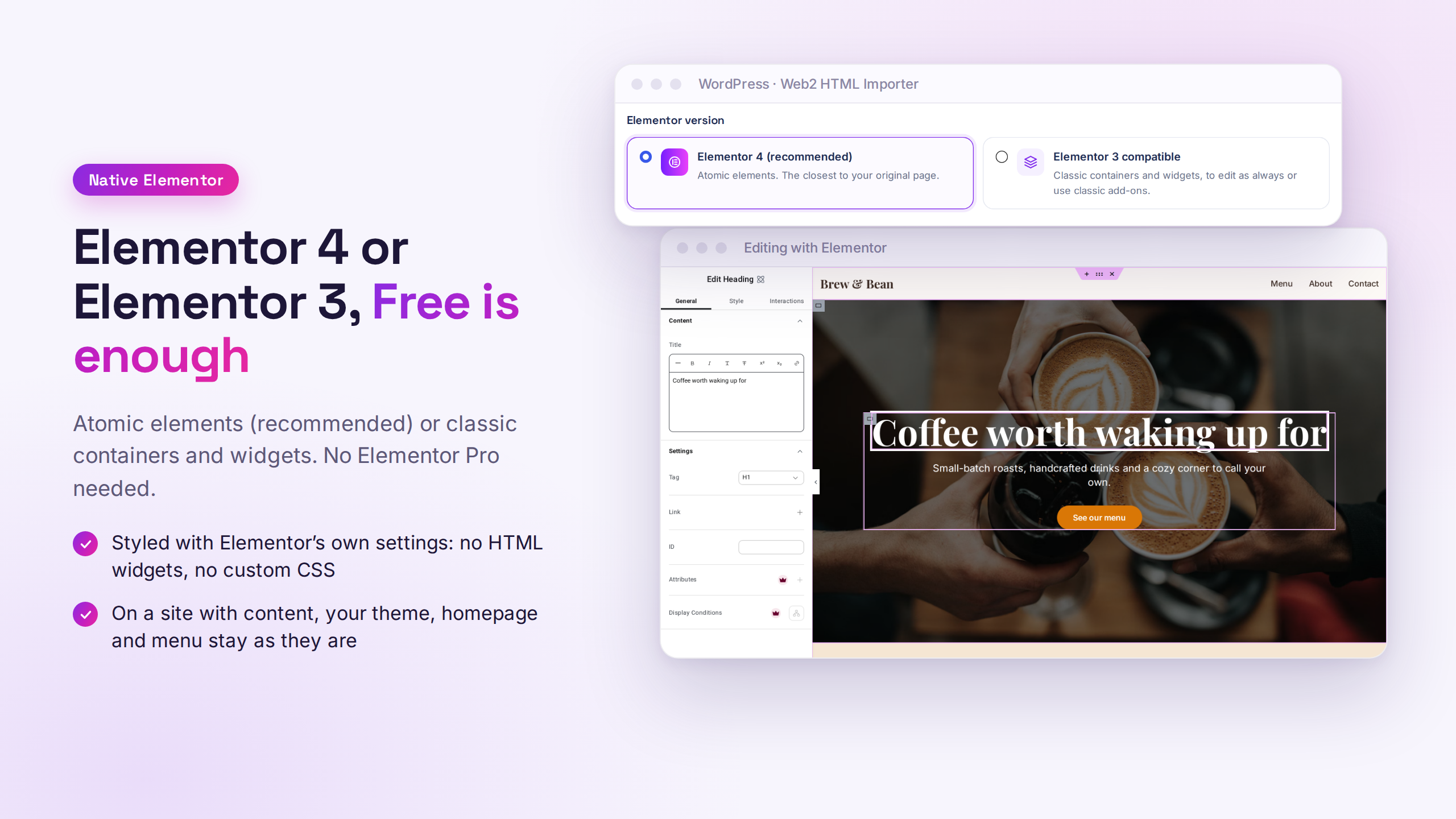
- Native Elementor, no hidden CSS. With Elementor 4, no HTML widgets, no custom CSS, no style blocks: every element is styled with Elementor’s own settings, so changing a color or a font in the Style tab actually works. (The Elementor 3 version adds one hidden Custom Styles element for fine details.)
- Elementor 4 or Elementor 3. Choose atomic elements (Elementor 4, recommended) or classic containers and widgets (Elementor 3.35 or later). Works with Elementor Free — no Elementor Pro needed.
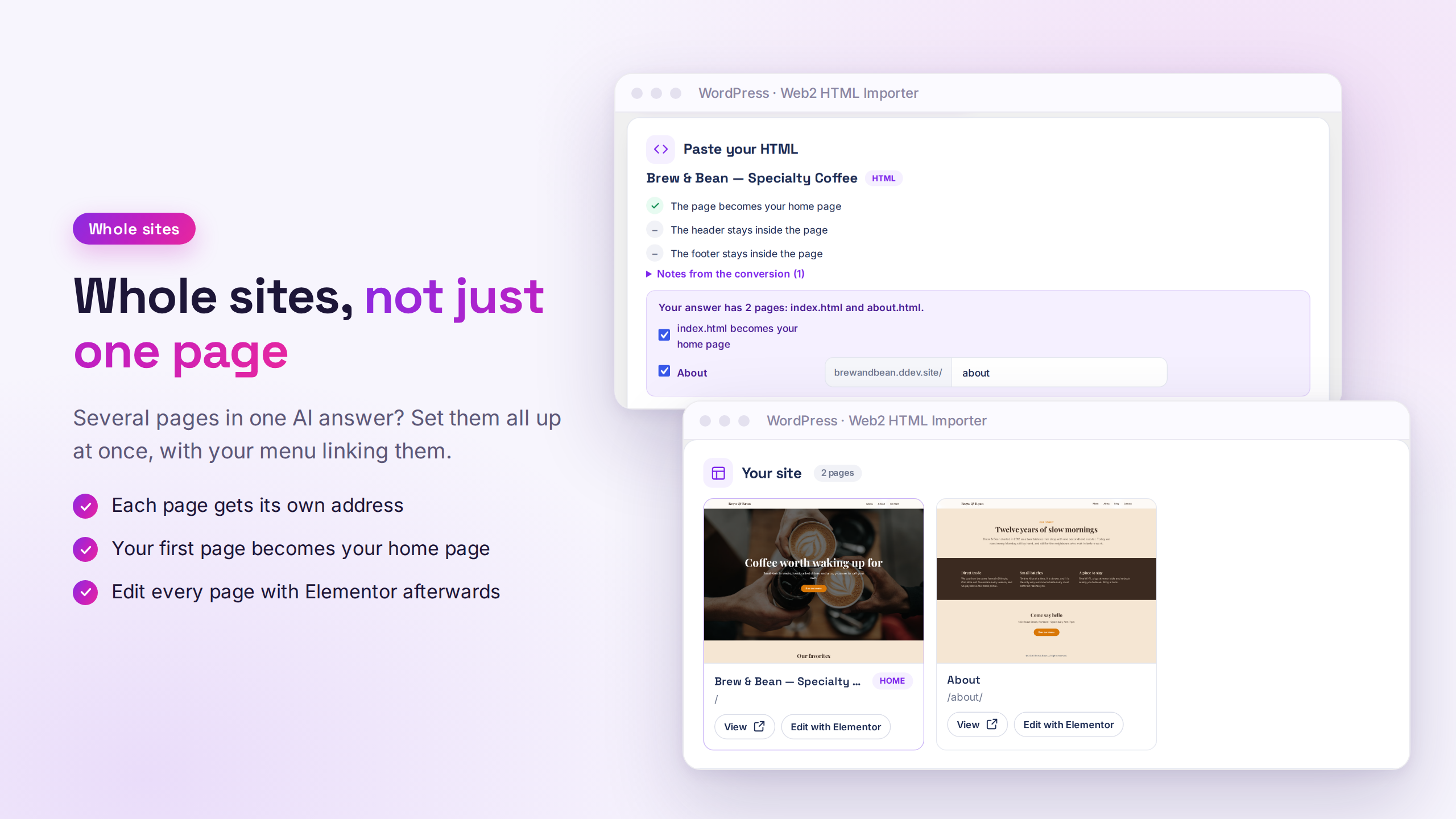
- Whole sites, not just one page. If the AI gave you several pages in one answer, set them all up at once, with your menu linking them.
- Safe on existing sites. On a site that already has content, your theme, pages, homepage and menu stay as they are: the plugin only adds the new pages.
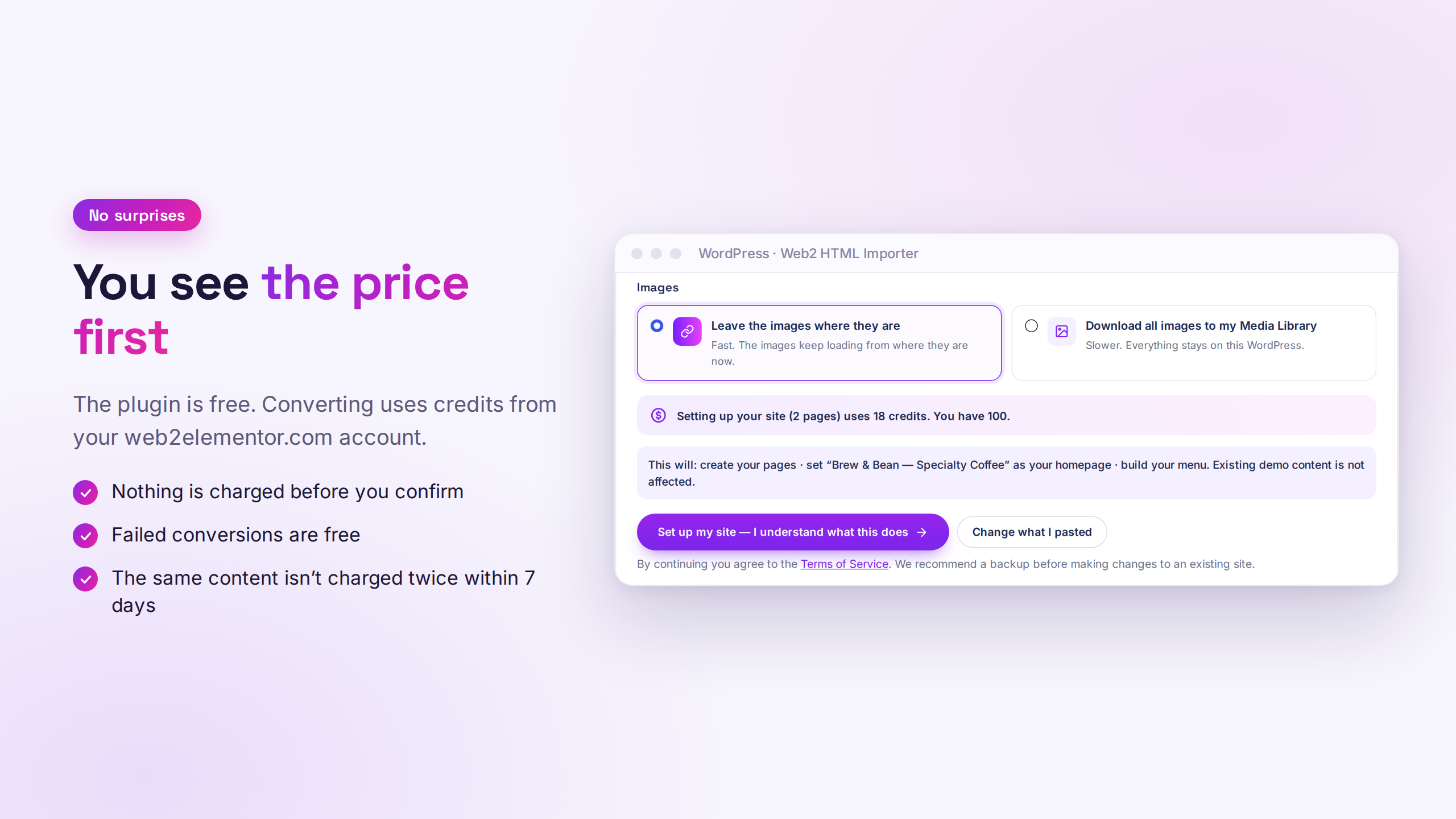
- You see the price first. Nothing is charged before you confirm, failed conversions are free, and the same content isn’t charged twice within 7 days.
Two ways to import
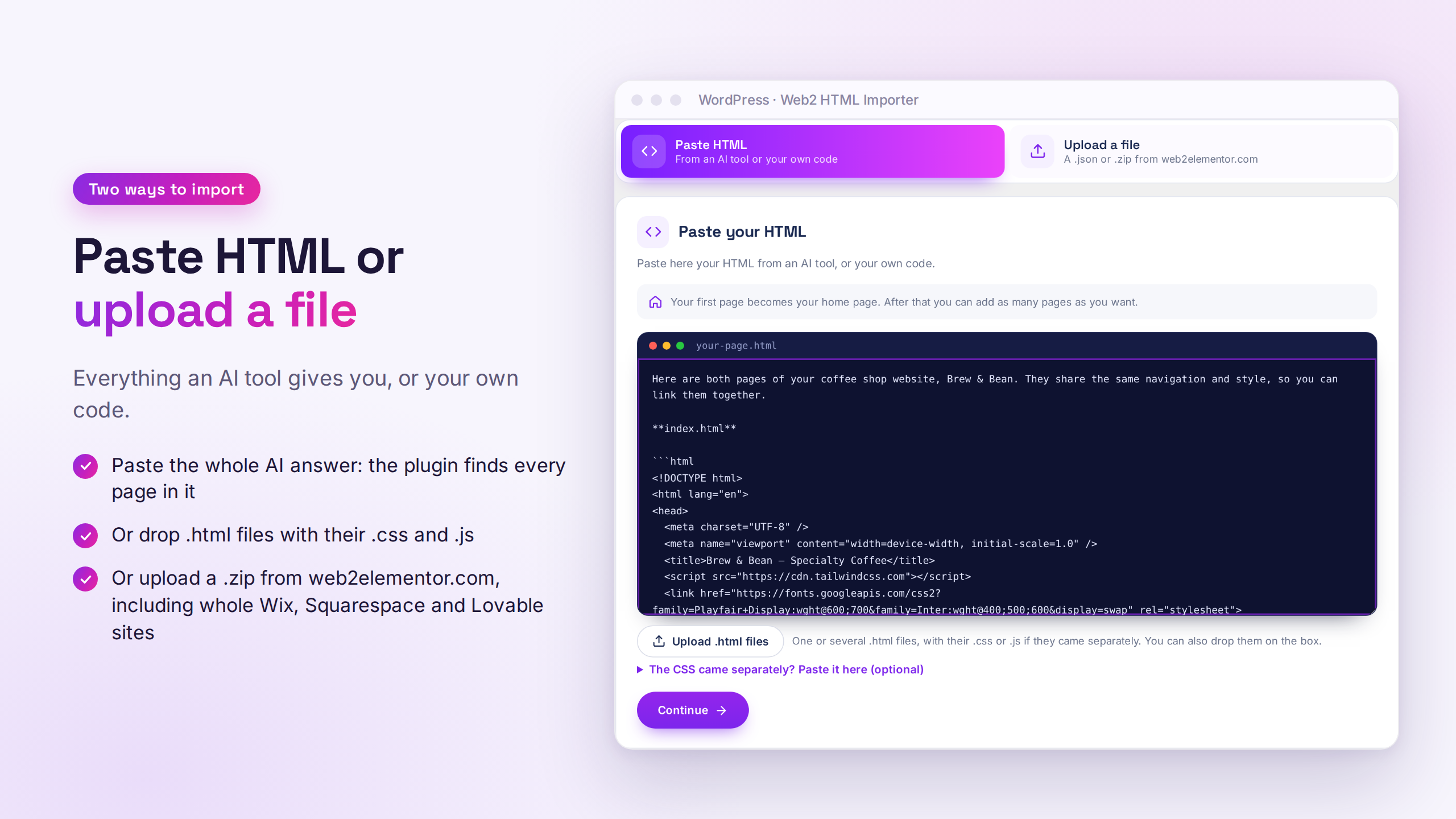
- Paste HTML — the HTML (or the whole answer) from an AI tool or your own code. You can also drop .html files with their .css and .js.
- Upload a file — your .html file (with its .css and .js), or a .json or .zip converted on web2elementor.com, including whole Wix, Squarespace and Lovable sites.
Every page is built with Elementor (on the Elementor Canvas template), so you can edit it afterwards like any other Elementor page.
The conversion is done by the web2elementor.com service (see “External service” below). The plugin is the part that runs in your WordPress: it shows you what will happen and the price before anything is charged, and it creates your pages, templates and menu.
Web2 HTML Importer and web2elementor.com are an independent project, not affiliated with, endorsed by, or sponsored by Elementor Ltd. “Elementor” is a trademark of Elementor Ltd. This plugin builds pages for Elementor.
What it costs
- The plugin is free, and everything in it works the same for everyone: nothing in the plugin is locked or unlocked by paying.
- Converting and preparing your pages is done by the web2elementor.com service and uses credits from your web2elementor.com account. Creating an account is free.
- The price is shown on screen before you confirm. Nothing is charged if a conversion fails, and the same content is not charged twice within 7 days.
- Credits are bought on web2elementor.com, in your browser. The plugin does not sell anything and does not take payments: when your balance is not enough, it tells you so and links to web2elementor.com.
What this plugin changes
Nothing happens when you activate the plugin. Every change below happens only after you press a button, and the screen tells you what will happen before you confirm.
The plugin does not install, activate or update other plugins or themes, and does not change Elementor’s settings. Your pages need Elementor 3.35 or later (WordPress asks you to install and activate it before this plugin) and, on a fresh site, the Hello Elementor theme (both free on WordPress.org). If the theme is missing or Elementor is older, the plugin shows a button that takes you to the WordPress screen where you install, activate or update it yourself; then press “Check again”.
Elementor 4.3 or later: when your file includes both versions, you choose: Elementor 4 (atomic elements, recommended) or Elementor 3 compatible (classic containers and widgets). If the Atomic Editor is off on your site (sites that were upgraded from Elementor 3), your pages are set up in the Elementor 3 format (this also needs Elementor’s Container feature) and the plugin links to Elementor Settings Atomic Editor, where you can turn it on yourself. Files that only have the Elementor 4 version need it on; nothing is charged until then.
Elementor 3.35 to 4.2: your pages are set up in the Elementor 3 format (classic containers and widgets). They need Elementor’s Container feature: if it is turned off on your site, the plugin tells you and links to Elementor Settings Features, where you turn it on. Files that only have the Elementor 4 version cannot be set up there: download them again from web2elementor.com, or update Elementor.
On a fresh WordPress (only the default content: “Hello world!”, “Sample Page” and the unpublished Privacy Policy, no static homepage, no menus, a default Twenty* or Hello theme):
- creates your imported pages (Elementor Canvas template), and the header and footer templates when the page has them;
- sets your imported home page as the site homepage (Settings Reading);
- builds the menu inside your imported pages so it links to them.
Existing demo content is not affected.
On a WordPress that already has content (your own pages or posts, a static homepage, a menu or another theme), the plugin shows a notice and works in a careful mode:
- your theme is not changed and Hello Elementor is not needed;
- your imported pages are added alongside your pages (Elementor Canvas template);
- your homepage and Reading settings are not changed;
- your site menu is not changed: the imported pages are listed in a separate menu called “Web2 HTML Importer”, not assigned to any location, that you can use if you want.
In both cases: if you import a page whose address already exists and was created by this plugin, that page is replaced in place (same page, same address). Pages created by you or by other plugins are never replaced or deleted.
We recommend a backup before making changes to an existing site.
External service
This plugin relies on web2elementor.com (web2elementor.com), an external paid service. It needs the service because the work is not done in WordPress:
- Pasted HTML is converted by our conversion engine, which opens your page in a headless browser to read its real layout and turns it into Elementor elements.
- An uploaded file (.json or .zip) is prepared for your site: the header and the footer are split into their own templates, the menu is rebuilt with the addresses of your WordPress pages, repeated styles are grouped into Elementor global classes when your Elementor supports them, and the format is adapted to your Elementor version.
What is sent, and when:
- When you connect your account: you sign in or create a free account on the web2elementor.com sign-in service (accounts.web2elementor.com / clerk.web2elementor.com, powered by Clerk). The plugin stores the access token in your WordPress database.
- When you press “Continue” (a free preview) and when you confirm a setup: the HTML you pasted (or the file you uploaded), the addresses and names you chose for your pages, the menus of the pages this plugin already created, your Elementor version, this plugin’s version, and whether your site already has content are sent to api.web2elementor.com, which converts and prepares the pages and returns them.
- When the screen shows your balance: your credit balance is read from api.web2elementor.com.
- If you choose “Download all images to my Media Library”: the images are downloaded from the addresses where they are hosted.
Nothing is sent before you connect your account, and nothing is sent in the background.
What the service keeps:
- The HTML you paste is stored as a temporary page for 5 minutes while it is converted, and then deleted automatically.
- A private copy of the HTML you paste, together with the Elementor file created from it, for up to 90 days. It is used only to find and fix conversion problems; it is never published, shared or sold, it is deleted automatically after 90 days, and you can ask us to delete it sooner (see the Privacy Policy).
- Icons and images that are embedded in your HTML are saved as files on our servers, so that WordPress can download them into your site.
- A fingerprint (SHA-256) of what you paste or upload, for 7 days, so that the same content is not charged twice. The fingerprint does not contain the content.
- A record of each page set up (your site’s address and the page’s address), so that replacing a page is not charged again.
-
An entry in our logs for each conversion and each charge (your account, the date, the size and the credits), without the content of your pages.
-
Service: web2elementor.com
- Terms of Service: web2elementor.com/terms-of-service.html
- Privacy Policy: web2elementor.com/privacy-policy.html
Screenshots
Installation
- Install and activate Elementor (free), which this plugin requires. On a fresh site, also install the Hello Elementor theme; the plugin links you to it.
- Install and activate this plugin.
- Open Web2 HTML Importer in the WordPress menu and connect your web2elementor.com account (or create a free one).
- Paste your HTML or upload your file, check the summary and the price, and confirm.
FAQ
-
Will it change my existing site?
-
On a site that already has content, it does not change your theme, your pages, your homepage or your menu: it only adds the imported pages. We still recommend a backup first.
-
Does it cost money?
-
The plugin is free. Converting and setting up pages uses credits from your web2elementor.com account. Get credits at web2elementor.com. The screen shows the price before you confirm. See “What it costs”.
-
Does it install Elementor for me?
-
No. The plugin never installs, activates or updates other plugins or themes. It shows you what is missing and takes you to the WordPress screen where you do it.
-
What happens when I delete the plugin?
-
Deactivating the plugin removes nothing. Deleting it (Plugins Deactivate Delete) disconnects your web2elementor.com account and removes the plugin’s own settings and the files waiting to be set up. Your pages, their header and footer templates, the “Web2 HTML Importer” menu, your images and your homepage setting stay. Without the plugin, the header, the footer and the mobile menu it shows on the imported pages are no longer displayed; they come back if you install it again.
Reviews
There are no reviews for this plugin.
Contributors & Developers
“Web2 HTML Importer for Elementor” is open source software. The following people have contributed to this plugin.
Contributors
Translate “Web2 HTML Importer for Elementor” into your language.
Interested in development?
Browse the code, check out the SVN repository, or subscribe to the development log by RSS.
Changelog
0.2.3
- Asks for a review on WordPress.org after a successful import.
- Upload a file now takes your .html files too, with their .css and .js.
0.2.2
- New name: Web2 HTML Importer for Elementor.
- The plugin only loads the WordPress admin file it uses.
0.2.1
- Elementor 4.3 or later: when Elementor containers are turned off on your site, the Elementor 3 version is not offered (it needs them), and if your site can only use the Elementor 3 format, the plugin tells you and links to Elementor Settings Features.
0.2.0
- Choose the Elementor version of your page: Elementor 4 (atomic elements, recommended) or Elementor 3 compatible (classic containers and widgets), when your file includes both.
- Works with Elementor 3.35 to 4.2: your pages are set up in the Elementor 3 format. Elementor 4.3 or later is no longer required.
- The plugin no longer changes Elementor’s settings: if the Atomic Editor or Elementor containers are off, it tells you and links to the Elementor screen where you turn them on.
0.1.2
- The mobile ☰ menu of your pages now opens on phones in more layouts: a menu inside a header without a nav, a ☰ outside the nav, and Lovable sites. It no longer shows on a blue box.
- A menu without a nav is recognised too: when you add a page called “About”, the “About” link of your menu opens it, and the summary says so.
- On a site that already has content, your first page is added as a page, with its own address. Your homepage, theme and menu stay as they are.
- Pages already on your site (the home page of a ZIP you imported before, for example) stay unchecked and are kept.
- The button says “Add these N pages” when you add several pages.
0.1.1
- Upload your .html files in the Paste HTML tab: one or several pages, with their .css or .js if they came separately. You can also drop them on the box.
- With several files, the list of pages now says “Your files have N pages”.
0.1.0
- First version.