
Description
SteadyPost turns a spreadsheet into WordPress posts. Each row is a post; each column is a field — title, content, excerpt, slug, status, categories, tags, featured image, publish date, author, and SEO title, description and keywords.
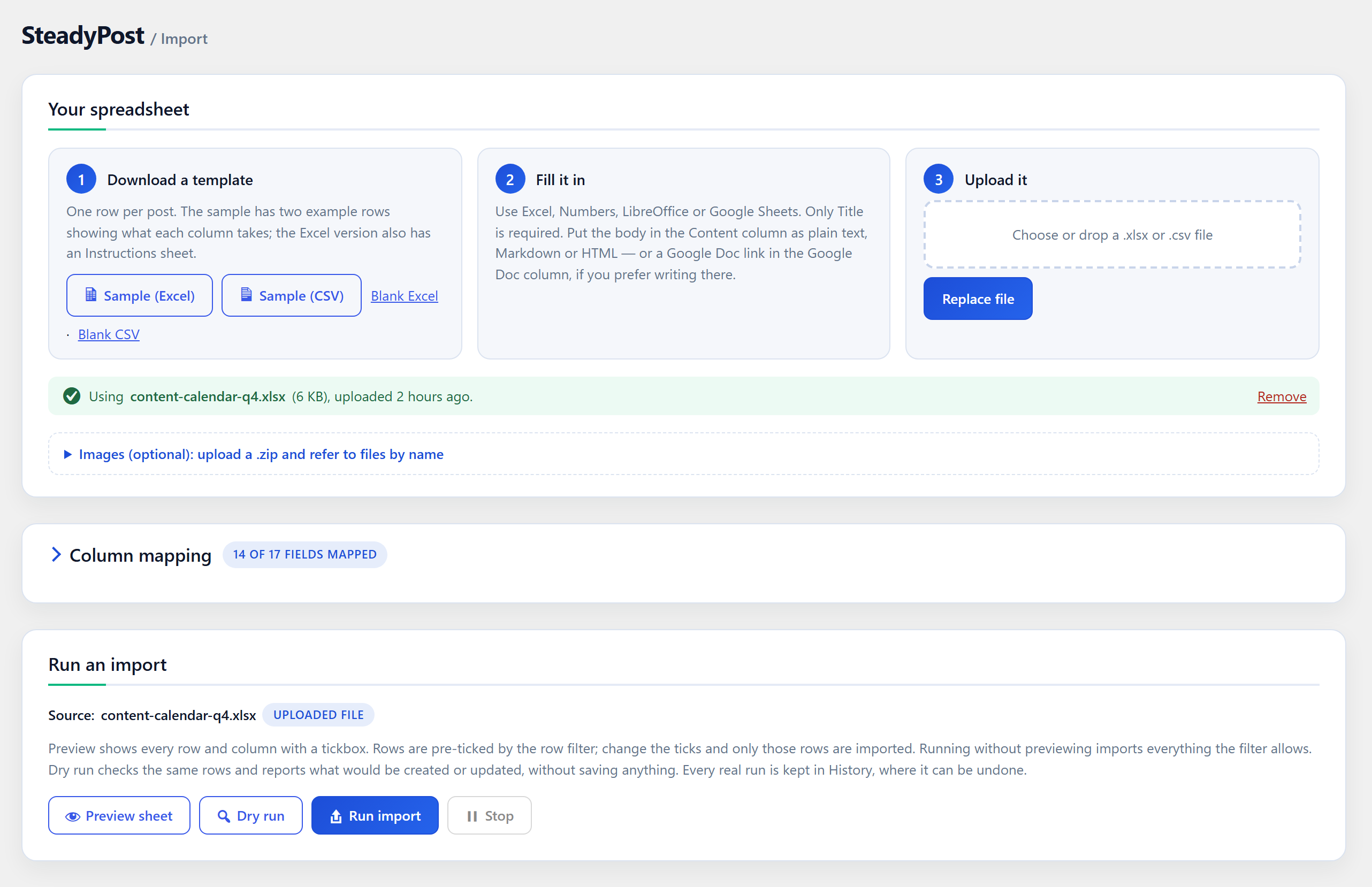
It works on its own. Download a sample or blank template (Excel or CSV), fill it in with any spreadsheet app, and upload it back. No account or external service is needed.
Importing
- Templates — Excel templates come with a frozen header row, a Status dropdown and an Instructions sheet. Columns for your site’s own custom fields and custom taxonomies are included automatically.
- Automatic column mapping — template columns map themselves. Any other spreadsheet can be mapped field by field, right on the Import screen.
- Content as plain text, Markdown or HTML — detected per row. Block-editor markup is kept exactly as it is.
- Images by filename — upload a zip of images and refer to
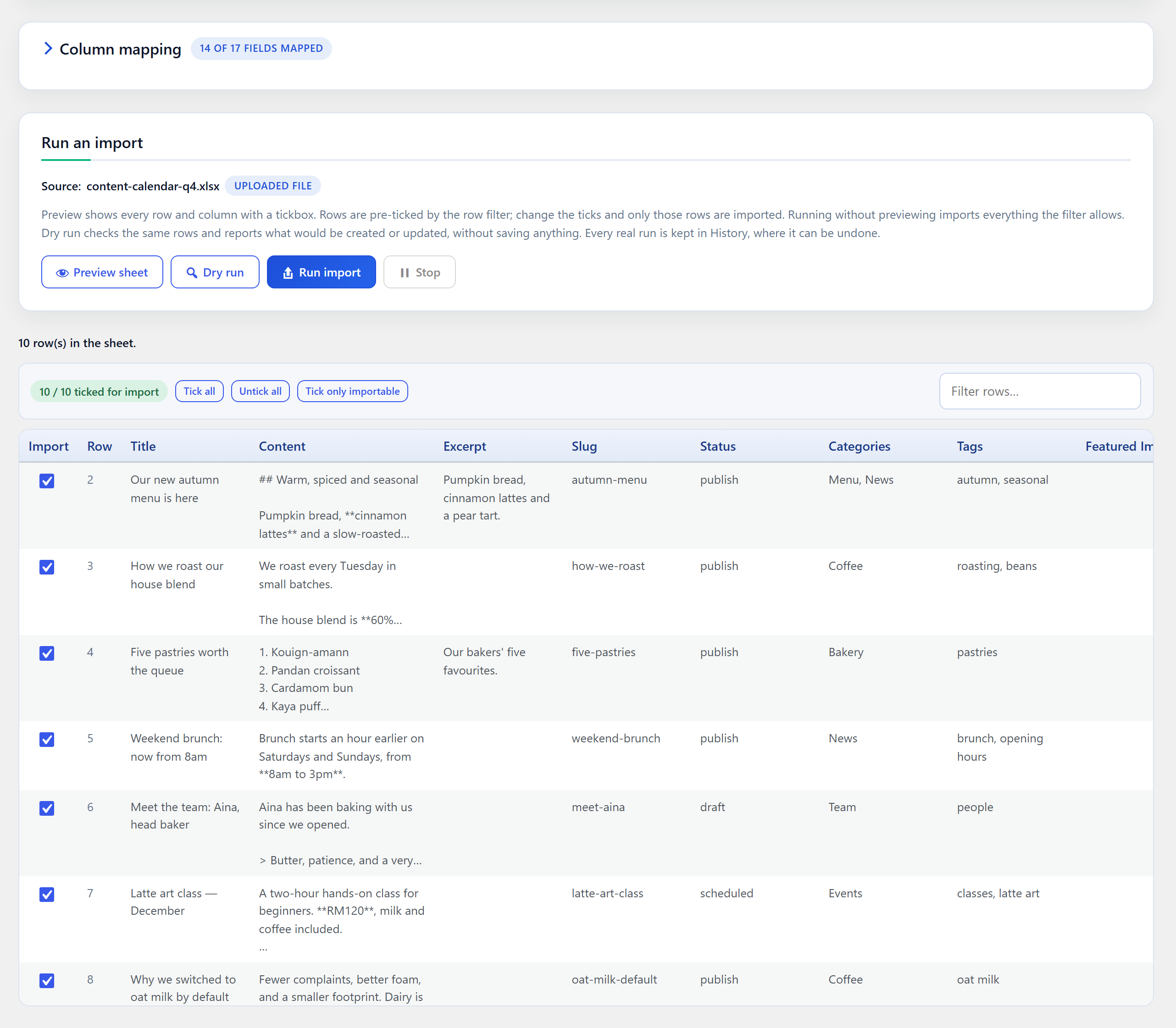
hero.jpgin a row, or reuse an image already in your media library. Each image is added to the library once. - Preview and pick rows — see every row and column before importing, tick exactly the rows you want, or let a “ready” column decide.
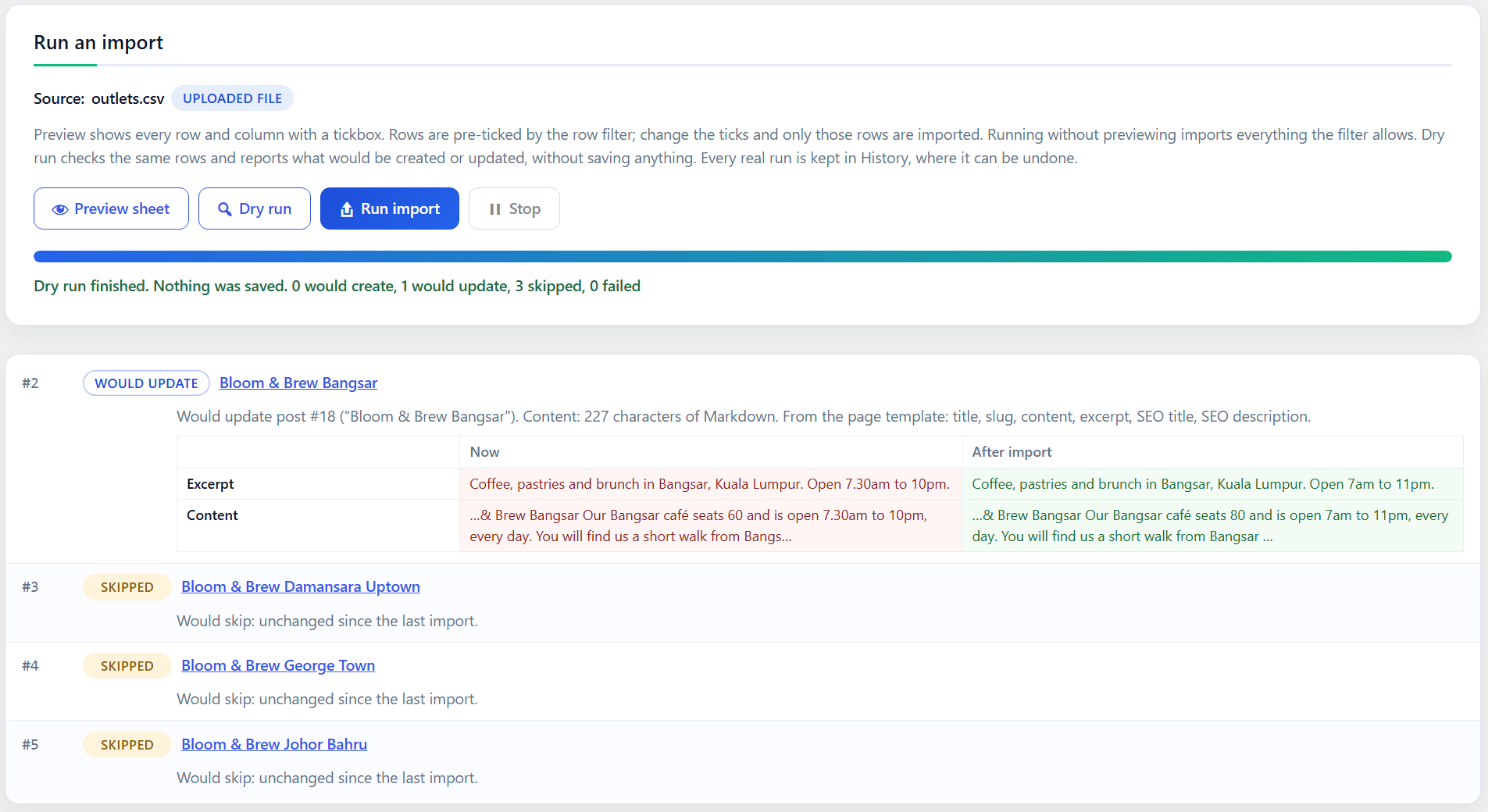
- Dry run with before and after — find out what would be created or updated without saving anything. For each post that would be updated, see every field that would change: what it says now, and what it will say after the import. New categories and missing authors or images are flagged too.
- Safe re-imports — running the same sheet again updates the posts it created instead of duplicating them, and skips the rows that haven’t changed since last time, so re-importing a big sheet is fast. A post someone has edited in WordPress since is always updated.
Page templates
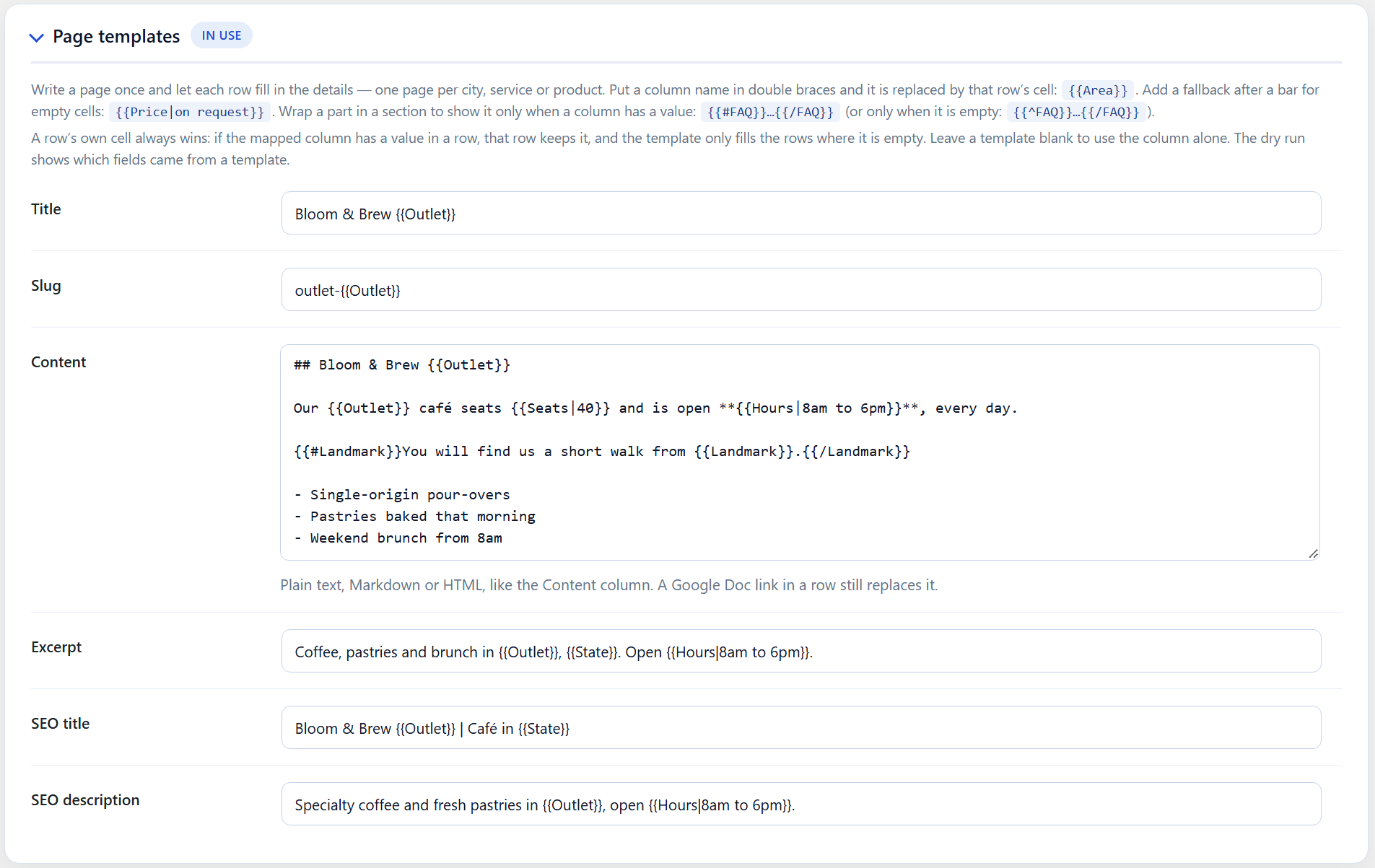
Write a page once and let each row fill in the details: one page per city, branch, service or product, from a sheet with just a few columns.
- Put a column name in double braces —
Plumber in {{Area}}— in the title, slug, content, excerpt or SEO title and description template. - Give empty cells a fallback:
From {{Price|RM80}}. - Show a part only when a column has a value:
{{#Landmark}}Five minutes from {{Landmark}}.{{/Landmark}}. - A row’s own cell always wins, so a few pages can have hand-written copy while the rest use the template.
Editing in bulk
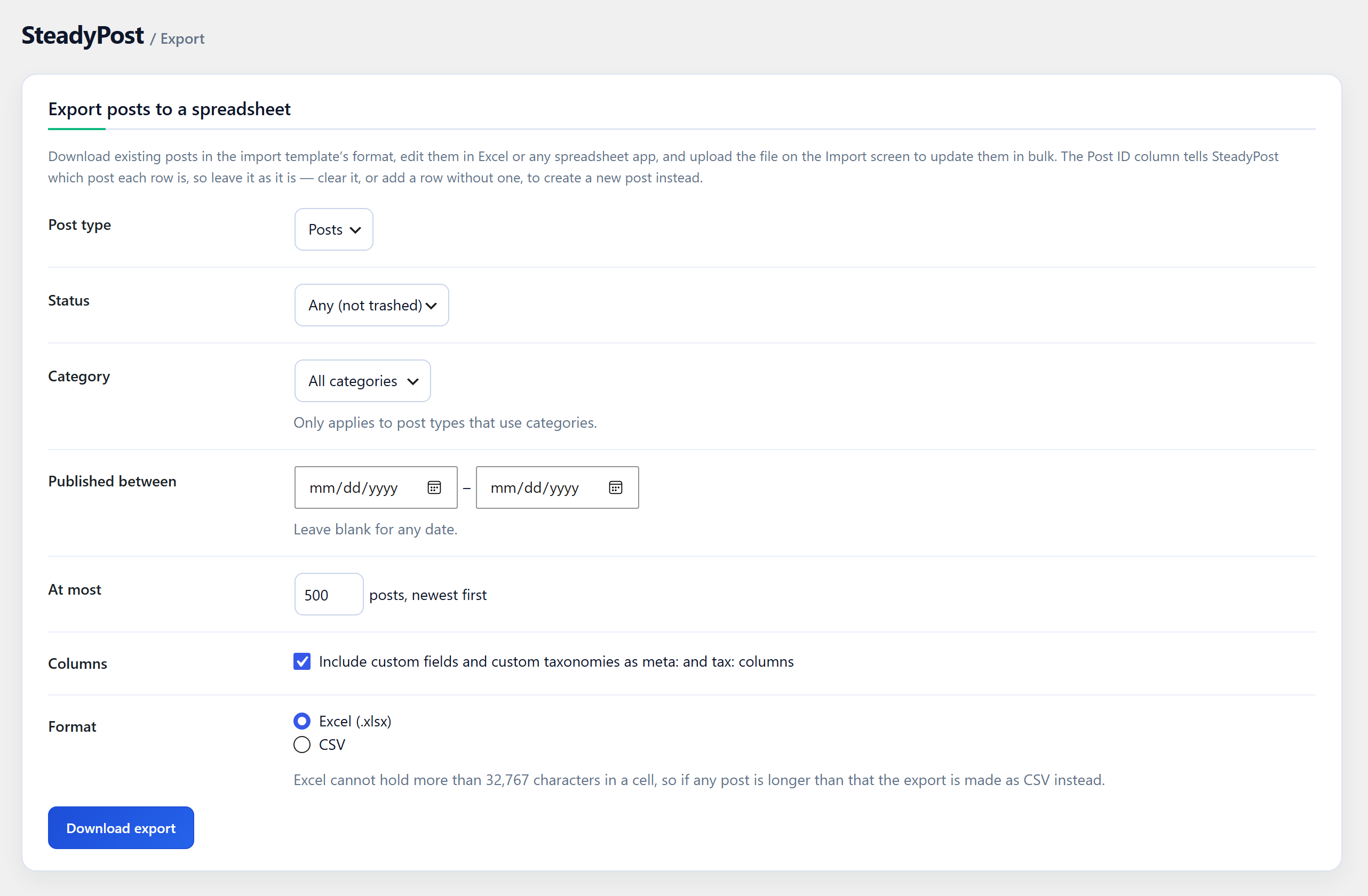
- Export existing posts — any post type, filtered by status, category and date — to Excel or CSV, edit them, and upload the file to update them all at once. This works for posts SteadyPost did not create, too.
WP-CLI
wp steadypost import— import from the source set in Settings, orwp steadypost import pages.xlsxfrom a file. Add--dry-runto see what would change,--rows=2,5to pick rows,--forceto re-import unchanged rows, and--format=jsonfor scripts.wp steadypost history— recent imports.wp steadypost undo <run-id>— undo one.
Imports from WP-CLI use the same settings as the Import screen and show up in History.
History and undo
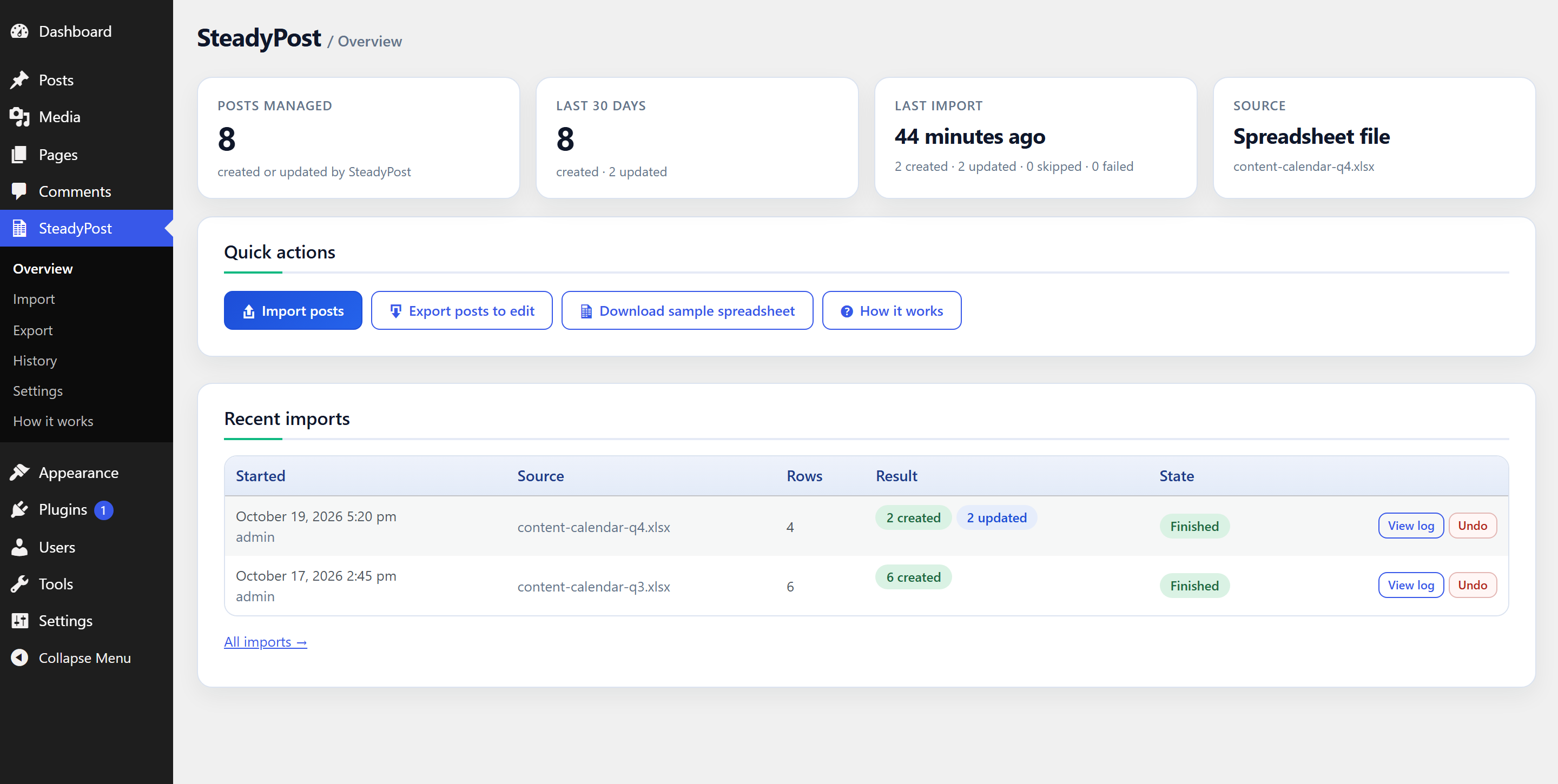
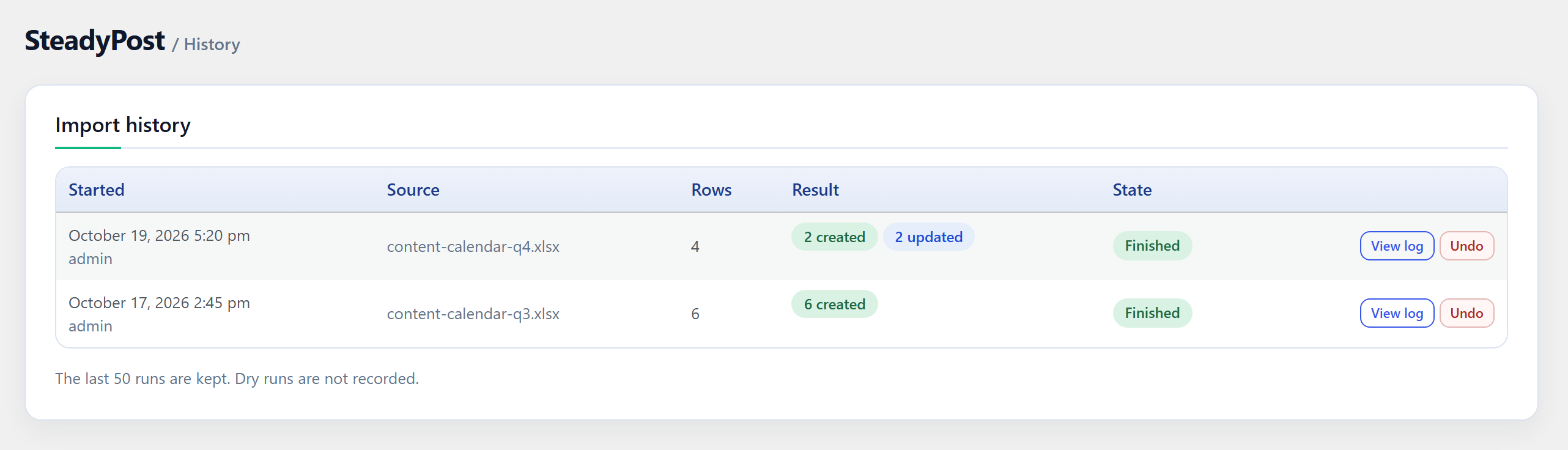
- Every import is recorded with its full row-by-row log.
- Undo a run: the posts it created go to the Trash, and the posts it updated are restored to the revision saved just before the import changed them.
SEO plugins
SEO columns are written to whichever SEO plugin is active: Yoast SEO, Rank Math or SEOPress, as well as Mikado/Qode theme SEO fields or meta keys you name yourself.
Optional: Google Sheets and Google Docs
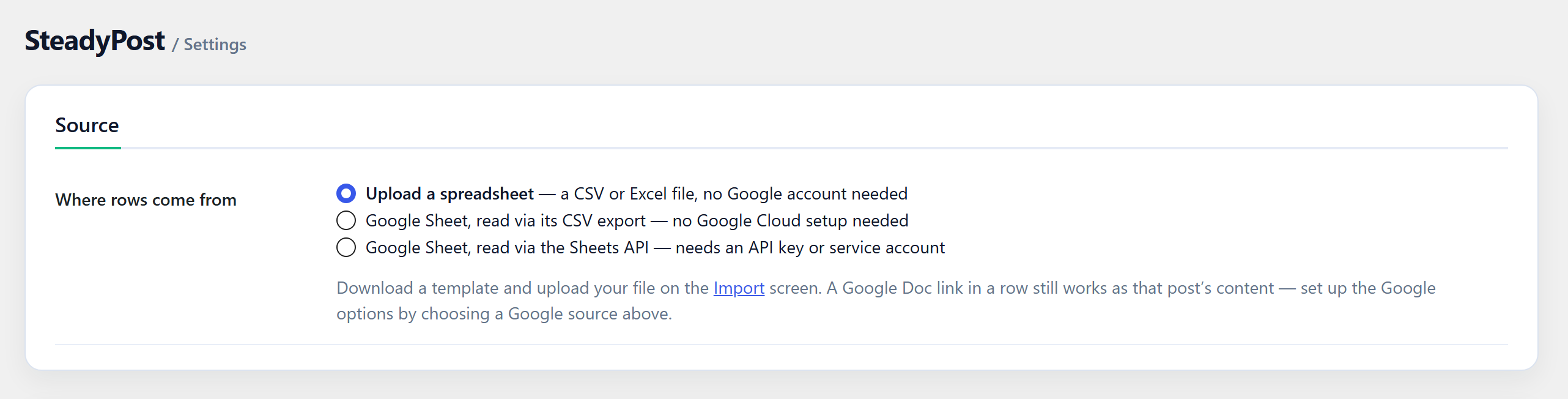
Instead of uploading a file, SteadyPost can read rows straight from a Google Sheet — anonymously for link-shared files, or as a Google service account for privately shared ones — and re-import it on a schedule. Any row can point at a Google Doc to use as the post body, with its headings, formatting, links, tables and images. See External services below.
Privacy
SteadyPost adds no tracking and sends no data anywhere unless you use the optional Google features. Uploaded spreadsheets are stored in a private folder in wp-content/uploads that is blocked from the web, and replaced each time you upload a new one.
External services
SteadyPost connects to Google only when you choose to. If you import from an uploaded CSV or Excel file and leave the Google Doc column empty, it makes no outside requests at all. Requests to images on other sites are made only for image URLs you put in your spreadsheet.
Google Sheets — used when Settings Source is set to a Google Sheet. When you open the Settings screen, preview, run an import or a scheduled sync runs, SteadyPost requests the sheet’s contents. It sends the spreadsheet ID from the URL you entered, your Sheets API key if you set one, and your site’s address in the User-Agent header.
https://docs.google.com/spreadsheets/d/{id}/export— CSV and XLSX exports of the sheet.https://sheets.googleapis.com/v4/spreadsheets/{id}— the Google Sheets API, in Sheets API mode.
Google Docs and Google Drive — used when a row links a Google Doc as its content, or names a Google Drive image. During the import of that row, SteadyPost downloads the document as HTML, or the image file. It sends the document or file ID from the link.
https://docs.google.com/document/d/{id}/exporthttps://drive.google.com/uc
Google OAuth — used only if you connect a Google service account to read privately shared files. To get an access token, SteadyPost sends https://oauth2.googleapis.com/token a request signed with the service account’s private key. It contains the service account’s email address and the read-only access it asks for. The key itself is never sent. Tokens are requested when a Google file is read and when the Settings screen checks the connection.
These services are provided by Google: Google Terms of Service, Google Privacy Policy, Google APIs Terms of Service.
Screenshots
Installation
- Install SteadyPost from Plugins Add New, or upload the zip under Plugins Add New Upload Plugin, and activate it.
- Go to SteadyPost Import and download the sample spreadsheet.
- Fill in one row per post. Only Title is required.
- Upload the file. Its columns are mapped for you; adjust the mapping on the same screen if you renamed any.
- Press Dry run to check, then Run import.
To import from Google instead, choose a Google Sheet under SteadyPost Settings Source and follow the instructions there.
FAQ
-
Which file formats can I upload?
-
.xlsx (Excel, Numbers, LibreOffice and Google Sheets can all save it) and
.csv. Excel files are read from their first sheet. CSV files saved by Excel in Windows-1252 encoding or with semicolons as separators are detected automatically. -
Will importing the same file twice create duplicates?
-
No. Each row is matched to the post it created — by a Ref column, the slug, or the title — and updated in place. Turn off “update existing” in Settings to skip those rows instead.
-
How do I bulk-edit posts I already have?
-
Export them under SteadyPost Export, edit the spreadsheet, and upload it on the Import screen. The Post ID column tells SteadyPost which post each row belongs to.
-
Can I undo an import?
-
Yes, from SteadyPost History. Created posts go to the Trash, so you can still restore them from there. Updated posts get back the title, content and excerpt they had before the import.
-
Can I make many similar pages from one template?
-
Yes. Under SteadyPost Settings Page templates, write the page once with column names in double braces, like
{{Area}}. Every row becomes its own page with its own cells filled in. Only the template’s columns need to be in the sheet; a title template alone is enough to import. -
Why was a row skipped as “unchanged”?
-
Nothing in the row, and none of the settings that shape the post, has changed since it was last imported, and the post hasn’t been edited in WordPress since. To re-import it anyway, turn off “Skip rows that have not changed” in Settings, or use
--forcewith WP-CLI. -
How do I write the post body?
-
In the Content column, as plain text (a blank line starts a new paragraph), Markdown, or HTML. Or put a Google Doc link in the Google Doc column and the doc becomes the body.
-
How do I import custom fields and taxonomies?
-
Add a column named
meta:your_fieldortax:your_taxonomy. Templates and exports already include these columns for the default post type’s registered custom fields, simple Advanced Custom Fields fields and public custom taxonomies. -
What happens to my data when I delete the plugin?
-
SteadyPost’s settings, import history and uploaded files are removed. Your posts, and the images in your media library, stay.
Reviews
There are no reviews for this plugin.
Contributors & Developers
“SteadyPost” is open source software. The following people have contributed to this plugin.
Contributors
Translate “SteadyPost” into your language.
Interested in development?
Browse the code, check out the SVN repository, or subscribe to the development log by RSS.
Changelog
1.4.0
- New: page templates — write a page once with {{Column}} placeholders, fallbacks and optional sections, and every row becomes its own page.
- New: the dry run shows, for each post that would be updated, every field that would change, before and after.
- New: re-imports skip rows that haven’t changed since the last import (on by default, now for manual runs as well as scheduled syncs). A post edited in WordPress since, or a change to the settings, still re-imports.
- New: WP-CLI commands
wp steadypost import,historyandundo. - Fixed: updating existing posts from a sheet without an Author column no longer resets their author to the default author.
1.3.0
- New: import from an uploaded CSV or Excel file — no Google account needed. Google Sheets is now optional.
- New: blank and sample templates, with your custom fields and taxonomies as columns.
- New: export posts to a spreadsheet and re-import them to bulk-edit.
- New: dry run, import history and undo.
- New: Markdown in the Content column; images by filename from a zip or the media library.
- New: column mapping on the Import screen; Overview screen.
- New: scheduled sync for Google Sheets.
- Changed: publish dates are read in the site’s timezone.
- Changed: admin screens redesigned.
1.2.0
- Google service accounts for privately shared sheets and docs; row filter and row picker; SEO plugin support.