
Description
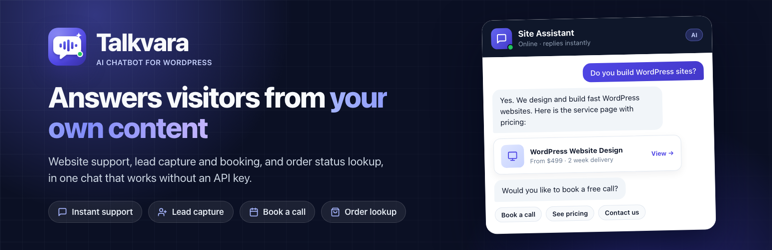
Talkvara is an AI chatbot for WordPress that answers your visitors from your own website. It reads your pages, posts, services and products, replies in seconds, turns conversations into leads and bookings, and lets WooCommerce customers check their order status, all from one chat window.
Use it as a website chatbot for instant customer support, a lead generation chatbot for an agency or service business, or a WooCommerce chatbot for your store. It works out of the box on any theme.
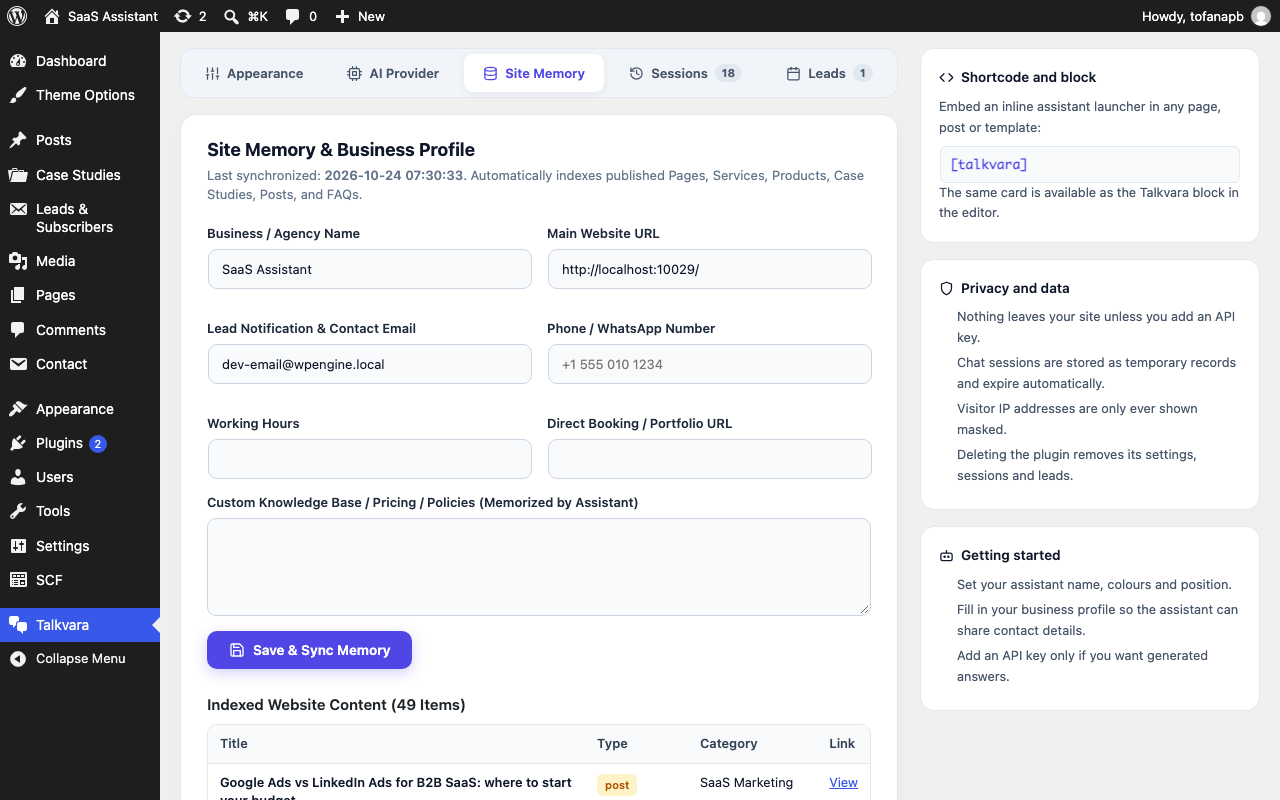
It works without an API key. On activation the plugin builds a searchable index of your published pages, posts, products and other public content, and answers from that index. If you want generated answers instead, you can add your own key for Google Gemini, OpenAI, OpenRouter or Groq. No account, subscription or external service is required to use the plugin.
Who it is for
- Agencies and service businesses that want more enquiries and booked calls from the same traffic.
- WooCommerce stores that want fewer “where is my order?” emails and faster answers about products.
- Blogs, SaaS and documentation sites that want visitors to find the right page without searching.
- Anyone who wants an AI customer support chatbot without a monthly subscription or an external dashboard.
What it does
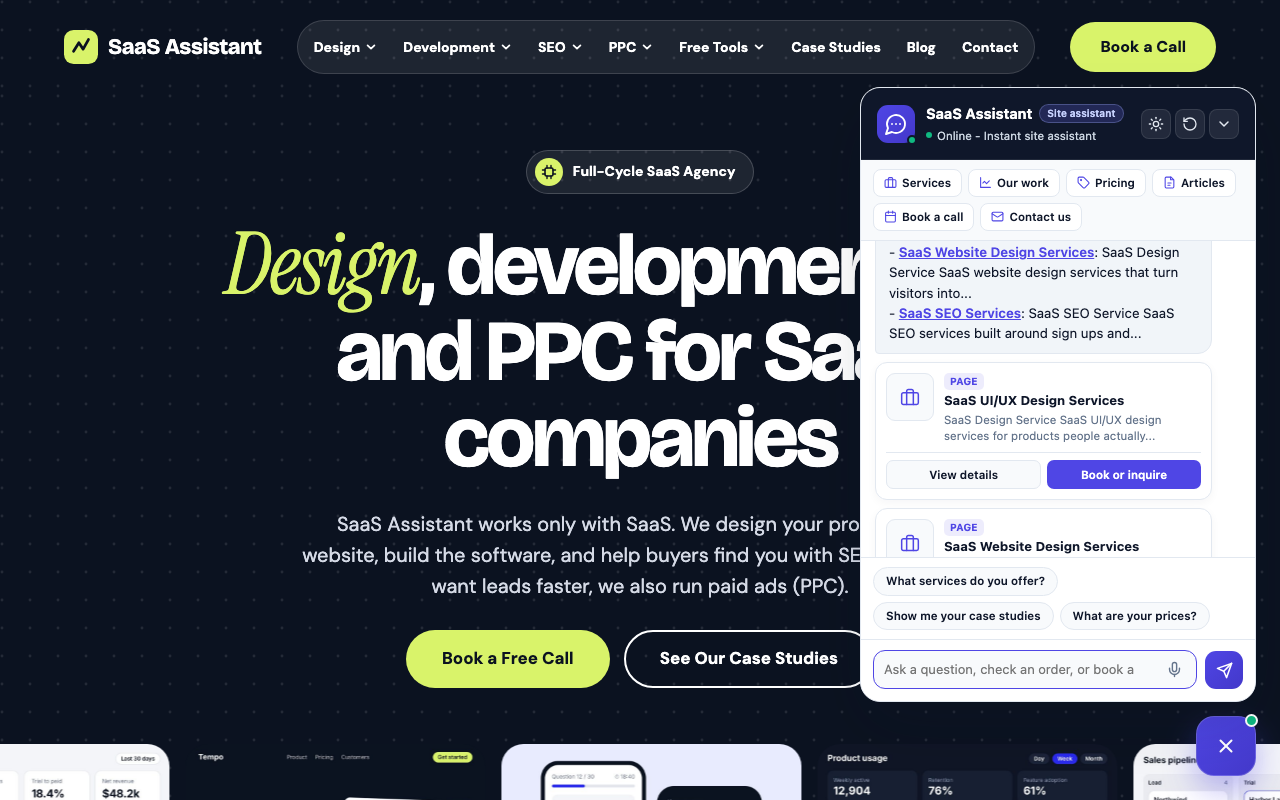
- Answers from your own content. A built-in index of your published pages, posts and products is searched on every question, and matching items are shown as cards with a link.
- No API key required. The built-in engine runs entirely on your own server. An API key is optional and only used if you add one.
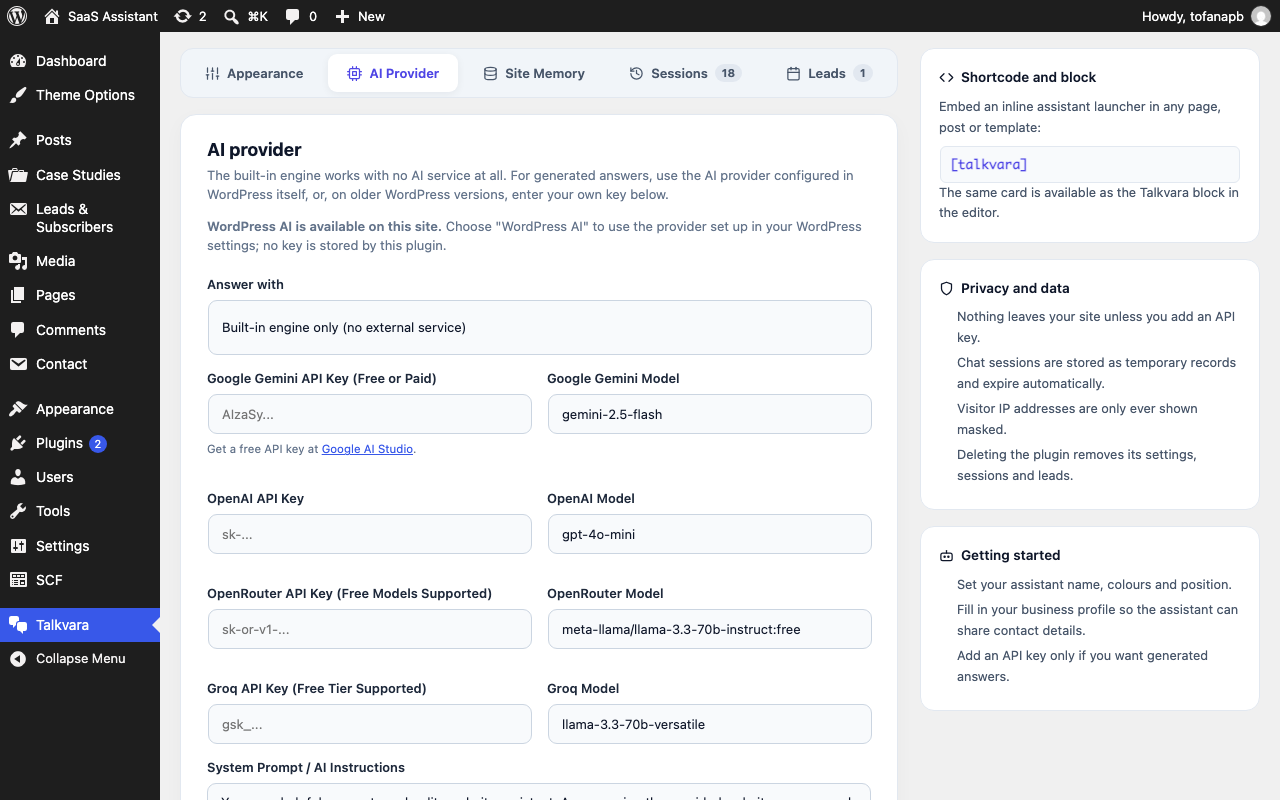
- Works with WordPress AI. On WordPress 7.0 and later the assistant can use the AI provider you set up in WordPress itself, through the WordPress AI Client. No key is stored by this plugin.
- Or bring your own key. On older WordPress versions you can enter a Google Gemini, OpenAI, OpenRouter or Groq key instead. If a provider fails or is rate limited, the built-in engine answers so the chat keeps working.
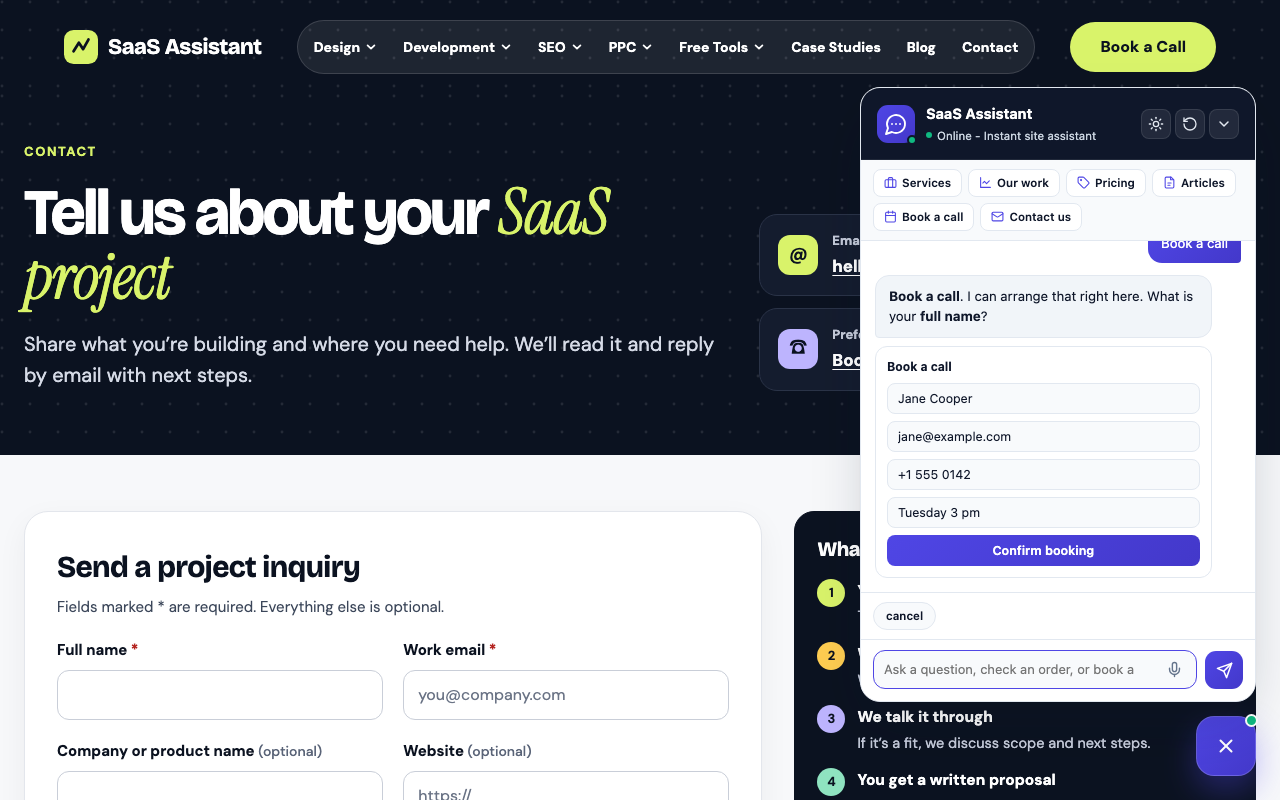
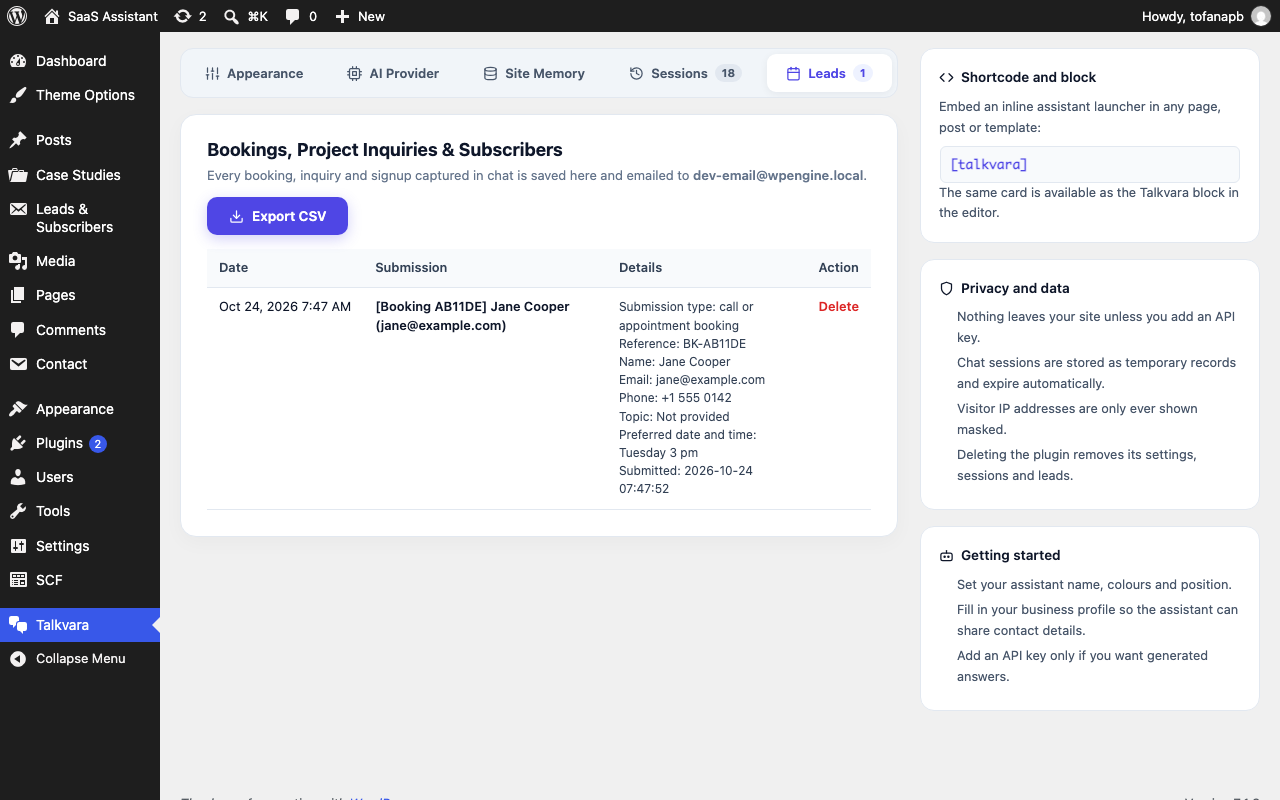
- Lead capture and booking. Visitors can request a call, send a project inquiry or subscribe, either step by step in the conversation or through an inline form. Submissions are stored in WordPress and emailed to the address you choose.
- WooCommerce order lookup. Customers can check an order by entering the order ID and the billing email used at checkout. The email must match the order before any detail is shown.
- Buttons that match your site. The quick actions in the chat window are generated from what the plugin finds while indexing. A WooCommerce store gets Products and its busiest product categories by name, plus order tracking. An agency site gets Services, Our work and Pricing. A site that publishes regularly gets Articles. You can override them with your own list at any time.
- Page-aware prompts. Starter prompts and the greeting adapt on contact, pricing, portfolio, service and shop pages.
- Conversation memory. A conversation continues across page views and reloads for a period you choose, from 6 hours to 7 days.
- Floating widget, shortcode or block. Show the launcher site-wide, or embed an inline card with
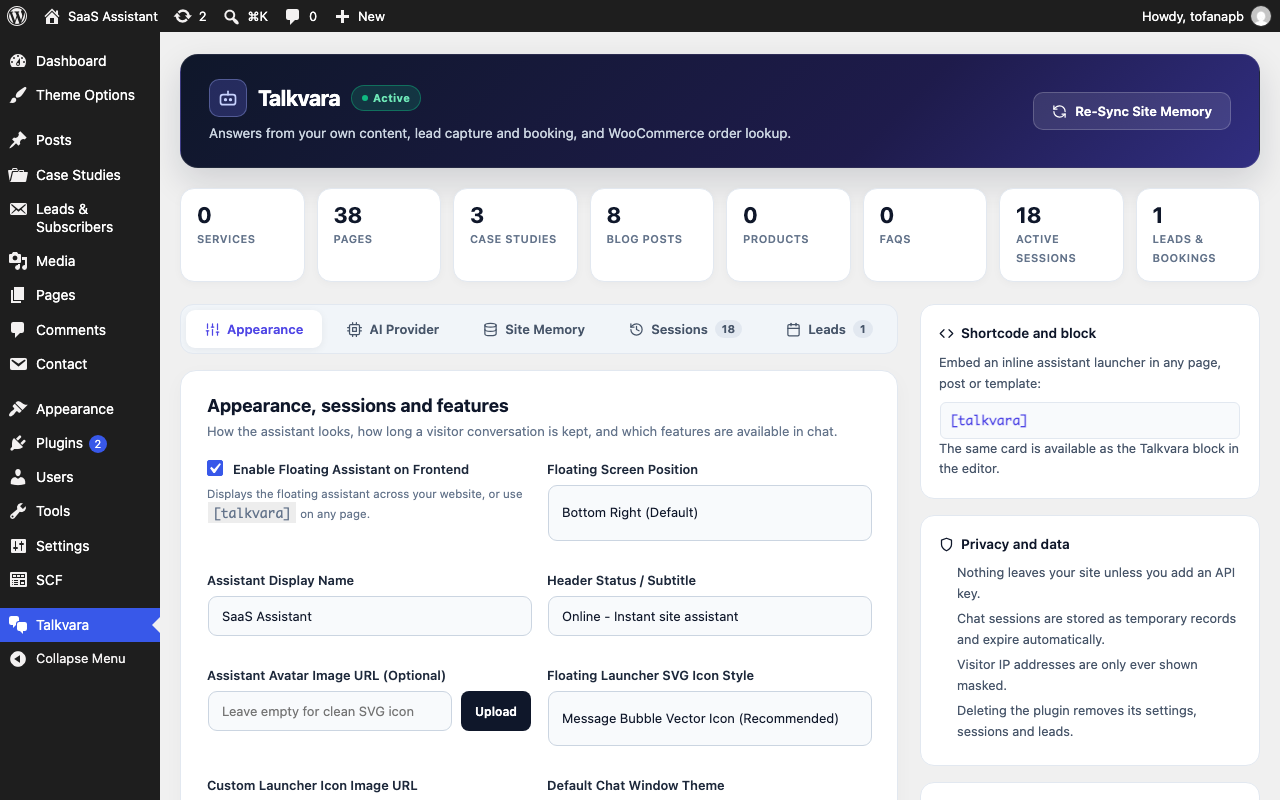
[talkvara]or the Talkvara block. - Admin tools. Review recent sessions by masked IP, manage captured leads, and export them to CSV.
- Privacy options. An optional consent notice can be shown before a visitor starts chatting, and visitor IP addresses are only ever displayed masked.
Shortcode
[talkvara title="Ask our assistant" subtitle="Online"]
Developers
The plugin exposes filters for the indexed post types (ssac_indexed_post_types), the index size (ssac_index_item_limit), question and answer extraction (ssac_post_faqs), whether the widget loads on a request (ssac_enable_widget), and IP resolution behind a proxy (ssac_client_ip). The ssac_lead_saved action fires after each submission.
External services
This plugin works entirely on your own server by default. Nothing is sent anywhere unless you add an API key, or a visitor clicks the WhatsApp button you configured.
WordPress AI. If you choose WordPress AI, the request is made by WordPress core to the AI provider you configured in WordPress. The plugin sends the visitor’s message and a short extract of matching site content to it, and stores no credentials. Which service receives the data, and under which terms, is decided by that WordPress setting.
If you enter an API key for one of the providers below, the visitor’s message, a short extract of the matching content from your site, and the business details you entered in the plugin settings are sent to that provider in order to generate a reply. Data is sent only while a visitor is chatting.
- Google Gemini – used only if you enter a Gemini API key. Requests are sent to
https://generativelanguage.googleapis.com/. See the Google privacy policy and Google APIs terms of service. - OpenAI – used only if you enter an OpenAI API key. Requests are sent to
https://api.openai.com/v1/chat/completions. See the OpenAI privacy policy and OpenAI terms of use. - OpenRouter – used only if you enter an OpenRouter API key. Requests are sent to
https://openrouter.ai/api/v1/chat/completions. See the OpenRouter privacy policy and OpenRouter terms. - Groq – used only if you enter a Groq API key. Requests are sent to
https://api.groq.com/openai/v1/chat/completions. See the Groq privacy policy and Groq terms of service. - WhatsApp – used only if you enable the handoff option and enter a number. Clicking the button opens
https://wa.me/in the visitor’s browser. No data is sent by the plugin itself. See the WhatsApp privacy policy.
Privacy
The plugin stores a chat transcript for each visitor as a temporary record that expires after the retention period you set. Transcripts are linked to a random token stored in the visitor’s browser, not to their IP address. IP addresses are used only for rate limiting and are shown masked in the admin screens. Leads, bookings and subscriptions you capture are stored as private records in your database and are removed when the plugin is deleted.
Screenshots

Blocks
This plugin provides 1 block.
- Talkvara
Installation
- Upload the plugin files to
/wp-content/plugins/talkvara-ai-chatbot, or install it through the Plugins screen in WordPress. - Activate the plugin through the Plugins screen.
- Go to Talkvara in the admin menu.
- Your content is indexed automatically. Set your assistant name, colours and business profile, and add an API key only if you want generated answers.
FAQ
-
Is this a ChatGPT chatbot for WordPress?
-
It can be. Out of the box Talkvara answers with its built-in engine, which needs no key. If you want generated answers, use WordPress AI on WordPress 7.0 and later, or add your own OpenAI (ChatGPT), Google Gemini, OpenRouter or Groq key.
-
Does it work with WooCommerce?
-
Yes. Products and product categories are indexed automatically, the quick-action buttons show your busiest categories, and customers can check an order with the order ID and billing email.
-
Does it work without an API key?
-
Yes. The built-in engine indexes your published content and answers from it, shows matching pages and products as cards, captures leads and bookings, and looks up WooCommerce orders. No external service is involved.
-
Does it use the WordPress AI Client?
-
Yes. On WordPress 7.0 and later, choose WordPress AI under AI provider and the assistant uses whichever provider is configured in WordPress. Your own key is only needed on older versions.
-
Can I use a free API key?
-
Yes. Google AI Studio, OpenRouter and Groq all offer free tiers, and a paid OpenAI key works as well. If a provider is unavailable or rate limited, the plugin falls back to the built-in engine automatically.
-
Does the conversation survive a page reload?
-
Yes. The conversation is stored against a random token in the visitor’s browser and kept on the server for the retention period you choose: 6 hours, 12 hours, 24 hours, 48 hours or 7 days.
-
How does the WooCommerce order lookup work?
-
The visitor is asked for an order ID and the billing email used at checkout. The plugin only shows the order status, date, items and total when that email matches the order.
-
Is any visitor data sent to an external service?
-
Only if you add an API key. See the External services section above for exactly what is sent and to whom.
-
They are generated from your own content when the site is indexed, so a shop shows its products and busiest product categories while an agency shows its services and portfolio. To set your own instead, enter one prompt per line under Quick actions and starter prompts. The settings screen shows which buttons are currently generated for your site.
-
Yes. Link to
#ssac-opento open the assistant, or to#ssac-ask=Your%20questionto open it and ask that question straight away. This works from a menu item, a button or any link on the page. -
How do I stop the widget loading on certain pages?
-
Return false from the
ssac_enable_widgetfilter for the requests you want to exclude.
Reviews
There are no reviews for this plugin.
Contributors & Developers
“Talkvara AI Chatbot” is open source software. The following people have contributed to this plugin.
Contributors
Translate “Talkvara AI Chatbot” into your language.
Interested in development?
Browse the code, check out the SVN repository, or subscribe to the development log by RSS.
Changelog
1.0.1
- Fix: the chat no longer keeps “typing” forever when a theme or another plugin replaces the browser’s fetch function. Requests now use XMLHttpRequest with a 45 second timeout.
- Fix: chats keep working on sites with full-page caching. When a cached page carries an expired security token, the widget fetches a fresh one and retries automatically.
- Fix: the chat stays hidden until its stylesheet loads, so optimisation plugins that delay CSS never show unstyled markup.
- Improved: the chat opens full screen on phones, and the message box uses a 16px font so iOS does not zoom in.
- Improved: form fields use the site font instead of the browser’s monospace default.
- Improved: shorter, translatable settings tabs with count badges, and a tidier stats row.
- Improved: the default assistant name no longer repeats “Assistant” when the site name already contains it.
1.0.0
- Initial release.