
Description
PickUppointment lets customers book a pickup time from your website, and gives you a calendar and tools to manage every booking, from the request to the driver assignment to payment.
It is built for couriers, delivery services and stores that collect items from a customer’s address.
Features
- Public booking form for guests, added to any page with the
[pickuppointment_form_public]shortcode - Day offs and holidays, so customers cannot book on dates you are unavailable
- Configurable time slot interval and a maximum number of bookings per time slot
- Email notifications to the admin and the customer for new bookings
- Email notifications to the customer when the booking status changes
- Add or edit charges on any booking
- Assign bookings to a driver, who is notified by email
- Calendar view of all bookings in the admin area
- Send payment links to customers by email
- Edit the subject and content of every email notification from the settings page
- Optional Google address autocomplete on the booking form
How it works
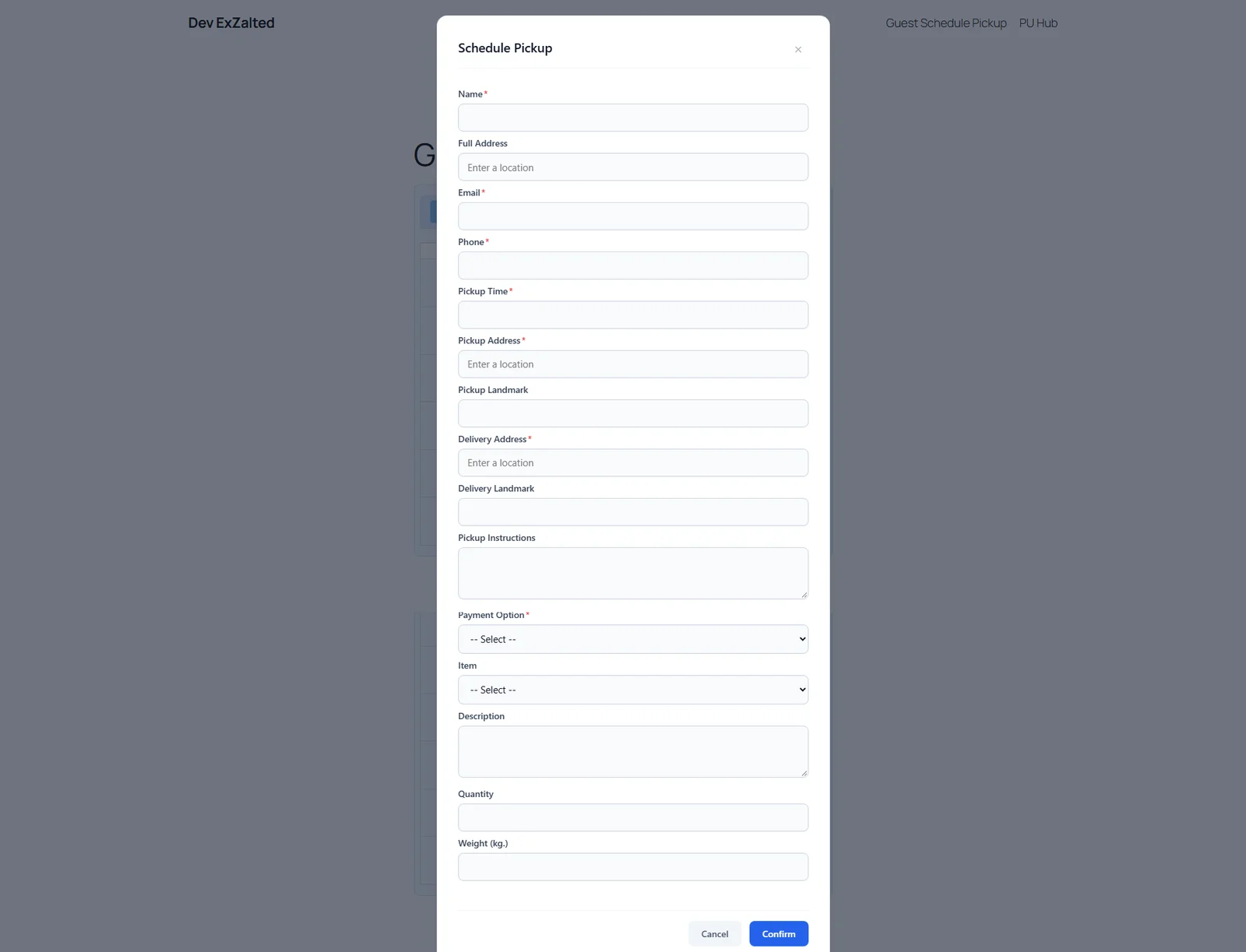
- You add the booking form to a page with the shortcode.
- A customer picks an available date and time slot and enters their details, items and pickup address.
- The booking is saved with your default status, and the admin and customer receive an email.
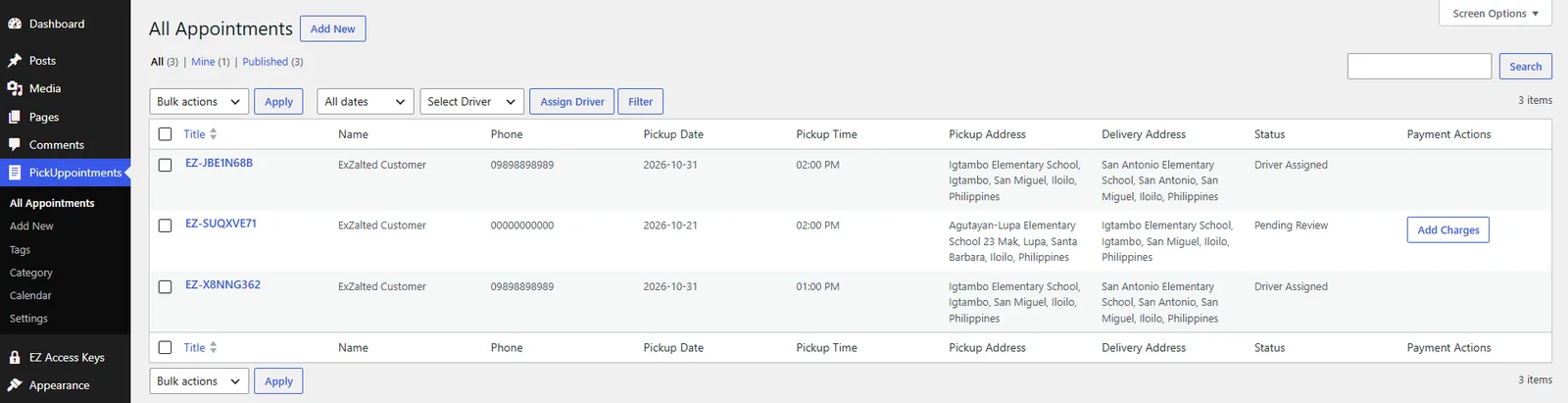
- You review the booking in the calendar or the appointments list, add charges if needed, and send a payment link.
- You assign the booking to a driver, who receives an email.
- You update the status as the booking progresses, and the customer is notified of each change.
External services
This plugin can use the Google Maps JavaScript API and the Places API (Autocomplete) to suggest addresses while someone types in an address field.
This is optional. The service is only loaded if you enter a Google Maps API key in the plugin settings. Without a key, nothing is sent to Google and the address fields work as plain text fields.
When it is enabled, the Google script is loaded on:
- pages that contain the
[pickuppointment_form_public]shortcode - the plugin’s settings page and appointment screens in the admin area
What is sent and when: when one of these pages loads, the visitor’s browser requests the script from Google, which sends Google the visitor’s IP address, browser information and your API key. While the visitor types in an address field, the text they type is sent to Google to return address suggestions.
This service is provided by Google LLC:
- Google Maps Platform Terms of Service: https://cloud.google.com/maps-platform/terms
- Google Privacy Policy: https://policies.google.com/privacy
You are responsible for obtaining your own API key and for complying with Google’s terms, including any privacy notice or consent your site needs for visitors in your region.
The plugin does not send any other data to external services. Barcodes and QR codes are generated on your own server. Payment links are URLs that you provide, and the plugin only includes them in emails.
Screenshots
Installation
- Upload the
pickuppointmentfolder to/wp-content/plugins/, or install the plugin from the Plugins screen in WordPress. - Activate the plugin through the Plugins screen.
- Go to PickUppointments > Settings and set up the options below.
- Create a page and add the
[pickuppointment_form_public]shortcode to display the booking form.
Basic setup
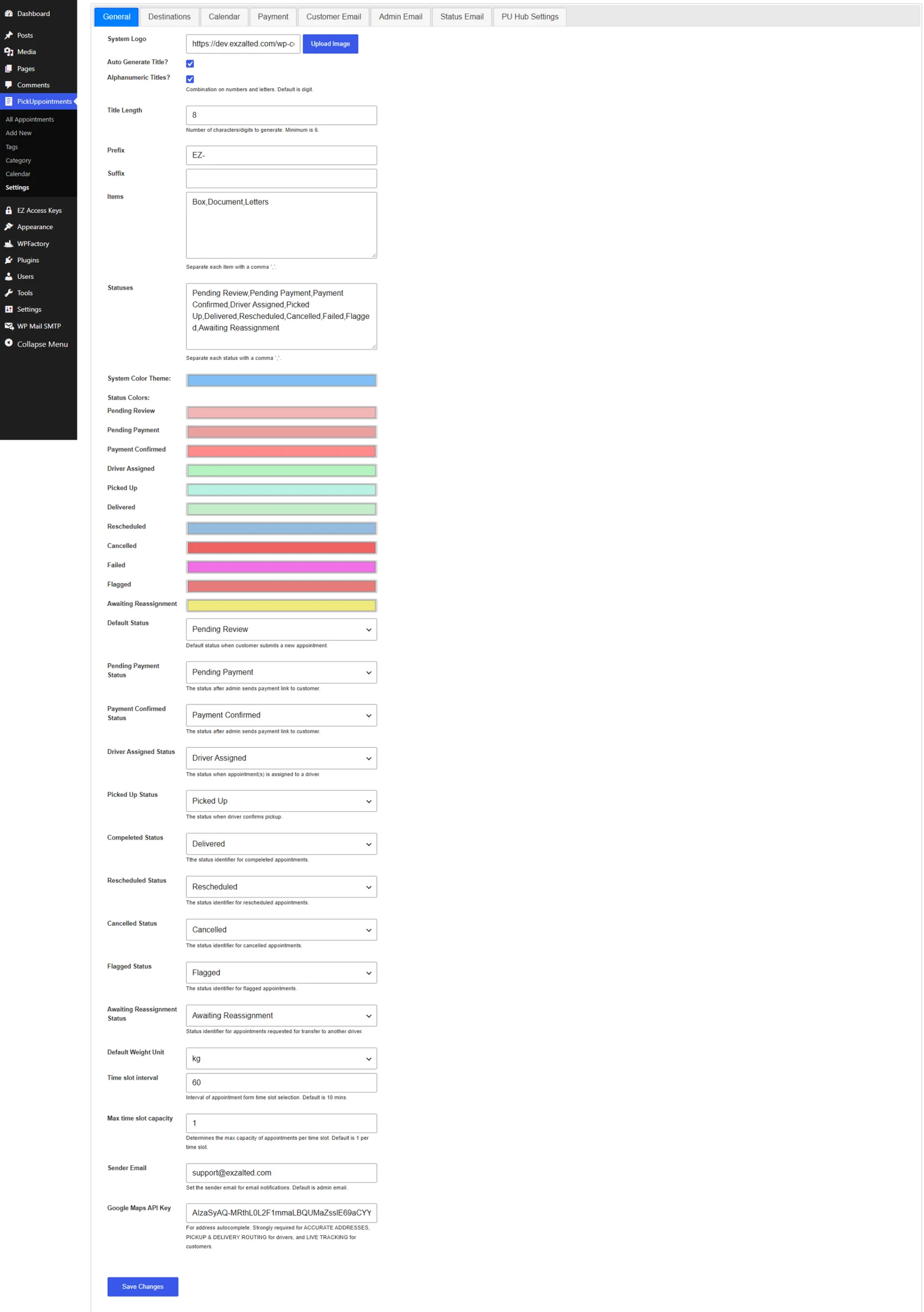
- Time slots: set the time slot interval and the maximum number of bookings per slot.
- Day offs and holidays: choose the weekdays you are closed and add any holiday dates.
- Statuses and items: set the booking statuses and the list of items customers can choose from.
- Emails: set the sender address and edit the content of the admin, customer and status update emails.
- Payment link: enter the payment URL that will be sent to customers.
- Google Maps (optional): enter your Google Maps API key to enable address autocomplete.
- Drivers: give your drivers a WordPress user account with the “pickuppt_driver” role so you can assign bookings to them.
FAQ
-
How do I show the booking form?
-
Add the
[pickuppointment_form_public]shortcode to any page or post. -
Do customers need an account to book?
-
No. Guests can book without registering.
-
How do I stop people booking on certain days?
-
Go to PickUppointments > Settings and set your day offs and holidays. Those dates cannot be booked.
-
How do I limit the number of bookings at the same time?
-
Set the time slot interval and the maximum bookings per slot in the settings. A slot that reaches the limit is no longer available.
-
Can I change the emails customers receive?
-
Yes. You can edit the subject, sender, recipients and content of each notification in the settings.
-
How do I send a payment link?
-
Open a booking and use the send payment link action. The customer receives an email with the link you configured.
-
Do I need a Google Maps API key?
-
No. It is optional and only enables address autocomplete. See the External services section for details.
-
Where is the calendar?
-
Go to PickUppointments > Calendar to see all bookings by date.
Reviews

Contributors & Developers
“PickUppointment” is open source software. The following people have contributed to this plugin.
Contributors
Translate “PickUppointment” into your language.
Interested in development?
Browse the code, check out the SVN repository, or subscribe to the development log by RSS.
Changelog
1.0.0
- Initial release.