Description
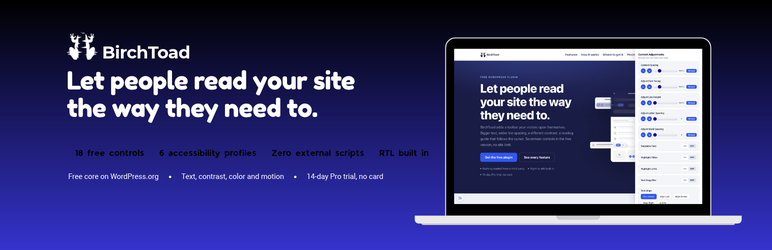
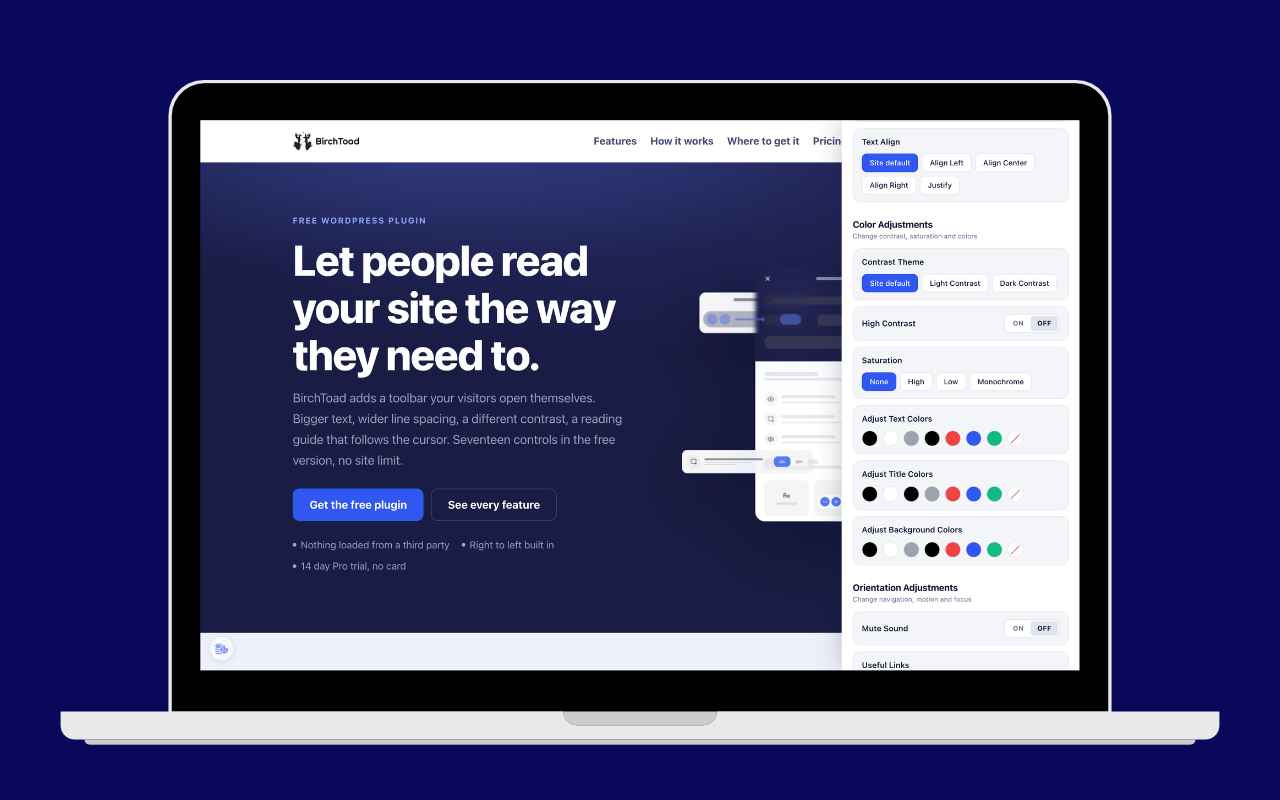
BirchToad adds a small button to your site. A visitor who clicks it gets a panel where they can
change how your pages look and behave, to suit how they read: bigger text, more line spacing, a
readable font, stronger contrast, a dark or light theme, less saturation, highlighted links and
headings, a reading guide, a big cursor, animations stopped, images hidden.
Their choices are remembered in their own browser, and the toolbar sends nothing anywhere.
What BirchToad is, and what it is not
BirchToad helps real people use your site, and it supports the accessibility work you do. It does
not make a website accessible, compliant or conformant with WCAG, the ADA or the European
Accessibility Act, and no toolbar can. Missing alternative text, an unclear heading order,
unlabelled form fields and keyboard traps all have to be fixed in the site itself. We would rather
tell you that plainly than sell you a badge.
Built for right to left sites
The panel lays out right to left whenever your site does, and that works even before any
translation exists, because direction is read from the site and not from a language file. Hebrew
and Arabic were in the first release rather than added later.
Nothing loads from anyone else’s server
Every stylesheet, script and icon the toolbar uses is served from your own server. Your visitors are
never sent to a CDN, and nothing about them is collected or sent anywhere. That is a privacy and
performance difference from the hosted overlay services, not a detail.
About the Freemius library
The plugin does include Freemius, which is how the paid version is licensed and updated. It asks you
once whether to connect, you can skip that screen and keep using the plugin, and it never touches the
front end your visitors see. Everything it would send is listed under External services below.
What visitors can change
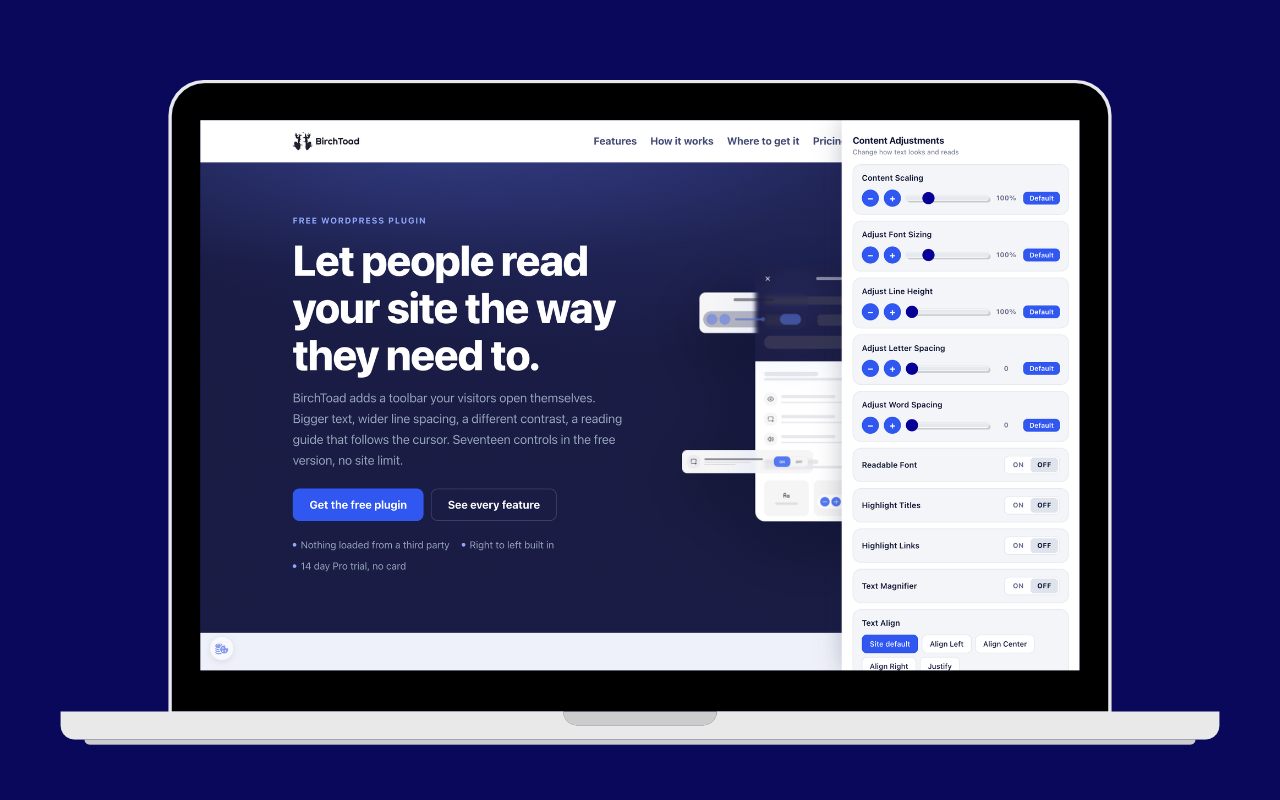
- Content scaling, font size, line height, letter spacing and word spacing, each with a reset
to default - A readable font
- Highlighted links and highlighted headings
- Text alignment
- Light, dark and high contrast
- Saturation: high, low or monochrome
- A big black or white cursor
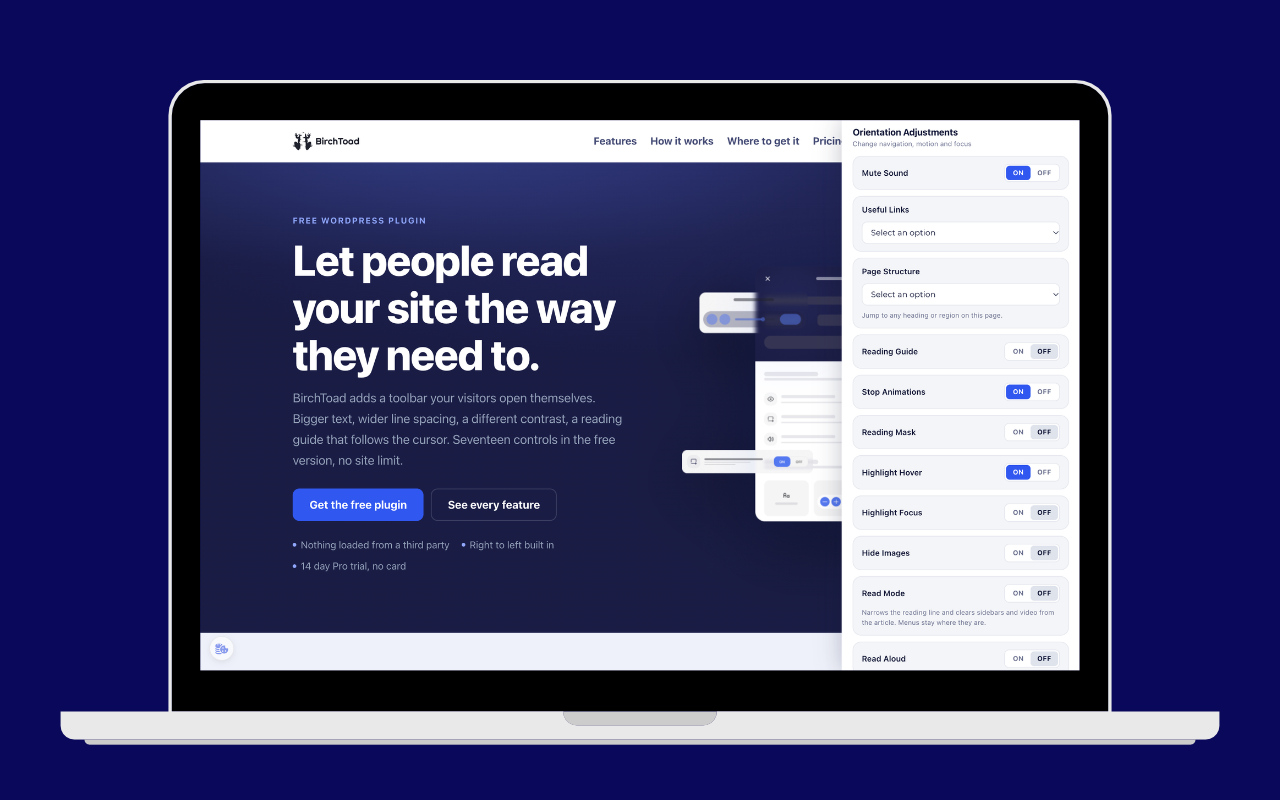
- Highlighted focus and highlighted hover
- A reading guide
- Animations stopped
- Images hidden
In the Pro version
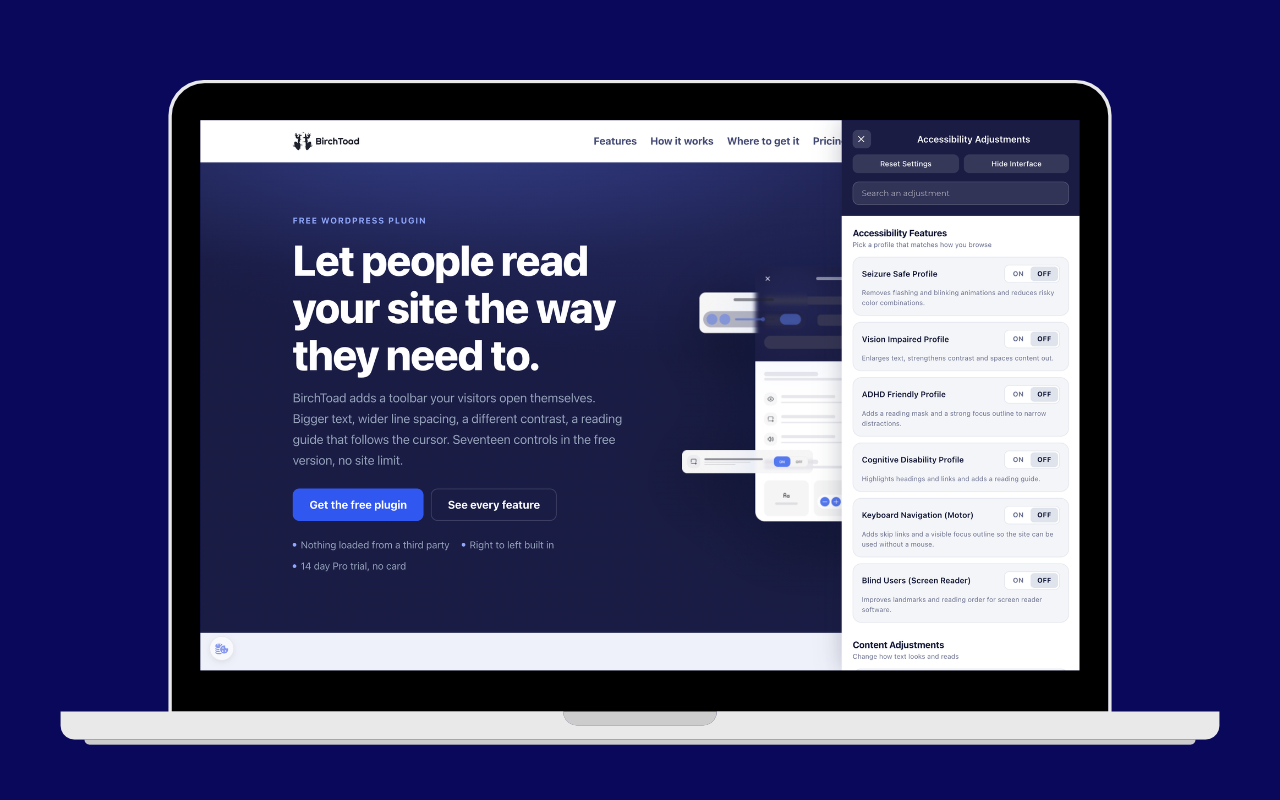
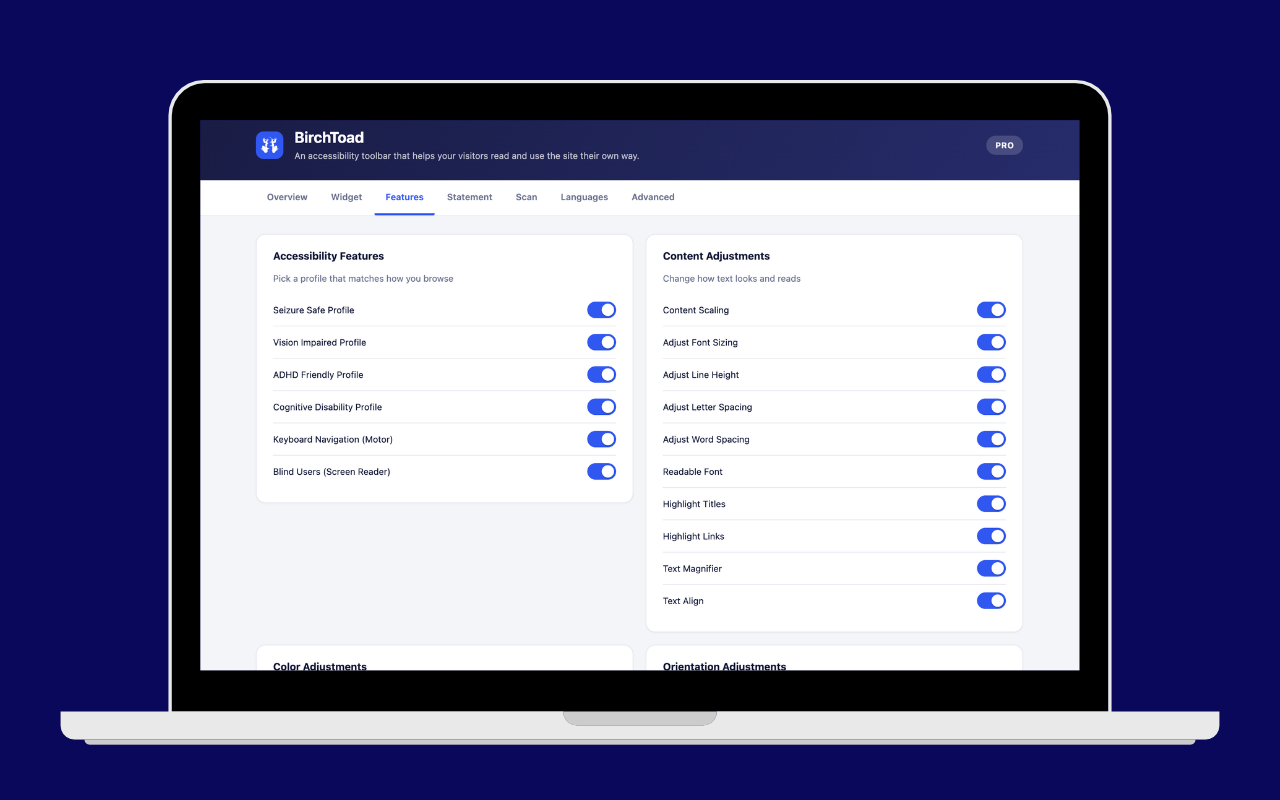
- Six profiles: seizure safe, vision impaired, ADHD friendly, cognitive disability, keyboard
navigation and screen reader support - Custom text, heading and background colors
- Text magnifier, reading mask and read mode
- Mute sound and a useful links jump menu
- Page structure: a jump menu of every heading and region on the page
- Read aloud, using the browser’s own speech, with nothing sent to a service
- An accessibility statement generator
- An on-page accessibility check that lists what the toolbar cannot fix
- Your own logo and name in the panel header
- Per-page visibility rules
External services
The toolbar your visitors use makes no external requests at all. Nothing on this list runs on the
front end, and none of it involves your visitors.
Freemius (freemius.com)
Purpose: Freemius is the licensing and software updates engine behind the paid version of
BirchToad. It handles the upgrade, account and license screens inside your WordPress admin.
Data sent: nothing at all unless you connect. On activation the plugin shows a Freemius screen that
asks for permission and lists exactly what it would read; you can skip it, and the plugin keeps
working with every free feature. If you do connect, Freemius receives your homepage address and
title, your WordPress, PHP and plugin versions, your site language, whether the plugin is active or
uninstalled, and the first name, last name and email address on your WordPress user account. Two
further items, the list of your installed plugins and themes and a newsletter subscription, are
marked optional on that screen and are yours to switch off. Nothing about your visitors is ever
included.
When: on activation if you accept, and afterwards when you open the plugin’s upgrade, account or
license screens, or when a license or update is checked.
Can be disabled: skip the connection screen when it appears, or disconnect later from the
BirchToad account screen in your admin.
Terms: https://freemius.com/terms/ | Privacy: https://freemius.com/privacy/
Screenshots
Installation
- Install and activate the plugin.
- Open BirchToad in the admin menu.
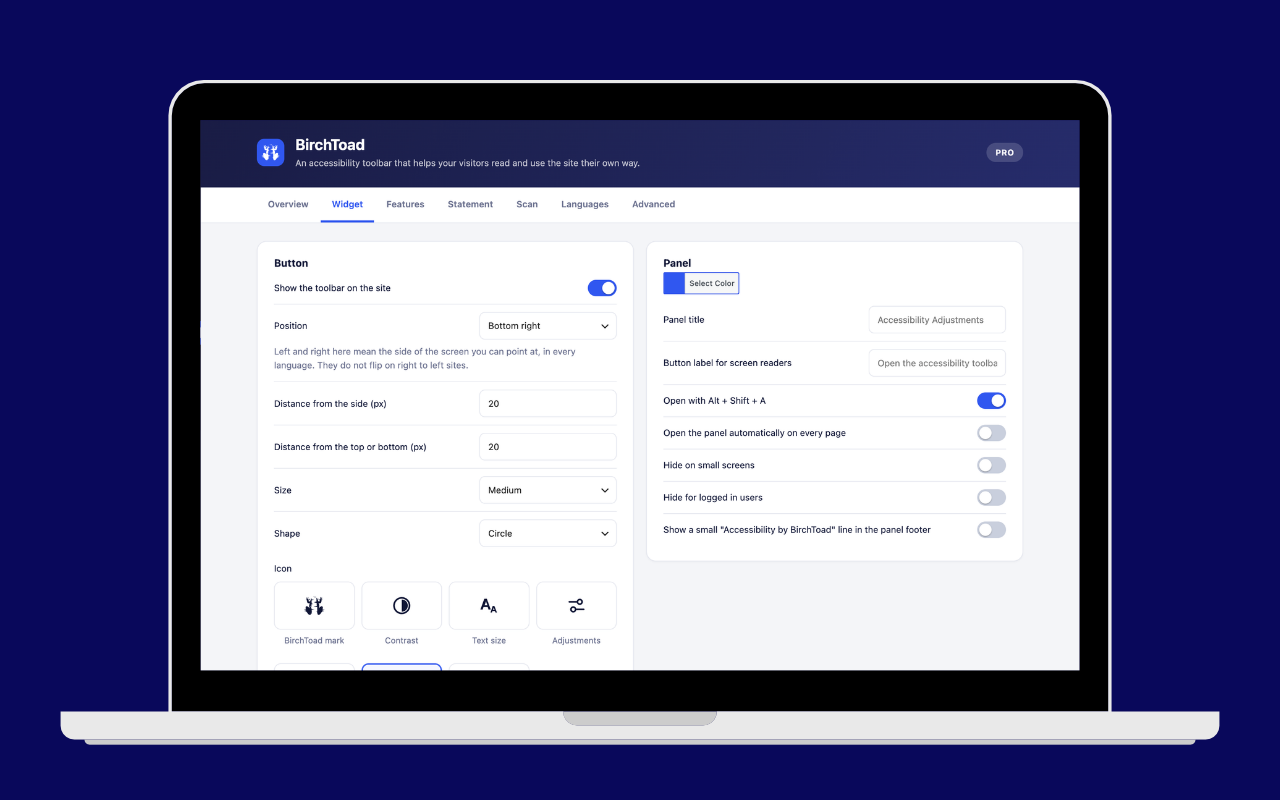
- Choose where the button sits and which adjustments you want to offer. That is the whole setup.
FAQ
-
Does this make my site compliant?
-
No, and be careful with any plugin that says it does. The United States Federal Trade Commission
fined an overlay vendor one million dollars in 2025 over that claim, and the European Commission
has said overlays do not satisfy the European Accessibility Act. BirchToad gives your visitors
useful controls and helps you find real problems. Fixing those problems is still work on the site. -
Does it slow my site down?
-
The stylesheet and the script are small, served from your own server, and load in the footer. The
pages your visitors see fetch nothing from anywhere else. -
Does it collect anything about my visitors?
-
No. A visitor’s choices live in their own browser storage. The plugin stores one settings row in
your database and nothing about visitors at all. No analytics, no visitor data, no profiling. -
Does anything leave my site?
-
Only what you agree to, and only in the admin. The plugin includes Freemius, the service that
licenses and updates the paid version. On activation it asks once whether to connect. Skip that
screen and nothing is sent. Connect, and it receives your site address and title, your WordPress,
PHP and plugin versions, your site language, and the name and email address on your WordPress
account. Full detail is under External services below. -
Does it work on right to left sites?
-
Yes, and without a translation file present. Direction comes from your site.
-
Will it clash with my theme?
-
The panel’s own controls are hardened against theme and page builder styles. A theme that marks its
button rules as important can still reach them, which is the one known limit. -
What happens to my settings if I delete the plugin?
-
They are kept. Deleting BirchToad removes nothing unless you first switch on “Delete all BirchToad
settings” on the Advanced tab.
Reviews
There are no reviews for this plugin.
Contributors & Developers
“BirchToad – Accessibility Toolbar” is open source software. The following people have contributed to this plugin.
Contributors
“BirchToad – Accessibility Toolbar” has been translated into 1 locale. Thank you to the translators for their contributions.
Translate “BirchToad – Accessibility Toolbar” into your language.
Interested in development?
Browse the code, check out the SVN repository, or subscribe to the development log by RSS.
Changelog
0.1.3
- The Blind Users (Screen Reader) profile now turns on the skip link itself, rather than relying
on the Keyboard Navigation profile to do it. Switching Keyboard Navigation off by hand used to
leave Blind Users switched on without the skip link its own description promises. - Each profile now provides everything it describes on its own. Switching one profile off never
takes away something another enabled profile still offers. - A profile switch now turns itself off when you change one of the adjustments it applied. A
profile that is on means those adjustments are on, so leaving it on after you had changed one
of them by hand made the panel say something that was not true. Your adjustment is kept exactly
as you set it; only the profile stops claiming it.
0.1.2
- Switching the Blind Users (Screen Reader) profile off now also switches off the Keyboard
Navigation profile it switched on, and takes the skip link with it. Previously the skip link
stayed on the page after the profile that created it was switched off. - Switching off one of that pair no longer clears the focus outline while the other one is still
on. An adjustment another active profile still asks for is left alone. - Either profile can still be switched off on its own. Only the one that was switched on
automatically is switched off automatically. - Reset Settings now clears the skip link as well.
- Read mode no longer throws an error on pages that have an article, a main element or an entry
content wrapper, which is most pages. - The readme listed seventeen visitor controls and left out word spacing, and its Pro list left
out Page Structure. The free version has eighteen and Pro adds sixteen more.
0.1.1
- The Blind Users (Screen Reader) profile no longer changes your page’s markup. It previously
added an empty alt attribute to images that had none, and landmark roles to header, nav, main,
footer and aside elements. A missing alt attribute does not mean an image is decorative, and
marking it so hides that image from screen readers entirely. Neither change was undone when
the profile was switched off. Both have been removed. - The profile now turns on a skip link and a visible focus outline, and takes both back when it
is switched off. Its description says so, and says that it does not alter your markup. - The keyboard profile now also removes the id it borrows from your main element, if it had
none of its own, when the profile is switched off. - The accessibility scanner only accepts addresses on your own site. A browser will not let it
read a page on another domain, so those addresses now get an explanation instead of a failed
scan.
0.1.0
- First release.