
Description
A customer pays, and then hears nothing. The goods are late: a supplier backorder, an item
made to order, a busy season. No shipping label exists yet, so no tracking email goes out.
After a week or two the customer asks “where is my order?”, opens a payment dispute or
leaves a poor review. One honest email would have prevented all three.
WooCommerce sends emails when something happens to an order. “Nothing happened” is not an
event, so nothing is sent. This plugin closes that gap.
The rule, in one sentence
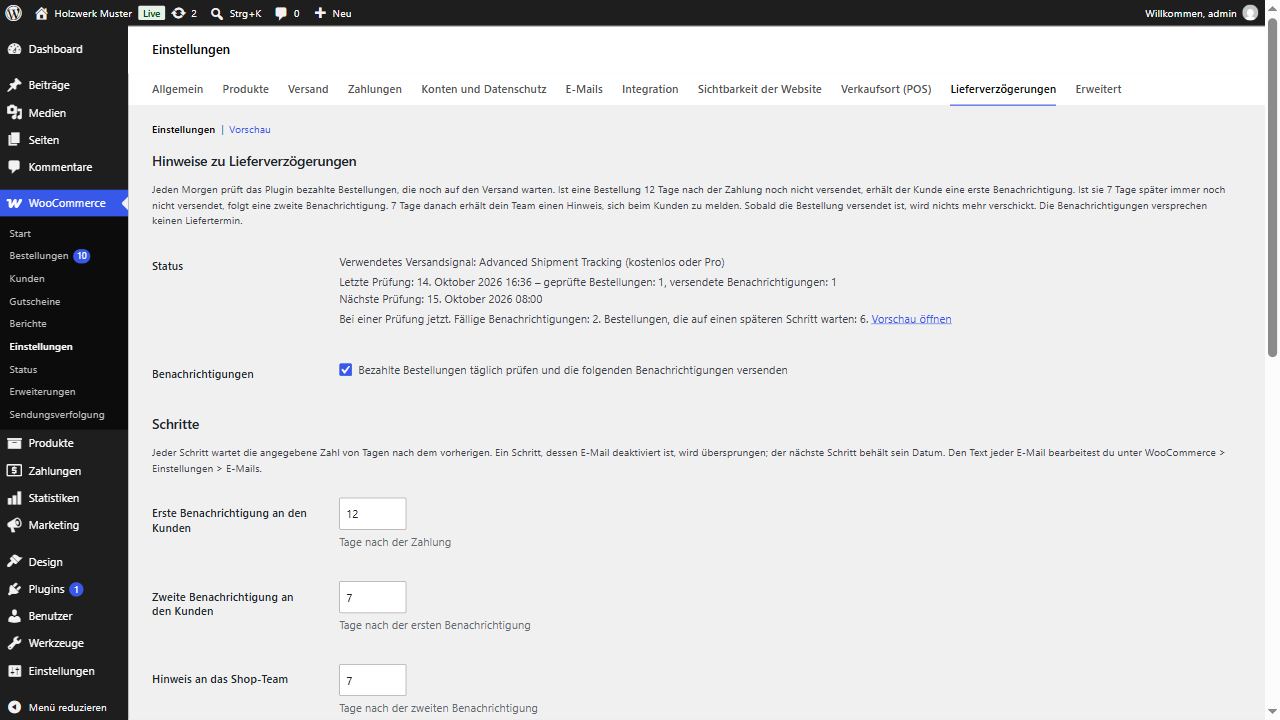
Every morning the plugin looks at paid orders that are still waiting to ship; if an order
has no tracking 12 days after payment, the customer gets a first notice, 7 days later a
second one, and 7 days after that your staff get an alert to contact the customer, unless
the order has shipped in the meantime. All three numbers are yours to change.
What it does
- Sends two notices to the customer and one alert to your staff, each step on its own
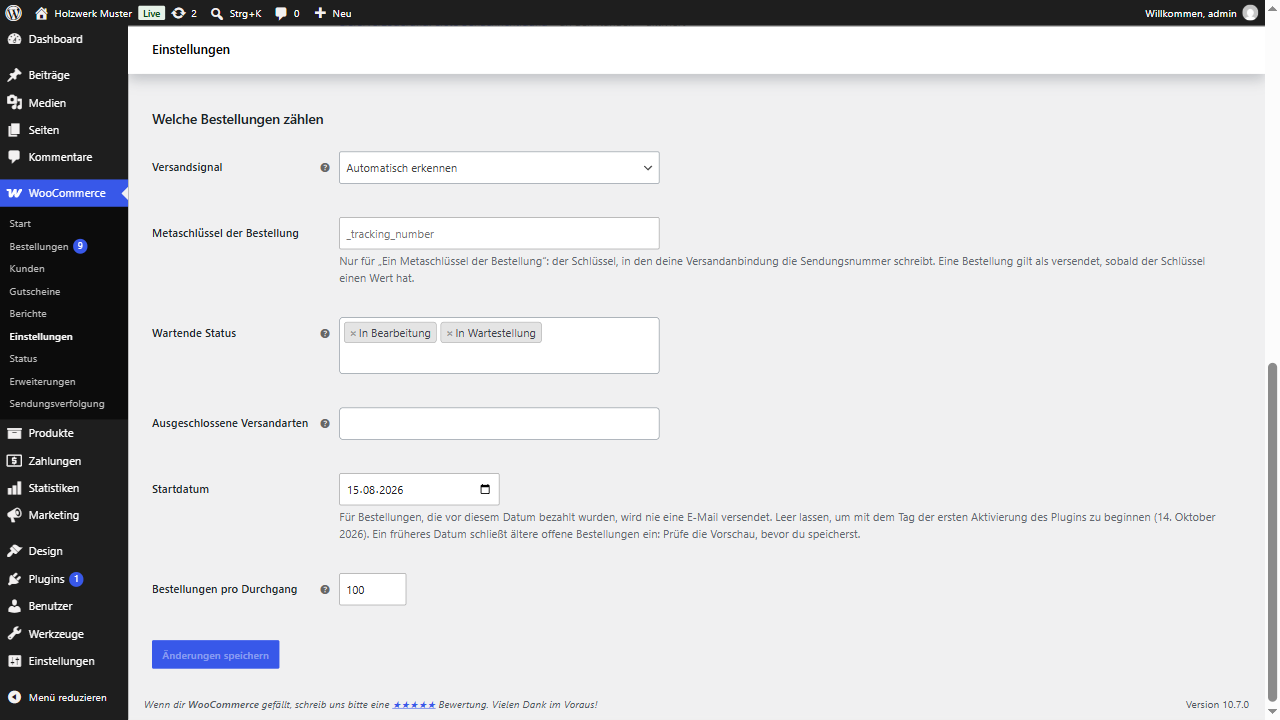
schedule and each one switchable. - Stops the moment the order ships. It reads the tracking of Advanced Shipment Tracking
(free and Pro), WooCommerce Shipment Tracking and Shiptastic (the shipments of
Germanized), or any order meta key you name. Without a tracking plugin, an order counts as
shipped when it leaves the “Processing” and “On hold” statuses, for example when you mark
it as completed. - Never emails your order history. Only orders paid after you first activated the plugin
are considered, unless you set an earlier start date yourself, and a preview shows what
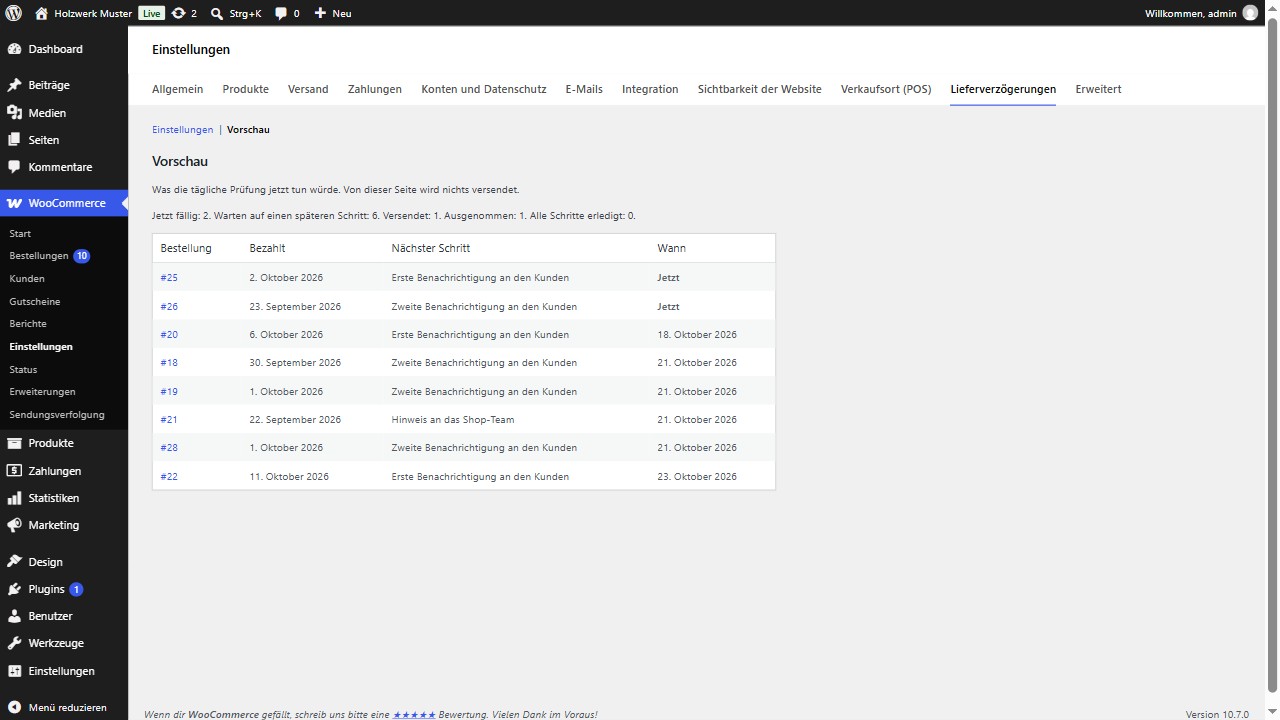
that would send before you save. - Shows a preview of what the next check would send, on its settings tab and in WP-CLI,
without sending anything. - Sends at most one email per order per day, so a long-delayed order never receives three
emails at once. - Leaves out local pickup, orders without shipping and any shipping method you exclude.
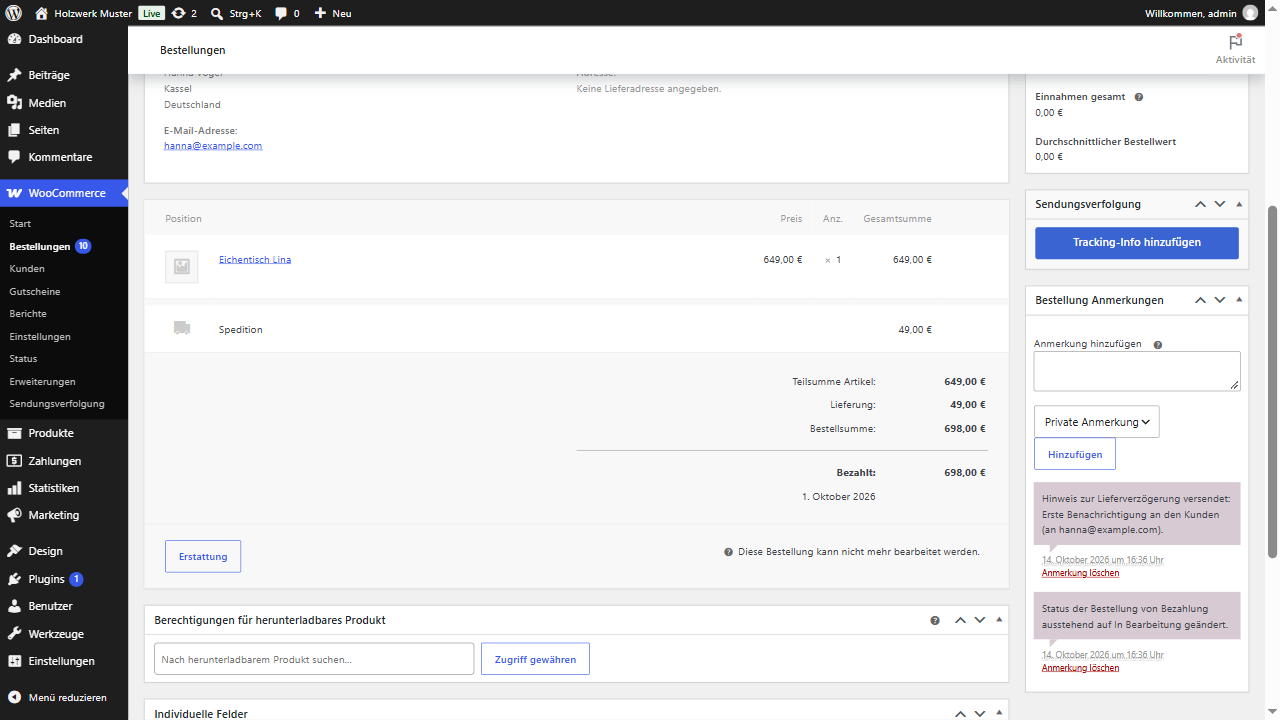
- Adds an order note for every email it sends, and writes one log line per order to
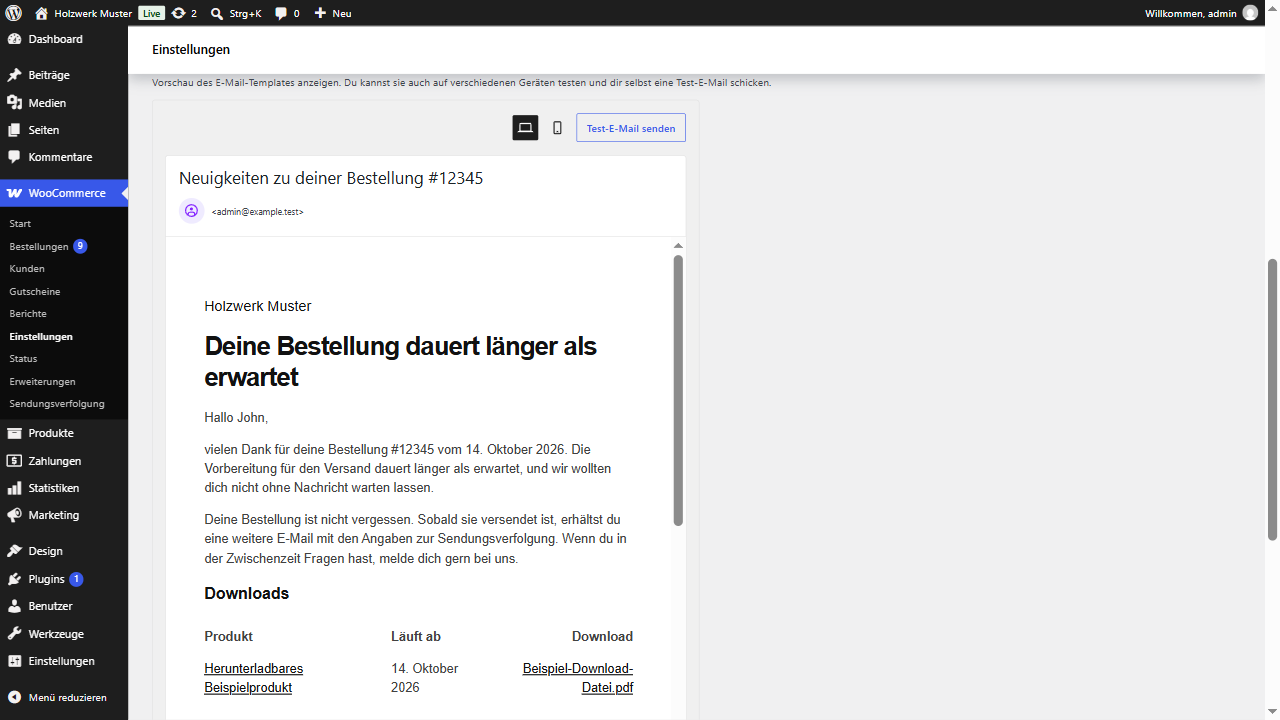
WooCommerce, Status, Logs. - Uses real WooCommerce emails. You edit subject, heading and text under WooCommerce,
Settings, Emails, like any other WooCommerce email, and your theme can override the
templates. - Handles large shops in batches through WooCommerce’s Action Scheduler, and declares
compatibility with High-Performance Order Storage.
The default emails are friendly and honest, and they promise no delivery date. If you know
a date, add it in the email settings.
For shops in Germany, Austria and Switzerland
A delivery delay (Lieferverzögerung) is where shops lose trust fastest, and the customer
notice is a matter of good service. A complete German translation is available, in the
formal (Sie) and the informal (du) form. WordPress loads it from translate.wordpress.org.
Until the language pack is published there, German shops see the English text and can
change the email texts in the WooCommerce email settings.
What it deliberately does not do
It does not phone home, does not require an account, and does not hold a feature back for a
paid tier. It is not a legal tool: whether and how you must inform customers about a delay
is a question for your legal advisor.
For developers
Add a tracking source with the opusdd_tracking_adapters filter, add or change steps with
opusdd_steps, leave orders out with opusdd_skip_reason, move a due date with
opusdd_step_due_at, and react to a send with the opusdd_step_sent action. The full list
is in the plugin’s source.
Screenshots
Installation
- Install and activate the plugin. WooCommerce 8.0 or newer must be active.
- Go to WooCommerce, then Settings, then “Delivery delays”.
- Check the shipped signal: “Detect automatically” picks your tracking plugin.
- Adjust the days of each step if 12, 7 and 7 do not suit you, and save.
- Read the email texts under WooCommerce, Settings, Emails, and adapt them to your shop.
- Open the “Preview” section to see what the next check would send.
FAQ
-
When exactly is an email sent?
-
An order is considered when it is paid, sits in a waiting status (by default “Processing” or
“On hold”), has a shipping method other than pickup, and was paid on or after the start
date. The first notice goes out once the order has gone the set number of days (default 12)
after payment without tracking. The second notice follows the set number of days after the
first (default 7), and the staff alert the set number of days after the second (default 7).
The check runs once a day, in the early morning of your site’s time zone. -
What counts as “shipped”?
-
Whatever you choose under “Shipped signal”: tracking from Advanced Shipment Tracking,
WooCommerce Shipment Tracking or Shiptastic, a value in an order meta key of your choice,
or the order leaving the waiting statuses. “Detect automatically” picks the tracking plugin
it finds. If the tracking plugin you chose is deactivated later, the plugin pauses and tells
you on every admin screen, instead of emailing every open order. -
Will it email all my old open orders when I activate it?
-
No. Only orders paid after the first activation are considered. To include older orders,
set an earlier start date on the settings tab; the preview shows how many notices that
would send. -
Which tracking plugins are supported?
-
Advanced Shipment Tracking (free and Pro), WooCommerce Shipment Tracking and Shiptastic for
WooCommerce, which also provides the shipments of Germanized. For other plugins that store
the tracking number in the order, choose “An order meta key” and enter that key, for
exampleywot_tracking_codefor YITH WooCommerce Order Tracking or_wot_tracking_number
for Orders Tracking for WooCommerce. -
What happens if I disable one of the emails?
-
That step is passed over and the next one keeps its date. With the first notice disabled,
the second notice still goes out 19 days after payment with the default settings. If the
customer has no email address, the customer notices are passed over the same way. -
Who receives the staff alert?
-
The site’s admin email address by default. Enter one or more other addresses under
WooCommerce, Settings, Emails, “Delivery delay: alert to staff”. -
Can I see what would be sent before anything is sent?
-
Yes. The “Preview” section of the settings tab lists every order that is due now or waiting
for a later step, with the date. On the command line,wp opusdd previewshows the same. -
Can I test the emails on a staging shop?
-
Yes.
wp opusdd test-flow --order=<id> --to=<your address>walks one order through every
step, sends each email to your address only, and restores the order afterwards.
wp opusdd send –order= –step=1 sends one step for real. -
Is it compatible with HPOS?
-
Yes. It reads and writes orders only through the WooCommerce order API and declares
compatibility with High-Performance Order Storage. -
Does it send any data anywhere?
-
No. The plugin makes no external requests of its own. Its emails go through WooCommerce
and your site’s normal mail setup. -
What is removed when I delete the plugin?
-
Its settings, the settings of its three emails, its scheduled actions and the send records
it stored on orders. The order notes stay, because they are part of each order’s history.
Reviews
There are no reviews for this plugin.
Contributors & Developers
“Opuswerk Delivery Delay Notices for WooCommerce” is open source software. The following people have contributed to this plugin.
Contributors
Translate “Opuswerk Delivery Delay Notices for WooCommerce” into your language.
Interested in development?
Browse the code, check out the SVN repository, or subscribe to the development log by RSS.
Changelog
1.0.0
- First release.
- Two customer notices and a staff alert for paid orders that have not shipped, each on its own schedule.
- Shipped signal from Advanced Shipment Tracking, WooCommerce Shipment Tracking, Shiptastic, an order meta key or the order status.
- No email for orders paid before the first activation or the chosen start date.
- Preview on the settings tab and in WP-CLI; order note and log line for every send.
- WP-CLI commands
run,preview,sendandtest-flow. - Compatible with High-Performance Order Storage.